
Is your iPod library overflowing with duplicate tracks? Are you hitting "Next" only to hear the same song again? If this sounds familiar, you might have a duplicate problem. But don’t fret, there are simple and effective ways to tackle this issue!
How to Solve the Problem Using iTunes
Step 1. Open your music library in iTunes.
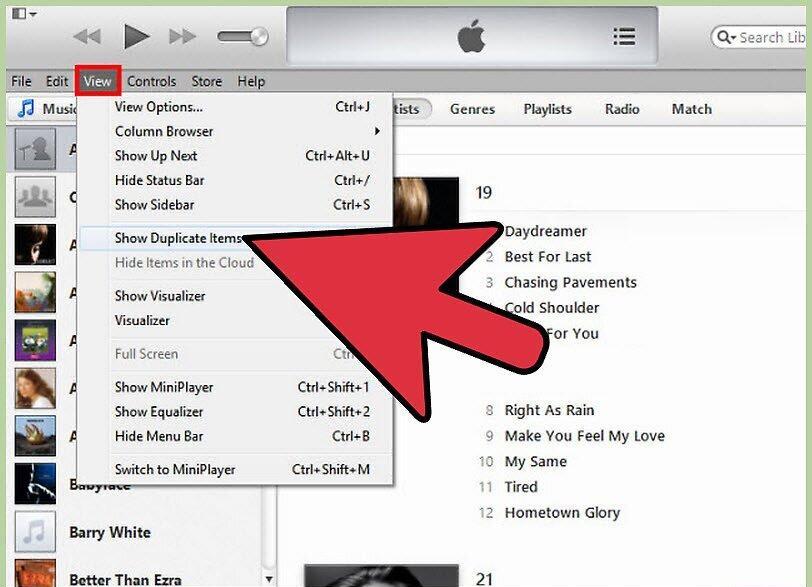
Launch your iTunes music library. On Windows 7-8, press the Alt key, on earlier versions of Windows press Shift, and on Mac press the “Option” key. Then, go to the menu “View > Display Exact Duplicate Items.” This will let you see a list of songs that have the same title, artist, and album.
- If you don’t hold down the specified keys, the default option “Display Duplicates” will be activated, which shows only tracks with the same title, ignoring album differences. This means songs that are not actually duplicates may appear in the duplicate list.
- Make sure you have the latest version of iTunes installed.
- In older versions of iTunes, the “Display Exact Duplicate Items” function is located under the “File” menu.
Step 2. Organize the duplicate list.
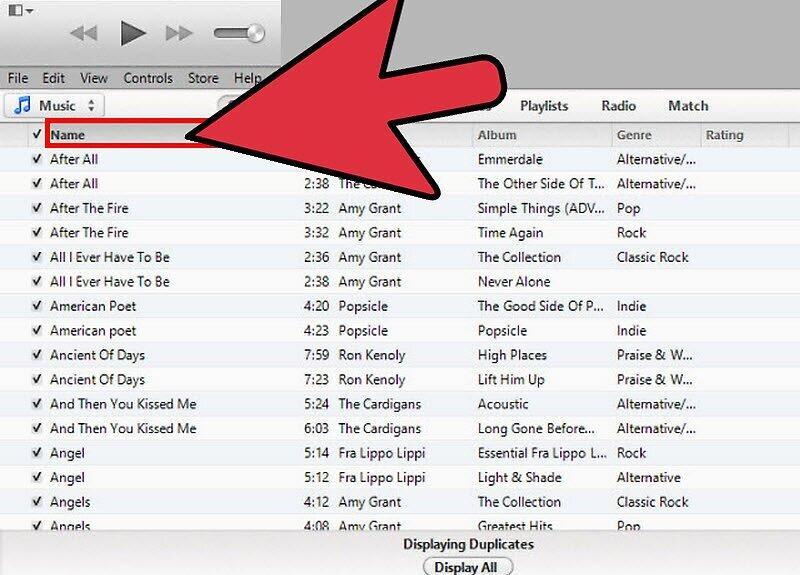
Organize the duplicate list. If you have a substantial list, it’s a good idea to sort it before deleting. This will help you more easily decide what to keep and what to remove.
- For example, you can sort tracks by date to get rid of older records, keeping only the new ones.
Step 3. Remove duplicates.
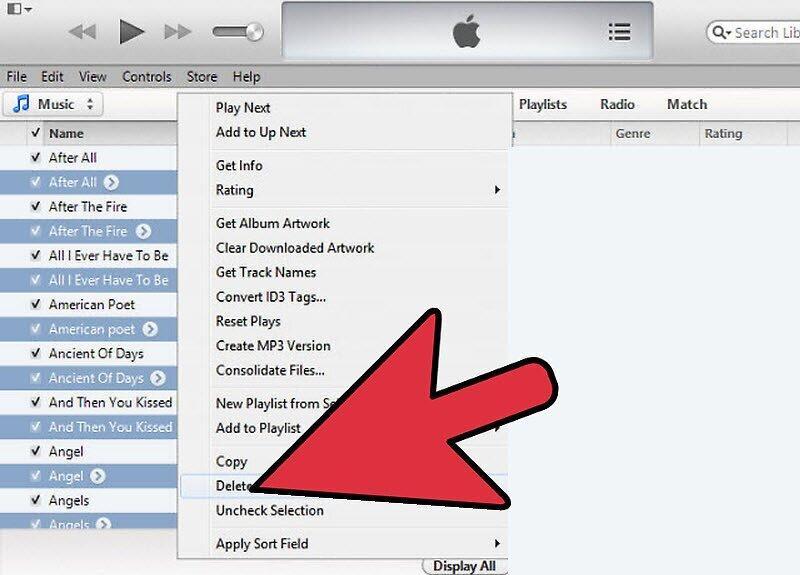
Start removing duplicates. After sorting the list, you can confidently delete unwanted tracks. You can delete them one by one by pressing Delete, or select several at once by holding down the Shift key.
How to Solve the Problem Using Third-Party Software
Step 1. Find a duplicate removal script.
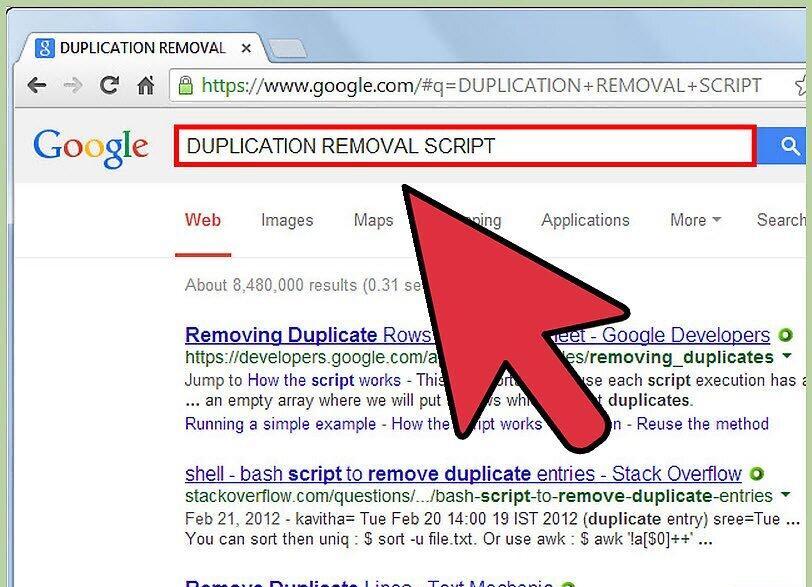
Search for a duplicate removal script. There are many popular solutions available for both Windows and Mac. Some of them may be paid. The most well-known include:
- Dupin Lite (OS X)
- DeDuper (Windows)
Step 2. Use DeDuper for Windows.
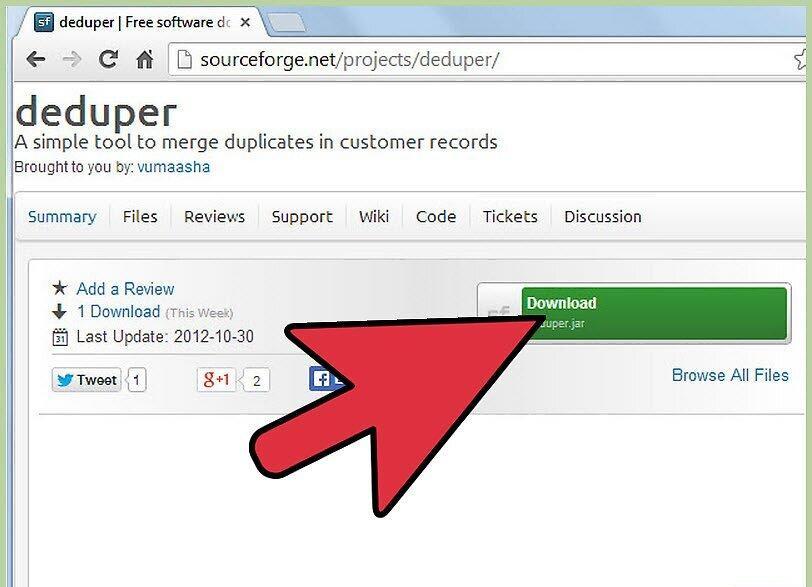
Run DeDuper on Windows. Open the duplicate list in iTunes. If you are using DeDuper, first display all duplicate tracks by selecting “View > Show Duplicate Items” in iTunes. Highlight the resulting list.
- Run the script by double-clicking the downloaded VBS file. Duplicates will be removed, and the “Played” and “Skipped” counters will merge, preserving the best rating.
- Deleted files will be sent to the recycle bin, from where they can be restored at any time.
- Keep in mind that running the script may take some time, especially if you have a large music collection.
- Only one record from each group of duplicates will remain — the one with the largest file size and thus the highest quality.
Step 3. Use Dupin for Mac.
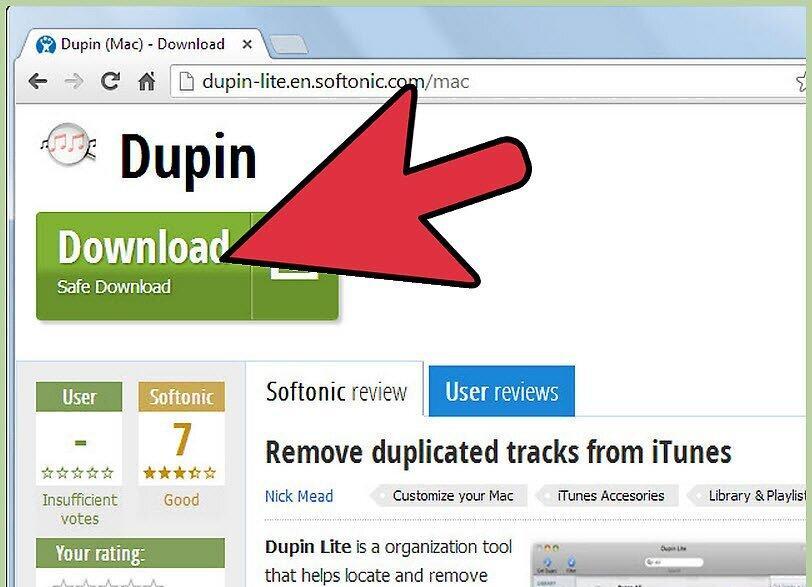
Run Dupin for Mac. Open the Dupin Lite application and select the library in which you want to find duplicates.
- Set the criteria for identifying duplicates.
- Click “Filter” to choose which copy to keep — the oldest, the most frequently played, the highest quality, etc.
- After that, click “Get Dupes.” A list of duplicates will appear. Tracks that meet your criteria will not be removed, and the rest can be safely deleted.


