
Netflix provides viewers with a rich library of movies, TV shows, and original content at affordable prices. You can enjoy Netflix on almost any device, from computers and smartphones to smart TVs and gaming consoles. In this article, we will guide you through the process of launching Netflix on different devices.
Smart TV
Step 1. Connect your TV to the Internet.
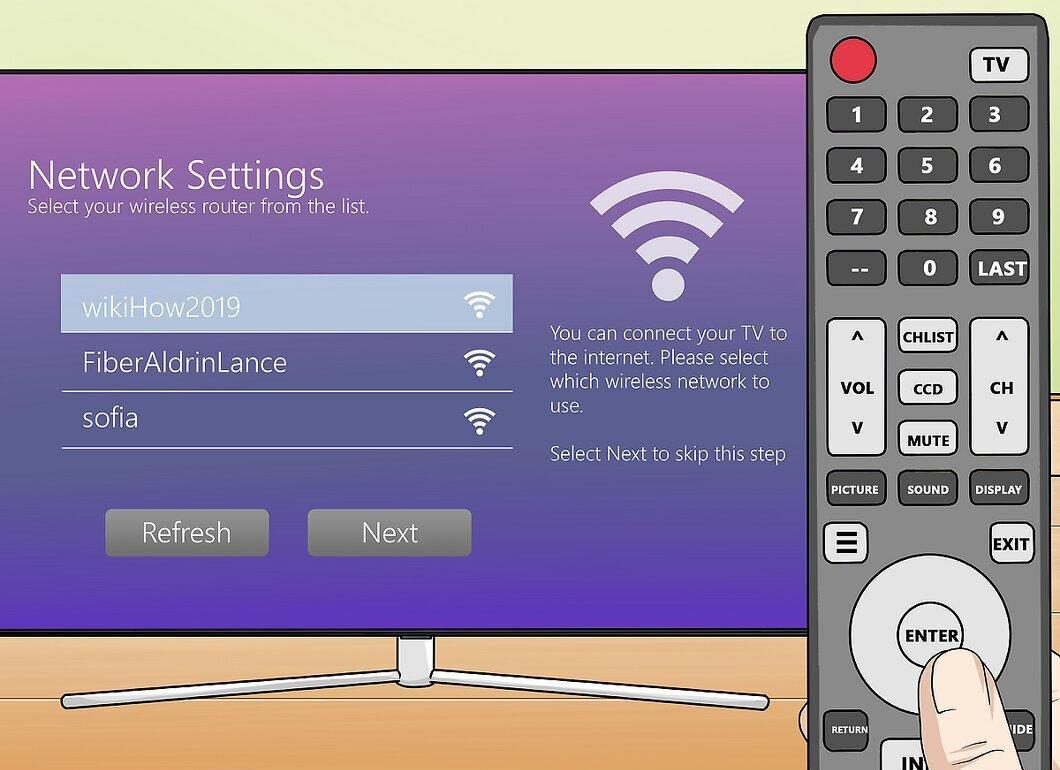
First, it’s important to connect your TV to your home network. You can do this via an Ethernet cable for a stable connection or through Wi-Fi. If your TV doesn’t support Smart TV, you can connect a streaming device like Roku, Google Chromecast, Firestick, or Apple TV.
- Wired connection — offers a more reliable connection. Connect one end of the Ethernet cable to the modem and the other to the TV.
- Wireless connection — go to the settings menu on your TV, find the network section, select your Wi-Fi network, and enter the password using the remote. Note that the menu may vary depending on your TV model.
Step 2. Find the installed apps.
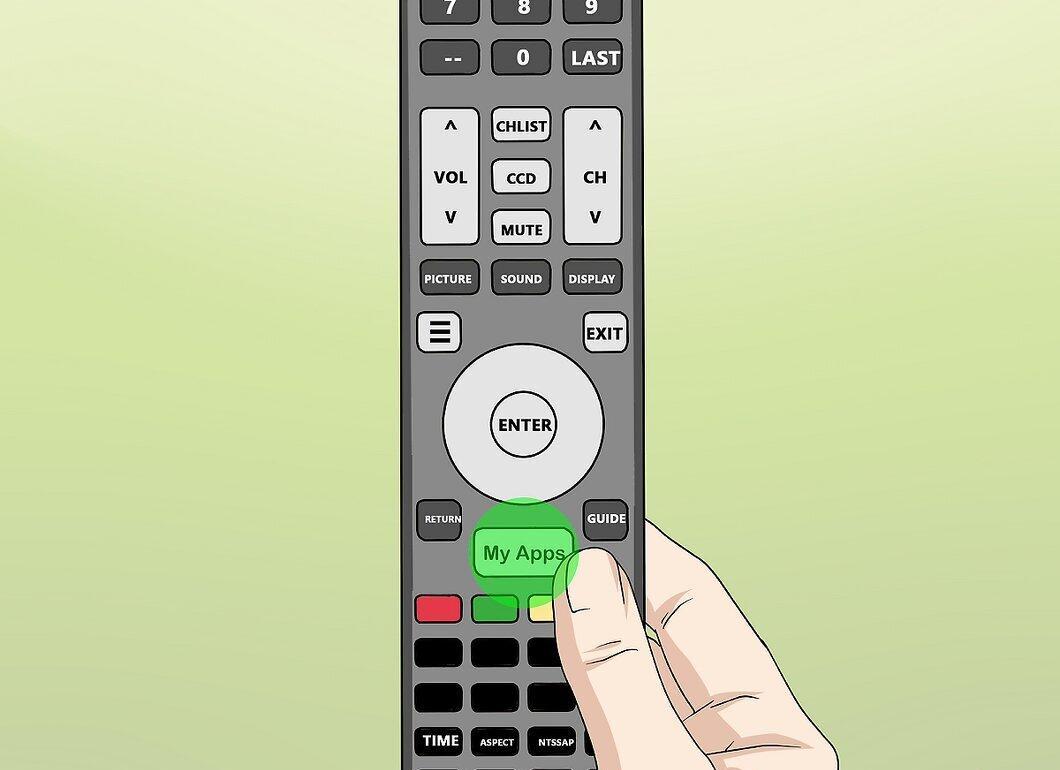
Now, open the list of apps on your TV by pressing the corresponding button on the remote, usually marked with the manufacturer’s logo. Use the TV remote, not a universal one.
- Samsung — the button looks like a colorful cube.
- LG — look for "My Apps".
- Sony — find "Internet Apps" or "Netflix".
- Panasonic — press the "Apps" button.
- Vizio — press the button with the Vizio logo or select "SmartCast".
Step 3. Launch the Netflix app.
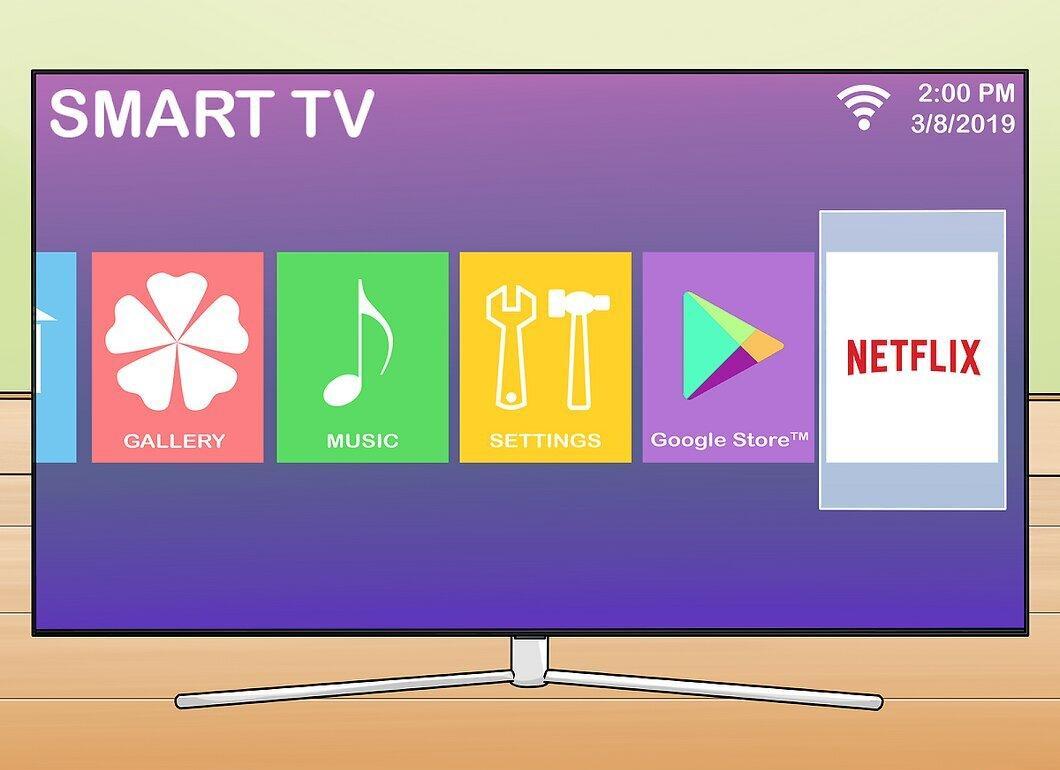
Select and open the Netflix app. Its icon features the red word "Netflix" on a black background. Navigate through the apps using the arrows on the remote and press "Enter" or "Ok" to launch.
- If Netflix is missing from the list, install it from your TV’s app store.
- Sometimes, you may need to update your TV's firmware to access streaming services. Download the update to your computer, transfer it to a USB drive, and load it into the TV. Instructions can be found on the manufacturer’s website.
Step 4. Sign in to your Netflix account.
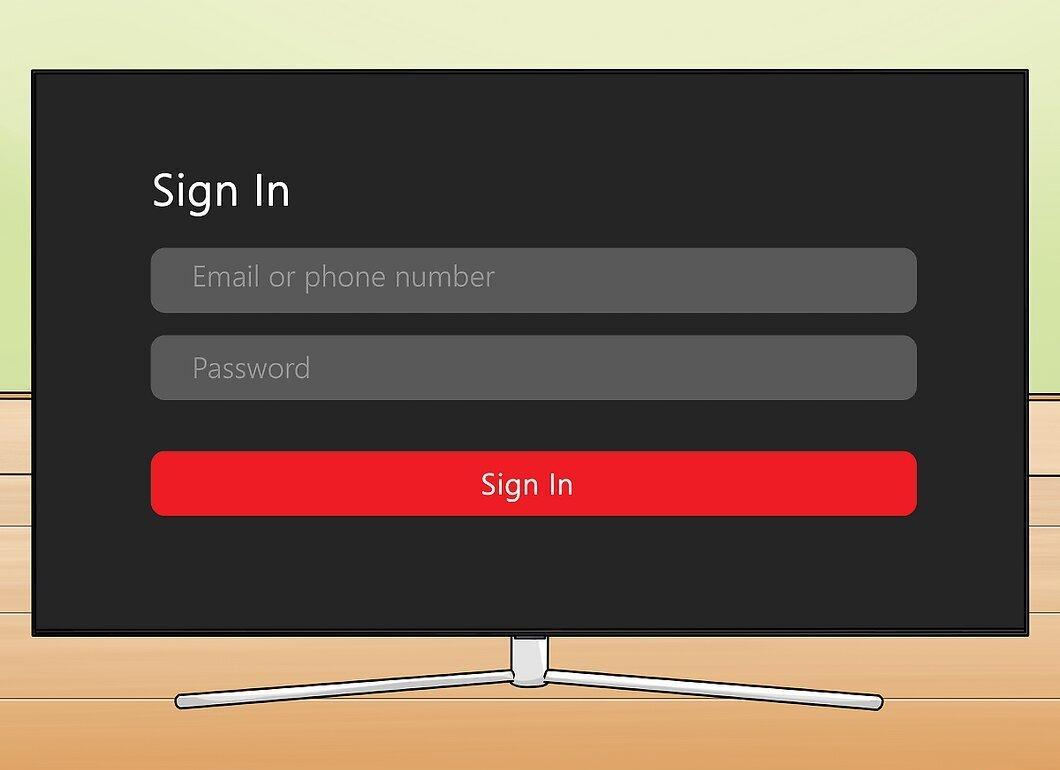
Enter your email address and password using the on-screen keyboard. Then, select "Sign In" and press "Enter" or "Ok".
- A Netflix subscription plan is required to watch content. If you don’t have an account yet, sign up on the Netflix website.
- If you have multiple profiles, select the desired one.
Step 5. Find the video you want to watch.
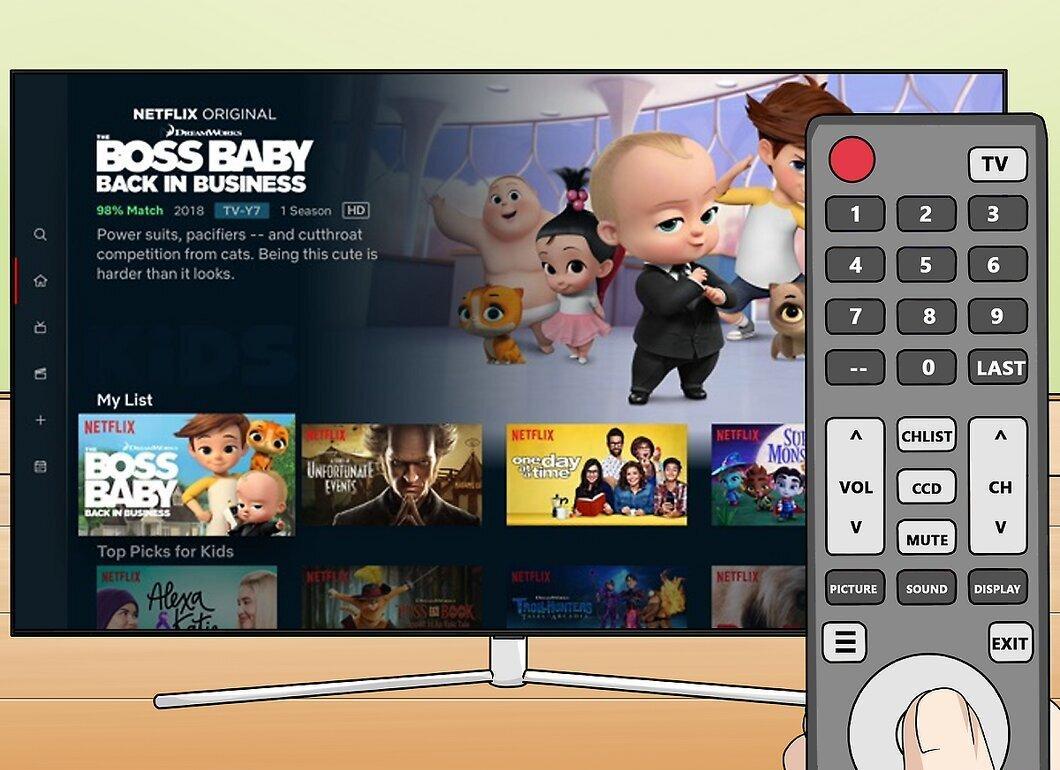
Navigate through the Netflix menu using the remote. Highlight the desired video and press "Select" or "Enter" to start playback.
- To watch a series, select the desired episode. Use the remote to choose "Seasons", then select the season and episode before pressing "Enter" or "Ok".
Google Chromecast
Step 1. Install the Netflix app on your mobile device.
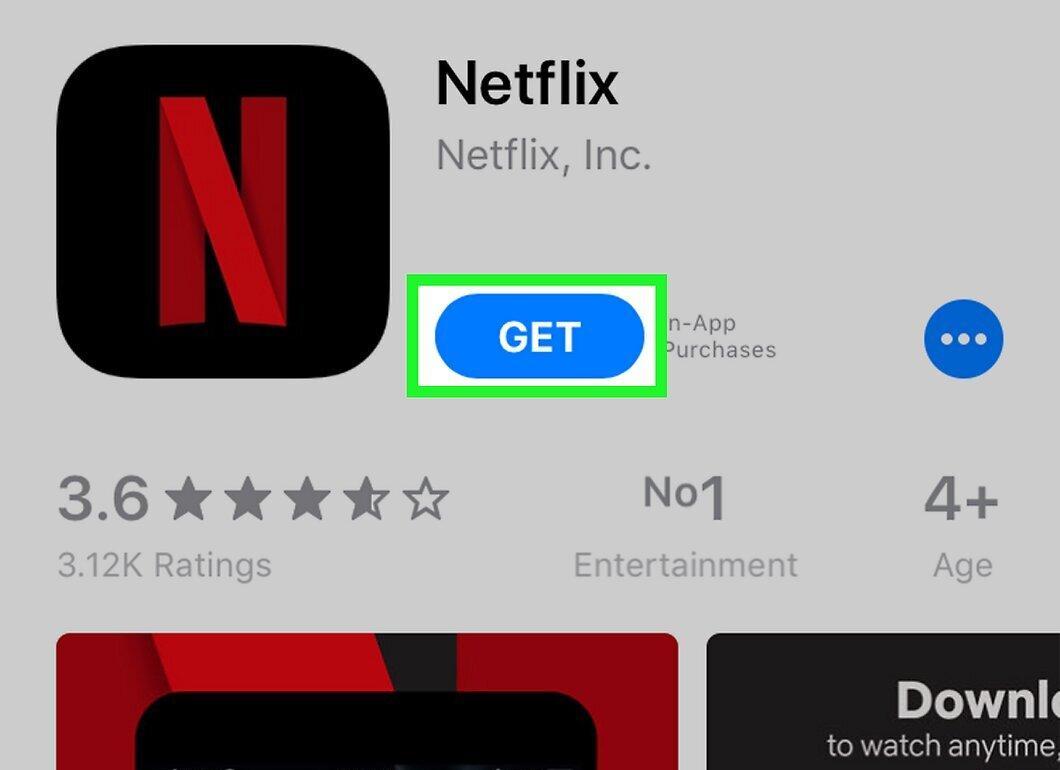
Download the Netflix app from the Play Store or App Store on your Android or iPhone.
- Open the app store.
- Go to the "Search" section.
- Type "Netflix" and select it from the list.
- Tap "Install" or "Download".
Step 2. Connect Chromecast to your TV.
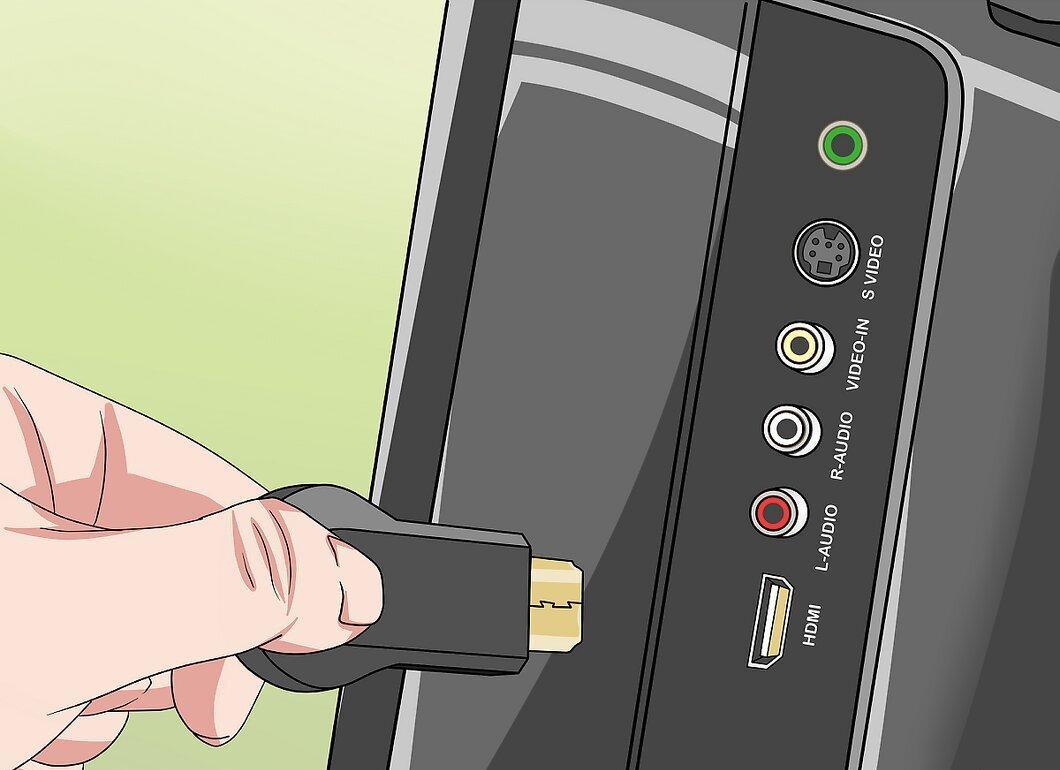
Plug Chromecast into the HDMI port on your TV. HDMI ports are usually numbered, so remember which one you connected the device to.
- If the cable is short, use the extender that comes with it.
Step 3. Connect Chromecast to a power source.
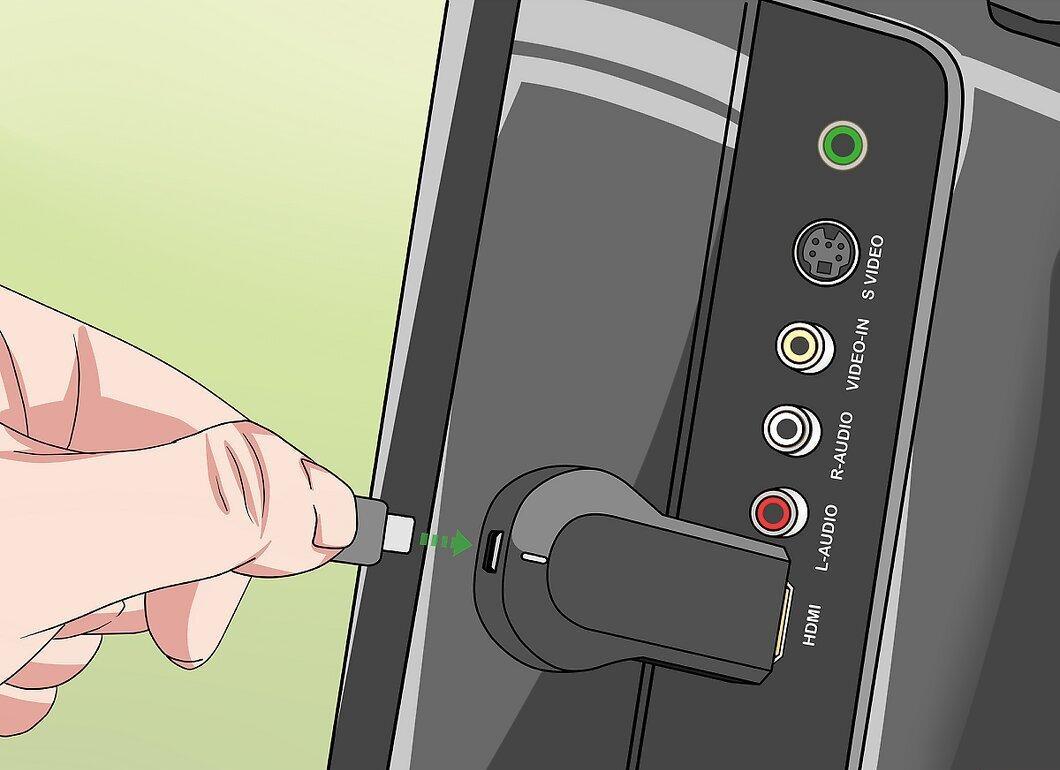
Connect Chromecast to a power source. Use the USB cable that comes with it and plug it into a power adapter or into the TV’s USB port. Note that some ports may not provide enough power for Chromecast.
Step 4. Turn on the TV.
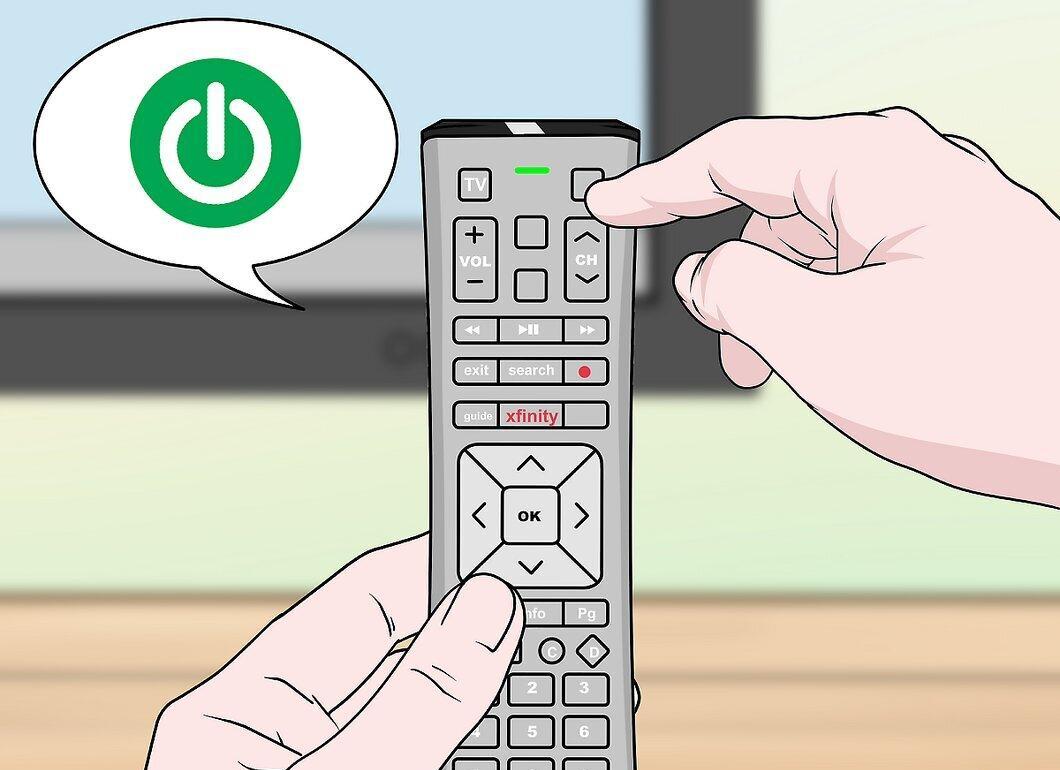
Press the power button on the TV, usually represented by a circle with a vertical line.
Step 5. Set the TV to the correct HDMI port.
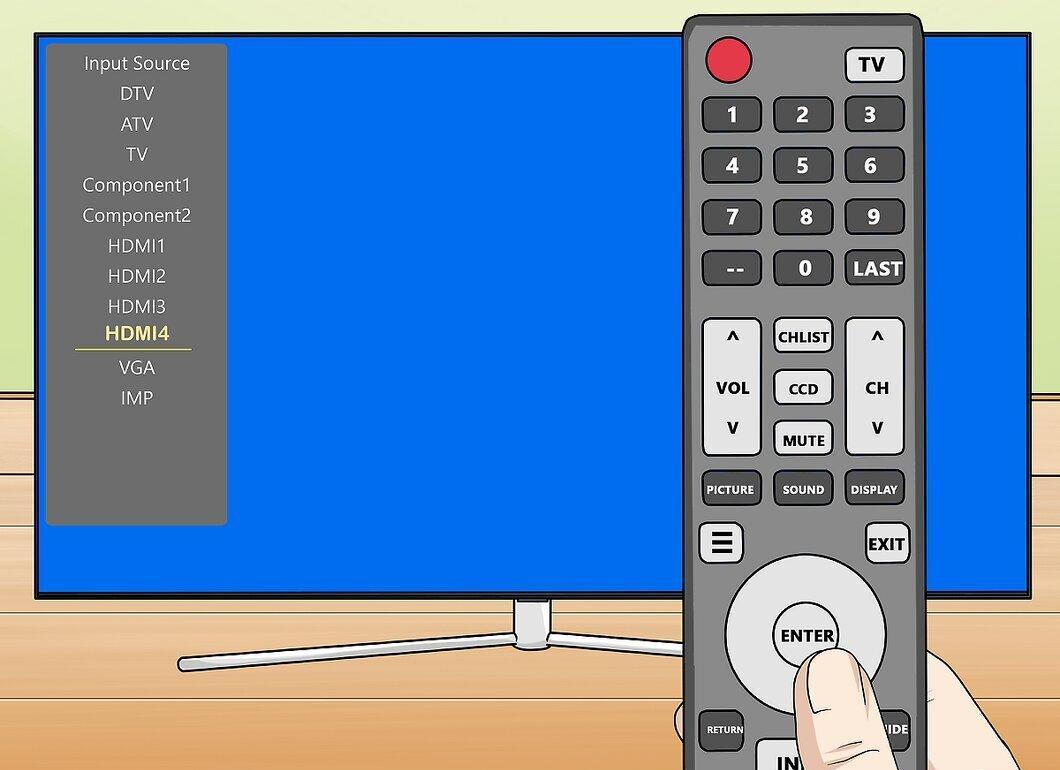
Select the signal from the HDMI port where Chromecast is connected by pressing the "Source" or "Input" button on the TV remote.
Step 6. Set up Chromecast.
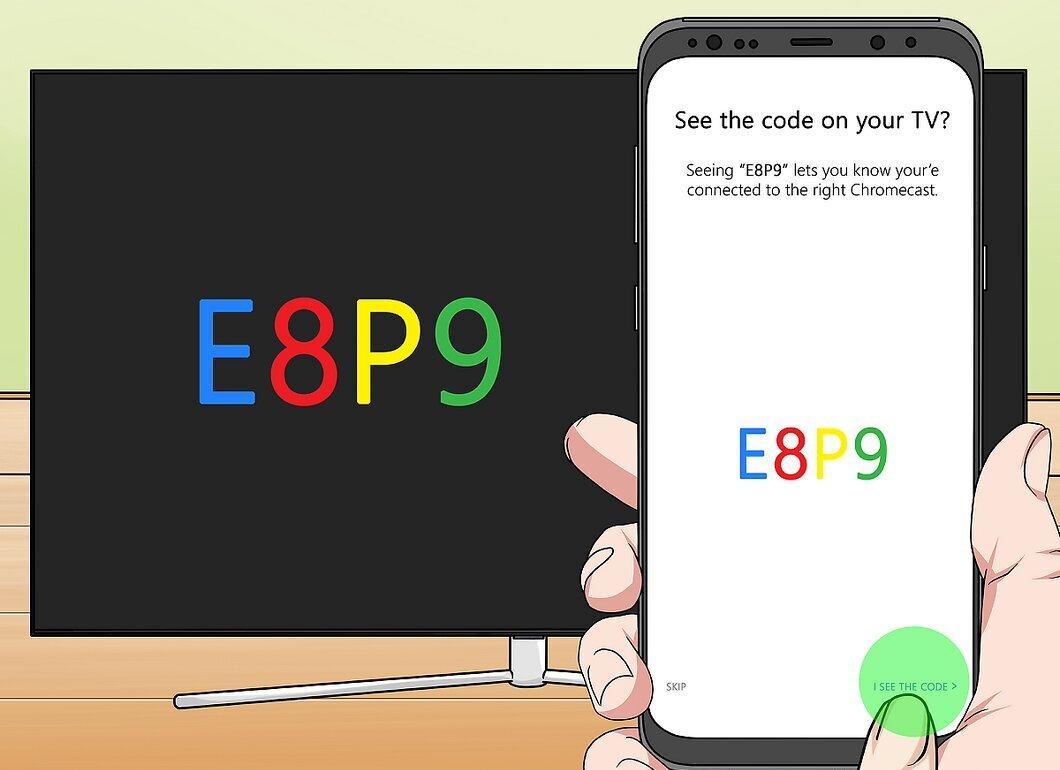
To set up Chromecast:
- Download the Google Home app from the Play Store or App Store.
- Open Google Home.
- Tap the "+" icon, select "Set up device", then "Set up new devices in your home".
- Choose your home name and tap "Next".
- Select your Chromecast and tap "Next".
- Compare the code on your smartphone screen with the code on the TV and then tap "Yes".
- Choose a room for the device and tap "Next".
- Specify the wireless network and tap "Next".
- Tap "Next" several times, select Netflix and other services, then tap "Continue".
Step 7. Launch the Netflix app on your mobile device.
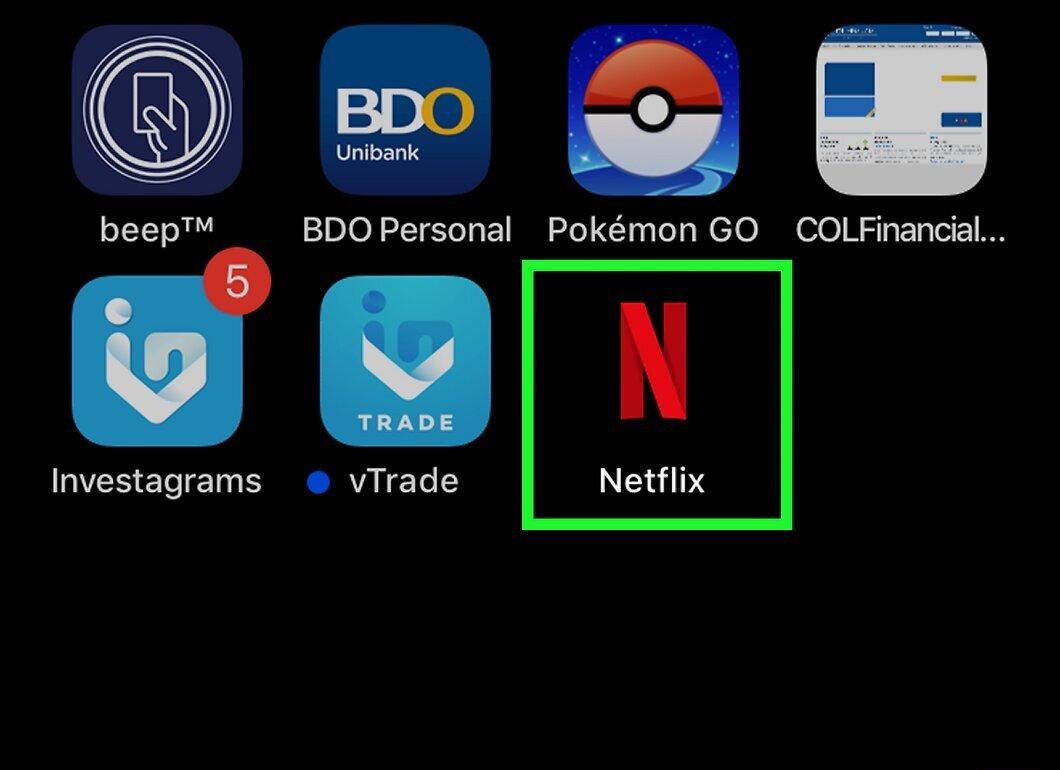
Open the Netflix app. Tap on the icon with the red logo on a black background.
- If you have not logged in yet, enter your credentials.
- Select the desired profile if there are multiple.
Step 8. Find the video to watch.
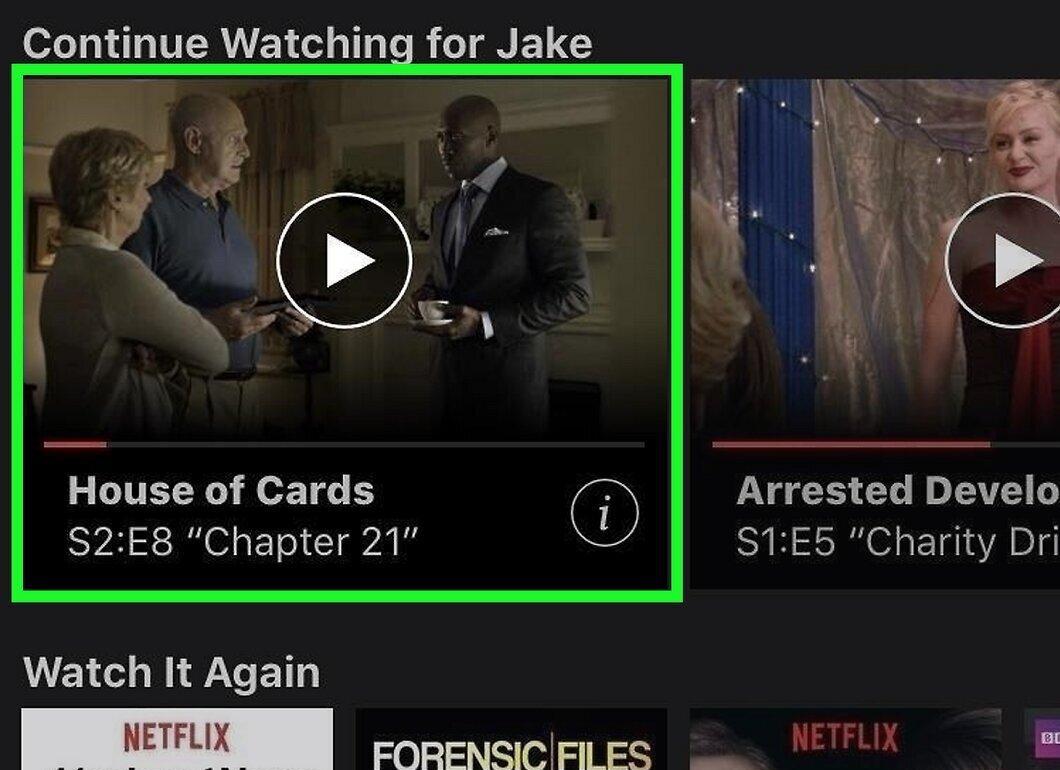
Select the video you want to watch and tap on it.
Step 9. Start playback.
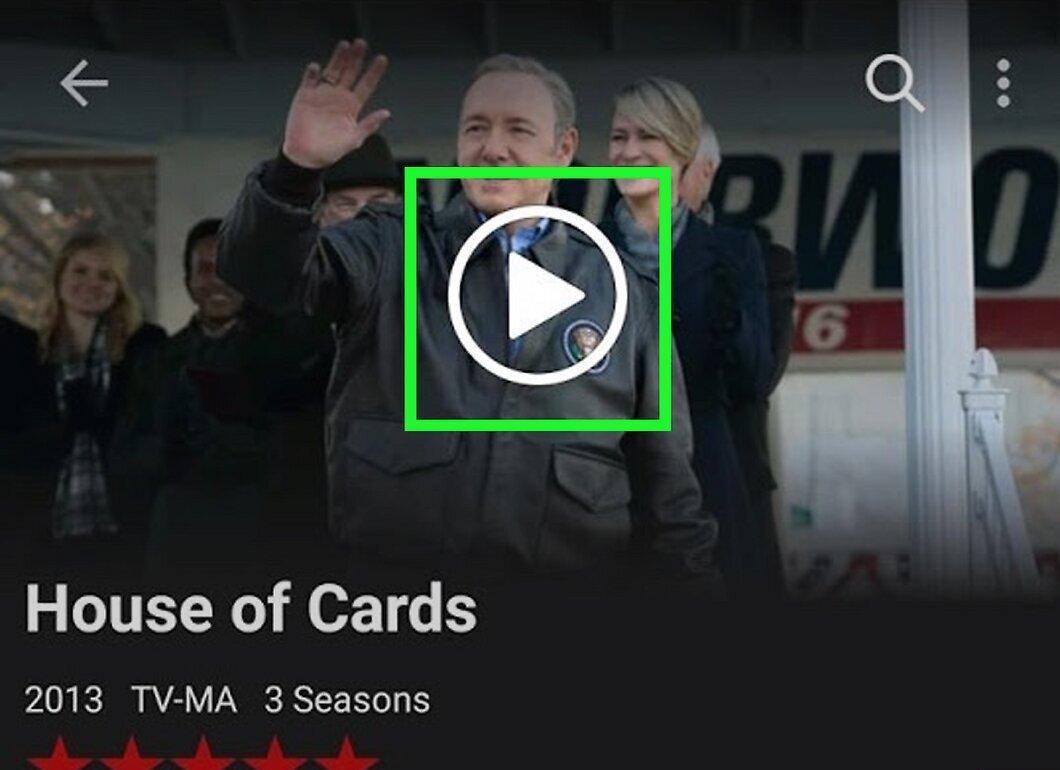
Tap the play icon to start the video.
Step 10. Choose the device for casting.
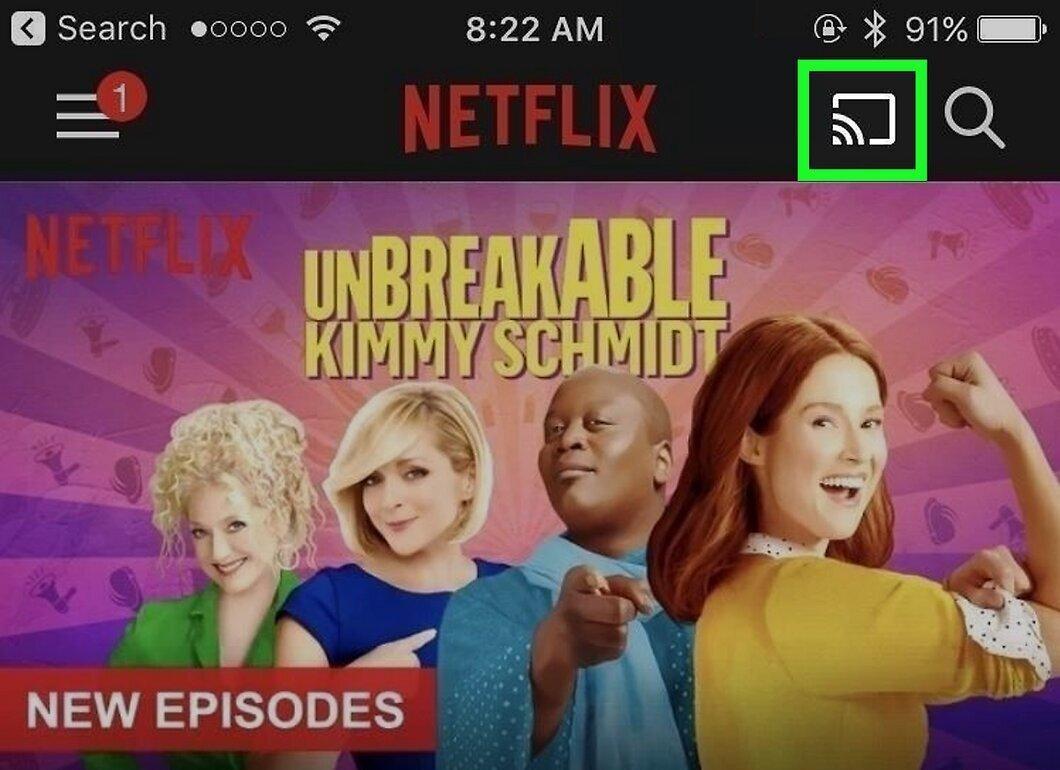
Tap the cast icon in the upper right corner of the screen. Select your Chromecast from the list of available devices.
Step 11. Confirm connection to Chromecast.
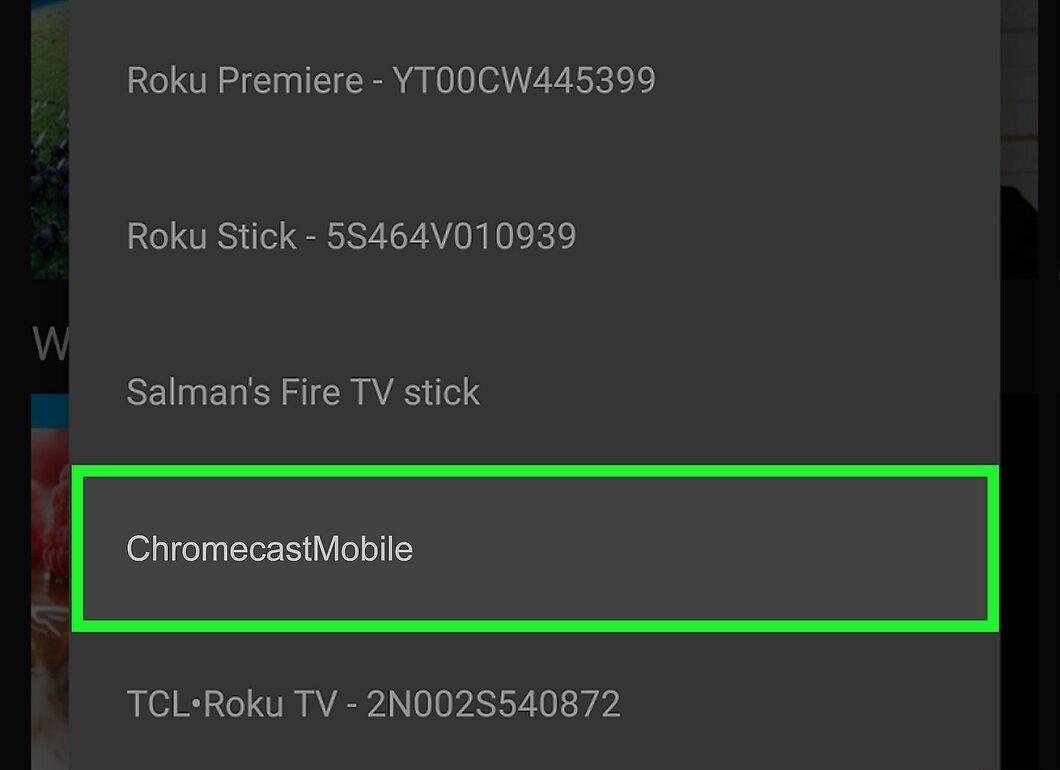
After that, the video will start playing on your TV screen. Make sure your mobile device is connected to the same network as Chromecast.
Step 12. Control playback through the Netflix app.
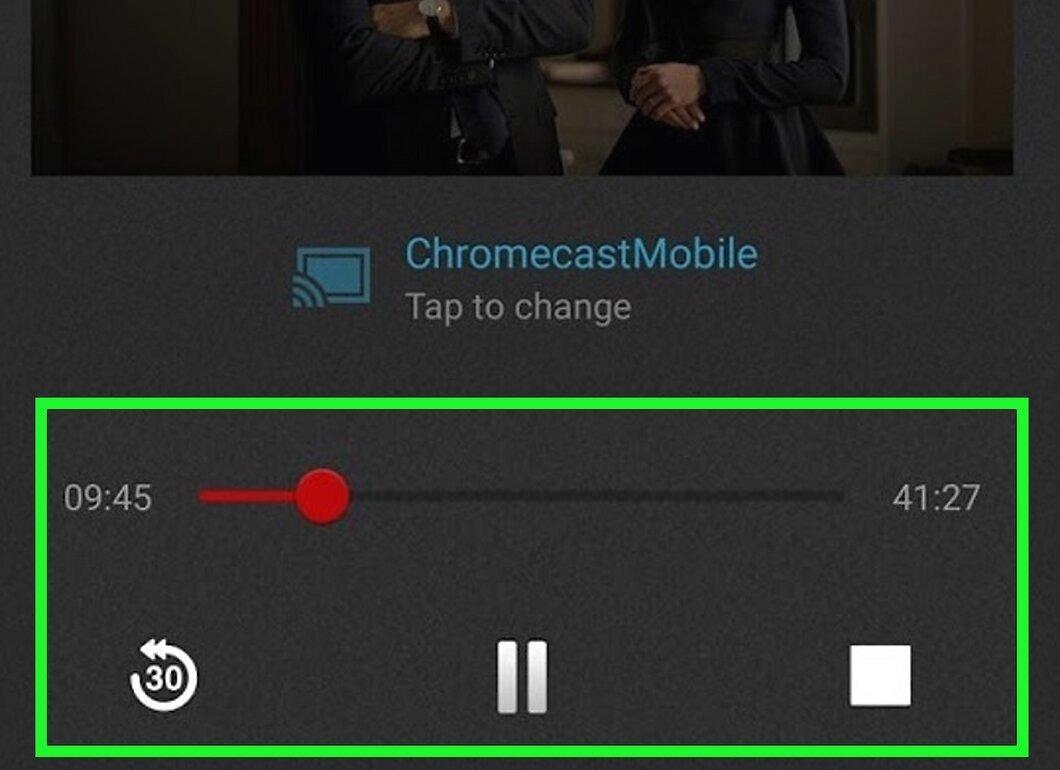
You can control video playback through the app. To pause or play, just use the icons in the notification panel. The Chromecast setup is only required once — afterward, just turn on the TV, select Chromecast, and open Netflix on your smartphone.
- To watch a series, select the desired episode as mentioned earlier.
Laptop
Step 1. Connect your laptop to the TV using an HDMI cable.
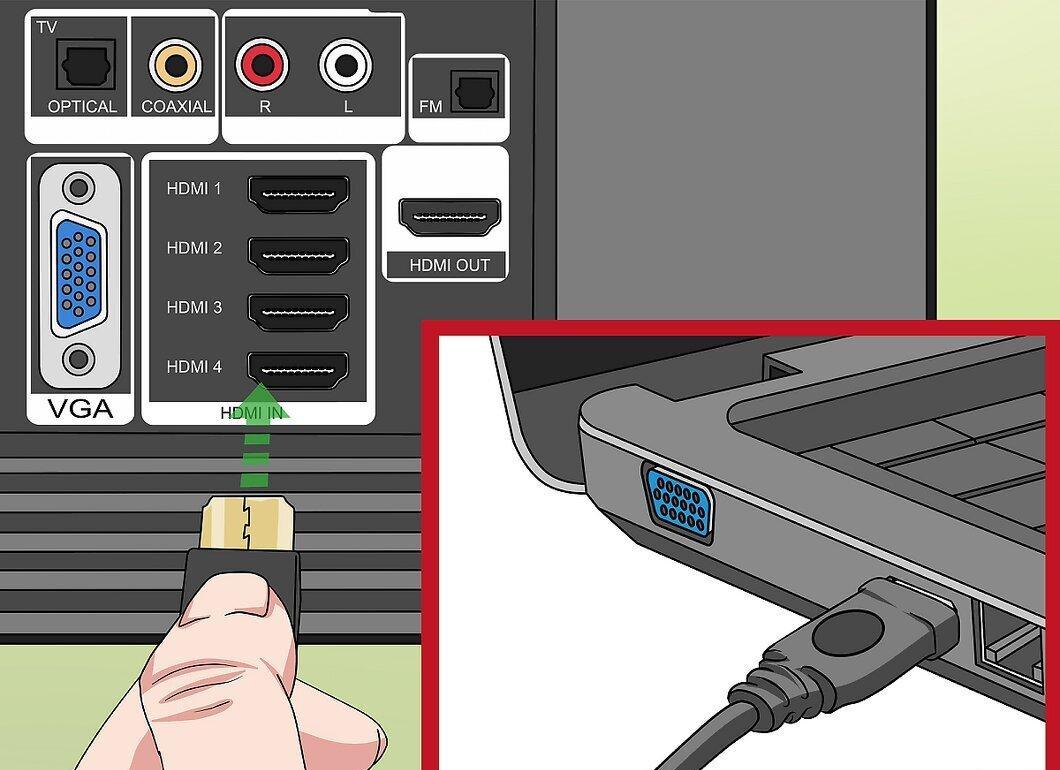
Connect the laptop and TV using an HDMI cable, plugging one end into the laptop and the other into the TV. Remember which HDMI port you connected the cable to.
- If your laptop doesn’t have an HDMI port, look for a DisplayPort or Micro HDMI; in this case, you may need an adapter. Bluetooth can also be used for connection but may lead to audio and video desynchronization.
- For older laptops, use DVI or VGA with an HDMI adapter. Note that audio will not be transmitted, so an additional audio cable will be needed.
Step 2. Turn on the TV and select the HDMI source.
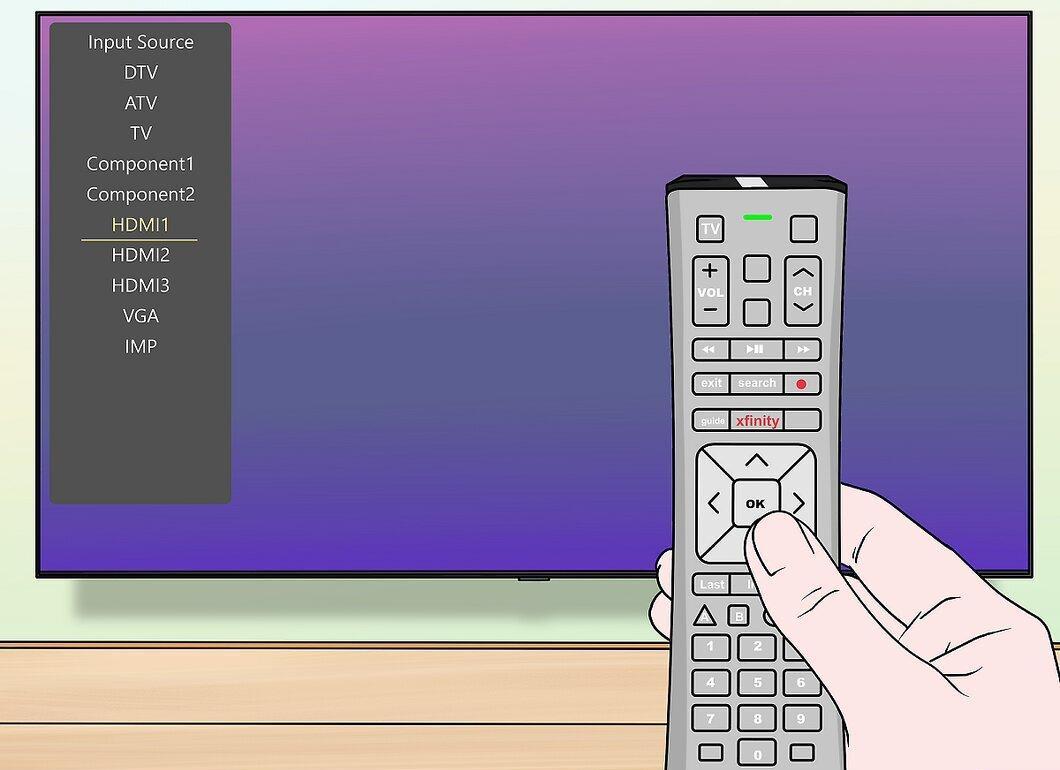
Turn on the TV and select the input from the HDMI port to which the laptop is connected by pressing the "Input" or "Source" button on the remote.
Step 3. Go to the Netflix website.
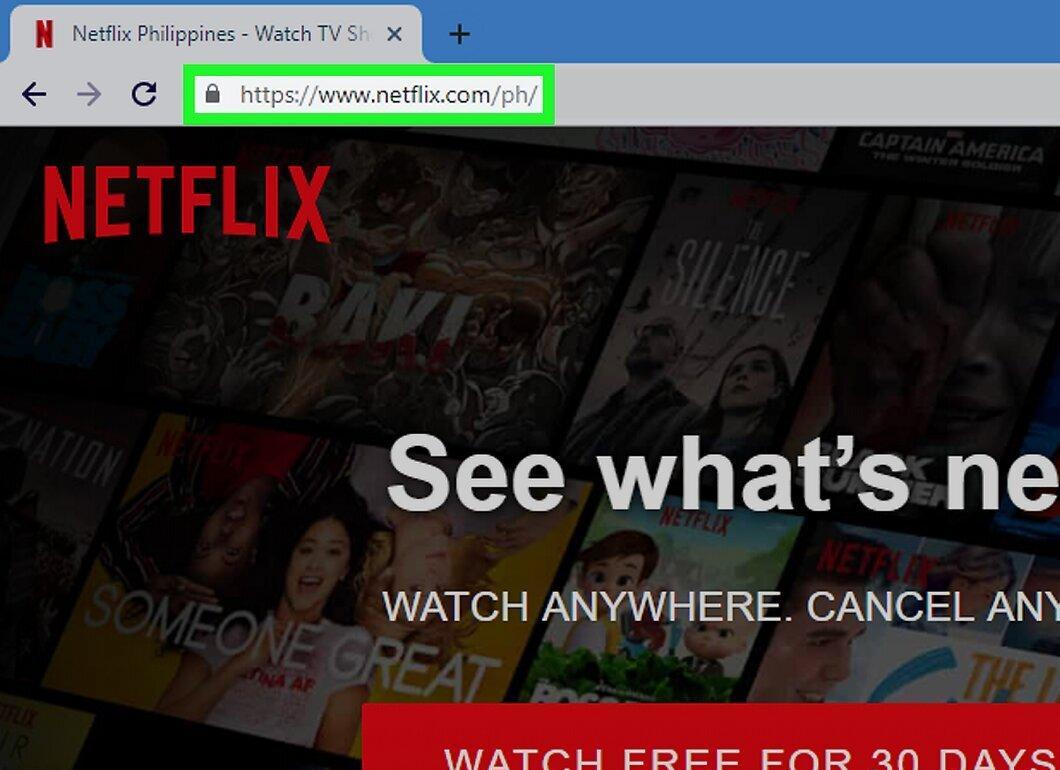
Visit https://www.netflix.com through the browser on your laptop. If you are not logged in yet, click "Sign in" in the upper right corner.
- Select the desired profile if you have multiple.
Step 4. Select a video.
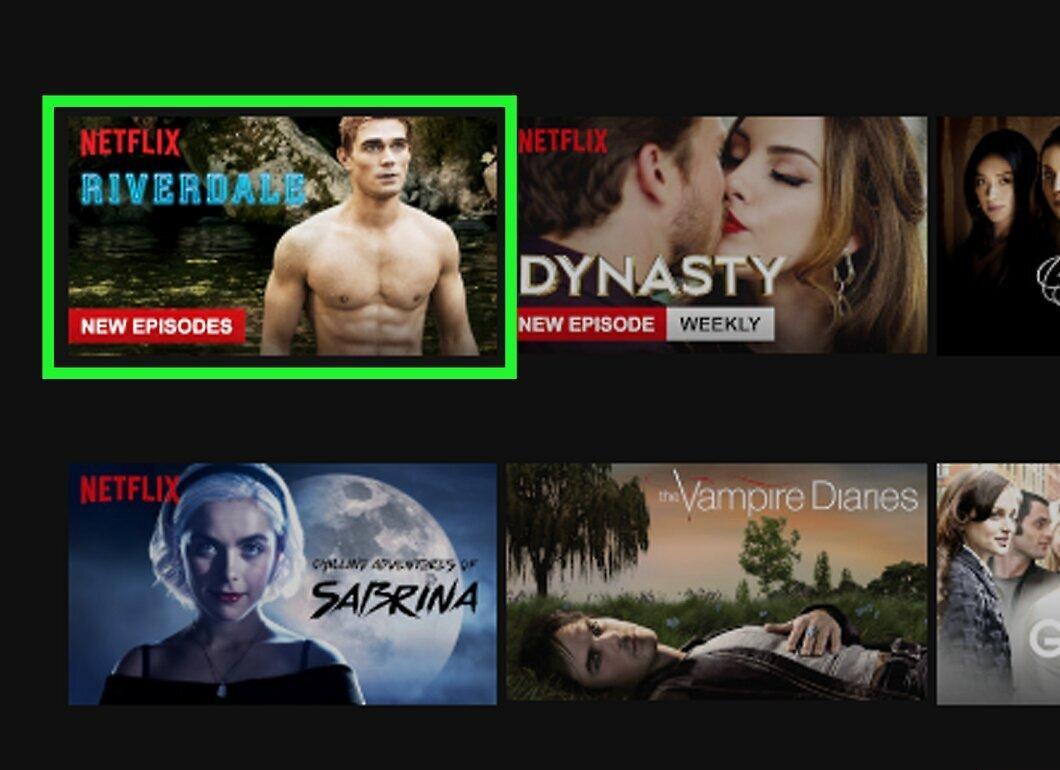
Click on the video you want to watch. A page with information about the video will open.
Step 5. Start playback.
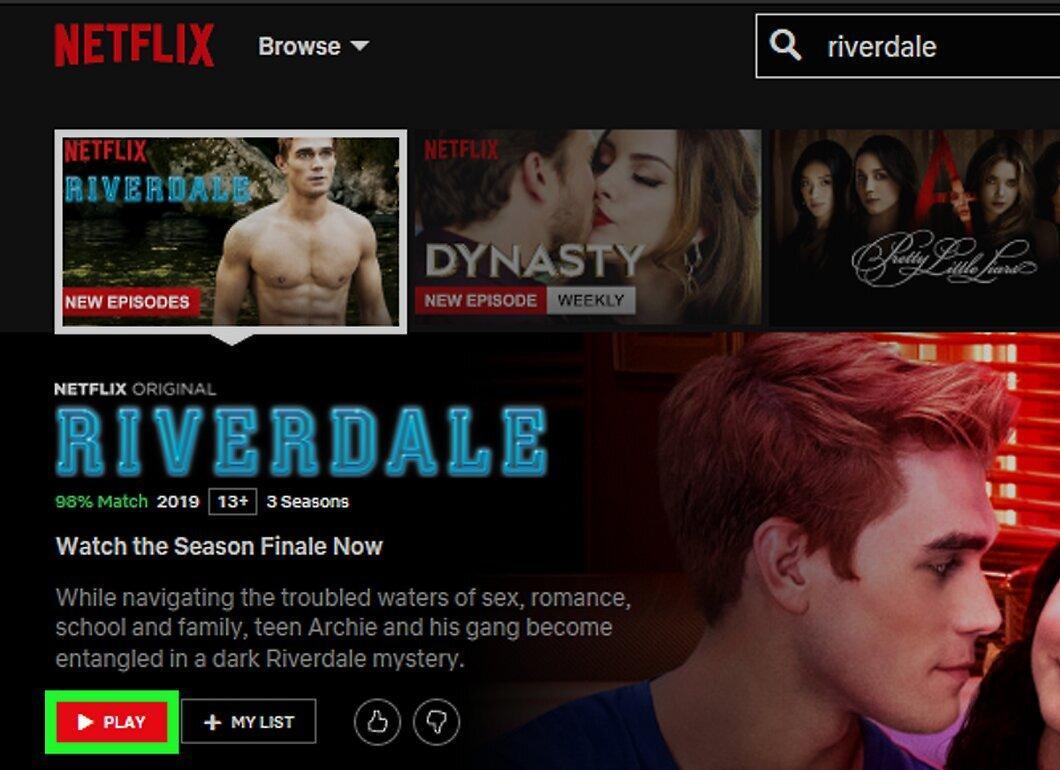
Click the play button to start watching. You can control playback directly from the browser.
- To watch a series, select a specific episode as described above.
- You can also use screen mirroring to watch videos from the laptop on the TV.
Apple TV
Step 1. Connect Apple TV to the TV via HDMI cable.
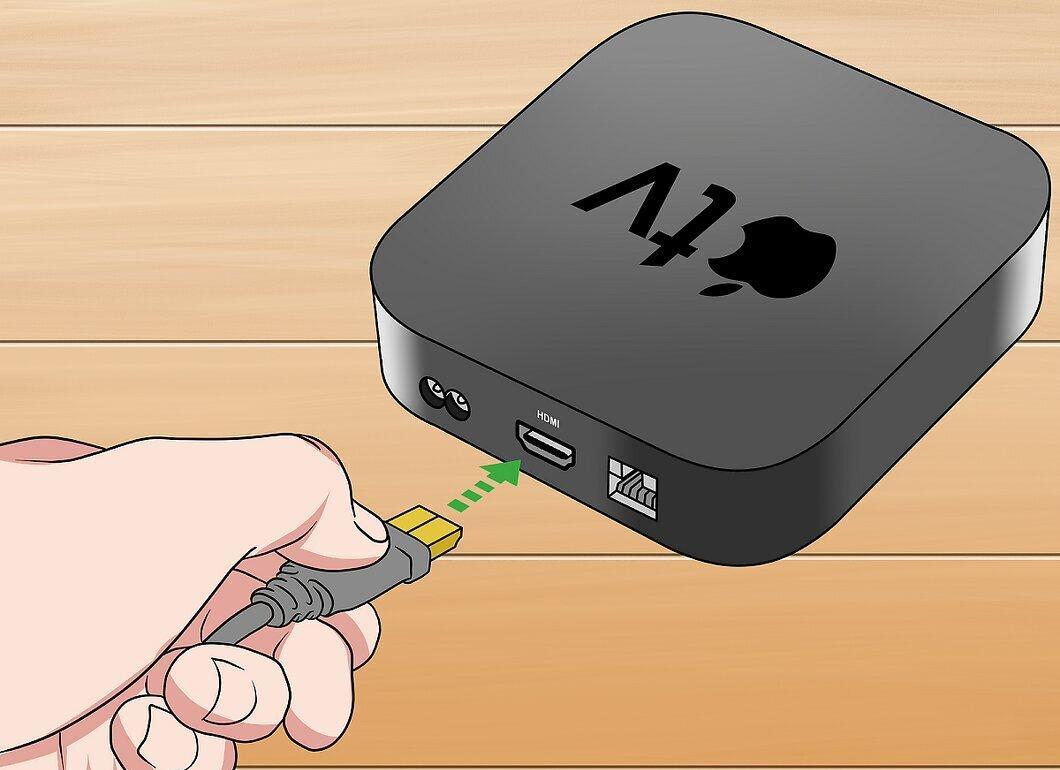
Connect Apple TV to the TV using an HDMI cable, noting that new models require an HDMI port.
Step 2. Connect Apple TV to a power source.
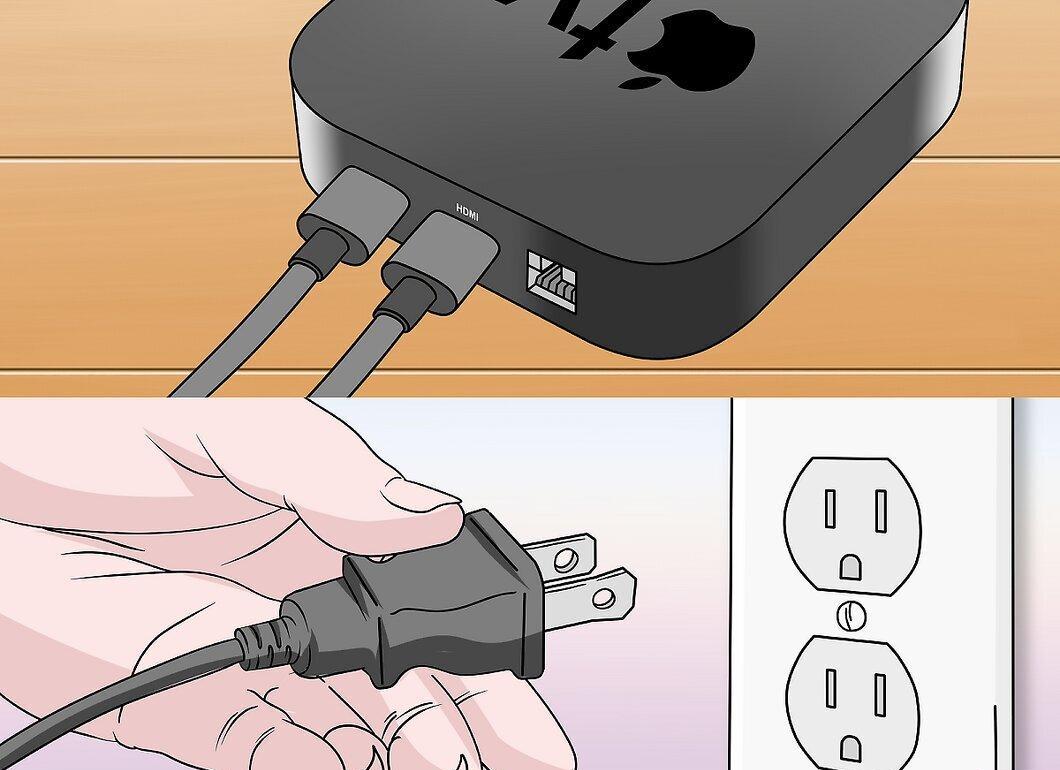
Connect the device to a power source. This is necessary for it to function.
- You can connect Apple TV to the internet via Ethernet using a cable.
Step 3. Select the HDMI port on the TV.
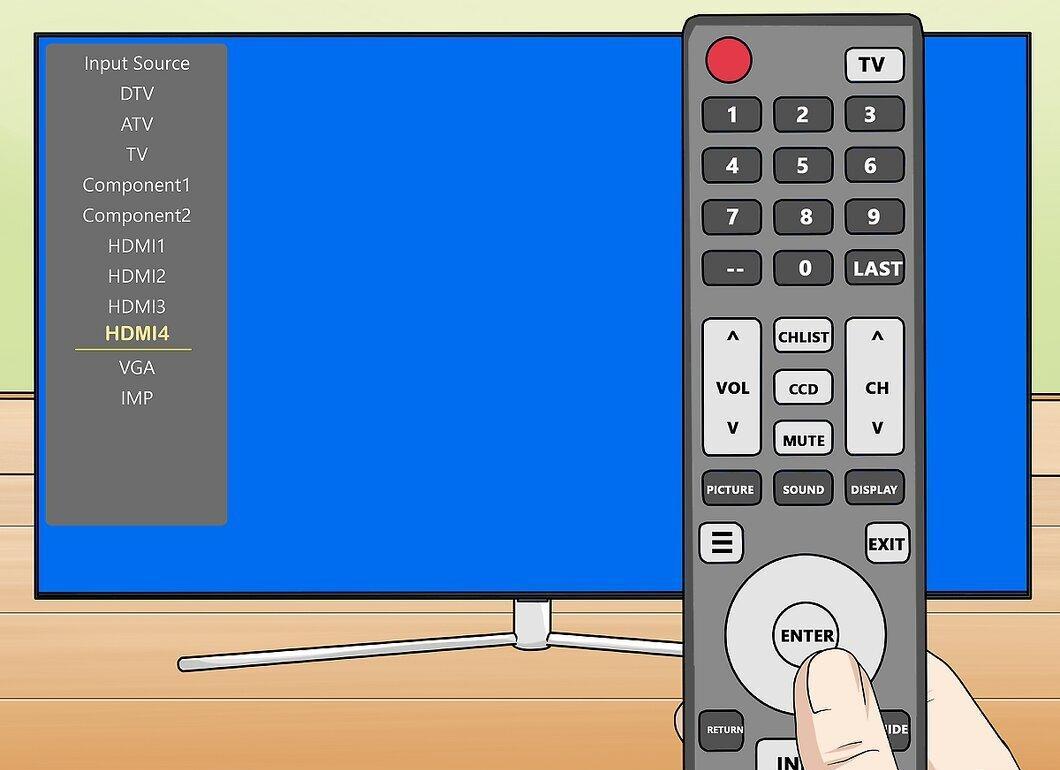
Set the TV to the HDMI port that Apple TV is connected to using the remote.
- If you haven’t set up the device yet, follow the on-screen instructions.
Step 4. Find and open the Netflix app.
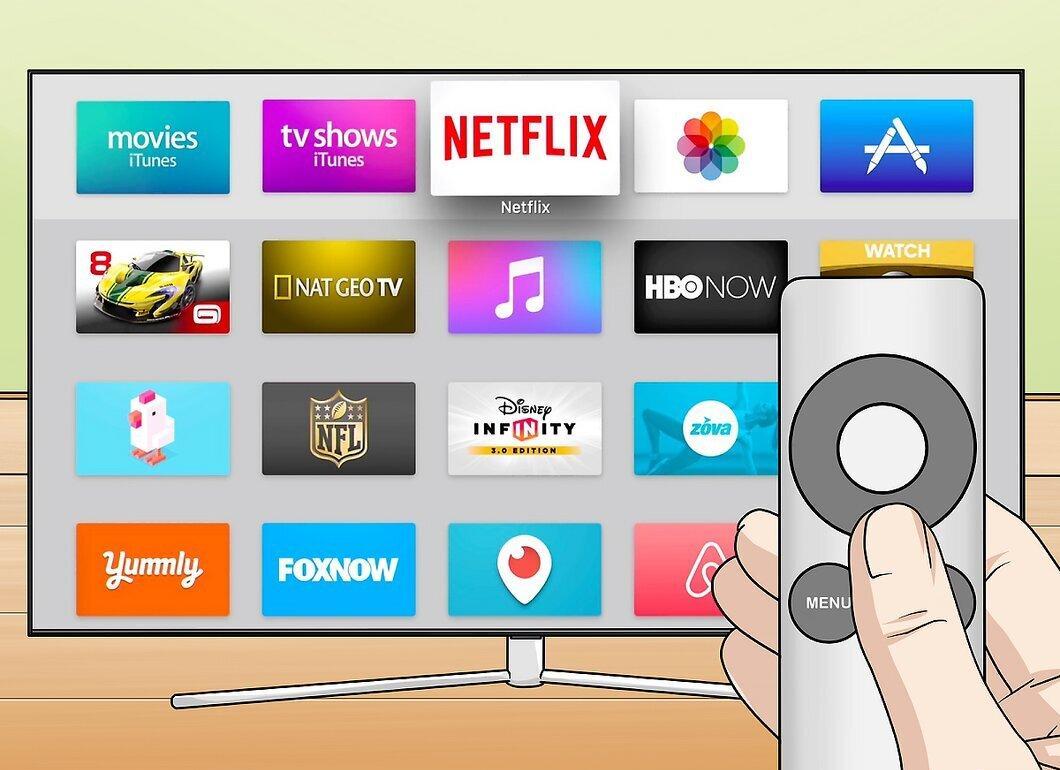
Using the Apple TV remote, find and launch the Netflix app, which is usually located at the top of the app list.
Step 5. Sign in to your Netflix account.
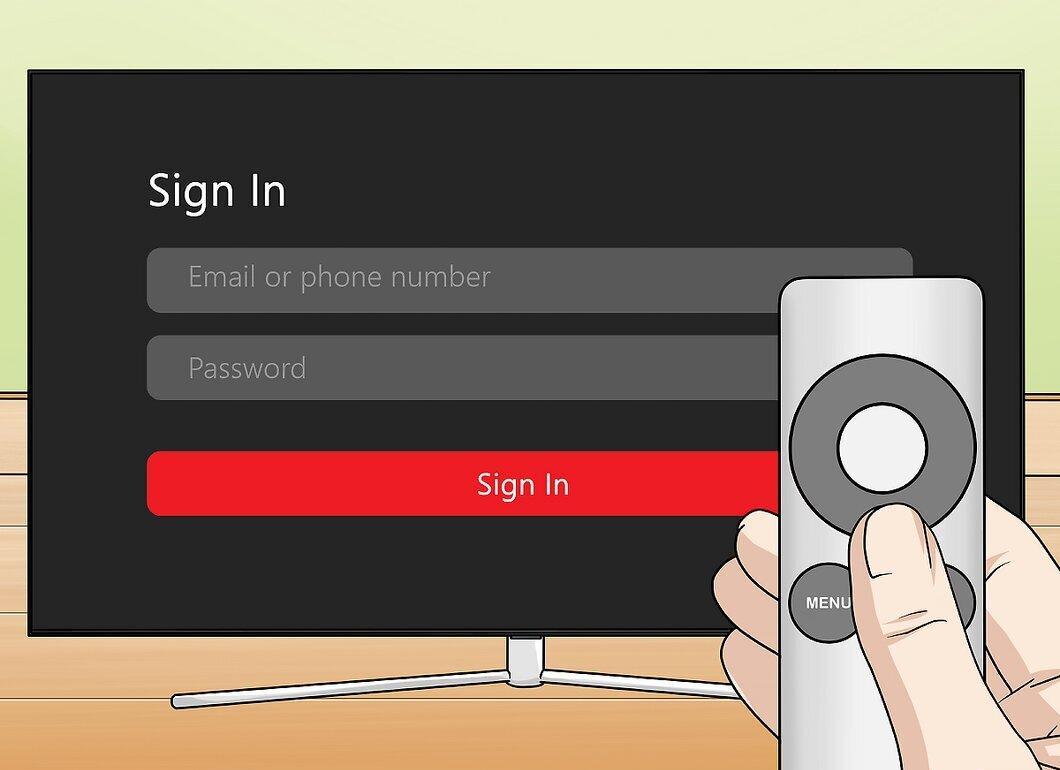
Enter your email address and password using the remote to log into your Netflix account and select your profile.
Step 6. Select your profile.
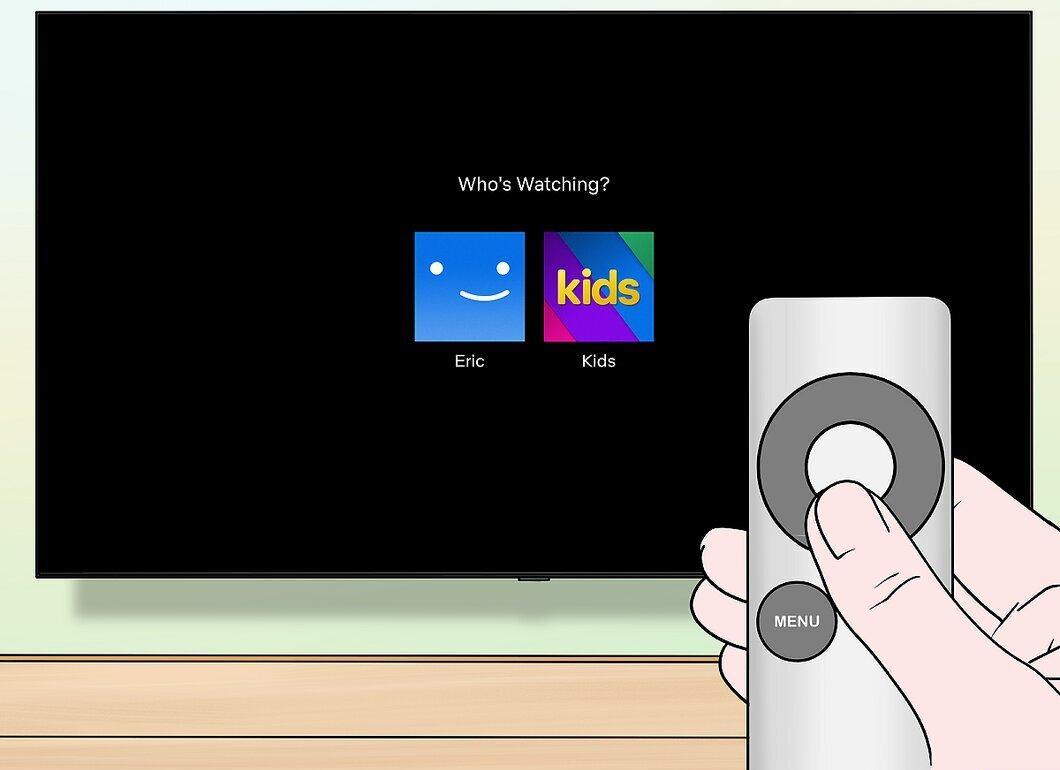
Step 7. Find and play the video.
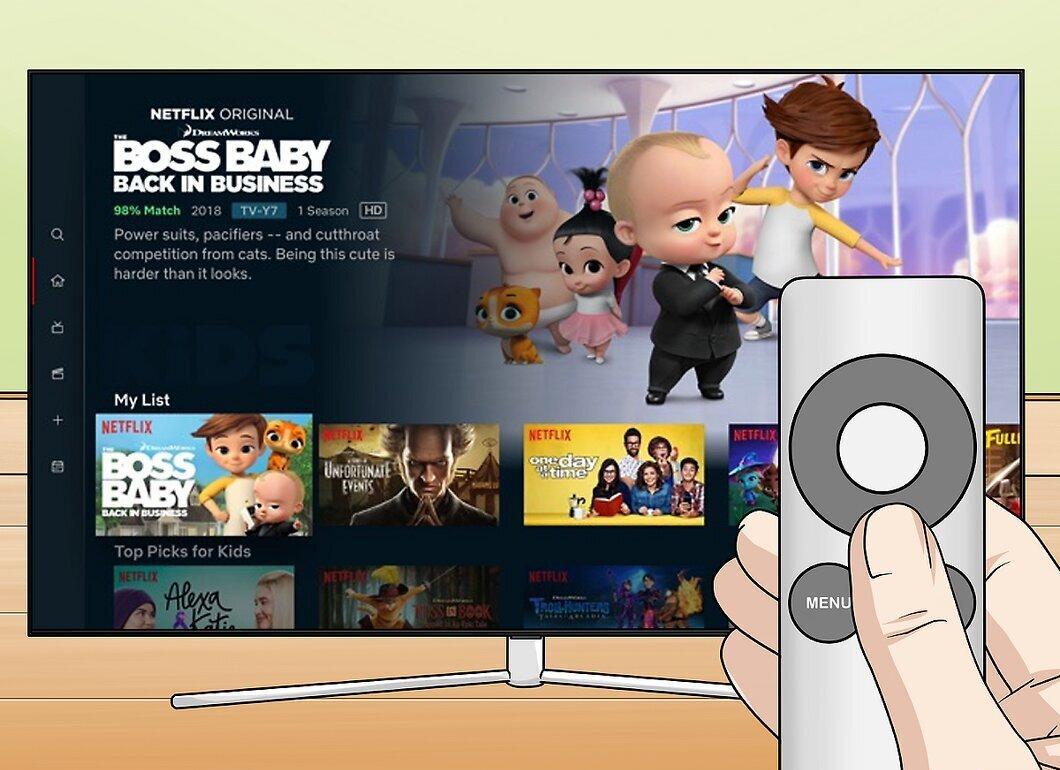
Find the desired video and play it using the remote. You can browse the media library or use the search function to find a movie or series.
- To watch a series, select the desired episode as described above.
Gaming Console
Step 1. Turn on the gaming console.
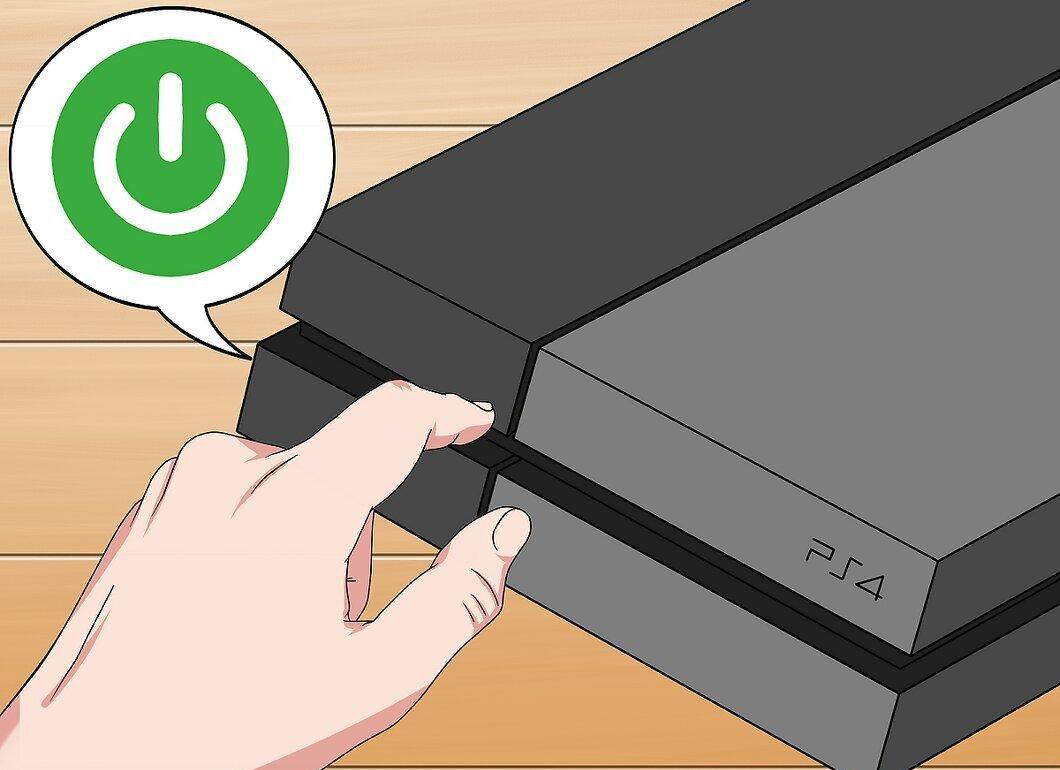
Start the gaming console that supports Netflix. If you don’t want to buy a separate device, you can use the console for viewing. Here’s a list of consoles that support Netflix:
- PlayStation 4
- PlayStation 3
- Xbox One
- Xbox 360
Step 2. Install Netflix.
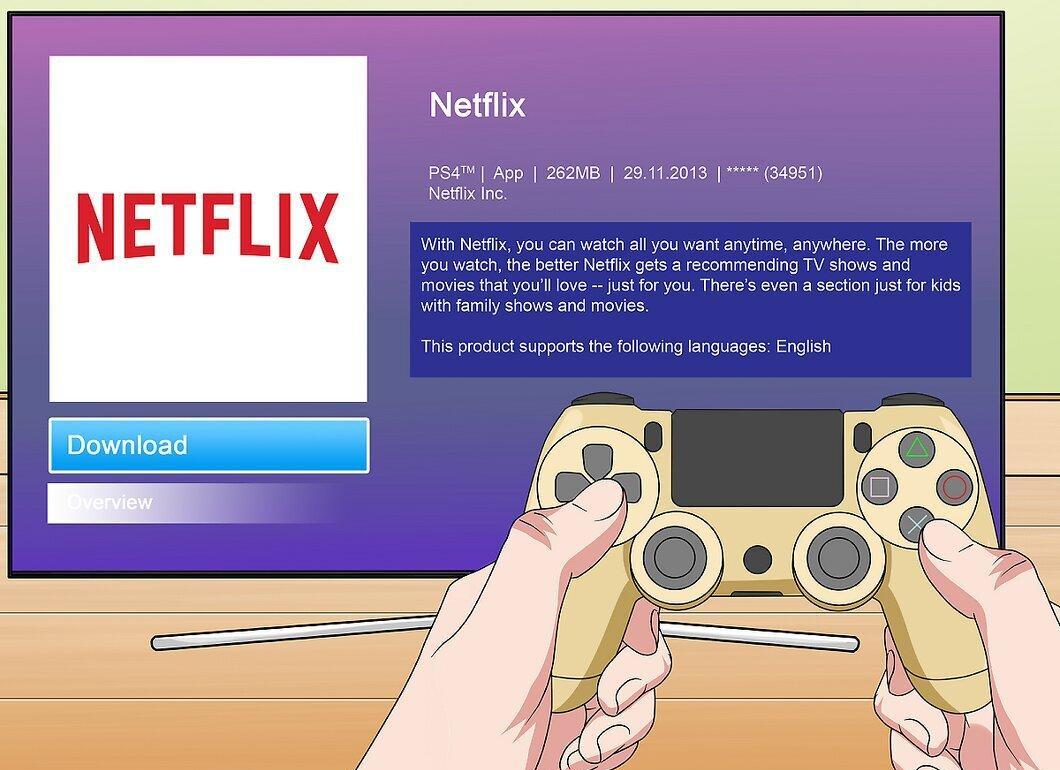
Install the Netflix app by following the instructions based on your console model.
- PlayStation 4 — find Netflix in the "TV & Video" section. If it’s not there, install it from the PlayStation Store.
- PlayStation 3 — the app is available in the "TV/Video Services" section of the XMB menu. If it’s not there, download it from the PlayStation Store.
- Xbox — find and install Netflix in the "Apps" section.
- Wii U — download Netflix from the Nintendo eShop.
- Wii — install Netflix from the Wii Shop.
Step 3. Launch the Netflix app and sign in.
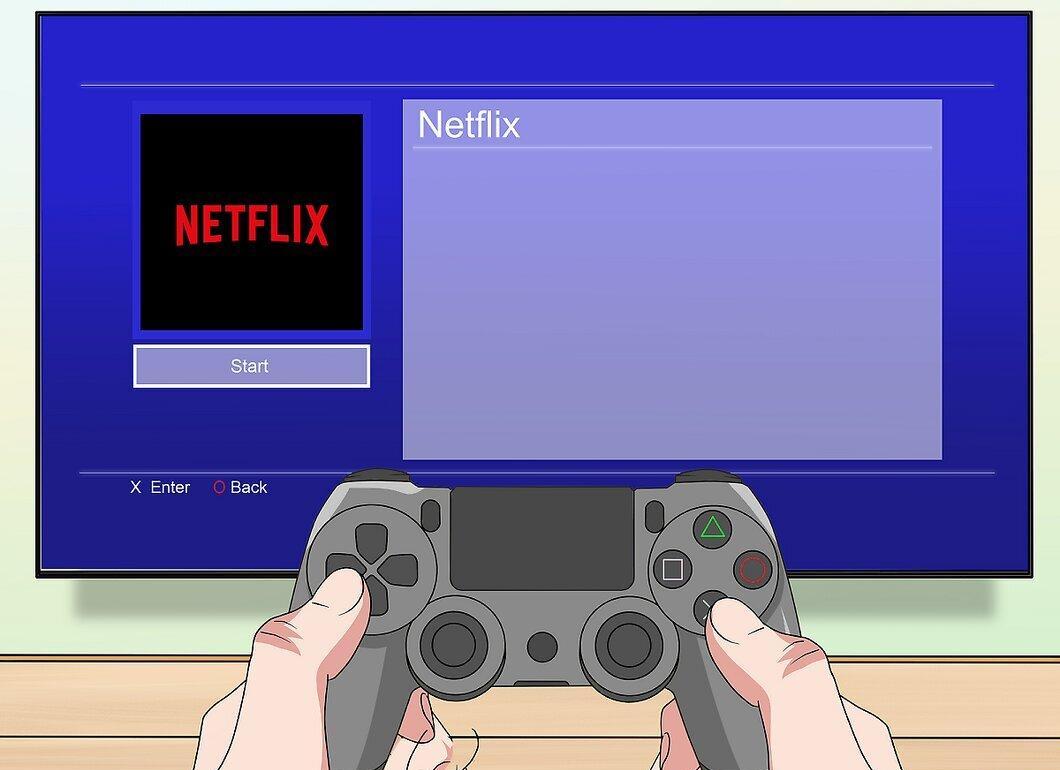
Open Netflix by entering your email address and password the first time you launch it. Ensure your console is connected to the internet.
Step 4. Select a video to watch.
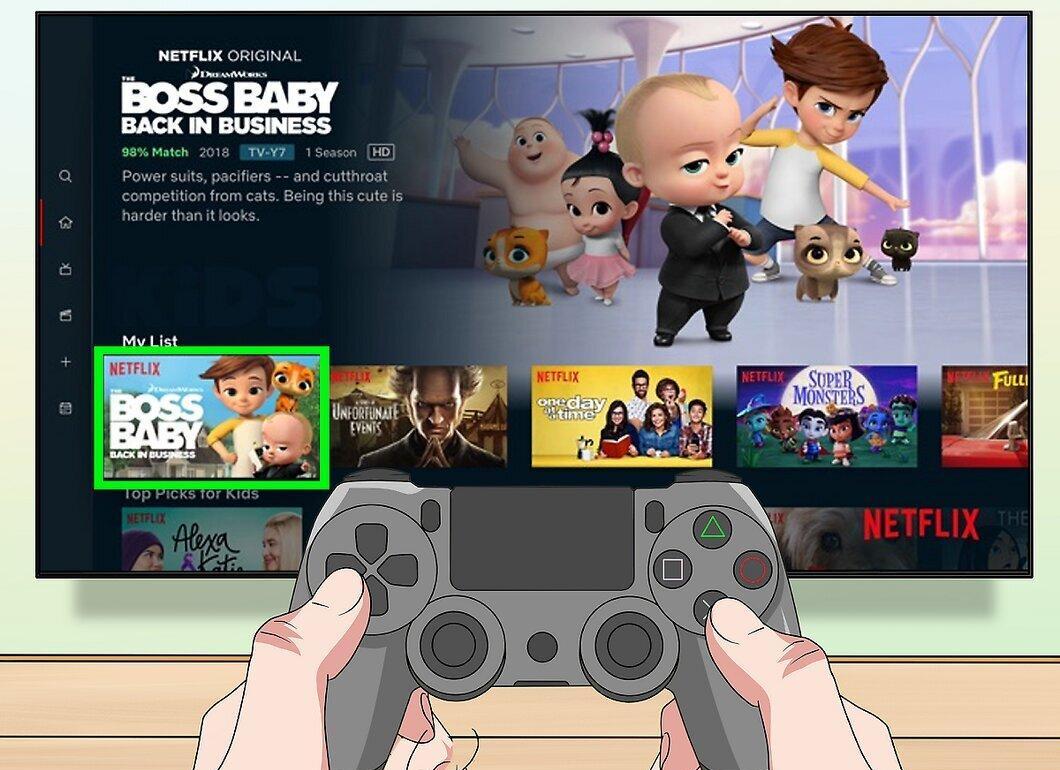
Using the controller, select the desired video and press the confirmation button to open its page.
Step 5. Start playback.
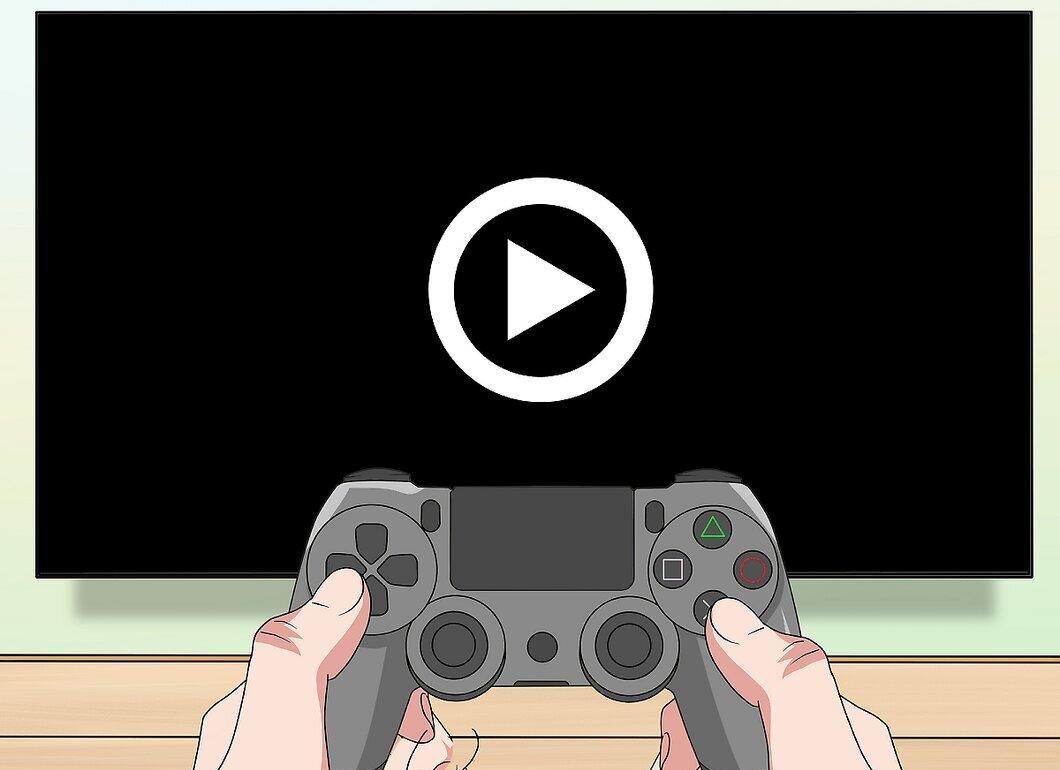
Begin watching by selecting the video or episode, then press the confirmation button.
- To watch a series, select the episode as described earlier.
- You can also play video on your smartphone and cast it to the console using the cast button.
Amazon Fire Stick
Step 1. Connect the Fire Stick to your TV.
Plug the Fire Stick into the HDMI port of your TV. This device plugs directly into the HDMI port.
- If you cannot connect the Fire Stick, use the HDMI extender that comes with it.
Step 2. Connect the power adapter to the Fire Stick.
Plug the power adapter into the Fire Stick by inserting it into the microUSB port. Then connect the adapter to an electrical outlet.
Step 3. Select the wireless network.
Grab the Fire Stick remote and select the desired wireless network by pressing the arrow buttons and confirming your choice.
Step 4. Enter the network password.
Input the password using the on-screen keyboard. Once connected, the device will automatically update.
- For a more stable connection, you can use an Ethernet adapter for the Fire Stick.
Step 5. Sign in to your Amazon account.
Enter your username and password to log into Amazon and install apps on the Fire Stick. After signing in, a video will show you how to use the device.
Step 6. Find and install Netflix.
Select the search icon and type "Netflix" into the search bar. Install the app by selecting Free or Download.
Step 7. Launch the Netflix app.
Open Netflix from the home screen or through the Amazon App Store.
Step 8. Sign in to Netflix.
Select "Sign in" and enter your credentials.
Step 9. Select a user profile.
If you have multiple profiles, choose the one you want.
Step 10. Find and play the video.
Select the movie or series you want to watch using the remote.
Step 11. Start watching.
Select the play icon to begin playback. If you have the Netflix app on your smartphone, you can play video on it and cast it to the Fire Stick using the cast button.
Roku
Step 1. Connect the Roku device to your TV.
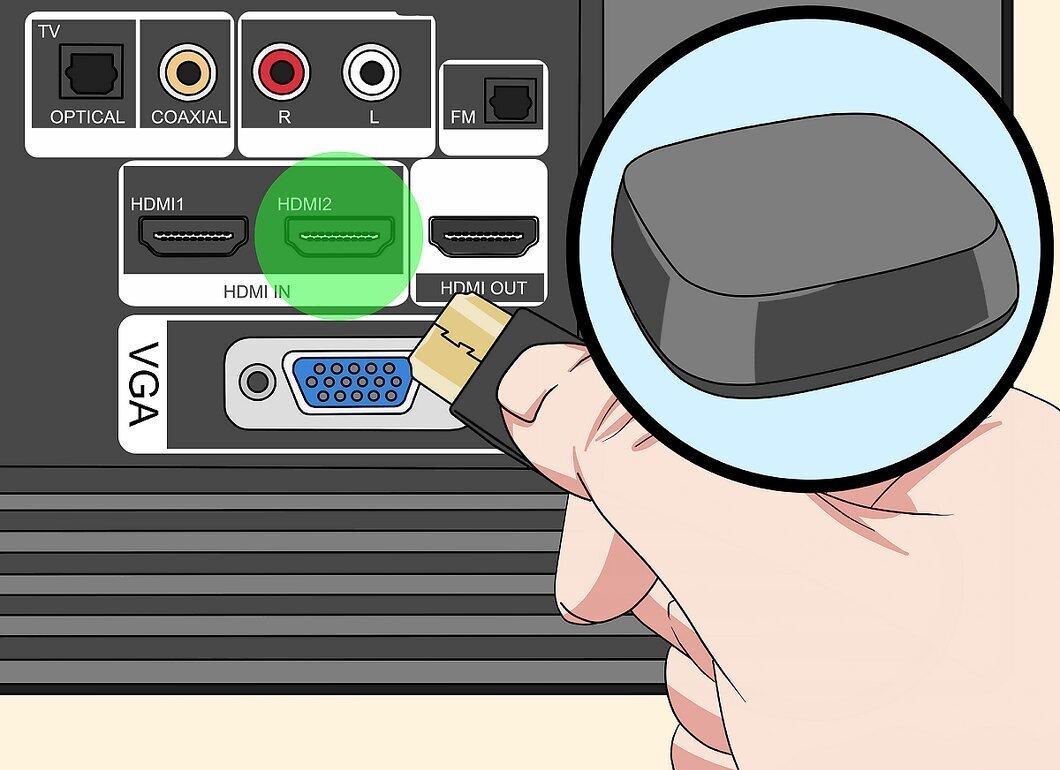
Connect the Roku to the HDMI port of your TV. This device is compatible with most modern TVs.
Step 2. Connect the Roku to a power source.
Use the included cable to connect the Roku to an electrical outlet.
- Don’t forget to insert batteries into the Roku remote.
Step 3. Connect an Ethernet cable (optional).
If you wish, you can connect the Roku to the router via an Ethernet cable for a more stable connection. If that’s not possible, connect it to Wi-Fi.
Step 4. Set the TV to the Roku signal.
Select the corresponding HDMI port on your TV by pressing "Source" or "Input" on the remote.
Step 5. Select a language.
Using the remote, choose your preferred language in the Roku setup menu.
Step 6. Connect the Roku to the internet.
Select the connection method: if you are using Ethernet, select "Wired (Ethernet)"; for Wi-Fi, press "Wireless (Wi-Fi)" and enter your network details.
Step 7. Wait for Roku to update.
After connecting to the internet, the device may automatically update. This is important for its proper functioning.
Step 8. Create a Roku account.
Create an account at https://www.roku.com to be able to install apps.
Step 9. Link the device to your account.
Enter the code that appears on the Roku screen at https://my.roku.com/link to link the device to your account.
Step 10. Launch Netflix on Roku.
Find and open the Netflix app on your device. If it’s not on the home screen, download it from the Roku Channel.
Step 11. Sign in to Netflix.
Enter your email address and password to log into your account.
Step 12. Find and play the video.
Select the desired video and start playback using the Roku remote. Control playback as described above.


