
If you want to send a large file, email services are not suitable due to their attachment size limits. Therefore, it's time to explore other options. If you have a Google account, take advantage of the free Google Drive storage — upload your file of any size and then share it with others.
How to Upload a File
Step 1. Open Google Drive.
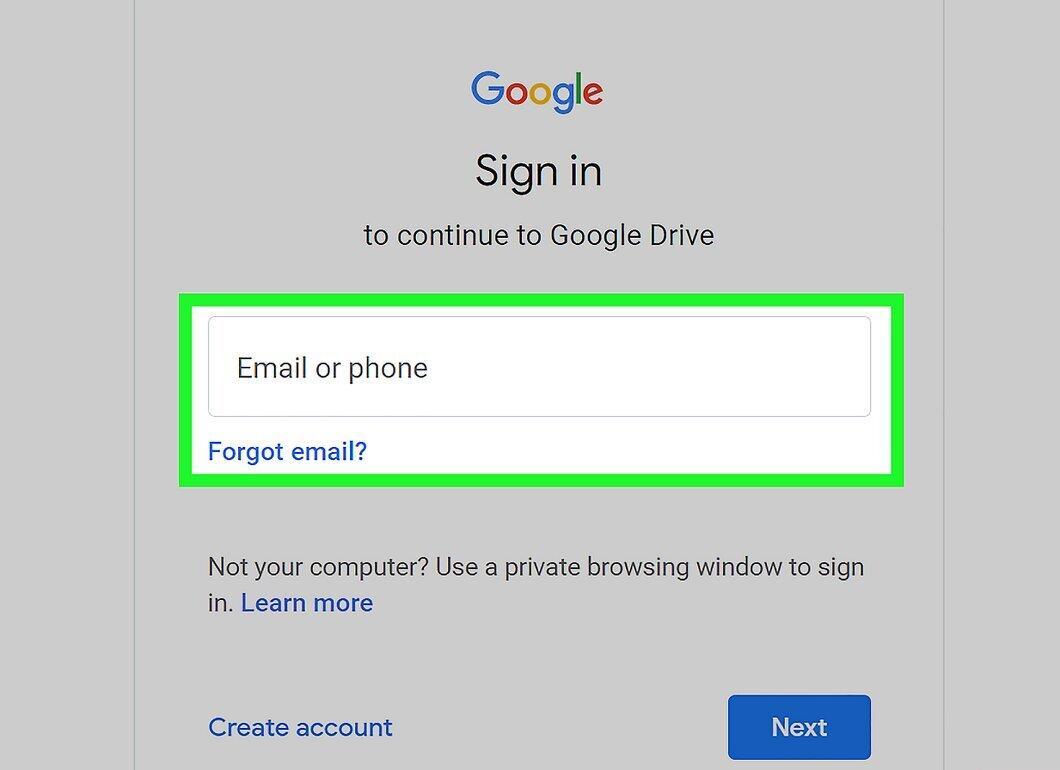
Open the Google Drive page. Every Google account includes 15 GB of free Google Drive storage. If you have a Gmail account, use the same credentials to log in to Drive. Go to drive.google.com.
- The Google Drive mobile app is available for Android and iOS, allowing you to upload files from your mobile device.
Step 2. Click on “New” > “File Upload.”
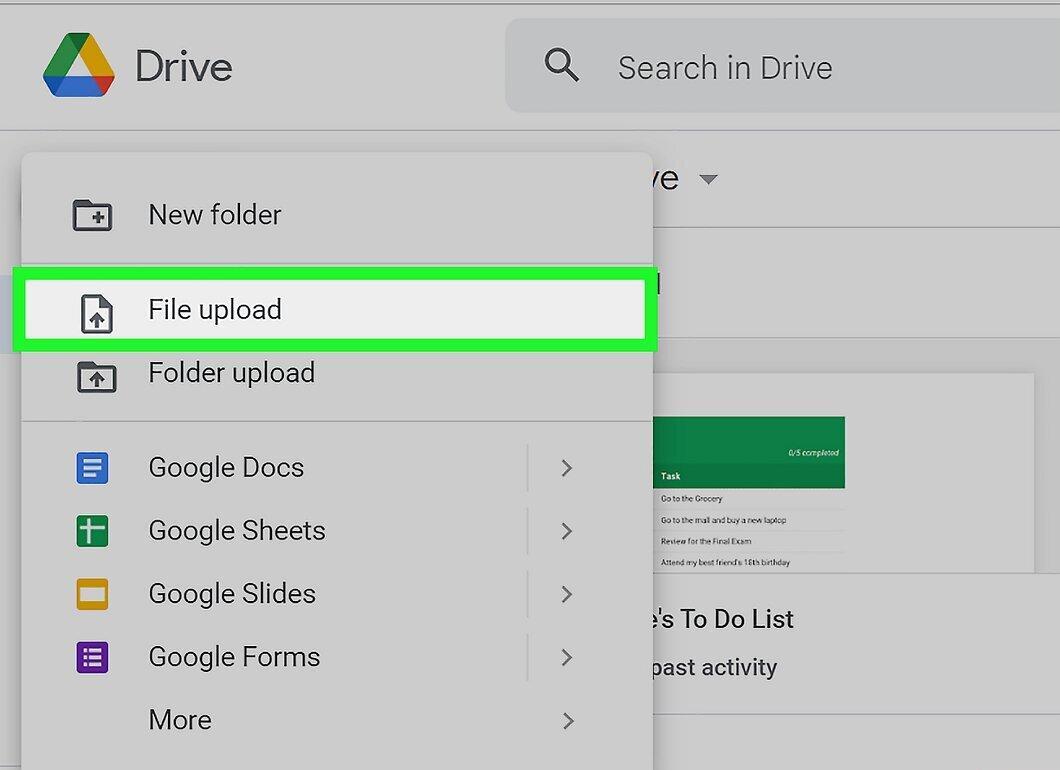
Click on “New” > “File Upload.” A file browser will open where you can find the file you need. Alternatively, you can drag and drop the file directly onto the Google Drive page to upload it.
- Google Drive supports files up to 5 TB in size (as long as you have enough free space in your storage).
Step 3. Wait for the file to upload.
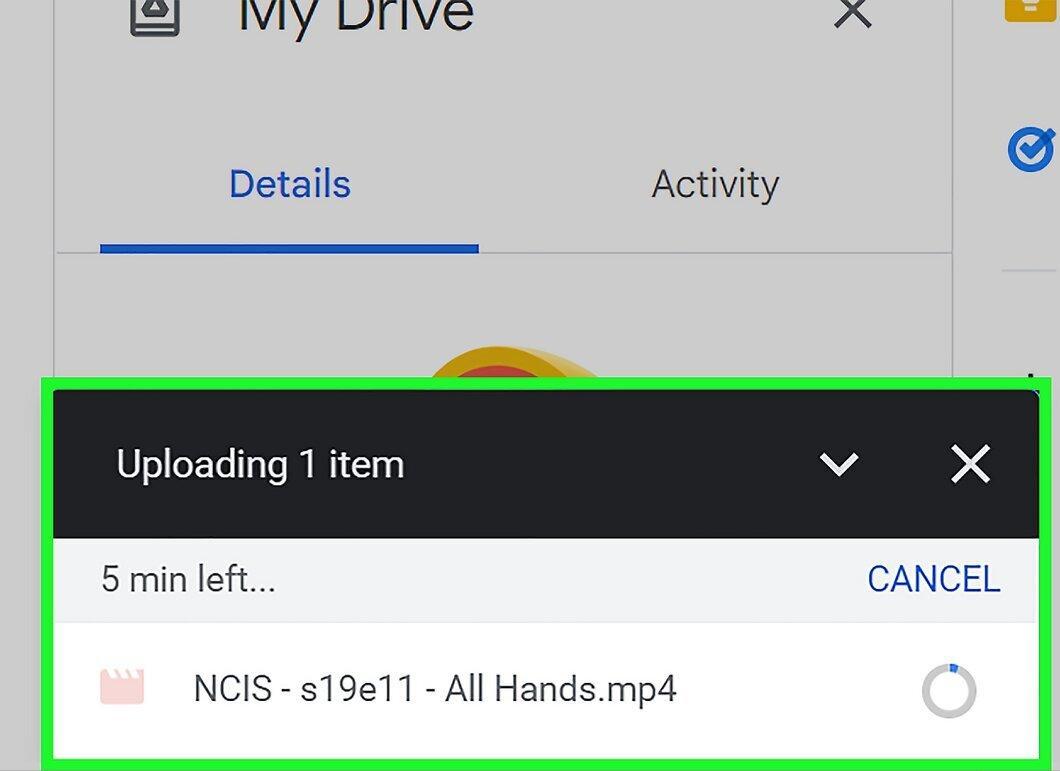
Wait for the file to upload to your storage. If the file is very large, the process may take some time, especially if you have a slow internet connection. You can monitor the upload progress on the bar at the bottom right corner of the Drive page.
- The upload will be interrupted if you close the Drive page. So, do not close your browser until the file is completely uploaded.
How to Share a File (on a Computer)
Step 1. Remember how to share files on Google Drive.
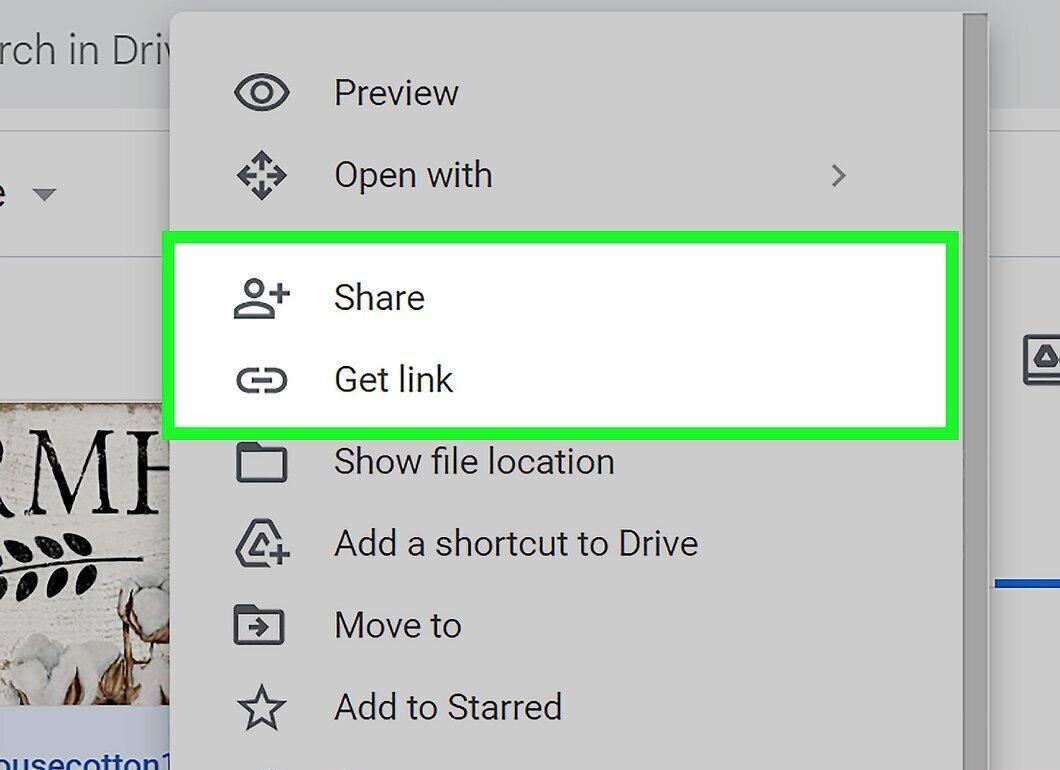
Remember how to share files on Google Drive. You can do this in two ways: share the file with specific Drive users or create a link that allows anyone to access the file.
Step 2. Right-click on the file and select “Share.”
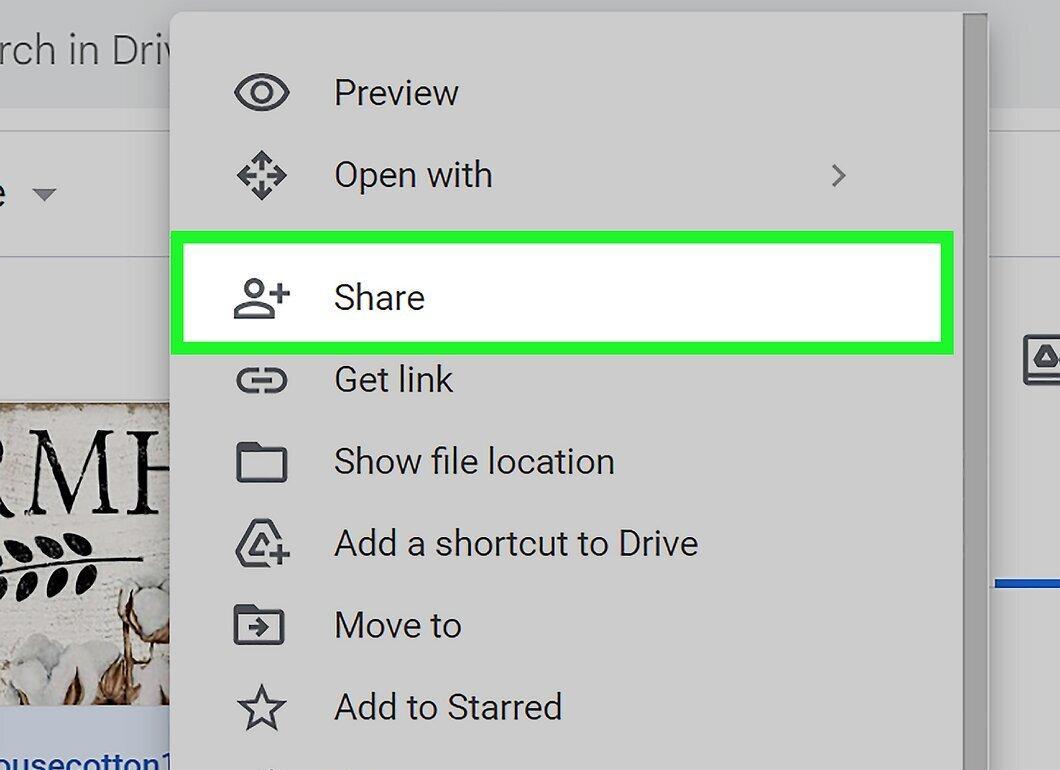
Right-click on the file and select “Share.” A sharing window will open.
Step 3. Enter details in the “People” field to share the file with specific users.
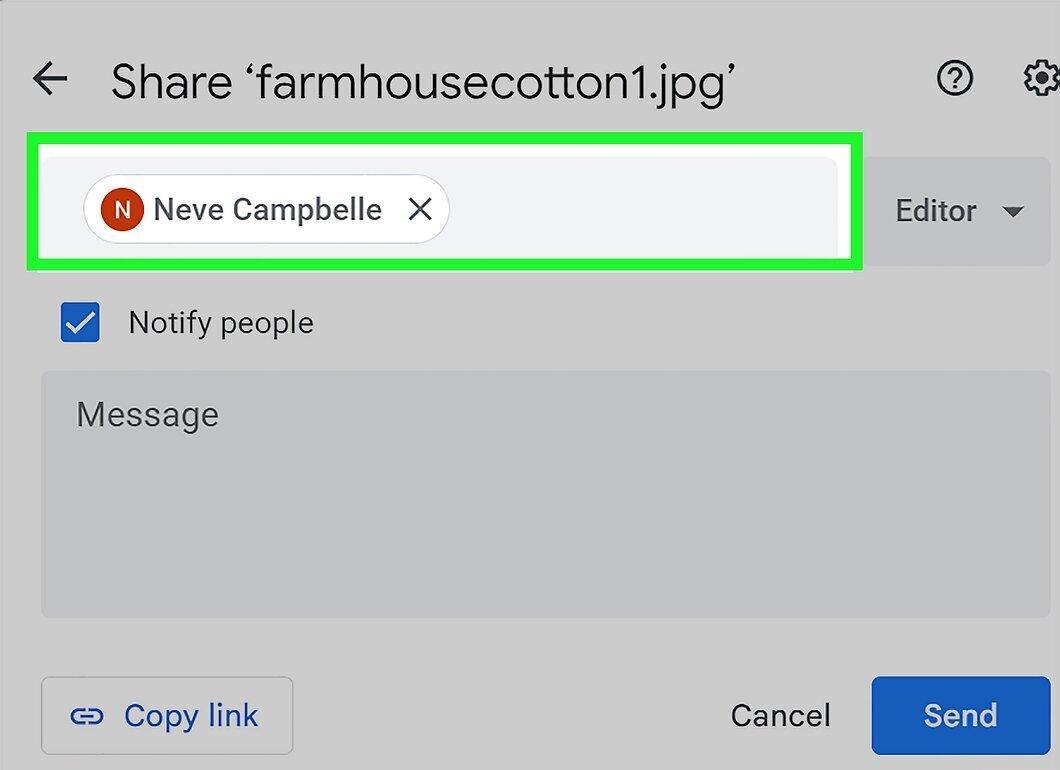
Enter details in the “People” field to share the file with specific users. You can enter names (from your Google contacts) or email addresses. Each person will receive an email; if someone does not use Drive, they will be prompted to create a free account.
- Change permissions by clicking on the pencil icon to the right of the names or email addresses. In the menu that opens, select either “Commenting” or “Viewing.” To allow a user to download the file, choose “Editing” or “Viewing” from the menu.
Step 4. Click the “Copy Link” button to create a link that you can send to anyone.
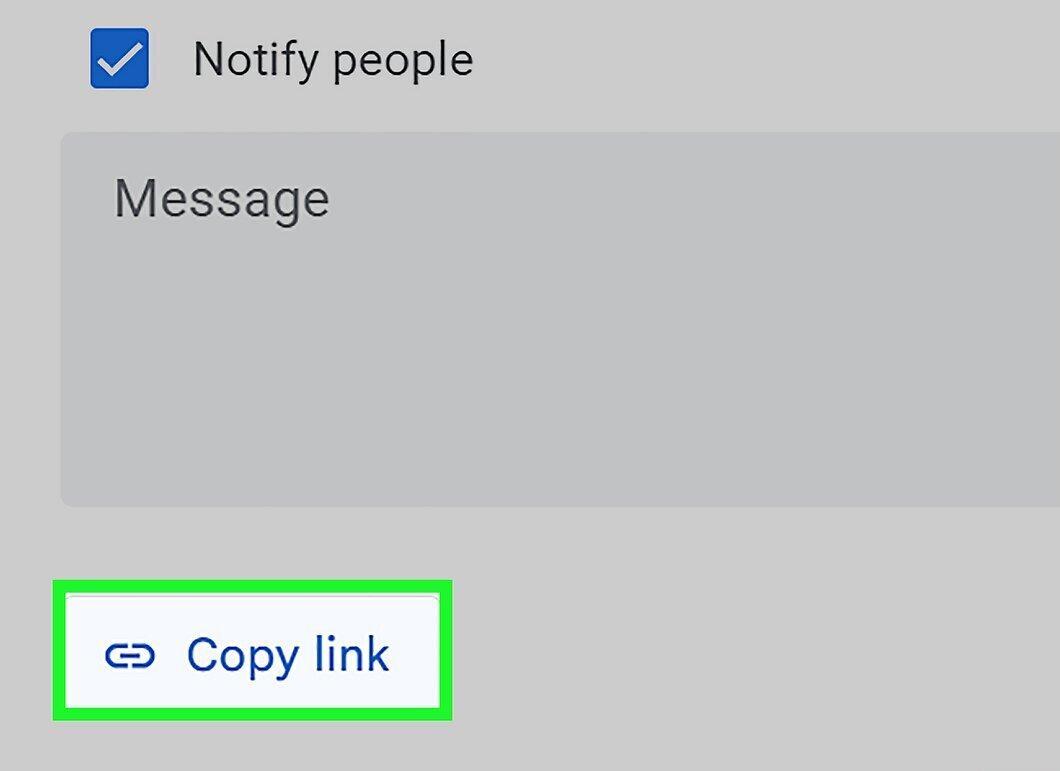
Click the “Copy Link” button to create a link that you can send to anyone. Do this if you want to share the file with people who do not use Google Drive or with strangers. Anyone with this link will be able to view and download the file from your Google Drive. Copy and paste the link into an email or chat and then send it to the intended recipients.
- You can also change permissions here. To do this, open the menu to the left of “Copy Link” and choose the appropriate option.
- Create a link if you are unsure whether the person uses Google Drive. In this case, they can download the file without needing to create an account.
Step 5. Download the file.
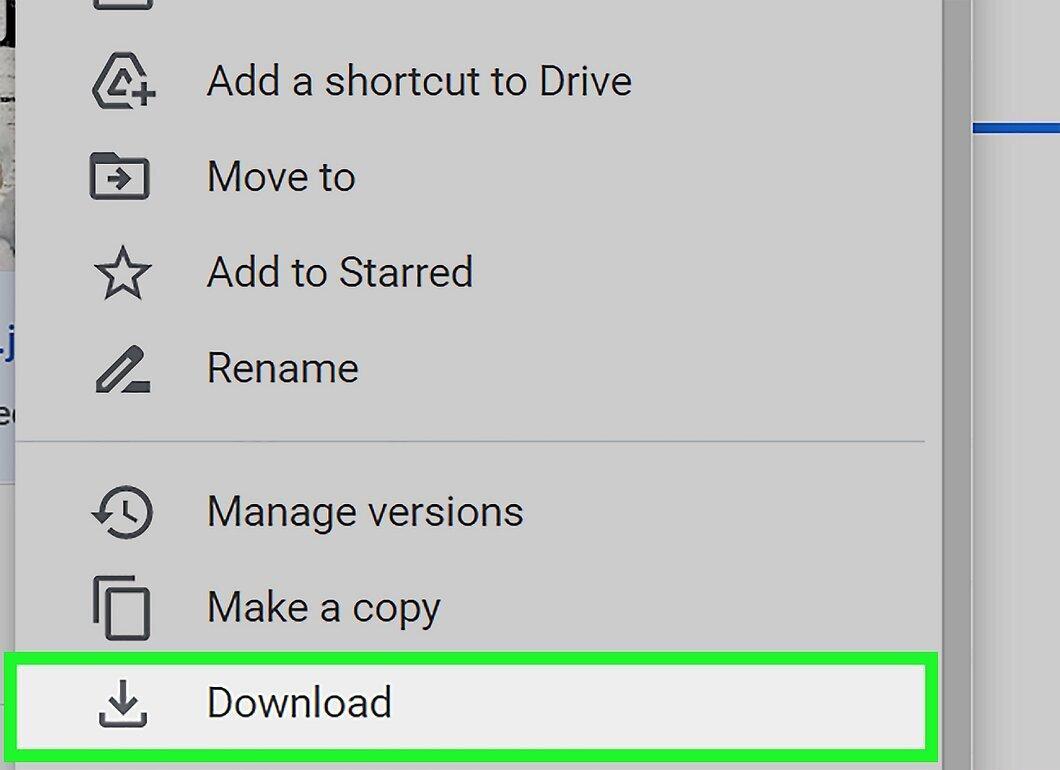
Download the file. You may need to explain to the link recipients how to download the file, as clicking the link will not automatically start the download.
- To download a file that opens in Google Drive, click “Download” at the top of the page. If the file opens in Google Docs or Google Sheets, click “File” > “Download.”
How to Share a File (on Mobile)
Step 1. Remember how to share files on Google Drive.
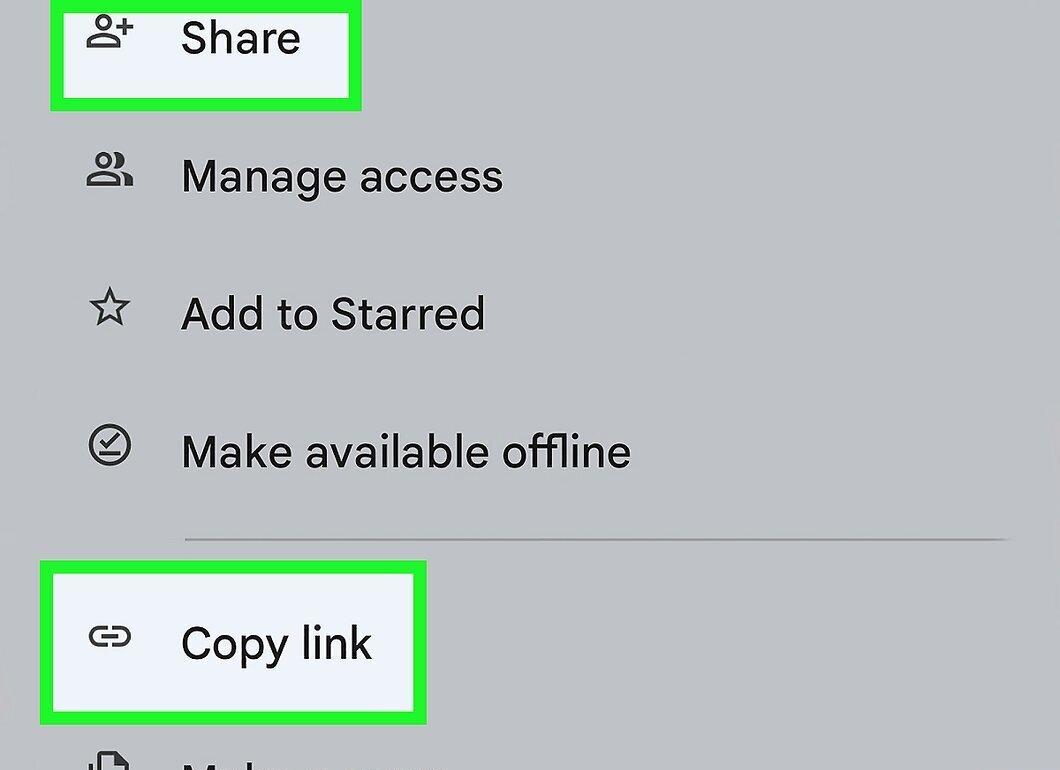
Remember how to share files on Google Drive. You can do this in two ways: share the file with specific Drive users or create a link that allows anyone to access the file.
Step 2. Tap the ⓘ icon next to the file name.
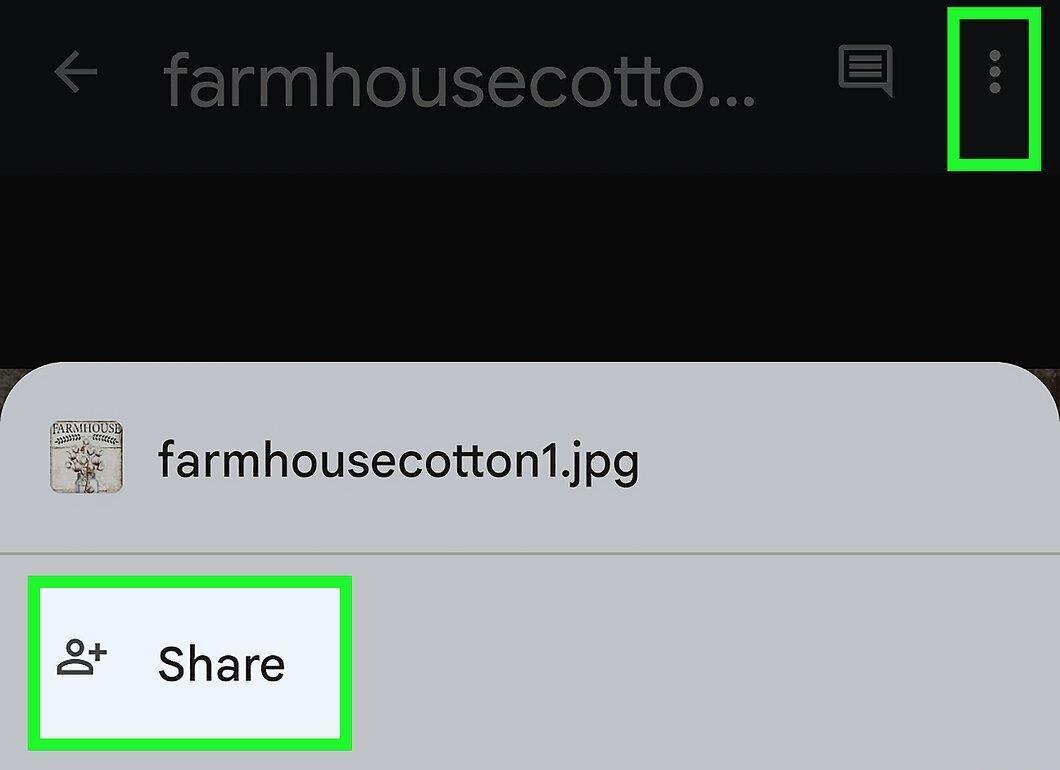
Tap the ⓘ icon next to the file name. Information about the file will be displayed.
Step 3. Tap “Add People” to share the file with specific users.
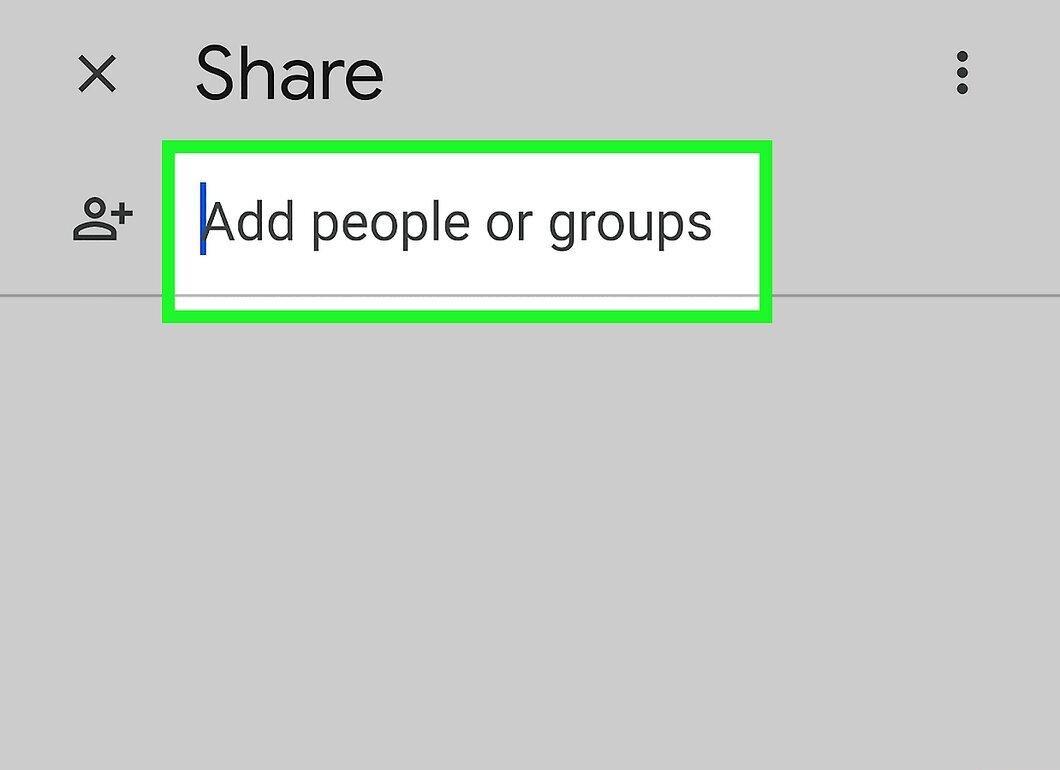
Tap “Add People” to share the file with specific users. You can enter names (from your Google contacts) or email addresses. Each person will receive an email; if someone does not use Drive, they will be prompted to create a free account.
Step 4. Tap “Share Link” to create a link to the file.
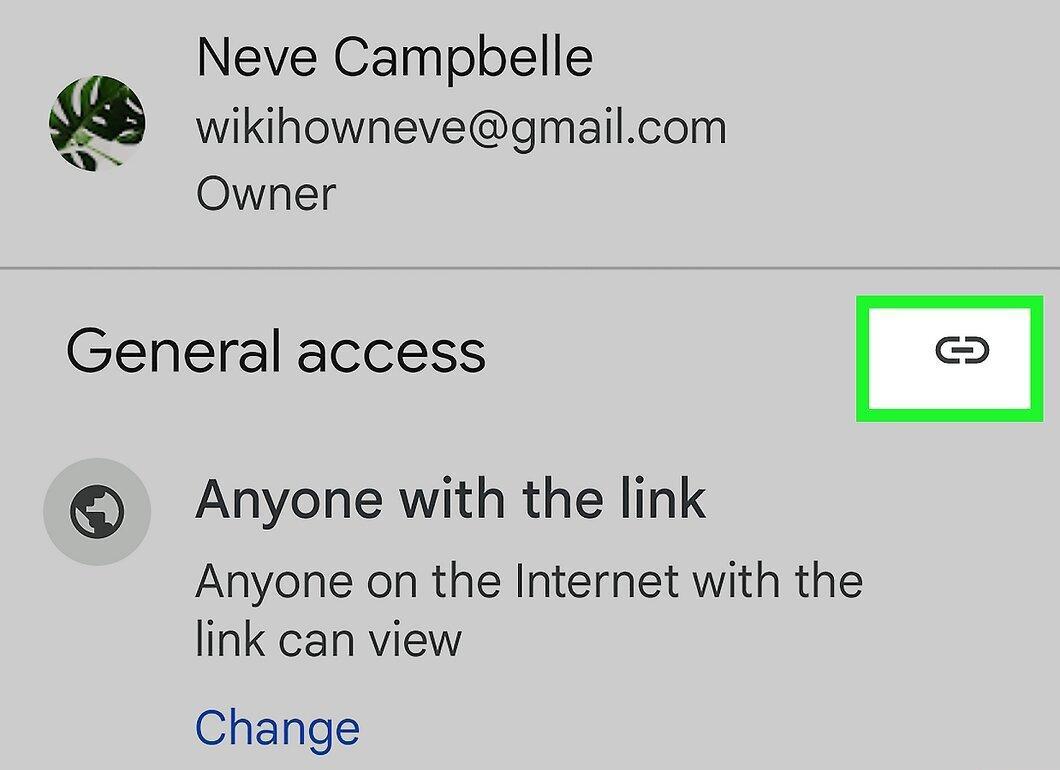
Tap “Share Link” to create a link to the file. A sharing menu will open where the created link can be inserted into an email, message, or any other app that allows you to share links. You can also copy the link to your device's clipboard for manual insertion.
Step 5. Set permissions in the “Access Level” section.
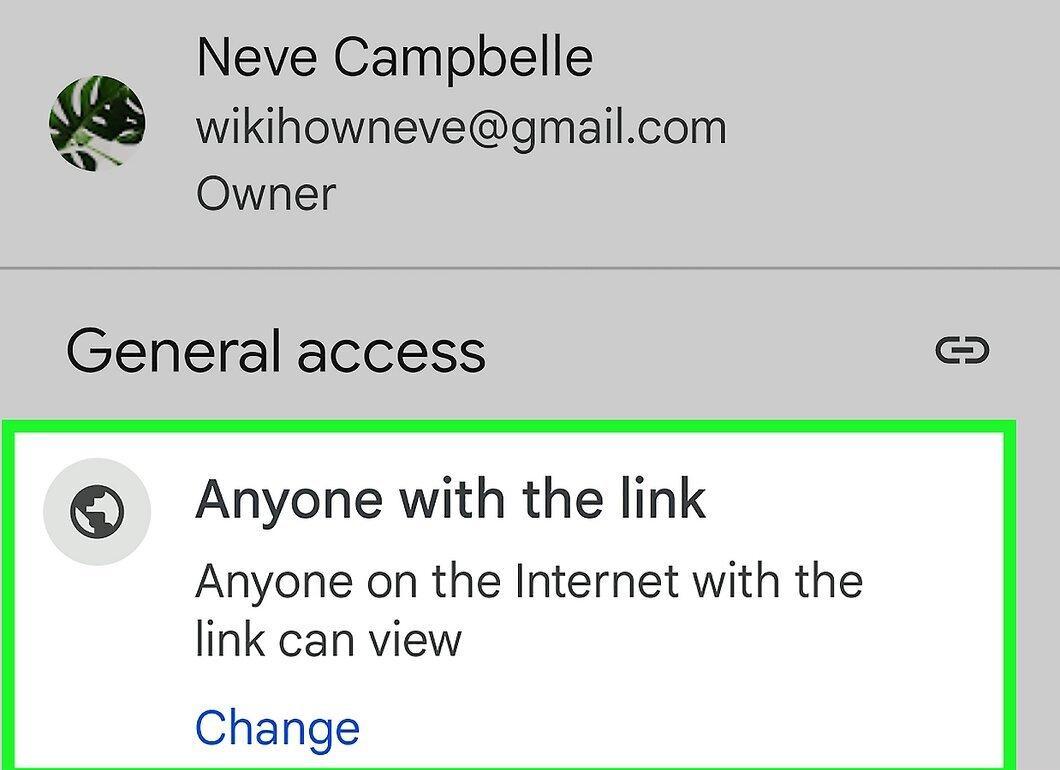
Set permissions in the “Access Level” section. If you are sharing the file via a link, adjust the permissions for users who receive this link. If you granted access to specific individuals, set permissions for each person accordingly.
Step 6. Download the file.
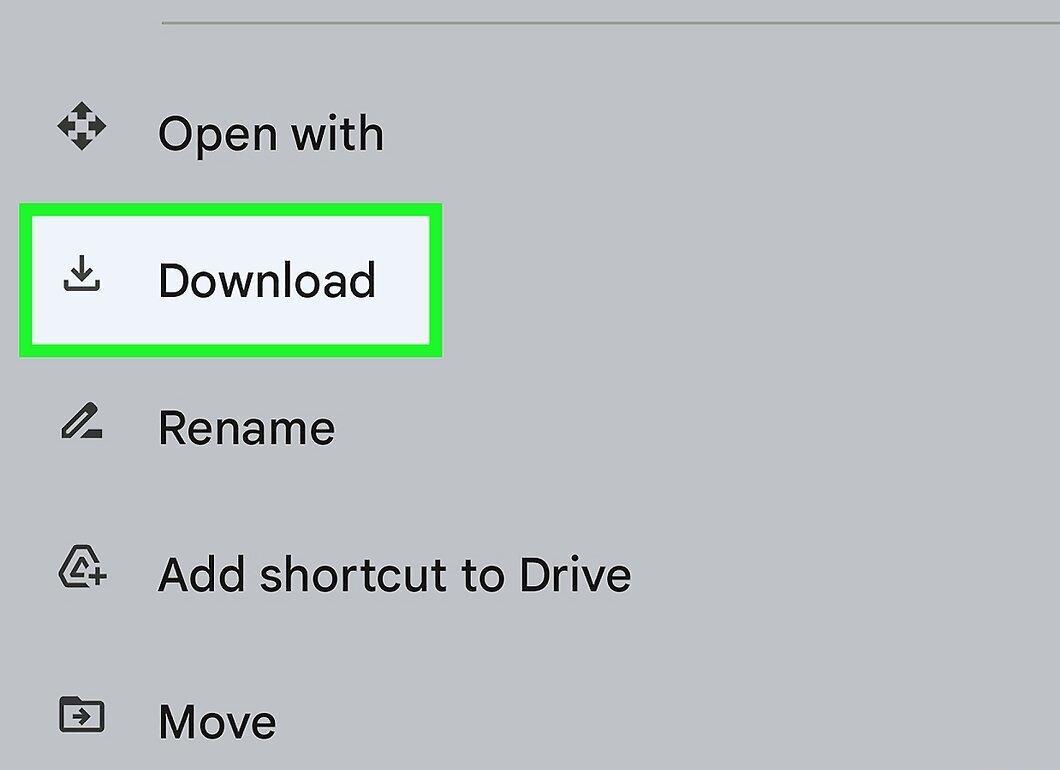
Download the file. You may need to instruct the link recipients on how to download the file, as clicking the link will not automatically start the download.
- To download a file that opens in Google Drive, tap “Download” at the top of the page. If the file opens in Google Docs or Google Sheets, tap “File” > “Download.”


