
This article will teach you how to use FFmpeg to convert video and audio files via the command line (Windows) or terminal (Mac).
On Windows
Step 1. Install the Free FFmpeg Program
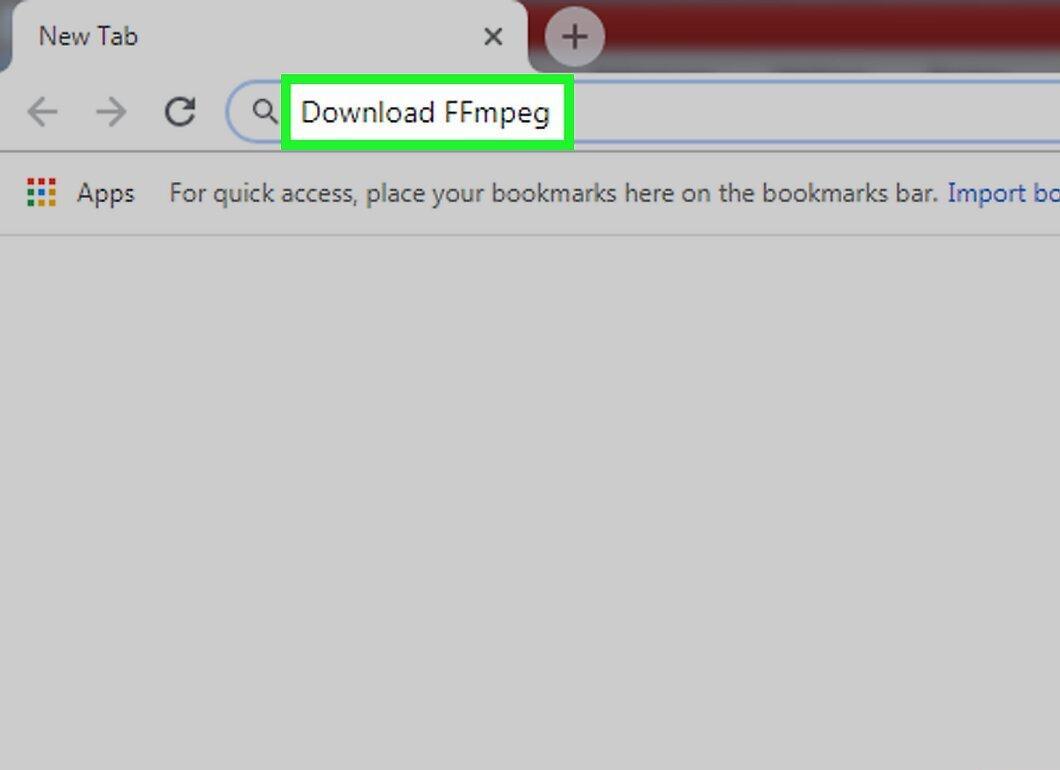
Install the free FFmpeg program (if necessary). Keep in mind that the installation process can be quite complex.
- To install FFmpeg, log in as an administrator.
Step 2. Find the Video or Audio File You Want to Convert
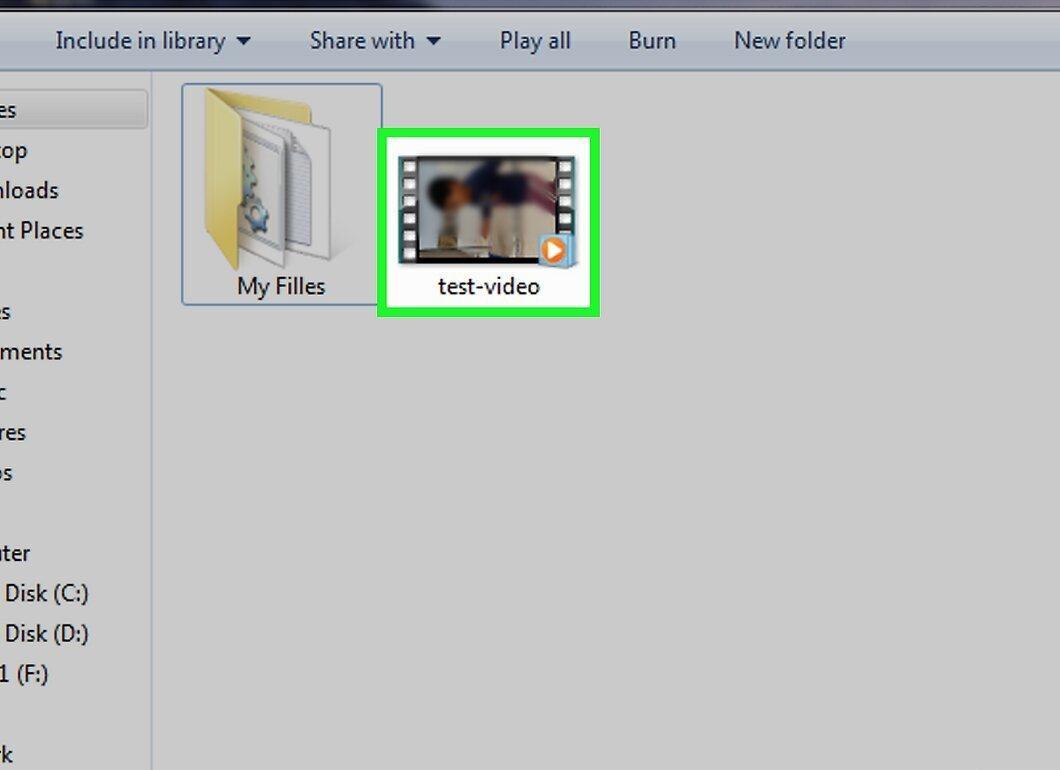
Locate the video or audio file you want to convert. With FFmpeg, you can transform videos and songs into different formats (i.e., a song can be converted into an audio file of another format, and a video can be converted into a video file of another format).
- You can also convert video files into audio files.
Step 3. Copy the Video or Song
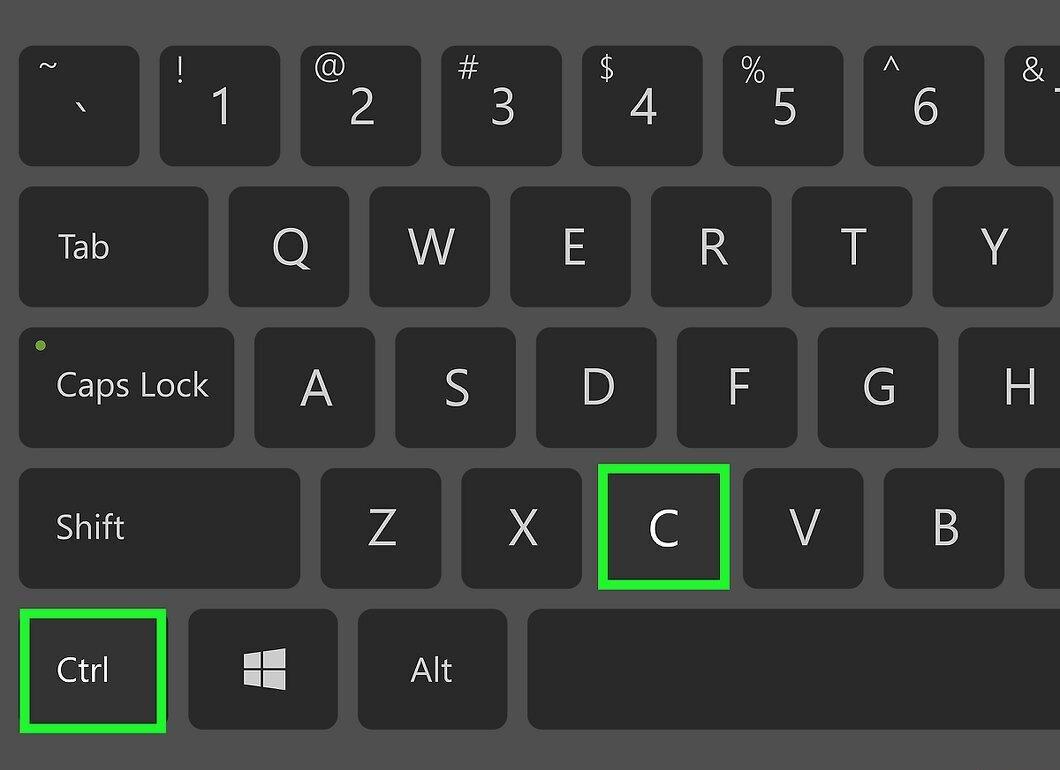
Copy the video or song. Select the file, then press Ctrl+C.
- Do this to create a backup of the original file in case something goes wrong.
Step 4. Paste the Video or Song on Your Desktop
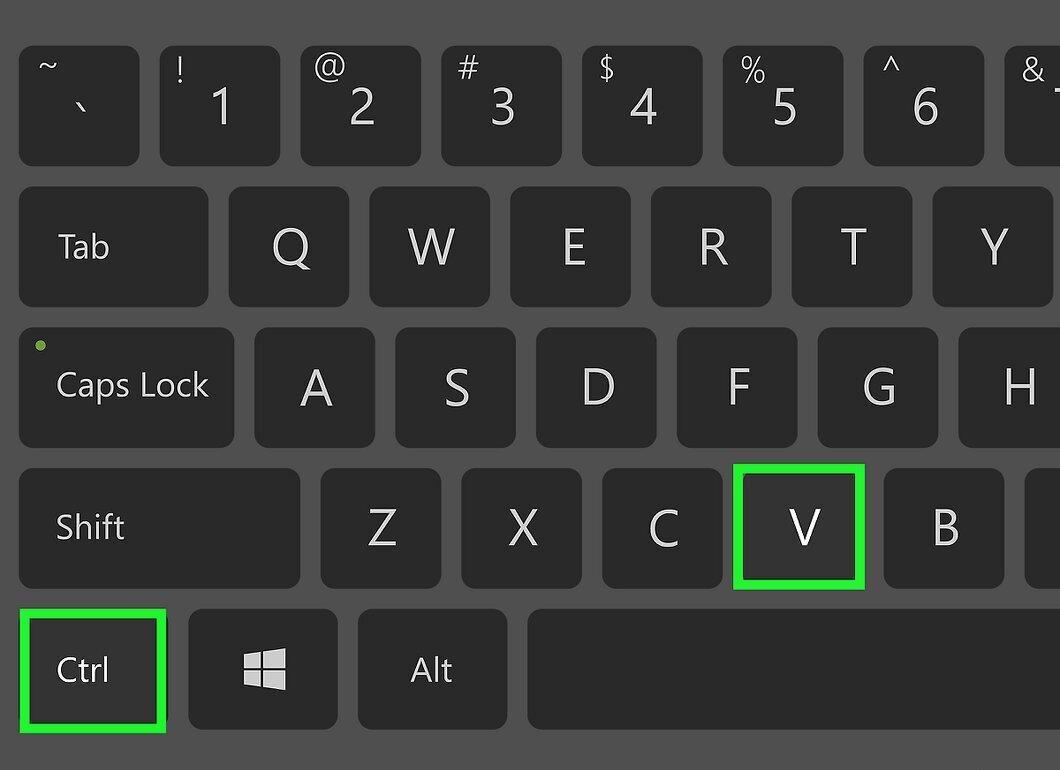
Paste the video or song on your desktop. Go to your computer's desktop and then press Ctrl+V.
- This way, the file will be in an easily accessible location.
Step 5. Determine the Current File Format
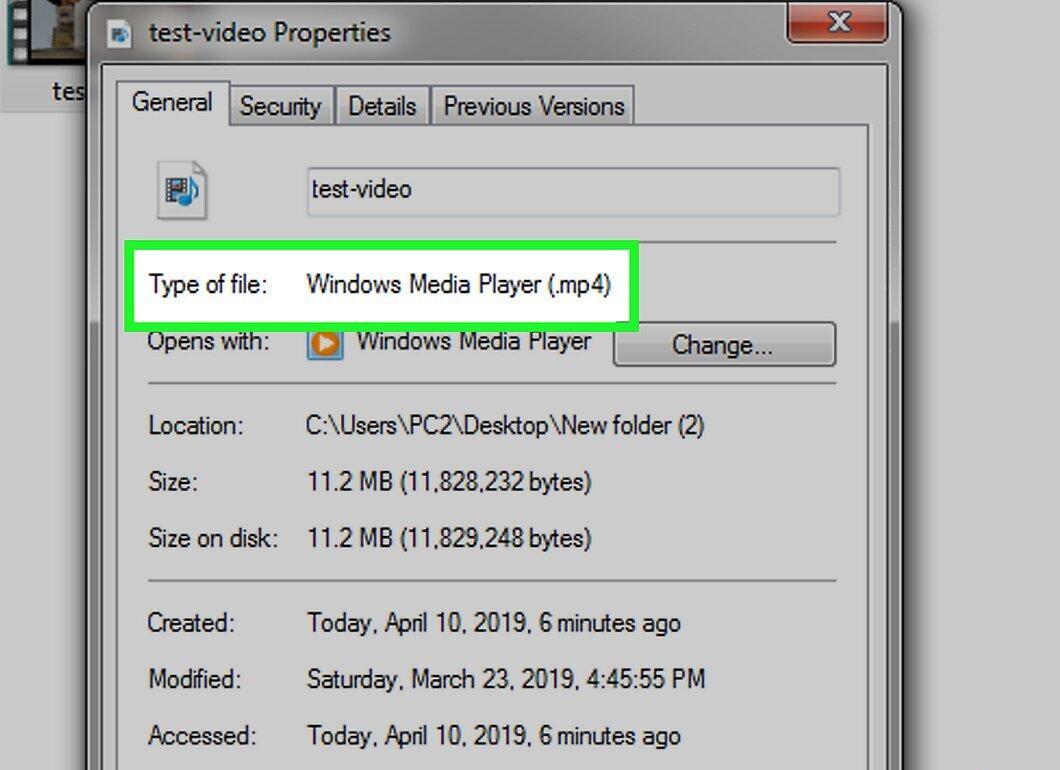
Find out the current file format. Right-click on the file, select "Properties," and look for the format in the "Type of file" field.
- Knowing the current file format is necessary to inform FFmpeg which file to convert.
Step 6. Decide on the Format to Convert the File To
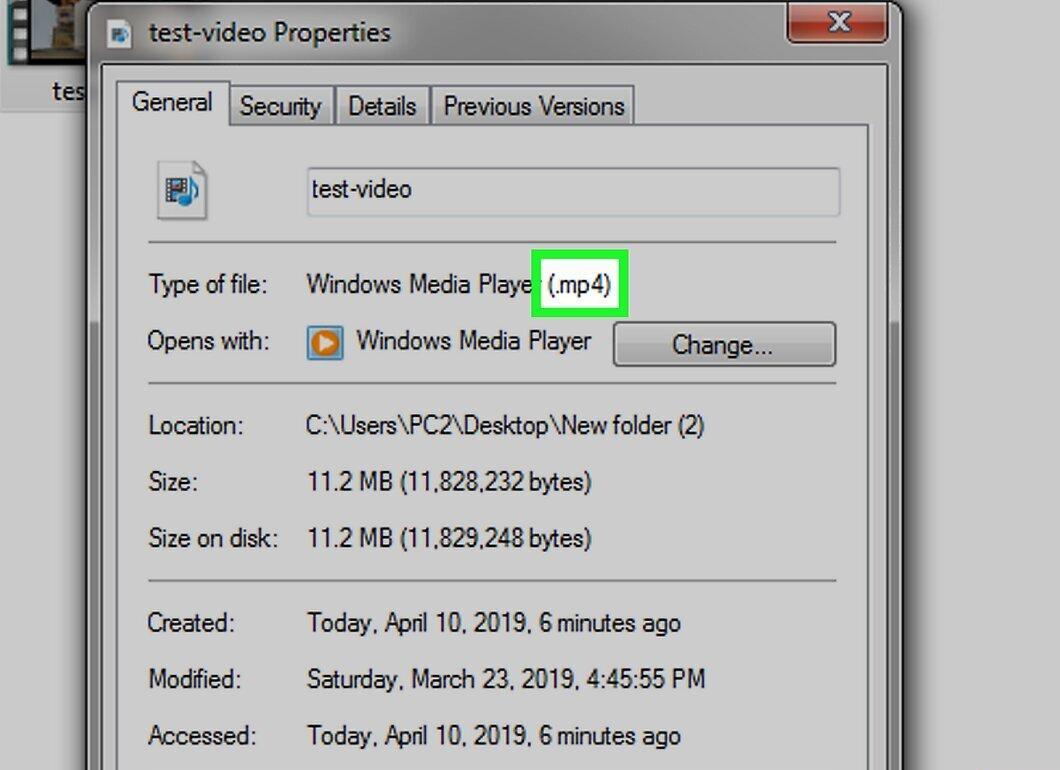
Decide on the format to convert the file to. Videos can be converted into video files, songs into audio files, and videos into audio files. The available formats in FFmpeg are:
- Video — MP4, MOV, WEBM, FLV, AIFF, and AVI.
- Audio — MP3, WAV, WMA, M4A, AAC, and OGG.
Step 7. Find Out the File Name
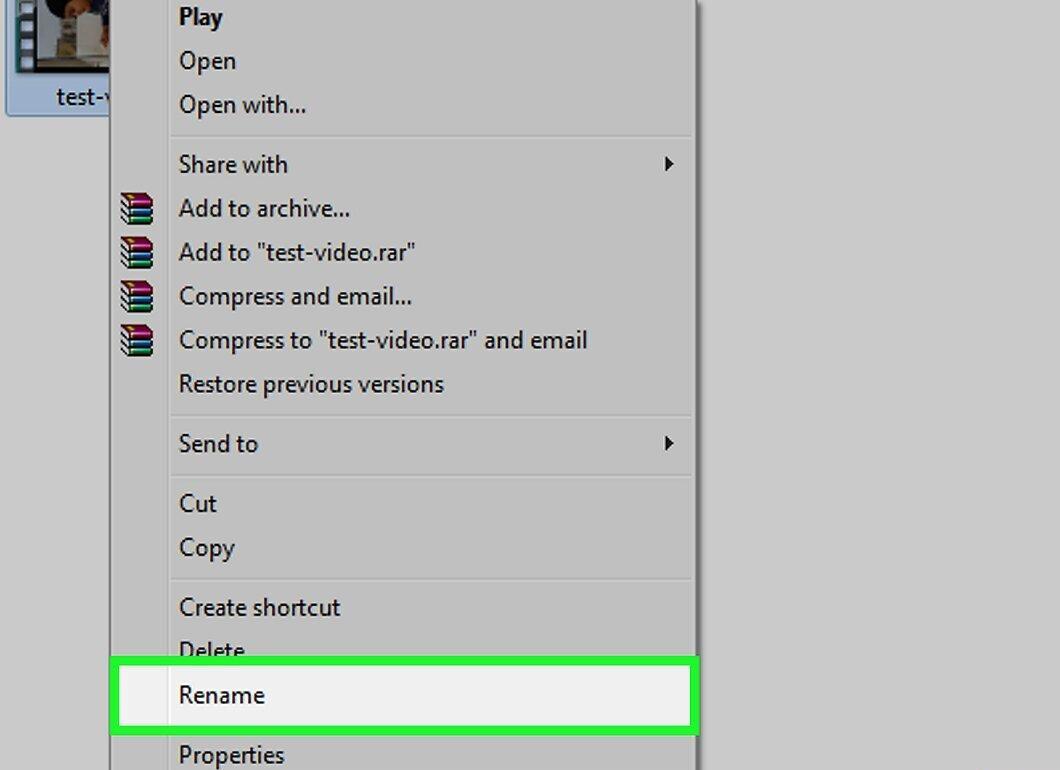
Find out the file name. Click on the file to display its full name. You need to enter the full file name in FFmpeg.
- It's advisable to rename the file and give it a short and simple name to make the conversion process easier. To do this, right-click on the file, select "Rename," and enter a new name.
Step 8. Open the Command Prompt
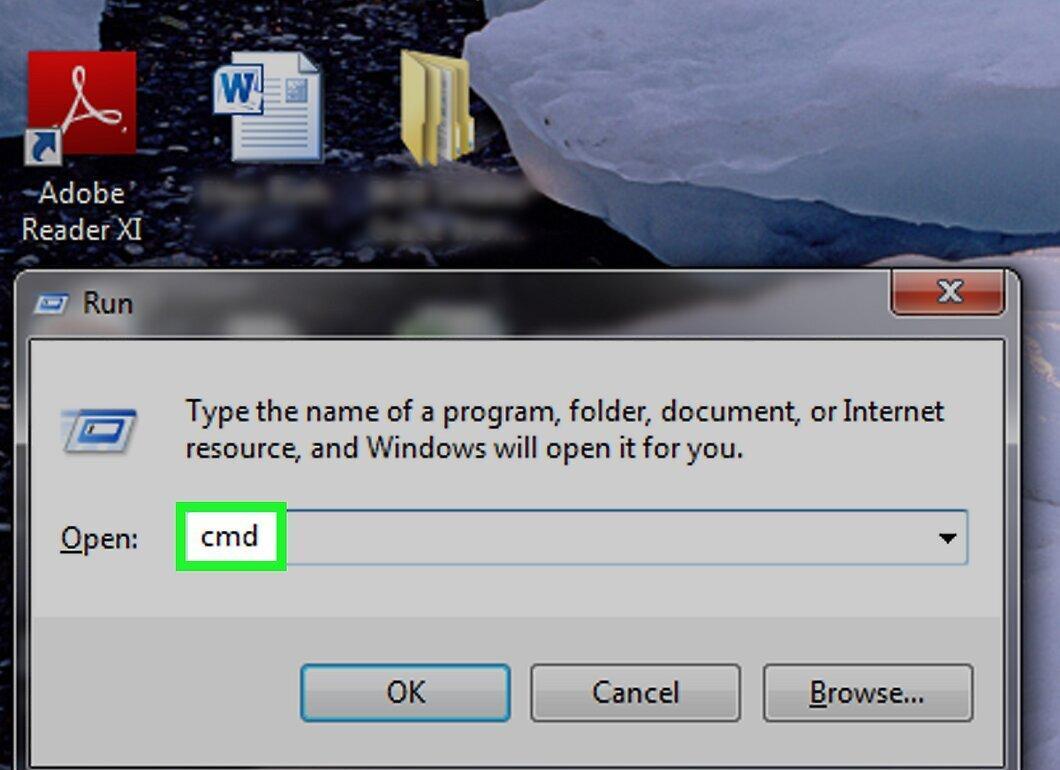
Open the Command Prompt. It's available in all versions of Windows. To do this:
- Click "Start".
- Type in Command Prompt.
- Select "Command Prompt".
Step 9. Navigate to the Desktop in Command Prompt
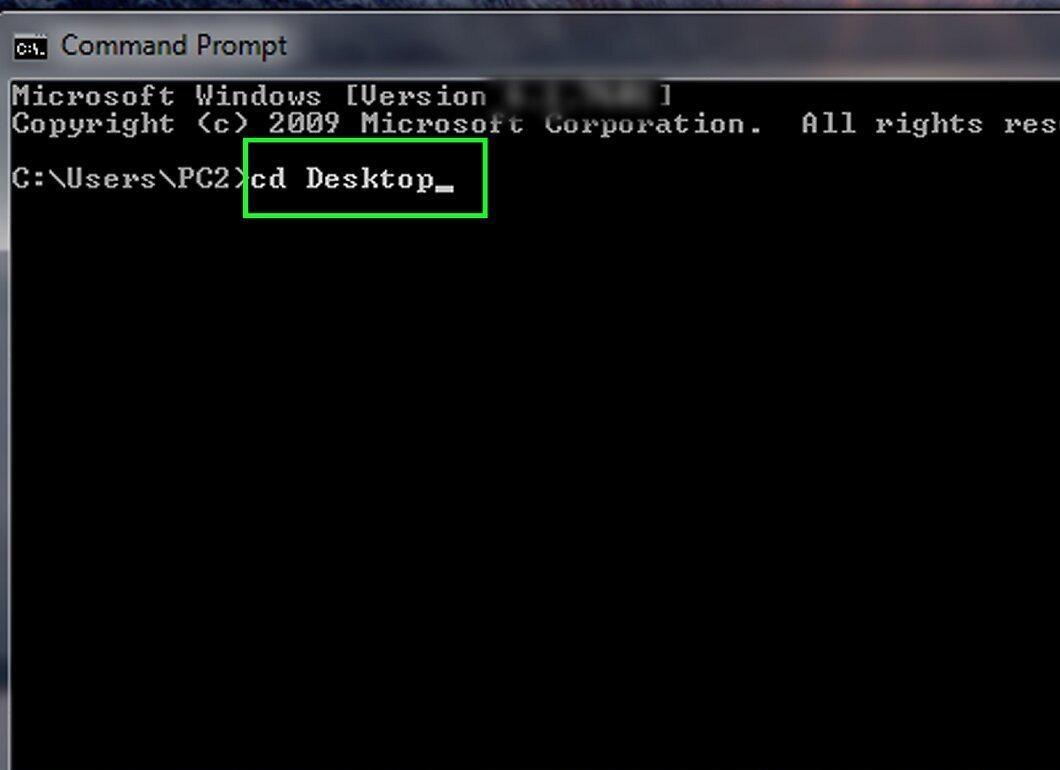
Navigate to the desktop in Command Prompt. Type cd Desktop and press ↵ Enter. The command prompt will display all the files stored in the "Desktop" folder.
Step 10. Enter the Conversion Command
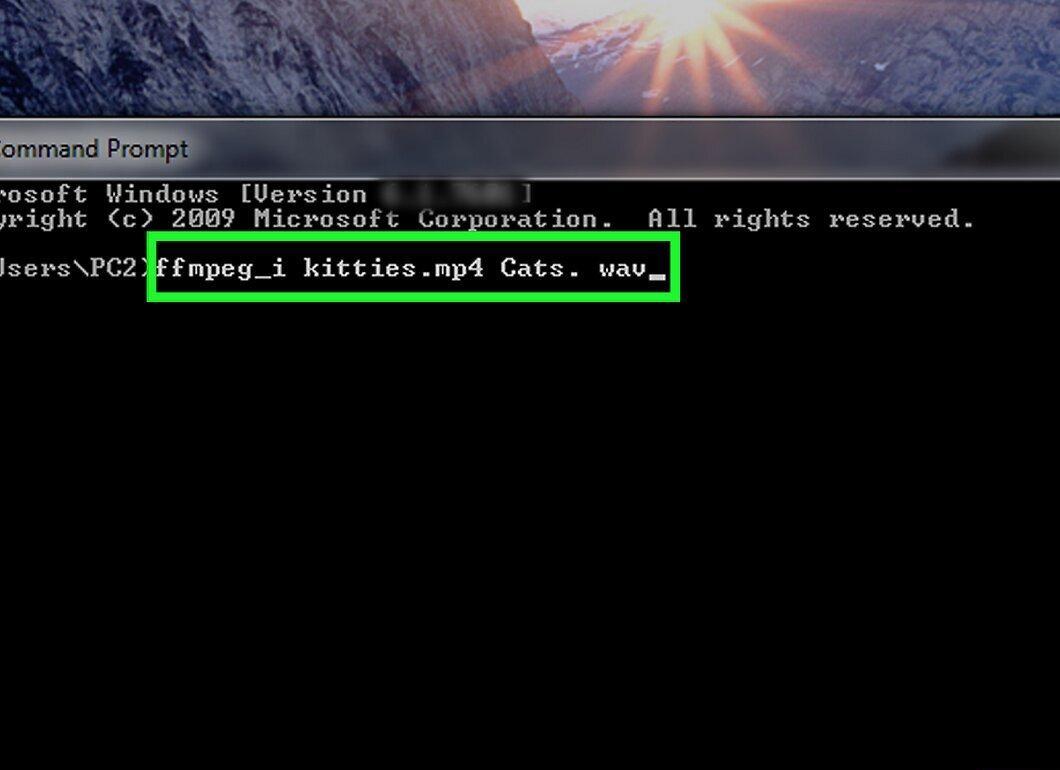
Enter the conversion command. Type ffmpeg -i, then enter the name and extension of the source file, followed by the name and extension of the target file.
- For example, to convert the MP4 file "Kitties" to a WAV file "Cats," type ffmpeg -i Kitties.mp4 Cats.wav.
- When entering the file name, remember to respect case sensitivity (e.g., if the name contains uppercase letters, type uppercase letters).
- If the filename contains spaces, enclose the name and extension in quotes. For instance, instead of YouTube Drama.mp4, type "YouTube Drama.mp4" (do not replace spaces with underscores unless they are in the filename).
Step 11. Press ↵ Enter
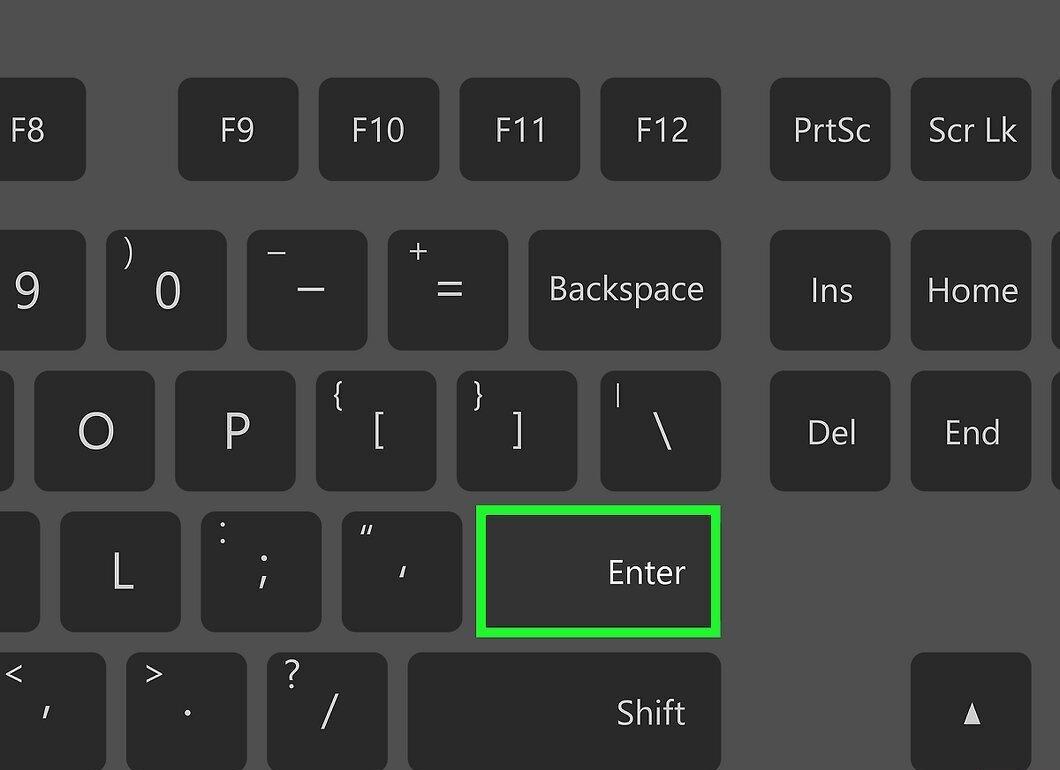
Press ↵ Enter. If you have entered the source file name correctly and selected an available target file format, the file will start converting.
- Converting files (especially videos) can take a long time. If you are converting a large video or audio file, do not close the command prompt until it displays "C:\Users\Name\Desktop>".
Step 12. Locate the Converted File
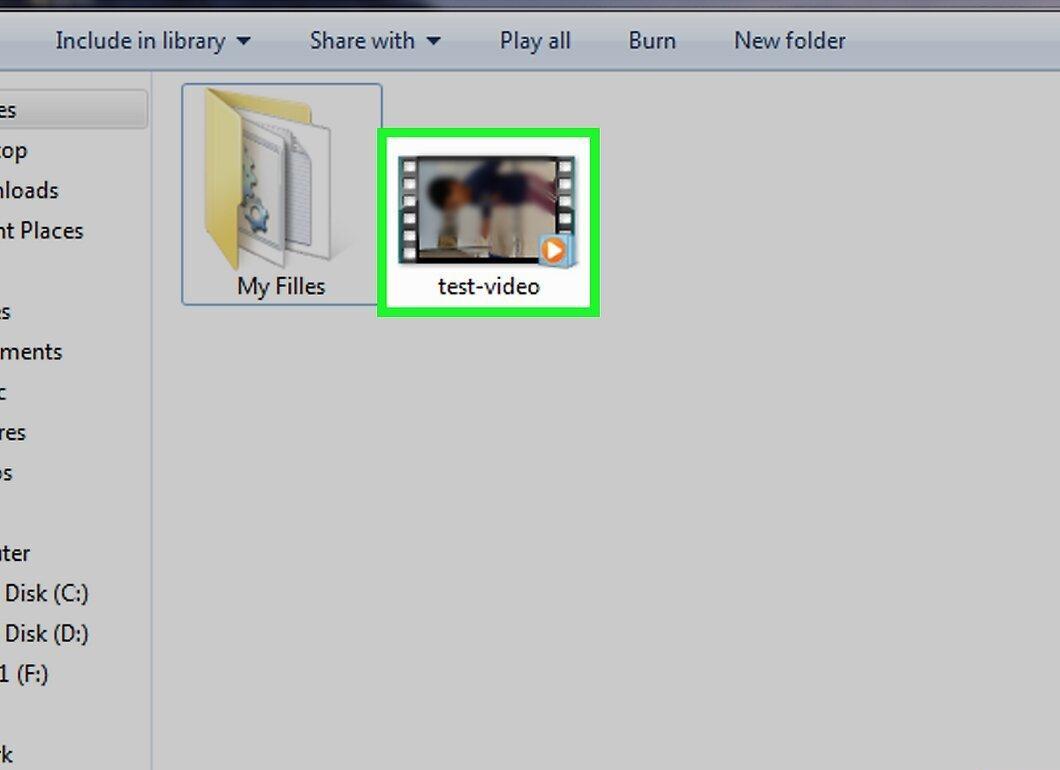
Find the converted file. Once the process is complete, the converted file will appear on your desktop with the name you entered.
On Mac OS X
Step 1. Install FFmpeg (if necessary)
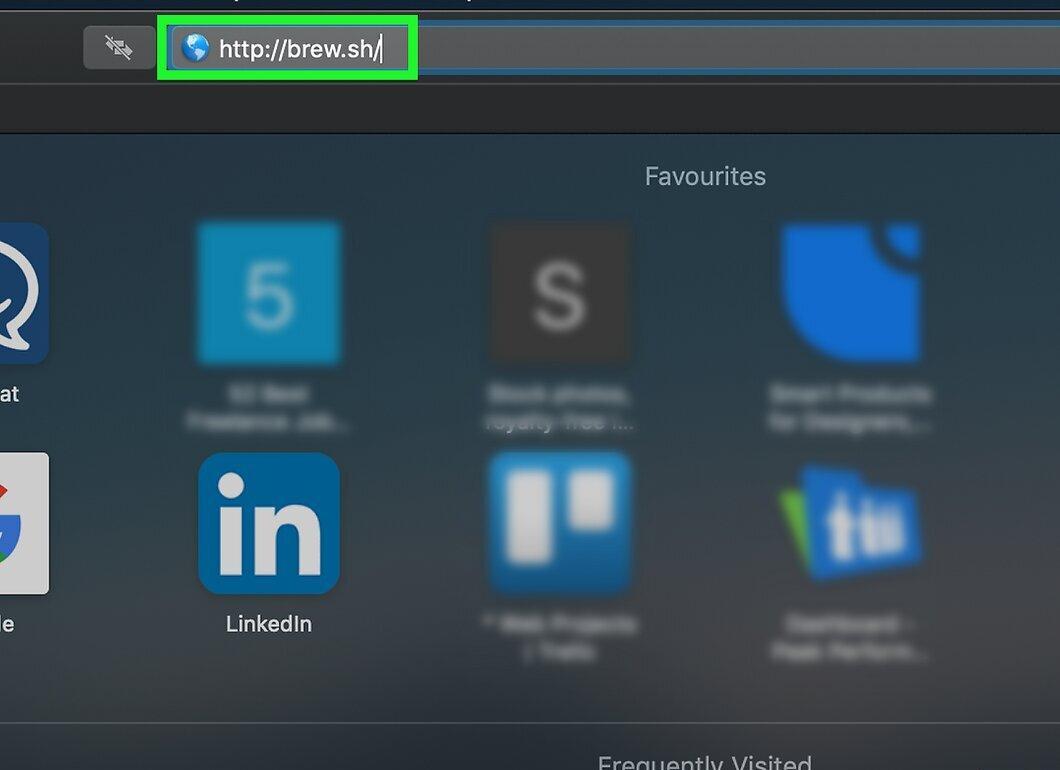
Install FFmpeg (if necessary). On Mac computers, installing FFmpeg is easier when done through the Homebrew package manager, which can be quickly installed via the terminal:
- Go to https://brew.sh/index_en in your web browser.
- Copy the code in the "Install Homebrew" section. Highlight the code and press ⌘ Command+C.
- Open Spotlight, type in Terminal, and double-click on "Terminal".
- Paste the copied code by pressing ⌘ Command+V.
- Press ⏎ Return and wait for the installation to complete.
- Enter brew install ffmpeg and press ⏎ Return.
Step 2. Find the Video or Audio File You Want to Convert
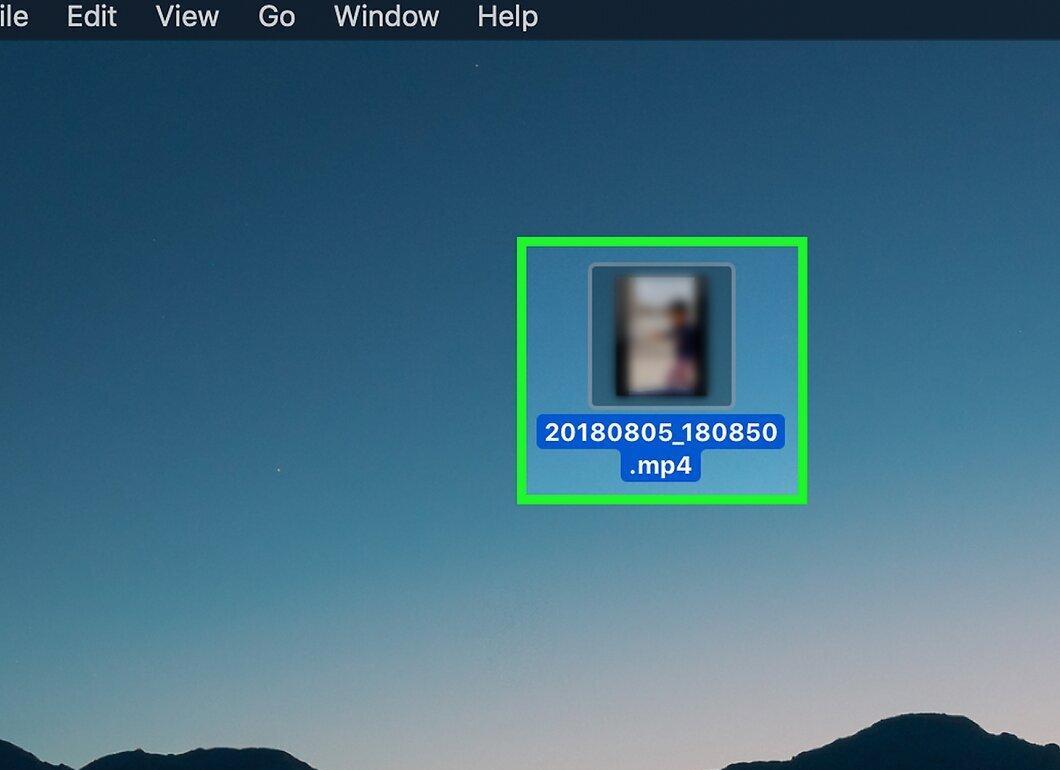
Locate the video or audio file you want to convert. With FFmpeg, you can transform videos and songs into different formats (i.e., a song can be converted into an audio file of another format, and a video into a video file of another format).
Step 3. Copy the Video or Song
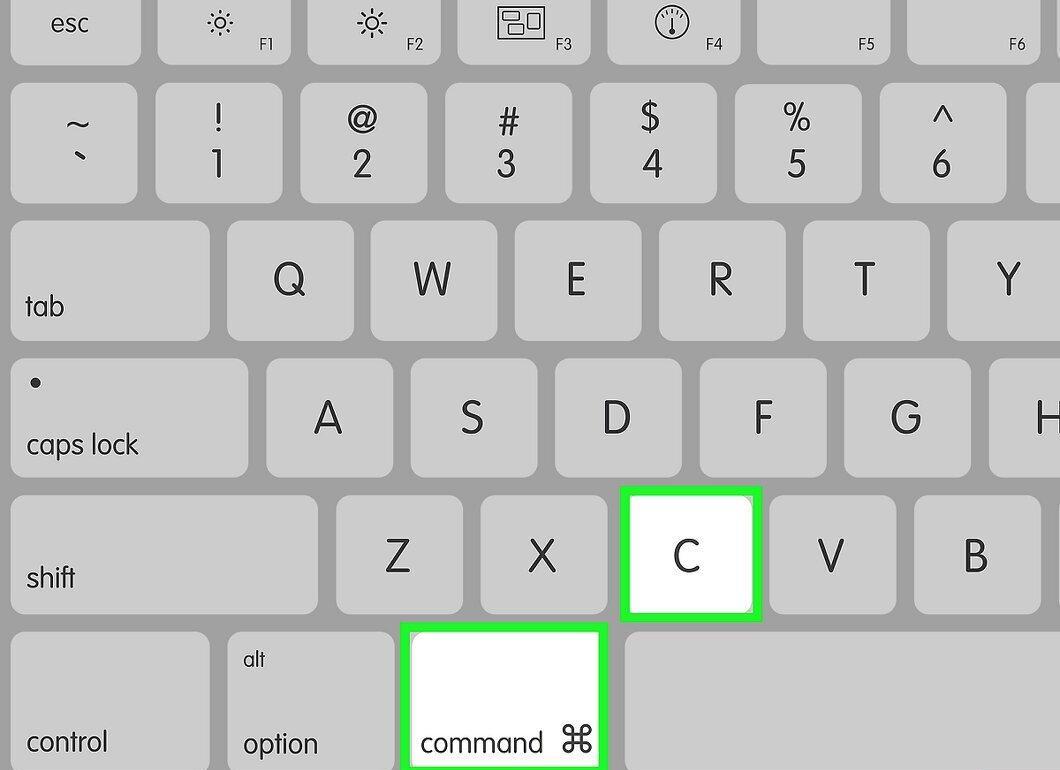
Copy the video or song. Select the file, then press ⌘ Command+C.
- Do this to create a backup of the original file in case something goes wrong.
Step 4. Paste the Video or Song on Your Desktop
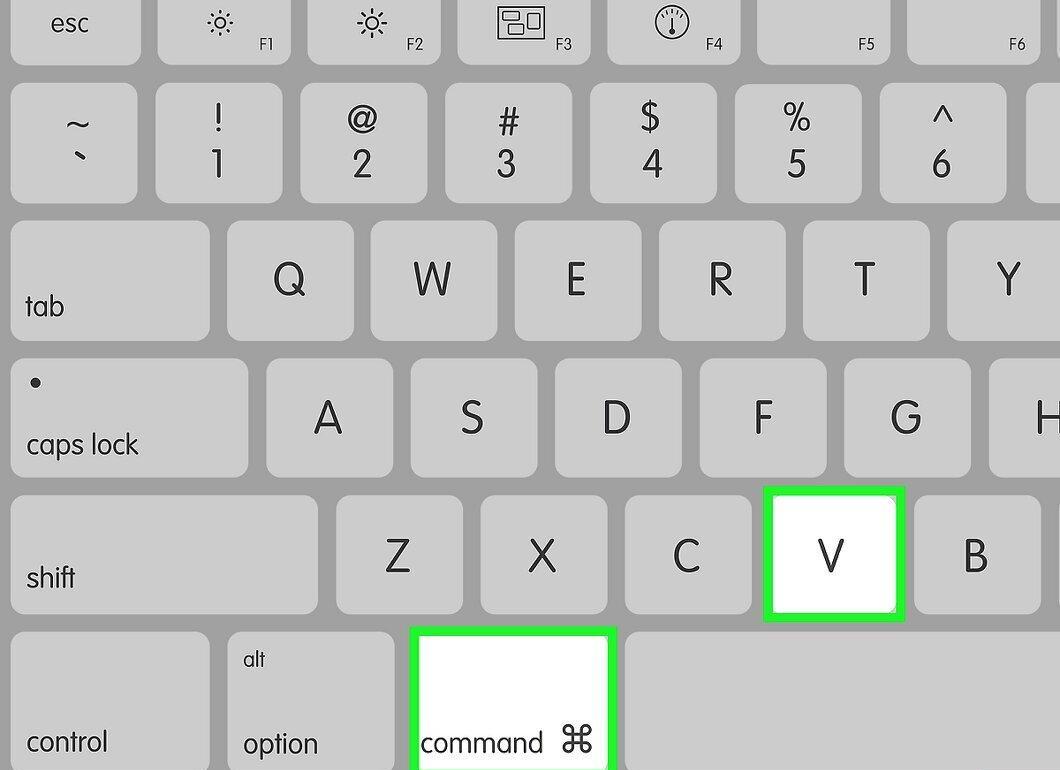
Paste the video or song on your desktop. Go to your computer's desktop and then press ⌘ Command+V.
- This way, the file will be in an easily accessible location.
Step 5. Determine the Current File Format
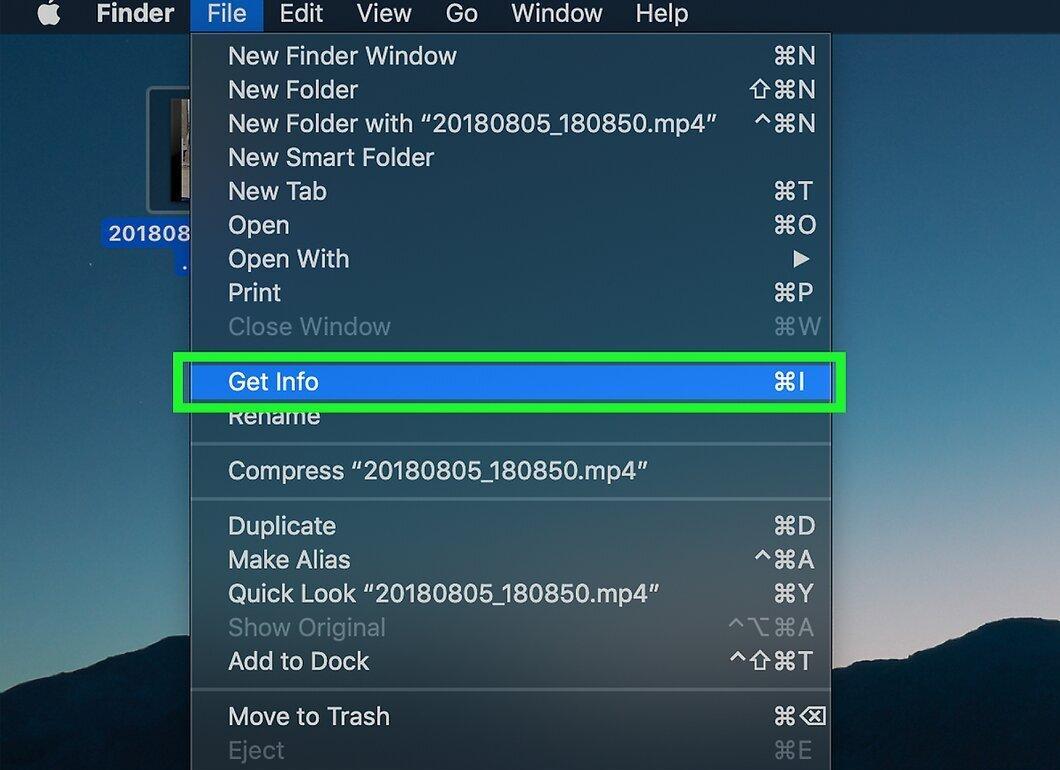
Find out the current file format. Click on the file to select it, then click "File" > "Get Info" and find the extension at the end of the file name (e.g., ".mp4").
Step 6. Decide on the Format to Convert the File To
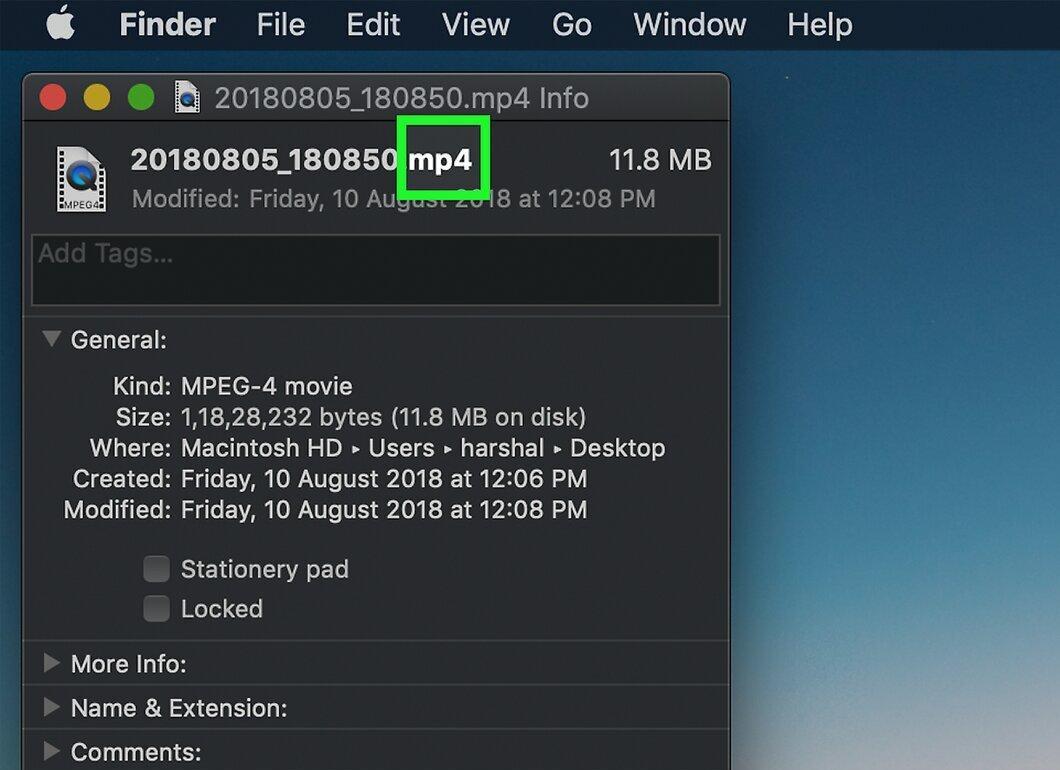
Decide on the format to convert the file to. Videos can be converted into video files, songs into audio files, and videos into audio files. The available formats in FFmpeg are:
- Video — MP4, MOV, WEBM, FLV, AIFF, and AVI.
- Audio — MP3, WAV, WMA, M4A, AAC, and OGG.
Step 7. Find Out the File Name
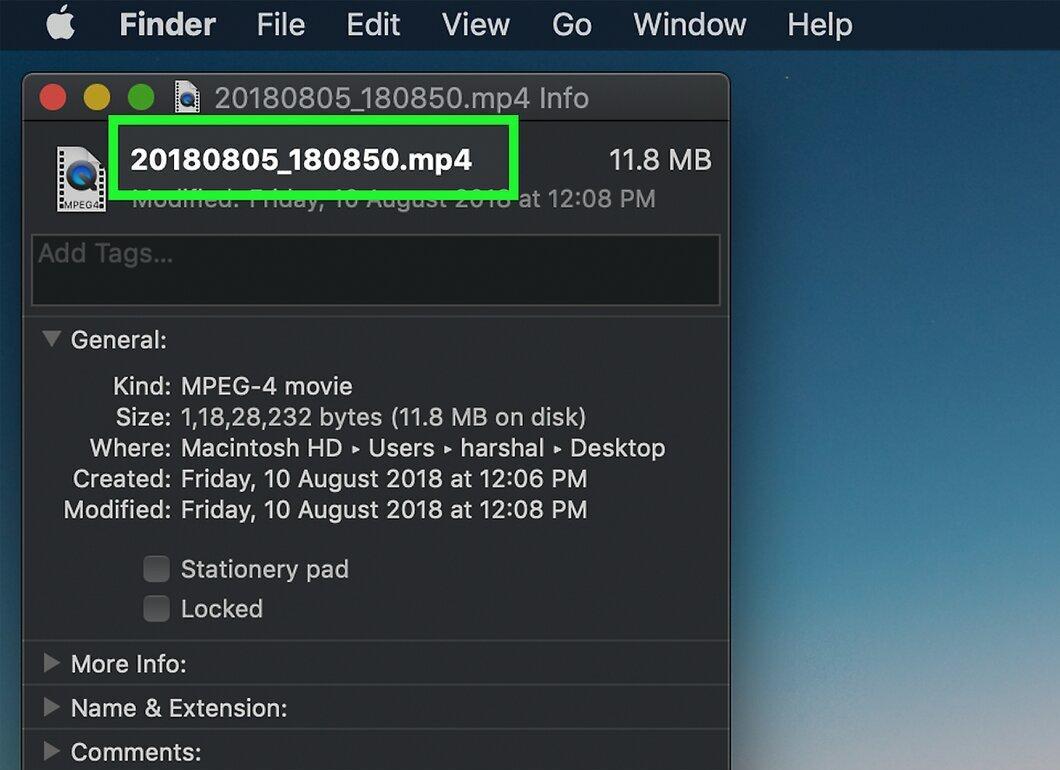
Find out the file name. Click on the file to display its full name. You need to enter the full file name in FFmpeg.
Step 8. Open the Terminal
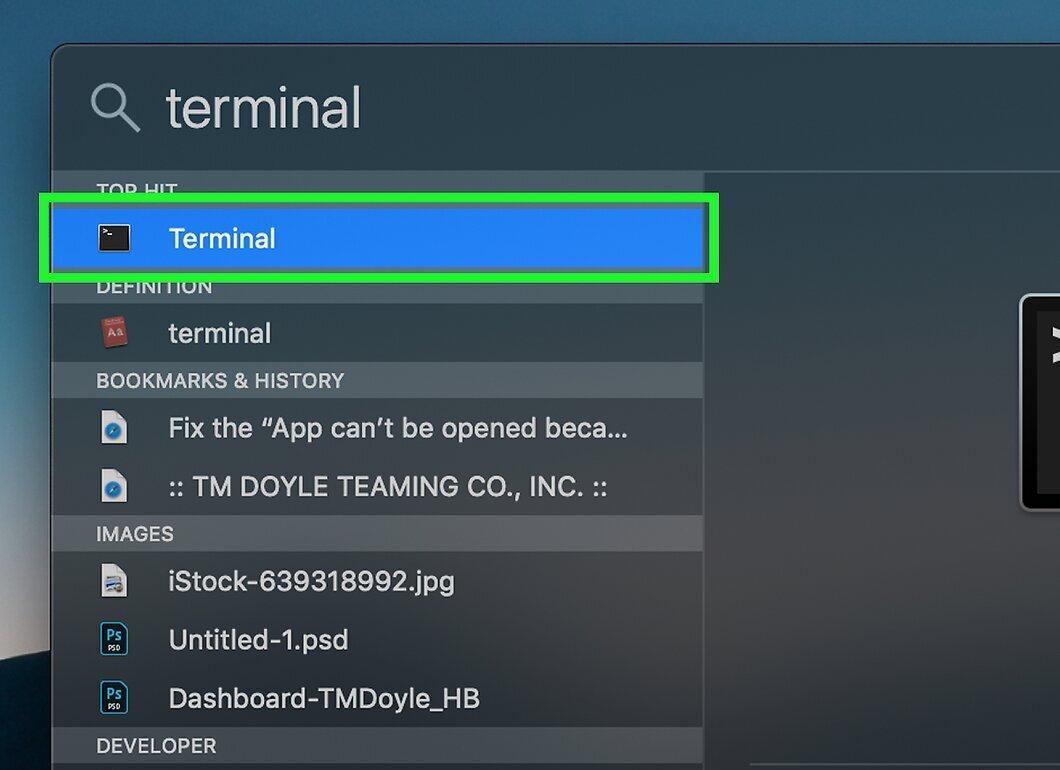
Open the terminal. If you've closed the terminal after installing FFmpeg, open it again. Press "Spotlight," type in Terminal, and double-click on "Terminal."
Step 9. Navigate to the Desktop in Terminal
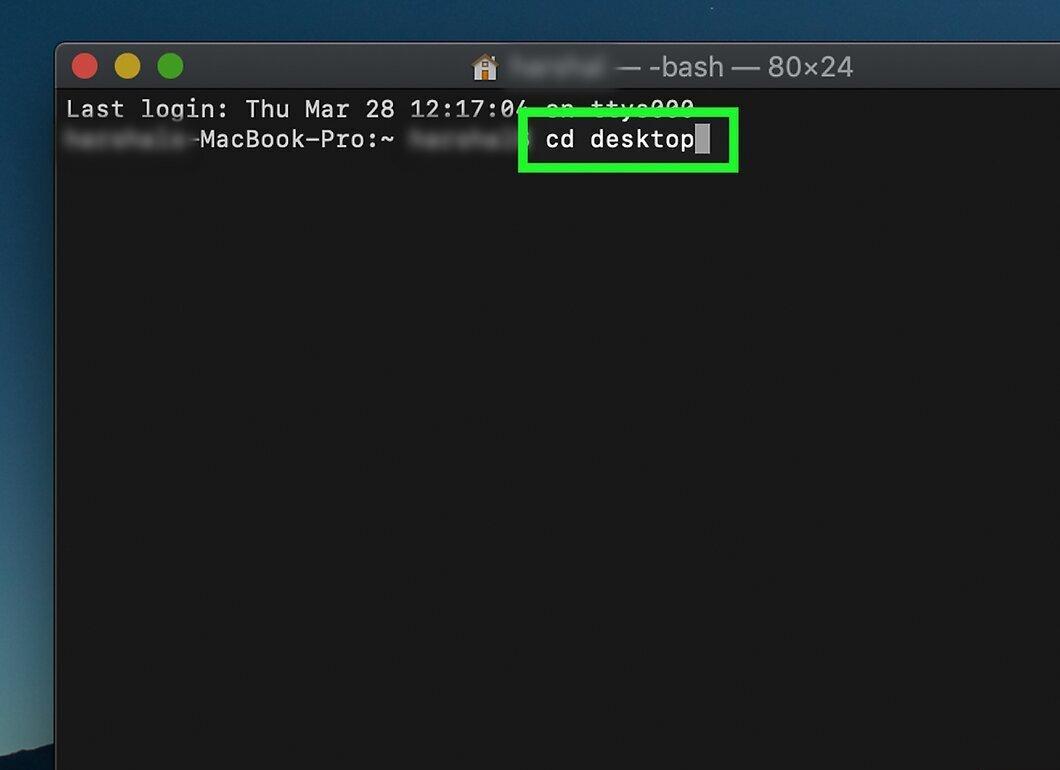
Navigate to the desktop in Terminal. Type cd Desktop and press ⏎ Return. The command line will display all the files stored in the "Desktop" folder.
Step 10. Enter the Conversion Command
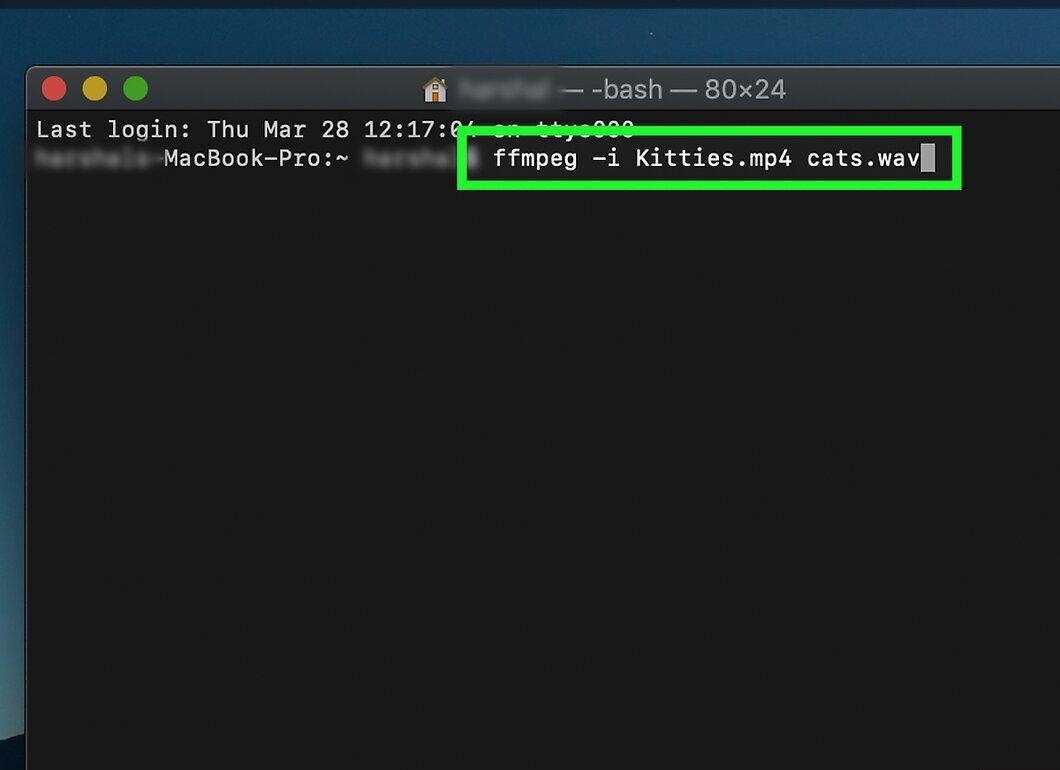
Enter the conversion command. Type ffmpeg -i, then enter the name and extension of the source file, followed by the name and extension of the target file.
- For example, to convert the MP4 file "Kitties" to a WAV file "Cats," type ffmpeg -i Kitties.mp4 Cats.wav.
- When entering the file name, remember to respect case sensitivity (e.g., if the name contains uppercase letters, type uppercase letters).
- If the filename contains spaces, enclose the name and extension in quotes. For instance, instead of YouTube Drama.mp4, type "YouTube Drama.mp4" (do not replace spaces with underscores unless they are in the filename).
Step 11. Press ⏎ Return
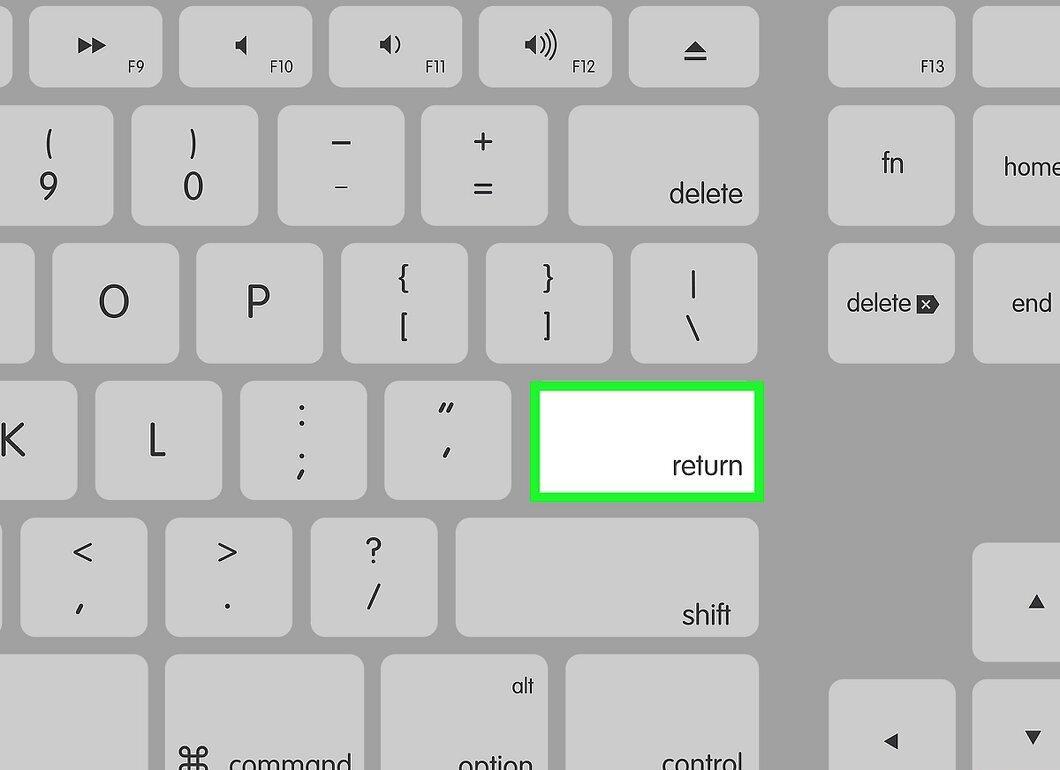
Press ⏎ Return. If you have entered the source file name correctly and selected an available target file format, the file will start converting.
- Converting files (especially videos) can take a long time. If you are converting a large video or audio file, do not close the terminal until a new blank line appears.
Step 12. Locate the Converted File
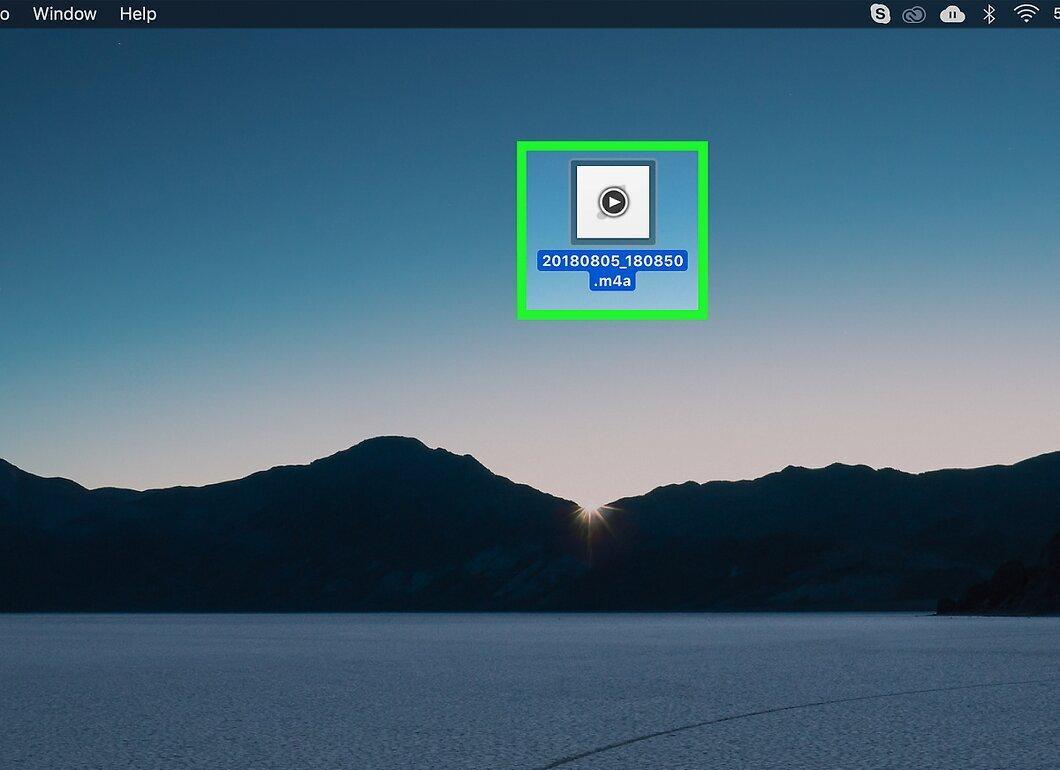
Find the converted file. Once the process is complete, the converted file will appear on your desktop with the name you entered.


