
Fraps is a video recording software designed for capturing gameplay from computer games using DirectX and OpenGL graphics technologies. It’s available for free download with an optional paid version that lifts some restrictions of the free version. The program is popular among gamers who want to record their gaming sessions, whether for Let's Plays or simply to showcase their achievements in games. With these instructions, you will learn how to use Fraps quickly, easily, and painlessly.
Recording Gameplay Video
Step 1. Download Fraps from the official Fraps website.
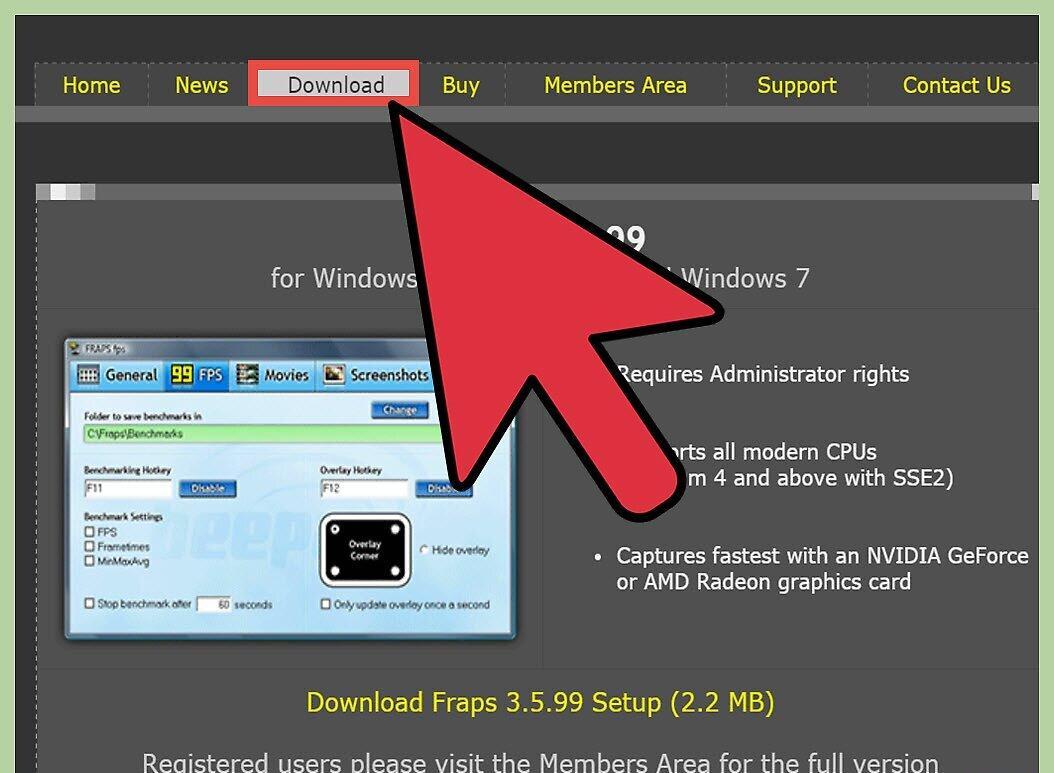
Download Fraps from the official Fraps website. Depending on your needs, you can choose either the free or paid version of Fraps. The free version has some limitations:
- Can record videos up to 30 seconds long (the paid version has no such limit);
- Displays a Fraps watermark over the recorded video;
- Loop recording is not possible.
Step 2. Open Fraps.
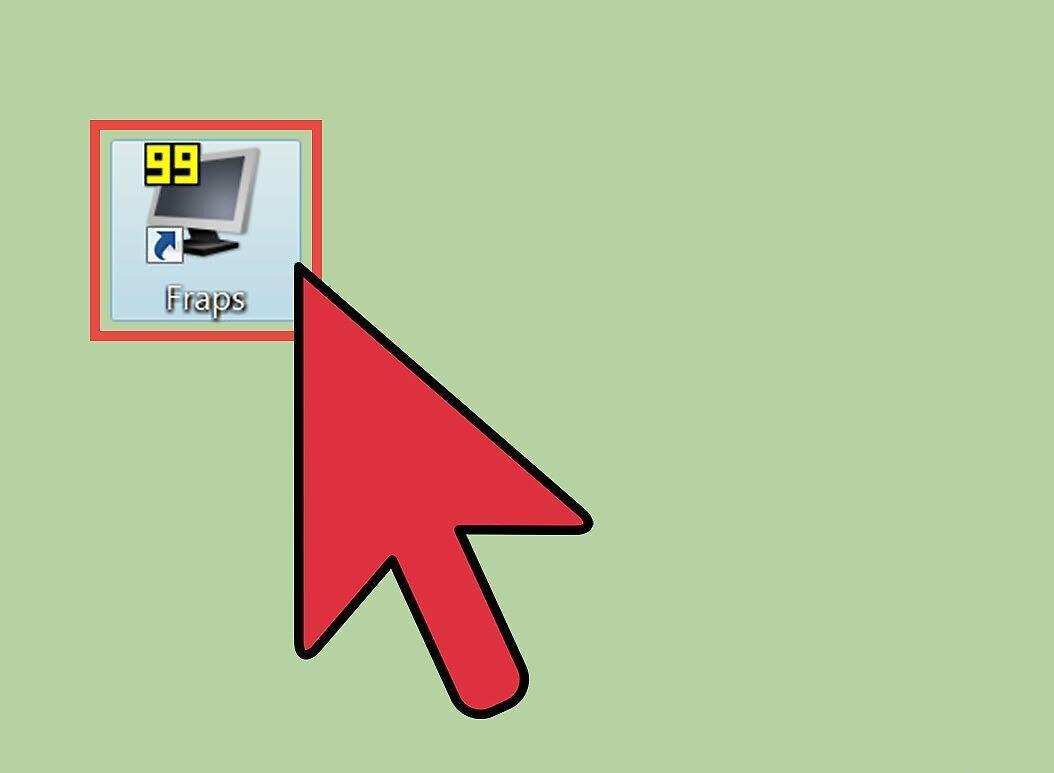
Open Fraps. Note that unlike most programs, the default installation path for Fraps is C:/Fraps, not C:/Program Files/Fraps.
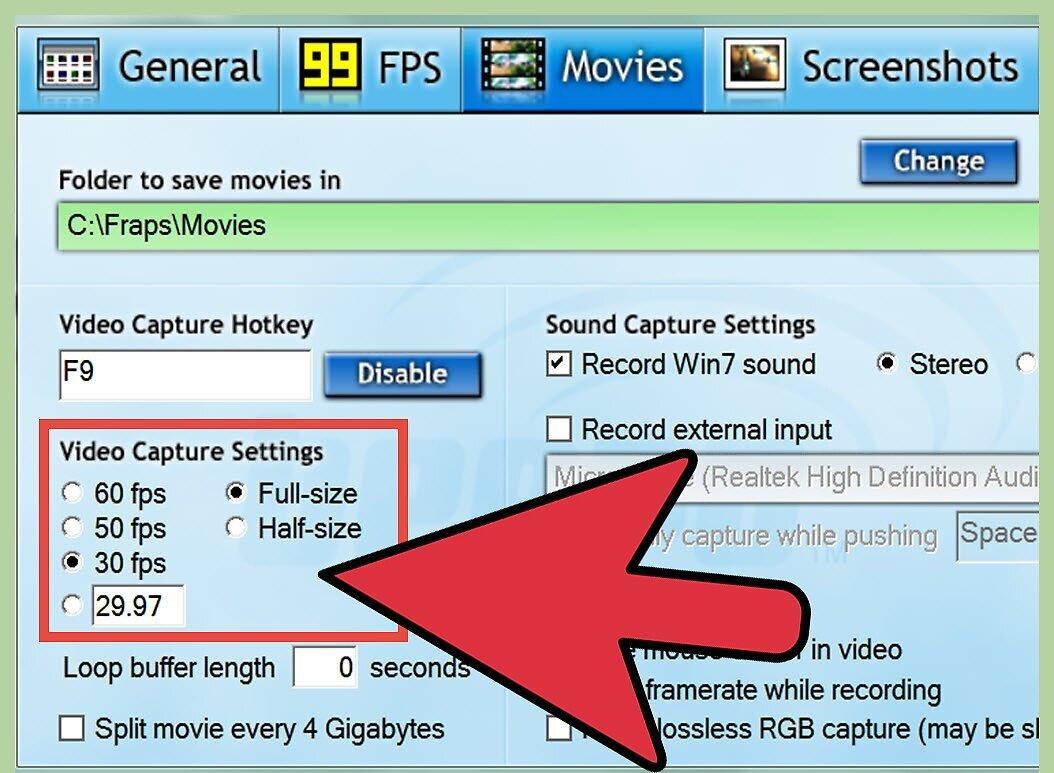
Step 3. Set a hotkey for video recording.
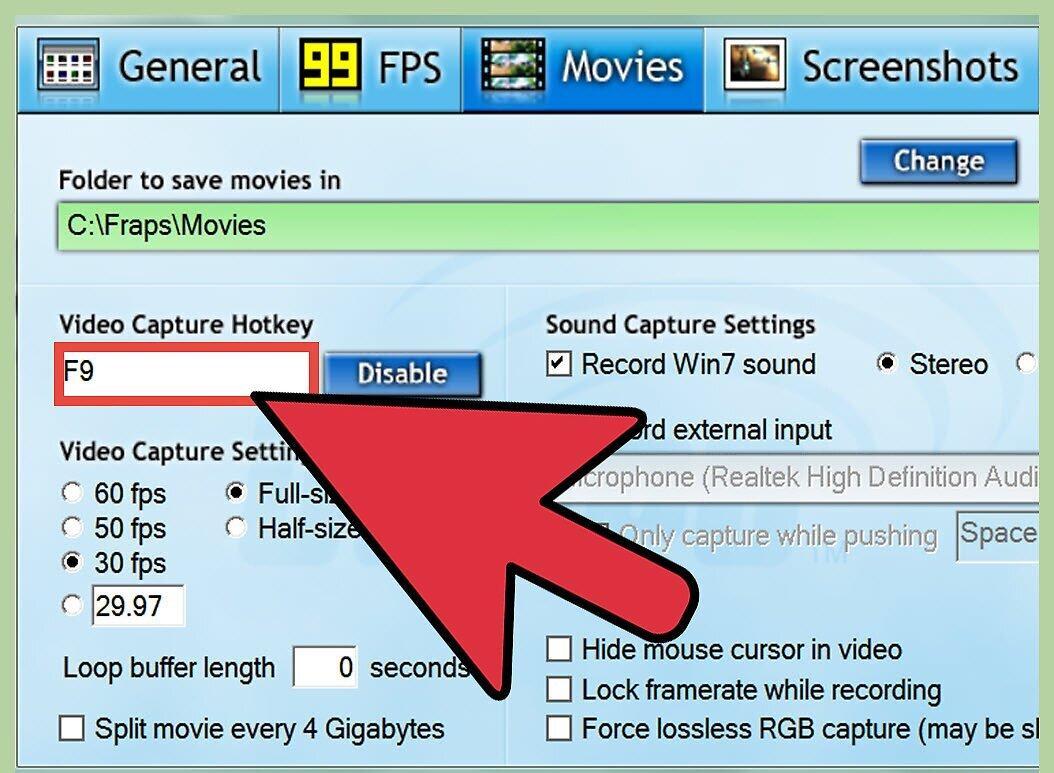
Set a hotkey for video recording. The hotkey is the key you will press to start recording video during gameplay. To set the hotkey, click in the "Video Capture Hotkey" field, then press the button on your keyboard.
- By default, this function is set to the F9 key.
- Choose a key that you are not using in-game.
Step 4. Minimize Fraps.
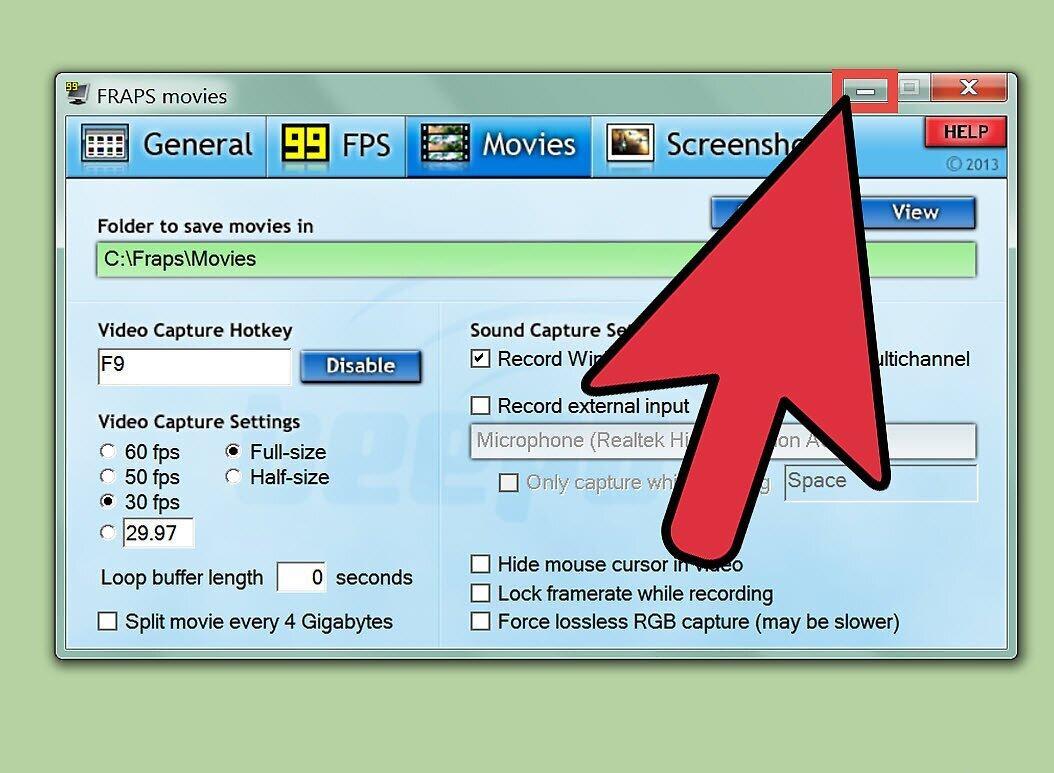
Minimize Fraps. Fraps operates in a minimized state.
Step 5. Launch the game.
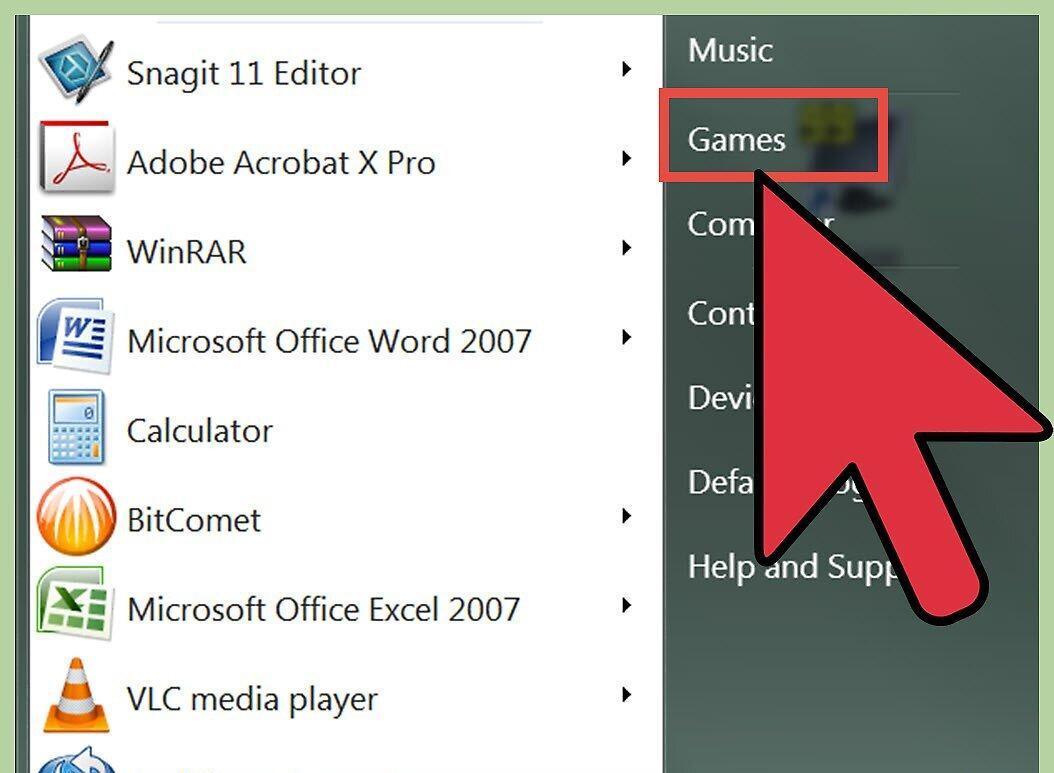
Launch the game. You will see a digital display in the corner of your game window. This is the so-called "FPS overlay" - it shows the current frame rate.
Step 6. Press the hotkey to start capturing video.
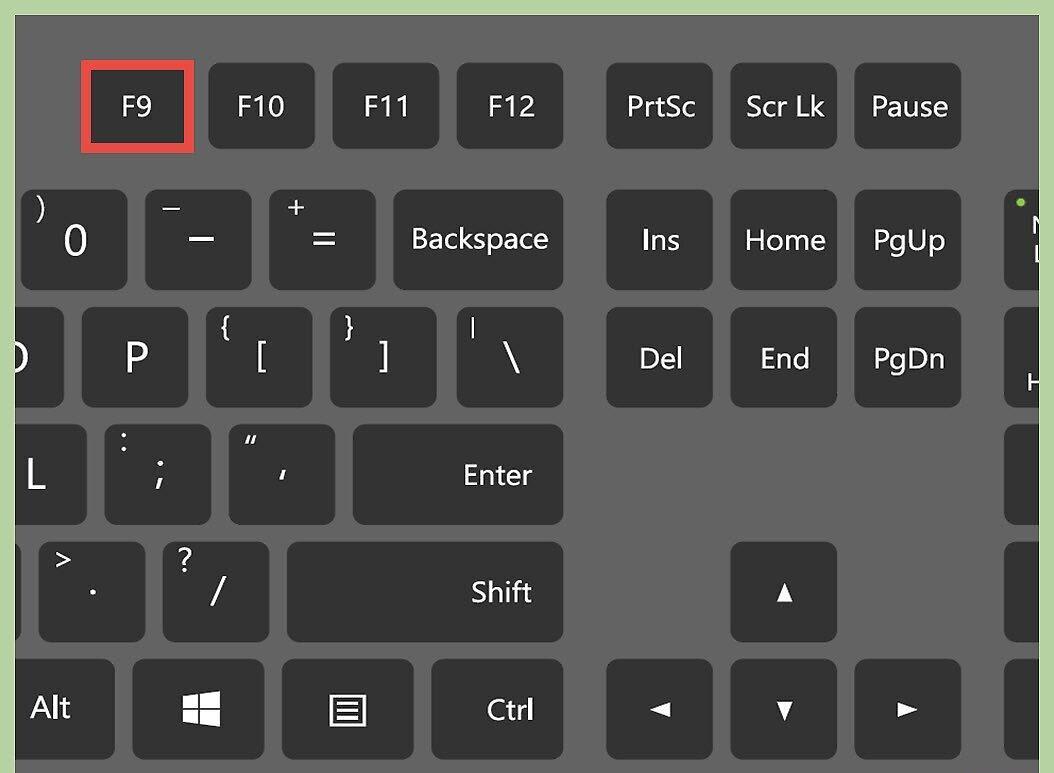
Press the hotkey to start capturing video. The numbers indicating the frame rate will change to red. This indicates that video recording has begun. To stop, press the hotkey again.
- Remember that the free version of Fraps allows recording videos up to 30 seconds long.
Displaying Frame Rate Information
Step 1. Launch Fraps.
Launch Fraps. Select the "FPS" tab at the top of the window (it looks like yellow "99"). Here you can see options for frame limit overlay and benchmarking Fraps.
- Frame rate is a measure of how fast the game is running. The number of frames is usually denoted as frames per second (FPS). Movement in computer games is actually an illusion created by the rapid succession of images called frames. The more images displayed per second, the smoother and clearer the motion appears in the game.
- The FPS overlay is an option that shows the current frame count in one of the corners of the screen. Graphically intensive parts of the game may cause a drop in frame rate — the overlay will display this and other fluctuations in frame count.
- Benchmarking is the process of calculating the average frame rate over a specific period.
Step 2. Set hotkeys for benchmarking and frame count output.
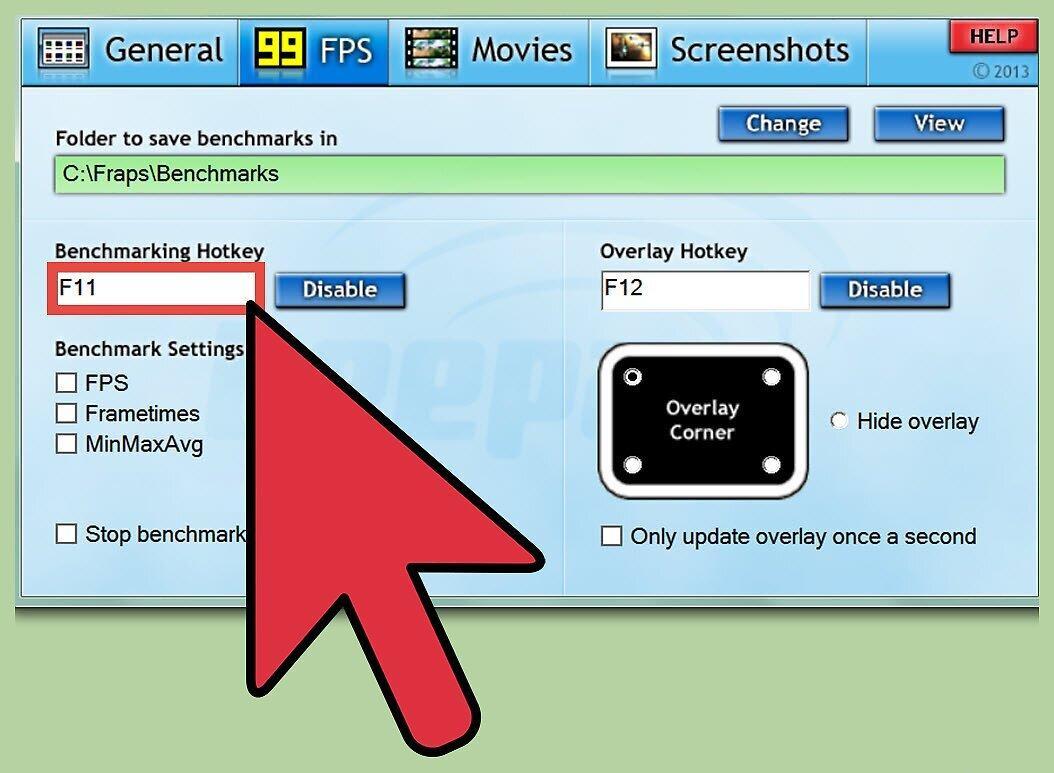
Set hotkeys for benchmarking and frame count output functions. To do this, click on the "Benchmarking Hotkey" and "Overlay Hotkey" fields, and press the corresponding keys on your keyboard that you want to assign to toggle them on/off in-game.
- By default, this function is set to the F11 and F12 keys, respectively.
- Choose keys that you are not using in-game.
Step 3. Configure additional options for benchmarking and overlay functions.
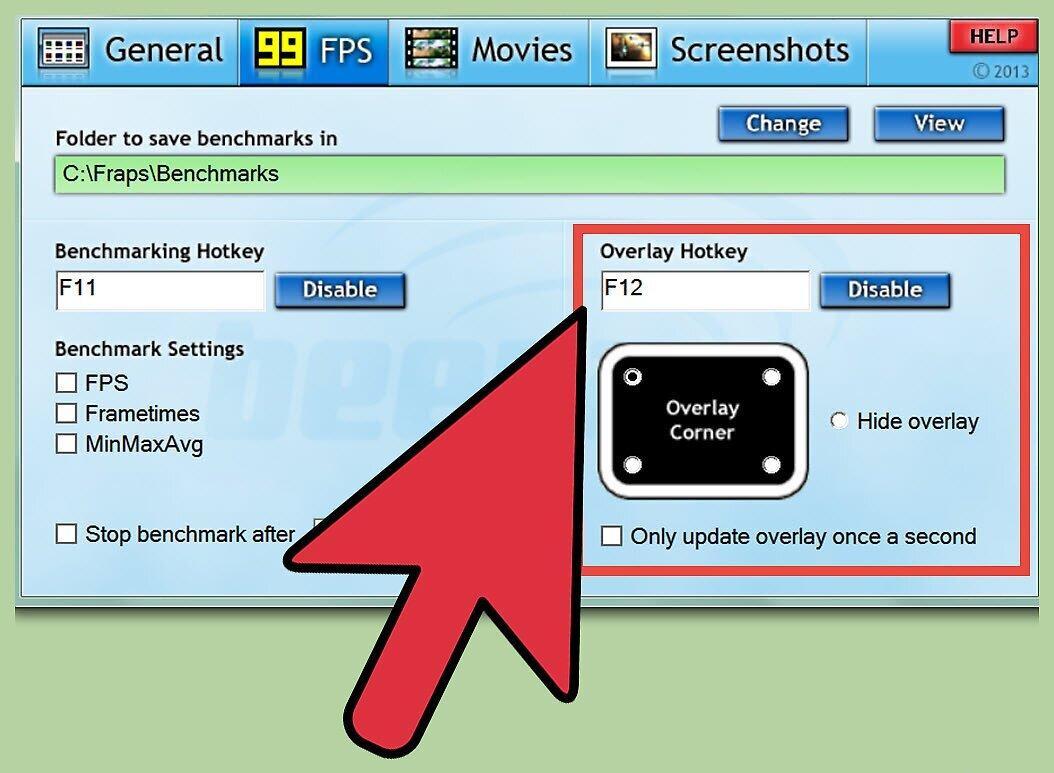
Configure additional options for benchmarking and overlay functions. Depending on your preferences, you can enable or disable several options on this page. You can choose the duration of benchmarking, additional parameters for evaluation, and the corner for displaying information in the overlay.
- For your FPS overlay, choose a corner of your screen that won’t obstruct your view or hide important information during gameplay.
Step 4. Minimize Fraps and start the game.
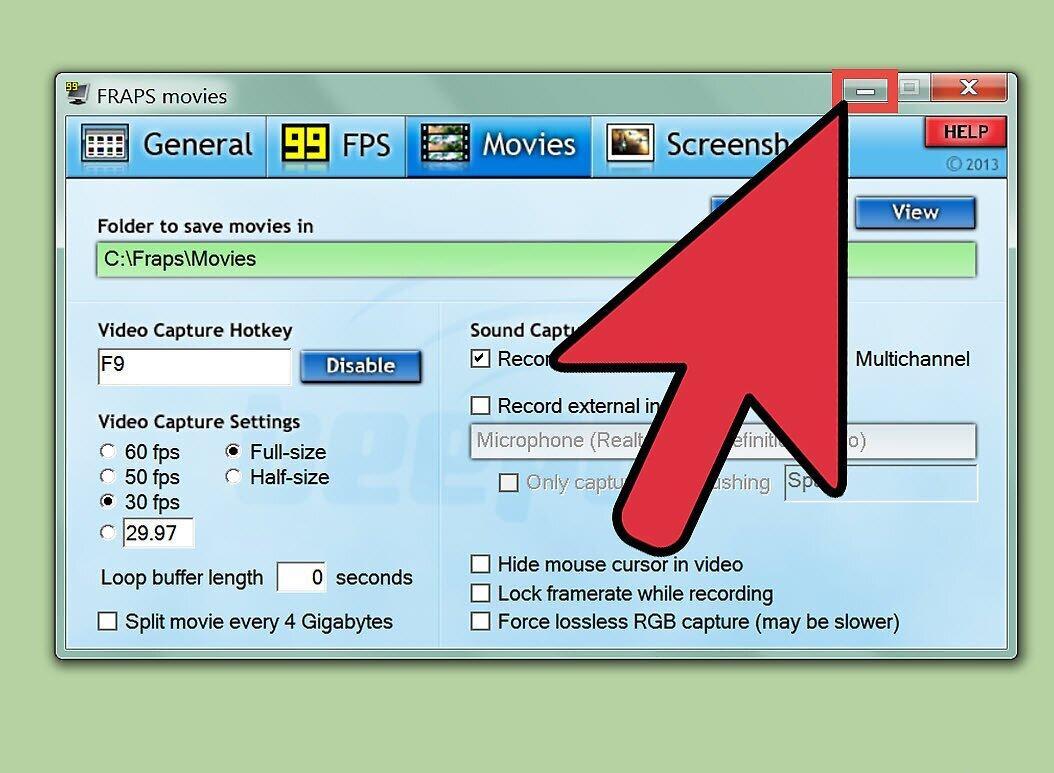
Minimize Fraps and start the game. When you’re ready to start the FPS benchmark overlay, press the assigned hotkey. The benchmark/overlay will appear on the game screen.
Taking Screenshots
Step 1. Launch Fraps.
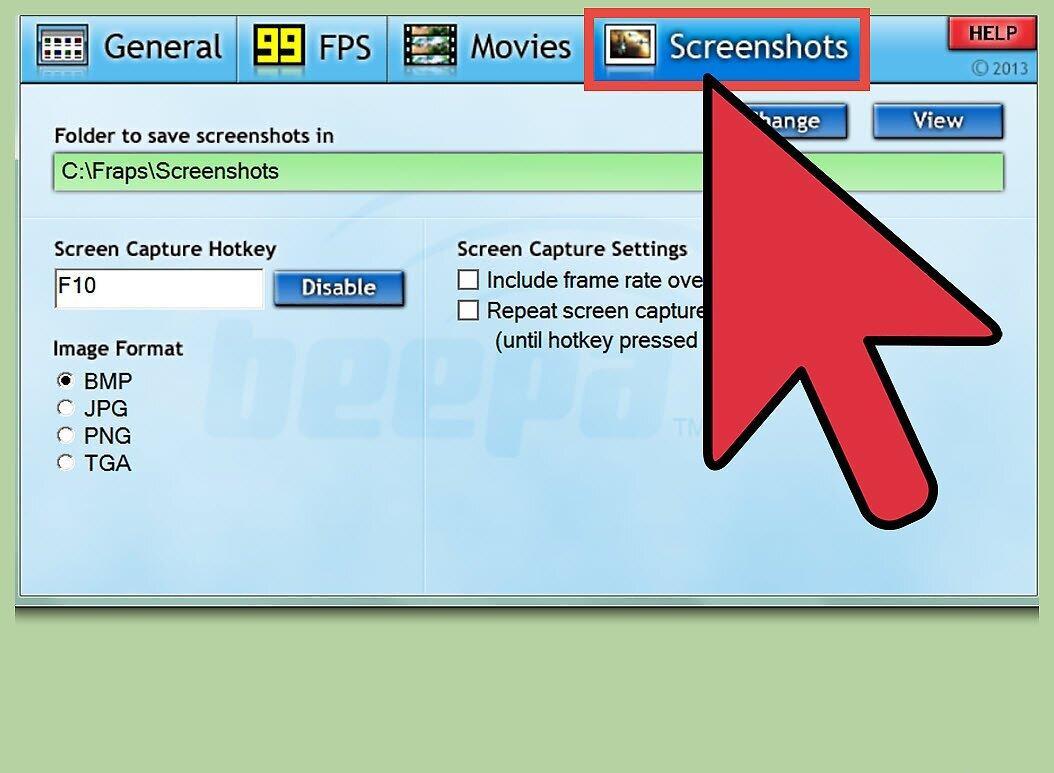
Launch Fraps. Select the "Screenshots" tab at the top of the window. Here you can find functions to change screenshot capture settings.
- A screenshot is an image that captures the gameplay.
- The free version of Fraps can save screenshots only in .BMP format. The paid version can save screenshots in .BMP, .JPG, .PNG, and .TGA formats.
Step 2. Set a hotkey for screenshots.
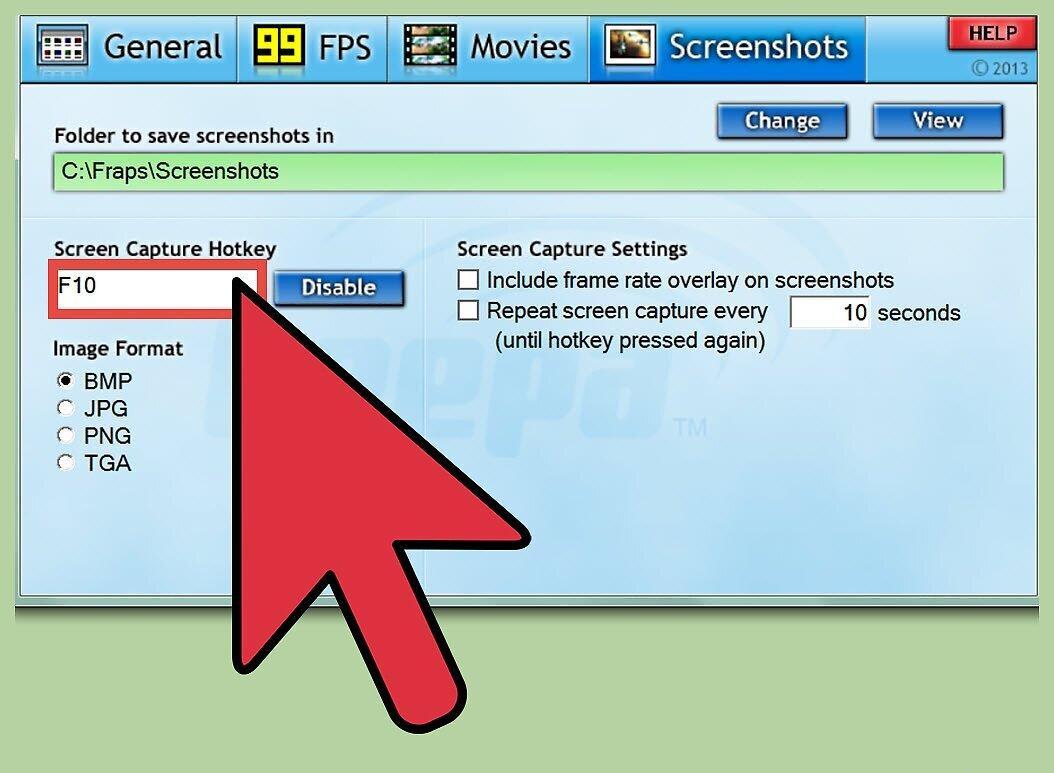
Set a hotkey for taking screenshots. Click on the "Screen Capture Hotkey" field, then press the button on your keyboard.
- By default, this function is set to the F10 key.
- Choose a key that you are not using in-game.
Step 3. Configure screenshot capture options.
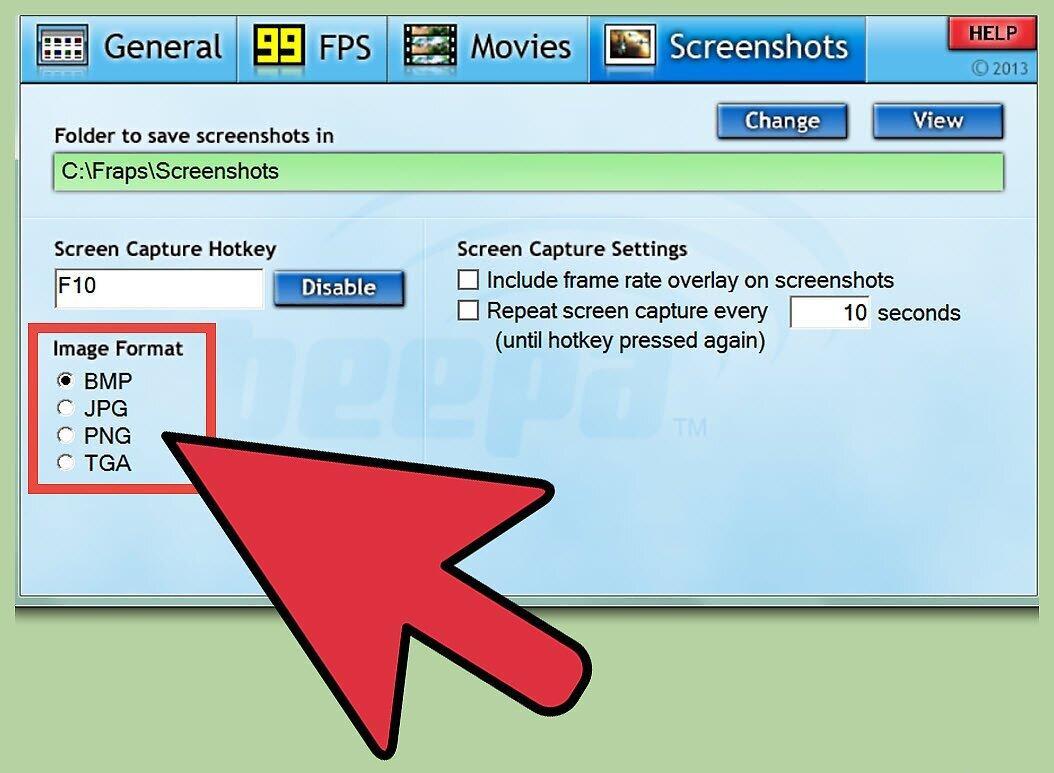
Configure screenshot capture options. The tab for screenshot settings has several options available. You can:
- Change the screenshot capture format (in the paid version);
- Choose whether to use an overlay displaying the frame count when taking screenshots;
- Set a fixed interval for automatic screenshot captures.
Step 4. Minimize Fraps and start the game.
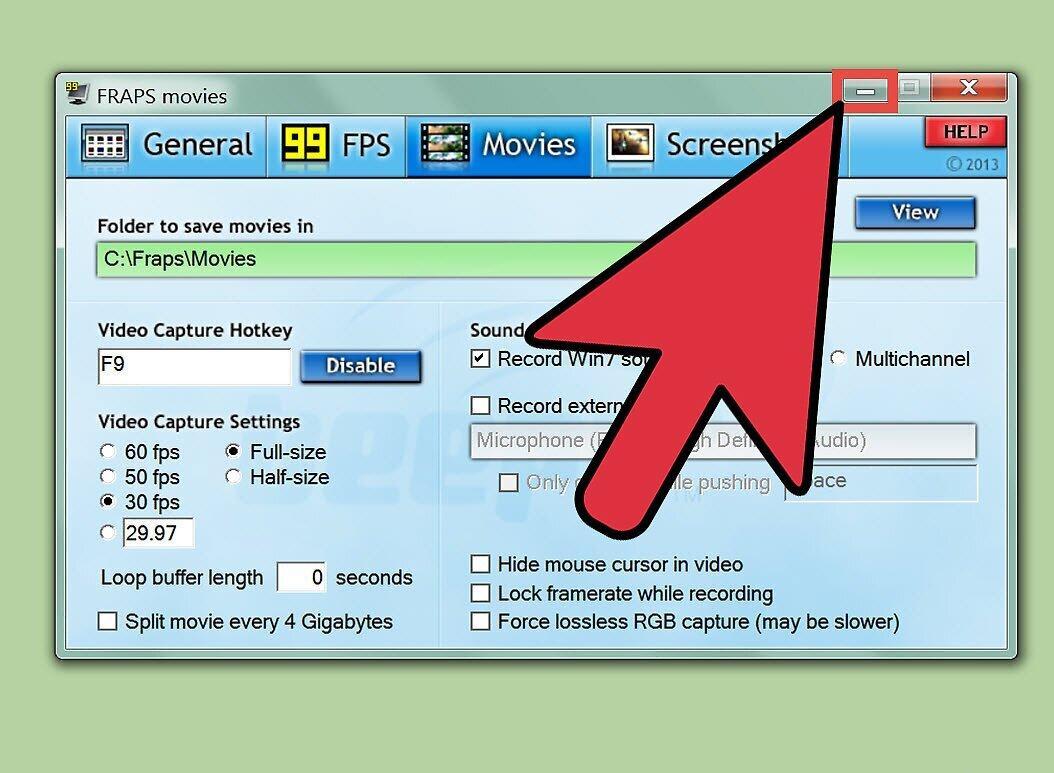
Minimize Fraps and start the game. Fraps will continue running in the background.
Step 5. When you want to take a screenshot, press the assigned hotkey.
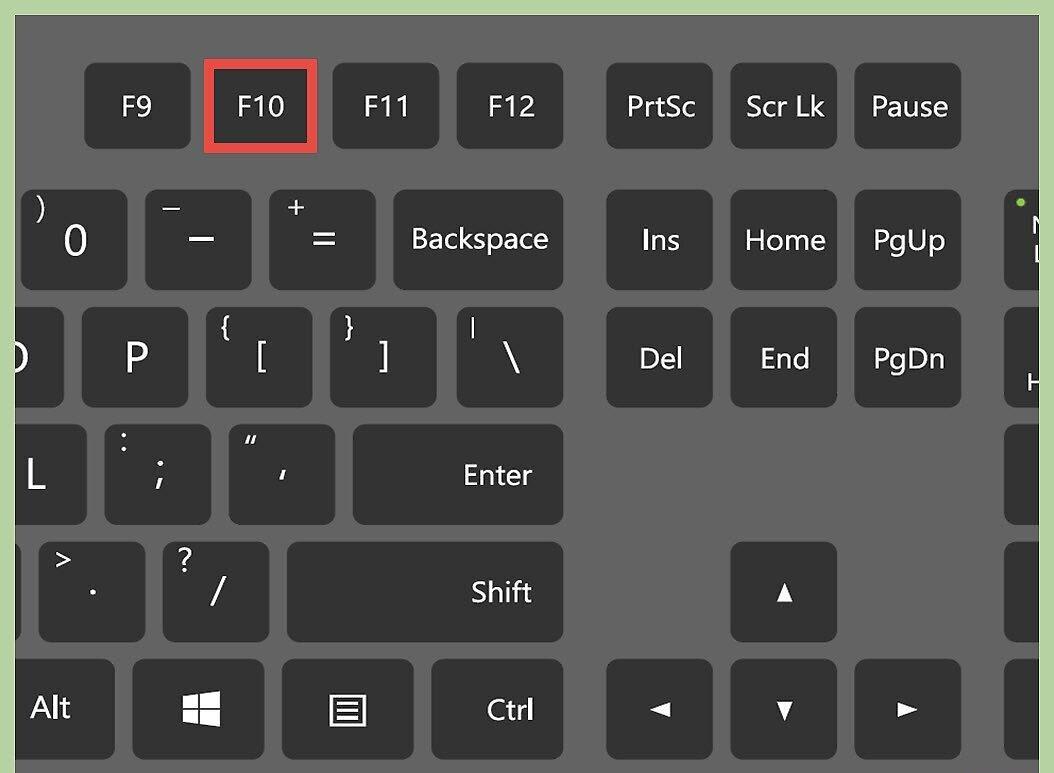
When you want to take a screenshot, press the assigned hotkey. The frame count in the overlay will highlight in white. This signals that the screenshot has been successfully captured.


