
The 'Inspect Element' feature in Firefox allows you to view the HTML code of a webpage. By activating this feature, you can modify both HTML and CSS. Feel free to experiment with any changes, and simply refresh the page to return it to its original state.
Inspecting Elements
Step 1. Update Firefox (if you want to).
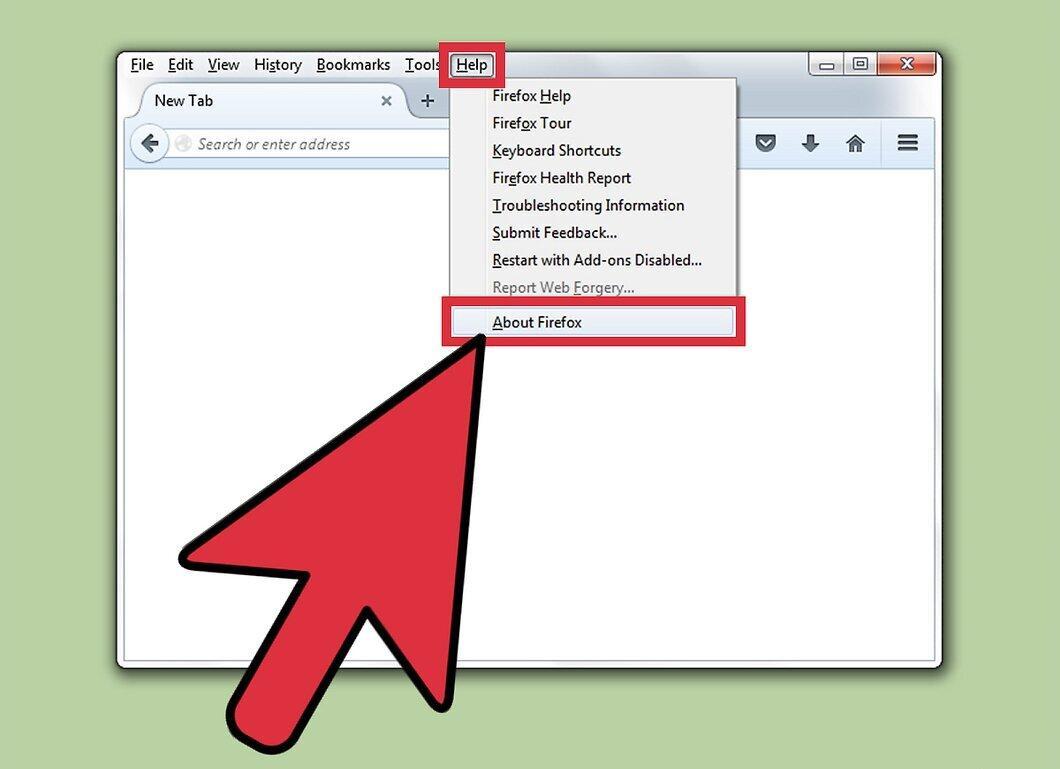
Update Firefox (if you want to). You won’t be able to access all the features described in this article if you’re using an outdated version of Firefox. Check your browser version to initiate an automatic update.
- The 'Inspect Element' feature is not available in Firefox 9 or earlier versions.
Step 2. Right-click on any element of the webpage, such as an image, text, background, or another element.

Right-click on any element of the webpage, such as an image, text, background, or another element. If you don’t have a two-button mouse, hold down Control and click the element with your left mouse button.
Step 3. Select 'Inspect Element' from the opened menu.
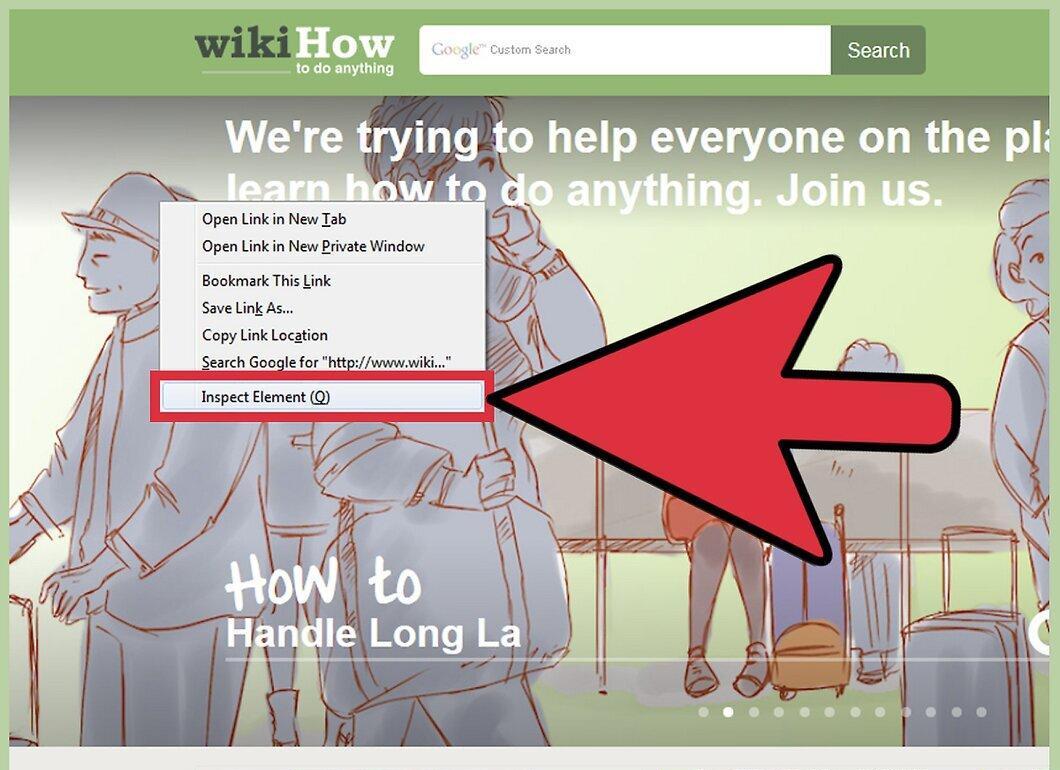
From the opened menu, select 'Inspect Element'. At the bottom of the window, a toolbar will be displayed, and below it, a sub-window containing the HTML code of the page.
Step 4. Familiarize yourself with the toolbars and sub-windows.
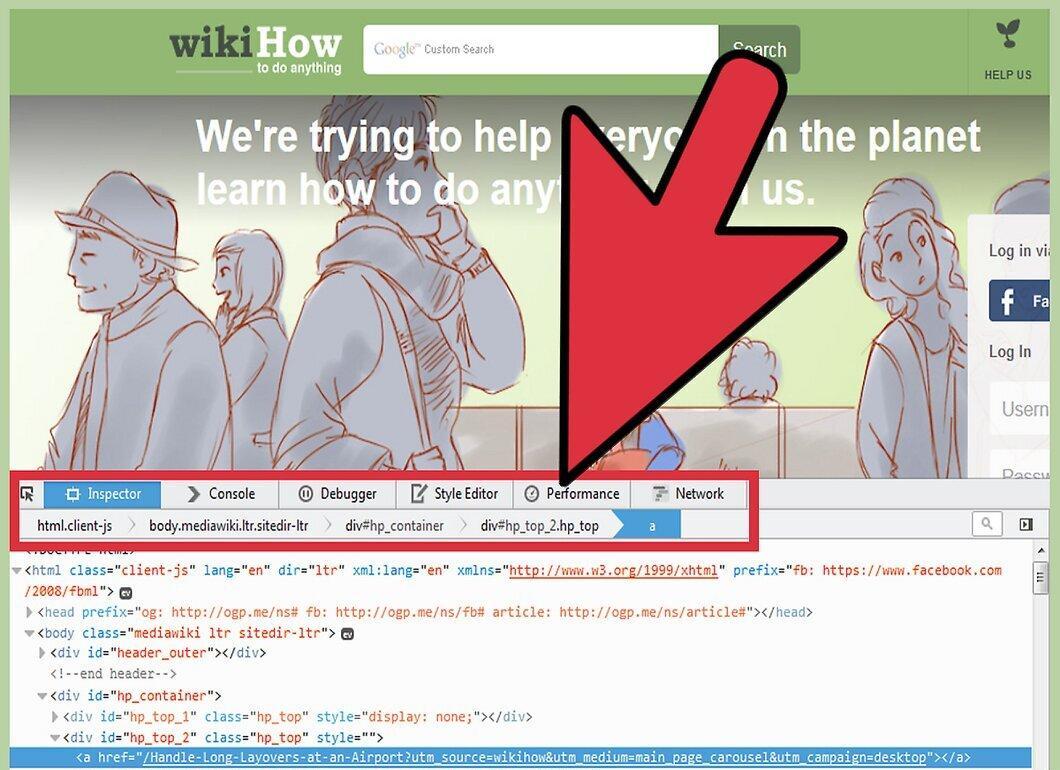
Get acquainted with the toolbars and sub-windows. Once you select 'Inspect Element', several sub-windows will open at the bottom of the window. Here’s a breakdown:
- The top bar is the toolbar. It includes several tabs, but we are interested in the first tab on the left, the 'Inspector' tab (highlighted in blue). Don’t switch to other tabs.
- Below the toolbar is a line with debugging operators.
- Below that is the sub-window containing the HTML code of the page. The HTML code of the element you selected will be highlighted (in blue) and centered in this sub-window.
- In the sub-window to the right, you will find the CSS for this page.
Step 5. Select another element.
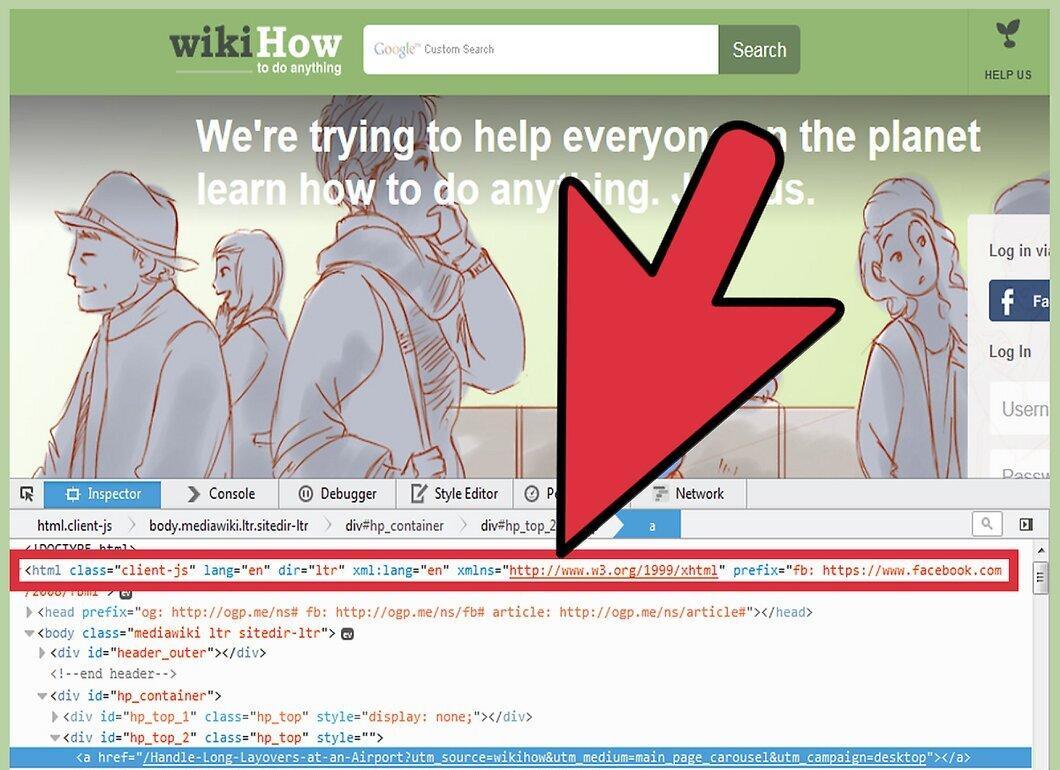
Select another element. With the 'Inspect Element' sub-window open, you can easily select another element in one of three ways:
- Hover your mouse pointer over the HTML line to highlight the corresponding element (in Firefox 34+). Click on the HTML code to select that element.
- Click on the 'Select an element from the page' icon. This icon is located on the left side of the toolbar and looks like a square with a cursor. Hover the cursor over the desired element (in the HTML sub-window), and then click on the element to select it.
Step 6. Navigate the HTML code.
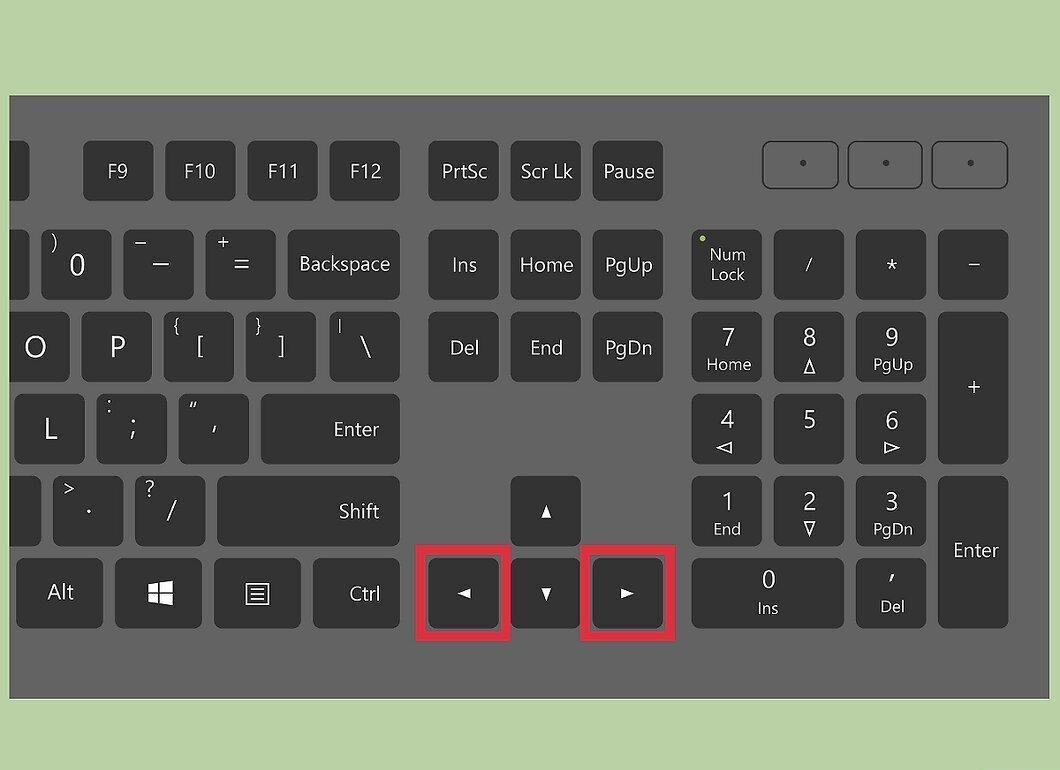
Navigate the HTML code. Click on any area in the HTML code sub-window. Use the arrow keys on your keyboard to move through the code (in Firefox 39+). This is useful if the element is quite small.
- HTML code shown in gray refers to elements that are not visible on the page. For example, comments, nodes (like <head>), and elements hidden using CSS.
- Click the arrow to the left of a container to expand or hide its contents. To expand all containers, hold down Alt or Option while clicking the arrow.
Step 7. Find an element.
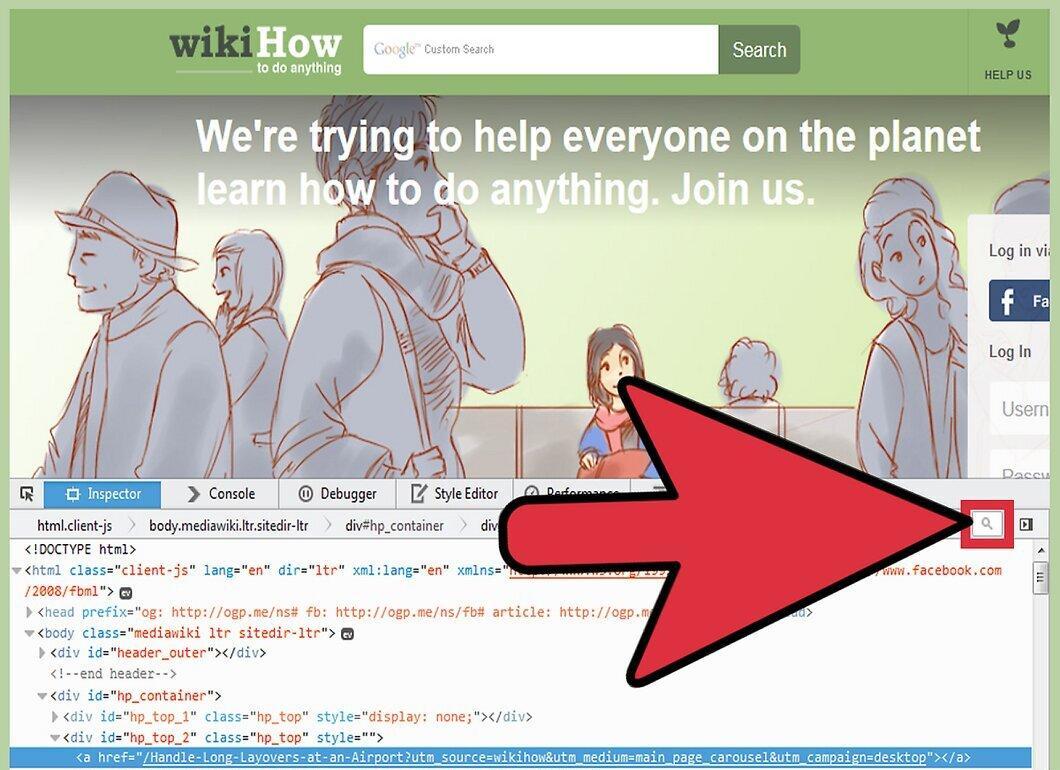
Find an element. On the line with debugging operators, look for the magnifying glass icon (on the right). Click this icon to open the search bar and enter the HTML code you are looking for. As you type, a dropdown will appear with matching elements. Click on the desired element and scroll through the HTML code to locate that element’s code.
Editing HTML Code
Step 1. Refresh the page to undo all changes you made.
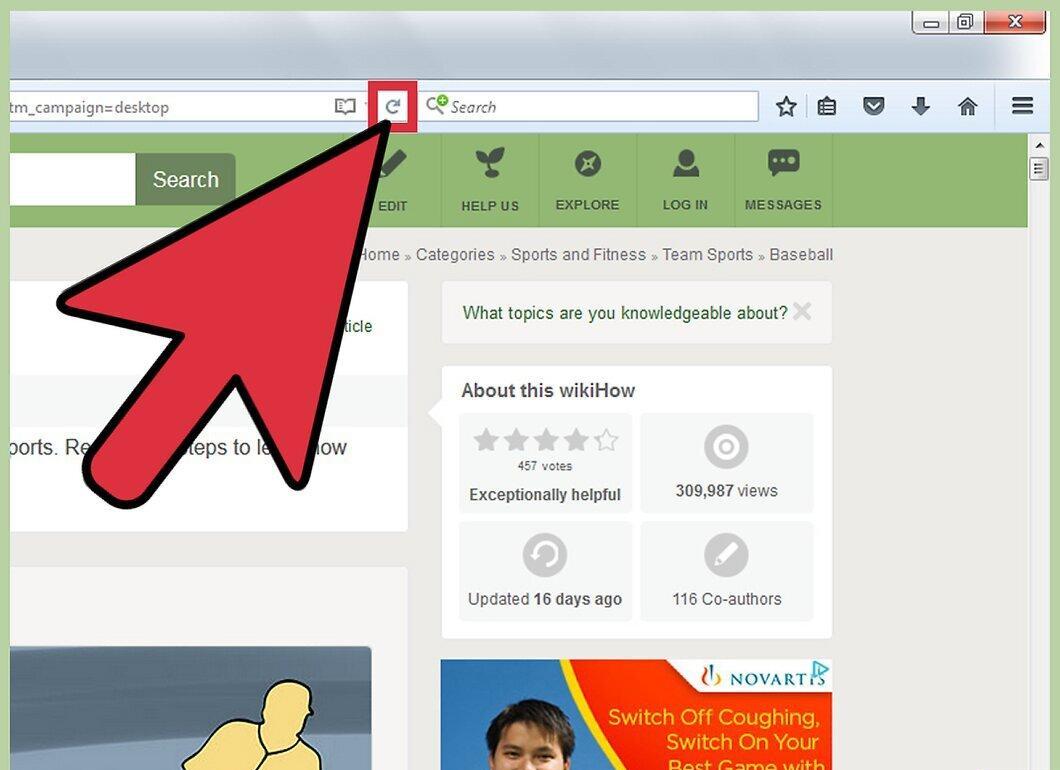
Refresh the page to undo all changes you made. Remember, changes made will only display on your screen, meaning they are not permanent. Closing or refreshing the page will revert it to its original look. So don’t be afraid to experiment, even if you’re not entirely sure what the outcome will be.
Step 2. Double-click on the HTML code to edit it.
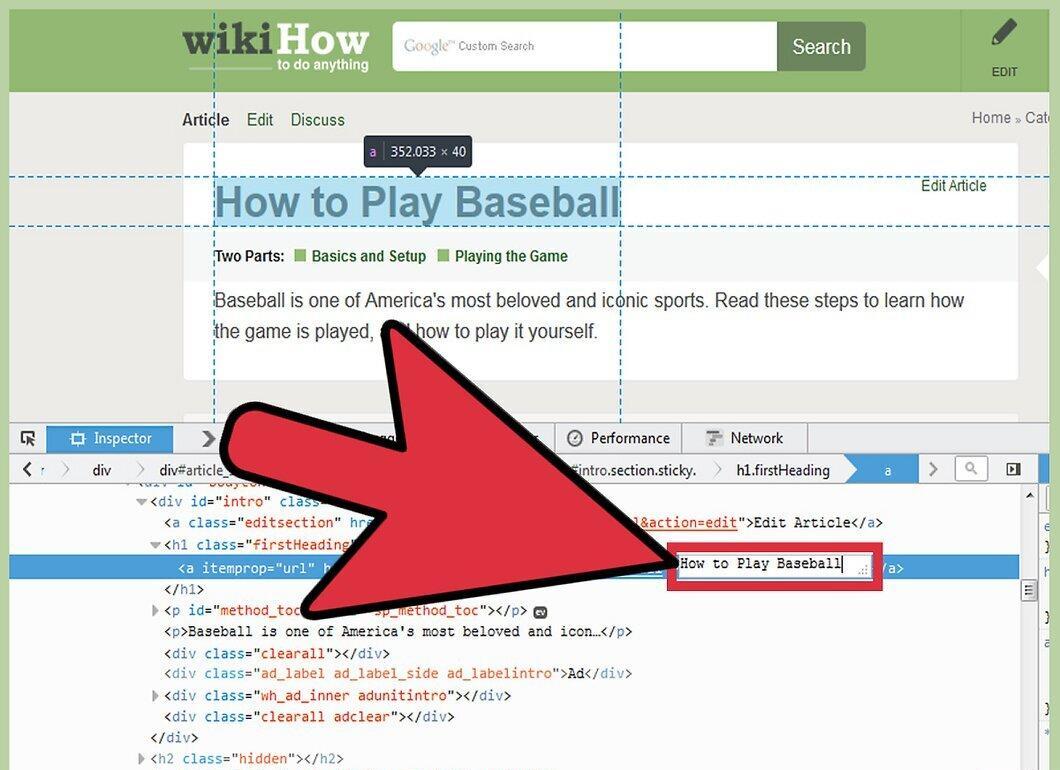
Double-click on the HTML code to edit it. Enter new code and press Enter to save the changes.
Step 3. Click and hold the debugging operator line to access additional options.
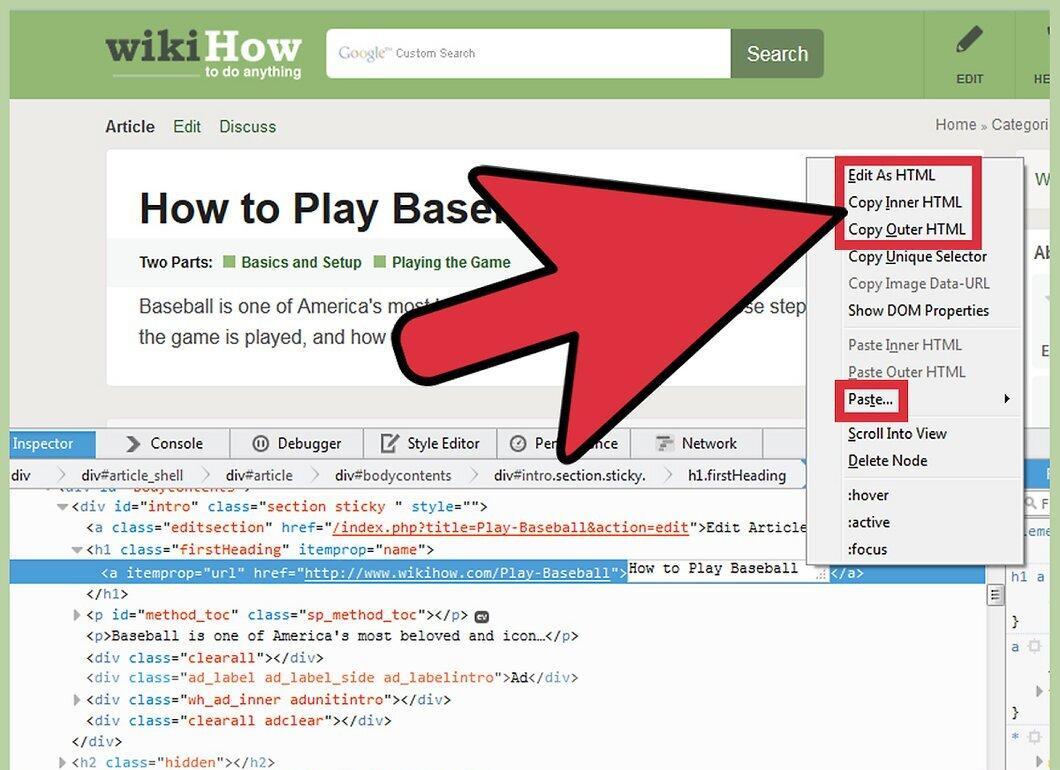
Click and hold the debugging operator line to access additional options. This line is located between the toolbar and the HTML code sub-window. Here’s a partial list of additional options:
- 'Edit as HTML'. Allows you to edit an entire node and all its contents, rather than individual lines.
- 'Copy inner HTML'. Copies all content of the node, while 'Copy outer HTML' copies the node itself (like <div> or <body>).
- 'Paste'. Options will appear for pasting, such as before the node or after the node.
- ':hover', ':active', ':focus'. Change the appearance of the element. The exact effect is determined by the CSS (edited in the right sub-window).
Step 4. Dragging.
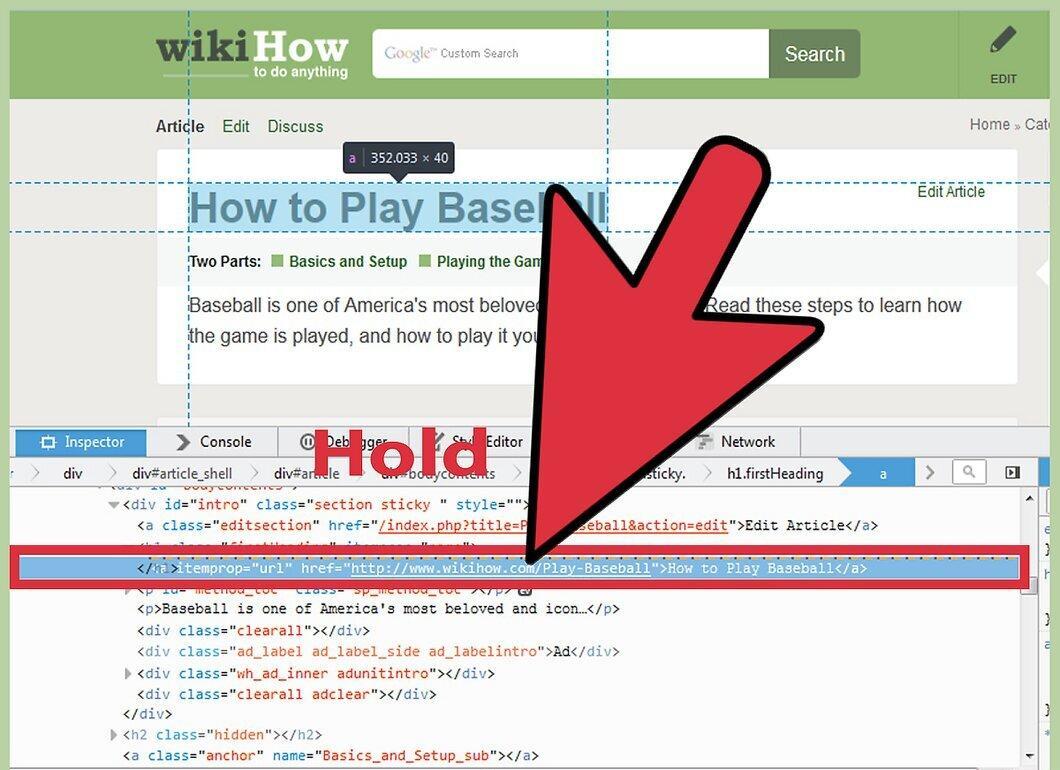
Dragging. To move elements, click and hold the HTML code until a dotted line appears. Move it up or down and release when the line reaches the desired position.
- This works only in Firefox 39+.
Step 5. Close the 'Inspect Element' sub-windows.
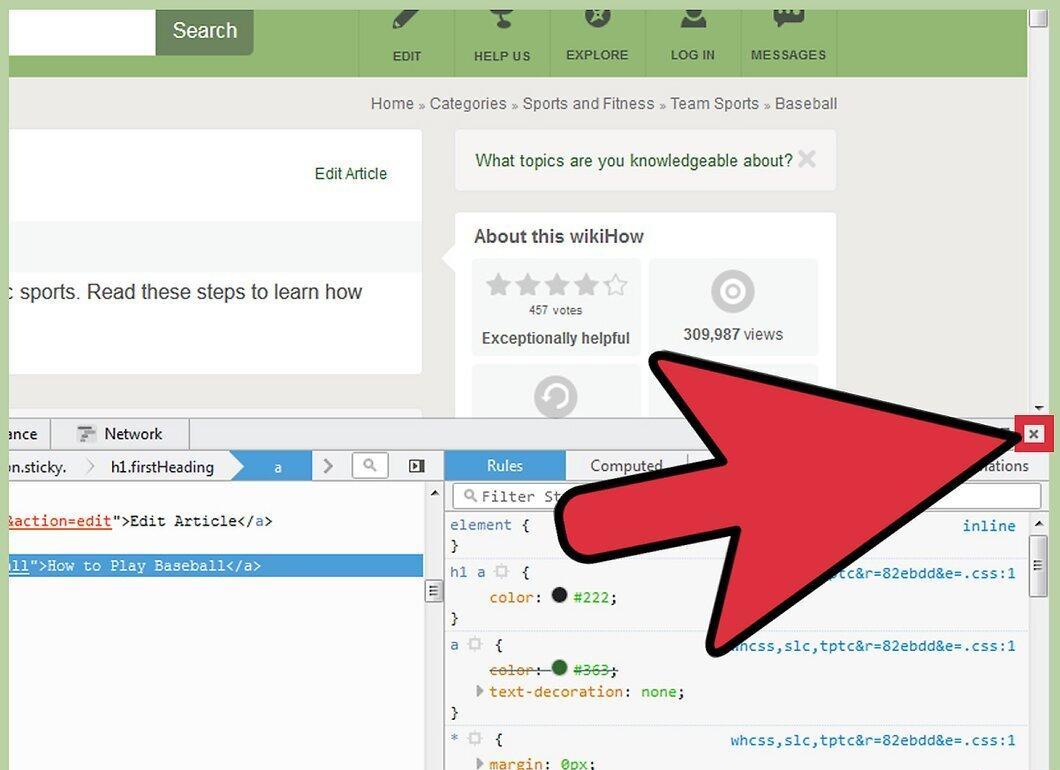
Close the 'Inspect Element' sub-windows. To do this, simply click the 'X' icon (in the far right corner of the toolbar).


