
Looking to extend your computer time? Need to showcase a presentation but don’t have a projector? Why not connect your computer to a 50" HD TV? Or maybe you want to turn your laptop into a desktop setup and don’t have a monitor. Most modern computers can easily connect to modern TVs.
Windows
Step 1. Identify the type of cable you'll use to connect your computer to the TV.
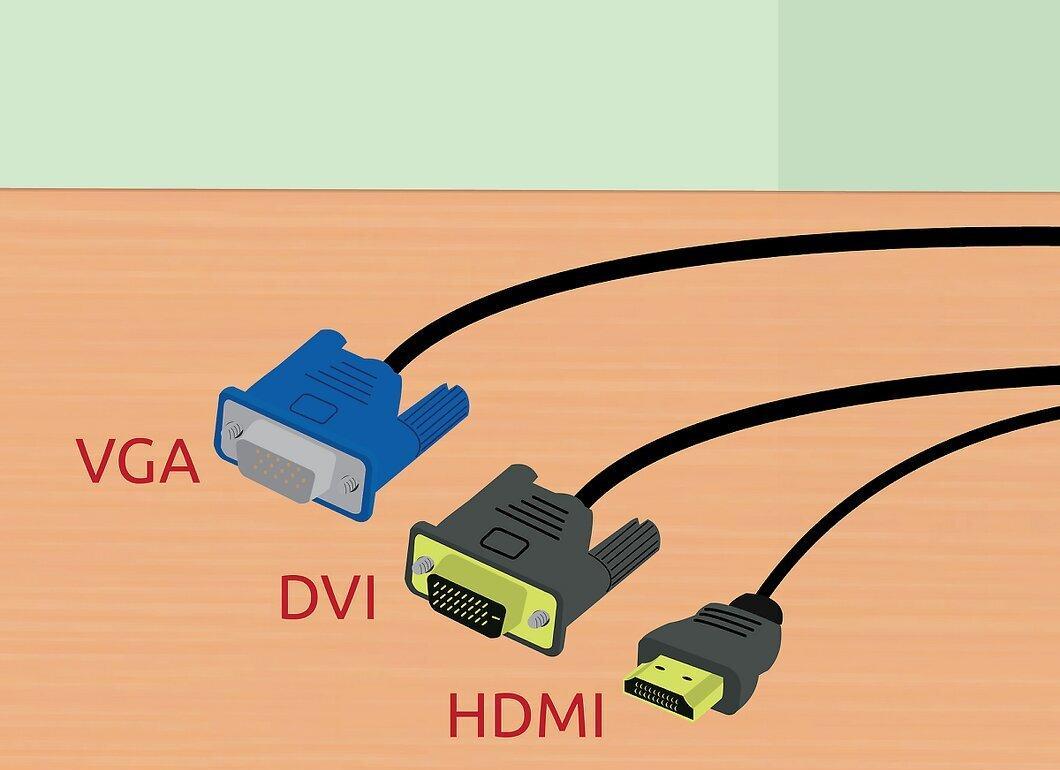
Identify the type of cable you'll use to connect your computer to the TV. Check the back of your computer for ports and connectors. Video ports are usually located near USB ports, audio jacks, and the Ethernet port, or they may be found on a discrete graphics card (below the audio jacks). There are three main types of connectors:
- HDMI. The modern standard for connecting HD devices, and most contemporary computers have an HDMI port (on the back). HDMI transmits both video and audio. The HDMI port resembles an elongated USB port.
- DVI. A digital connector with pins. It has a rectangular shape and three rows of eight pins each. DVI transmits only video.
- VGA. An older standard. It has a trapezoidal shape with three rows of 15 pins. Avoid this connector if you have access to a DVI or HDMI port, as VGA provides lower quality images. VGA transmits only video and cannot display images in HD quality.
Step 2. Identify the types of inputs on your TV.
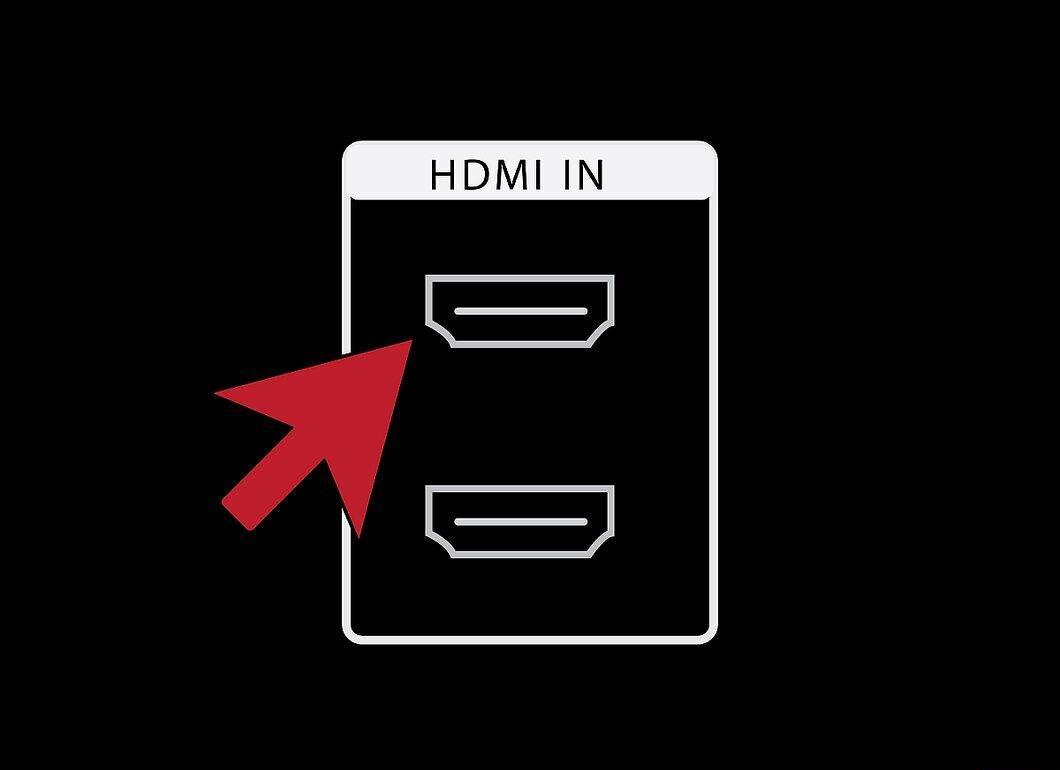
Identify the types of inputs on your TV. Most TV ports are located on the back, but some may also be found on the side.
- Most modern TVs have one or more HDMI ports. This is the fastest and easiest way to connect your computer to the TV, providing the best image quality. An HDMI cable is the only type of cable that transmits both video and audio signals.
- DVI ports are less common but can still be found on many modern TVs.
- VGA ports are typically not present on HD TVs but may be found on standard TVs.
Step 3. Pay attention to the input labeling on your TV.
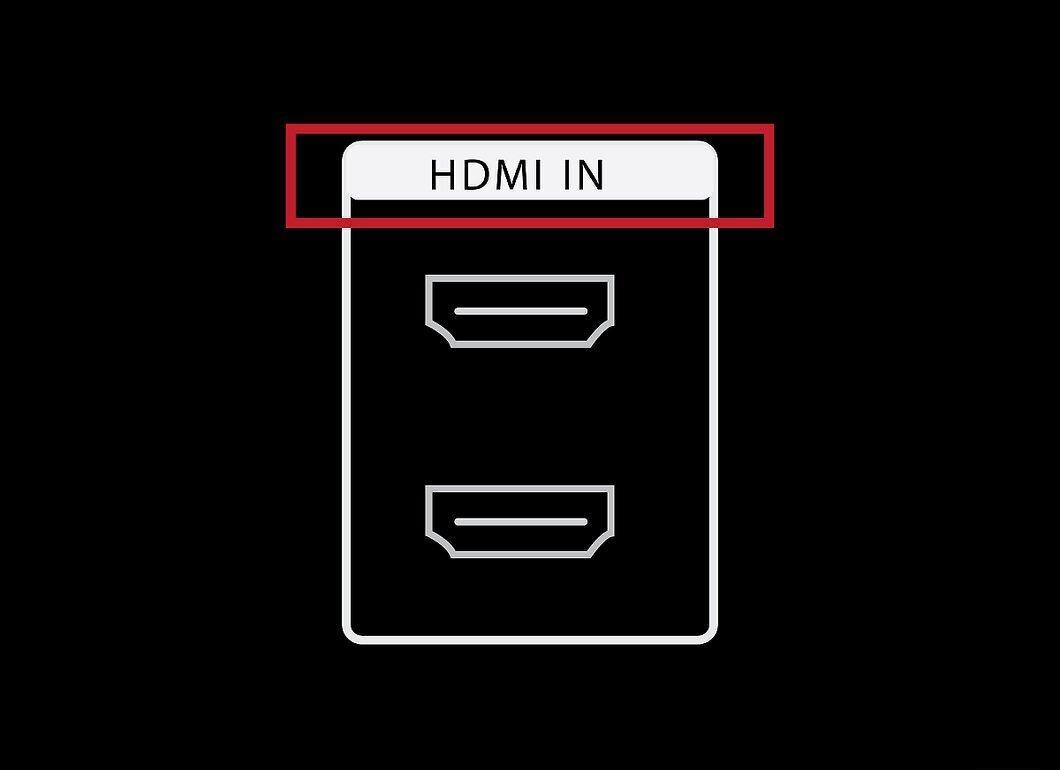
Pay attention to the input labeling on your TV. This will help you correctly set your TV to display the signal from your computer.
Step 4. Purchase the correct cable.
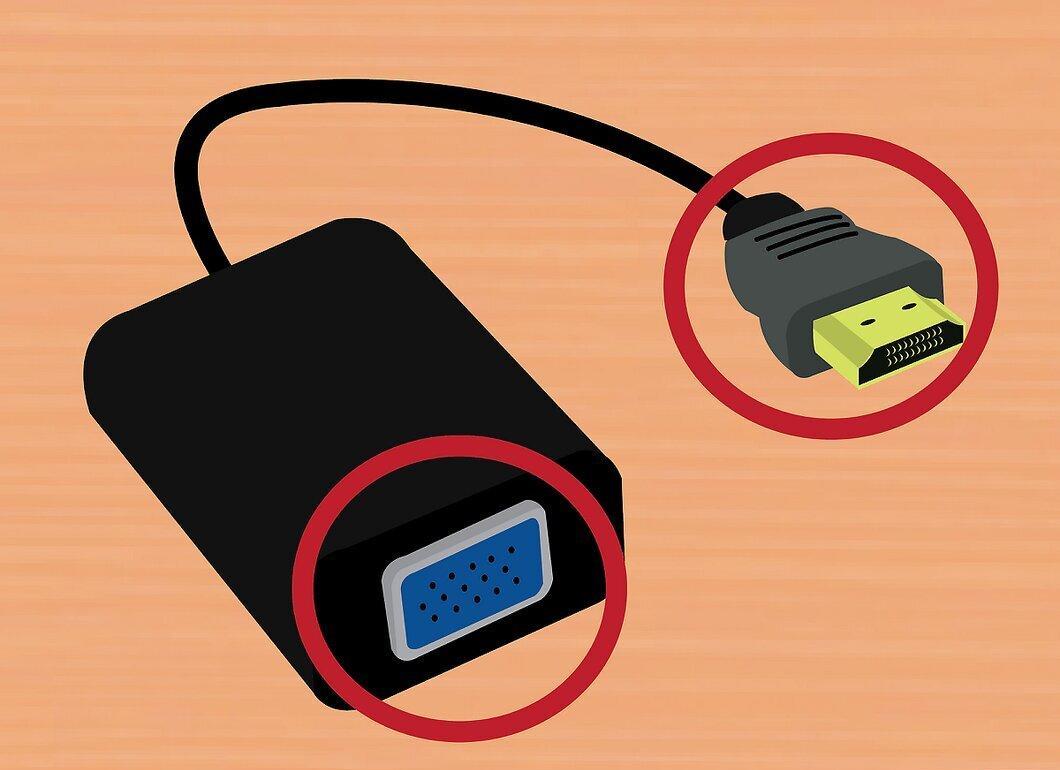
Purchase the correct cable. Don’t be fooled by companies claiming their cables are superior to competitors'. In most cases, you won’t notice a difference between a cheap and an expensive cable. A cable costing a few dollars will perform just as well as one costing several hundred.
- If the computer and the TV have different ports, you will need an adapter. For example, if your computer has a DVI port and your TV has an HDMI port, purchase a DVI-to-HDMI adapter or cable. In this case, the audio signal will not be transmitted through HDMI, as the DVI standard does not support audio transmission.
Step 5. Connect your computer to the TV using the cable.
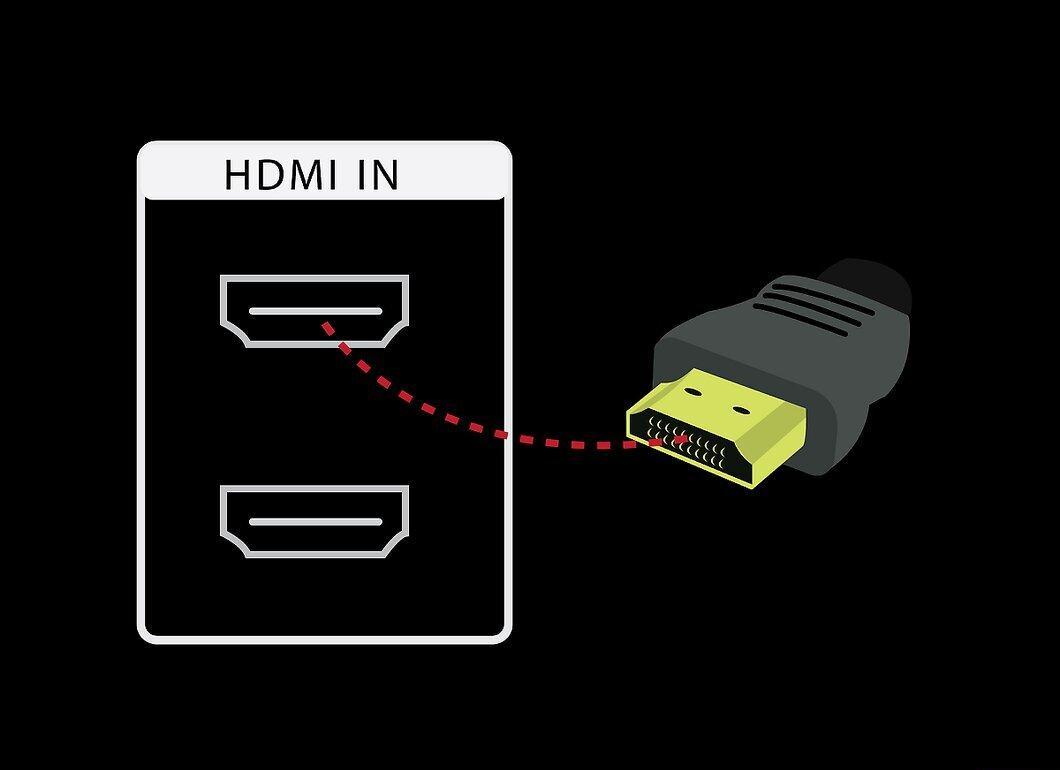
Connect your computer to the TV using the cable. If connecting HDMI to HDMI, no additional cables are needed. For other connections, you will need a separate audio cable to transmit sound.
- To transmit sound from a laptop, use a 3.5mm audio cable and connect it to the headphone jack on your laptop. On a desktop, use the green headphone jack (on the back of the computer). When connecting the audio cable to the TV, use a single 3.5mm audio plug or two RCA plugs.
- If you are connecting via VGA, first turn off the computer and the TV. This is not necessary for DVI and HDMI connections.
Step 6. Switch your TV to the correct input.
Switch your TV to receive the signal from the appropriate input. Use the “Source” or “Input” button on your remote to do this. The selected input should match the port you connected the cable to.
Step 7. Set up your computer to display on the TV screen.
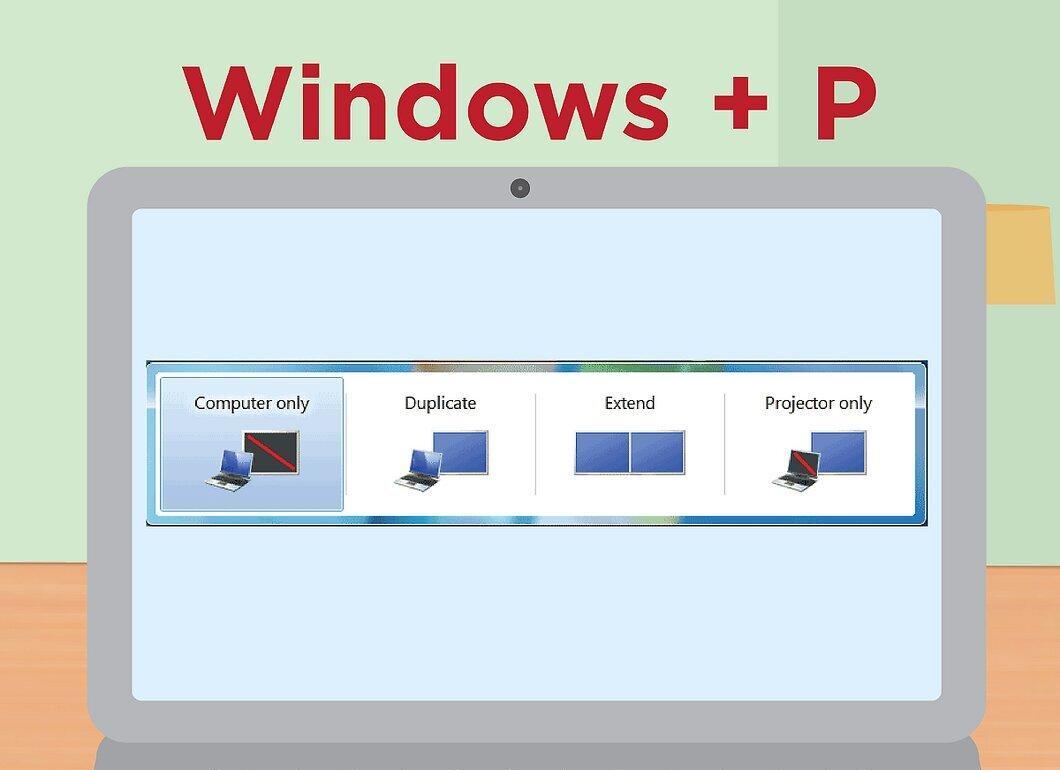
Set up your computer to display on the TV screen. This can be done in different ways depending on your computer type.
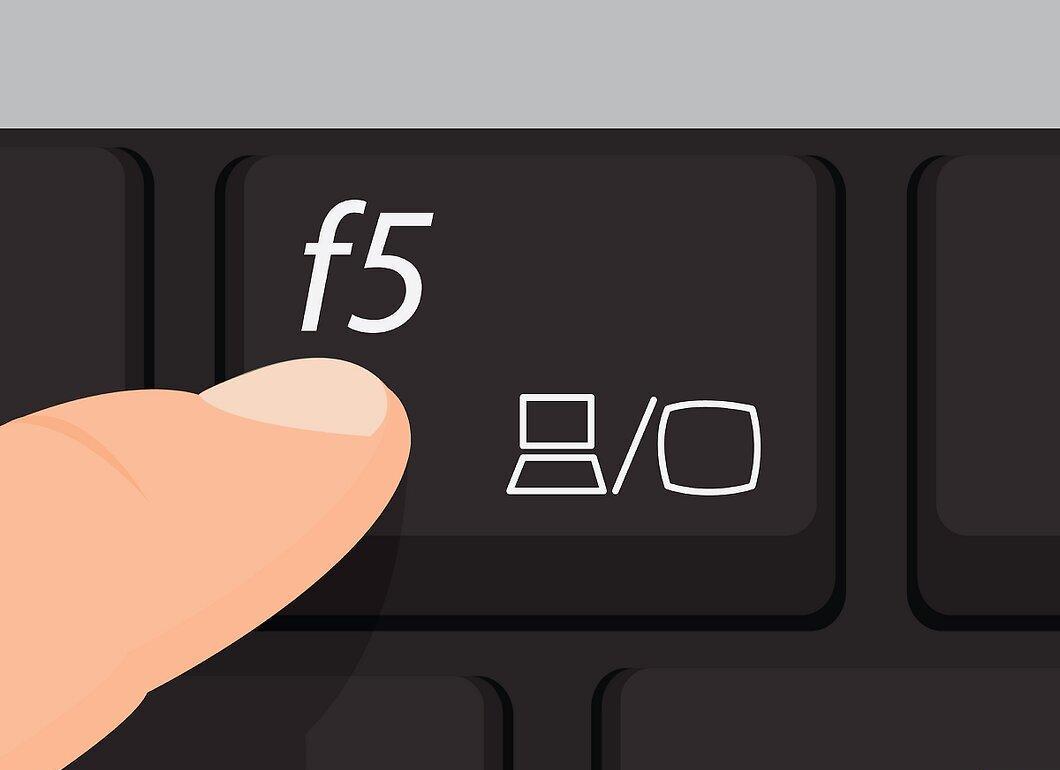
- Many laptops have a “Display” key that allows you to switch between connected displays. You may need to press the Fn key to activate the “Display” key; also, this key may be indicated by an icon rather than the word “Display.”
- In Windows 7 (and later versions), press Windows+P to open the Project menu. Choose the desired display mode for the TV screen (“Computer,” “Duplicate,” “Extend,” “Projector”).
- In any version of Windows, right-click on the desktop and select “Screen Resolution” or “Properties.” In the “Multiple Displays” menu, choose the desired display mode for the TV screen (“Computer,” “Duplicate,” “Extend,” “Projector”).
Step 8. Adjust the display resolution (if necessary).
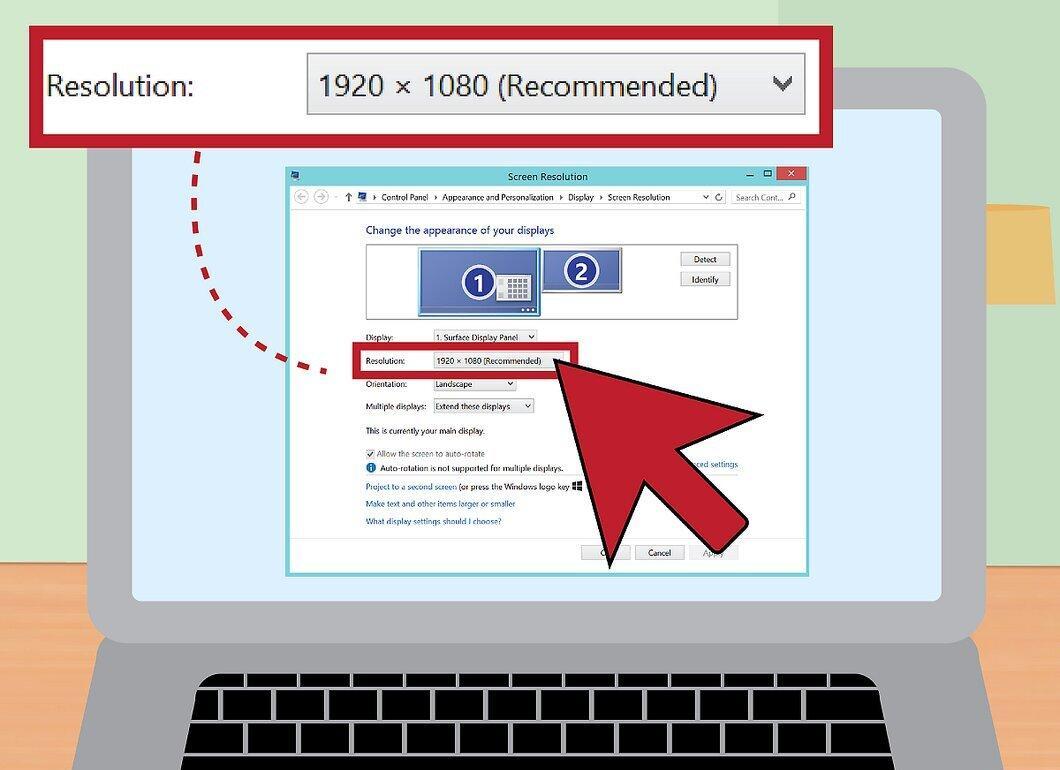
Adjust the display resolution (if necessary). The resolutions of the computer monitor and the TV may differ, leading to blurry images on the TV screen. In the “Screen Resolution” or “Properties” window, use the “Resolution” slider to set the correct resolution and enhance image clarity on the TV.
- Most TVs have a resolution of 1920x1080. Choose the recommended resolution (if available).
Mac
Step 1. Locate the video port on your Mac.
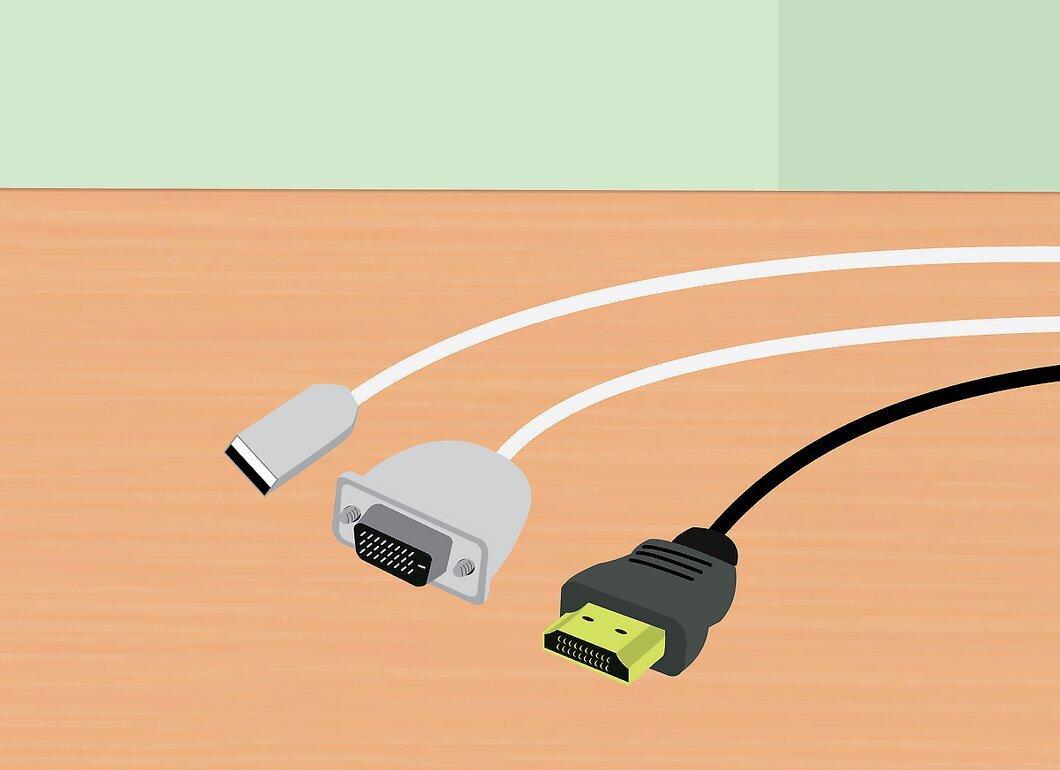
Locate the video port on your Mac. The type of video port will determine the type of cable and/or adapter you can use. There are four main types of video ports:
- HDMI. This port resembles a USB port, but it has notches on the sides. It is labeled “HDMI.” If you have this port, you won’t need adapters. Most Mac computers and laptops released after 2012 have this port.
- Thunderbolt. This port is slightly smaller than the USB port and is marked with a lightning bolt icon. If you have this port, you will need a Thunderbolt-to-HDMI adapter.
- Mini DisplayPort. This port is similar to the Thunderbolt port and is marked with a rectangle and a straight line icon.
- Micro-DVI. This is a narrow port similar to a USB port. It is marked with the same icon as the Mini DisplayPort.
Step 2. Find the input ports on your TV.
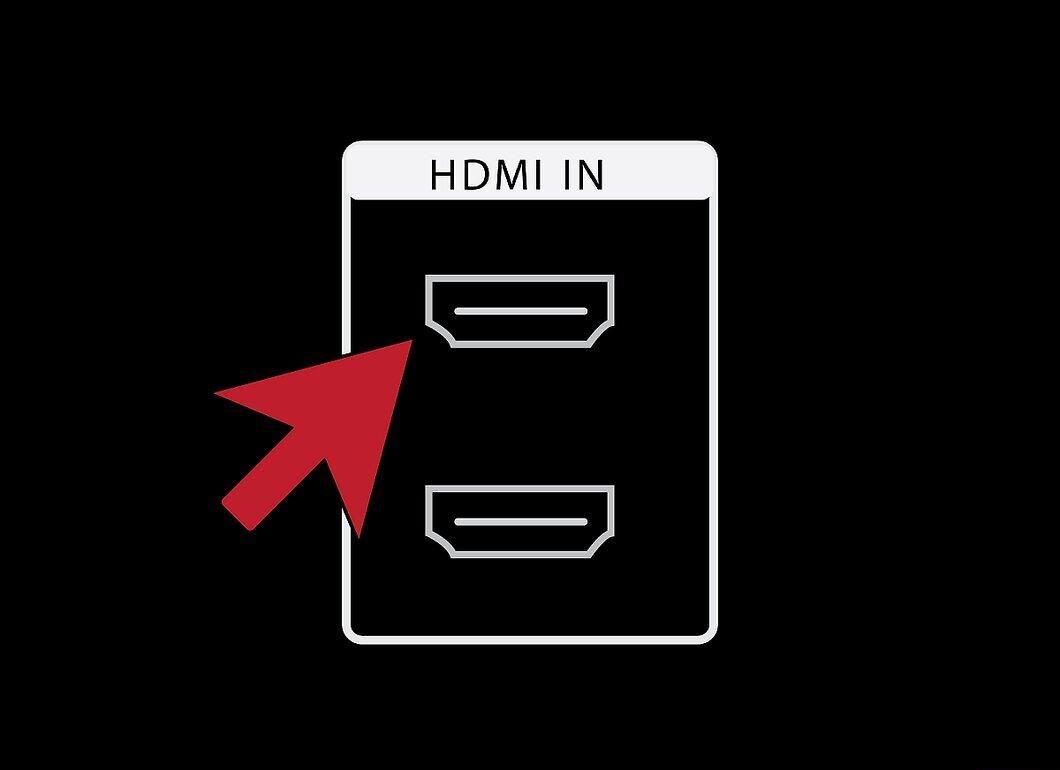
Find the input ports on your TV. They may be located on the back or side. The most common ports are HDMI, DVI, and VGA. If connecting HDMI to HDMI, you will need just one cable (for transmitting both video and audio signals). For other types of ports, you will need a separate audio cable.
- Pay attention to the input labeling on your TV. This will help you correctly set your TV to display the signal from your computer.
Step 3. Purchase an adapter (if necessary).
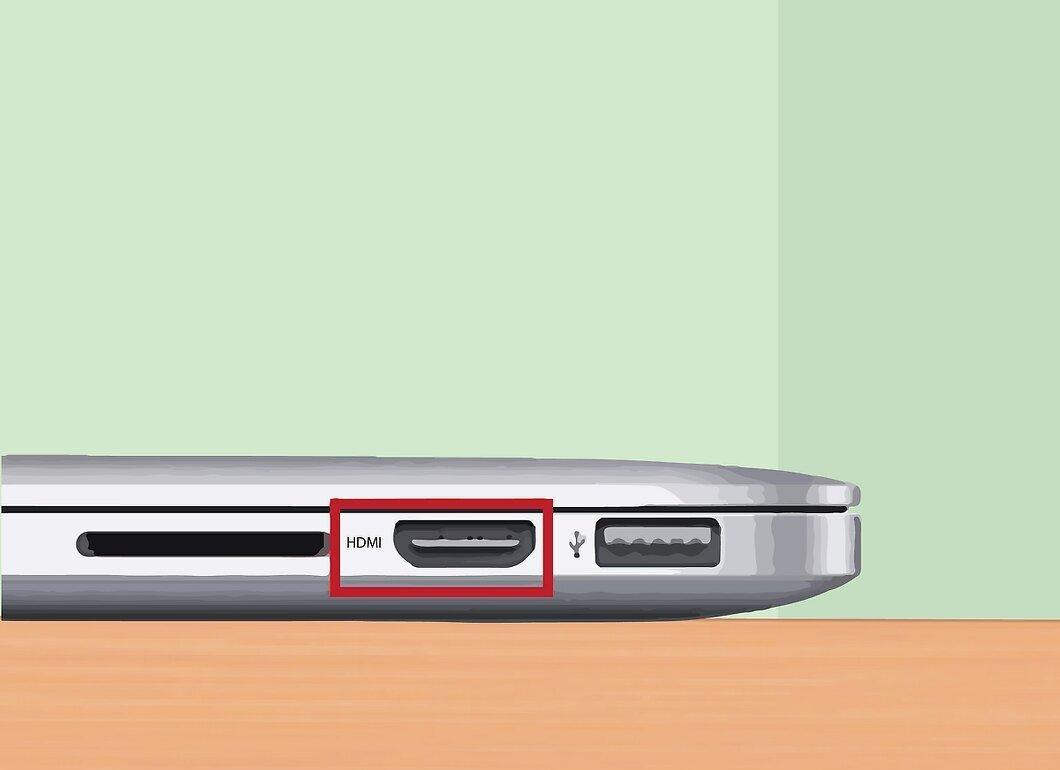
Purchase an adapter (if necessary). Once you know the types of ports on both the computer and the TV, you can find the correct adapter.
- If both your computer and TV have HDMI ports, buy a standard HDMI cable.
- If your TV has an HDMI port and your computer has a Thunderbolt or Mini DisplayPort, you will need a Thunderbolt/Mini DisplayPort-to-HDMI adapter.
Step 4. Once you've settled on an adapter, buy a cable.
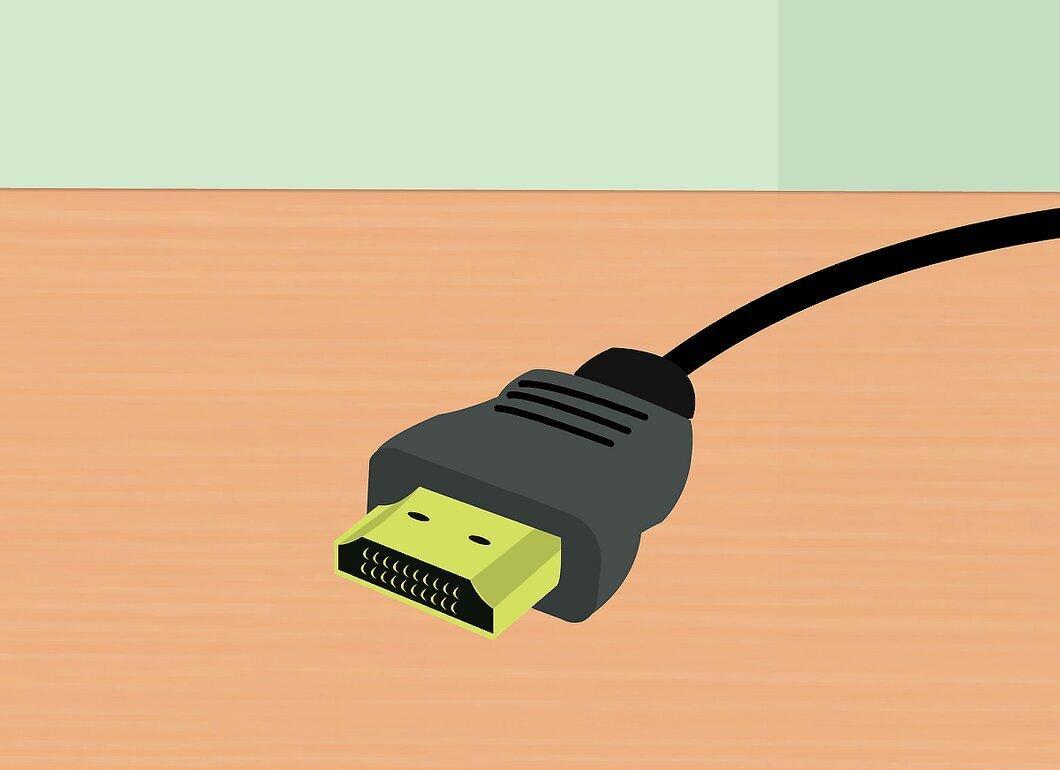
Once you’ve settled on an adapter, buy a cable. When connecting HDMI to HDMI, get any HDMI cable (a cheap cable will work just as well as an expensive one). When connecting via DVI or VGA, you will need to buy both a video and an audio cable.
Step 5. Connect the adapter to the video port on your computer.
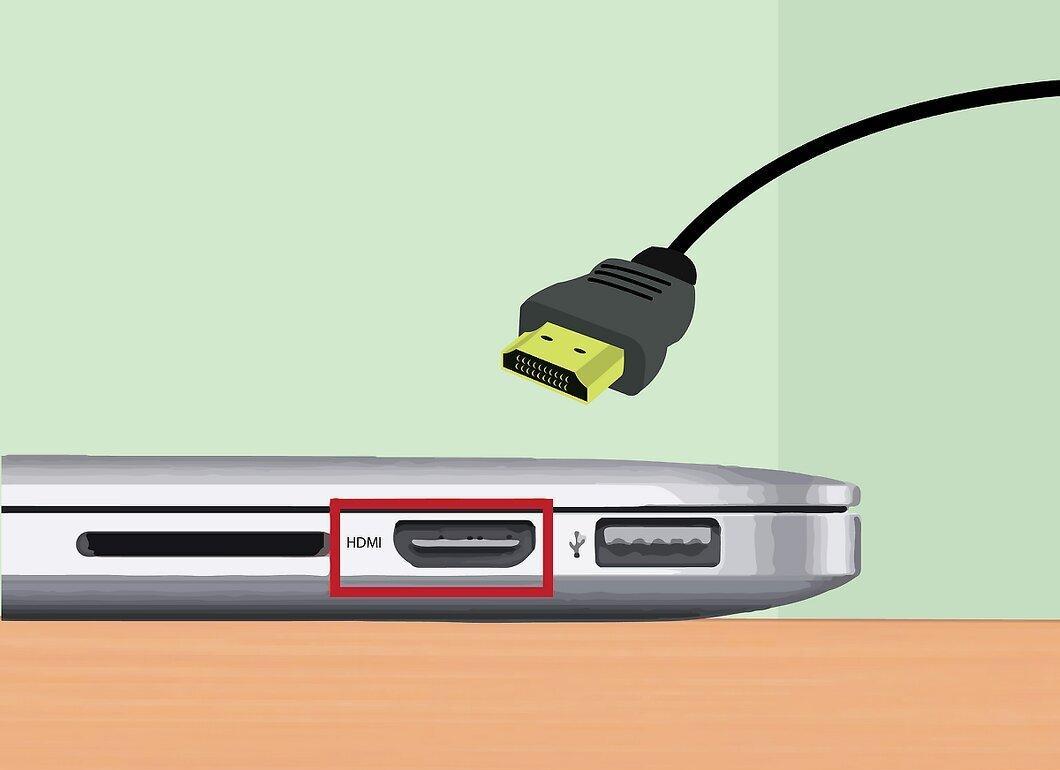
Step 6. Use a video cable to connect the adapter to the TV.
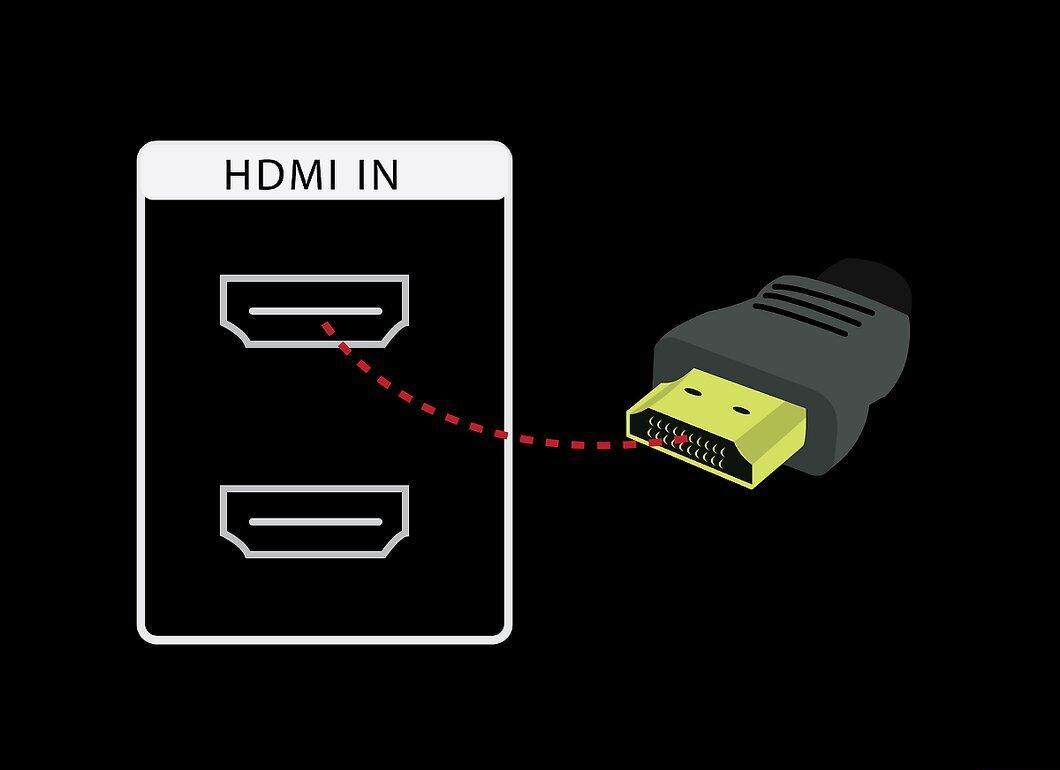
Use a video cable to connect the adapter to the TV. If both your computer and TV have HDMI ports, use a standard HDMI cable.
- When connecting via DVI or VGA, you will need an audio cable to transmit sound from the computer to the TV. Use a 3.5mm audio cable to connect the headphone jack on your computer to the “Audio In” jack on your TV.
Step 7. Switch your TV to receive the signal from the appropriate input.
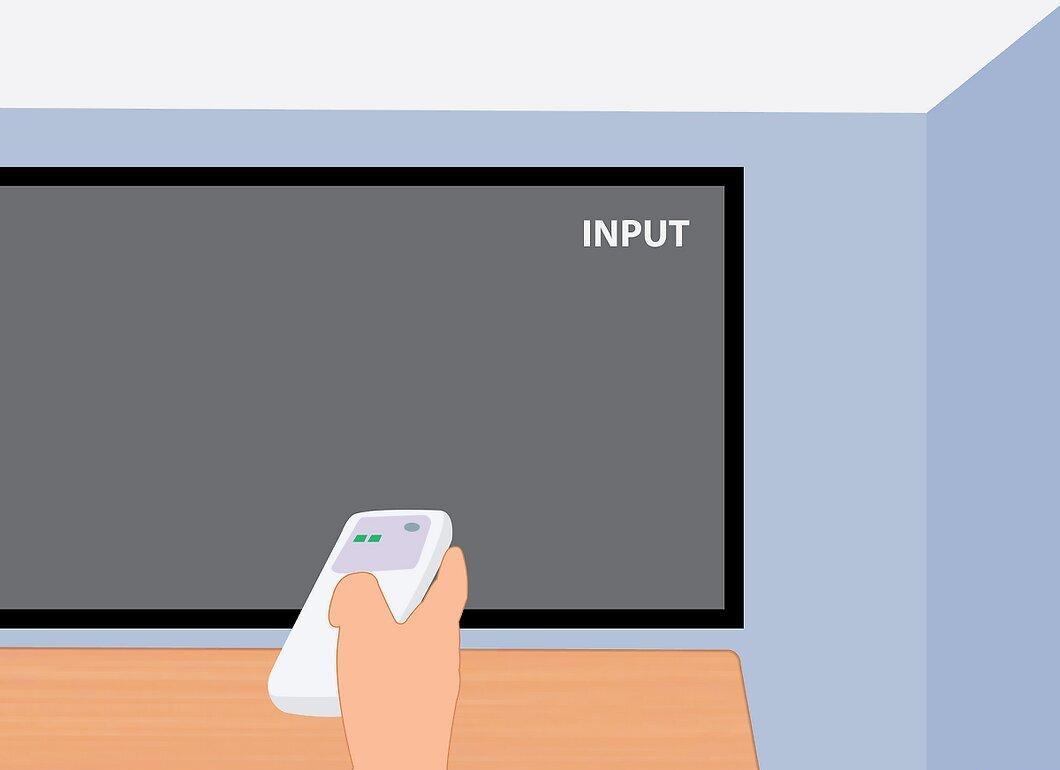
Switch your TV to receive the signal from the appropriate input. The selected input should match the port you connected the cable to.
- In most cases, the computer desktop will automatically display on the TV screen.
Step 8. Open the Apple menu (on your computer) and select “System Preferences.”
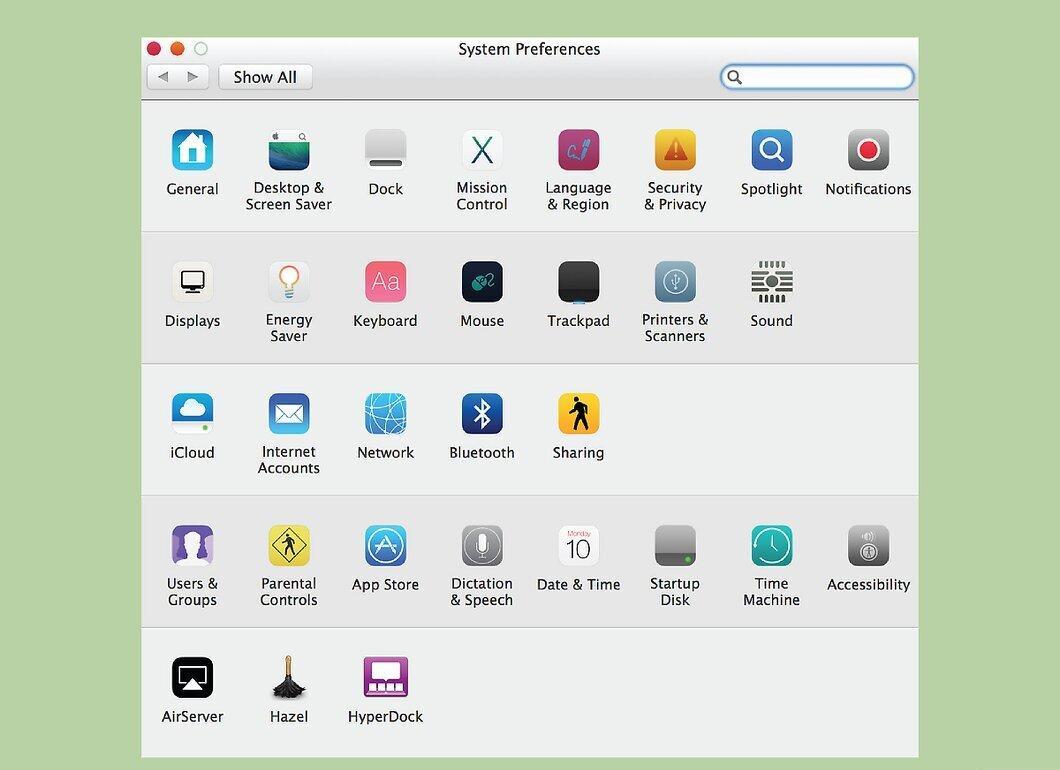
Step 9. Select the “Displays” option.
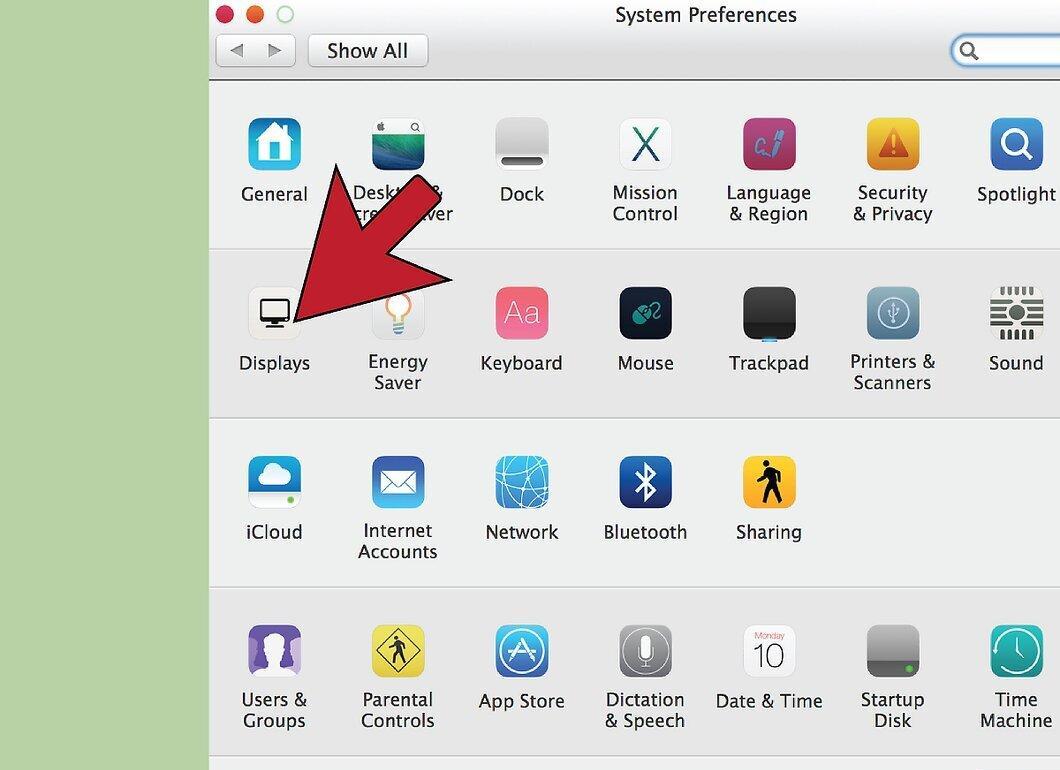
Step 10. Choose the “Best for Display” option for the external display.
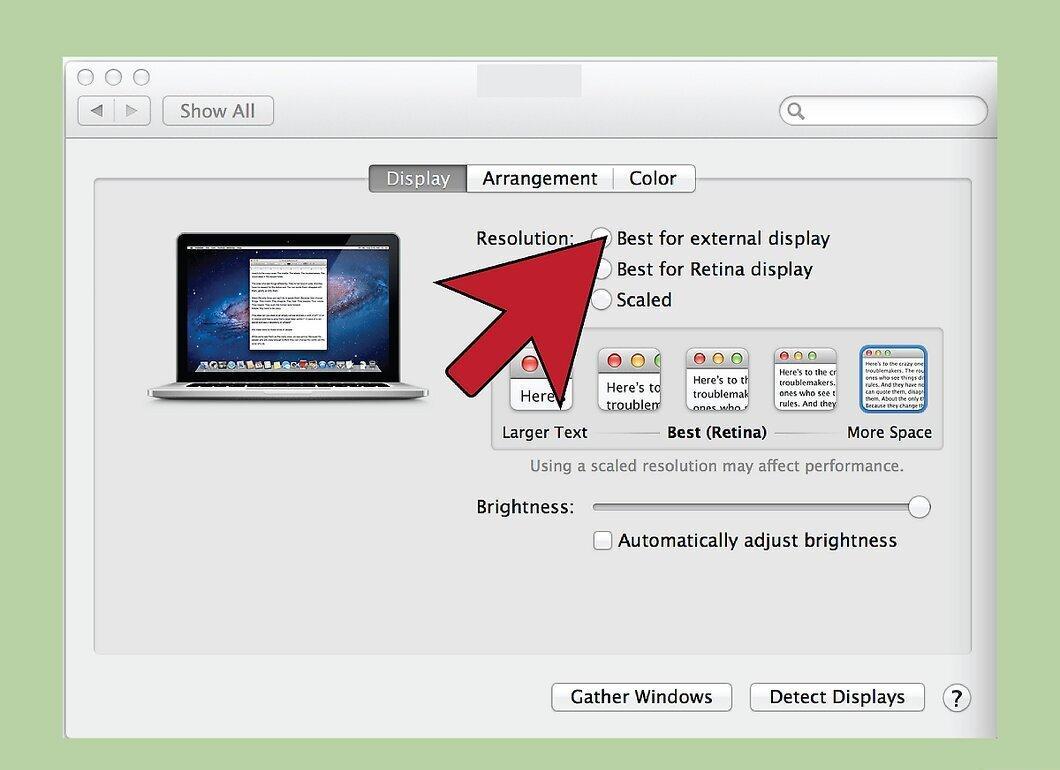
Choose the “Best for Display” option. This will optimize the screen resolution for quality visuals on the TV.
Step 11. Go to the “Arrangement” tab to see the orientation of your two displays relative to each other.
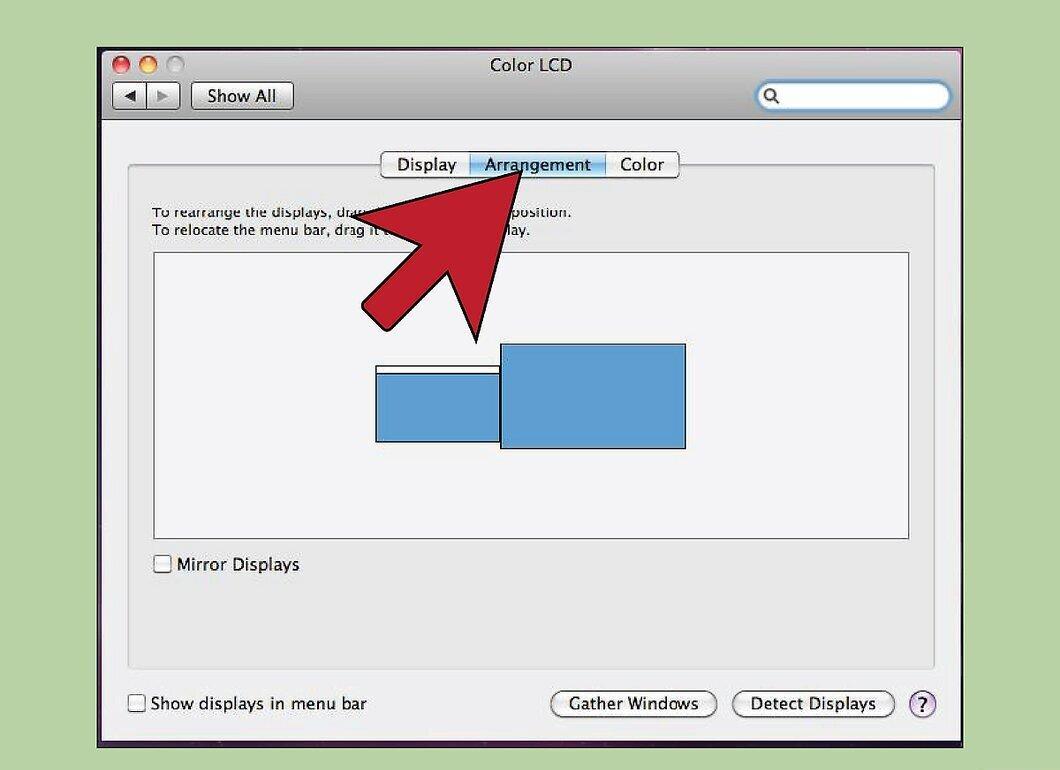
Go to the “Arrangement” tab to see the orientation of your two displays relative to each other. This affects how the mouse moves between the displays.
Step 12. Drag the white menu bar from the computer screen to the TV screen.
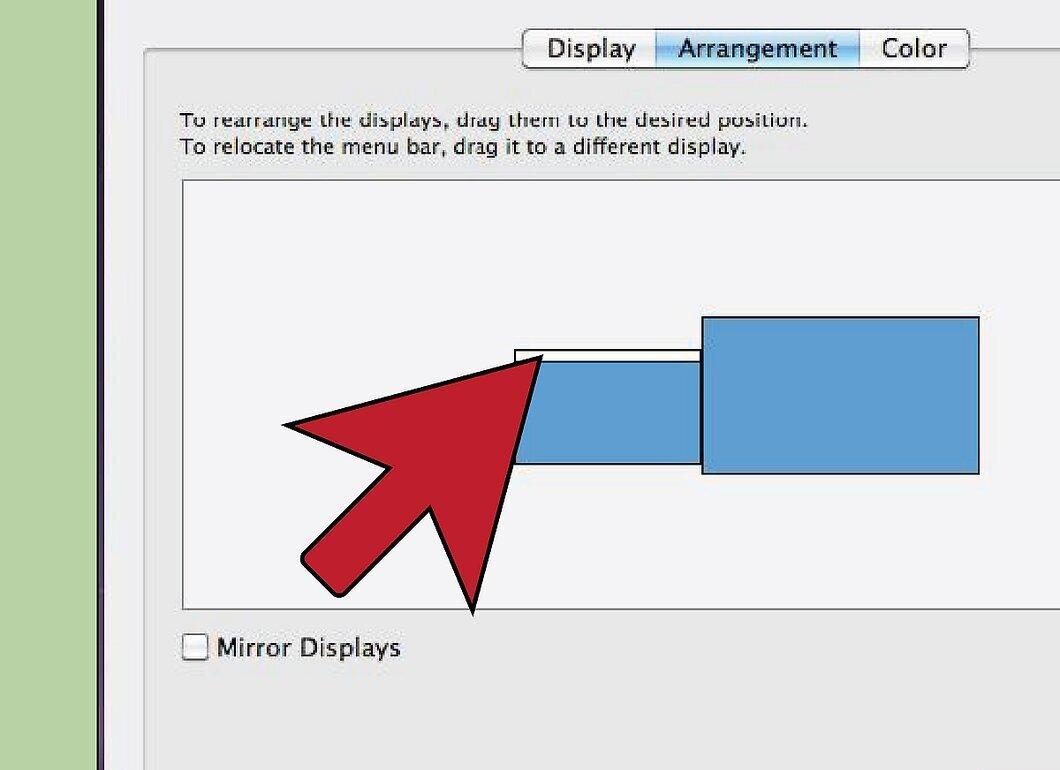
Drag the white menu bar from the computer screen to the TV screen. This will make the TV your primary display.
Step 13. Return to the “System Preferences” window and select the “Sound” option.
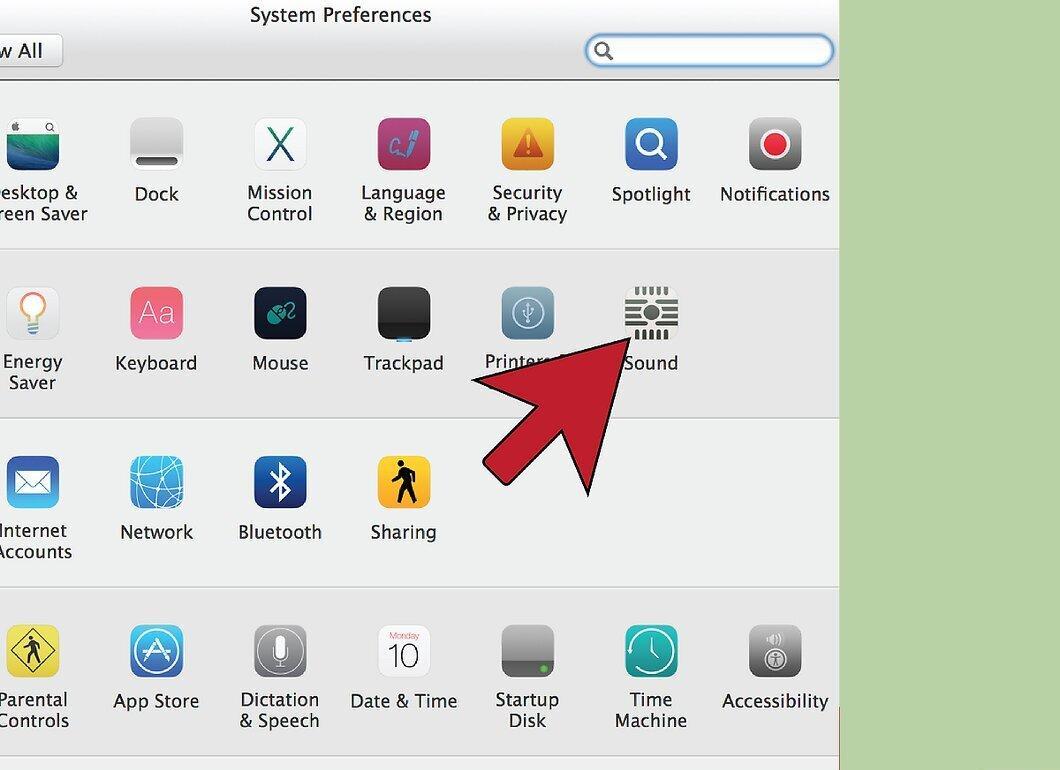
Return to the “System Preferences” window and select the “Sound” option. On the “Output” tab, select “HDMI” if you connected the TV via an HDMI cable. If you used a different port, select the corresponding audio cable.


