
A TV can serve as a second monitor for your laptop or desktop computer in various scenarios, such as giving presentations on a larger screen or editing video files more comfortably. If both your TV and computer are relatively modern, connecting them requires just one cable.
Part 1
Step 1. Check the available output ports on your computer.
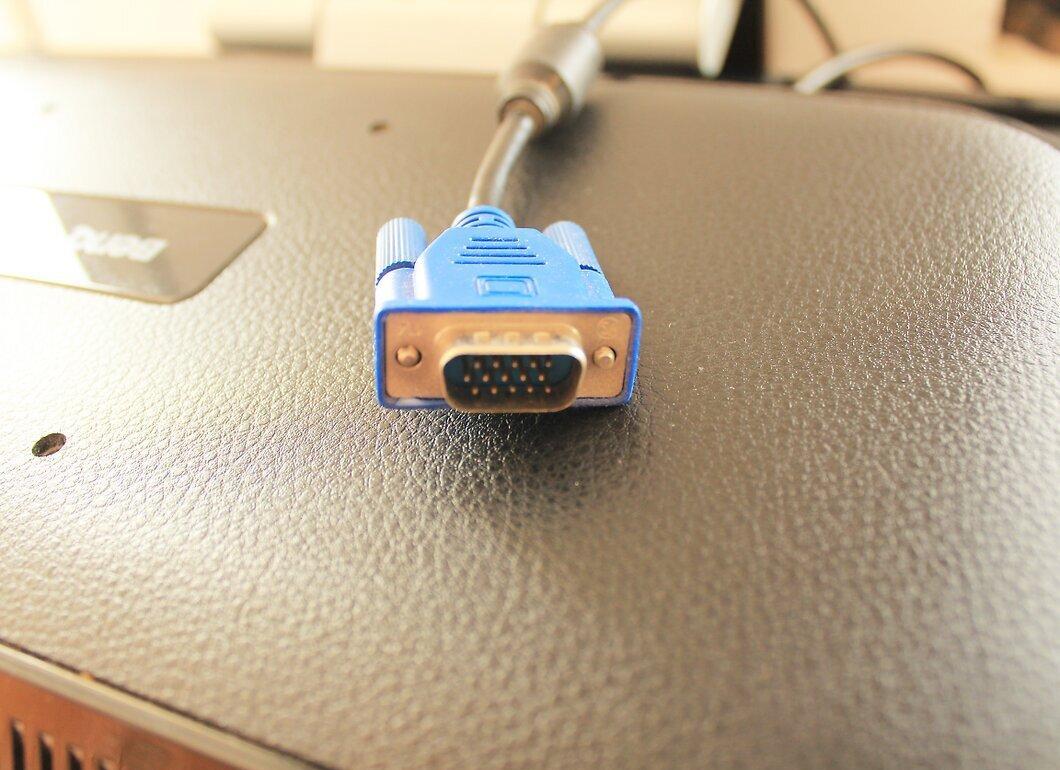
Check the available output ports on your computer. There are 4 types of cables/ports used for transmitting video signals from the computer to the TV: HDMI, DVI, VGA, and S-Video. If you’re unsure which port your computer has, consult the motherboard (or computer) manual, or look up images of the ports online.
Step 2. Check the available input ports on your TV.
Check the available input ports on your TV. You are also limited to the same four types of cables/ports mentioned above.
Step 3. Identify which ports are available on both the computer and the TV.
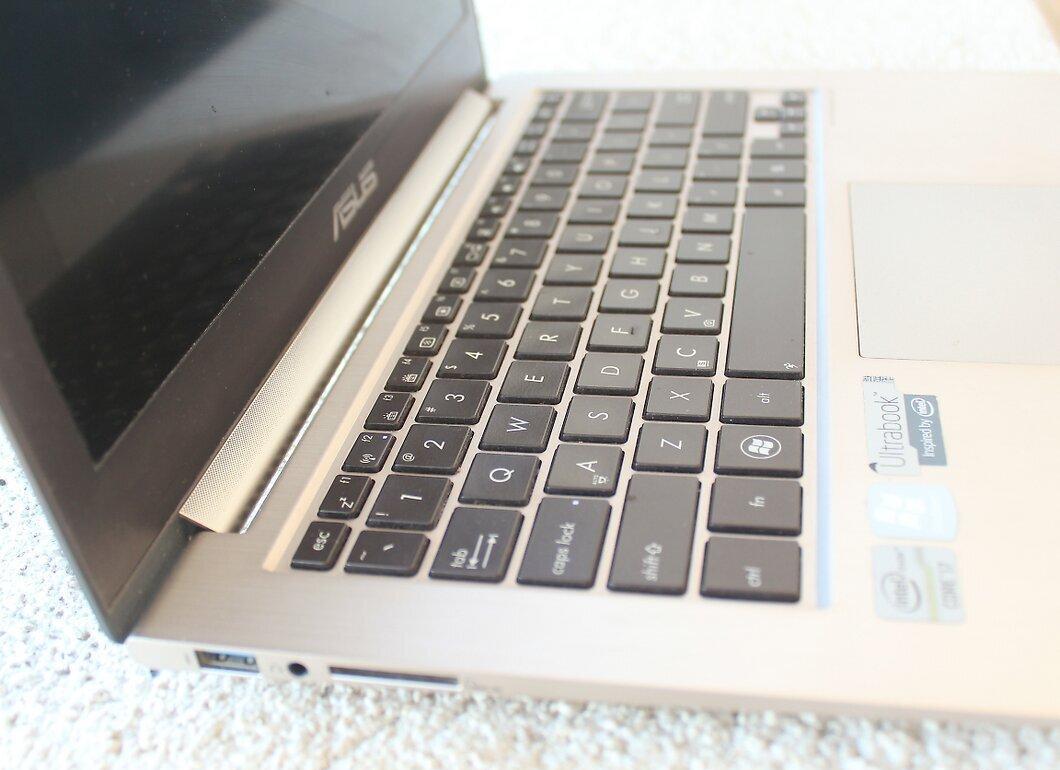
Identify which ports are available on both the computer and the TV. At least one type of the 4 ports will be present on both the computer and the TV.
- If there is only one common port between the computer and the TV, purchase the corresponding cable from an electronics store.
- If there are multiple common ports, determine which one is best. Prefer HDMI as it transmits both audio and video in high quality. Next in line is DVI, followed by S-Video and VGA (which are not recommended).
Step 4. If there are no common ports, use an adapter to connect different ports.
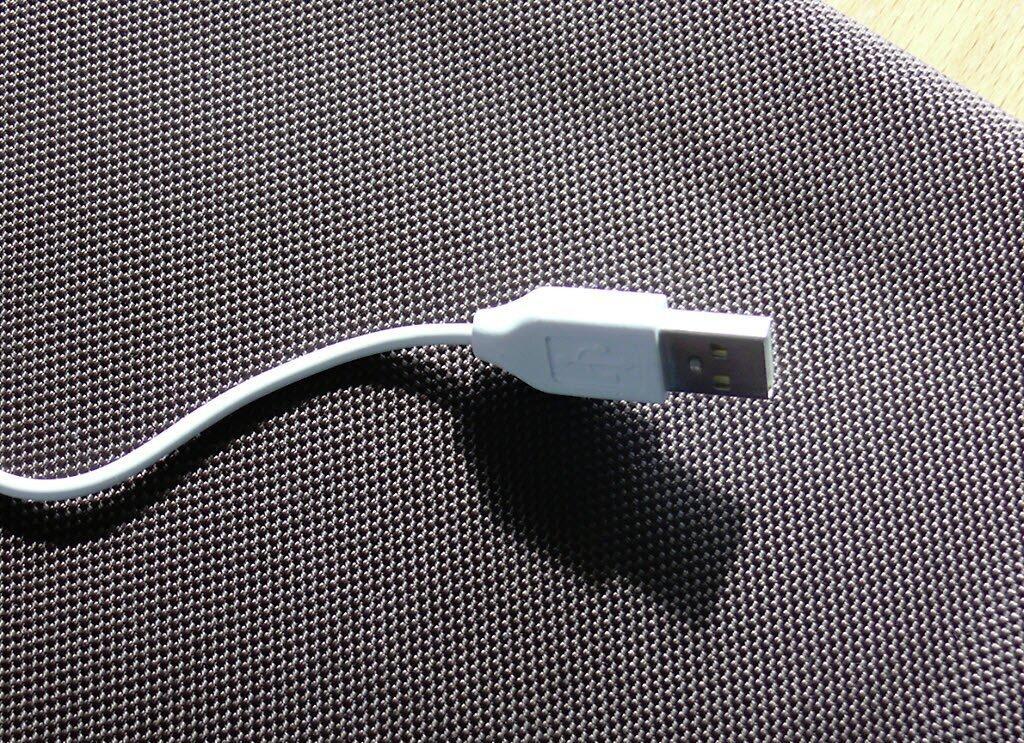
- Alternatively, use a cable with different connectors on each end. For example, a USB connector on one end to connect to the computer, and RCA connectors on the other end for the TV.
- Note that USB cables are not suitable for gaming or other applications requiring high frame rates. However, these cables are fine for presentations.
Step 5. Set your TV to receive the signal from the computer.
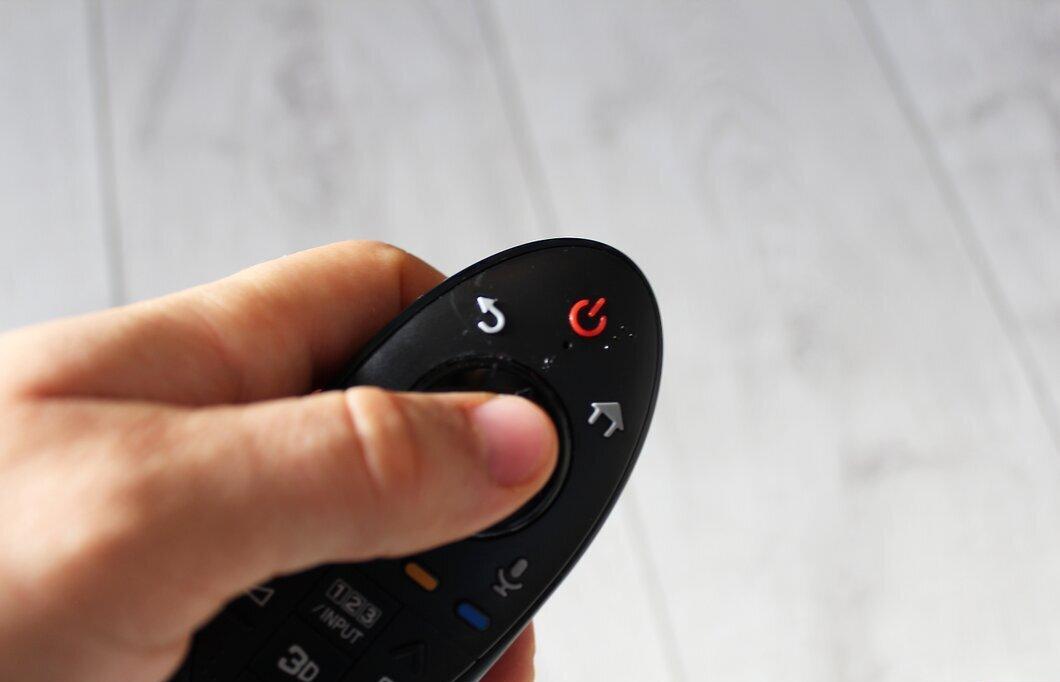
Set your TV to receive the signal from the computer. This is usually done by switching the TV to a specific channel or selecting an "input" or "auxiliary" channel. After connecting the two devices with the appropriate cable and booting up the computer, find the correct channel on the TV to display the computer's image.
Step 6. Optionally, send audio from your computer to the TV.
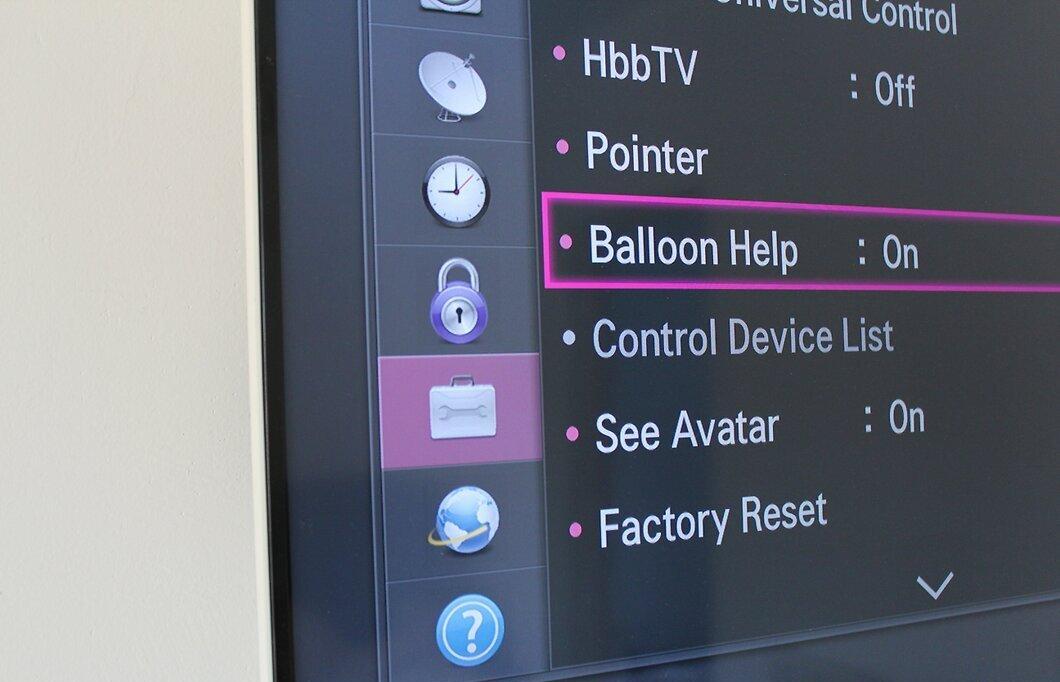
Optionally, send audio from your computer to the TV. Of the 4 cables mentioned, only HDMI transmits both video and audio signals. If you want to listen to sound from the computer through the TV's speakers, you also need to send the audio signal. The simplest way to do this is to use a cable with a 3.5 mm jack on one end (which connects to your computer's headphone jack) and RCA connectors on the other end.


