
Google is the most popular search engine in the world, and if you're unsure how to use it, it can feel overwhelming. Whether you're looking to learn the basics or enhance your Google search skills, this article is for you. Follow the instructions below, and you'll learn how to search for anything on Google.
Simple Google Search
Step 1. Open Your Browser.
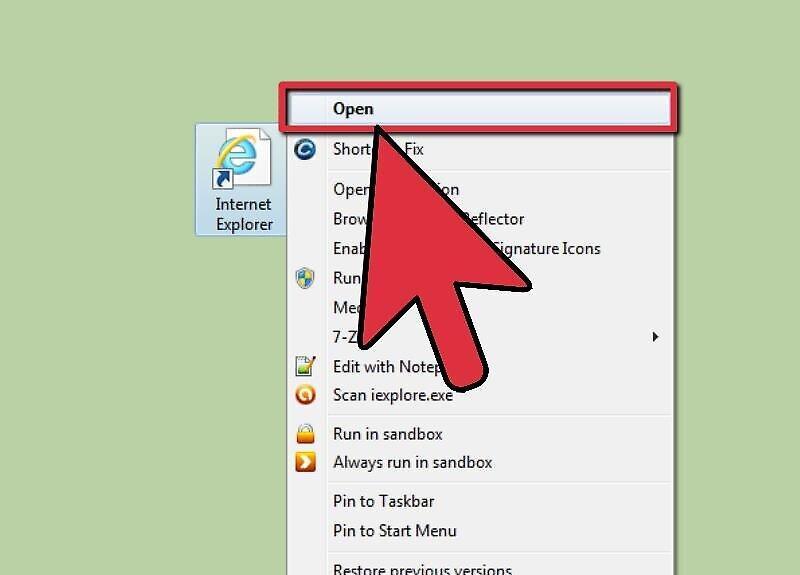
Step 2. Type www.google.com in the address bar at the top of the page to land on Google's homepage.
Type www.google.com in the address bar at the top of the page, and you'll be taken to Google's homepage. You will see a white screen with a search box and the colorful Google logo above it.
Step 3. Enter a word or phrase you want to search for in the search box.
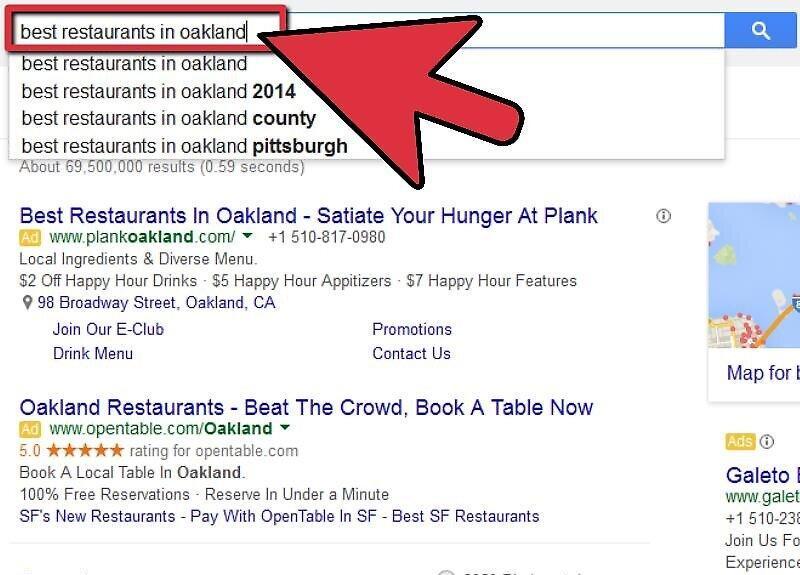
Type a word or phrase you want to find in the search box. For example, you might search for "how to find a job" or "best restaurant in Moscow."
Step 4. Press enter on your keyboard.
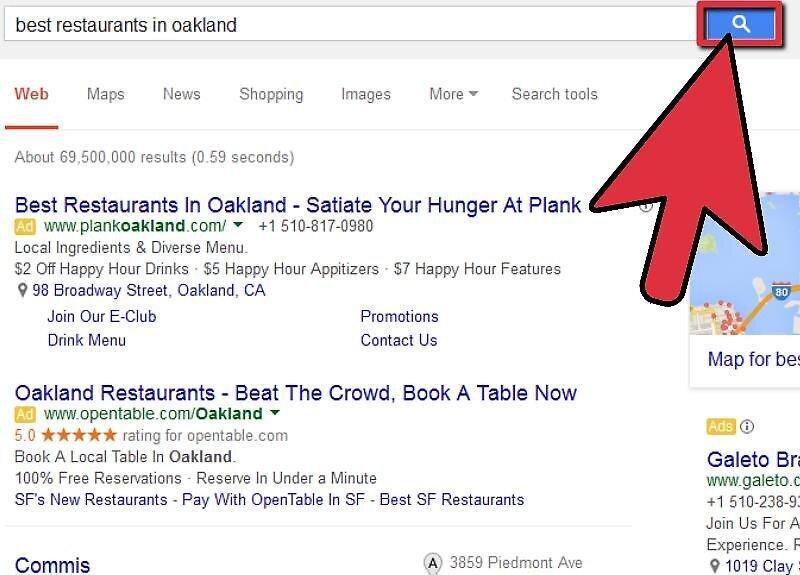
Press enter on your keyboard. You can also click the blue magnifying glass, which will yield the same result. After this, you will be provided with a list of results that match your search query.
Step 5. Browse through the results, scrolling from top to bottom to see all options.
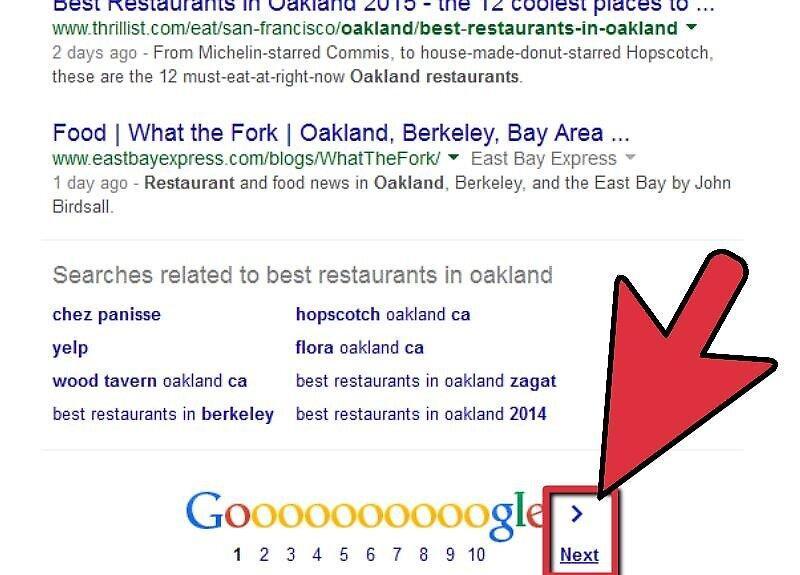
Browse through the results, scrolling from top to bottom to see all options. If you don't find anything suitable on the first page, scroll to the bottom of the page and click "Next" to view the next page of results.
Step 6. Click on a result that meets your needs.
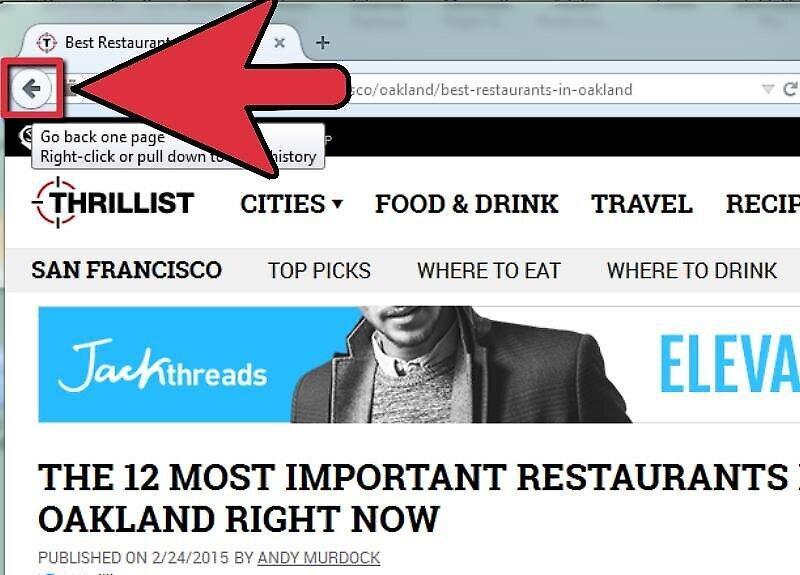
Click on a result that looks good to you. If you find an article that answers your questions, you can expand it. A new page will open. If after reading the article you want to explore more on the same topic, click the back arrow (located in the top left corner of your browser) to return to the search page.
- You can continue searching as long as you like.
Step 7. If you didn't find anything suitable, refine your query.
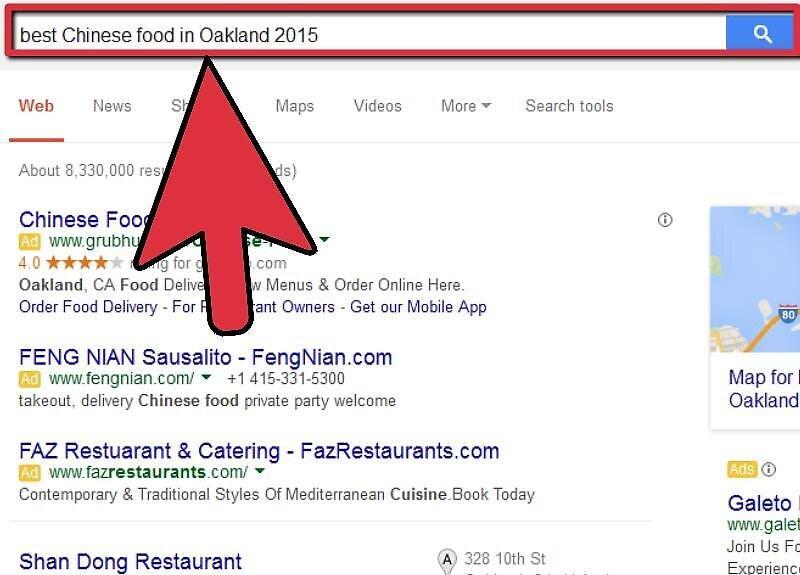
If you didn't find anything suitable, refine your query. To do this, you'll need to return to the Google search page. Make your request more specific. For example, instead of searching for "Best restaurant in Moscow" and getting a bunch of links, you could type "Best Chinese restaurant in Moscow in 2013," which will significantly narrow your search.
- You may need to refine your query if it's too specific. If your key phrase is too long or specific, you might not get suitable results, and in that case, you'll have to go back and search for something more general.
Step 8. Use these tips to refine your search.
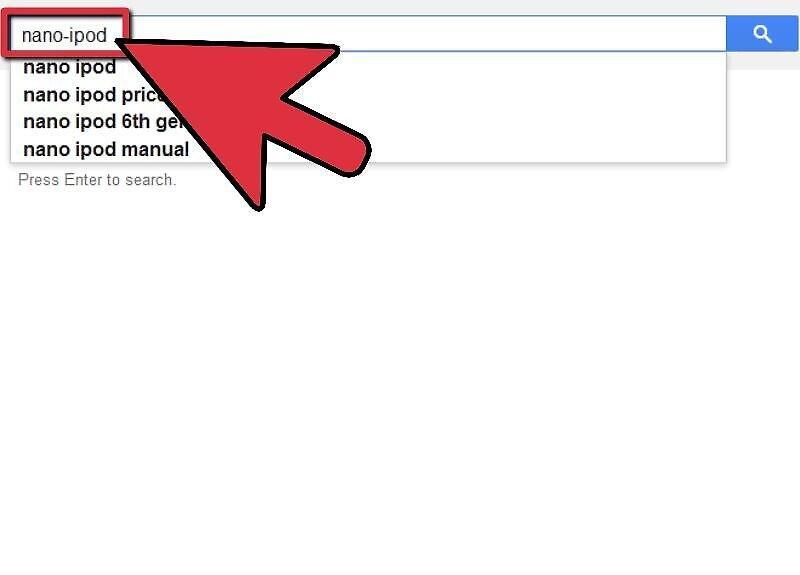
Use these tips to refine your search. Additionally, you can refine your query not only by changing the words you use but also by implementing the following tips: You can place a minus sign before words you want to exclude from the results. For example, if you search for "nano" and don’t want iPod Nano results, you could structure your query like this: "nano -iPod." If you are searching for a price, enter the lower limit after the currency symbol, then type "...", followed by the currency symbol for the upper limit. For example: "Mattress $250...$400."
- Common words appear more frequently in Google searches, so if it's important to find queries with words like "how" or "where," put a + before them.
- If a set of words is a phrase, you can put it in quotes or parentheses. This is particularly useful if you know a few words from a song and want to find its title: Steps-on-Glass or "Steps on Glass."
Step 9. Move your search to other Google sections.
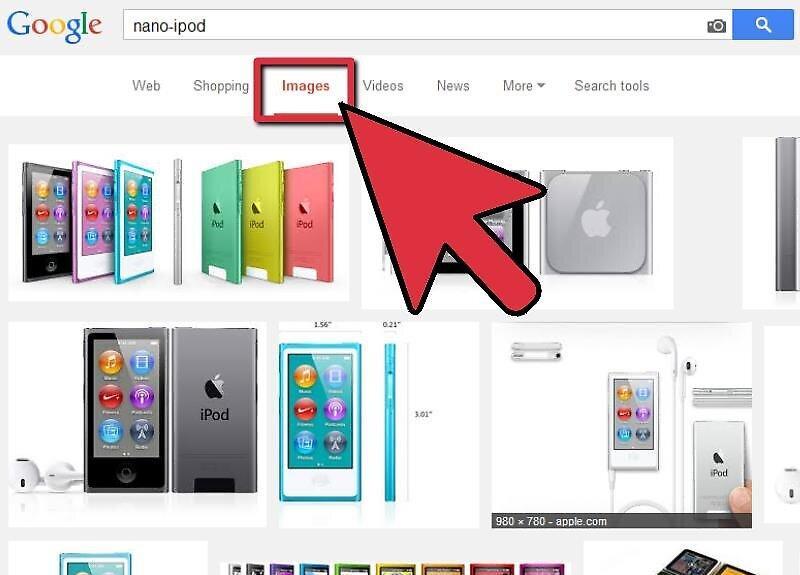
Move your search to other sections of Google. Instead of searching through the regular search bar on Google’s homepage, you can make your search more specific depending on what you need to find. These could be news, images, or Google Maps sections. Links to them are located at the top left above the search bar. Here’s what you can do:
- Choose the "Images" section. It’s the third one from the right on the panel. This allows you to search exclusively for images. For instance, if you want to find a photo of a celebrity or shots from a fashion show, the Google Images section can be a useful resource.
- Go to the "News" section. This is the fifth one from the right on the panel. This is very useful if you want to find something in the news rather than just a general concept.
- After entering the "News" section, you can select a country by clicking the arrow under the current news version and switching it to your desired one. This feature is right under the search bar.
- Choose "Maps." With Google Maps, you can find directions from one place to another.
Advanced Search
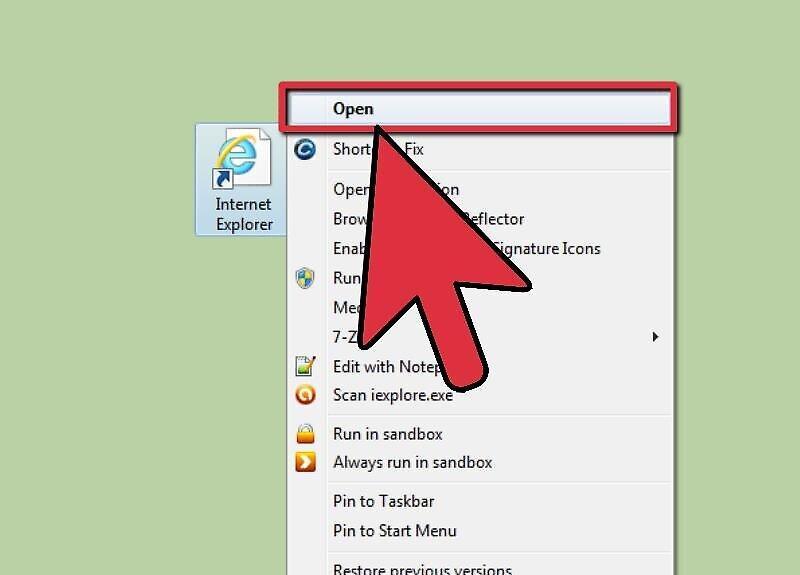
Step 1. Open Your Browser.
Step 2. Go to the Google Advanced Search page.
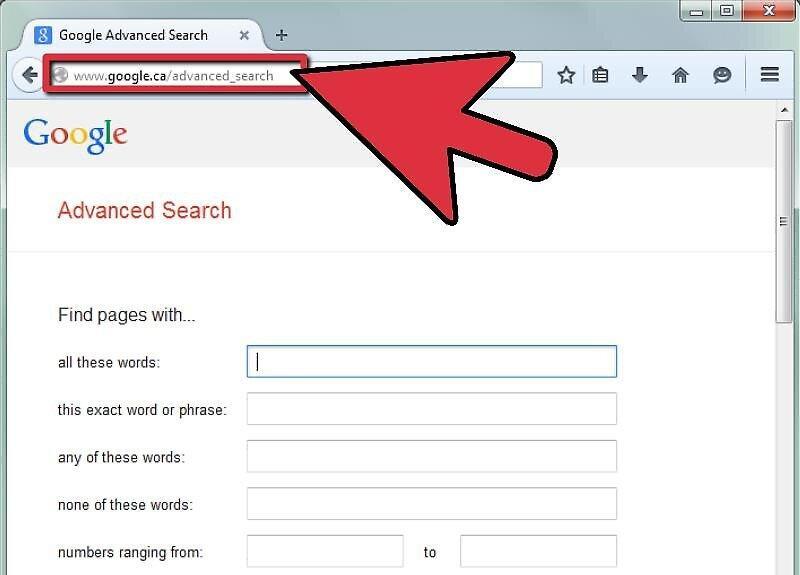
Go to the Google Advanced Search page. You can access it in two ways:
- Visit: http://www.google.ca/advanced_search
- If you are already searching something on Google, you can click on the button on the right side of the search results page. Select "Advanced Search."
Step 3. Find pages with the words you need.
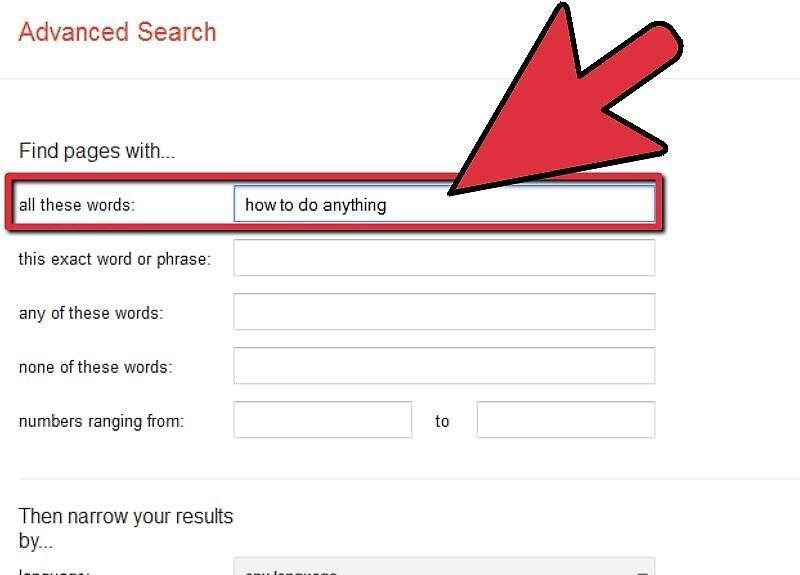
Find pages with the words you need. To do this, you’ll need to fill in as many fields as possible on the new page; you don’t have to fill them all, just focus on the categories that are necessary to narrow down your search query. Here’s the information you should provide:
- In the "using these words" field, enter the keywords for your search.
- In the "exact word or phrase" field, write the word or phrase you are searching for.
- In the "any of these words" field, list any words you want to appear in the results.
- In the "does not include words" field, enter unwanted words.
- Under "numerical range," input numbers in any desired range.
- Note that Google provides you with tips on how to search in different ways; you can find these tips to the right of the search tools.
Step 4. Narrow down the results.
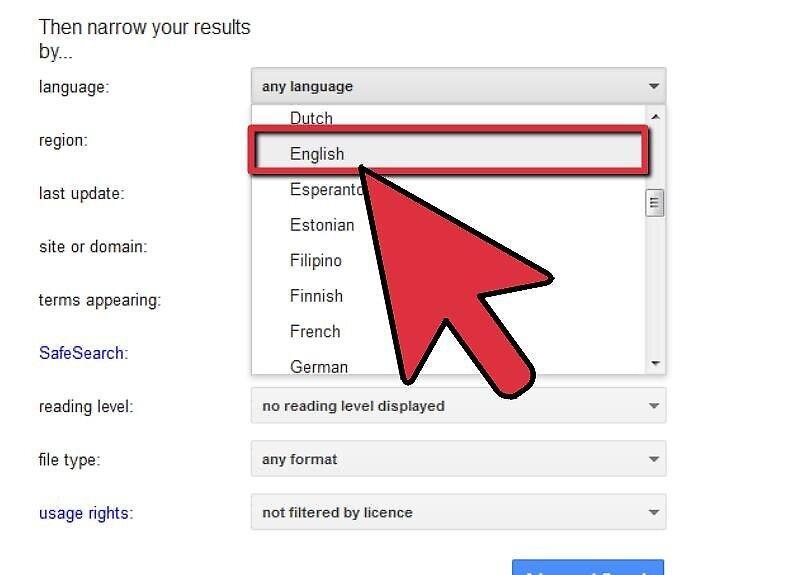
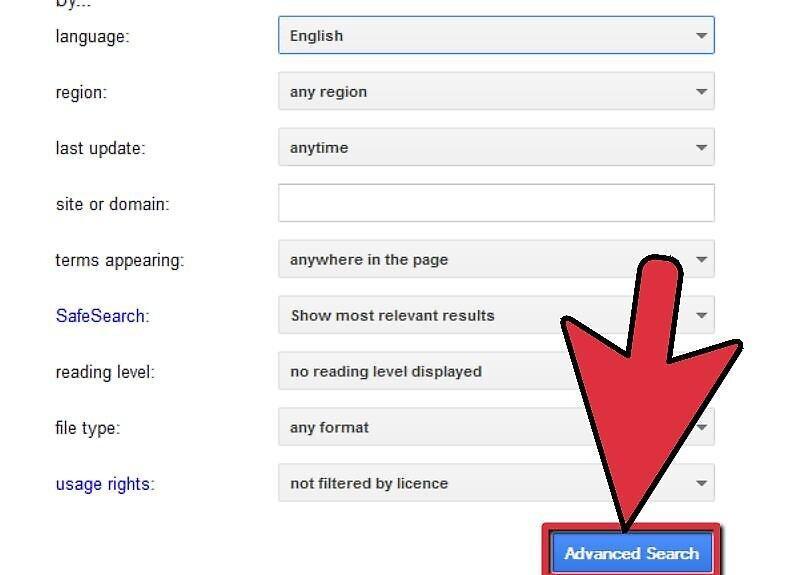
Narrow down the results. You can add more information about the subject of the search to further refine the results. You don’t need to fill in all the categories; just focus on those that can help find more precise information about what you’re looking for. Here are some options for how you can do this:
- Language. Choose the language in which you want to receive search results.
- Region. Shows results published in a specific region. For example, searching for sites in Eastern Europe.
- Date updated. Find pages whose data has been updated since a specified date.
- Site or domain. If you want to limit your search to a specific site, enter its name – and you will only receive results from it.
- Keywords. Decide where exactly they should appear: in the titles or the body of articles.
- Safe search. Choose "show closest results." If you want to exclude potentially inappropriate articles from the search results, select "filter to exact results."
- Reading level. Change the search criteria to match your reading level.
- File type. Find pages with files in the desired format, such as PDF or Word Doc (.doc).
- Usage rights. Choose pages that contain material for free use.
Step 5. Click on "Advanced Search."
Step 6. Review the results you obtained.
Review the results you obtained. Check if you found the articles you were looking for. If you still can’t find what you were searching for, you can go back to the Google Advanced Search menu and refine your search query or make it more general.


