
In this article, we’ll share simple and effective ways to adjust the volume on your Samsung Smart TV using the remote control. Please note that there are many models of remotes, and button placements may vary. If you can’t adjust the volume with the remote or directly on the TV, try disabling the auto volume feature in the settings menu. If sound is being output through a receiver or external speakers, adjusting the volume may also require a different remote or manual adjustments on the speakers themselves.
Using the Samsung Remote
Step 1. Turn on the TV.
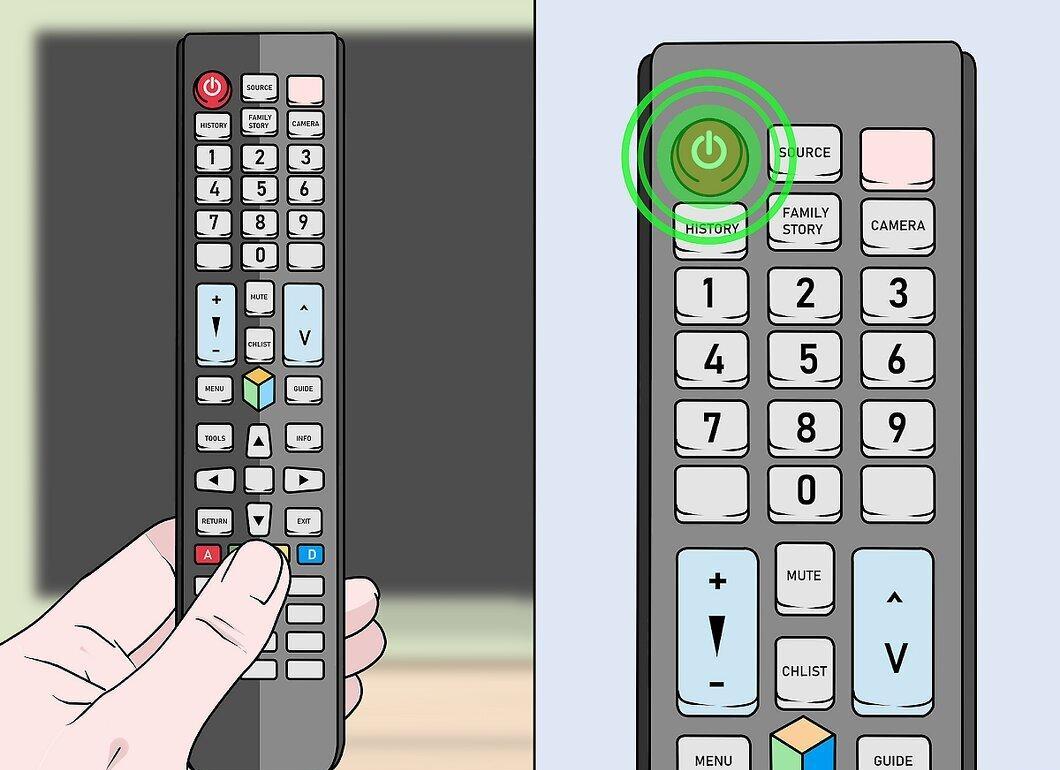
Turn on your TV by pressing the power button, which is usually marked with a red circle and a vertical line on top. This button is typically located at the top right corner of the remote, but you can also use the button on the TV itself.
- If the remote doesn’t respond to volume changes or the sound level fluctuates during viewing, disable the auto volume feature in the settings.
- If sound is coming from external speakers, don’t forget to adjust the volume on them as well.
Step 2. Locate the volume control buttons.
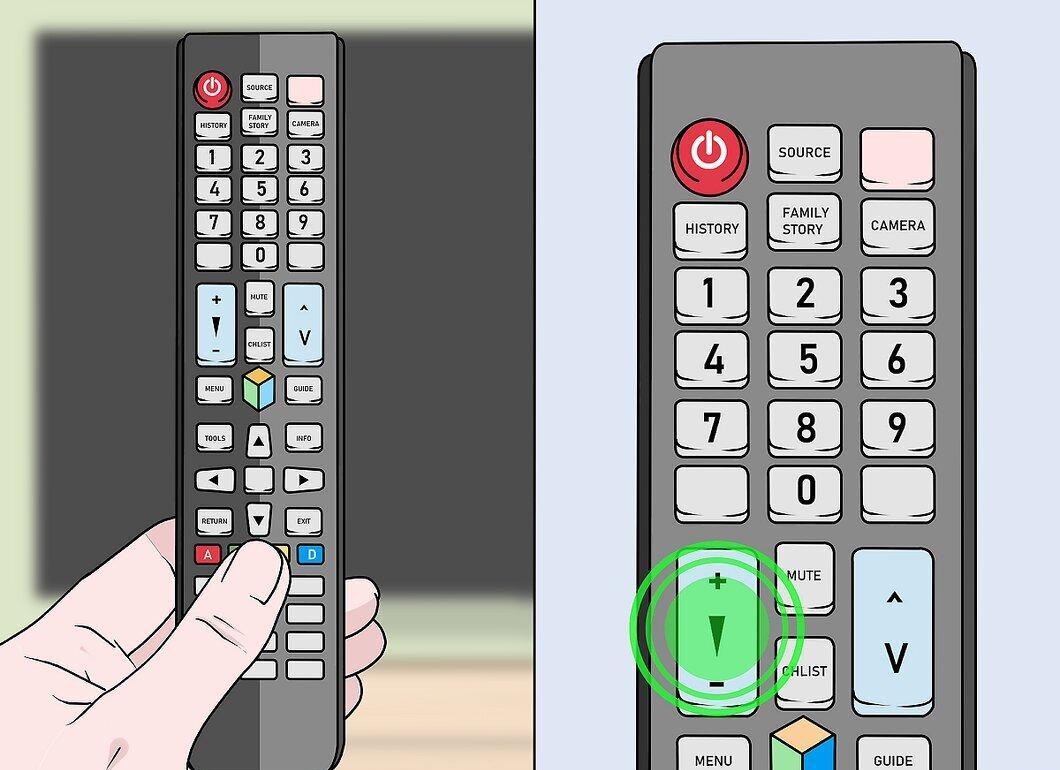
Look for the buttons that control the volume. Samsung remote models may have different layouts for these buttons.
- In most cases, the volume up button is marked with a + sign, and the volume down button with a - sign.
- Sometimes the volume buttons can be combined into one long button labeled “VOL,” located at the bottom of the remote, allowing you to both increase and decrease the sound level.
Step 3. Increase the volume
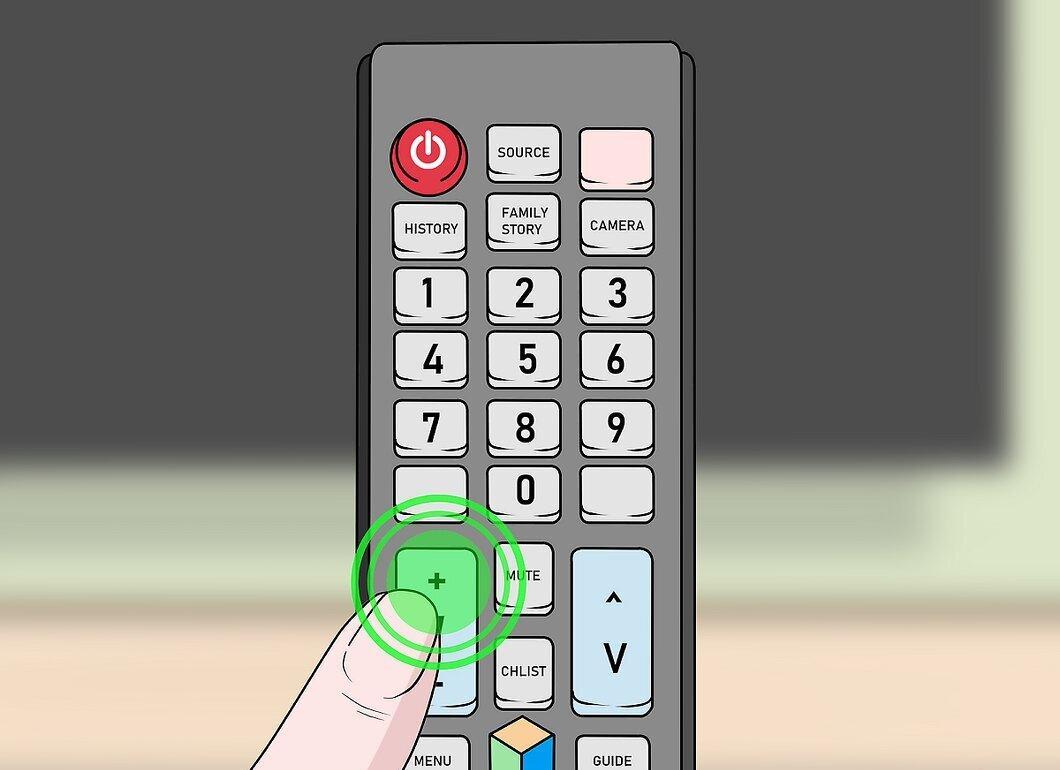
To raise the volume, press the + button. If you only have one “VOL” button, press the top part of it.
- An indicator will appear on the screen showing the current volume level. If the indicator moves to the right, the volume level is increasing; if it moves to the left, it is decreasing.
Step 4. Decrease the volume
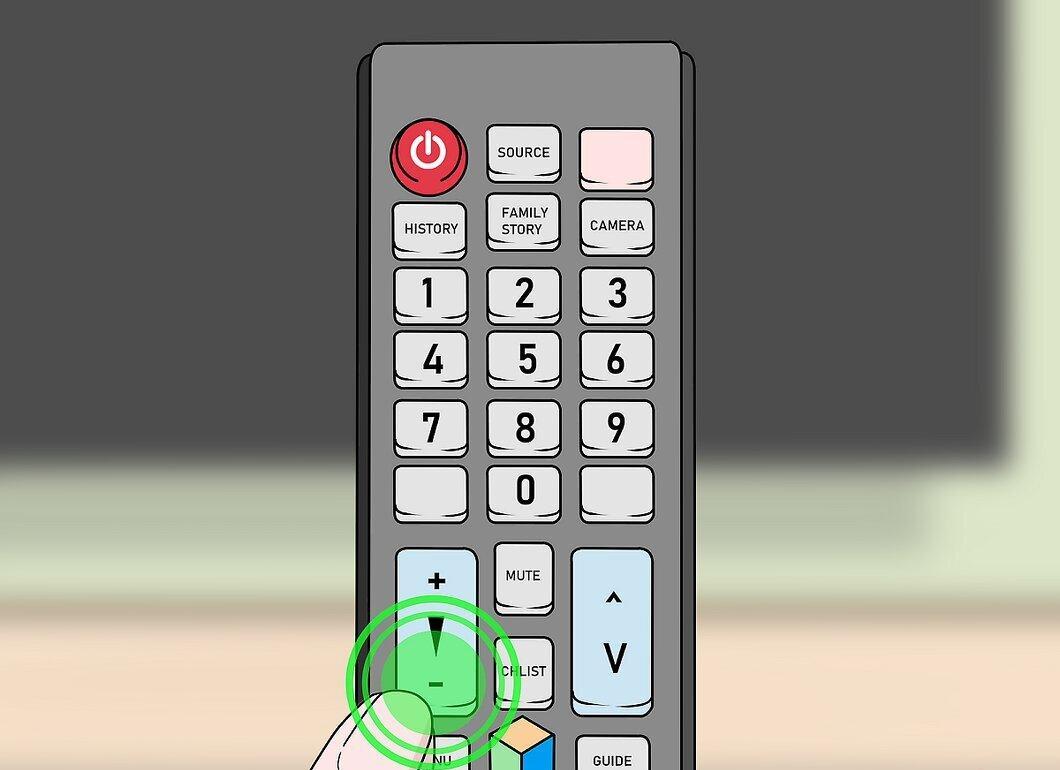
To lower the volume, press the - button. If you have one “VOL” button, press the bottom part of it.
Step 5. Mute the sound
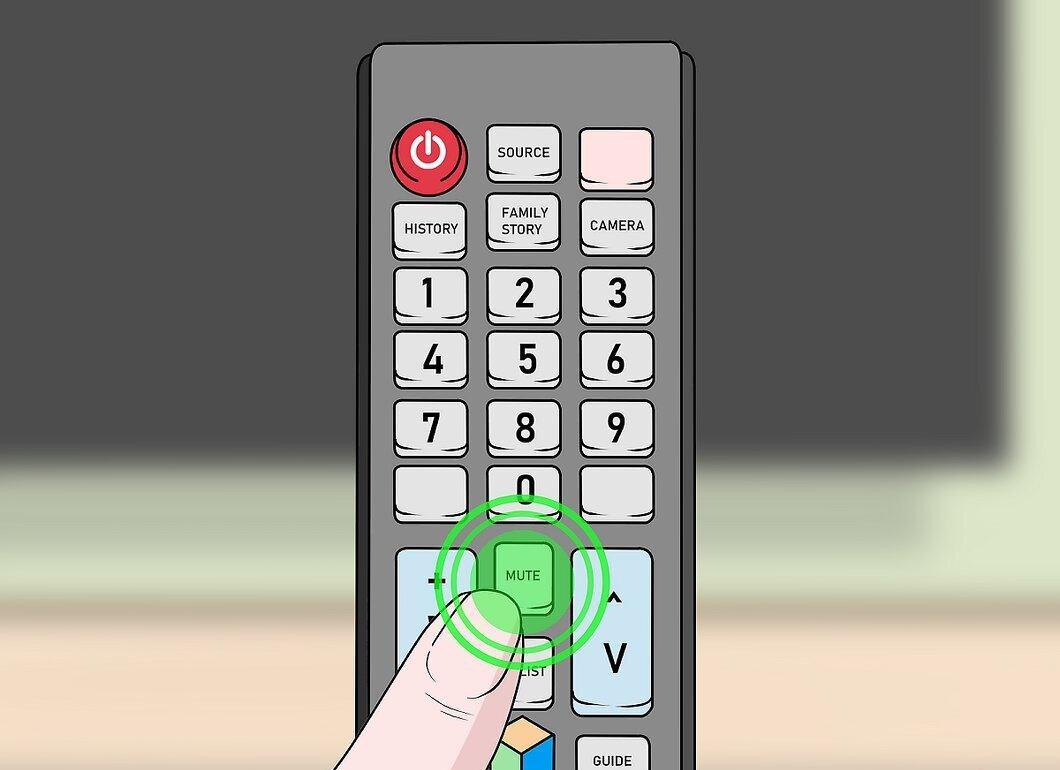
To mute the sound, press the MUTE button. It may be marked with a speaker icon crossed out by a line.
- To unmute the sound, simply press MUTE again.
Disabling Auto Volume
Step 1. Turn on the TV.
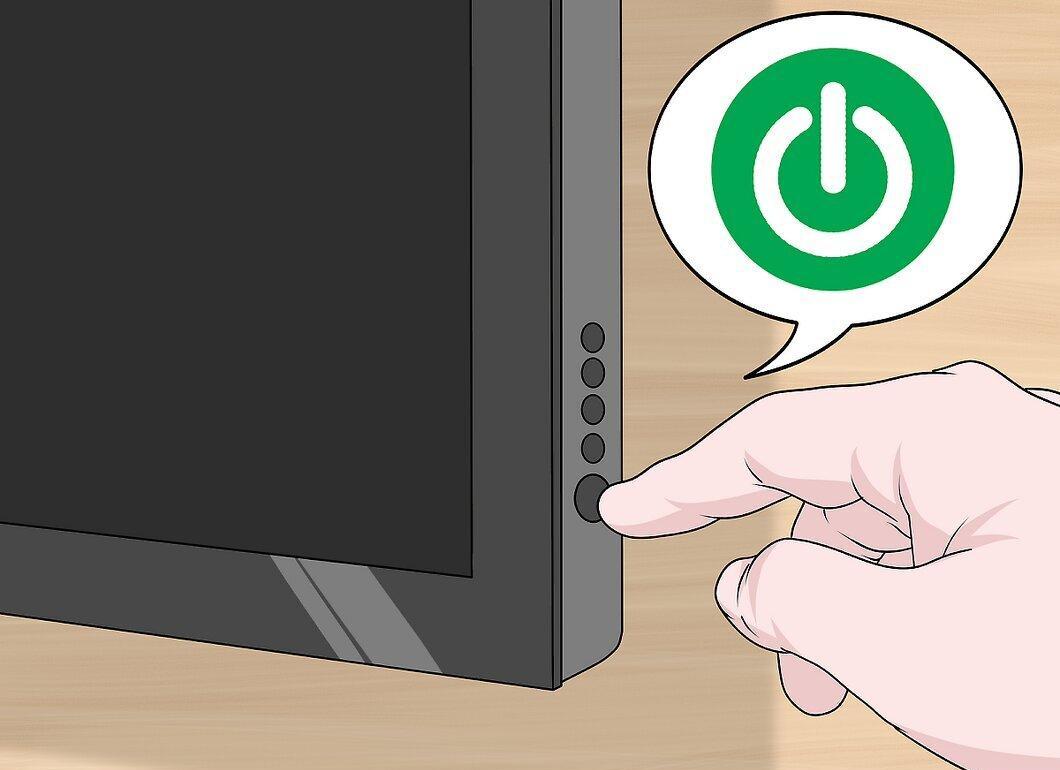
Turn on the TV by pressing the power button located at the top left corner of the remote. You can also use the button on the TV itself.
- This method is useful if the volume changes automatically during viewing or if the remote is not allowing you to control the sound.
- Despite the variety of Samsung remote models, this method works for most of them.
Step 2. Press the Home button
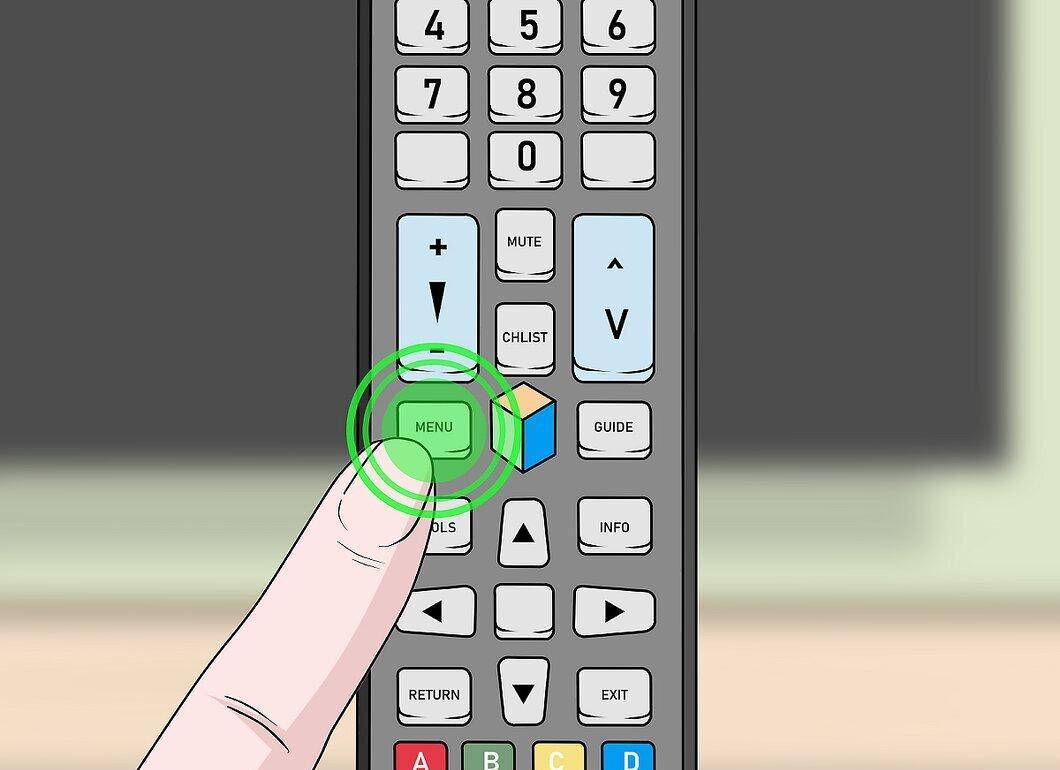
Press the Home button, represented by a house icon on the remote. This will take you to the TV’s home page.
- If there is no Home button, try pressing the ≣ Menu button.
Step 3. Go to Settings
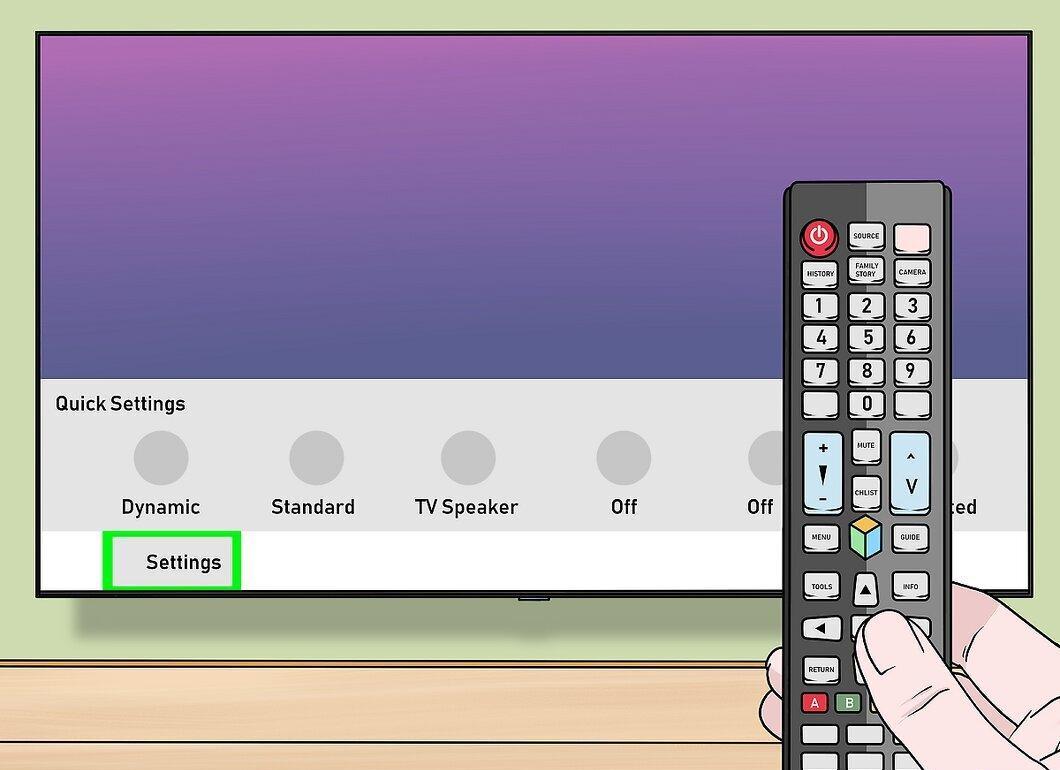
Select the Settings section using the arrow buttons on the remote. Then press the right arrow button to open the submenu.
- If you used the ≣ Menu button in the previous step, you can skip this step.
Step 4. Navigate to Sound
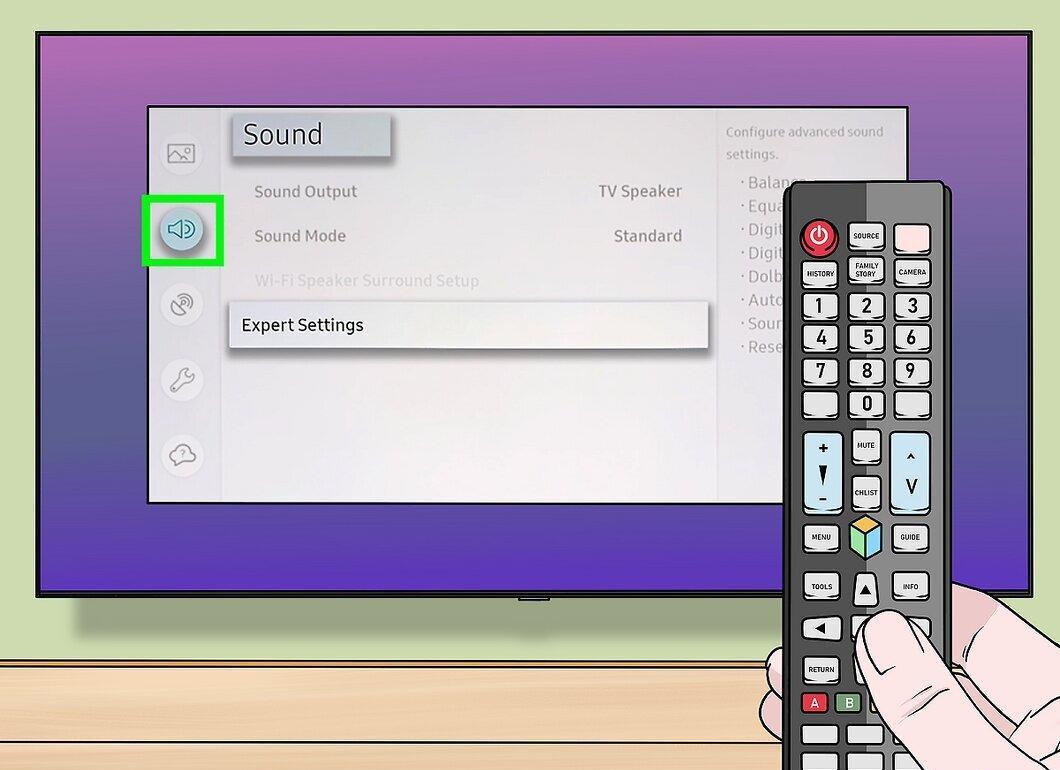
Select the Sound option to open the sound settings.
Step 5. Select Expert Settings
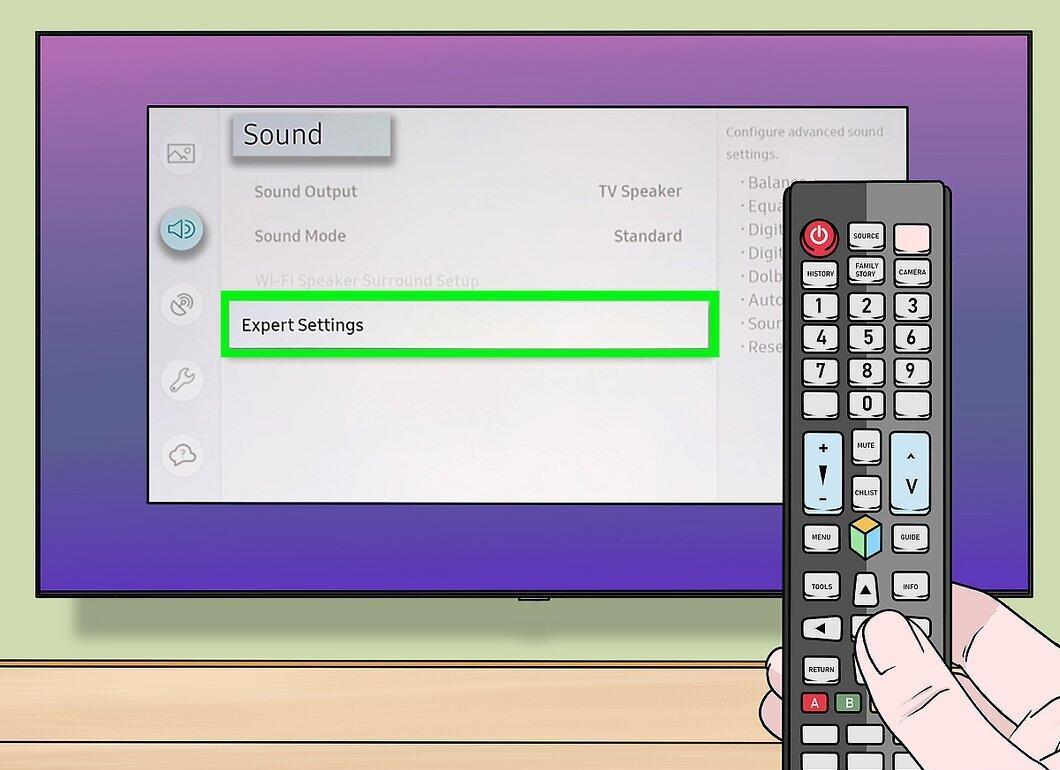
Choose Expert Settings or Additional Settings — the name may vary depending on your TV model.
- If you don’t see the mentioned options, look for the Speaker Settings item.
Step 6. Find Auto Volume
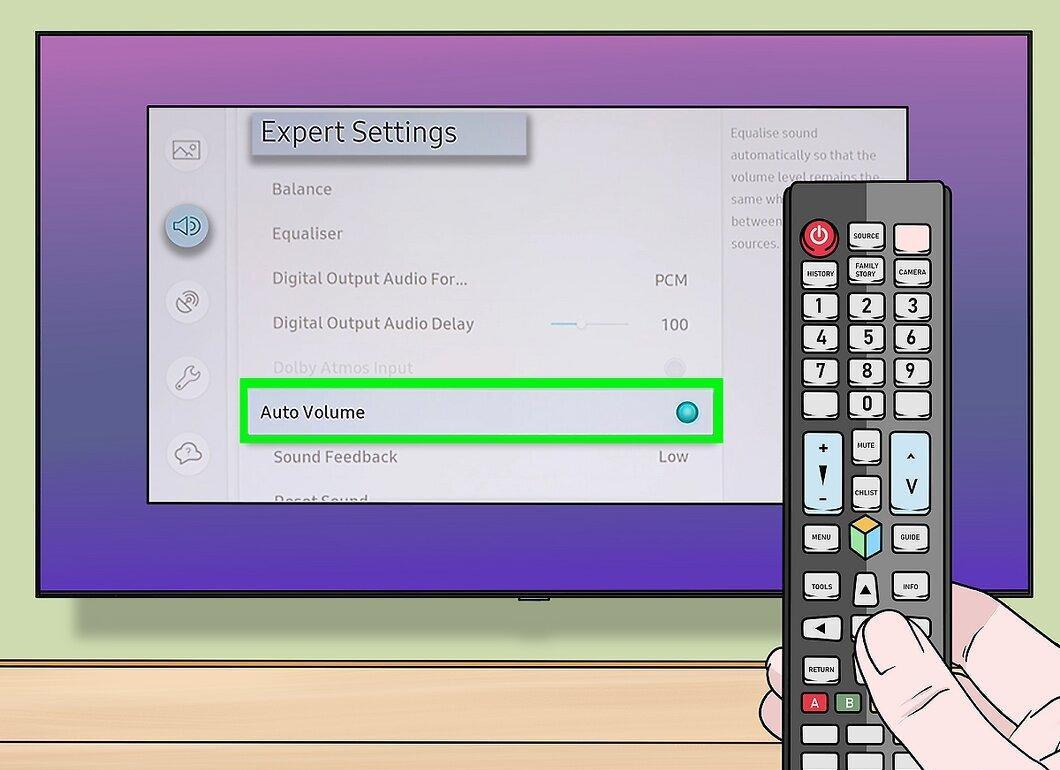
Select the Auto Volume option located at the bottom of the menu. You will see three options:
- Normal — maintains a consistent volume level when switching between channels.
- Night — keeps the volume low for comfortable nighttime viewing and disables auto volume during the day.
- Off — completely disables the auto volume feature.
Step 7. Disable Auto Volume
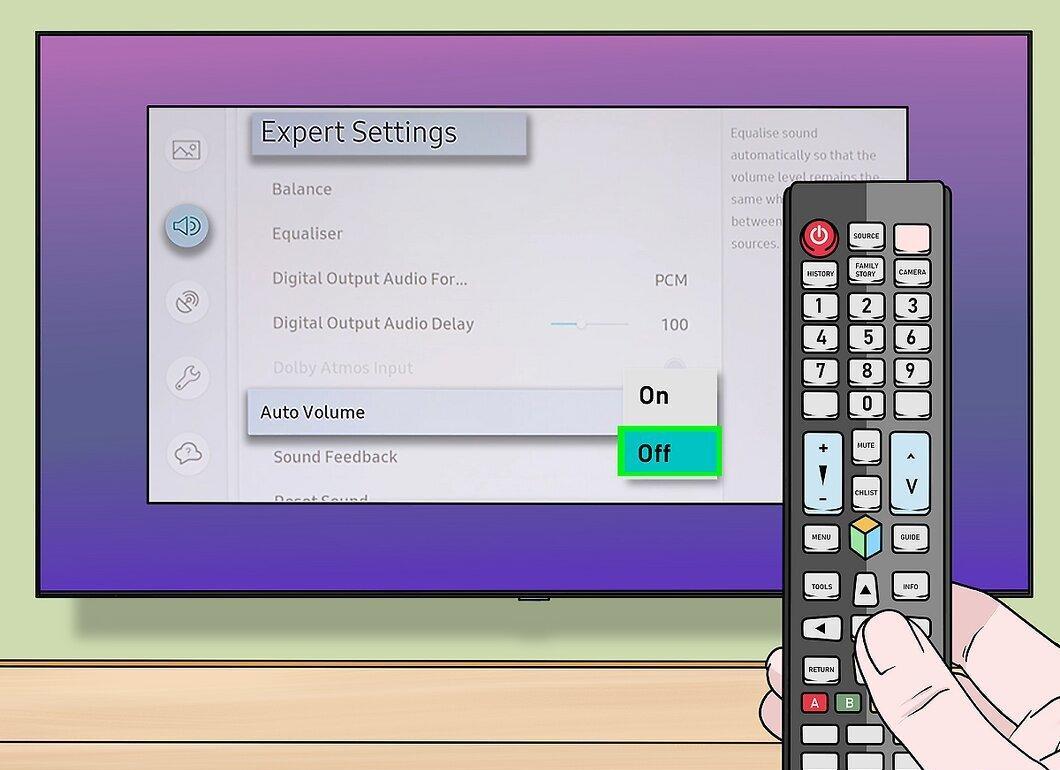
Select the Off option. If you previously had selected Normal or Night, this may have been causing the volume to change automatically during viewing. Now you will be able to control the sound level manually.


