
If you're planning to update Firefox or troubleshoot this browser, the first step is to find out which version you have. Checking the version will automatically update the browser if you're connected to the internet.
On Mobile Devices
Step 1. Open the Firefox Menu.
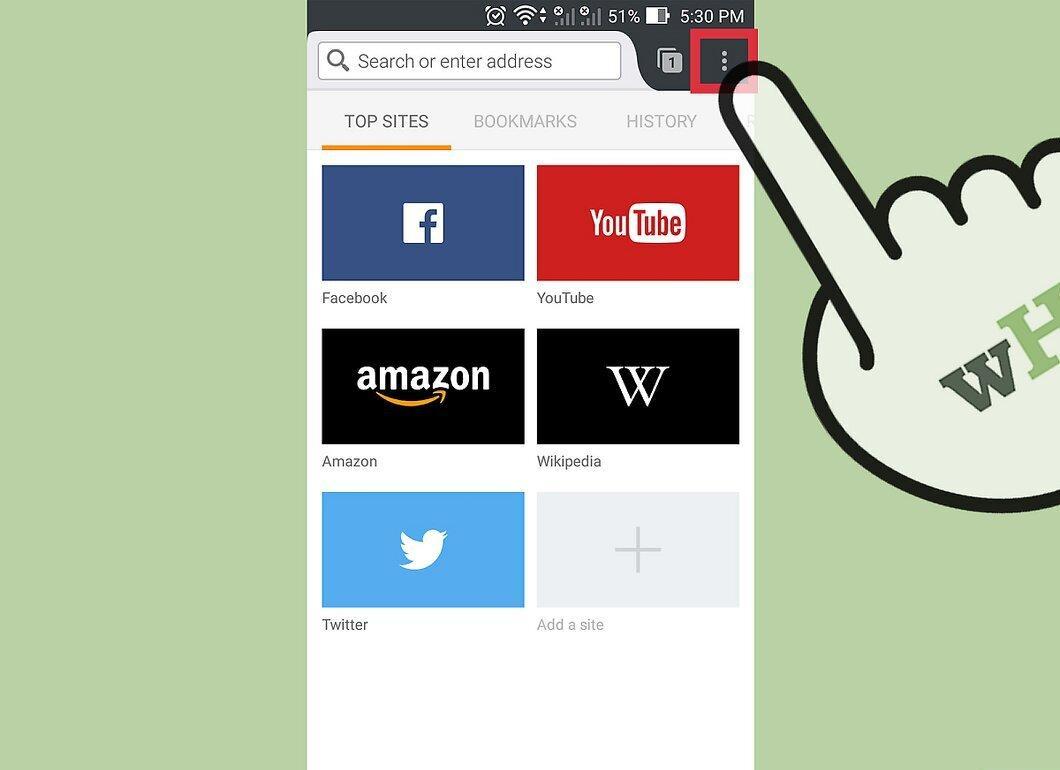
Launch Firefox and look for the three horizontal lines icon to open the menu.
Step 2. Select "Help Menu".
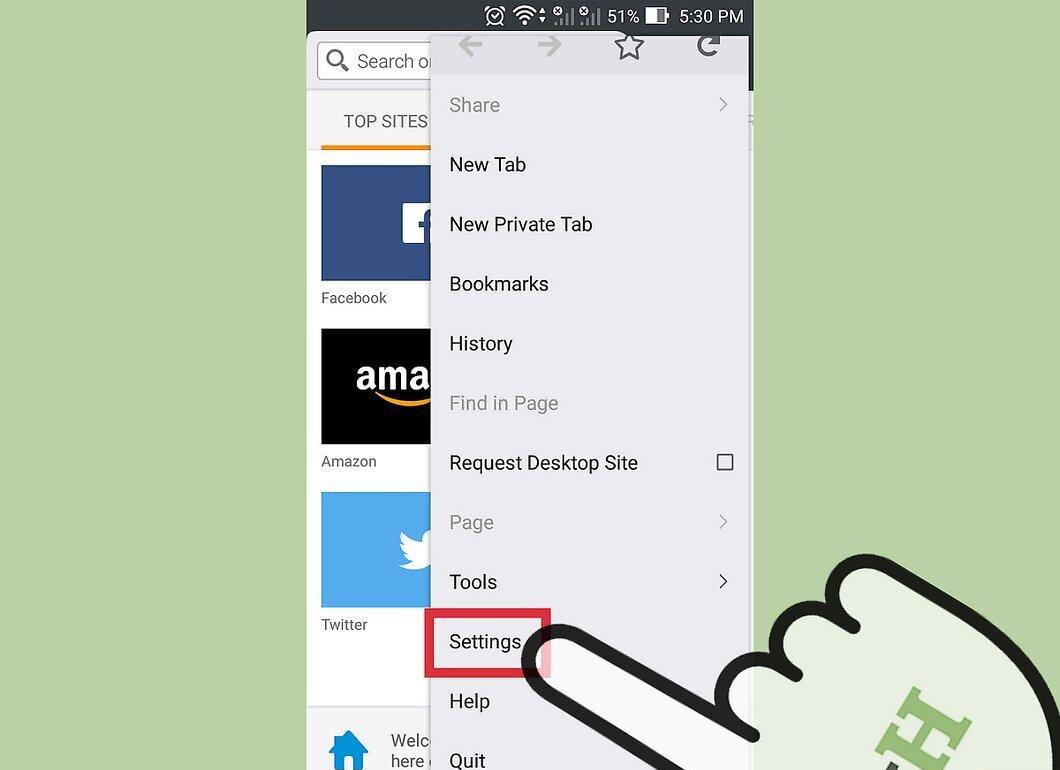
At the bottom of the Firefox menu, find and tap the question mark icon in a circle — that's the "Help Menu".
Step 3. Click on "About Firefox".
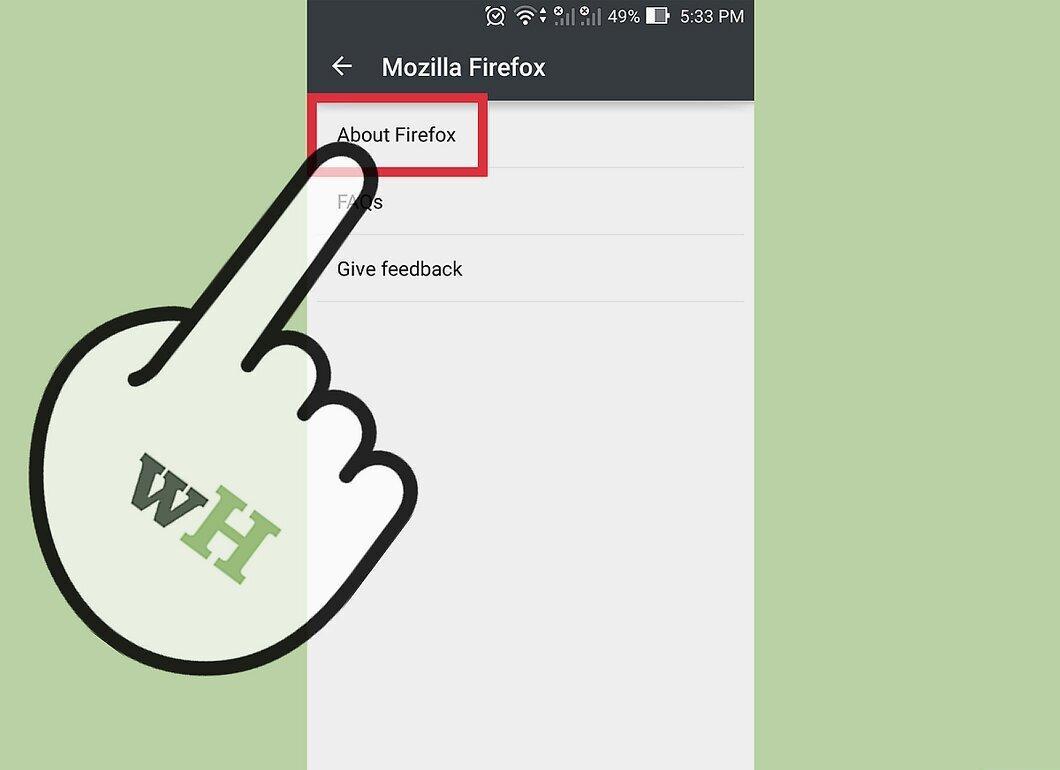
Choose the "About Firefox" option from the list that appears.
- If you don't want the browser to update, just switch your device to "Airplane Mode" before opening Firefox.
Step 4. Check the Browser Version.
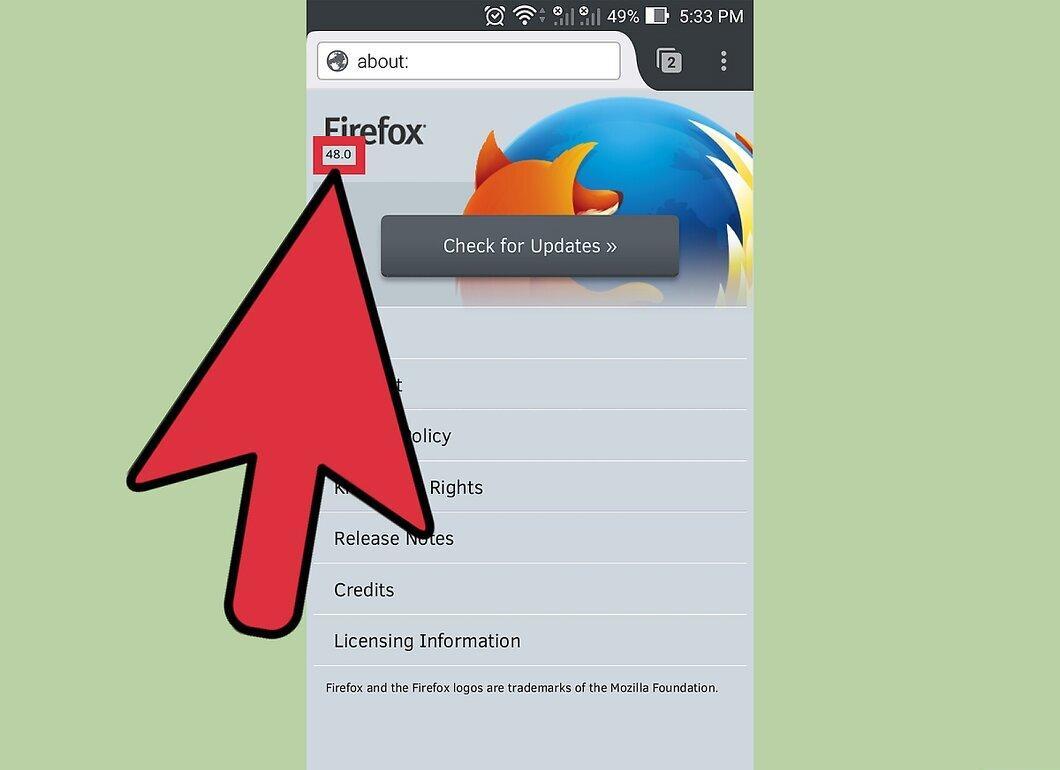
Your browser version will be displayed under the name "Firefox".
On Computers
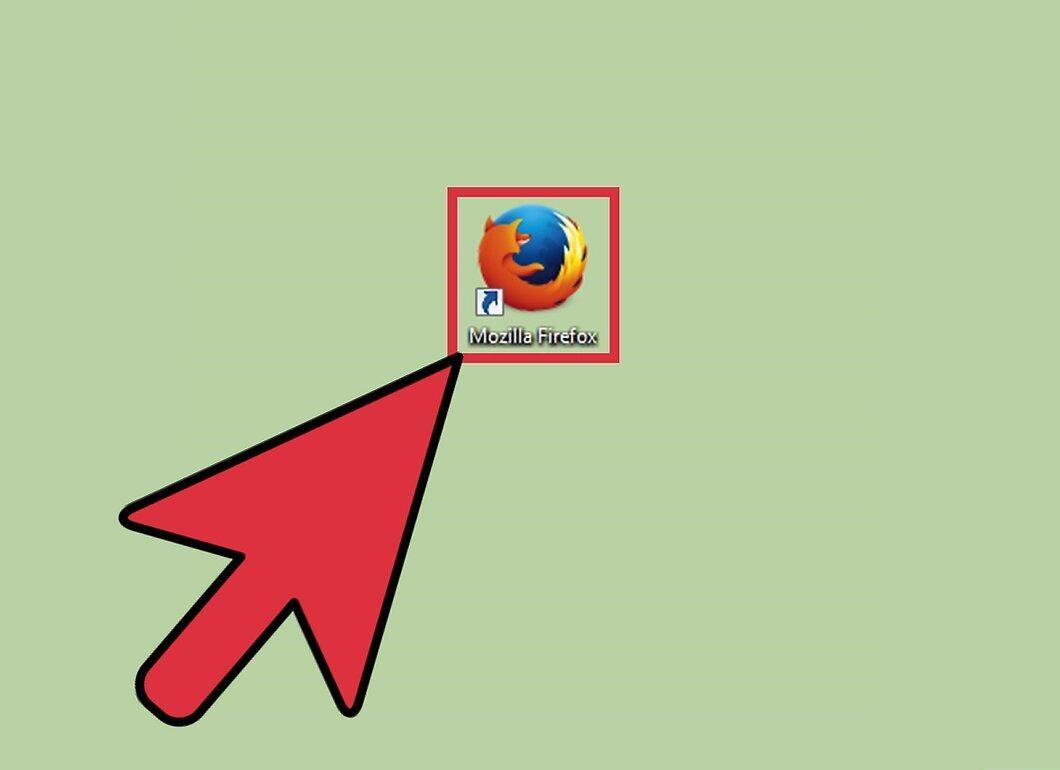
Step 1. Launch Firefox.
Step 2. Display the Menu Bar.
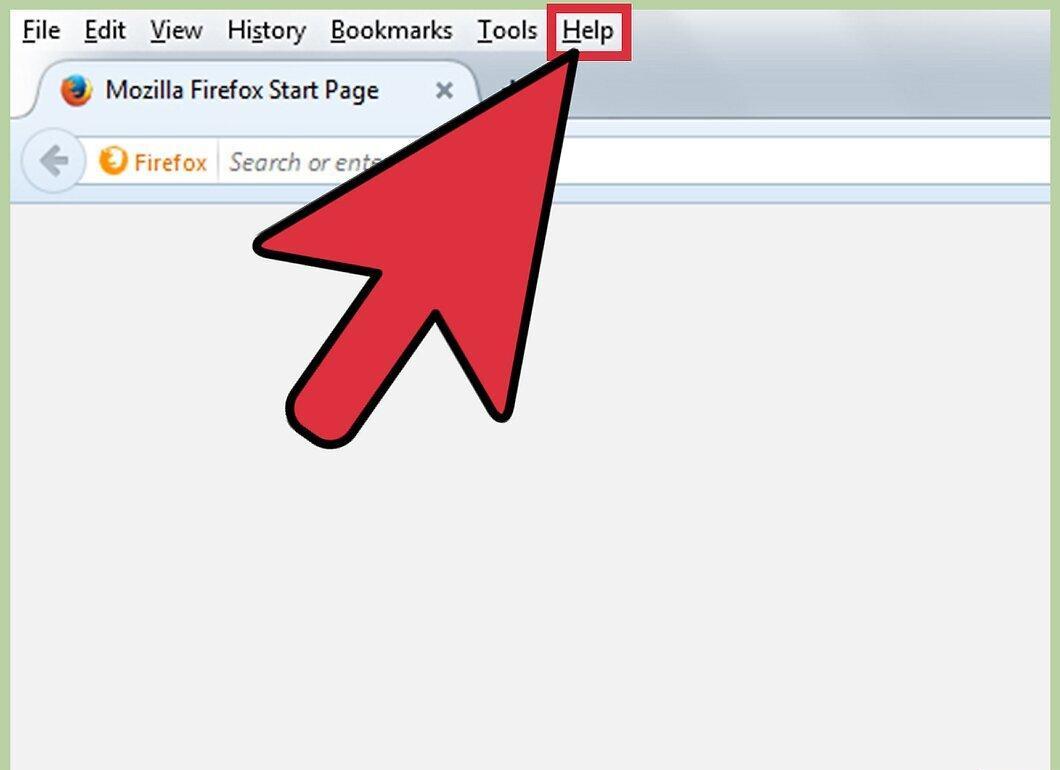
If the menu bar isn't visible, press the Alt key or F10 to display it. If the menu is already open, you will see options like "File", "Edit", and others.
- You can also right-click at the top of the Firefox window and check the option for "Menu Bar".
Step 3. Go to the "About Firefox" Page.
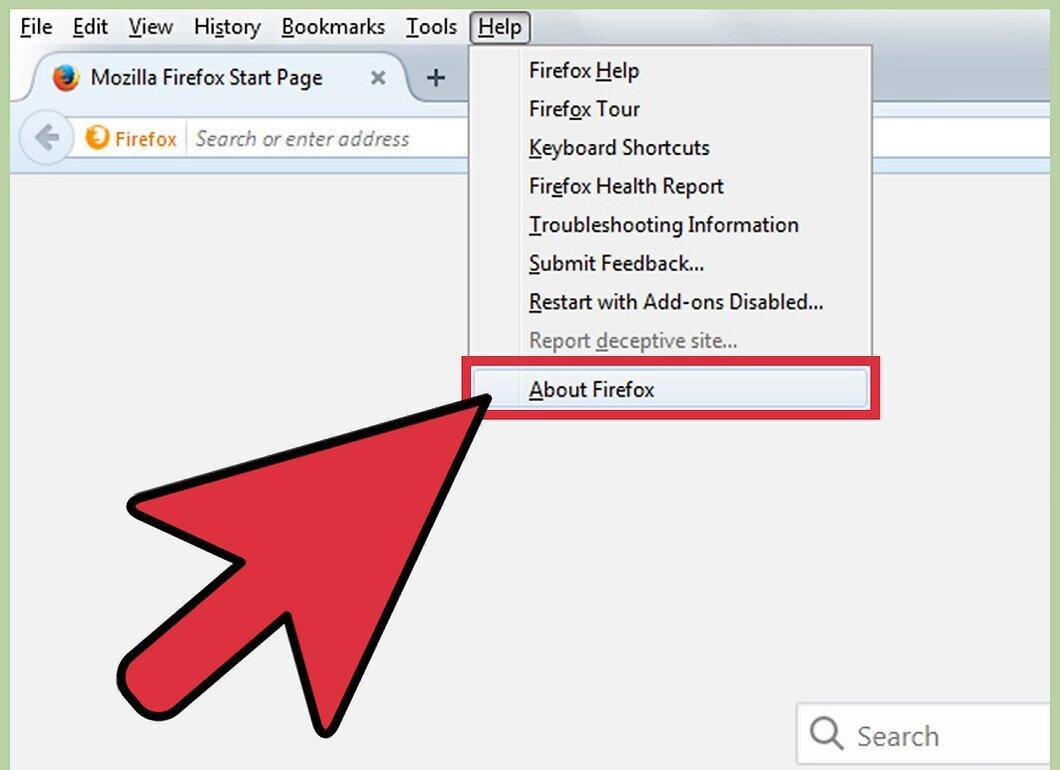
In the menu bar, select "Firefox", then click on "About Firefox". Alternatively, go to "Help" and select "About Firefox".
- To avoid automatic updates, disconnect from the internet before launching the browser.
Step 4. Find the Browser Version Information.
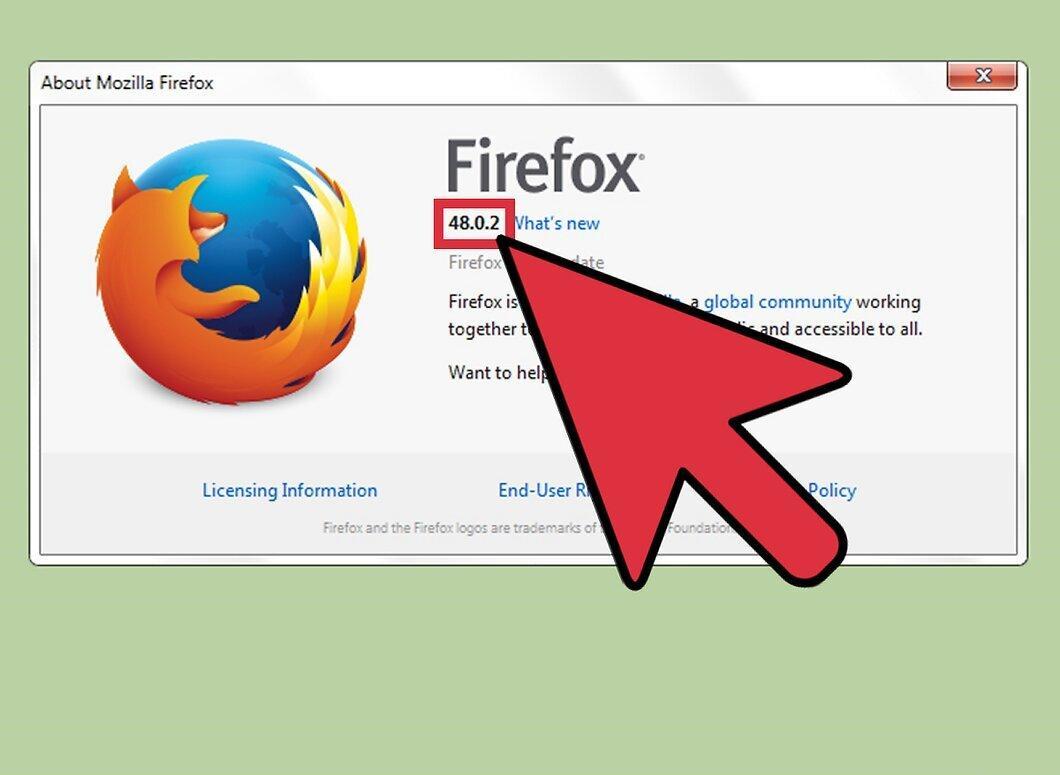
The version will be indicated under the "Firefox" label in the opened window, highlighted in bold.
Step 5. Check for Browser Updates.
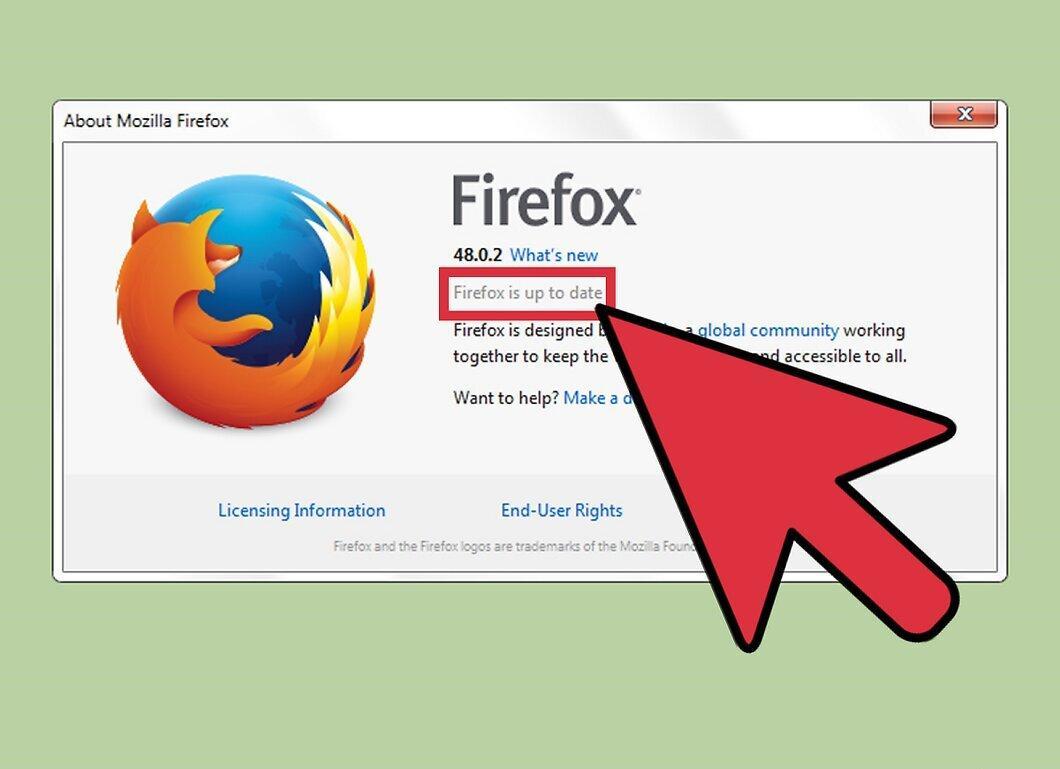
If you have the latest version installed, you will see the message "You are using the latest version of Firefox". Otherwise, the browser will update automatically. You can monitor the update process in the "About Firefox" window — updates will be applied after restarting the browser.
Step 6. Alternative Ways to Check Your Firefox Version.
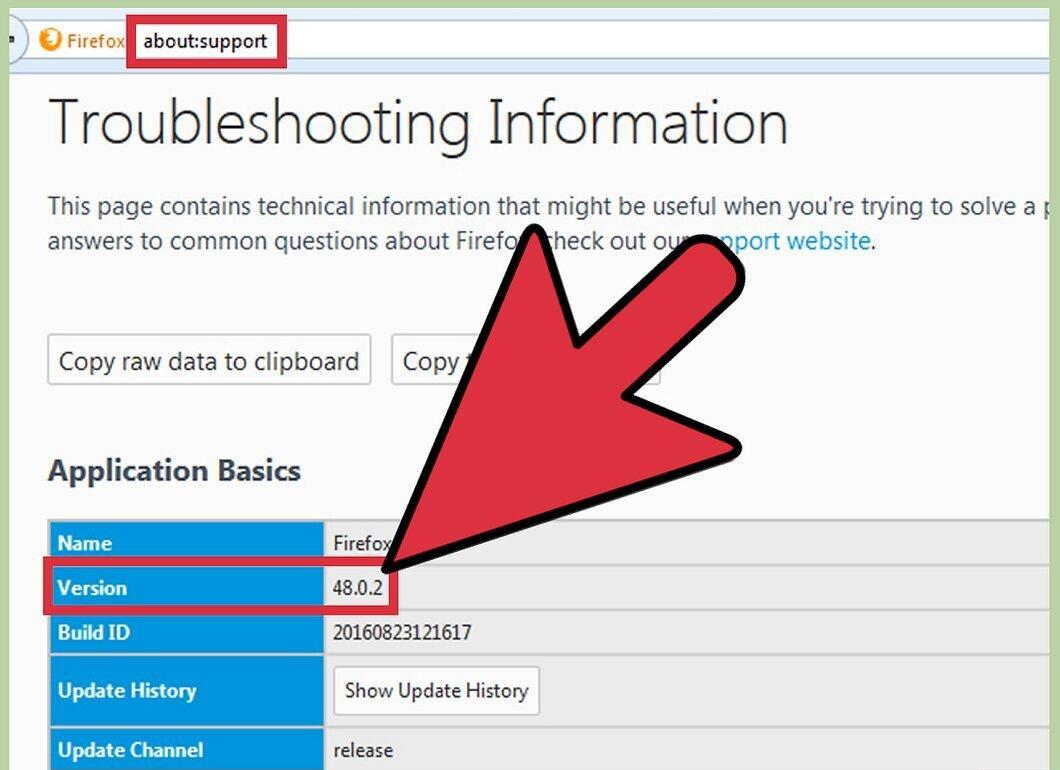
If you cannot open the "About Firefox" window, try the following methods: type about:support in the address bar and hit Enter — there under the "Application Basics" section, you will find the version. You can also type about: for less detailed information. (Windows only) Right-click on the Firefox icon and choose Properties – Shortcut –


