
Updating your router's firmware can significantly improve its performance and enhance security. It's recommended to periodically install the latest updates to protect your network and make it more efficient. Most routers automatically check for available updates, and the process can often be done automatically. If you have an Apple AirPort router, use the AirPort Utility app to check for updates.
How to Find Your Router's IP Address (Windows)
Step 1. Locate the address on the device.
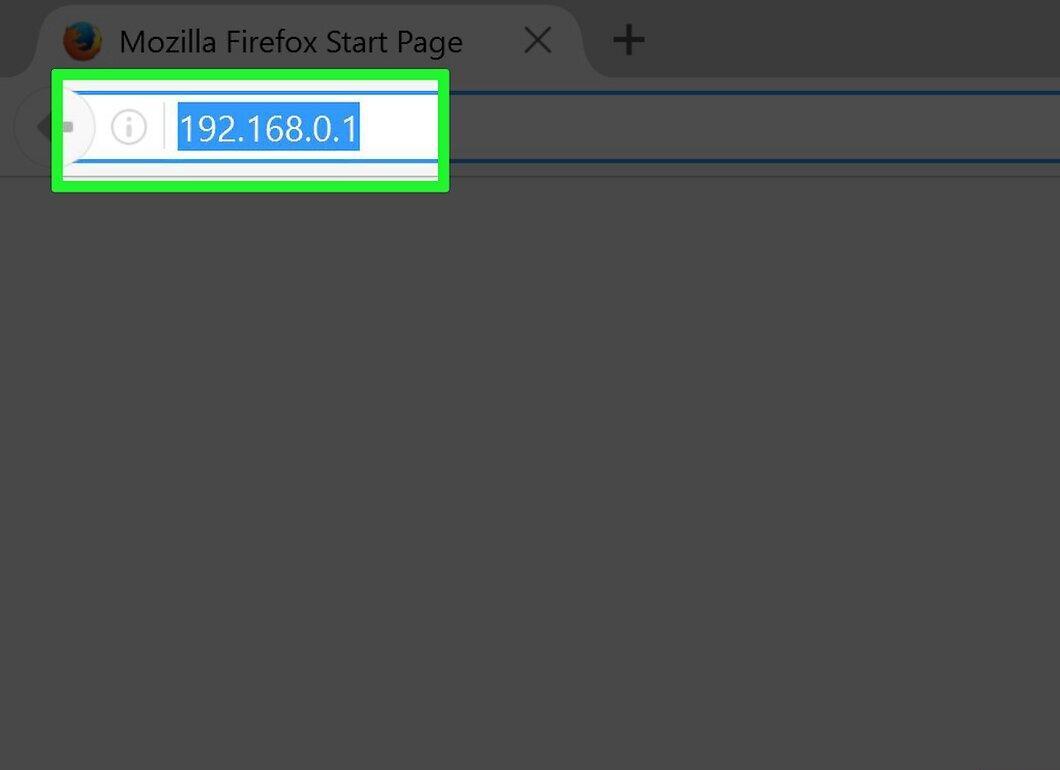
Look for the IP address on the router's casing. To access the configuration page, you'll need to enter this address in your browser. It's usually found on a sticker located on the bottom of the device. If the sticker is missing or you can't find it, follow the instructions below to determine the IP address.
- If you have a Mac, skip to the next section.
Step 2. Open the Start Menu and type "Network Status".
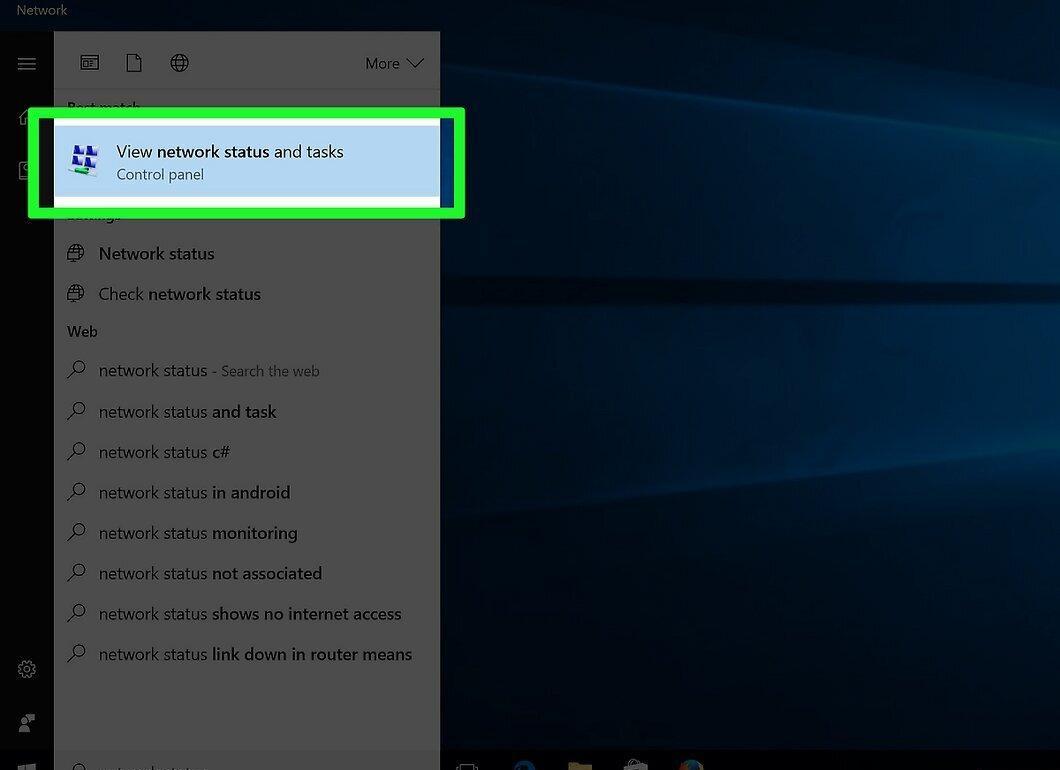
Open the Start Menu and type "Network Status". This will open a window with information about your network status and tasks.
Step 3. Click on the name of your connection in the upper right corner.
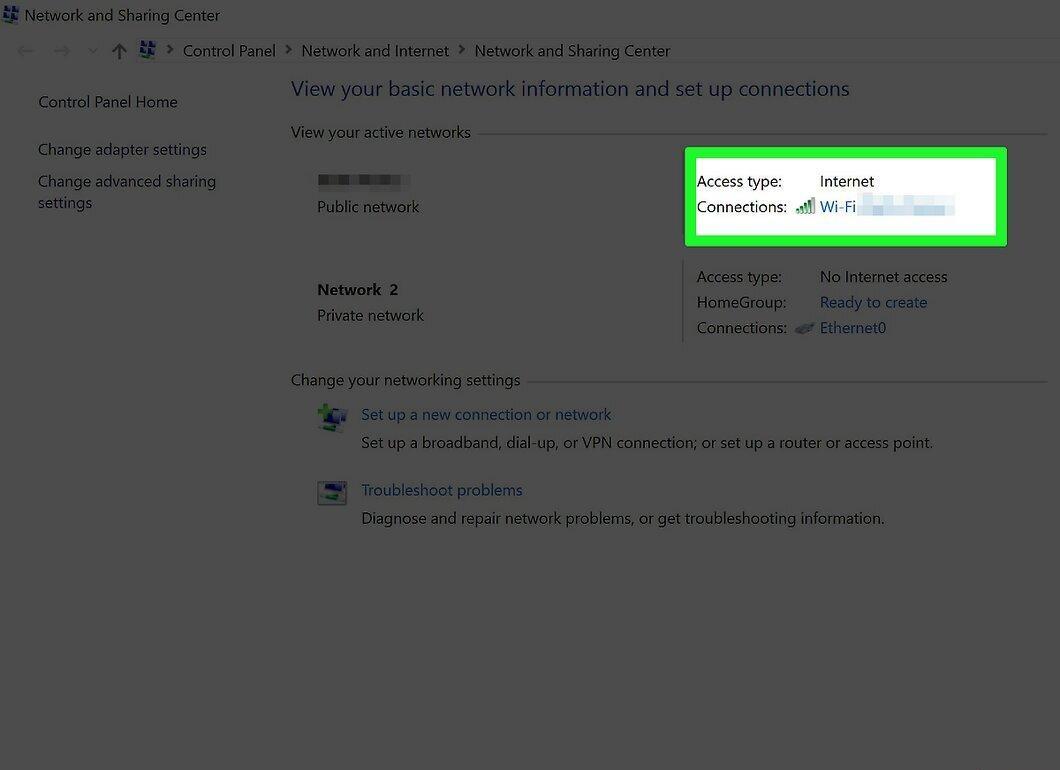
Select the name of your current connection in the upper right corner. It will be marked with the corresponding icon (Wi-Fi, Ethernet, etc.).
- Ensure you are connected to the router's network.
Step 4. Click on the "Details" button in the opened window.
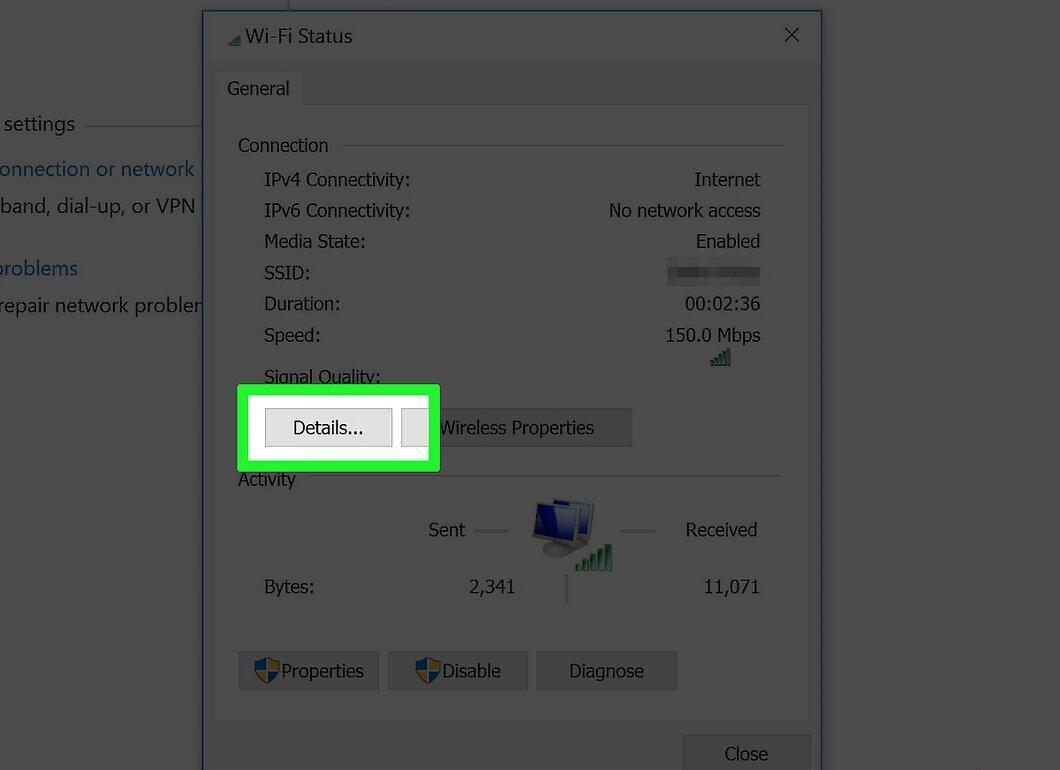
Click on the "Details" button in this window. Information about your network will appear here.
Step 5. Find the "IPv4 Default Gateway" line.
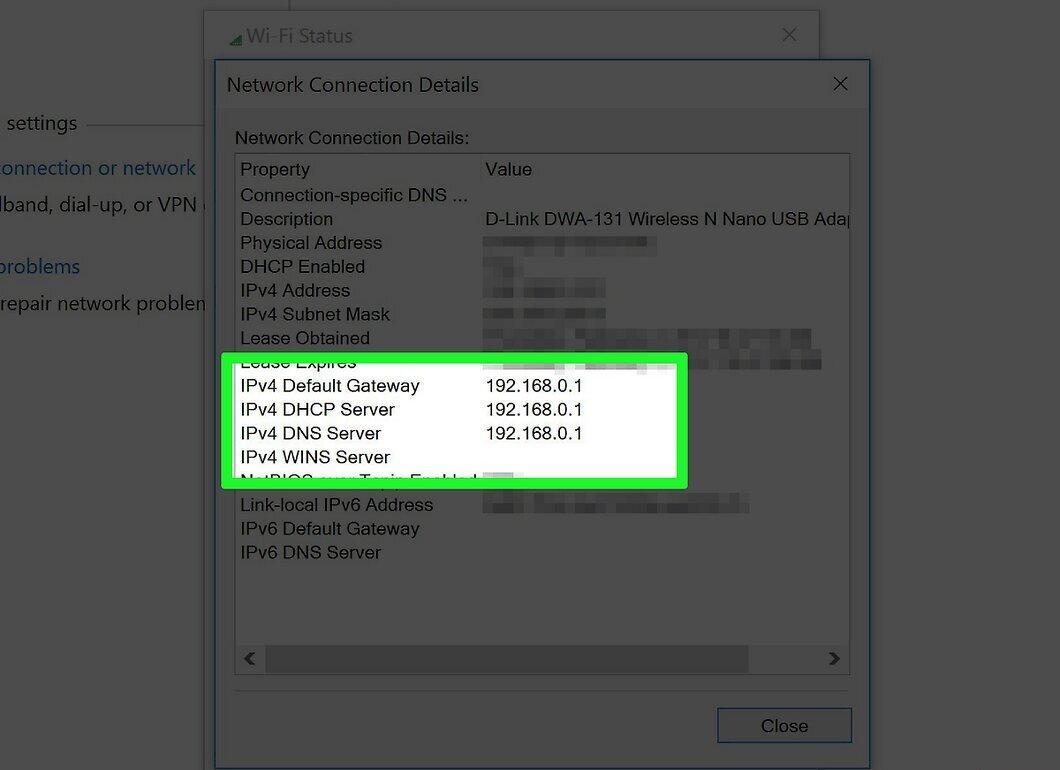
Look for the "IPv4 Default Gateway" line. The IP address listed here is your router's address. Write it down and proceed to the section on "How to Update Your Router's Firmware".
How to Find Your Router's IP Address (Mac)
Step 1. Locate the address on the router's casing.
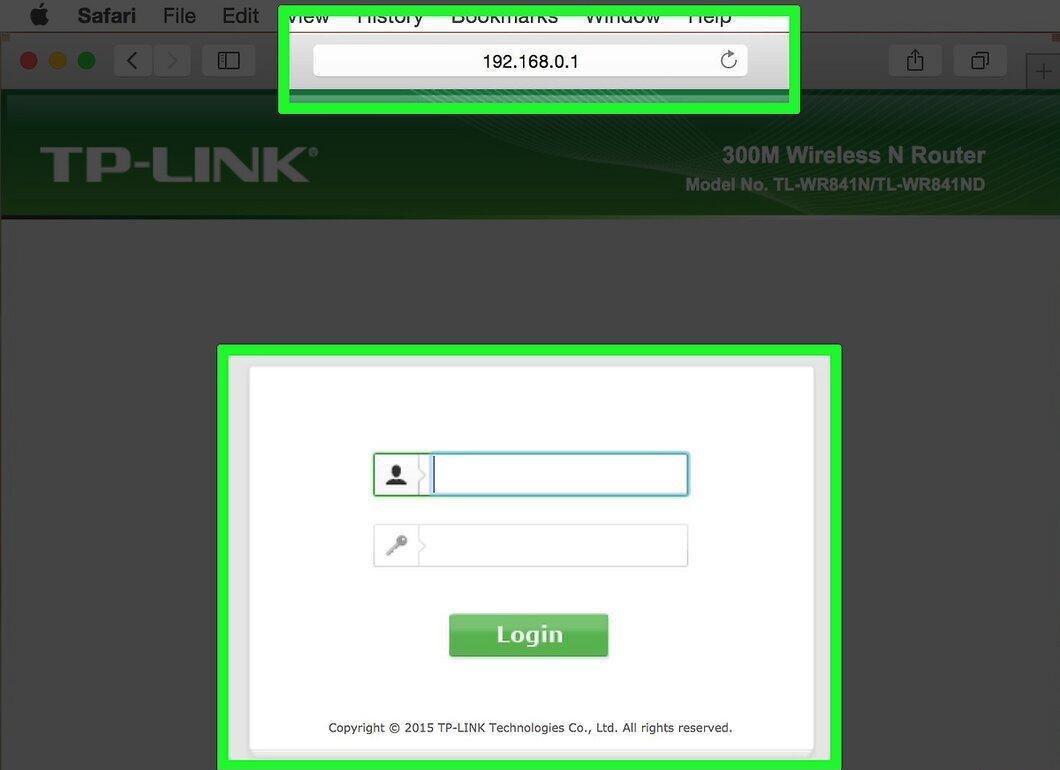
Search for the address on the device's casing. To access the configuration page, you'll need to enter this IP address in your browser. It's usually found on a sticker attached to the bottom of the router. If the sticker is missing or you can't access it, follow the instructions below.
- If you are using an Apple AirPort router, skip to the section "How to Update Your AirPort Router's Firmware".
Step 2. Open the Apple Menu and select "System Preferences".
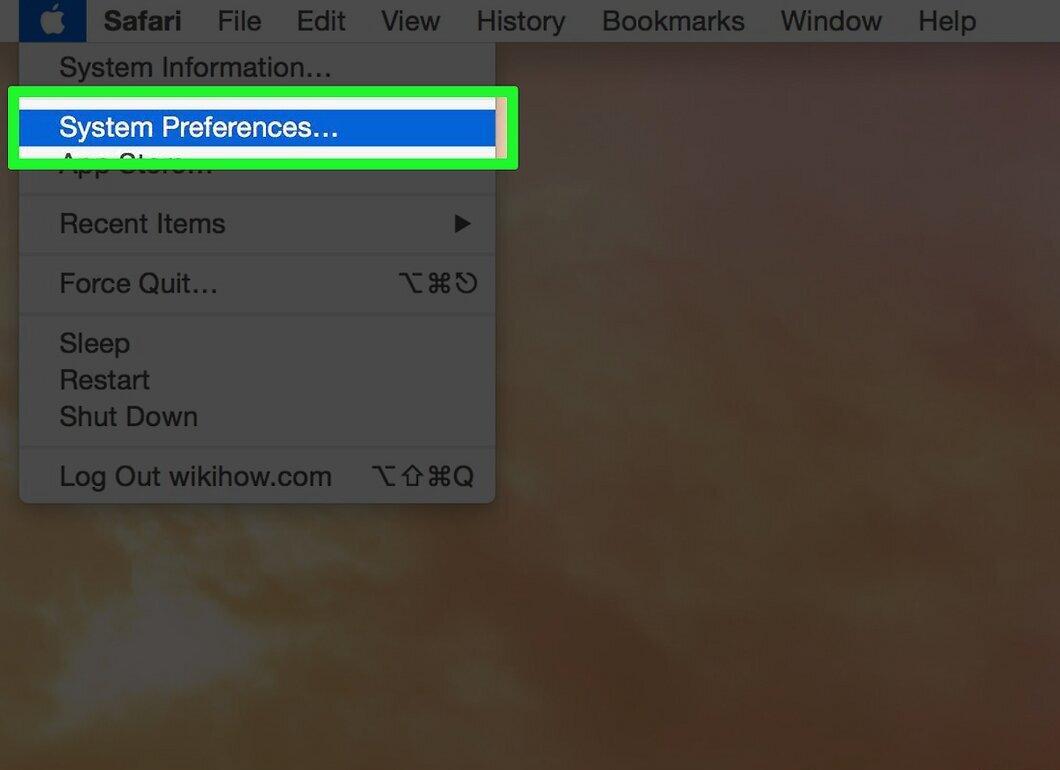
Open the Apple Menu and select "System Preferences". This will open a window with your system settings.
Step 3. Select "Network".
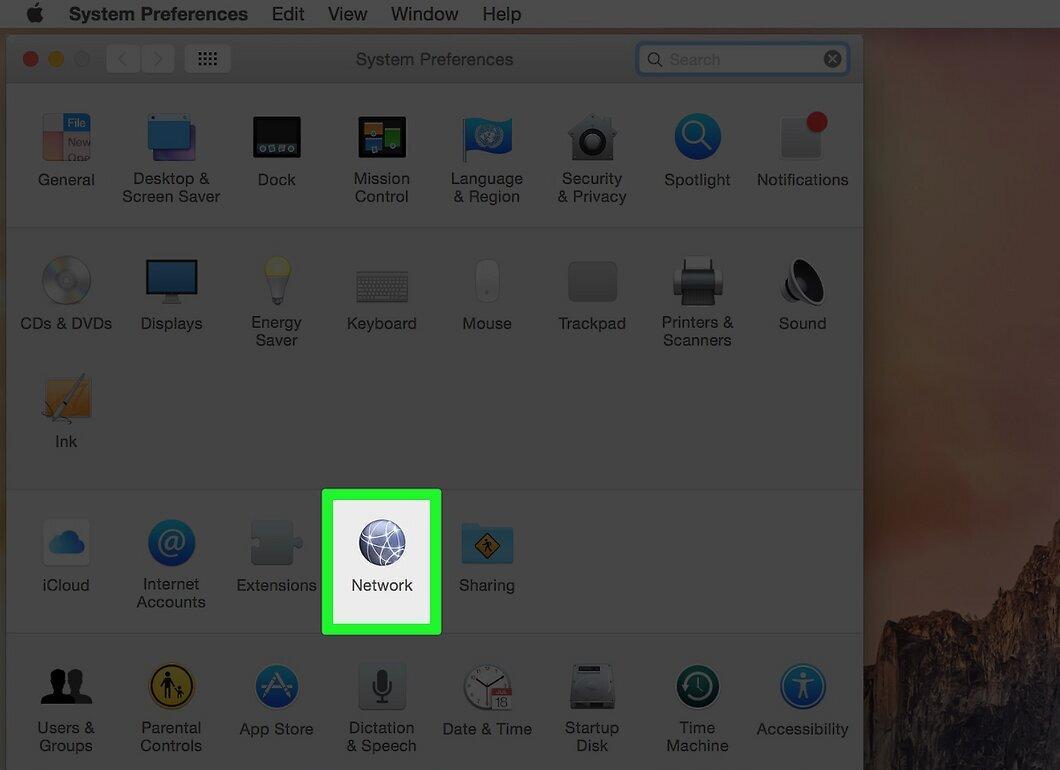
Click on "Network". Here, you'll see a list of your network connections.
Step 4. Select the active connection from the left panel.
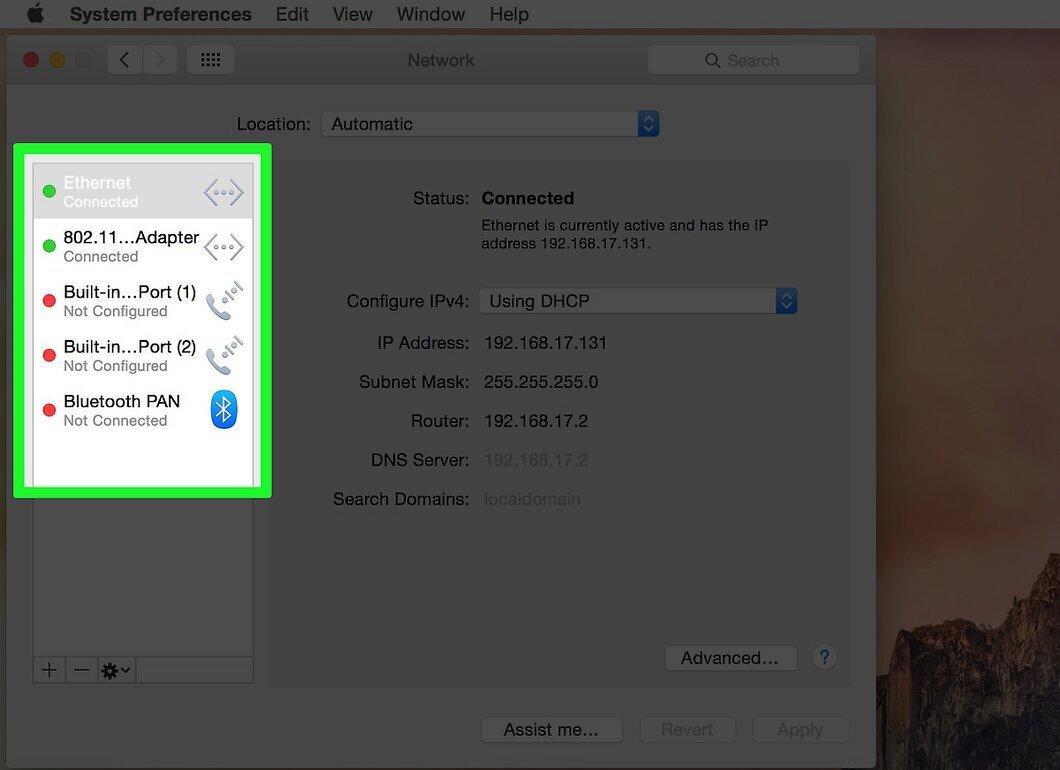
Select the active connection, which will be marked with a green icon, indicating "Connected".
- Ensure you are connected to the router's network.
Step 5. Click on "Advanced".
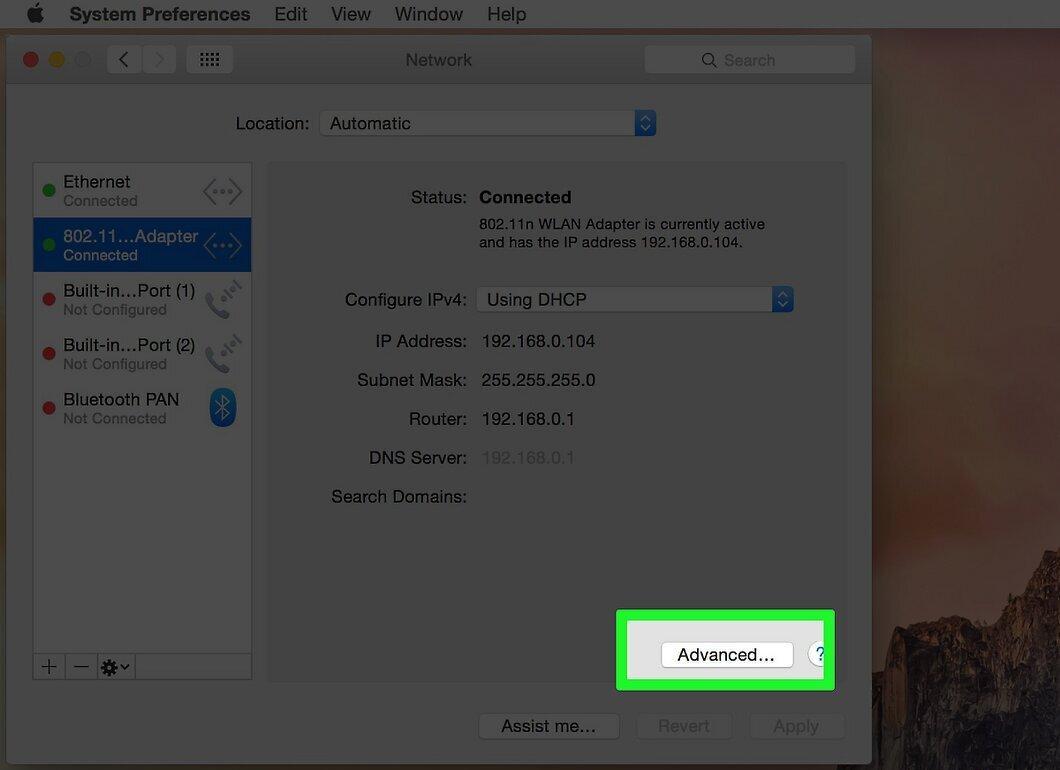
Click on "Advanced" to open a new window.
Step 6. Go to the "TCP/IP" tab and find the "Router" line.
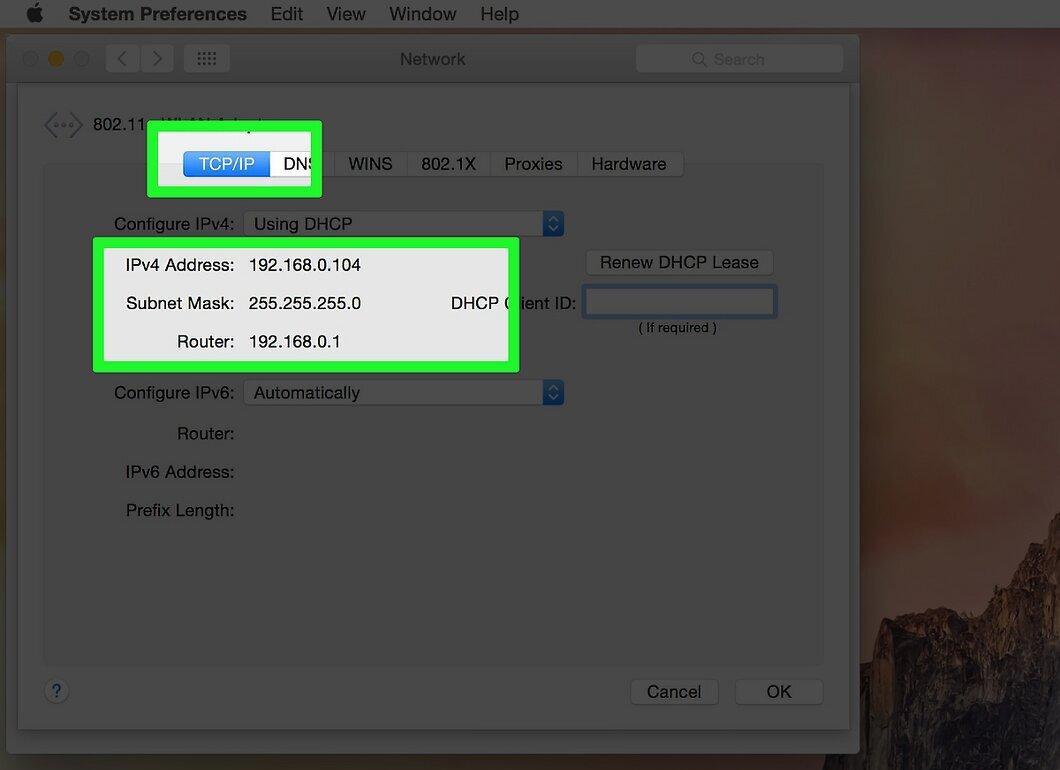
Navigate to the "TCP/IP" tab and find the "Router" line. The IP address listed here is your router's address.
How to Update Your Router's Firmware
Step 1. Connect the router via an Ethernet cable.
Connect the router using an Ethernet cable. Some routers may restrict access to the configuration page when connected via Wi-Fi. Using Ethernet ensures you can access the configuration page.
Step 2. Enter the router's IP address in your browser's address bar.
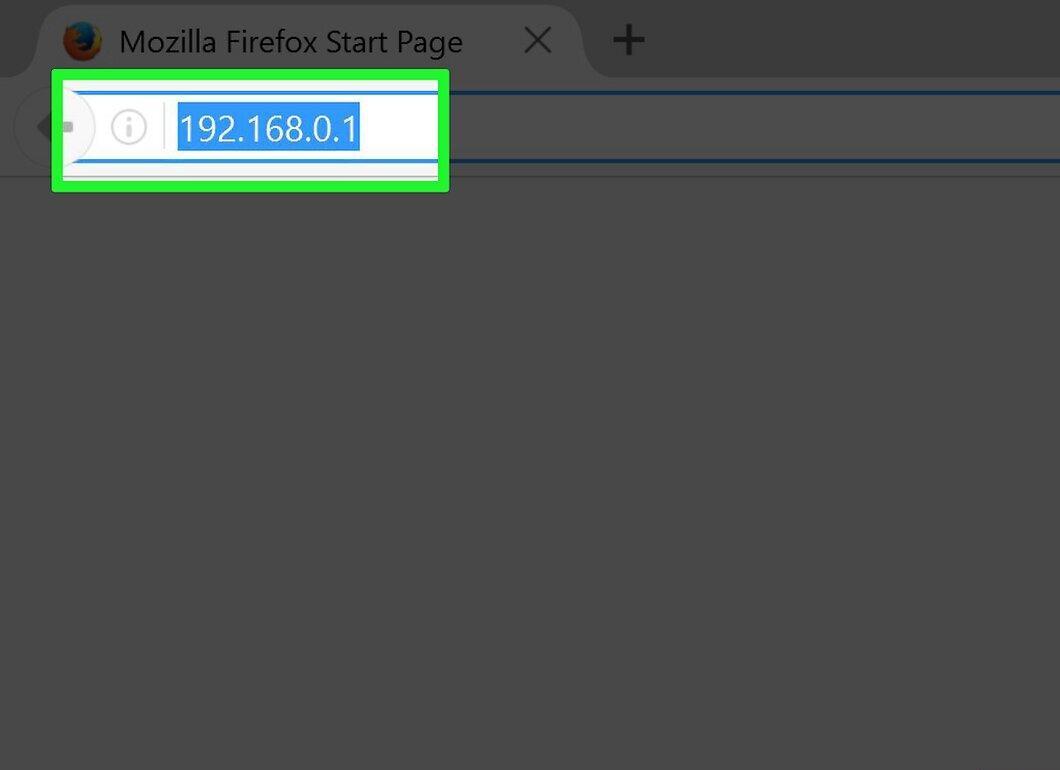
Type your router's IP address into your browser's address bar. You can find this address by following the previous steps.
- Enter the address just like you would a website URL.
Step 3. Enter your credentials.
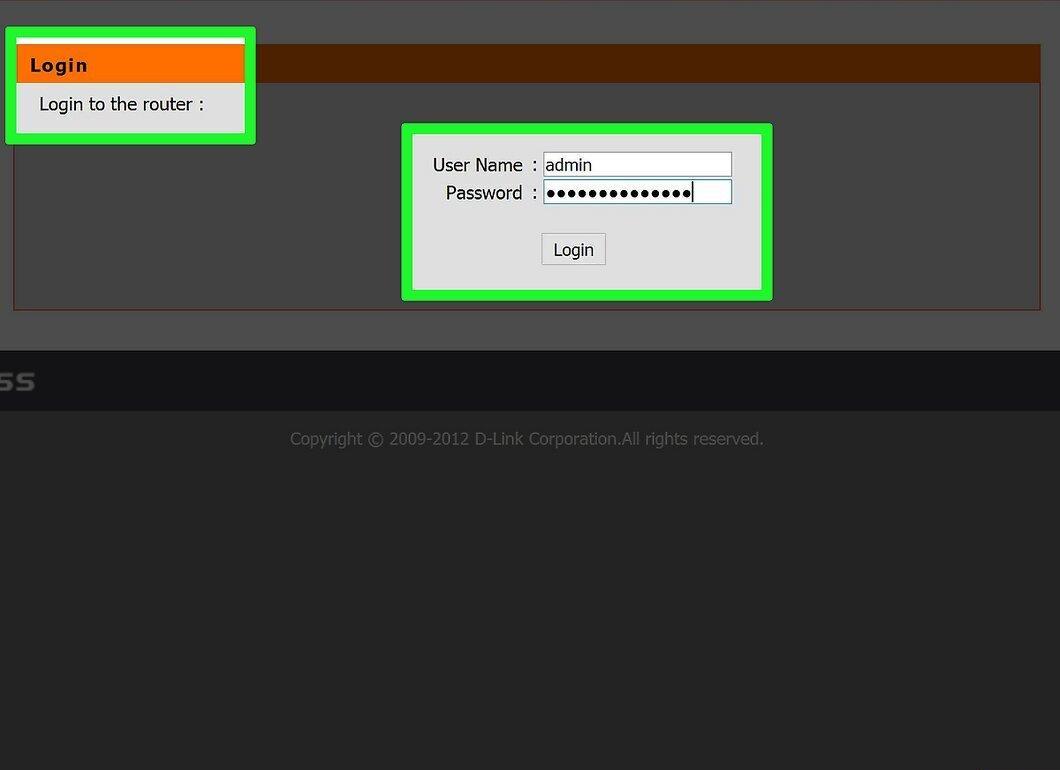
Input your username and password. These credentials are required to open the configuration page. If you don't know them, try the following:
- leave both fields blank; many routers have no default username and password;
- enter "admin" as the username and leave the password blank. If that doesn't work, try "admin" as the password;
- look up your router model on routerpasswords.com for default information;
- if you still can't log in, reset the router by pressing and holding the "Reset" button on the back. This will reset all settings, and you may need to reconnect to the network.
Step 4. Go to the "Firmware" page or similar.
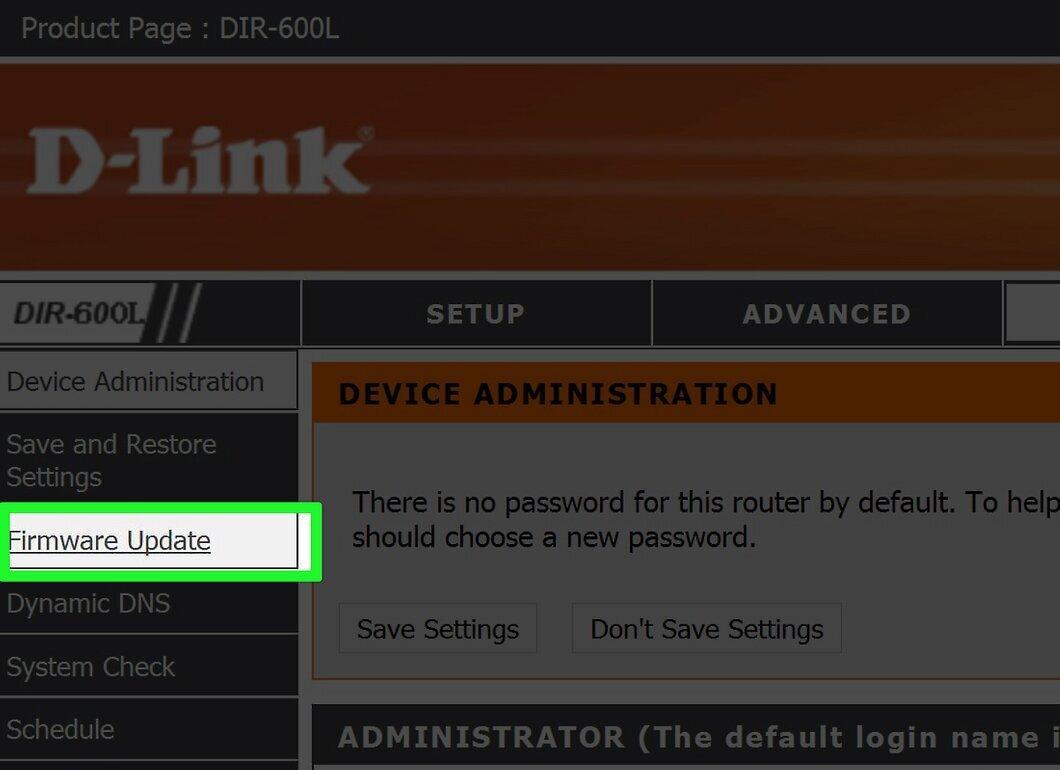
Open the "Firmware" page, "Router Upgrade", or "Update". The name may vary depending on the router model, but this page is typically found under "Administration", "Utilities", or "Maintenance".
Step 5. Click "Check" to see for updates.
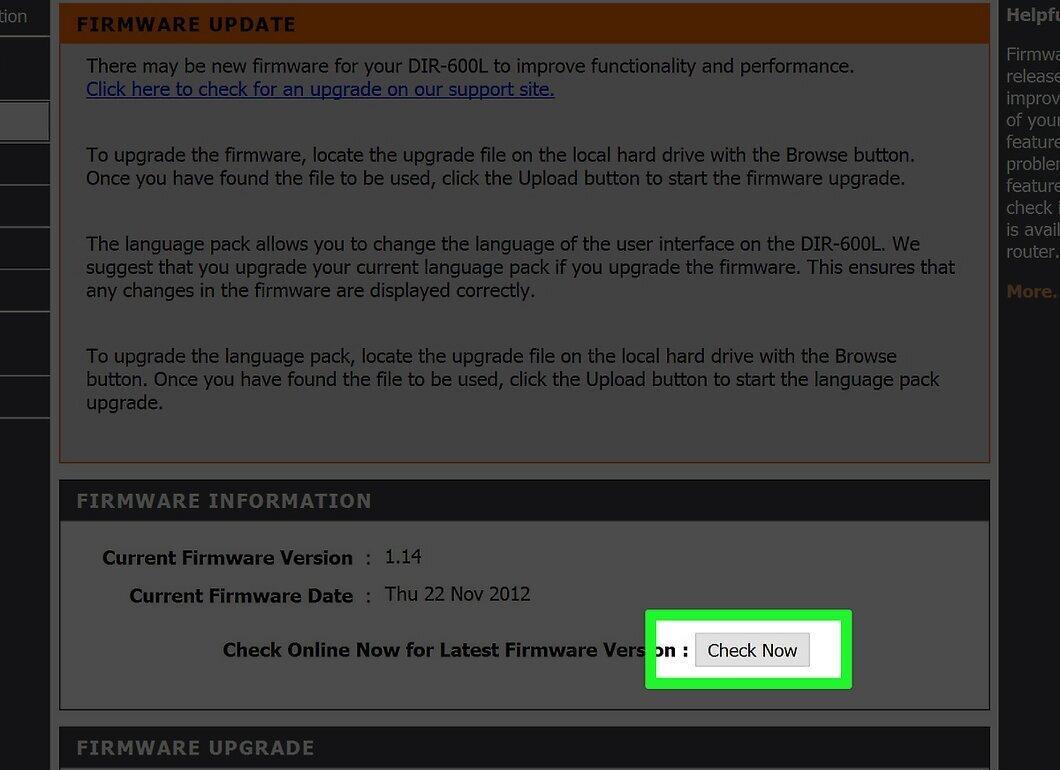
Click on "Check" to see if updates are available. Many routers have a feature to check for new firmware versions.
Step 6. Download the new firmware if available.
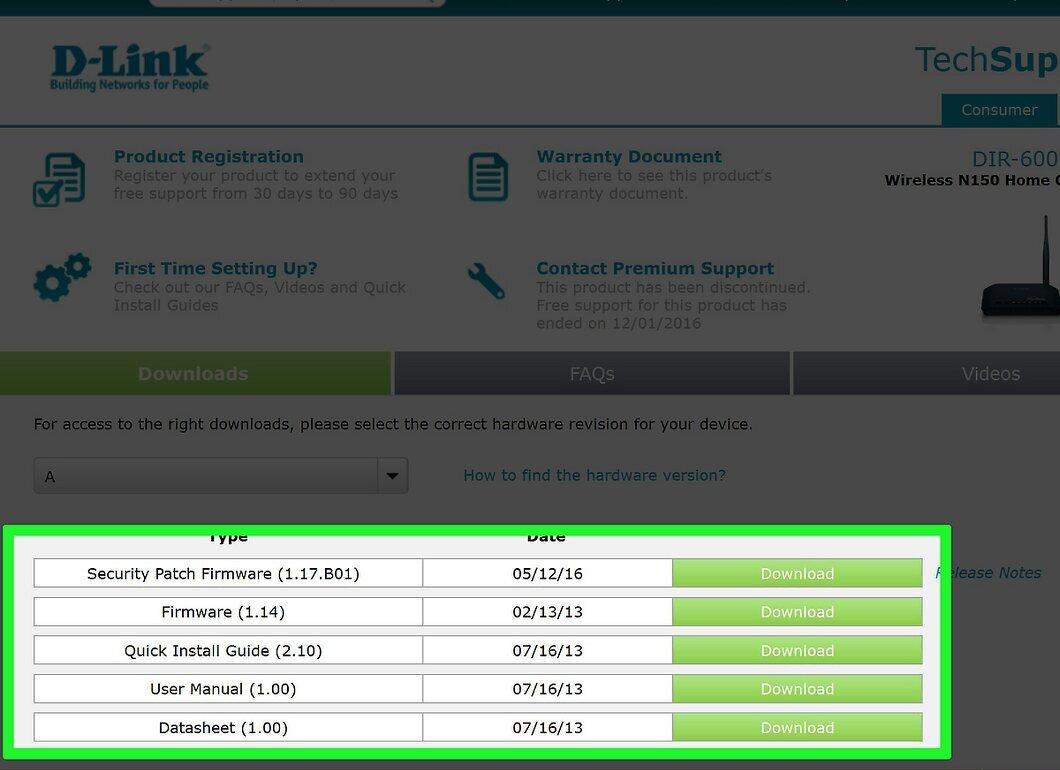
Download the new version of the firmware if one is available. Typically, you need to click on the firmware link, and it may download automatically.
Step 7. Visit the manufacturer's website if you can't find a firmware link.
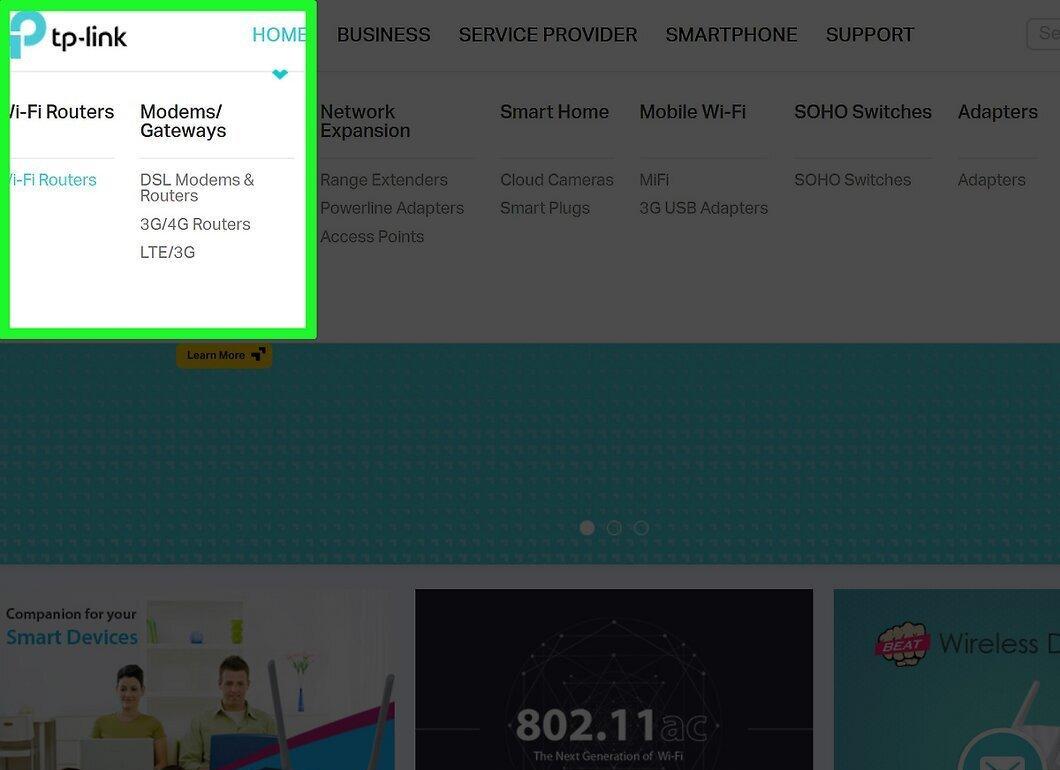
If you can't find a firmware link, visit the router manufacturer's website. If a new version is available, you should be able to download it from the support page.
- Use a search engine to find the support page, for example, type "Netgear support" to get the right address www.netgear.ru/Support/default.aspx.
Step 8. Enter your router model number in the search bar on the support page.
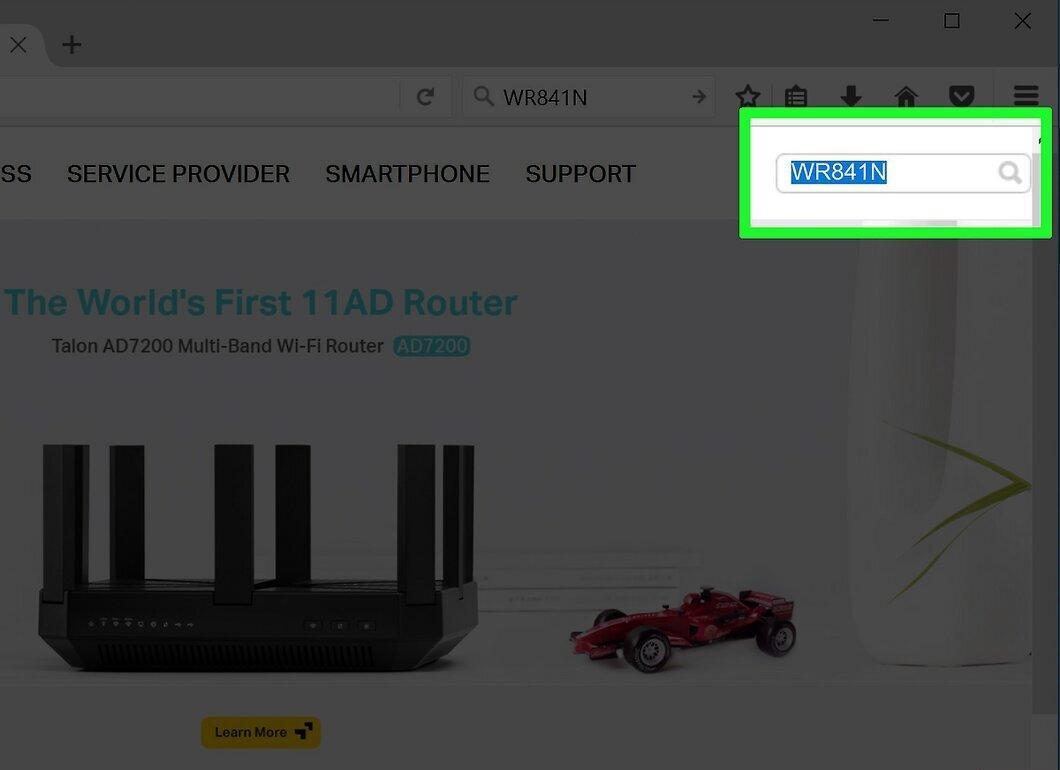
In the search bar on the support page, enter your router's model number. This number can be found at the top of the router's configuration page.
Step 9. Find the latest firmware version.
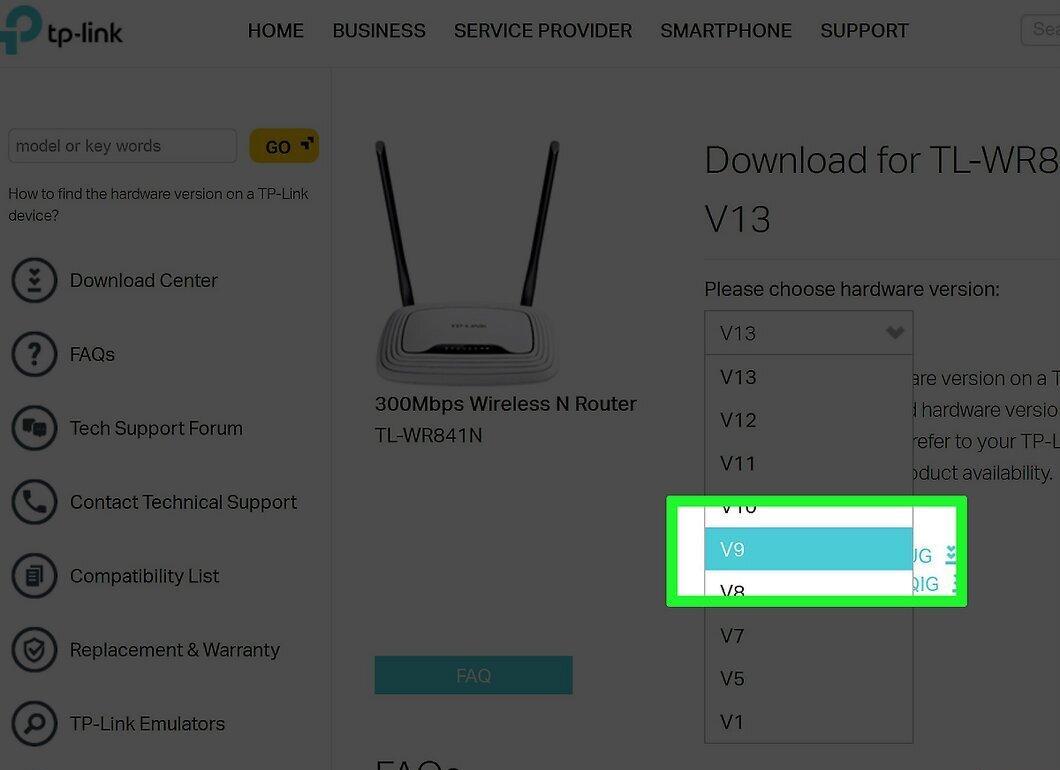
Note the latest firmware version available. Depending on the model, there may be several versions or none at all. Download the most recent version (by date or number). Typically, the firmware will be downloaded as an archive (ZIP file).
- Ensure you are not downloading an outdated firmware version that is older than the one currently installed on your router. You can find the current firmware version on your router's configuration page.
Step 10. Extract the downloaded archive.
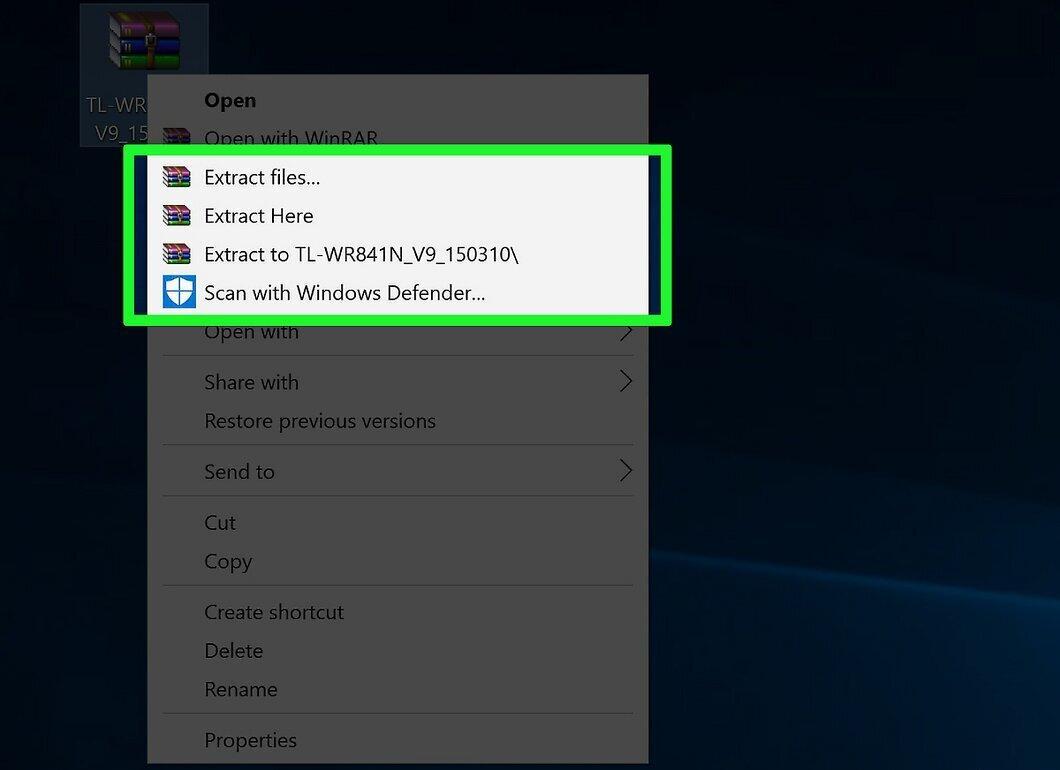
Extract the downloaded archive. Double-click the ZIP file to open it, then select "Extract" to extract the contents. Typically, there will be one file with an unusual extension in the archive.
Step 11. Upload the file to the router.
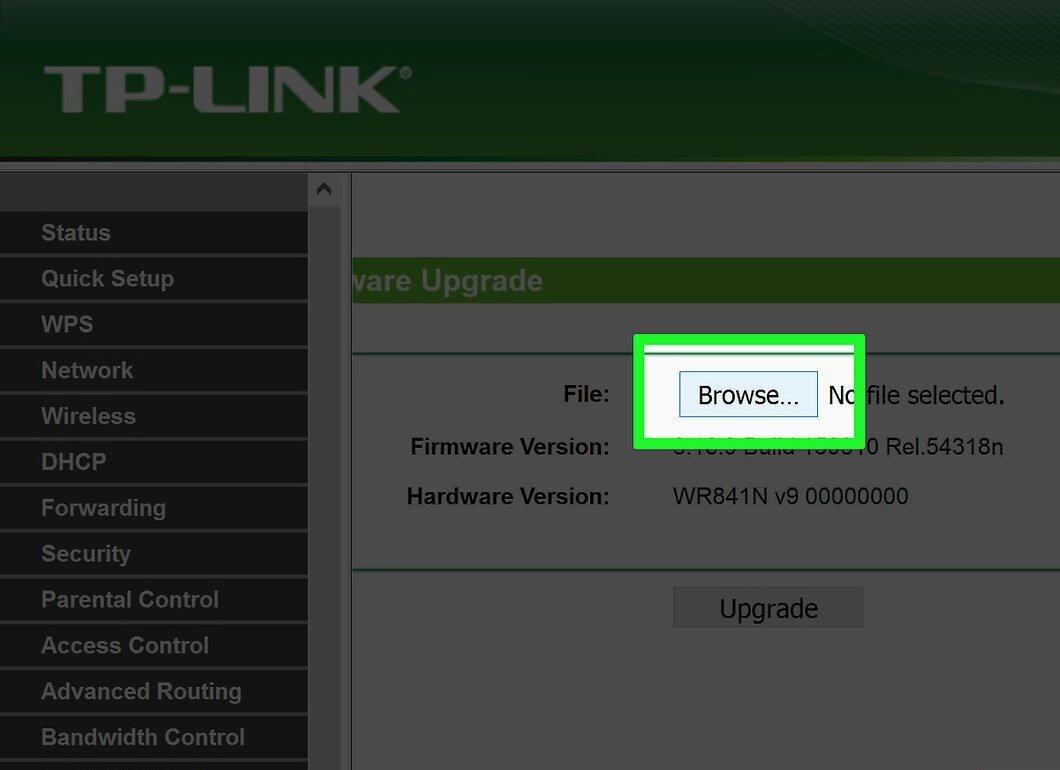
Return to the configuration page and select "Choose File" to upload the extracted file. Specify it and click "Upload" on the router's configuration page.
Step 12. Wait for the update to finish.
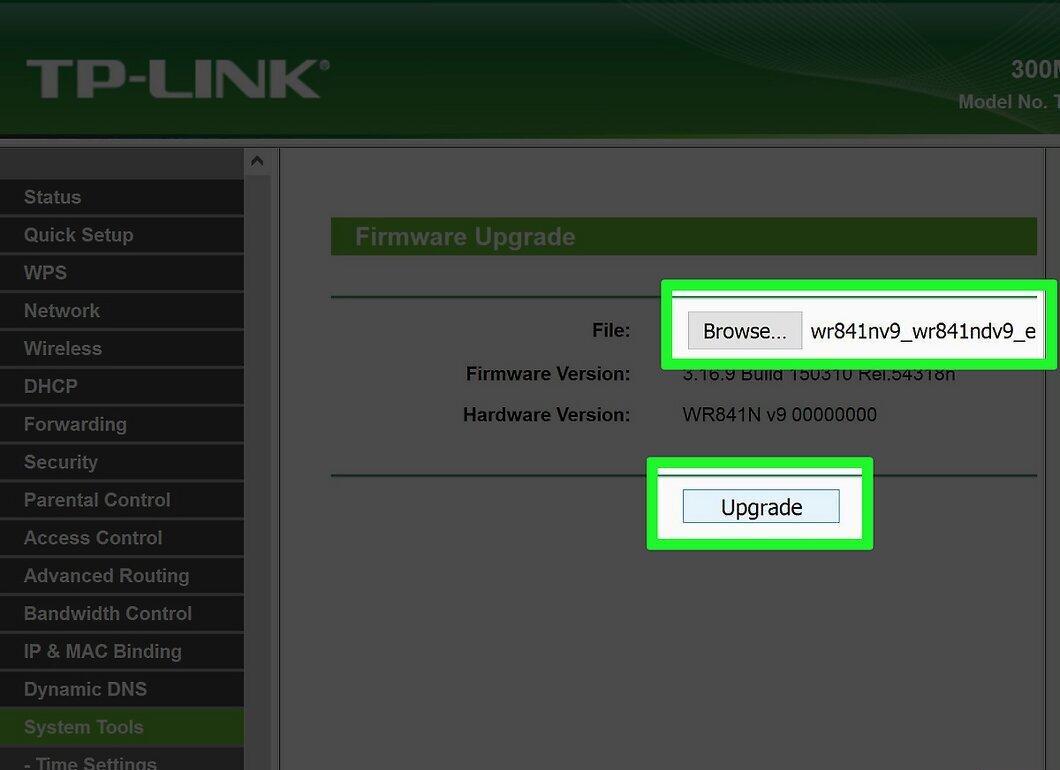
Wait for the update process to complete. After the file is uploaded, the firmware update will commence, which may take 3 to 5 minutes. The router may restart, and connected devices may temporarily lose internet access.
Step 13. Reset the router settings if the update fails.
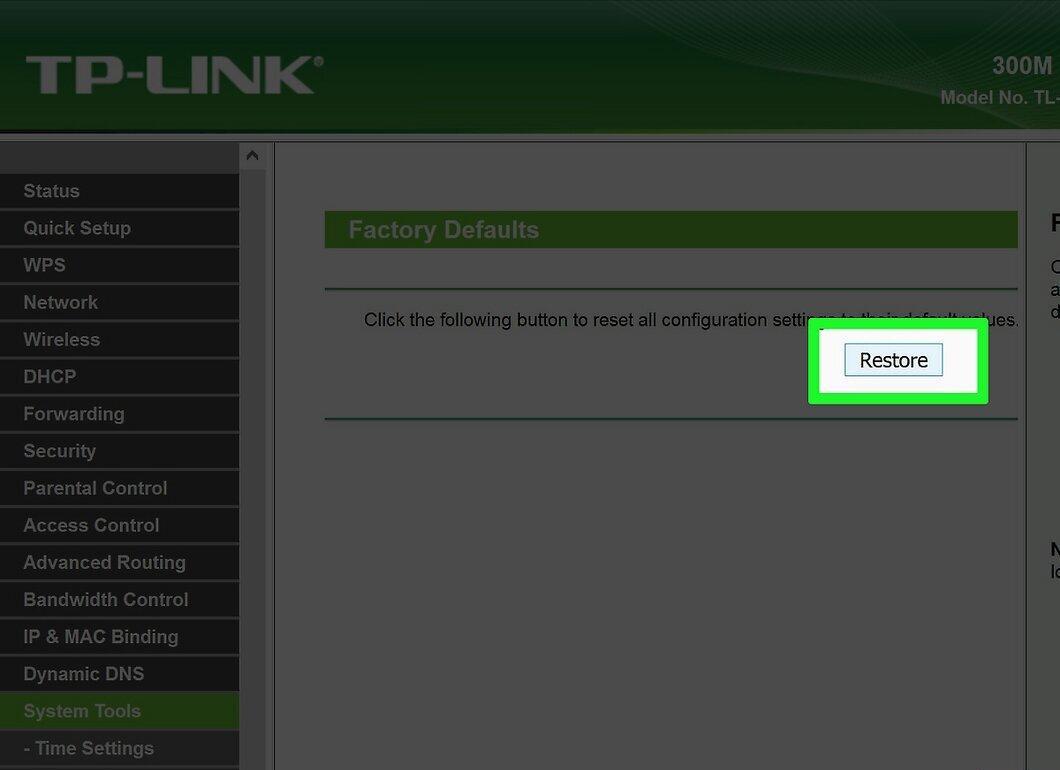
If the update fails and you can't connect to the router, reset its settings. To do this, hold the "Reset" button on the back for 30 seconds to restore factory settings. After that, if you changed any default settings, you'll need to reconfigure your network.
How to Update AirPort Router Firmware
Step 1. Open AirPort Utility from the Utilities folder.
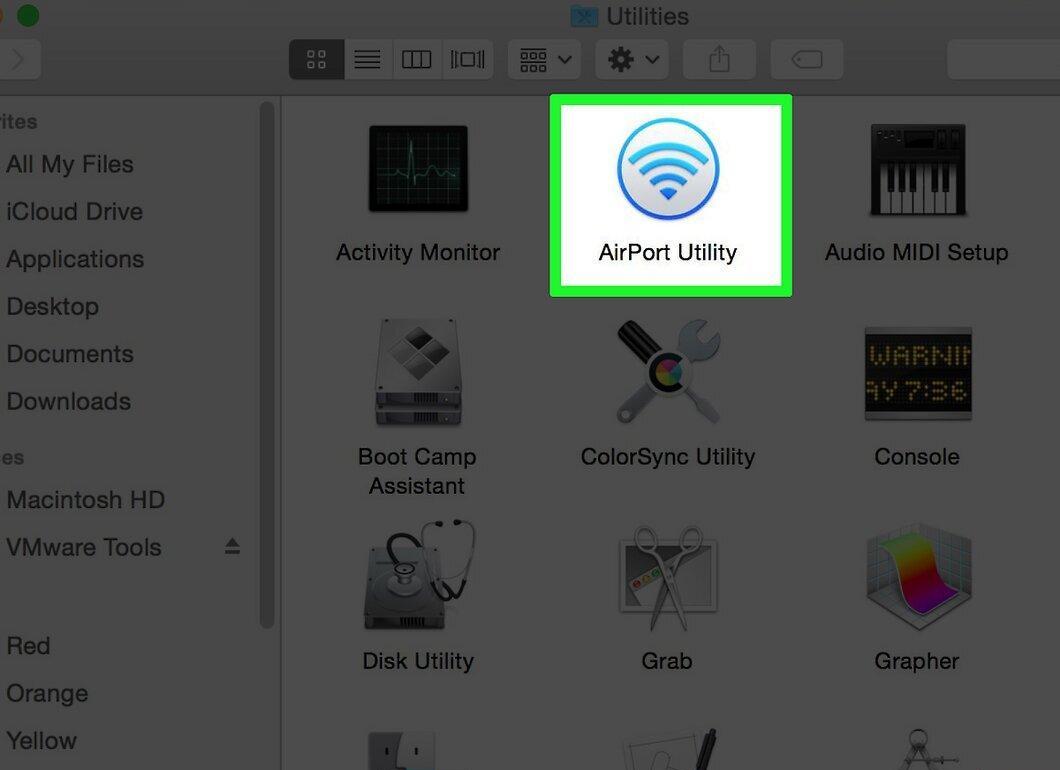
Launch the AirPort Utility program located in the Utilities folder. This program allows you to modify the settings of your AirPort router. The Utilities folder is found under Applications.
- If you're using an iOS device, download AirPort Utility from the App Store.
- AirPort Utility is only available for Mac OS X and iOS.
Step 2. Select your base station and enter the password.
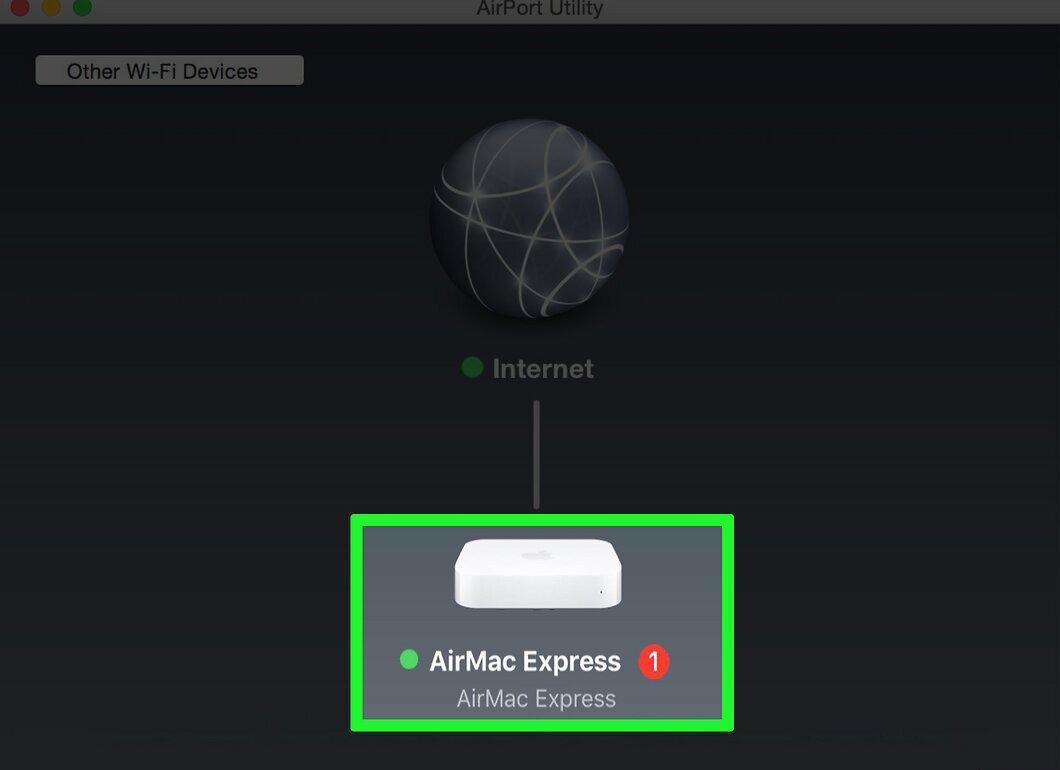
Click on your base station and enter the password. If an update is available, a red icon with a number may appear—indicating that an update is available.
Step 3. Click "Update" to download and install the update.
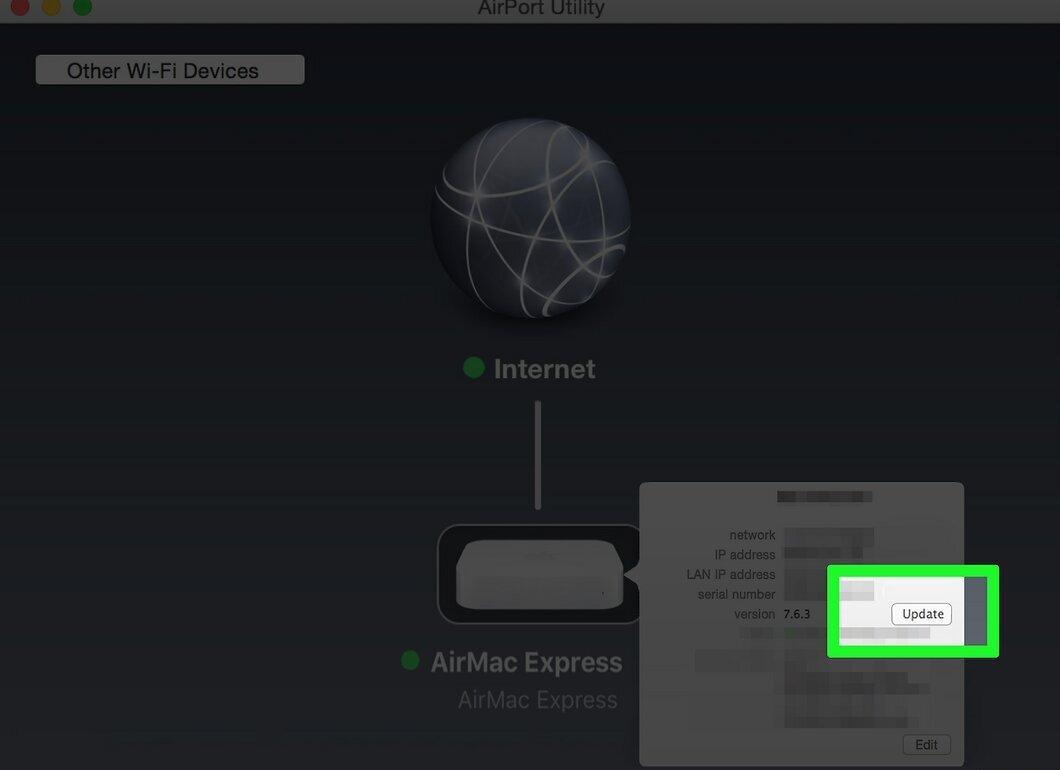
After entering the password, click "Update" to download and install the update. This button will only appear if a new update is available. Click "Continue" when prompted.
Step 4. Wait for the router update to complete.
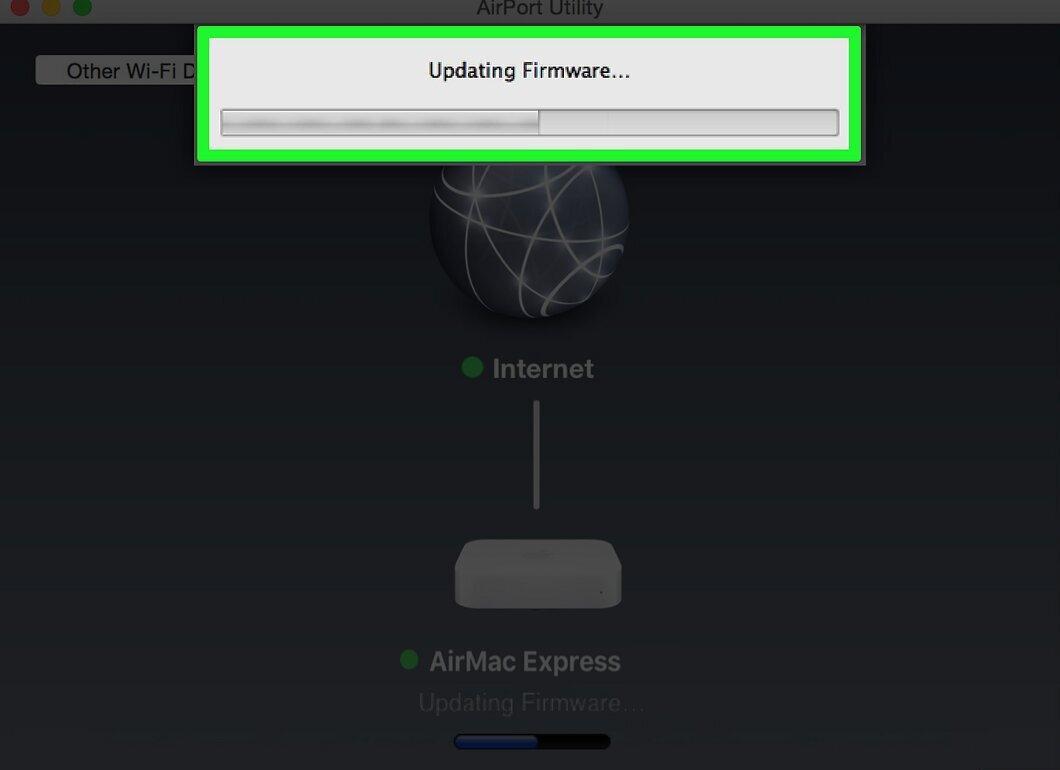
Wait for the router update process to finish. This will take a few minutes. During the update, you will be disconnected from the network.


