
Sending a Fax Without a Fax Machine
Have you ever wondered how to send a fax without using a fax machine, modem, or phone line? In this article, we’ll explain how to do it using free resources like FaxZero and a 30-day trial of MyFax.
If you choose FaxZero, keep in mind that there are limitations: no more than three pages at a time and five faxes per day. The MyFax trial allows you to send up to 100 pages, but you'll need a credit card to register. After 30 days, you’ll be prompted to pay $10 (approximately 600 rubles). If you decide not to continue with MyFax, simply close your account before the trial period ends.
Using FaxZero
Step 1. Visit the FaxZero Website
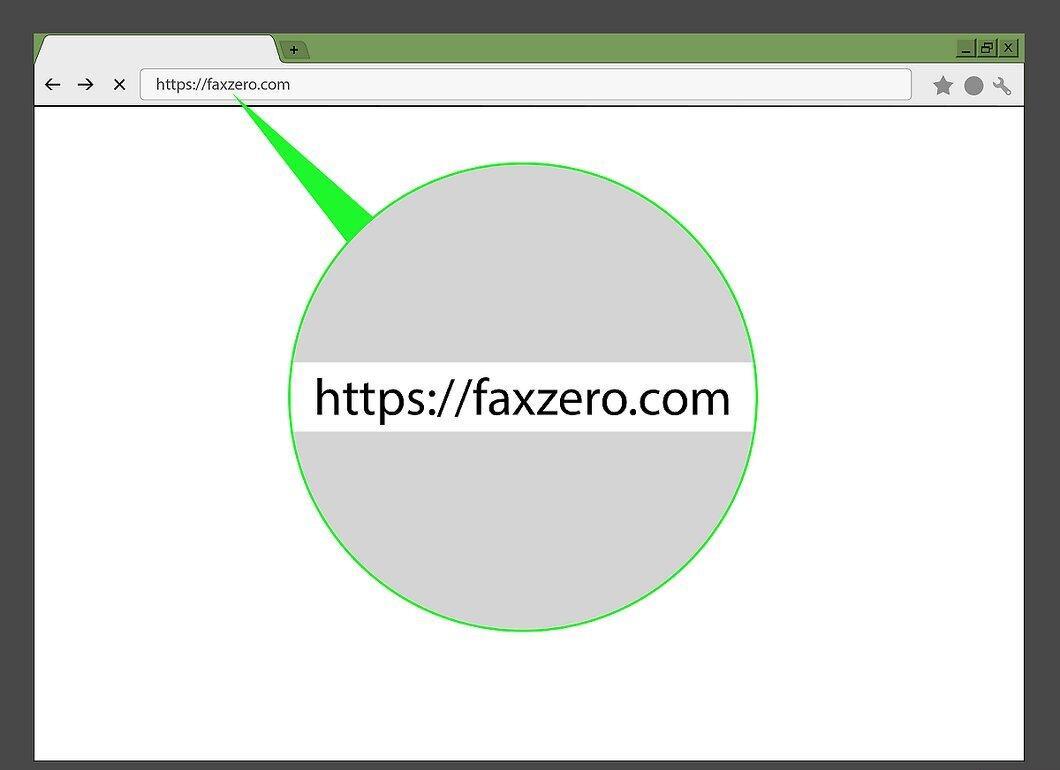
Start by opening the FaxZero website at https://faxzero.com/.
Step 2. Enter Sender Information
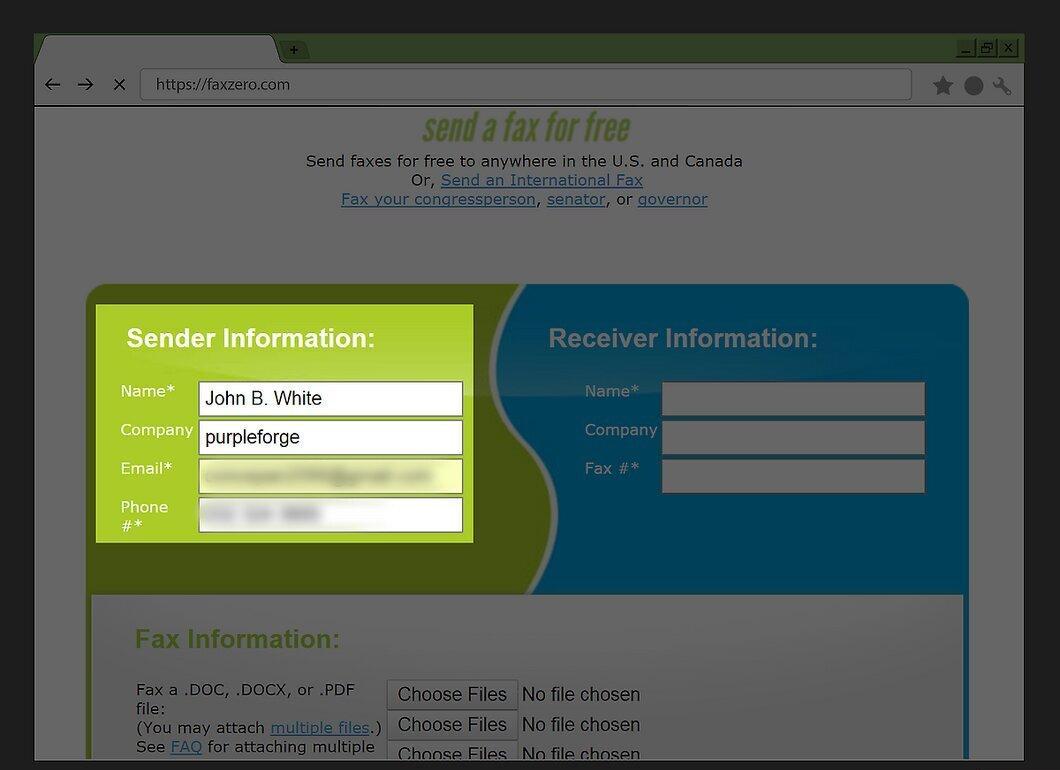
In the top left corner of the page, fill in your information:
- Name: Enter your name.
- Email: Provide an email address you have access to.
- Phone: Fill in your phone number.
Step 3. Fill in Recipient Information
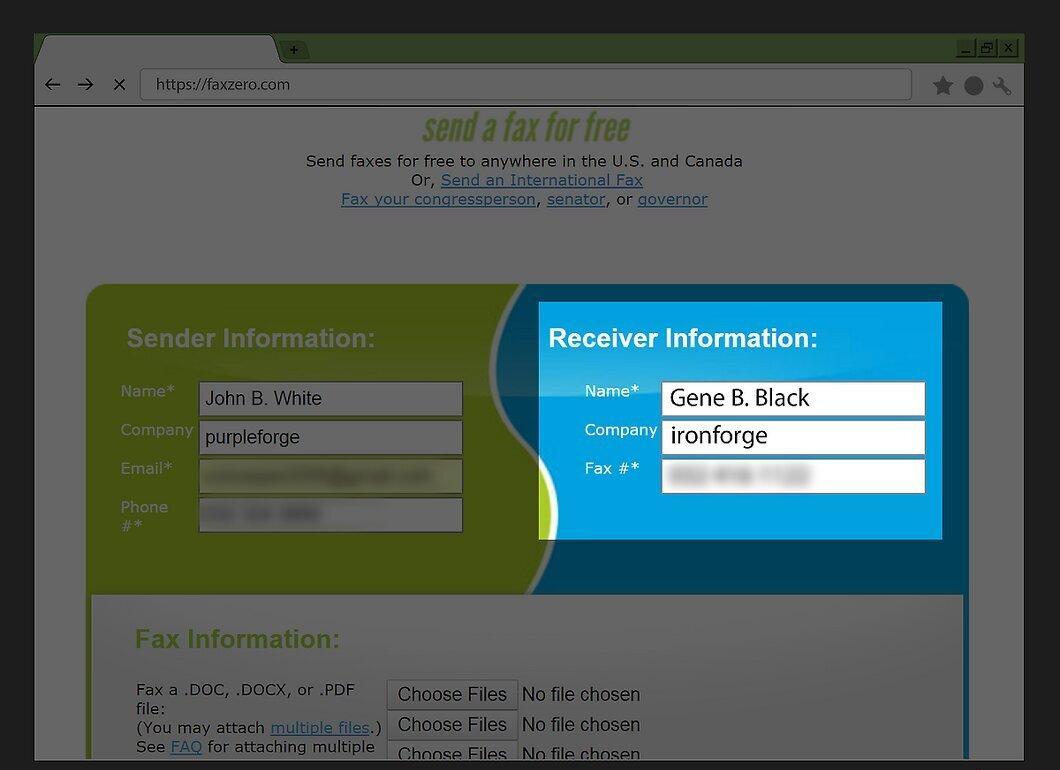
In the top right corner of the page, enter the details of the person you are sending the fax to:
- Name: Enter the recipient's name.
- Fax Number: Provide the fax machine number.
Step 4. Click on the “Browse” Button
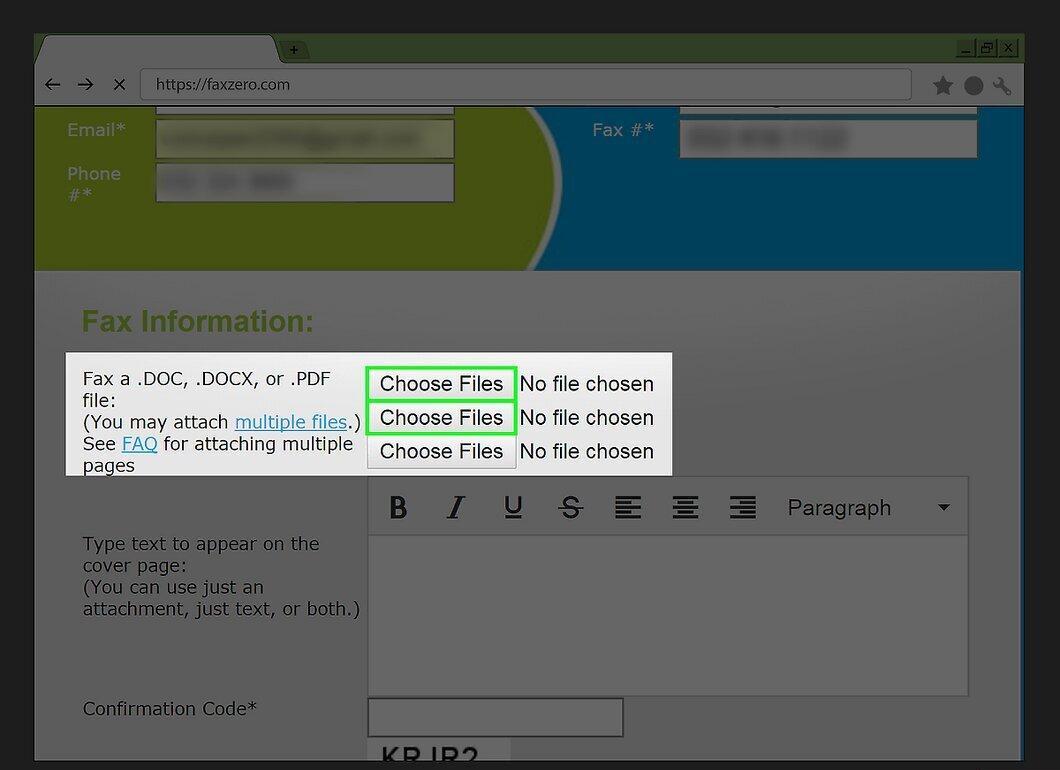
Click the gray “Browse” button in the “Fax Information” section. This allows you to send up to three documents.
Step 5. Select the File to Send
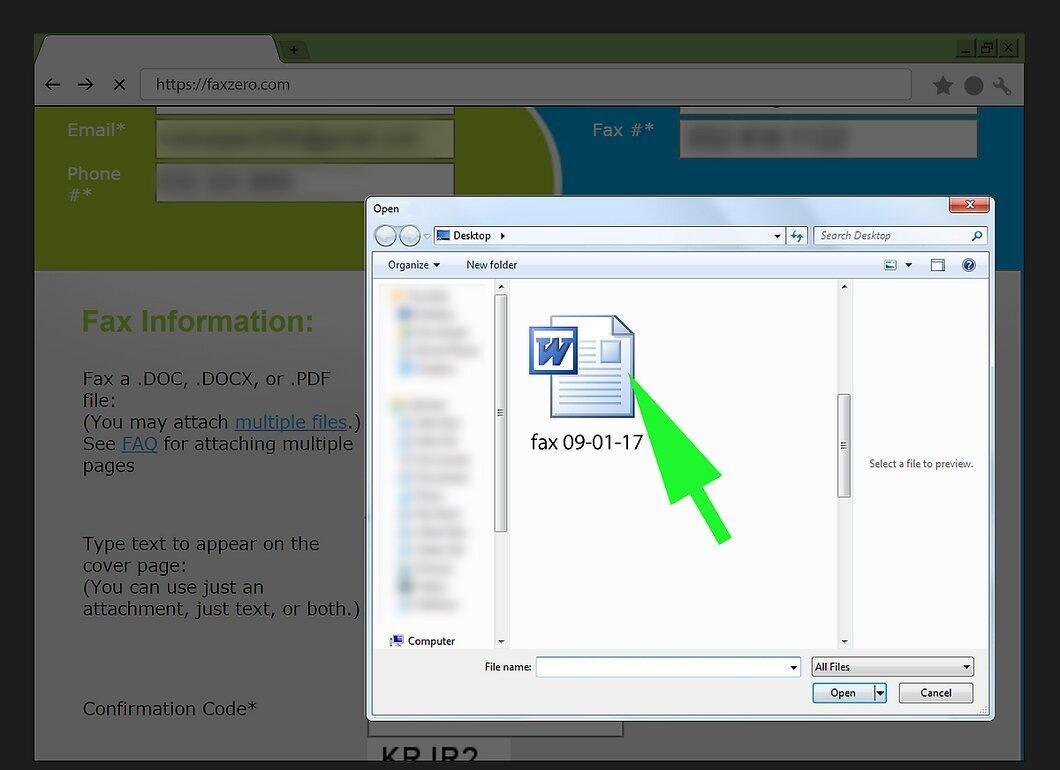
Choose a Word or PDF document you want to send. Just click on the desired file.
- First, open the folder containing your document from the left panel.
- Keep in mind that the file should not exceed three pages.
Step 6. Click “Open”
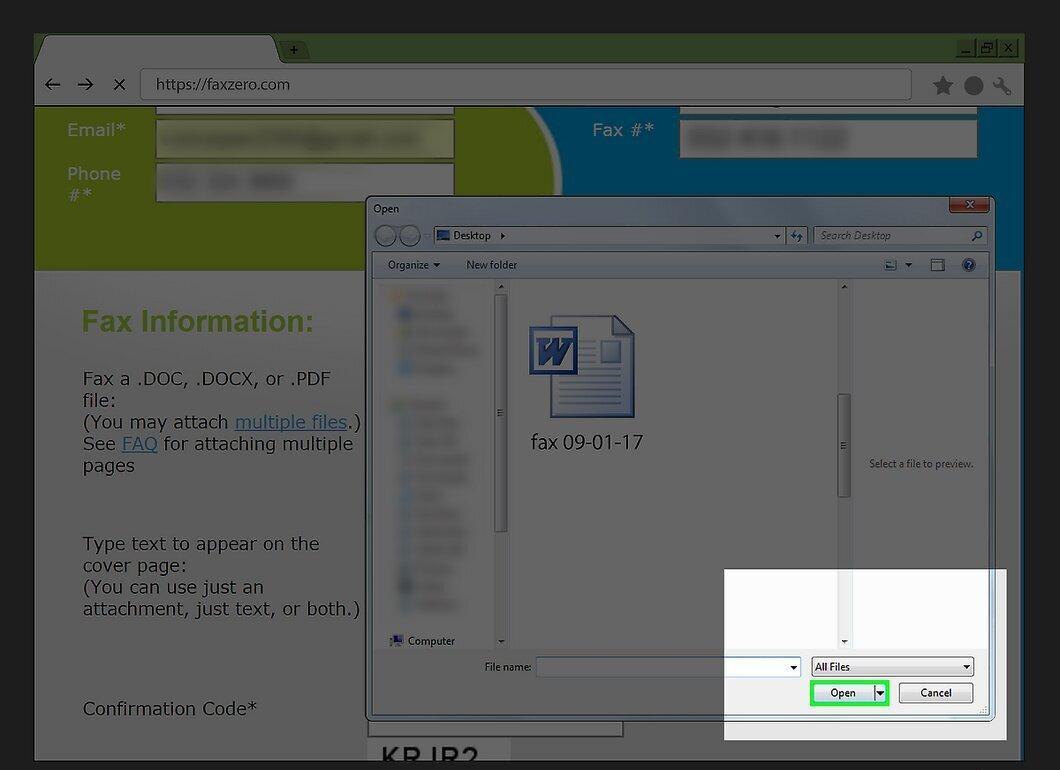
Click the “Open” button in the bottom right corner. Your file will be uploaded to the FaxZero website.
Step 7. Add a Cover Message
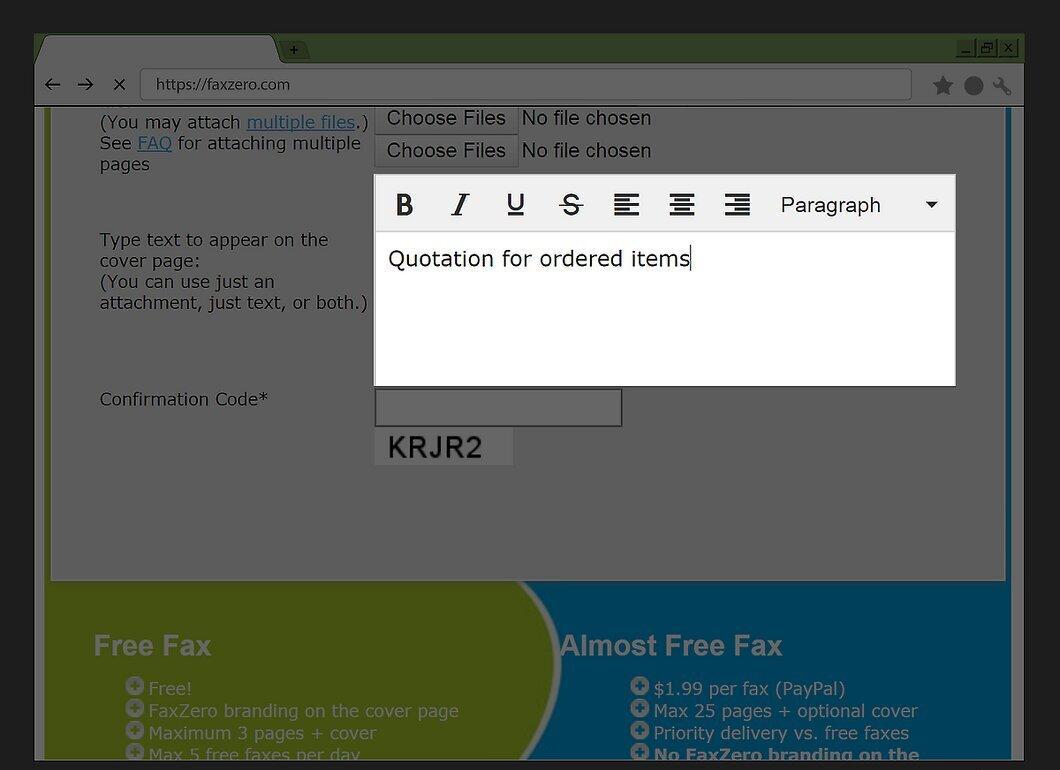
In the text box in the middle of the screen, enter a cover message that will appear on the first page of the fax.
- This page does not count towards the three-page limit.
Step 8. Enter the Confirmation Code
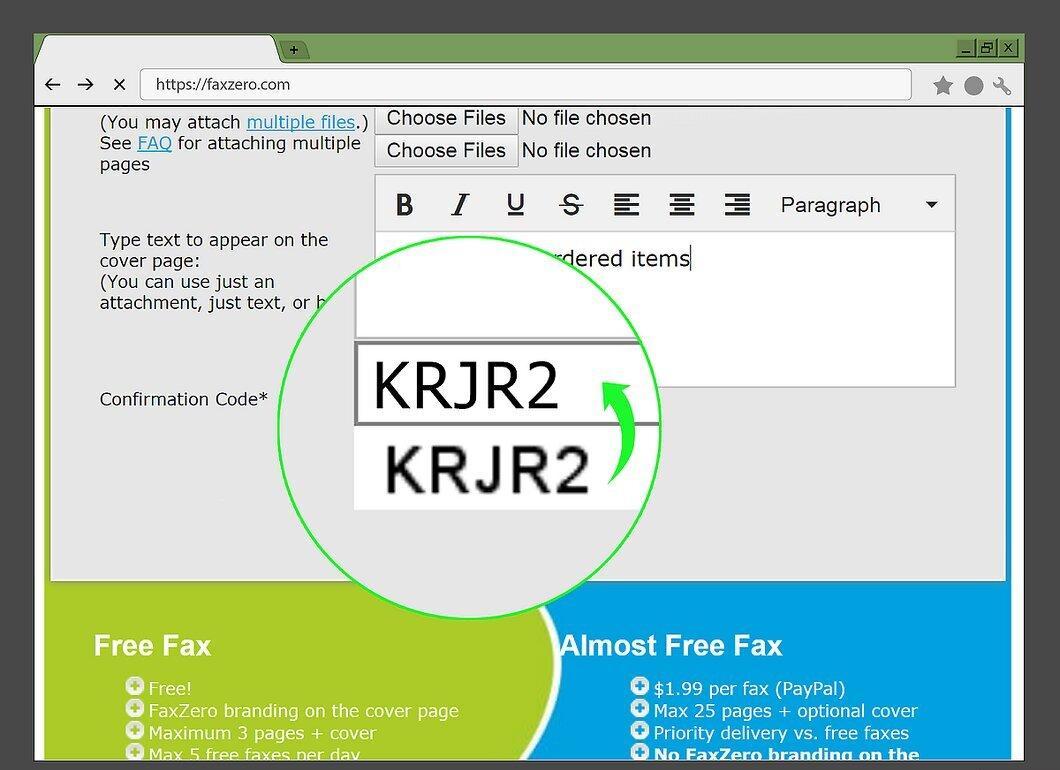
In the “Confirmation Code” field, enter the five-character code displayed below the text box.
Step 9. Click “Send Free Fax Now”
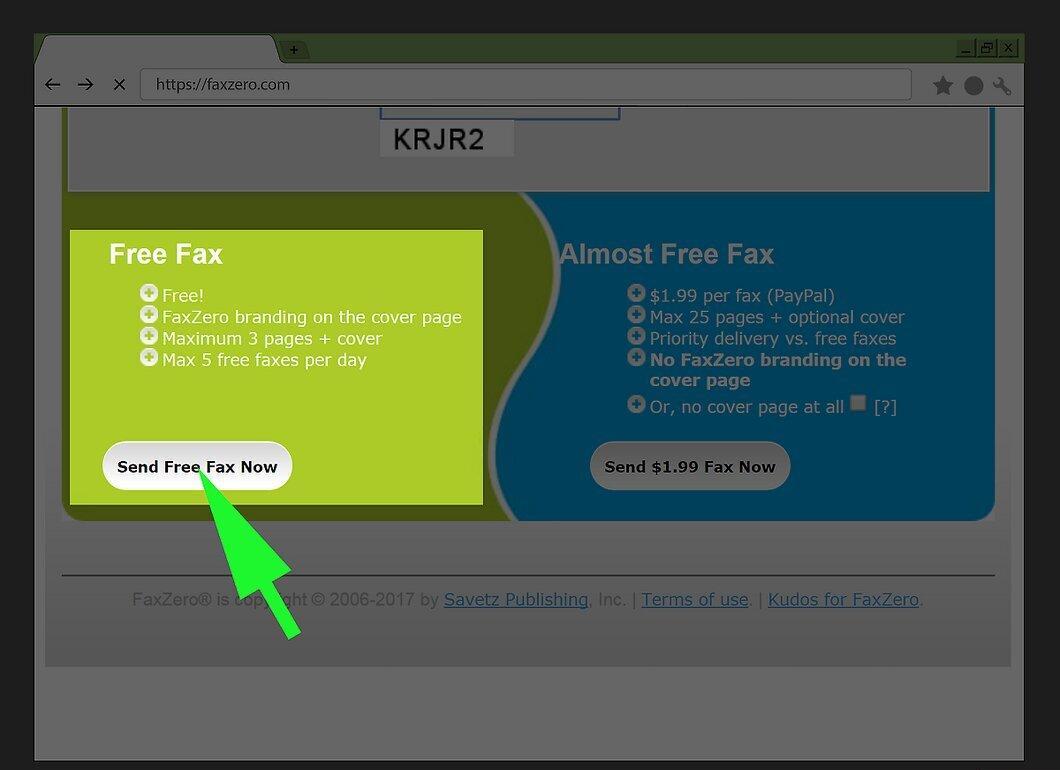
Click the “Send Free Fax Now” button at the bottom of the page.
Step 10. Check Your Email
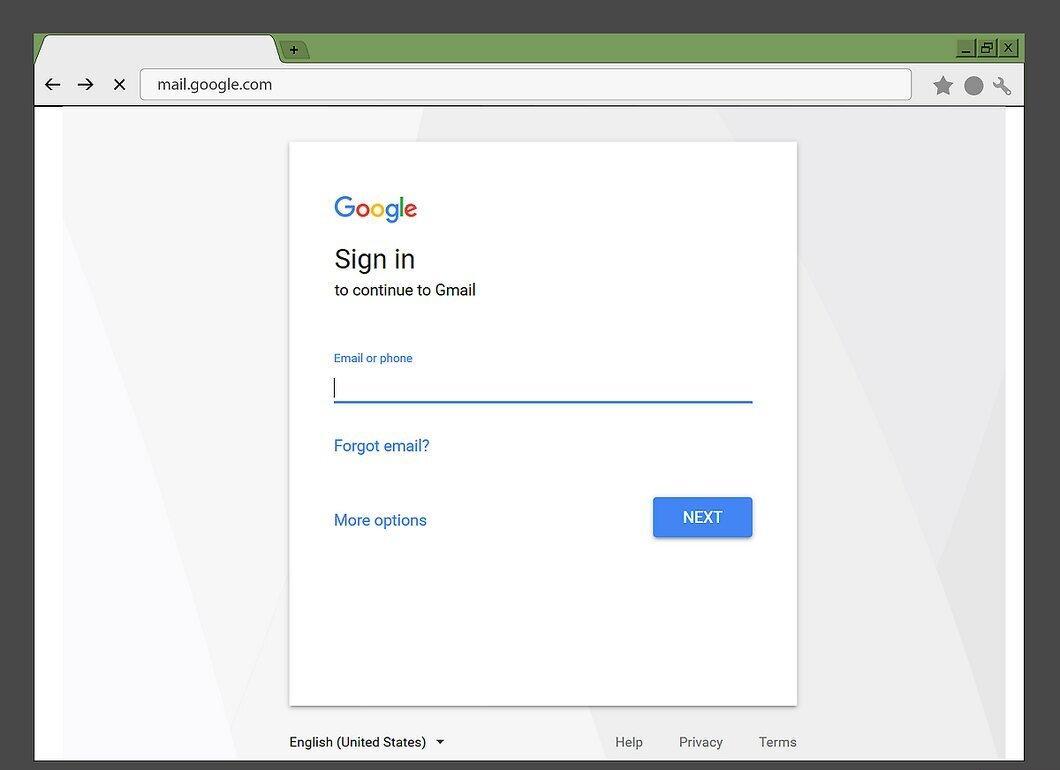
Open the email inbox you provided in the sender information.
- You may need to log in using your email address and password.
Step 11. Find the Email from FaxZero
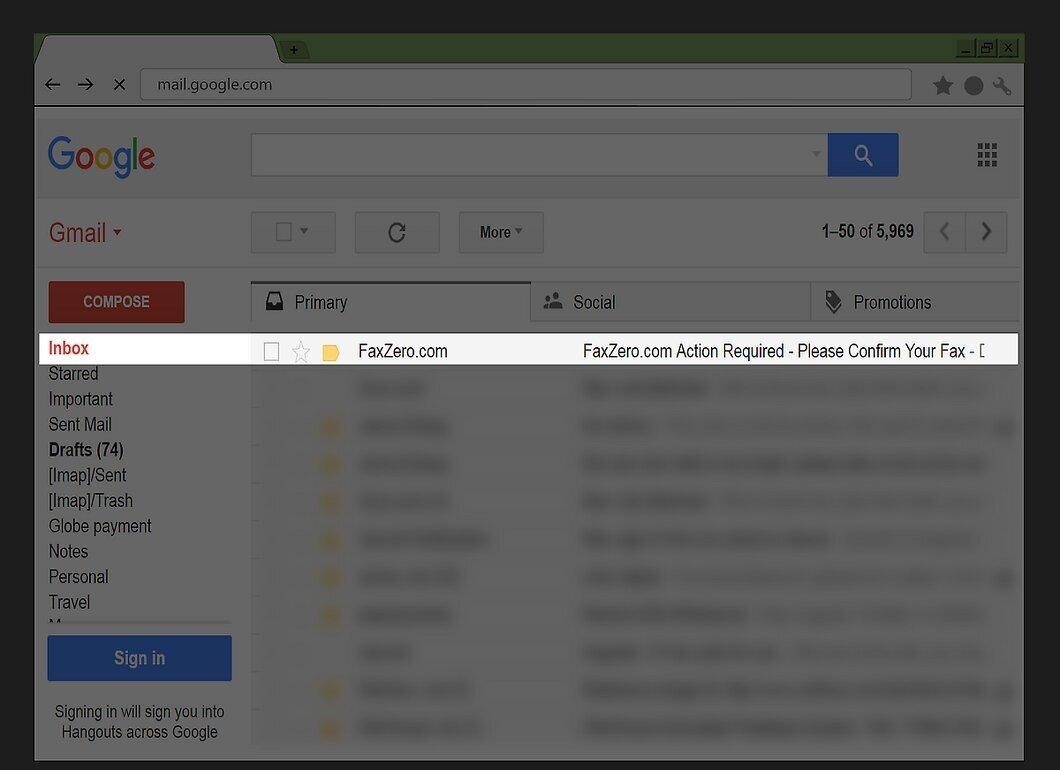
Open the email from FaxZero that you received notification about.
- Don’t forget to check your spam folder and other categories, such as “Updates” in Gmail.
Step 12. Confirm the Sending
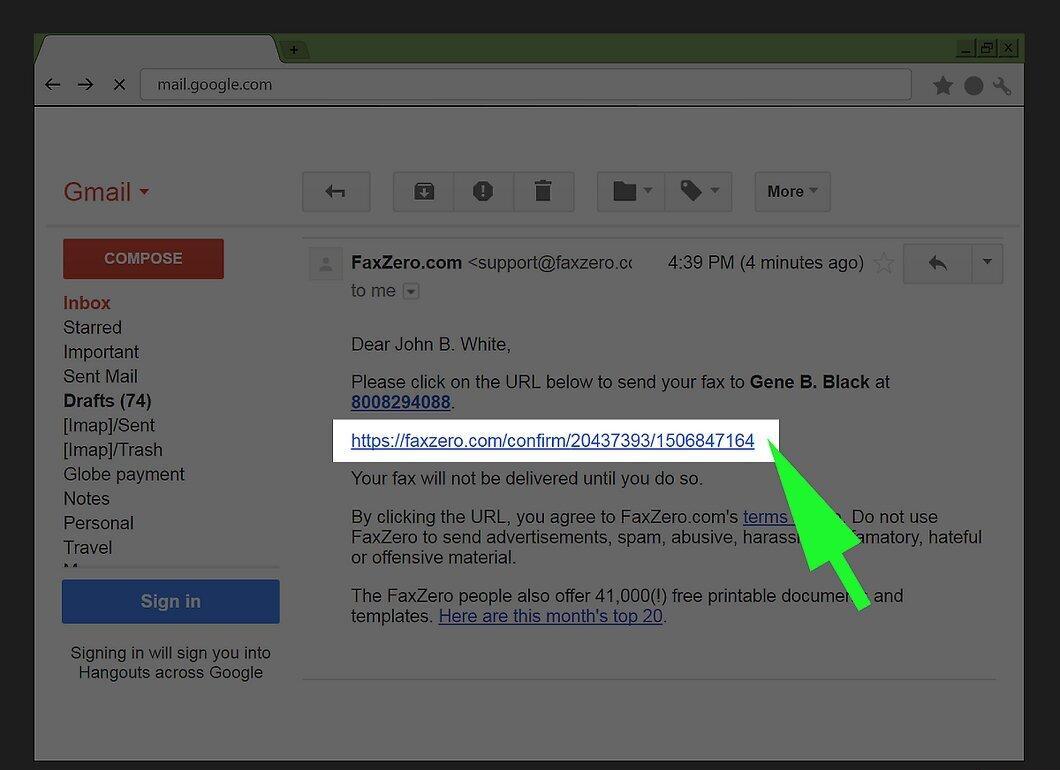
Click on the link provided in the email to confirm the fax sending. The link will have the text “Please click on the URL below…”.
- Keep in mind that you can send no more than five faxes in a day.
Using MyFax
Step 1. Visit the MyFax Website
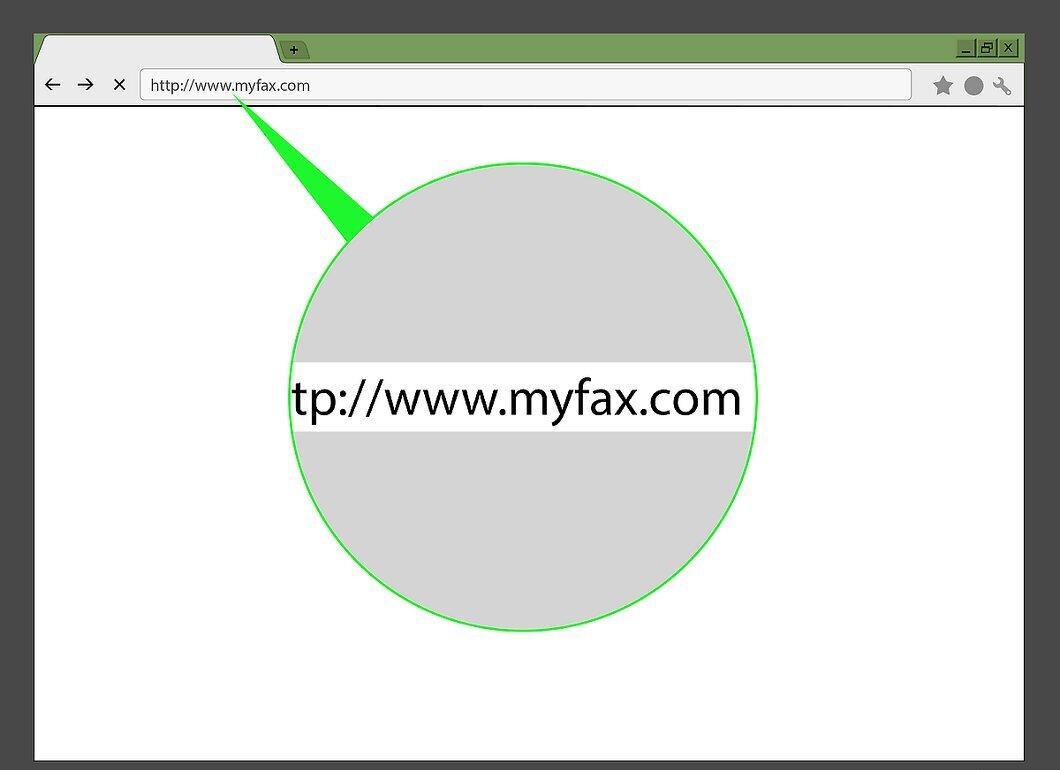
Open the MyFax website by going to http://www.myfax.com/.
Step 2. Choose the Free Trial
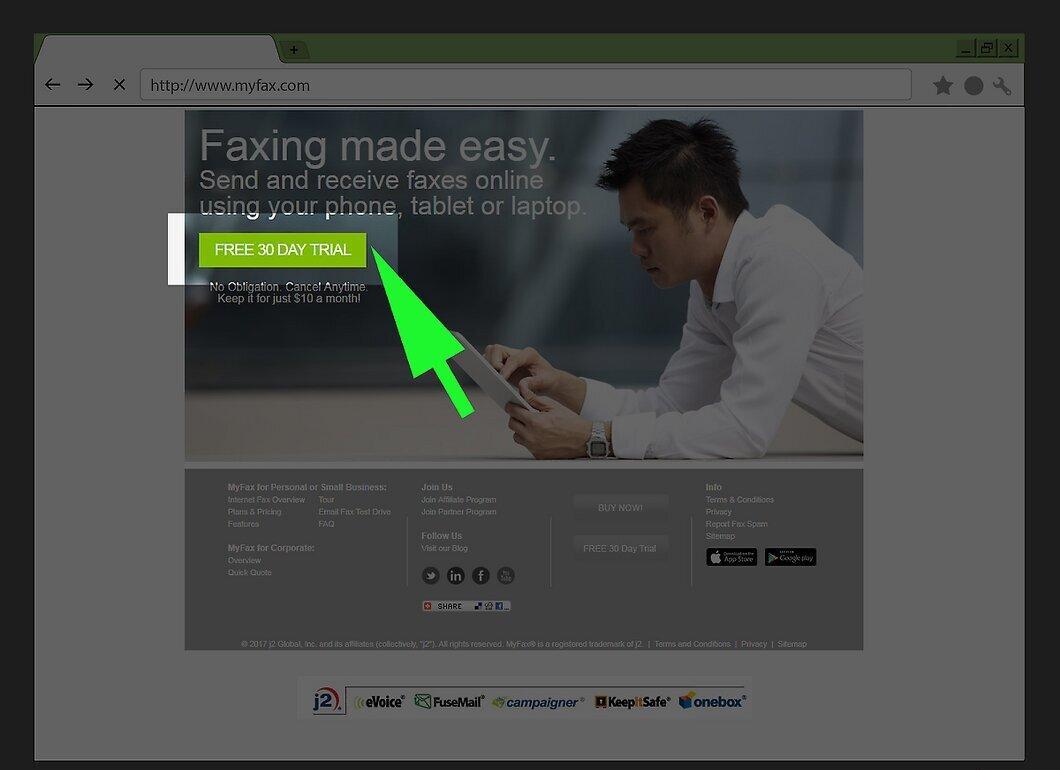
Click the green “Free 30 day trial” button to activate the trial access.
- During the trial, you can send up to 100 pages.
Step 3. Select the State (if sending within the USA)
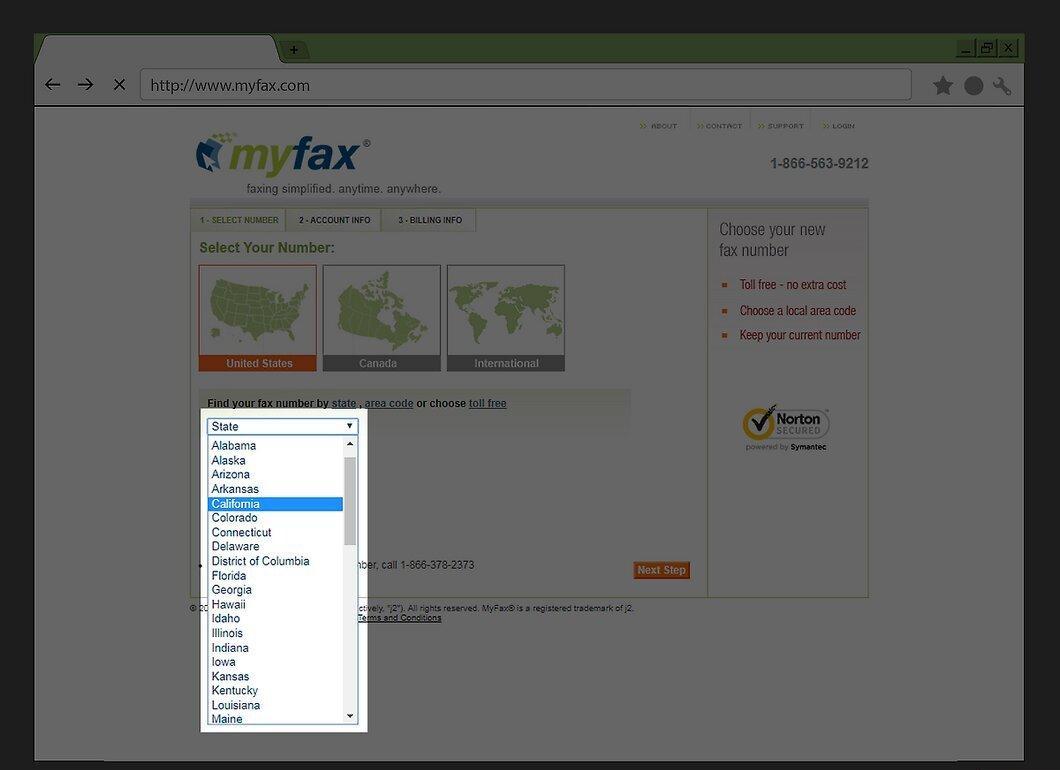
If you're sending a fax within the USA, select the appropriate state from the “State” dropdown menu. For international sending, choose “International” and specify the country.
Step 4. Enter the City
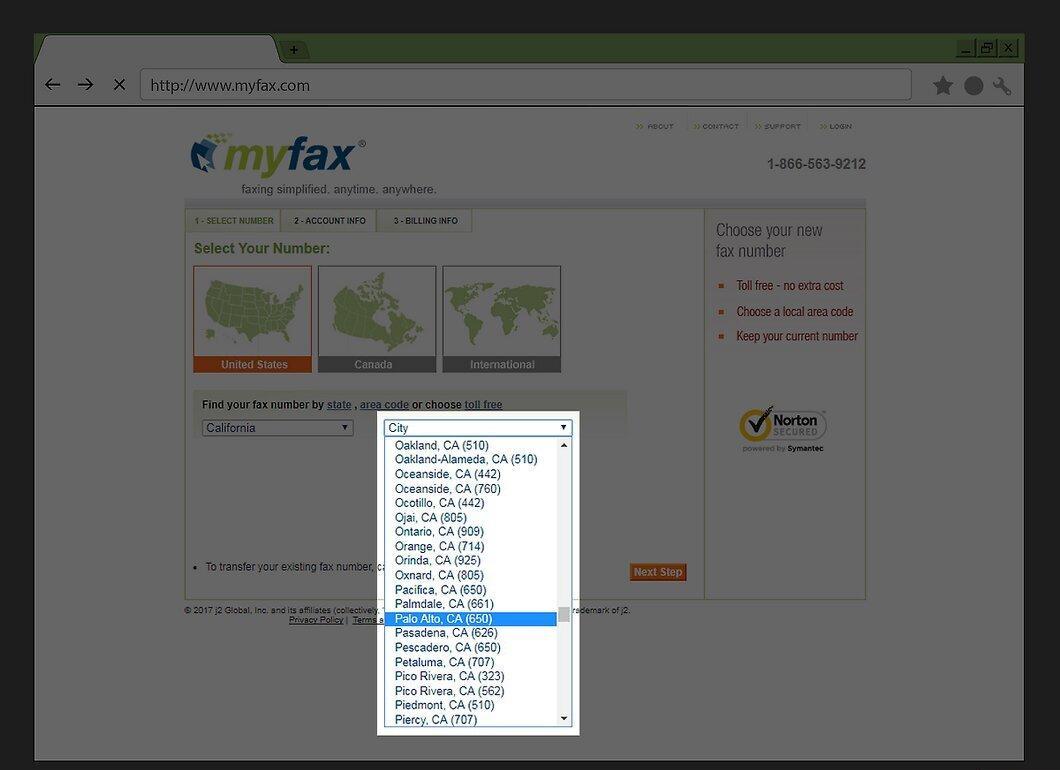
From the “City” dropdown menu, select the desired city and its code.
Step 5. Proceed to the Next Step
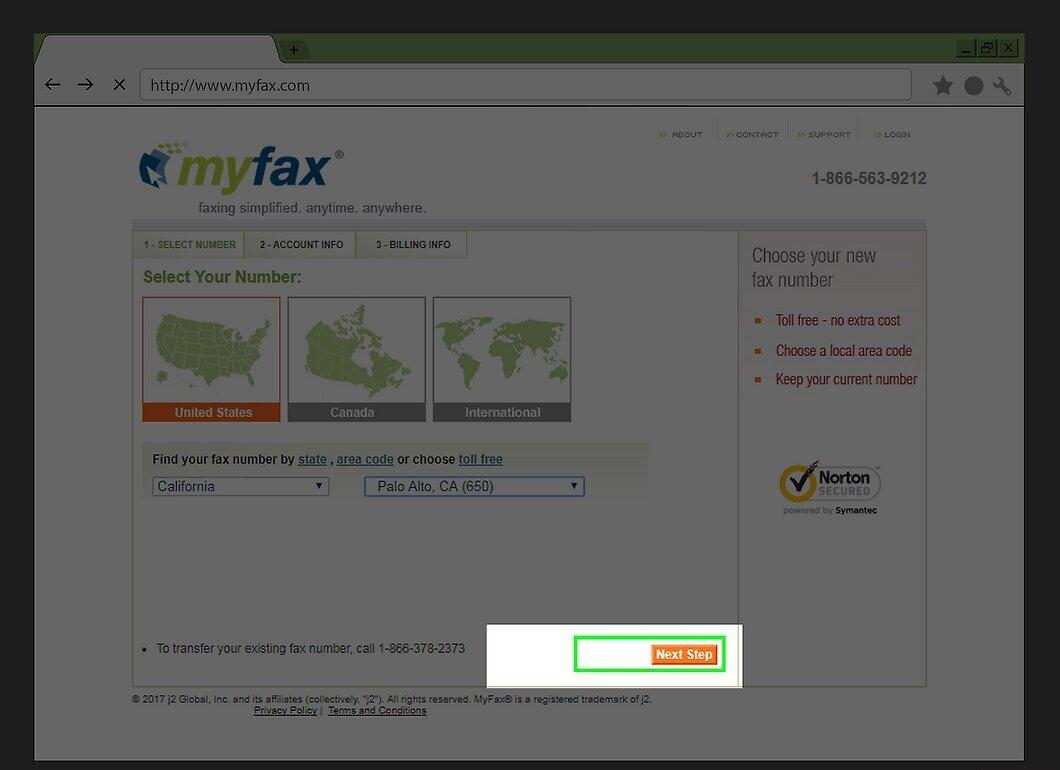
Click the “Next Step” button in the bottom right corner of the page.
Step 6. Enter Your Information
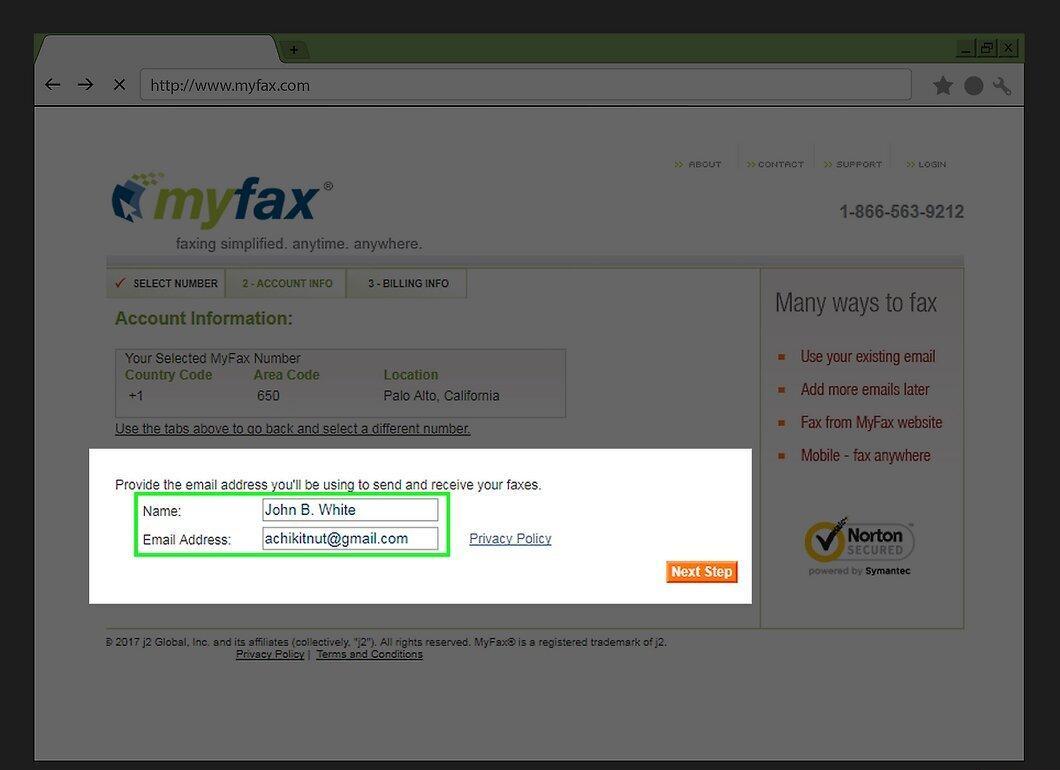
Fill in your name and email address in the respective fields.
- Make sure to enter a valid email address.
Step 7. Move to the Next Step
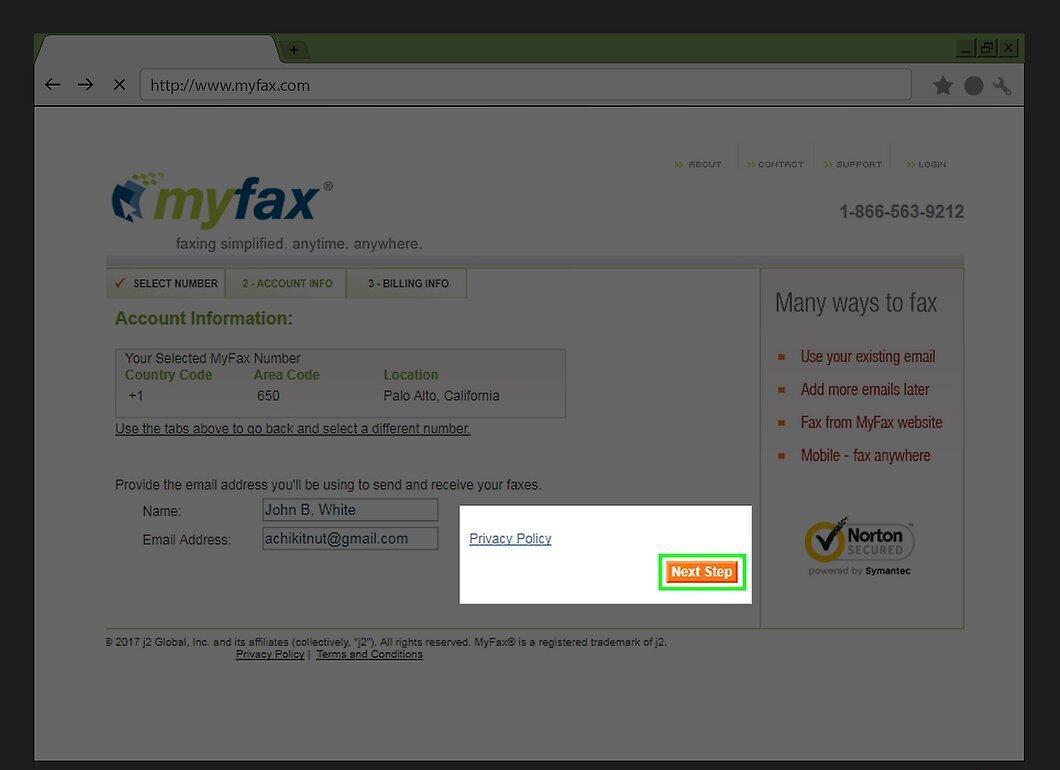
Click “Next Step” to continue.
Step 8. Enter Payment Information
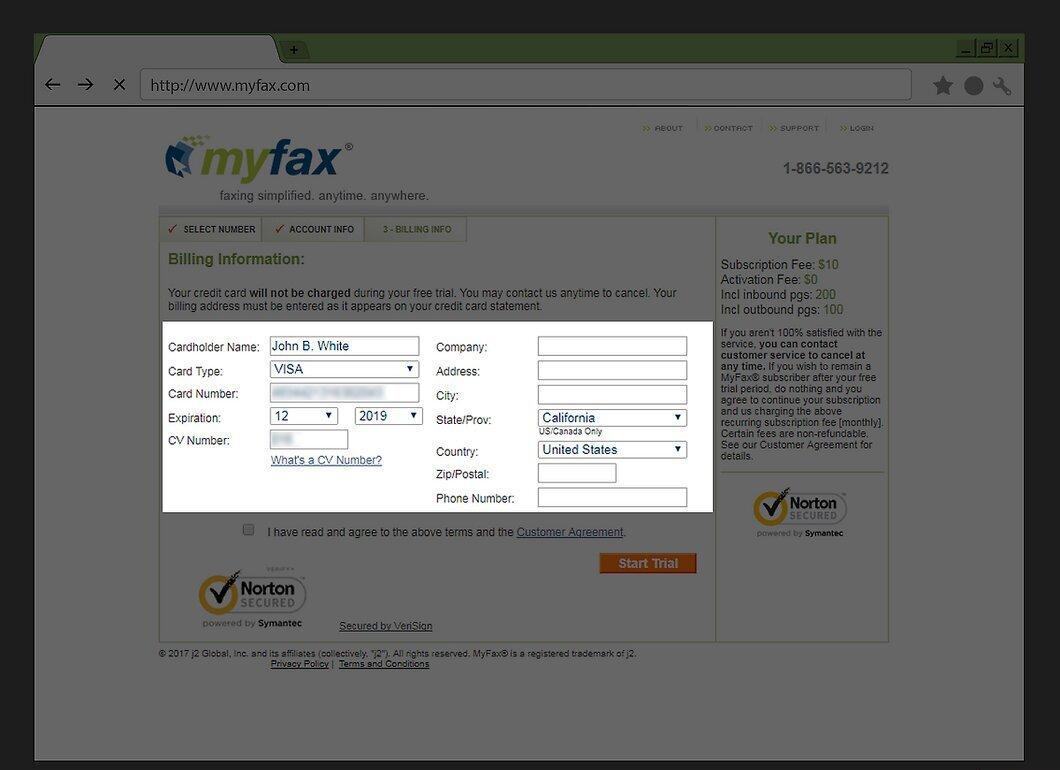
Provide your credit card details, including the cardholder’s name, card number, expiration date, and security code.
- MyFax will charge your card $0.99 (approximately 60 rubles) to verify the information, and then refund it. No payment is required during the 30-day trial.
Step 9. Confirm Acknowledgment of Terms
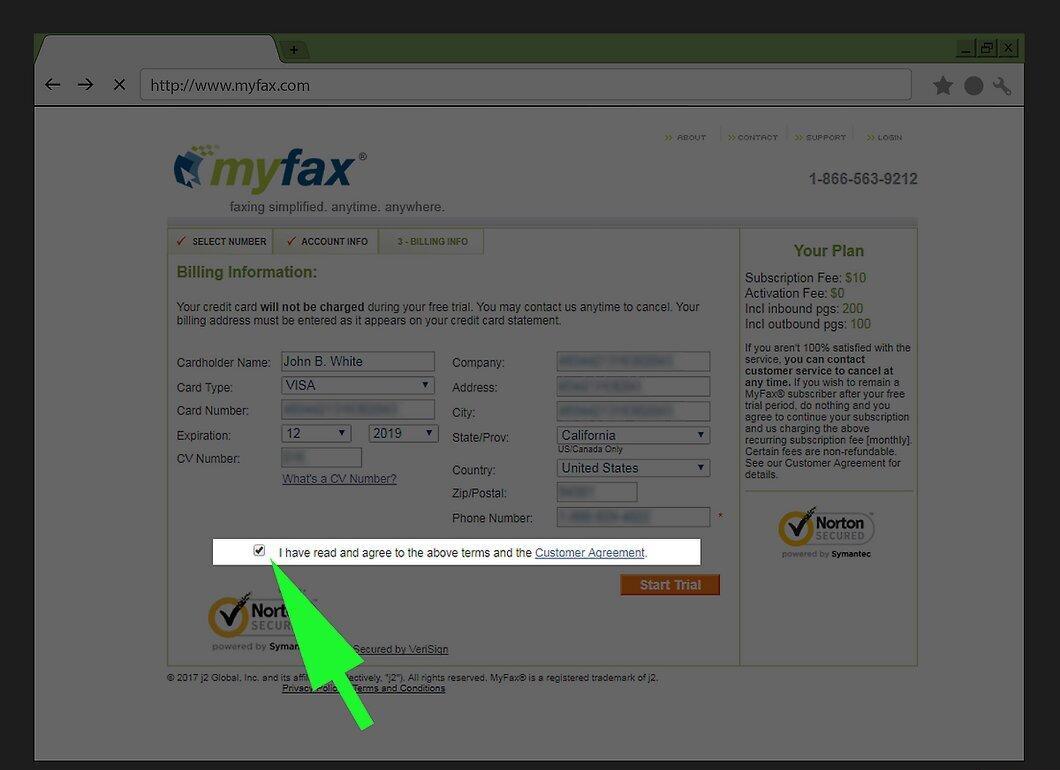
Check the box indicating “I have read” at the bottom of the page.
Step 10. Activate Trial Access
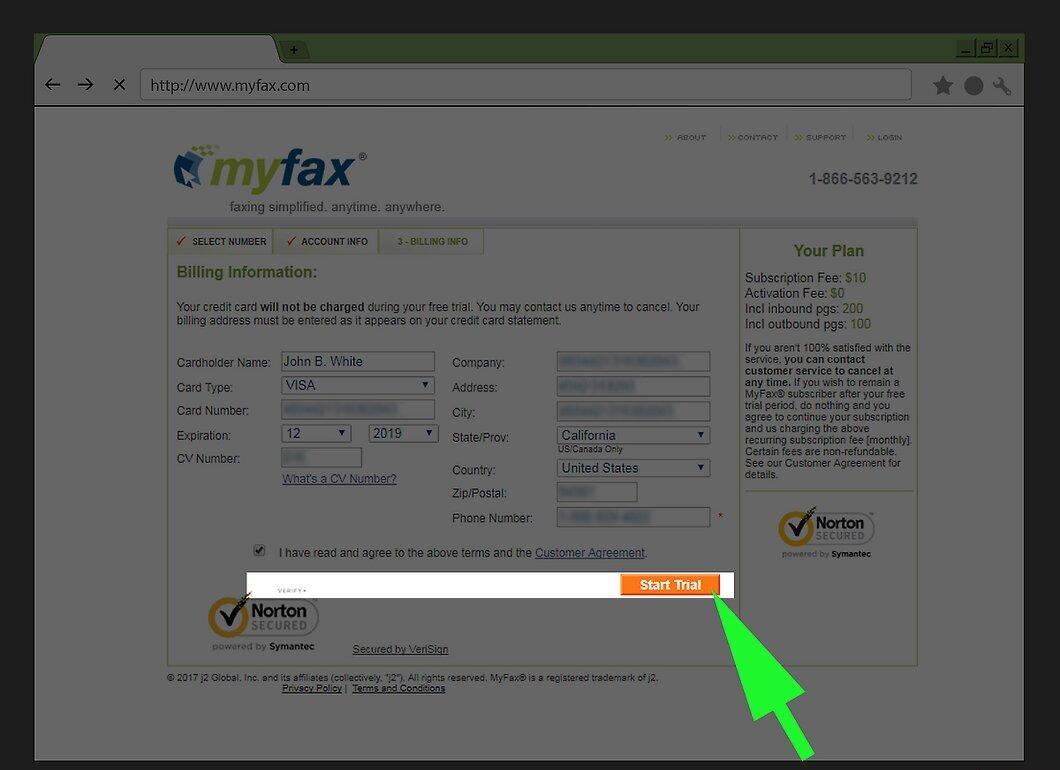
Click the “Start Trial” button to create your MyFax account.
Step 11. Log In
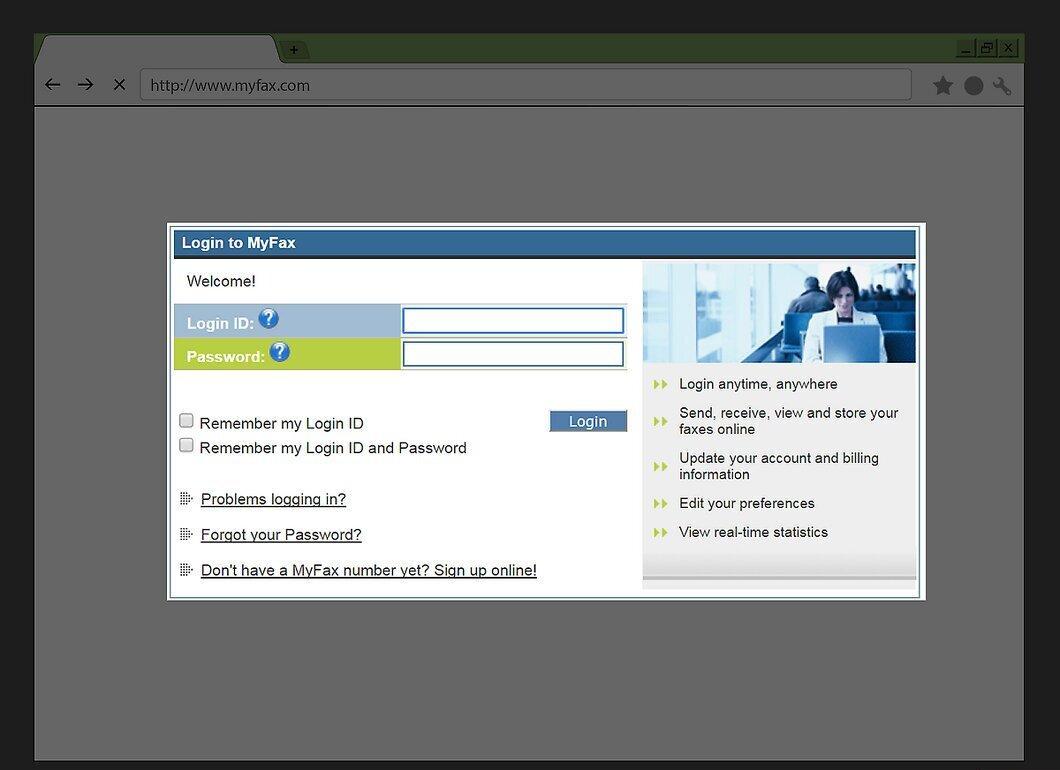
Click “Login” to access your account.
Step 12. Select “Send Faxes”
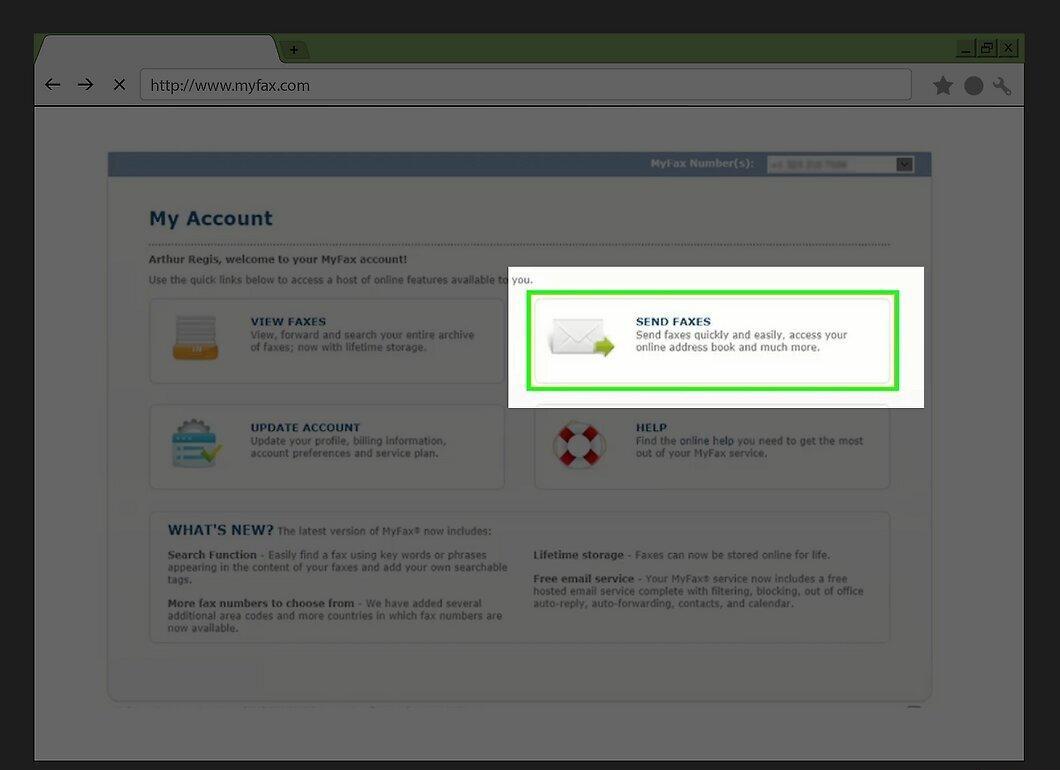
Click on “Send faxes” in the left menu.
Step 13. Enter Recipient Information
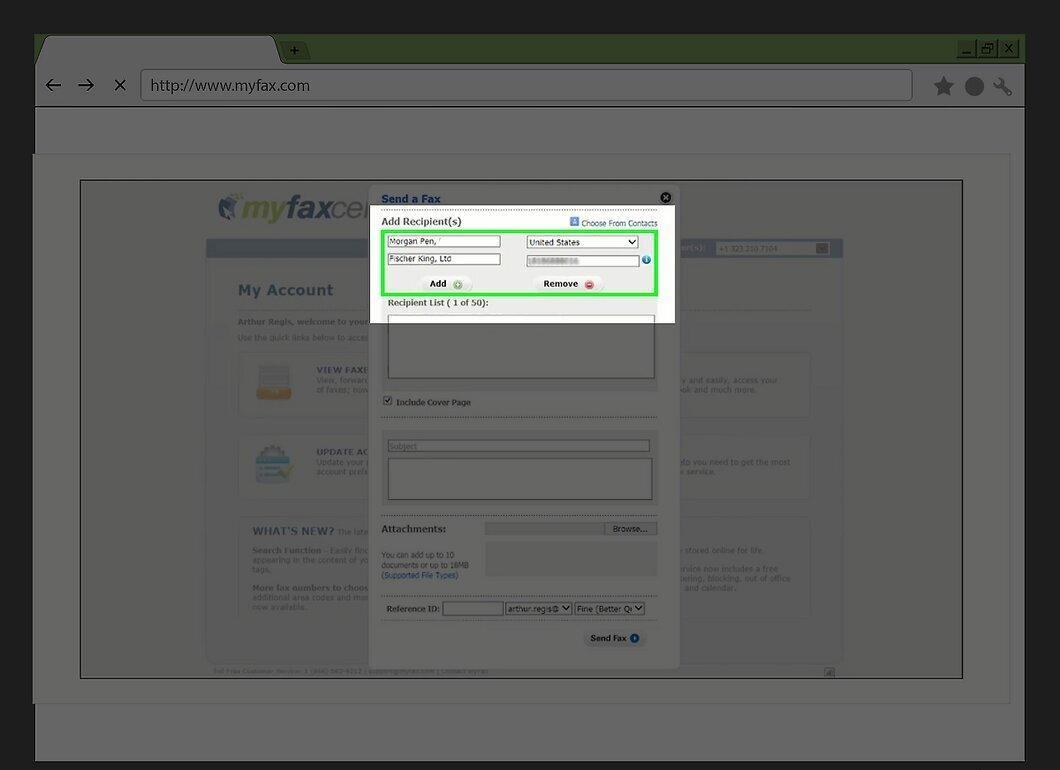
Fill in the fields with recipient information:
- Name: Enter the recipient's name.
- Company Name: Provide the name of the company where the recipient works.
- Fax Number: Enter the fax machine number, including the country code if necessary.
Step 14. Add Subject and Message
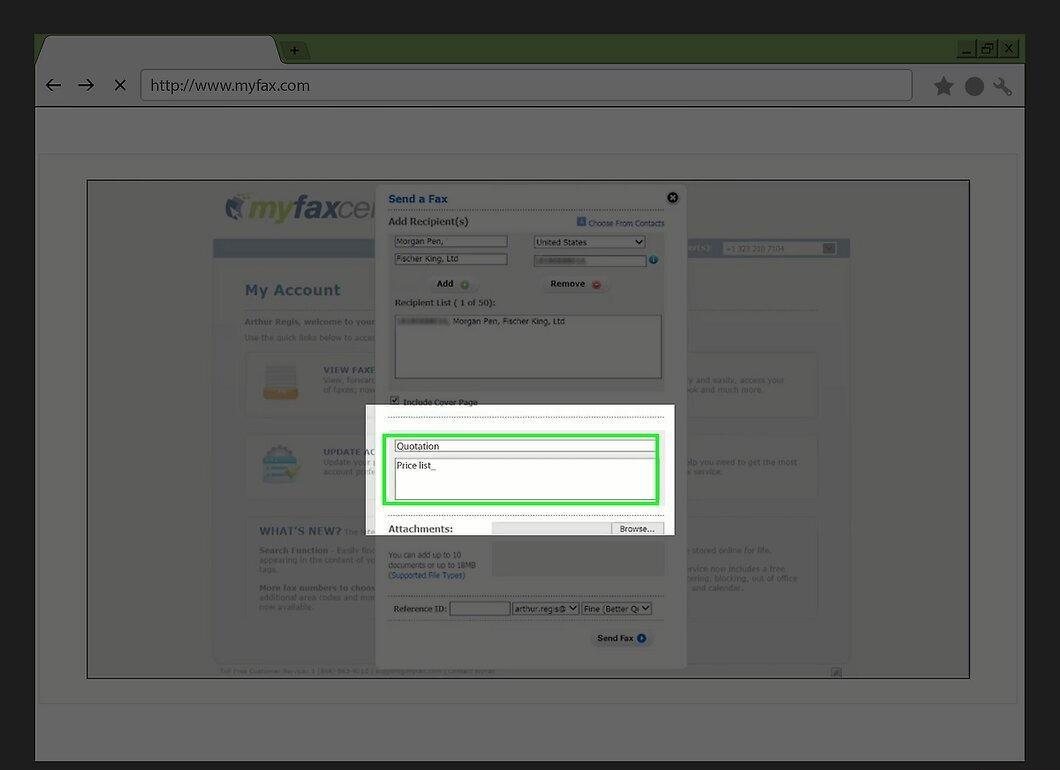
Enter the subject of the fax in the “Subject” field, and a cover message in the “Message” field if needed.
Step 15. Upload the File
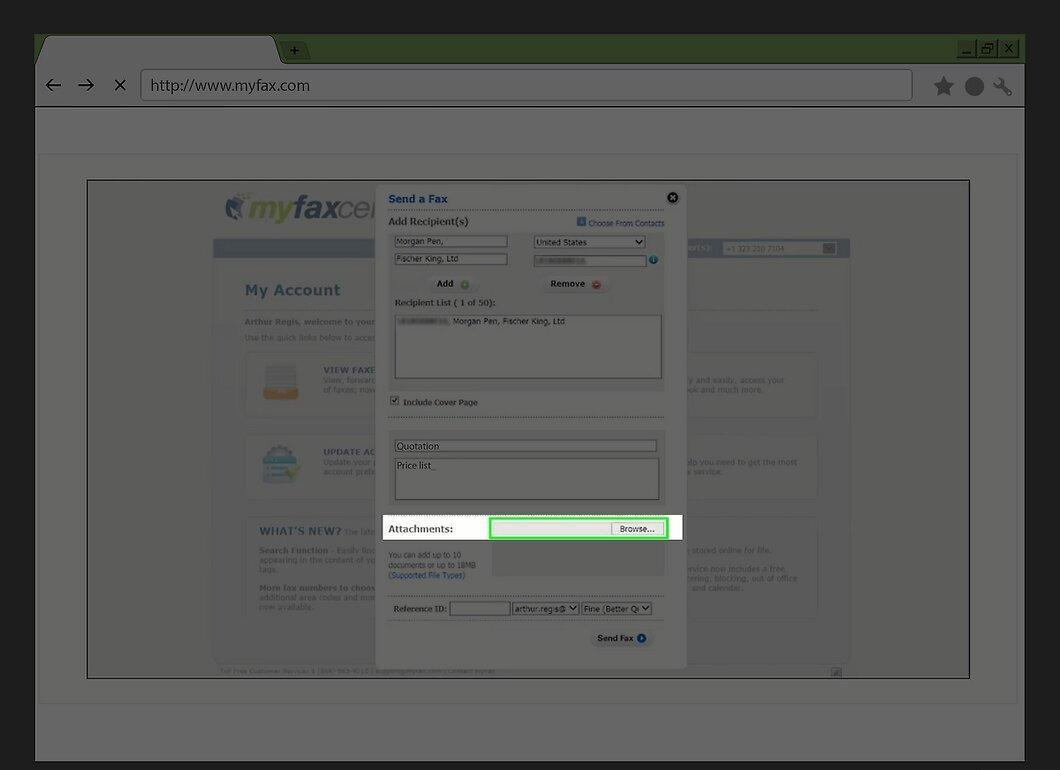
Click “Choose Files”, select the file to send, then click “Open”.
- In the MyFax trial, you can send up to 10 documents or 20 MB of data at a time.
Step 16. Send the Fax
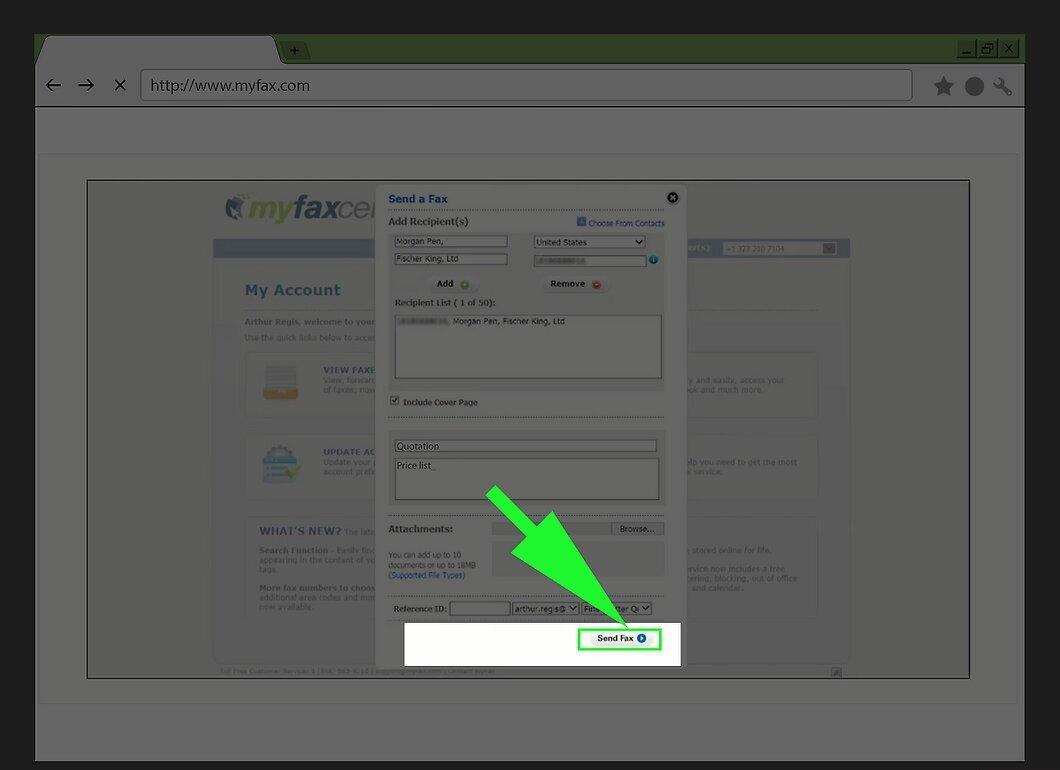
Click “Send fax” to send your fax. It will be directed to the specified fax machine number.
- To close your account, call 1 (866) 563-9212 within 30 days.


