
Apple's iOS updates can sometimes eliminate all those fantastic features you enjoyed thanks to jailbreaking your device. You might need to revert to an earlier version to jailbreak again.
Downgrading from iOS 8 to 7.1.2
Step 1. Backup your device.
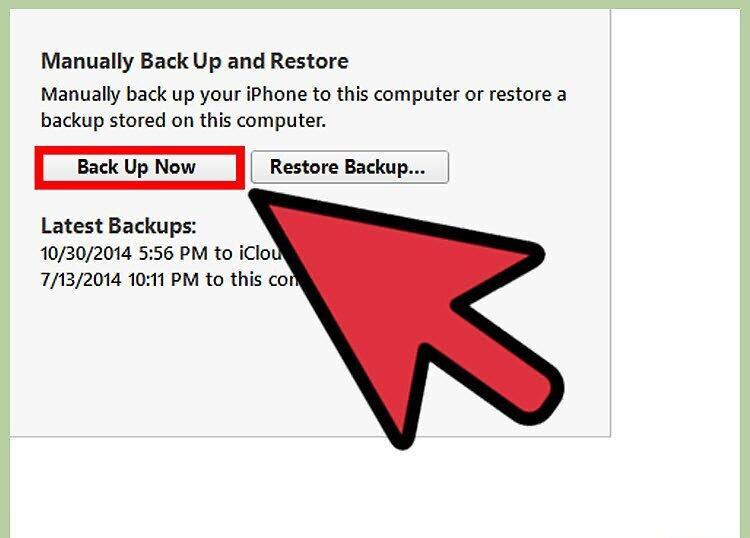
Create a backup of your device. This will help prevent data loss in case something goes wrong during the downgrade. Check out this article to learn how to back up your iPhone.
Step 2. Download the 7.1.2 IPSW file.
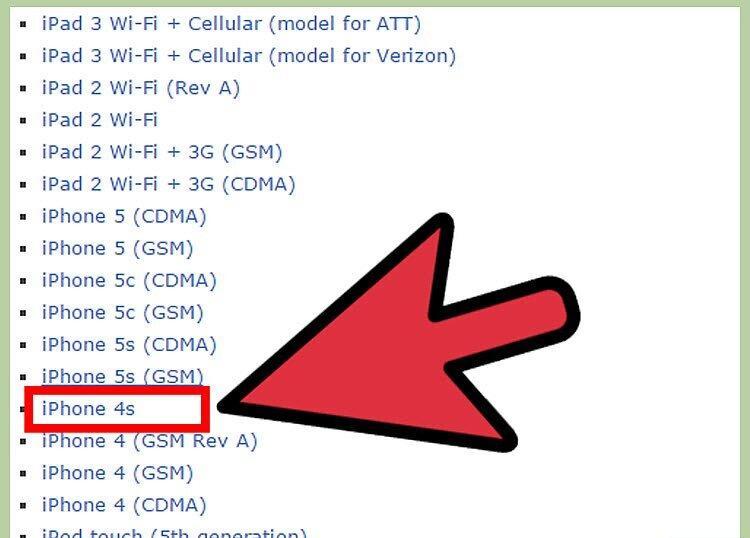
Download the 7.1.2 IPSW firmware file. This file contains the system programs for iOS. Make sure you download the signed IPSW file for version 7.1.2 that corresponds to your device, as different models have different versions (e.g., GSM).
- You can find IPSW files at iDownloadBlog.com
Step 3. Connect your iPhone to your computer.
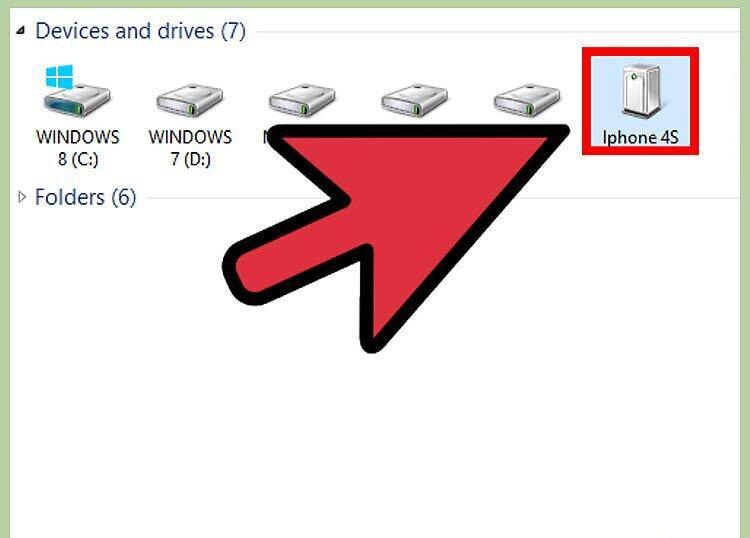
Connect your iPhone to your computer. If iTunes doesn't launch automatically, open it manually.
Step 4. Select your device and go to the Summary tab.
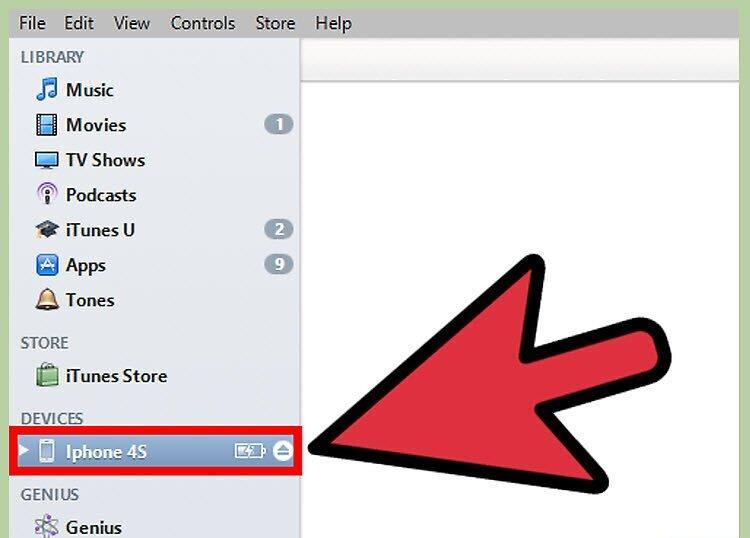
Step 5. Load the IPSW file.
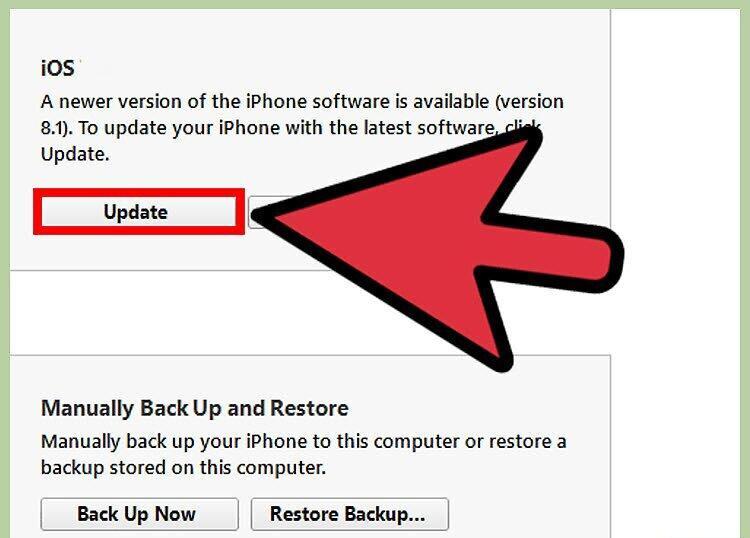
Load the IPSW file. Hold down the ⌥ Opt key (for Mac) or ⇧ Shift key (for Windows) and click Update. Select the downloaded IPSW file.
Step 6. Start the firmware downgrade process.
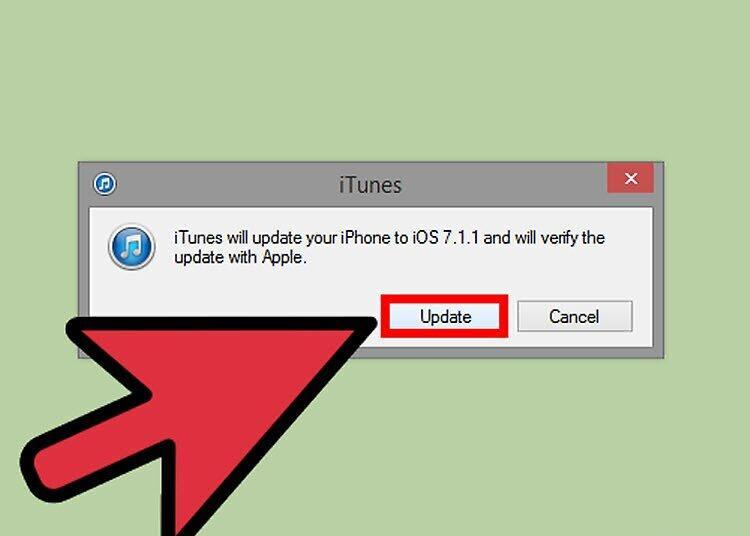
Begin the downgrade process. Click Update again. The downgrade process will start.
- If this doesn't happen, you may have downloaded the wrong file, or Apple has stopped signing it. When Apple stops signing files, downgrading becomes impossible. Typically, they sign files for a while after a release, but exact time frames are not announced.
Step 7. Set up your device.
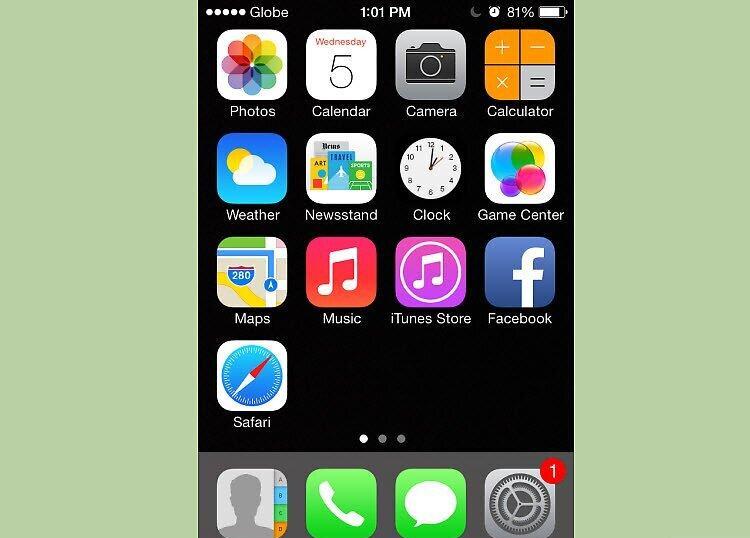
After the downgrade is complete, your device will display a setup screen. Follow the instructions to complete the setup process.
Preparing Files and Software
Step 1. Save SHSH and APTickets files.
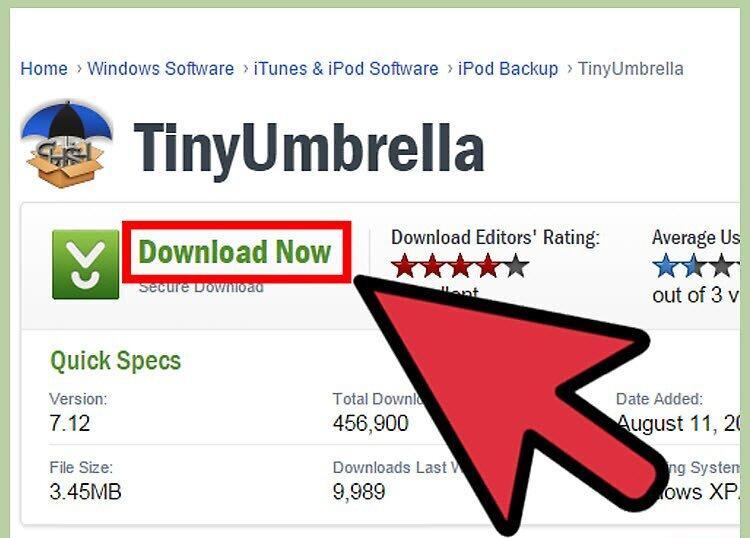
Save your SHSH and APTickets files. You may need a special program to extract and save these files. They are necessary for linking your phone with Apple and allow you to install earlier firmware. The most popular programs for this task are iFaith and TinyUmbrella.
- Currently, there is no way to downgrade firmware without these files.
- You can only revert to the firmware for which you have the corresponding files. So be sure to save the files for version 6 to use them when version 7 comes out, and so on. iFaith allows you to use others' files, so if you don't have your own, try using this program.
- In iFaith, to save files, click on 'Dump SHSH Blobs' or find others' files by clicking on 'Show Available...'. Make sure your phone is connected to the computer, and most data will be saved automatically.
- Downgrading can be performed on the following models: iPhone 2G, 3G, 3GS, 4; iPad 1G; iPod Touch 1G, 2G, 3G, 4G.
Step 2. Download RedSn0w.
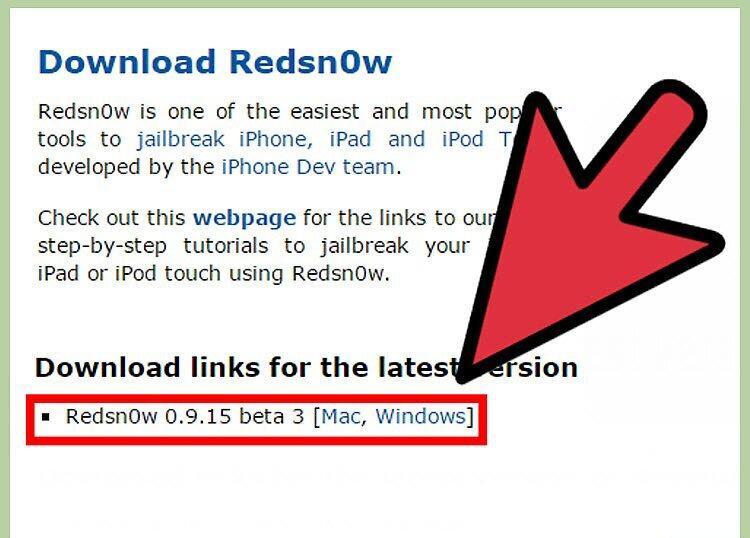
Download RedSn0w. This is one of the most popular applications for downgrading firmware on iOS devices.
Step 3. Download the firmware you want to downgrade to.
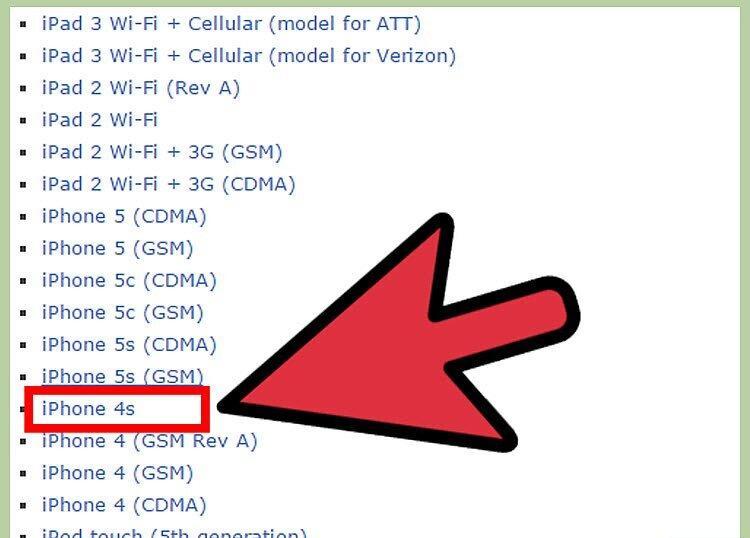
Download the firmware for the version you plan to downgrade to. There are several sources where you can do this.
Step 4. Launch the program.
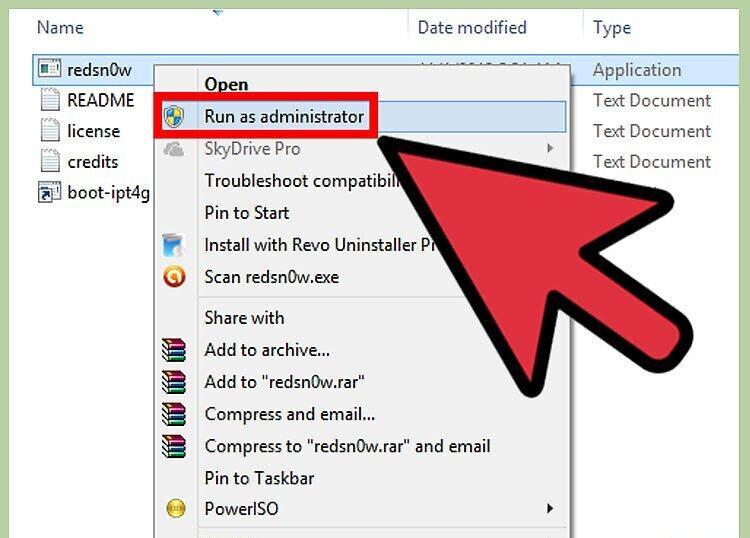
Run RedSn0w. If you're using Windows, make sure to run the program as an administrator (right-click on the icon).
Downgrade Process
Step 1. Connect the phone to your computer.
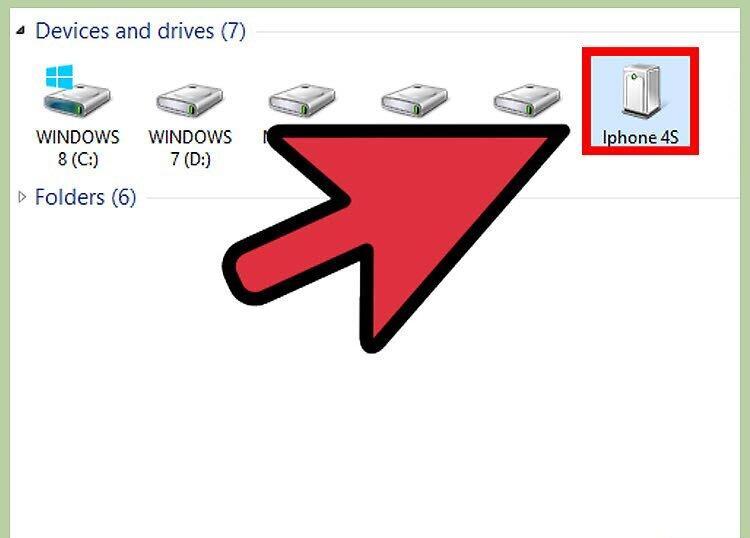
Connect your phone to the computer using the standard USB cable that comes with it. After connecting, put the phone into DFU mode.
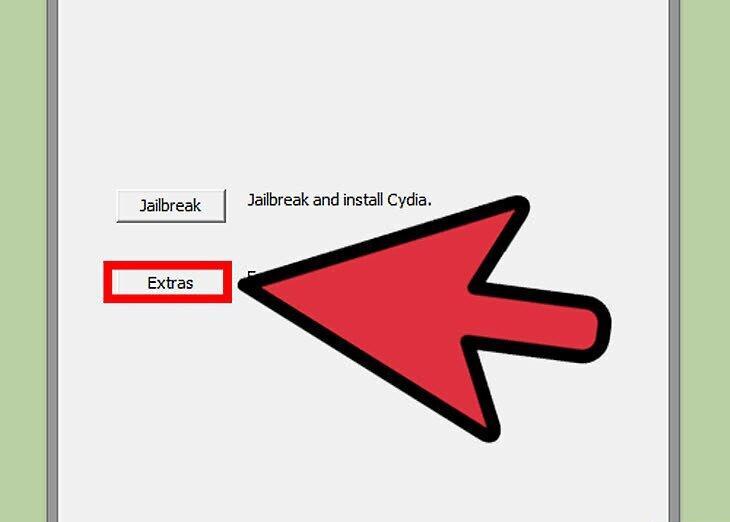
Step 2. Click on “Extras.”
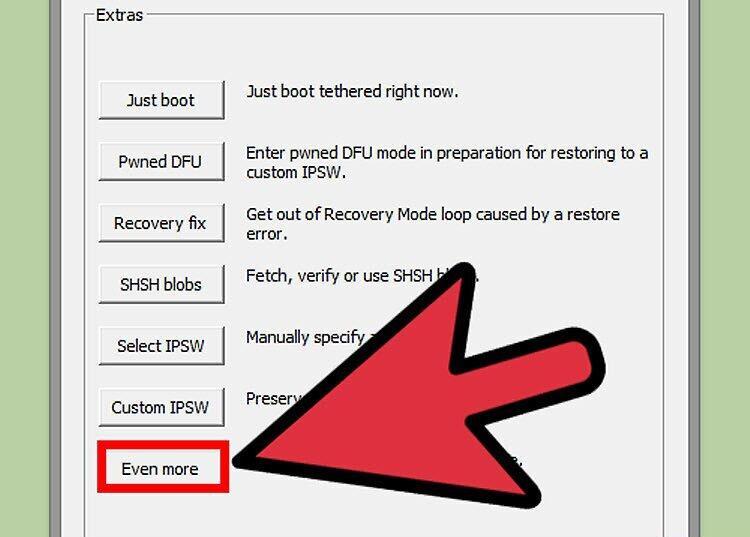
Step 3. Click on “Even More.”
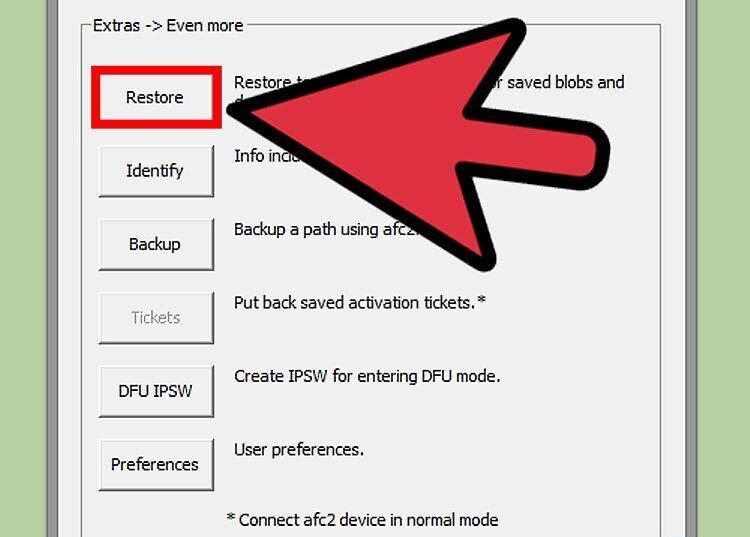
Step 4. Click on “Restore.”
Step 5. Click on “IPSW.”
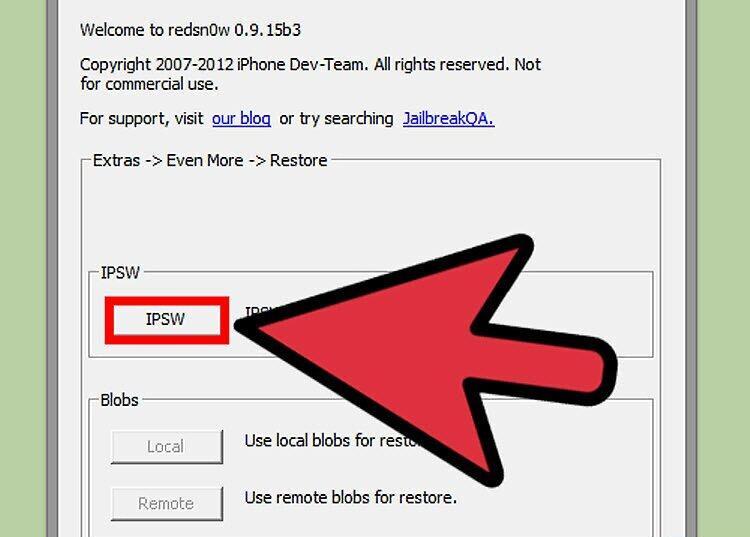
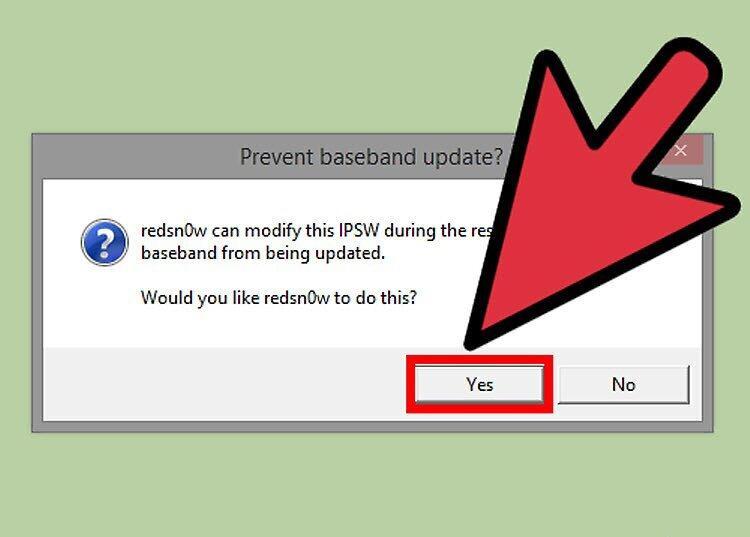
Select “IPSW.” Here you can specify which firmware you want to downgrade to.
- If your phone is unlocked, click yes to prevent the baseband from updating.
Step 6. Enter Pwned DFU mode.
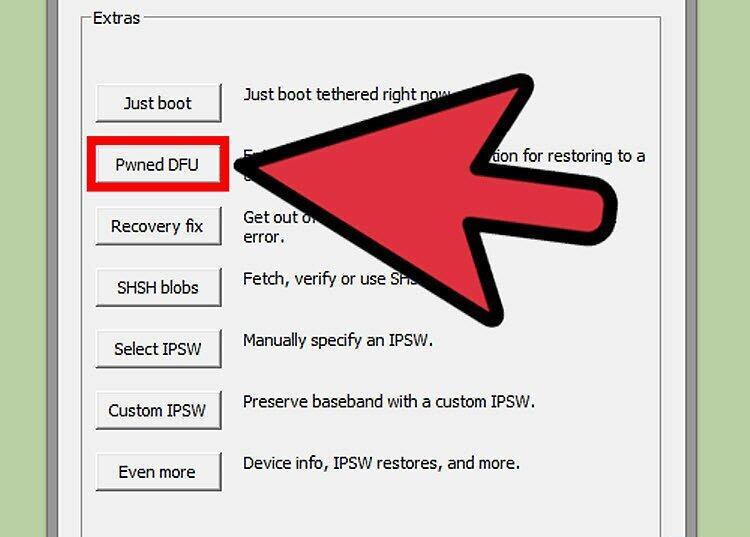
Enter Pwned DFU mode. Click OK and then Next to continue.
Step 7. Specify the location of the SHSH file.
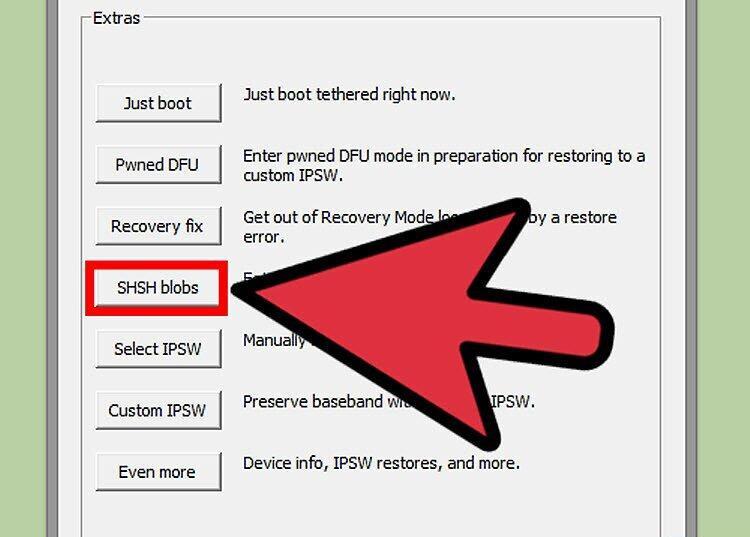
Specify the location of the SHSH file. RedSn0w will attempt to find them automatically, but if it can't, you will be able to specify their location manually on your computer. Don't forget where you saved them!
Step 8. Let the program do its job.
Allow the program to complete the process. Once the files are found, the program will automatically downgrade your device.
Step 9. Enjoy your device!
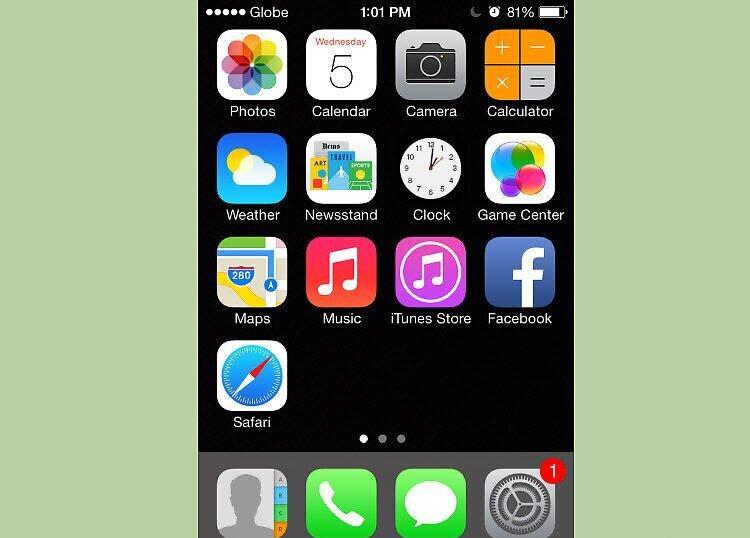
Now you can enjoy your device! You can perform an untethered jailbreak to avoid repeating this process again.


