
How to Open VCF Files and Add Contacts to Your Email
In this article, we will show you how to easily and quickly add contacts from VCF files to your email. VCF files, also known as vCards, contain important contact information that can be imported into various email services such as Gmail, iCloud, Yahoo, and even the Outlook email client. Please note that you will need a computer to work with a VCF file.
Gmail
Step 1. Go to Google Contacts.
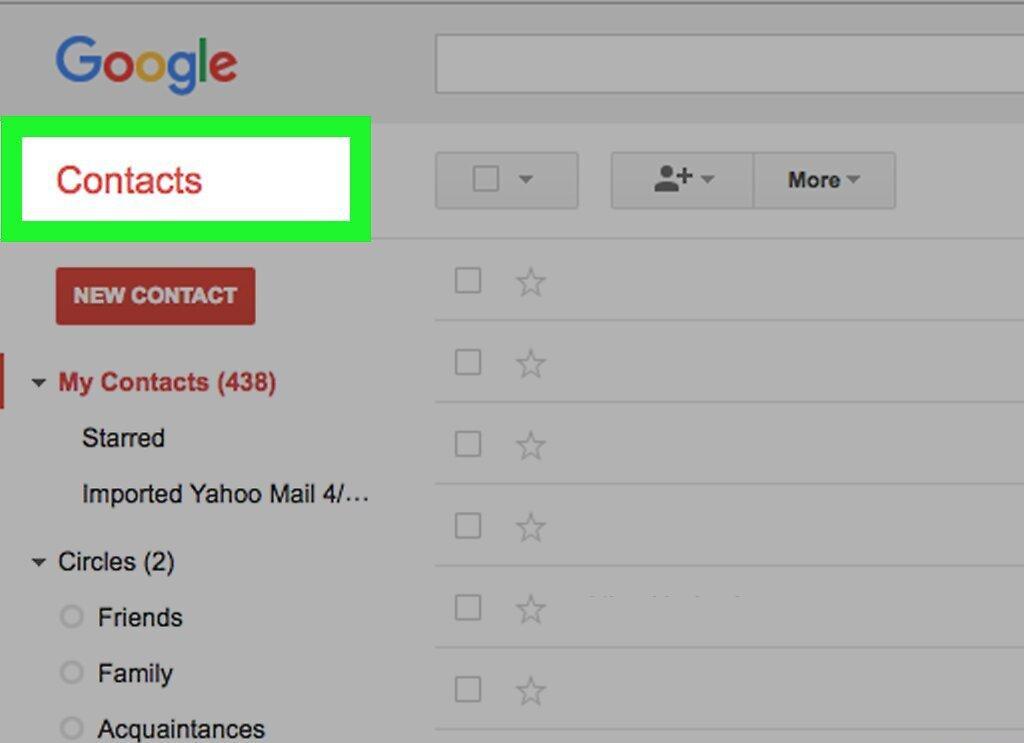
Open the Google Contacts page in your web browser. If you are already logged into your Google account, you will see your list of Gmail contacts.
- If you are not logged in, enter your login details: email address and password.
- If other contacts are open, click on your profile in the top right corner and select the desired account. If the needed account is not listed, click “Add account” and enter your email address and password to log in.
Step 2. Click on “More”.
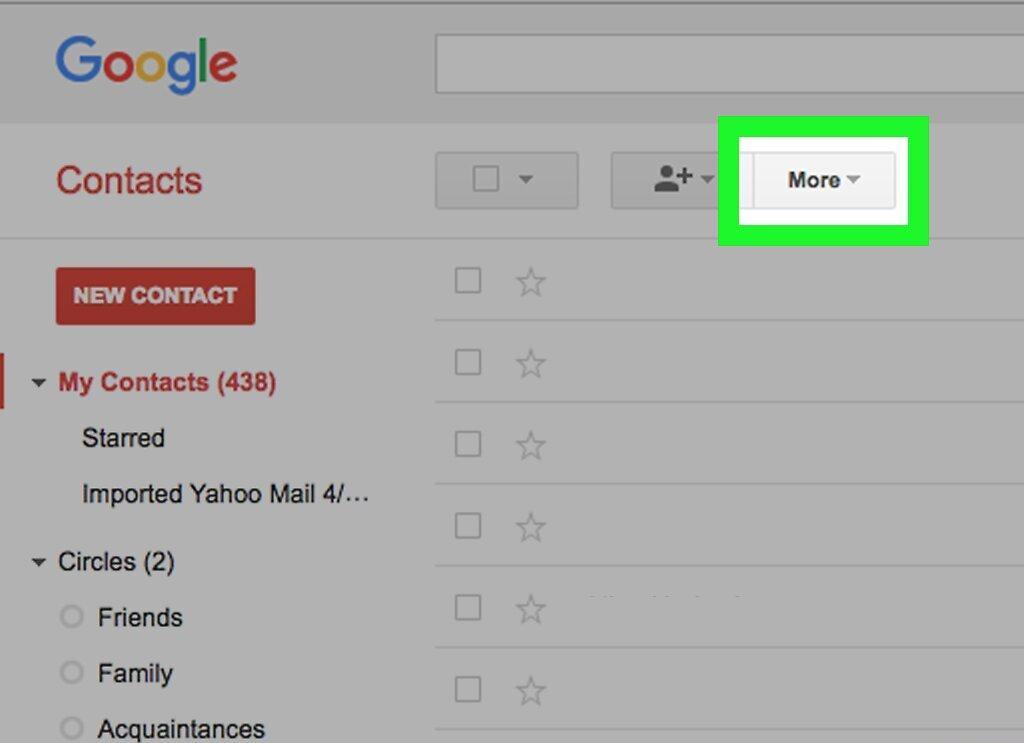
Click on “More” in the left panel. This will open additional options.
Step 3. Select “Import”.
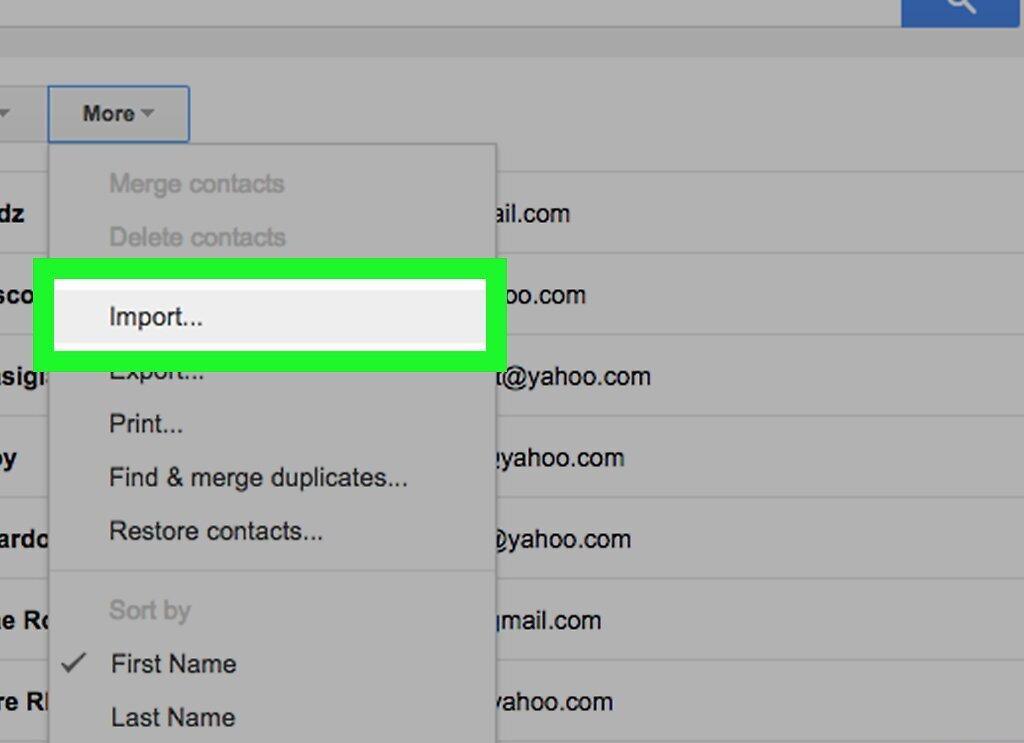
Click on “Import” — this option is located in the “More” section on the left panel. A pop-up window will appear.
Step 4. Click on “Import from CSV or vCard file”.
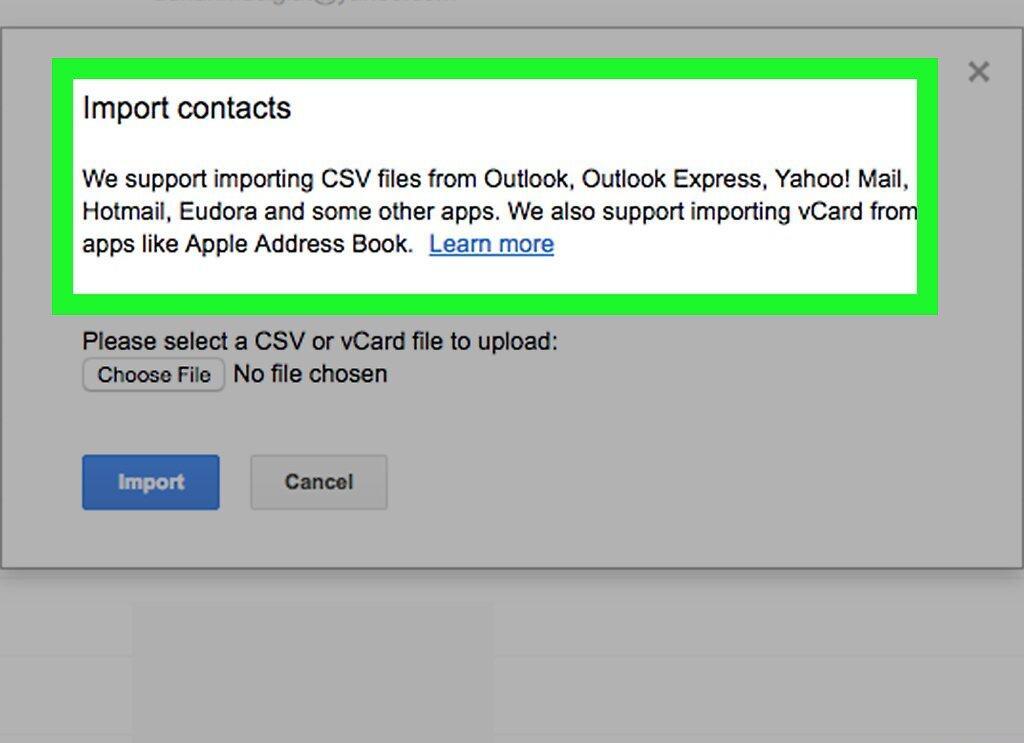
Select the “Import from CSV or vCard file” option, which is at the bottom of the list.
Step 5. Click “Select File”.
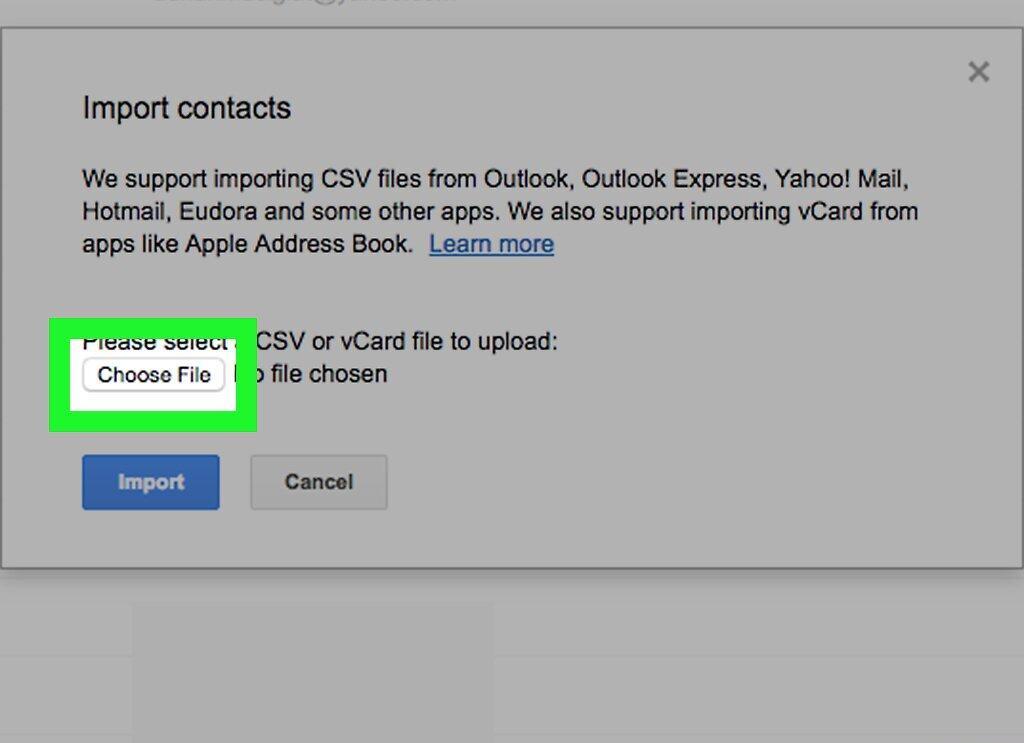
Click the “Select File” button highlighted in blue in the pop-up window.
Step 6. Locate your VCF file.
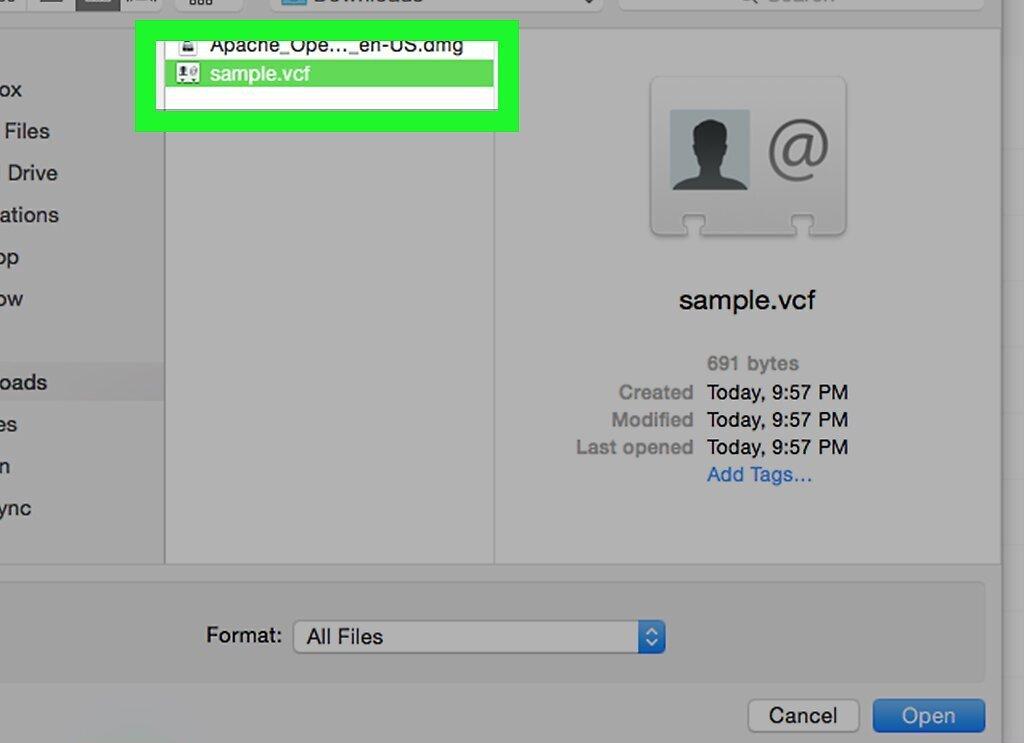
Choose the VCF file you want to import into Gmail.
Step 7. Click “Open”.
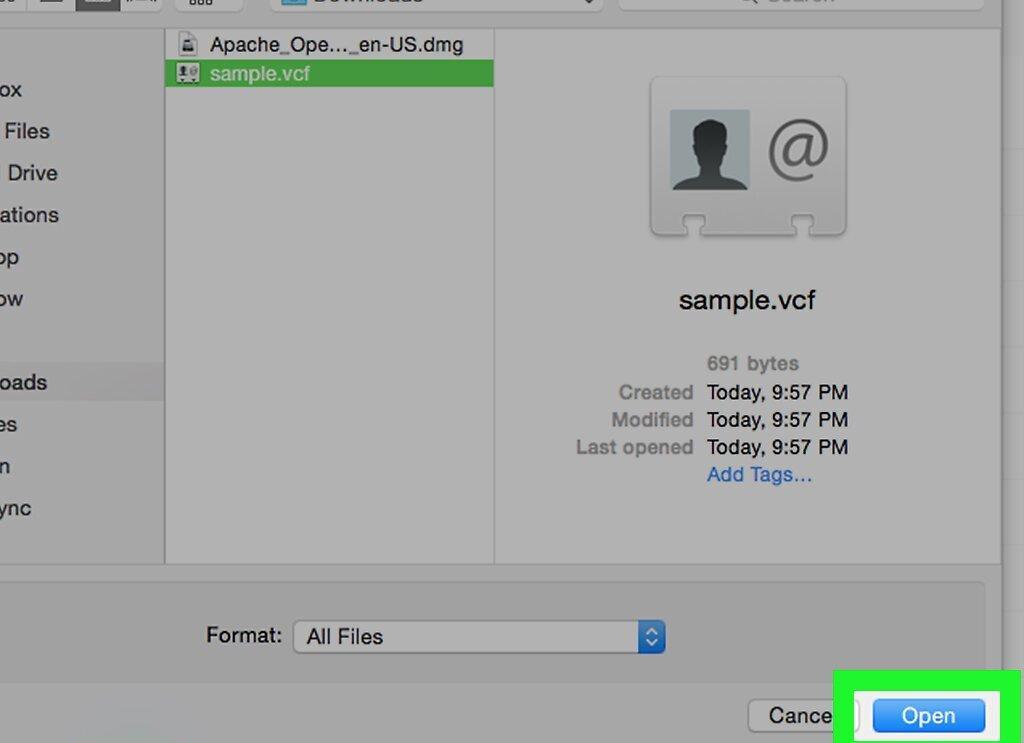
Click the “Open” button located in the bottom right corner of the window.
Step 8. Click “Import”.
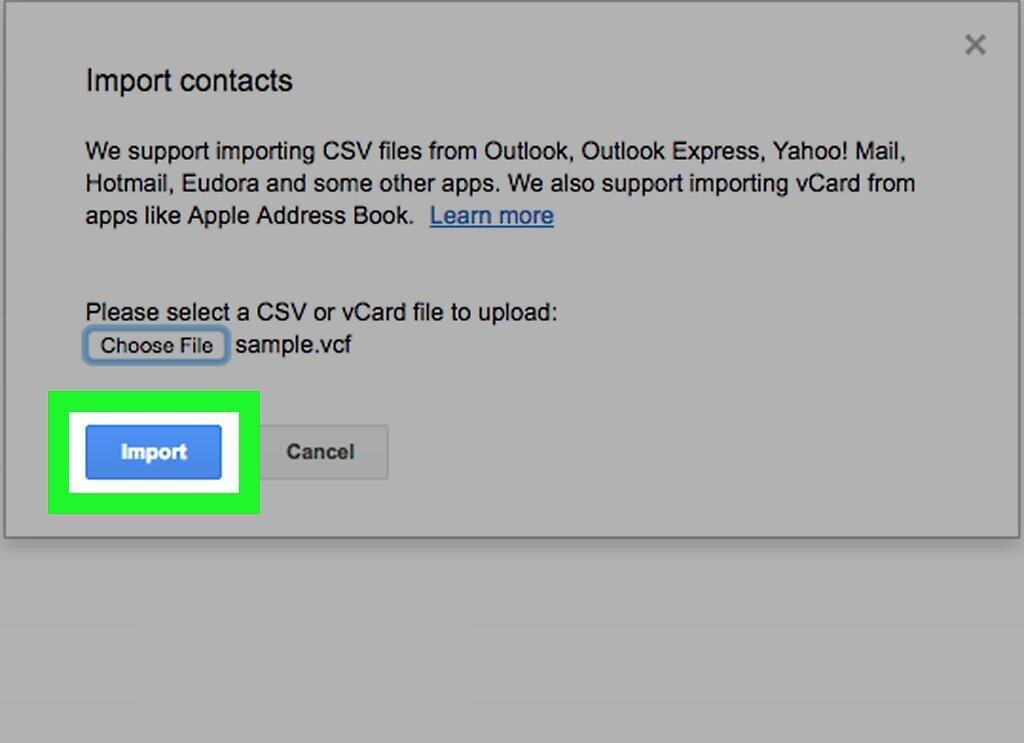
Select “Import” in the pop-up window. This will add your contacts from the VCF file to Gmail.
iCloud
Step 1. Visit the iCloud website.
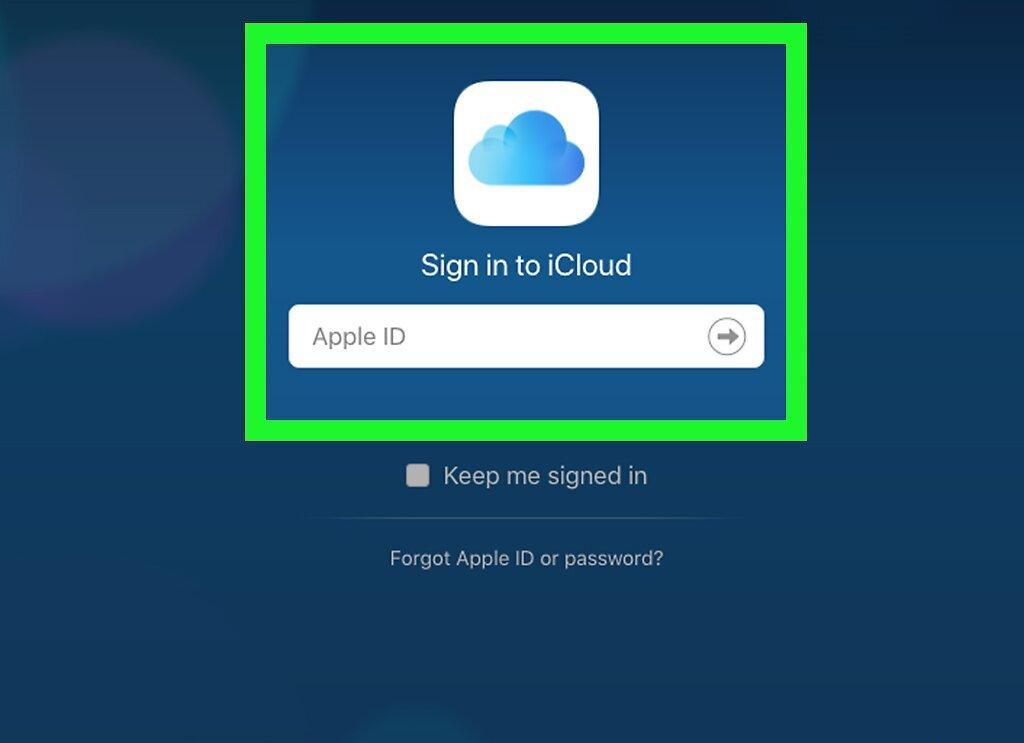
Go to the iCloud page in your browser. If you are already logged in, you will see the iCloud panel.
- If you are not logged in, enter your email address and password.
Step 2. Click on “Contacts”.
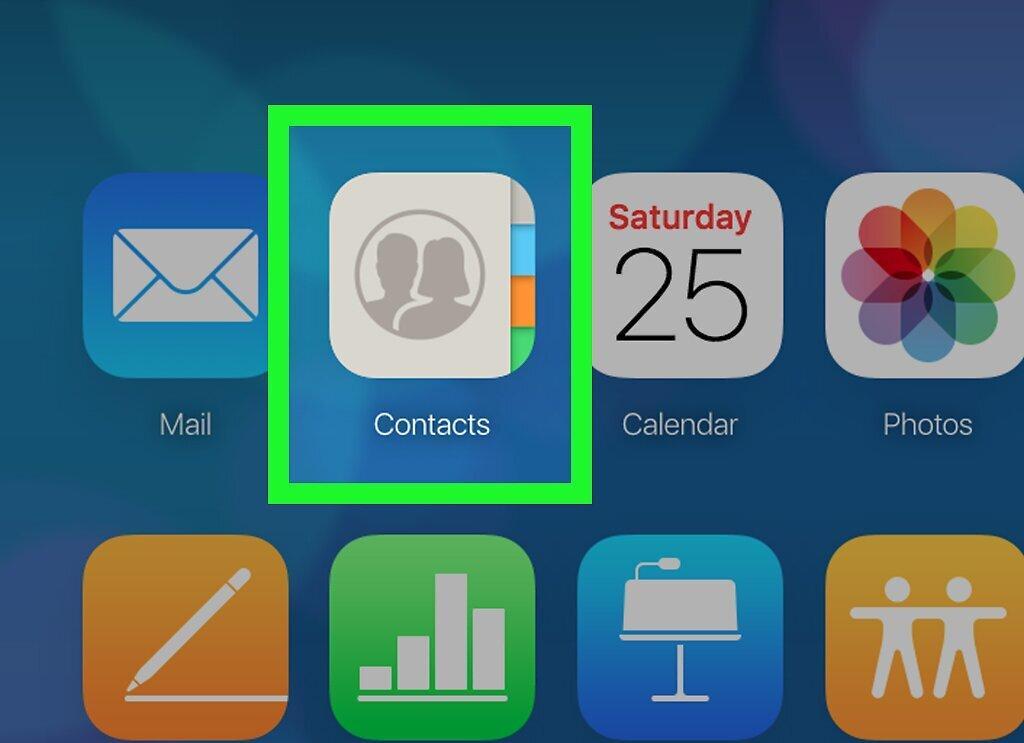
Click on the “Contacts” option at the top of the page. This will open your contacts list.
Step 3. Click on “Settings”.
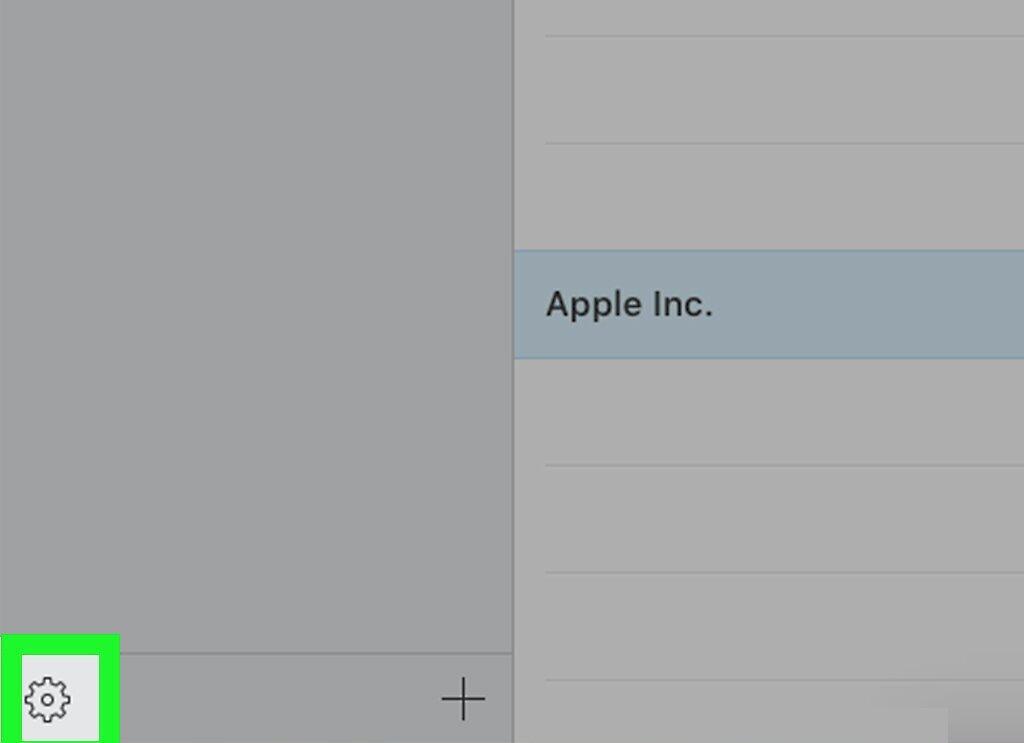
Click on “Settings” in the lower left corner of the window. This will open a menu.
Step 4. Select “Import vCard”.
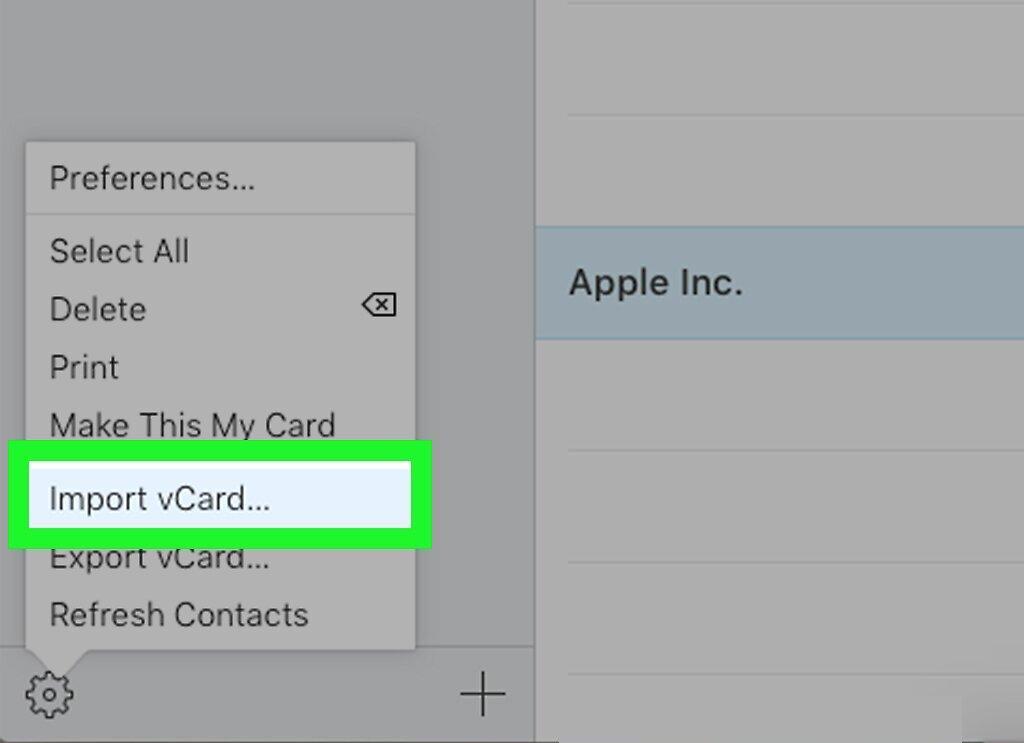
Choose “Import vCard” from the opened menu. A file explorer or Finder window will pop up.
Step 5. Find the desired VCF file.
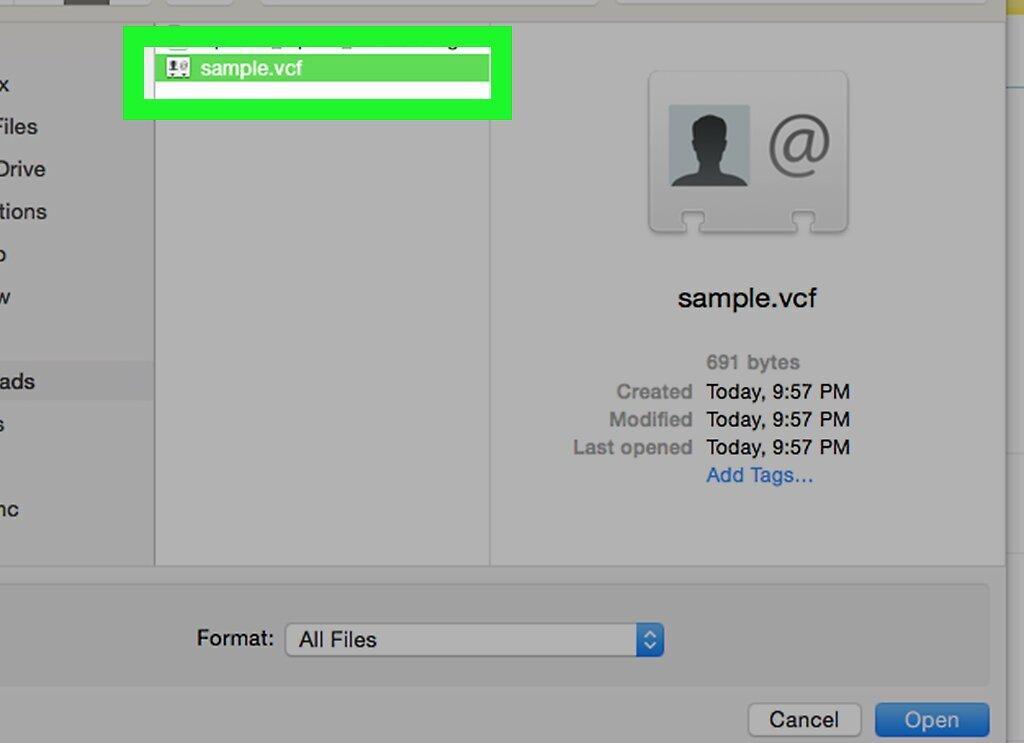
Select the VCF file you want to add to iCloud.
Step 6. Click “Open”.
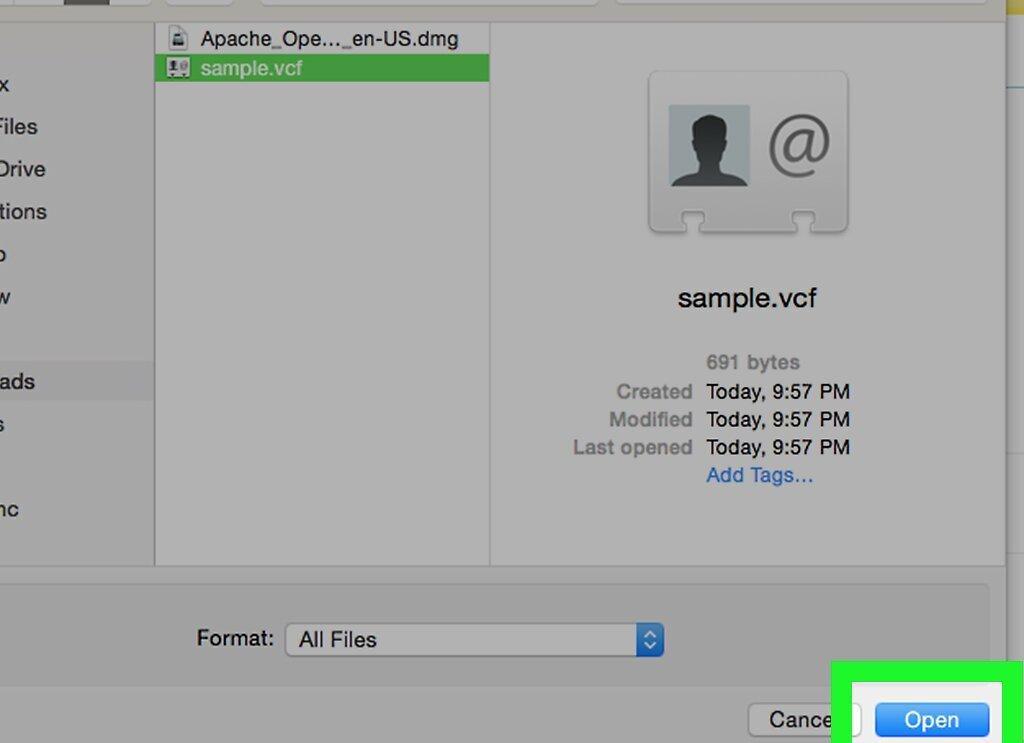
Click the “Open” button in the bottom right corner of the window. Your contacts from the VCF file will be added to the iCloud list.
Yahoo Mail
Step 1. Go to the Yahoo Mail website.
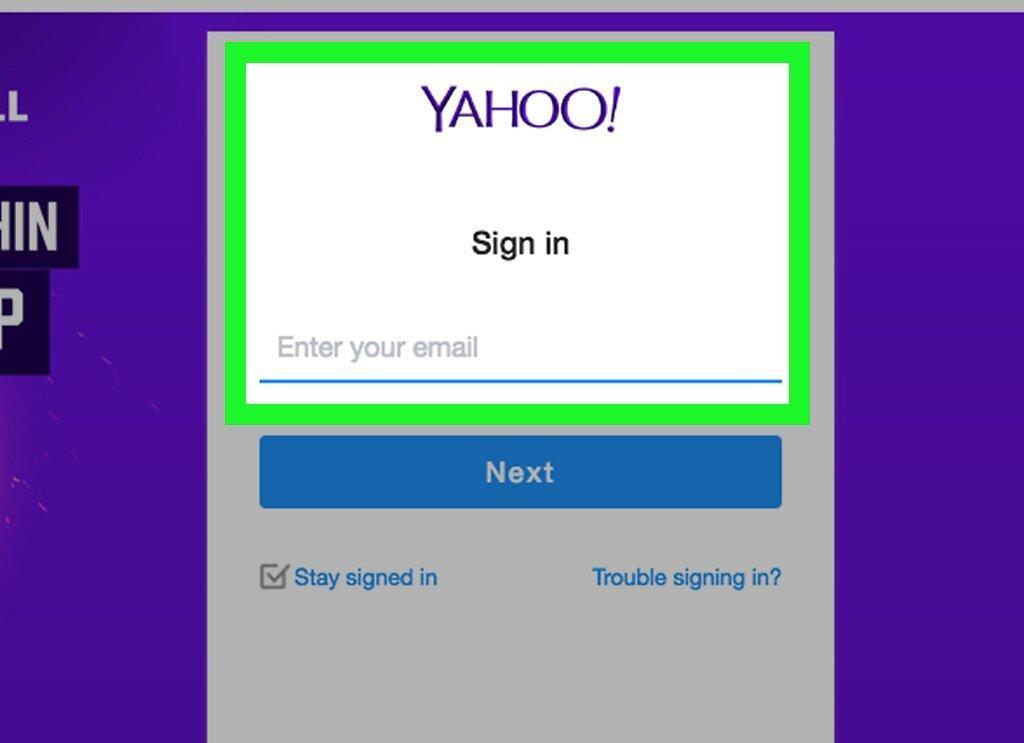
Open the Yahoo Mail page in your browser. If you are already logged in, your inbox will open.
- If you are not logged in, enter your credentials: email address and password.
Step 2. Click on the “Contacts” icon.
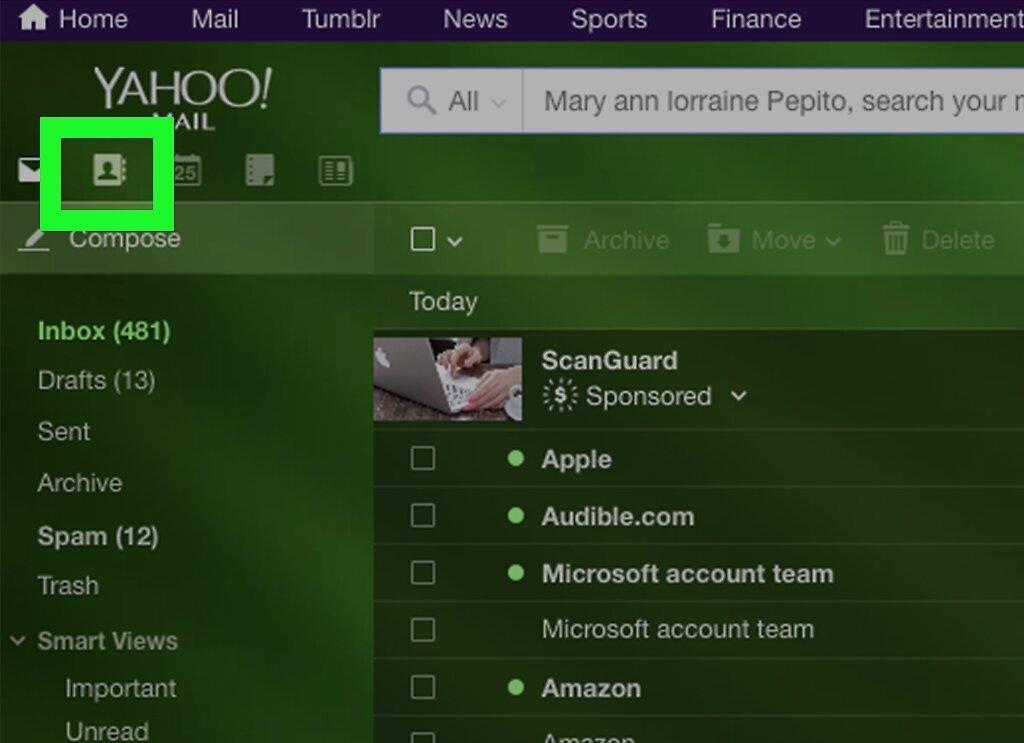
Click on the “Contacts” icon, which looks like a notebook and is located in the upper right part of the window. A new tab will open with your contacts list.
- If you have an older version of Yahoo, click on the notebook icon with a silhouette in the upper left corner of the window.
Step 3. Click on “Import Contacts”.
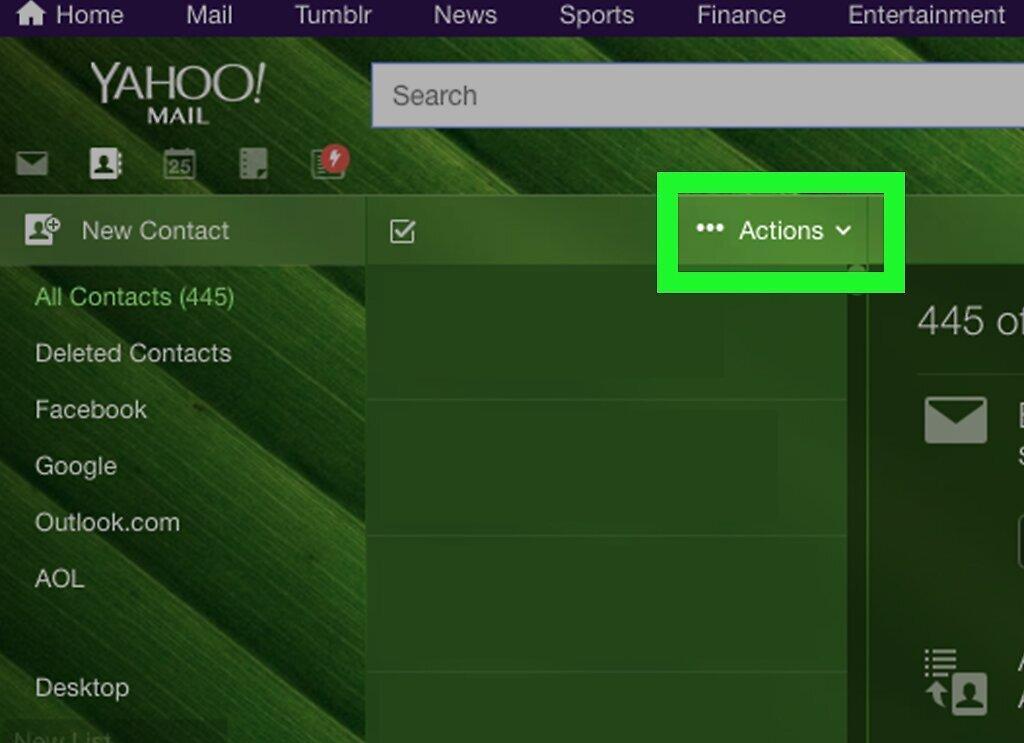
Click on “Import Contacts”, which is located in the middle column of the contacts page.
Step 4. Click “Import”.
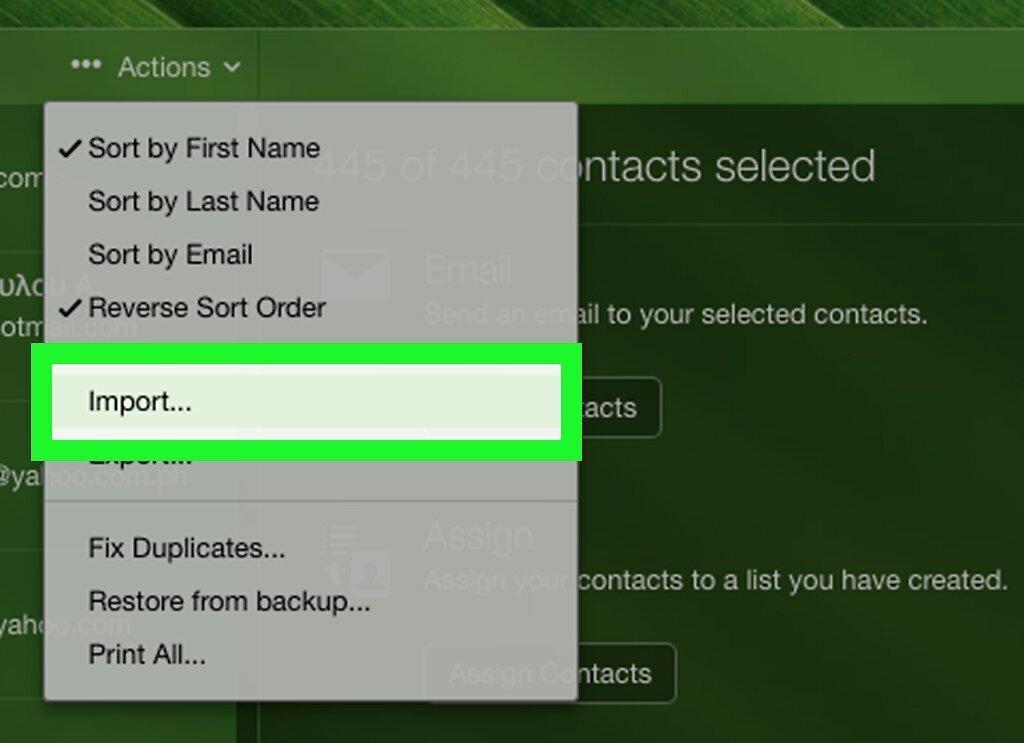
Click on “Import”, which is located to the right of “Upload File”. A pop-up window will appear.
Step 5. Select the file.
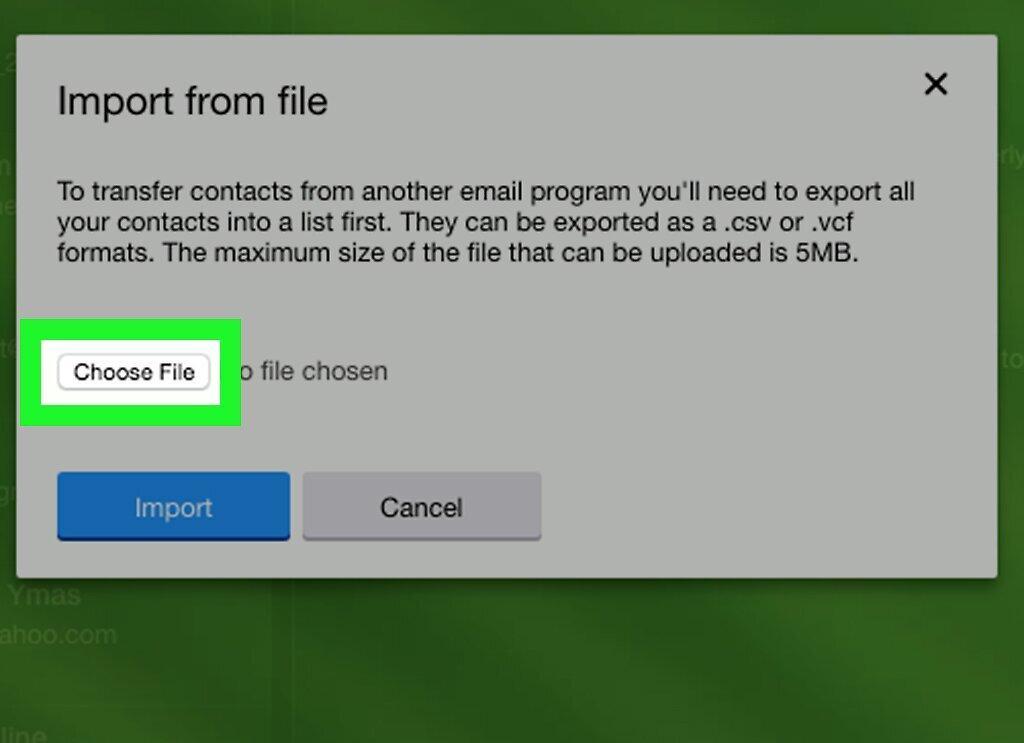
Click the “Select File” button at the top of the pop-up window. A file explorer or Finder window will open.
Step 6. Locate your VCF file.
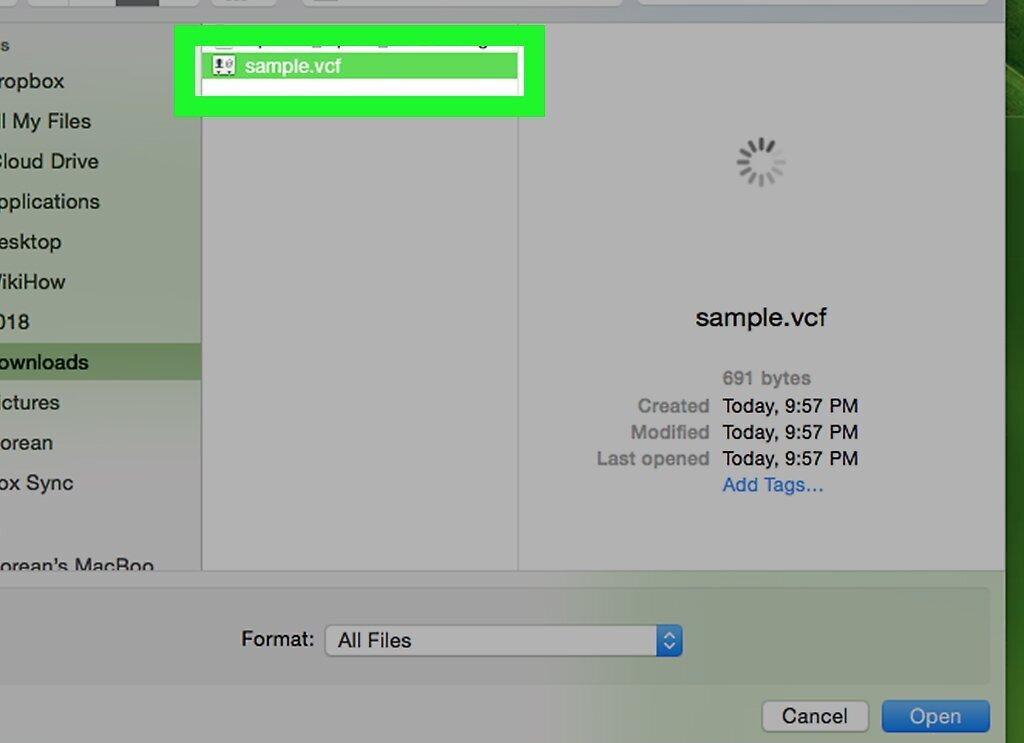
Select the VCF file that you want to import into Yahoo.
Step 7. Click “Open”.
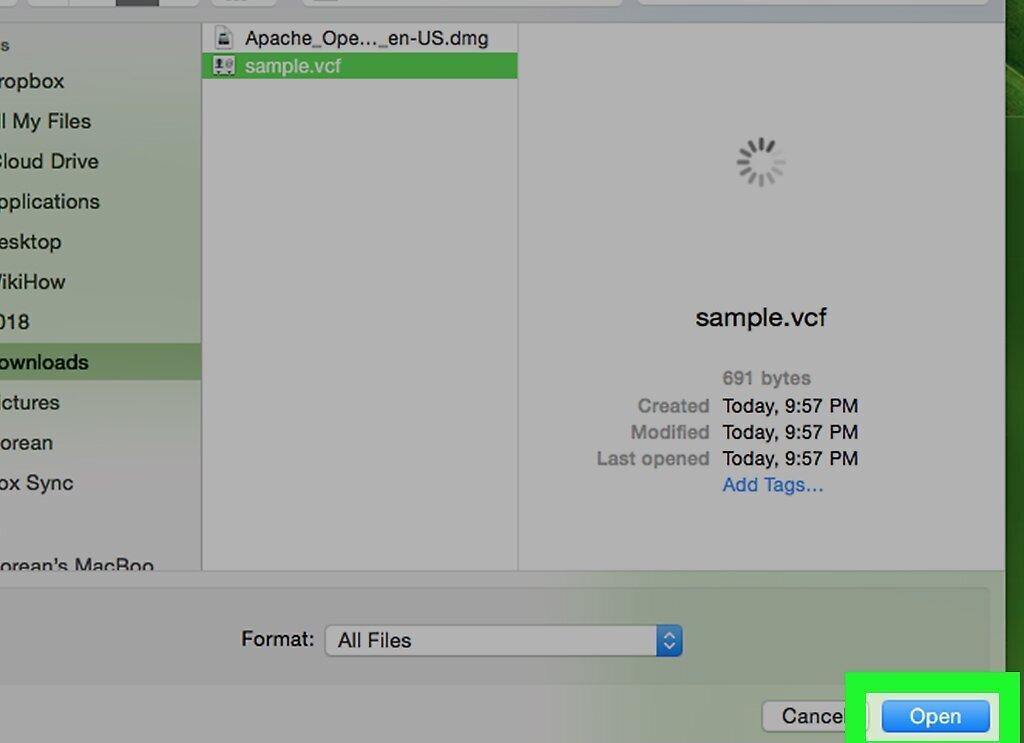
Click the “Open” button in the bottom right corner of the window.
Step 8. Click “Import”.
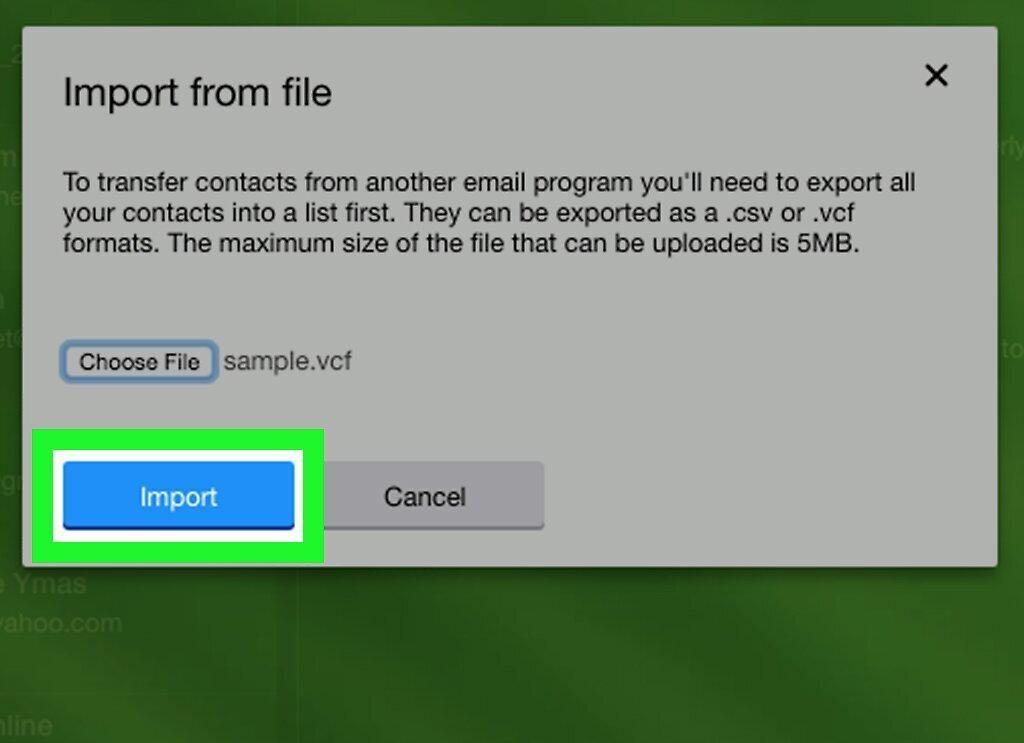
Select “Import” at the bottom of the pop-up window. Your contacts from the VCF file will be added to Yahoo.
Outlook (on the computer)
Step 1. Open Outlook.
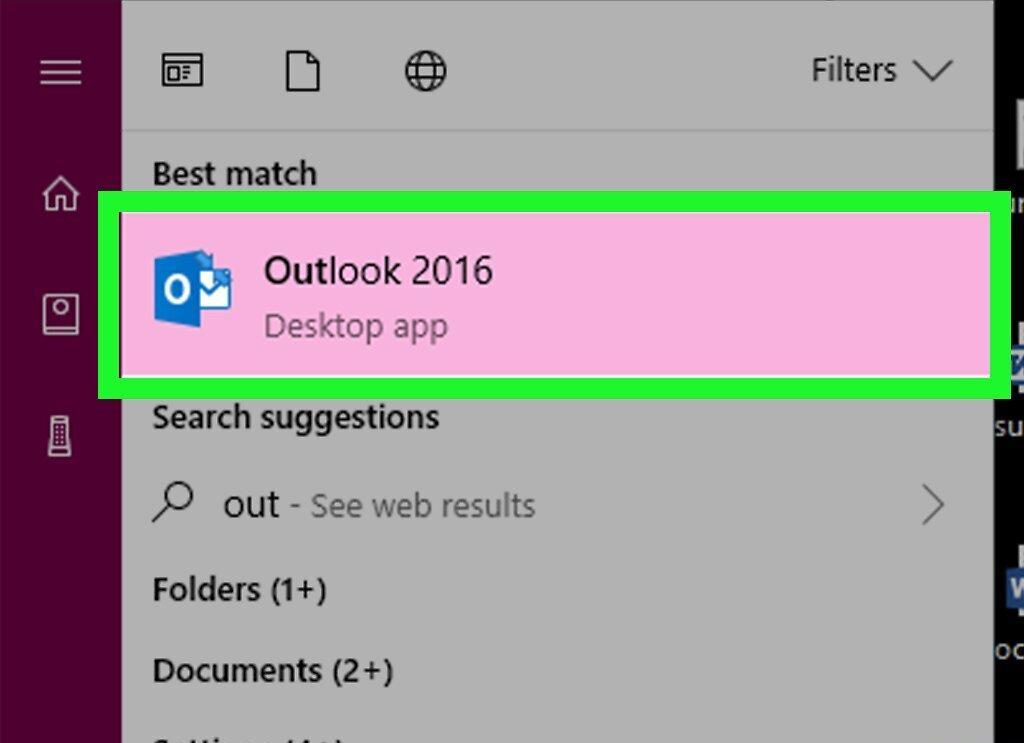
Launch Outlook by clicking on the Outlook 2016 icon, which looks like a white “O” on a dark blue background.
- Note that the web version of Outlook does not support VCF files.
- To import vCard on Mac, click the file, select “File” > “Open With” > “Microsoft Outlook”. Then confirm “Save and Close”.
Step 2. Open the “File” menu.
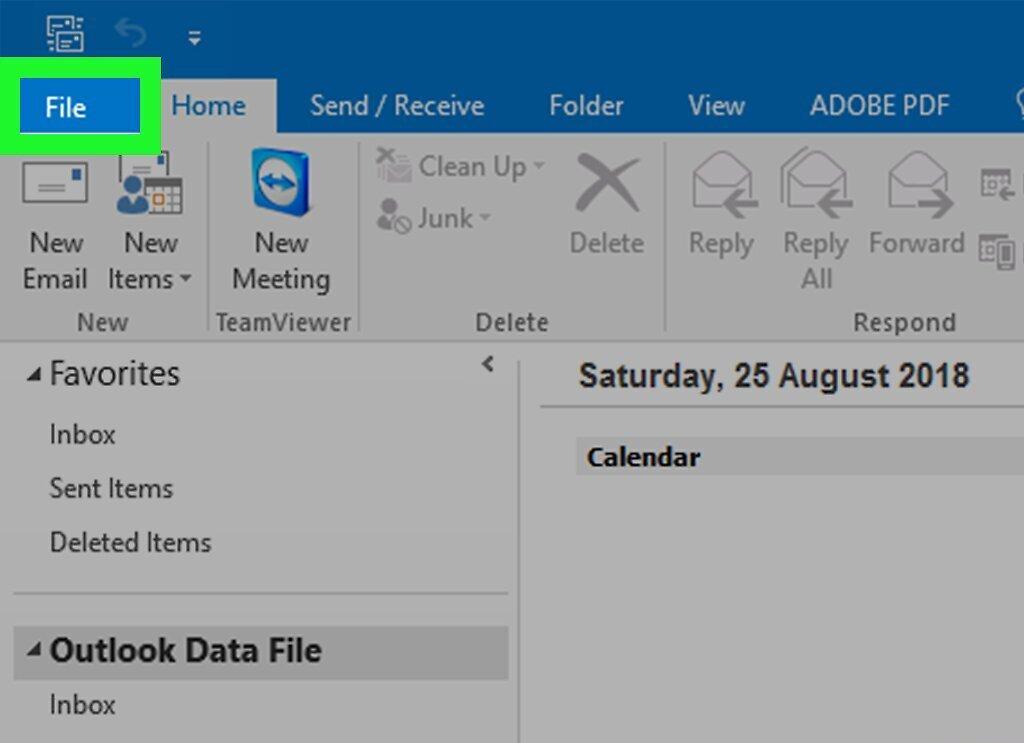
Click on the “File” menu in the upper left corner of the window.
Step 3. Select “Open & Export”.
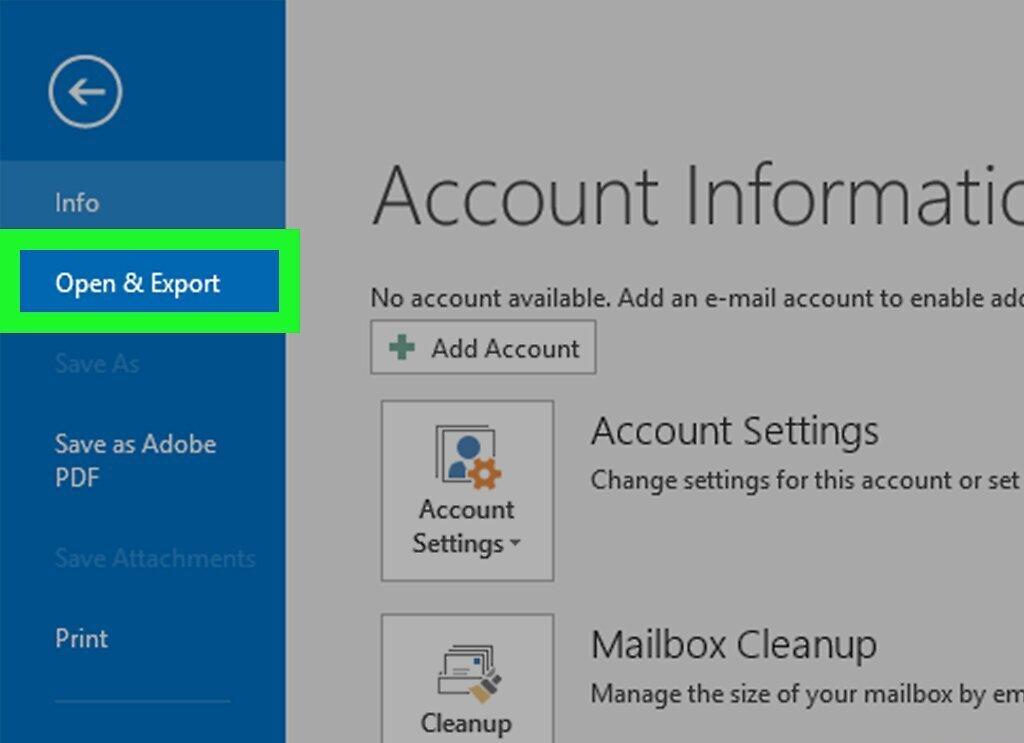
Click on the “Open & Export” option in the left menu.
Step 4. Click “Import/Export”.
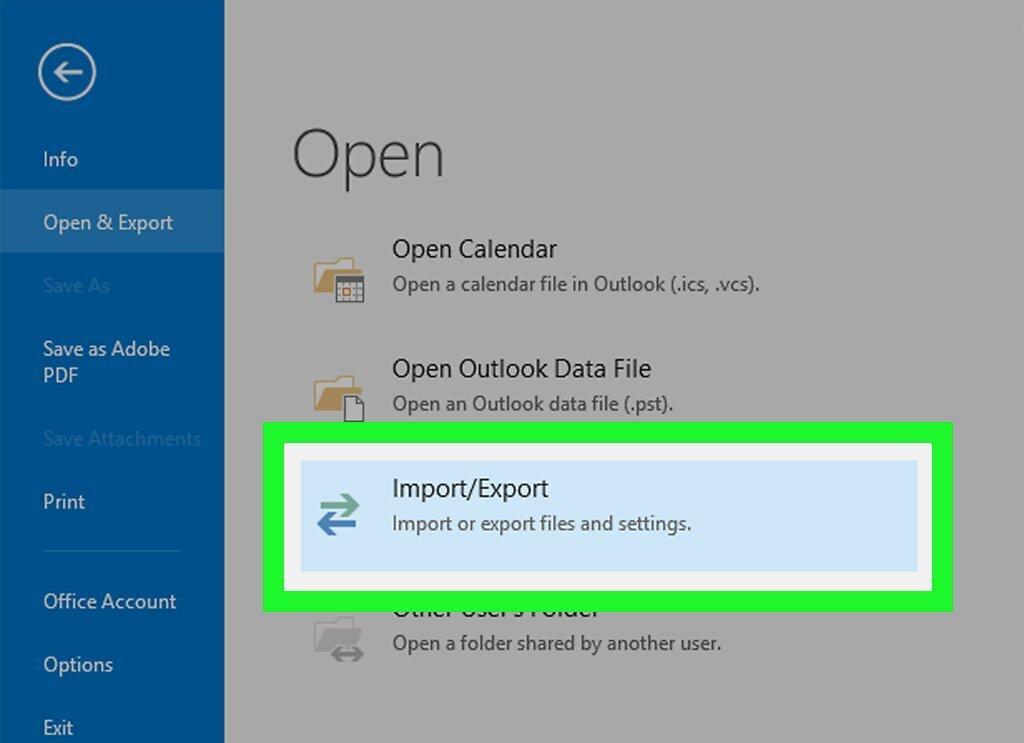
Select “Import/Export” in the middle column of options. A pop-up window will appear.
Step 5. Select “Import vCard file”.
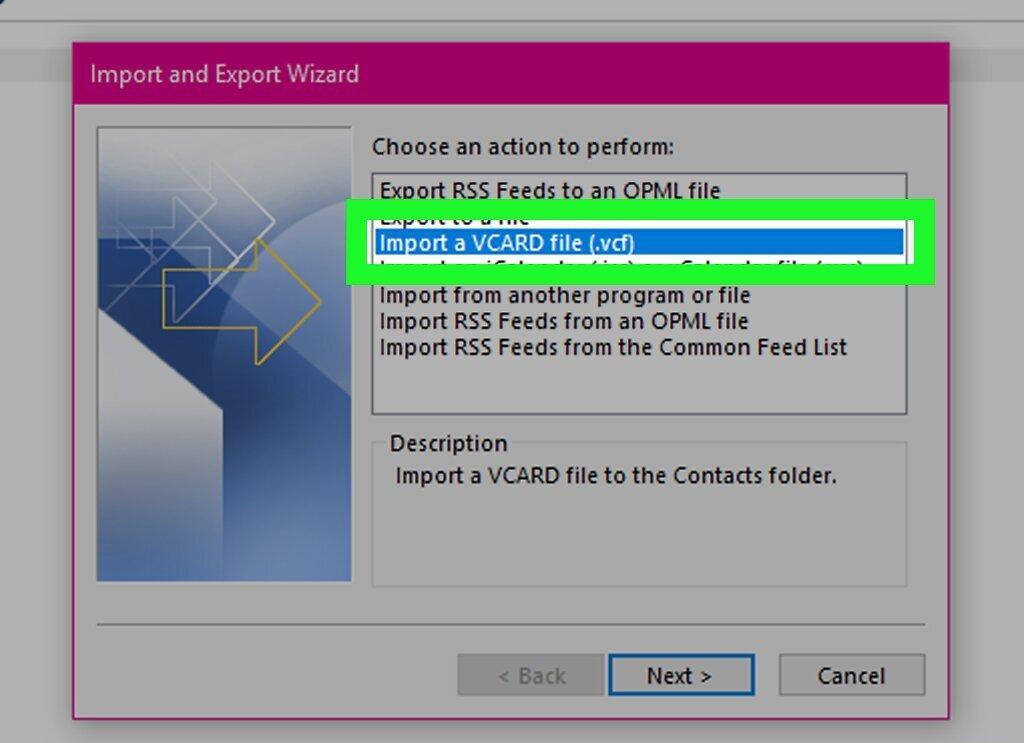
Click on the “Import vCard file” option available in the pop-up window.
Step 6. Click “Next”.
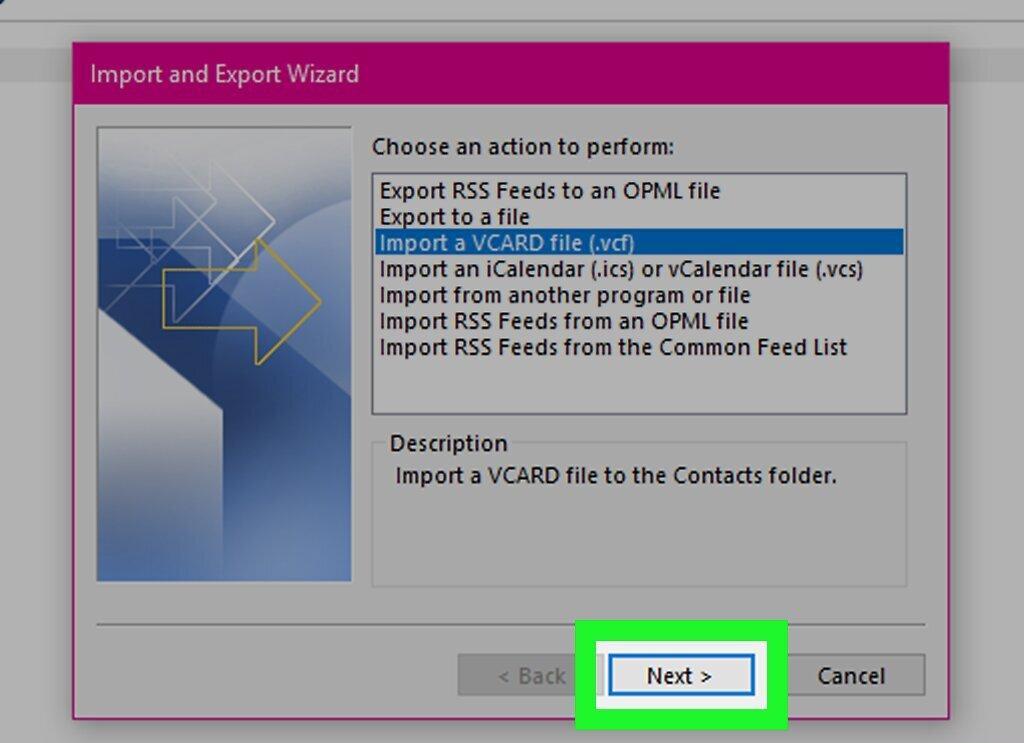
Click the “Next” button at the bottom of the pop-up window. A file explorer window will open.
Step 7. Locate your VCF file.
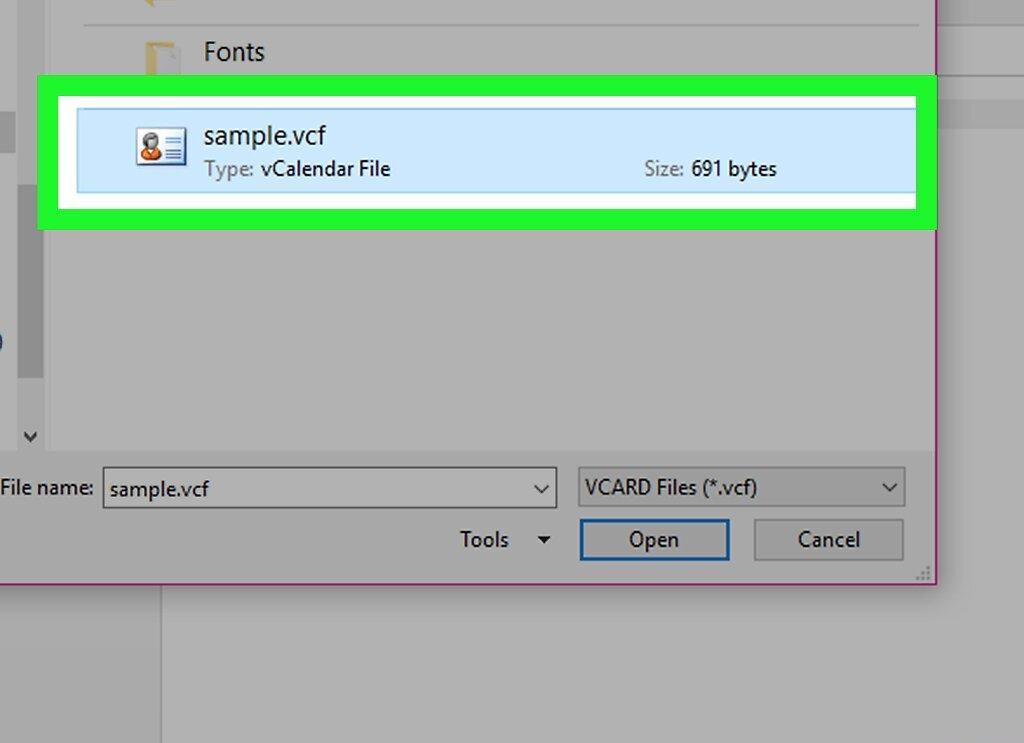
Select the VCF file that you want to import.
Step 8. Click “Open”.
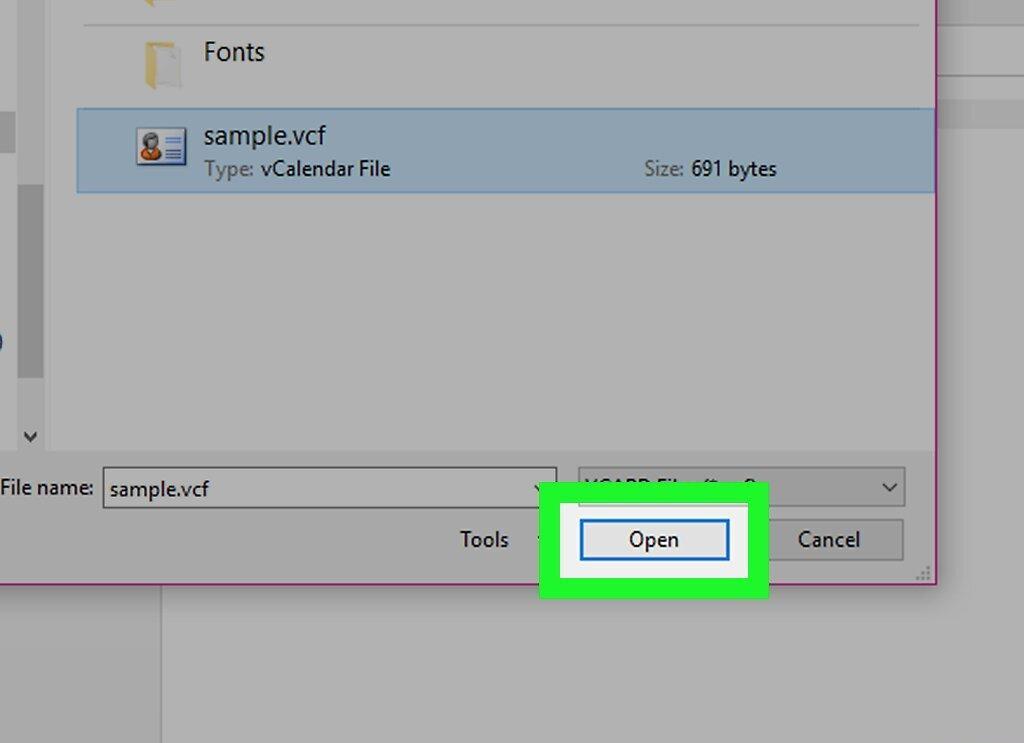
Click the “Open” button located in the bottom right corner of the window. Your contacts from the VCF file will be added to the Outlook address book.


