
In this article, we will share simple ways to send large video files via email. Since the maximum attachment size in most email services is only 20 megabytes (MB), you will likely need to use cloud storage to send large files.
Google Drive (Gmail)
Step 1. Go to the Gmail website
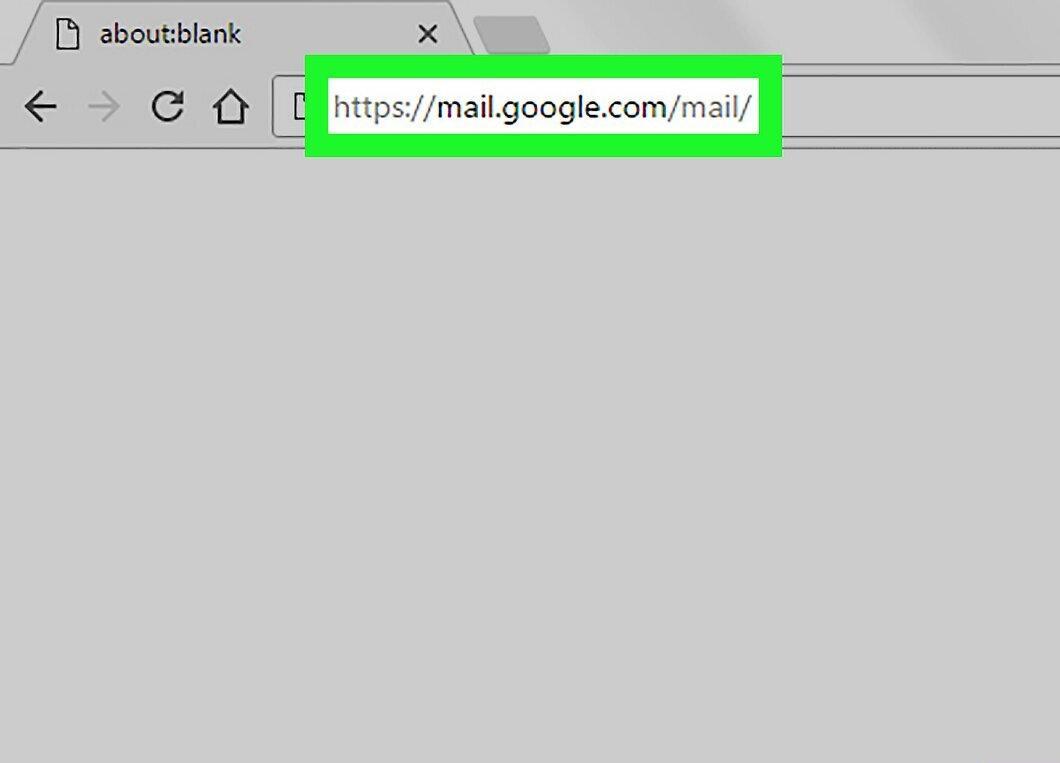
Visit the Gmail website and enter your credentials to access your inbox.
Step 2. Click on the "Compose" button
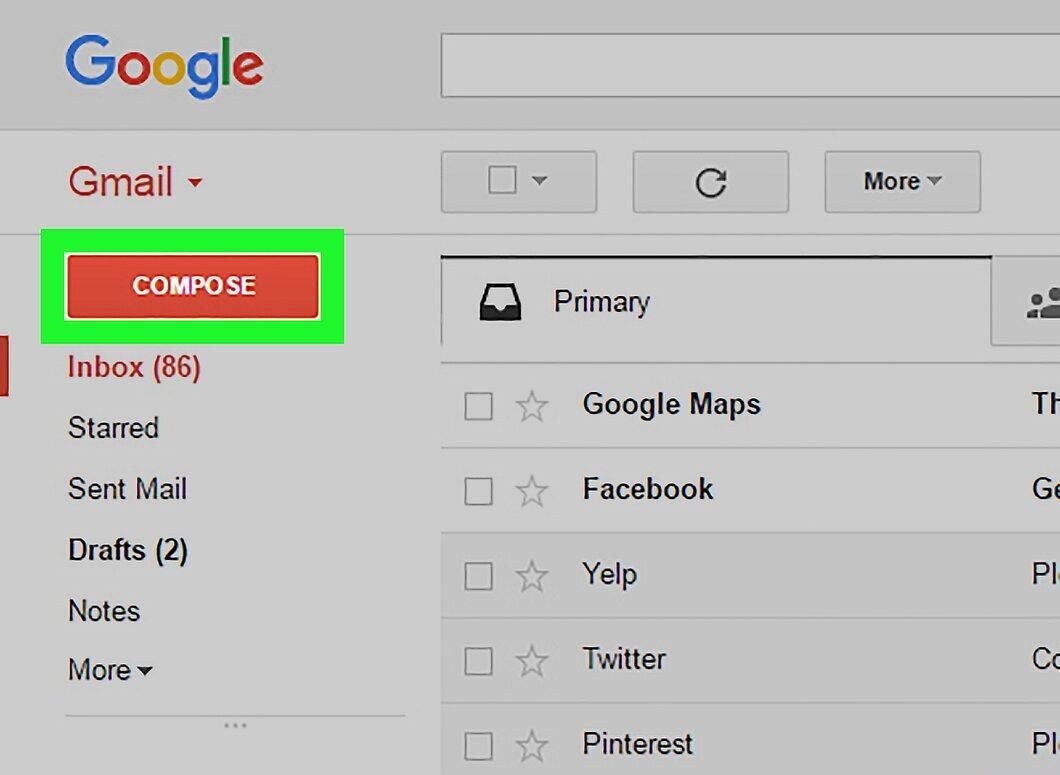
Step 3. Select "Google Drive"
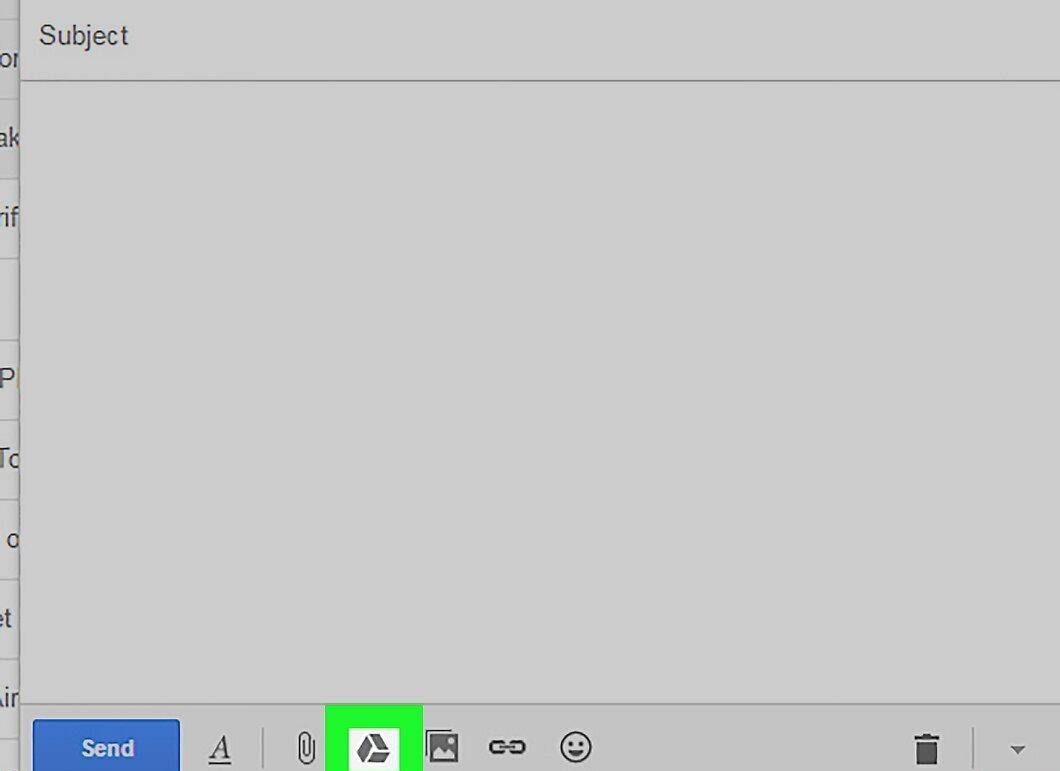
Click on the "Google Drive" icon located at the bottom of the new message window.
Step 4. Click "Upload"
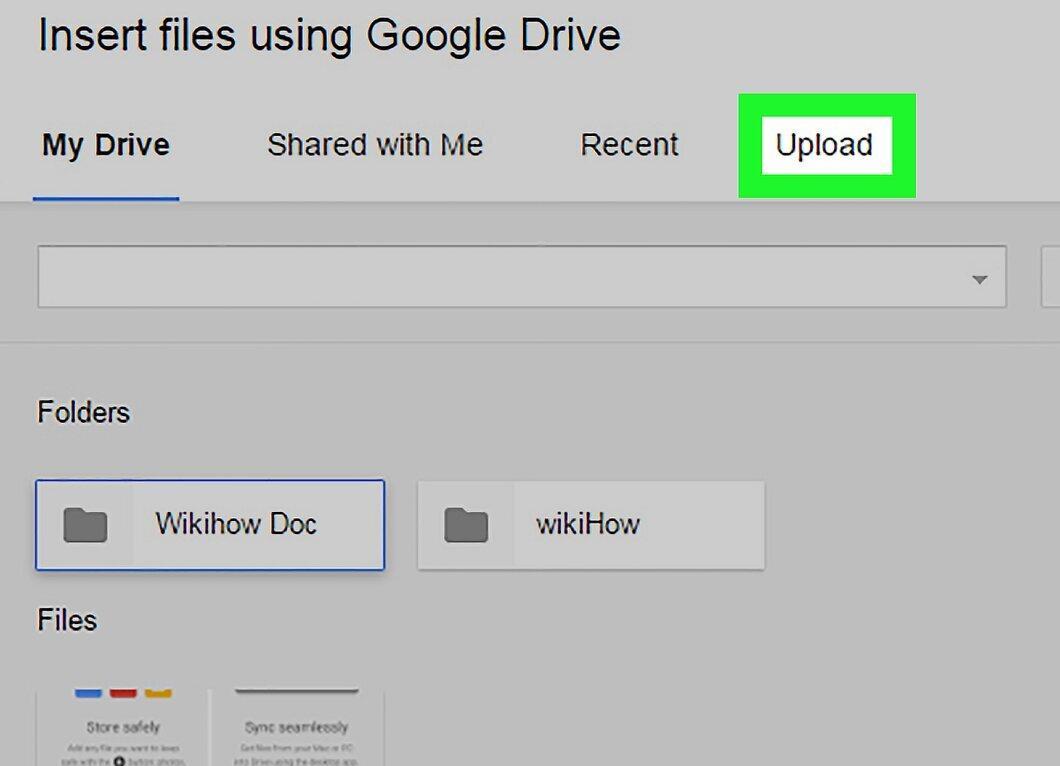
Choose the "Upload" option in the top right corner of the Google Drive window.
- If the desired video file is already in Google Drive, simply select it from the opened window.
Step 5. Select files from your computer
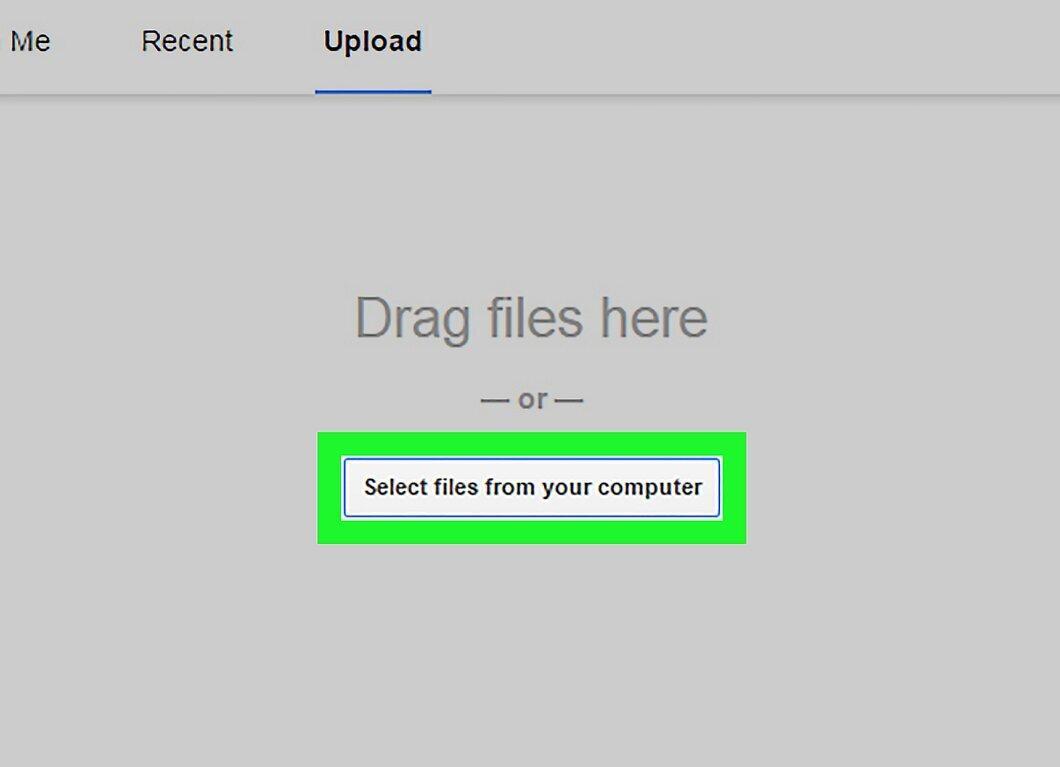
Step 6. Locate and select the video file
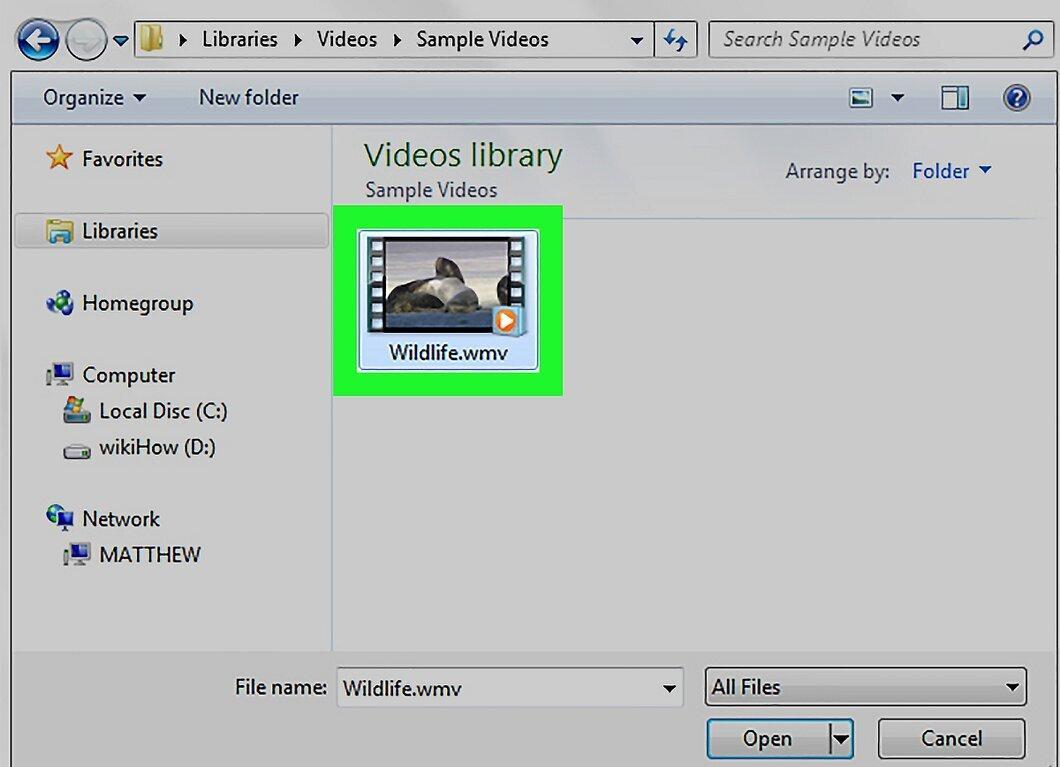
Identify the location of your video file on your computer. If necessary, navigate to another folder, such as "Documents".
Step 7. Start the upload
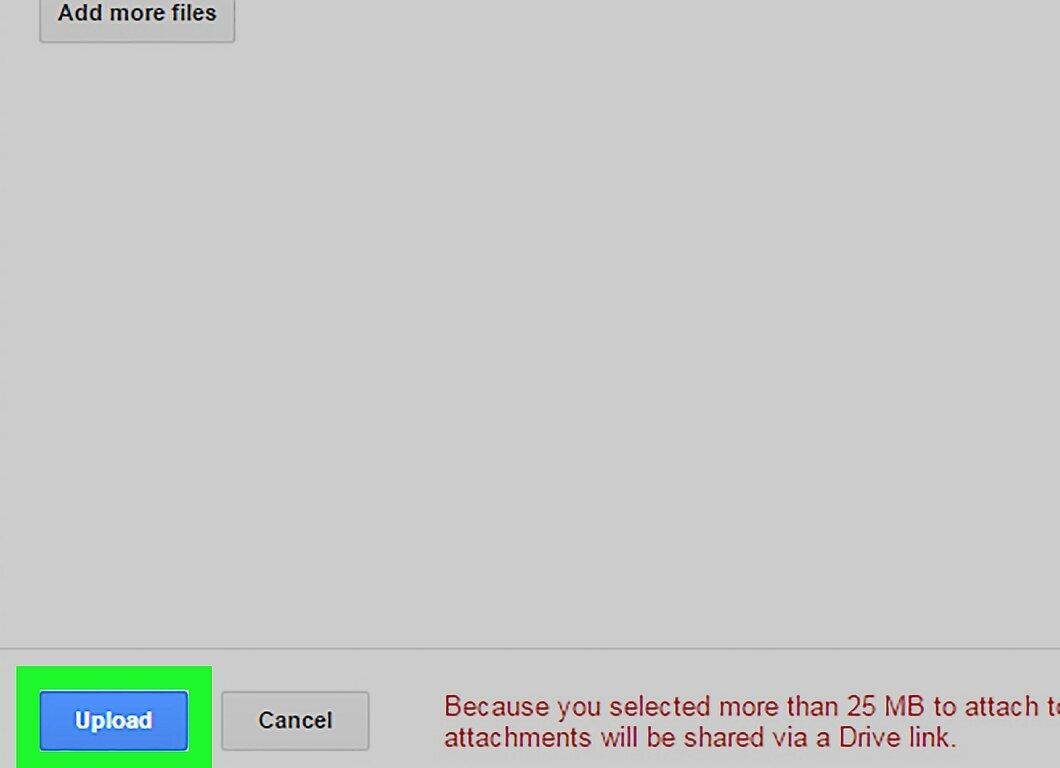
Click the "Upload" button in the bottom left corner of the Google Drive window.
- Note that the upload process may take some time. Once the upload is complete, a link to the video file will appear in the new message window.
Step 8. Fill in the email details
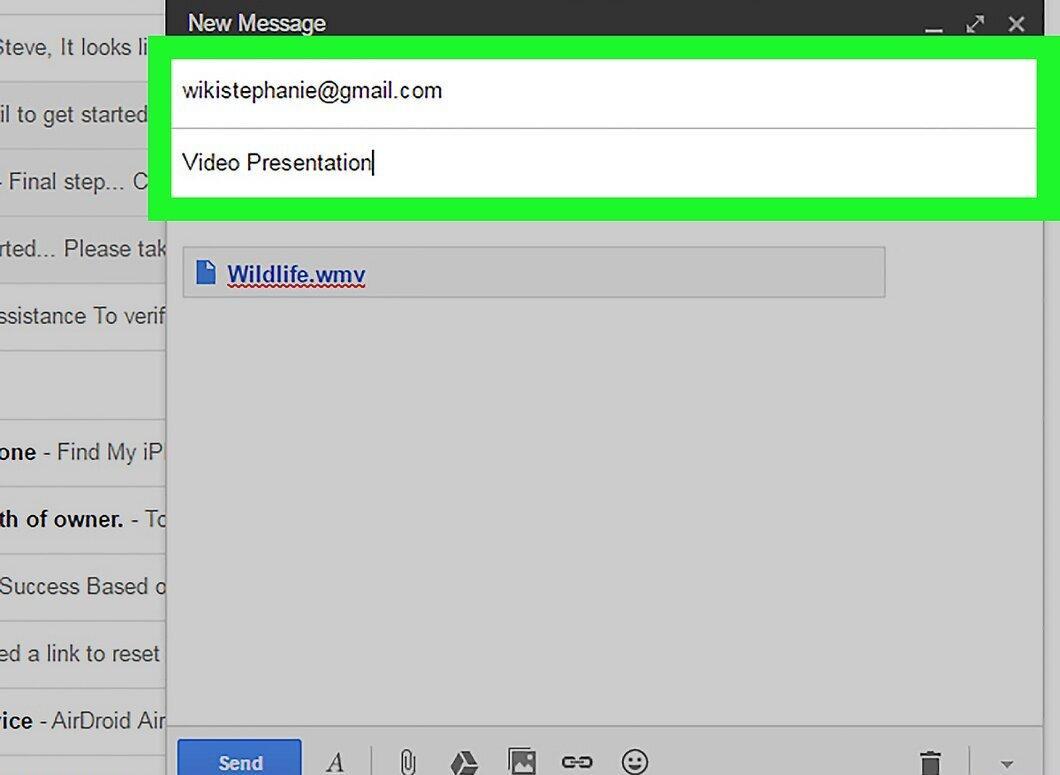
Enter the recipient's email address, the subject of the message, and the body text.
Step 9. Send the message

Click the "Send" button in the bottom left corner of the window. The video file will be attached as a link, which the recipient can use to download it.
- If the recipient does not have access to your attachments, you can change the settings by clicking "Share".
- In the same window, you can allow the recipient to edit or comment on the file.
OneDrive (Outlook)
Step 1. Go to the Outlook website
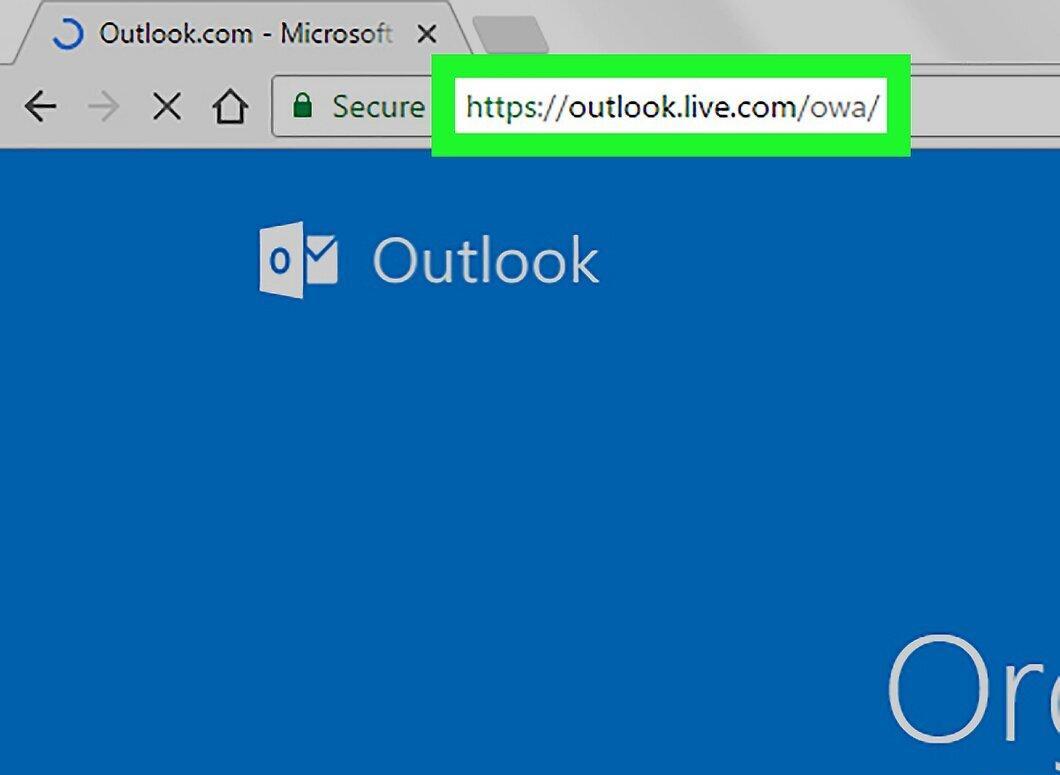
Visit the Outlook website and enter your credentials to log in.
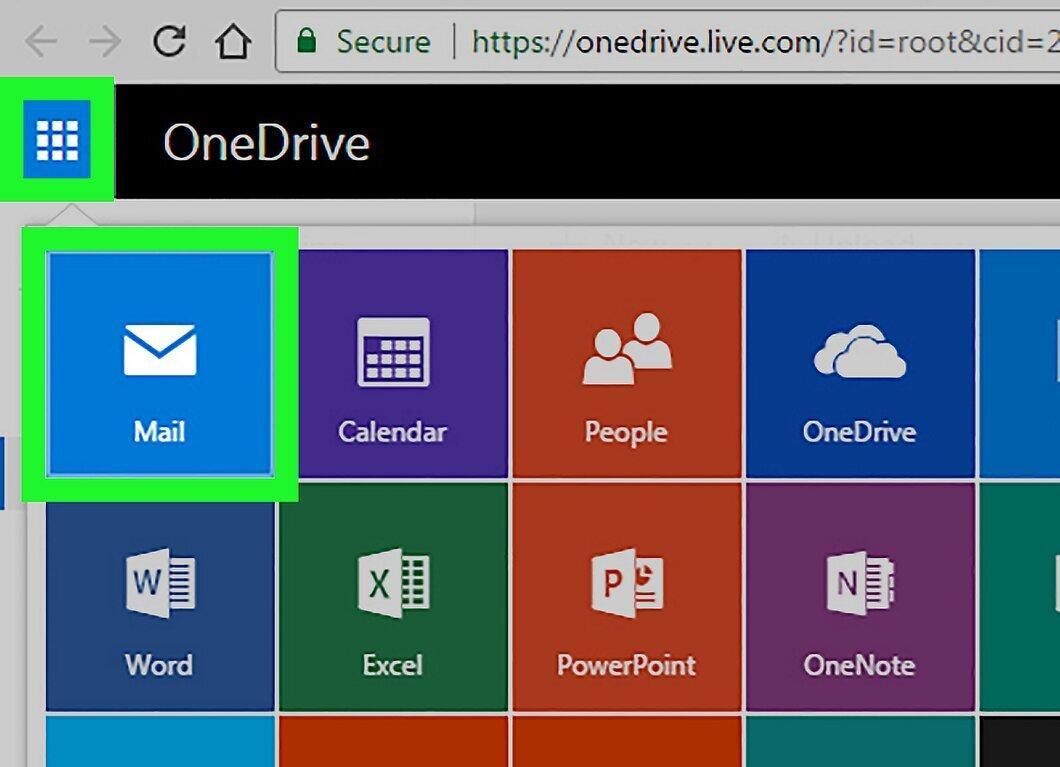
Step 2. Click on the grid icon
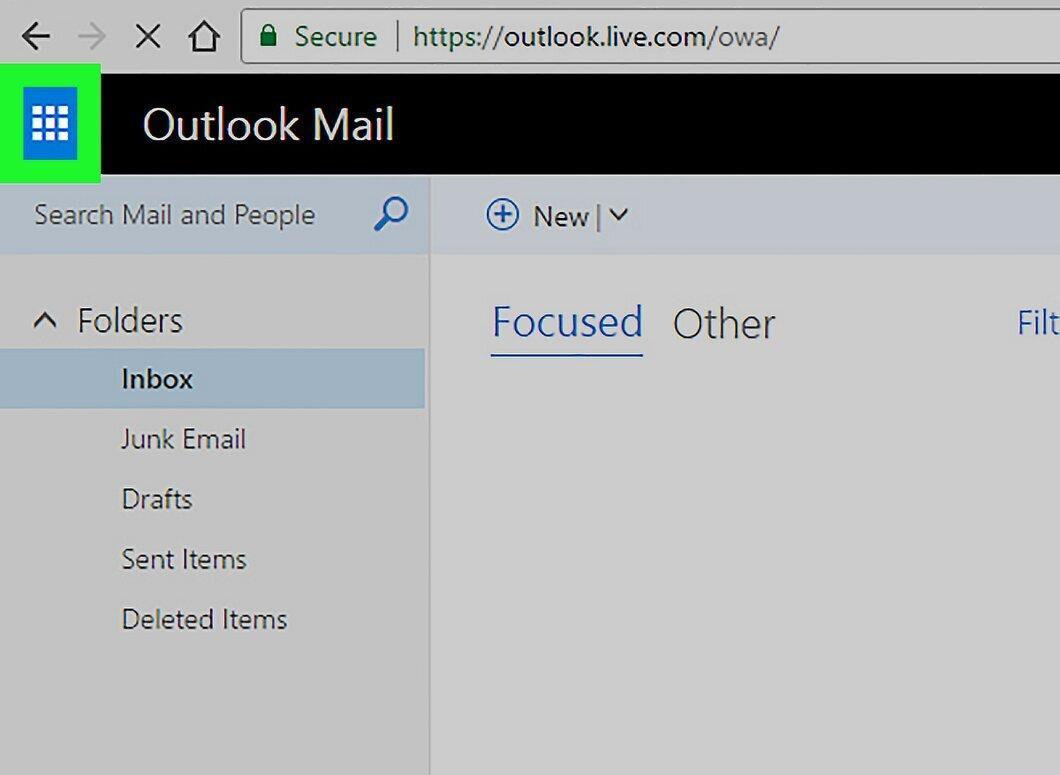
Click on the grid icon in the top left corner of the Outlook window.
Step 3. Select OneDrive
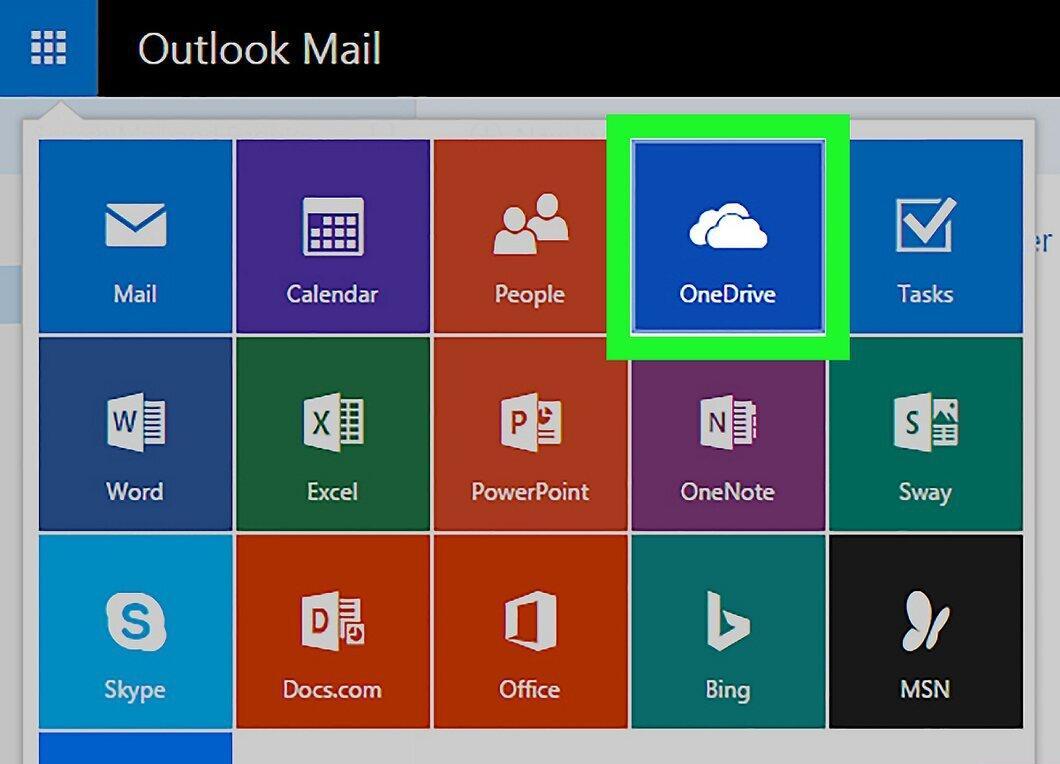
Step 4. Drag the video file to OneDrive
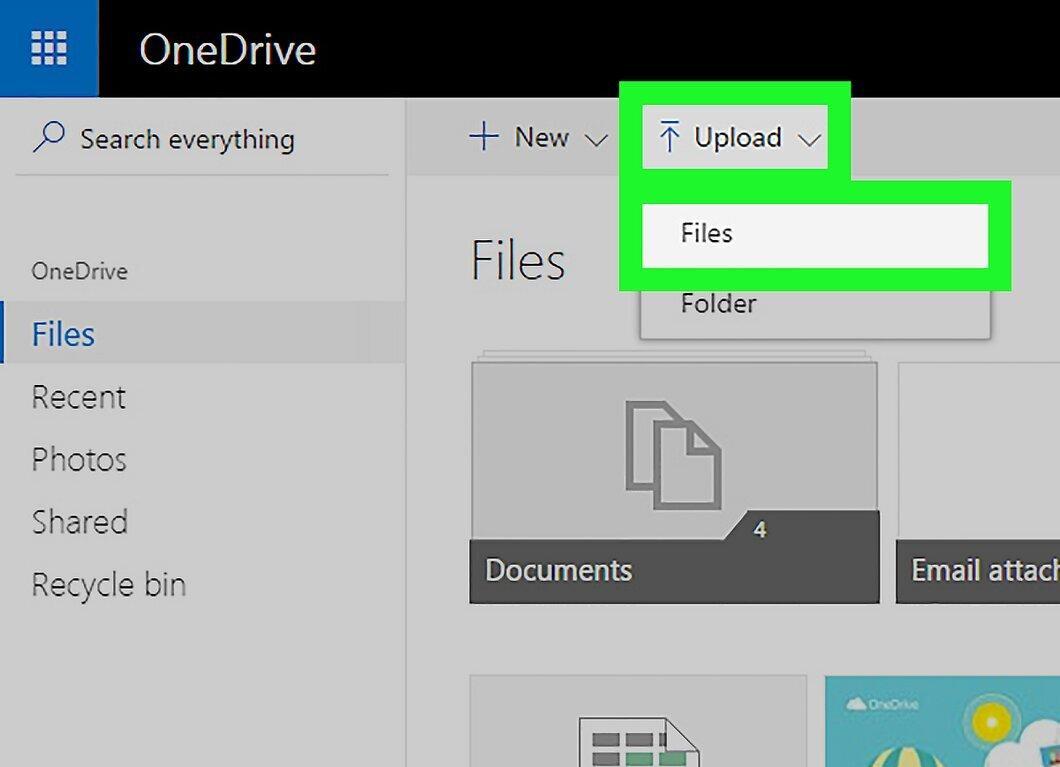
Drag the video file into the OneDrive window or click "Upload" and then select the file.
- The upload may take some time, so do not close the OneDrive page.
Step 5. Close the OneDrive page after uploading
Once the file is uploaded, you can close the OneDrive tab and proceed to send the email.
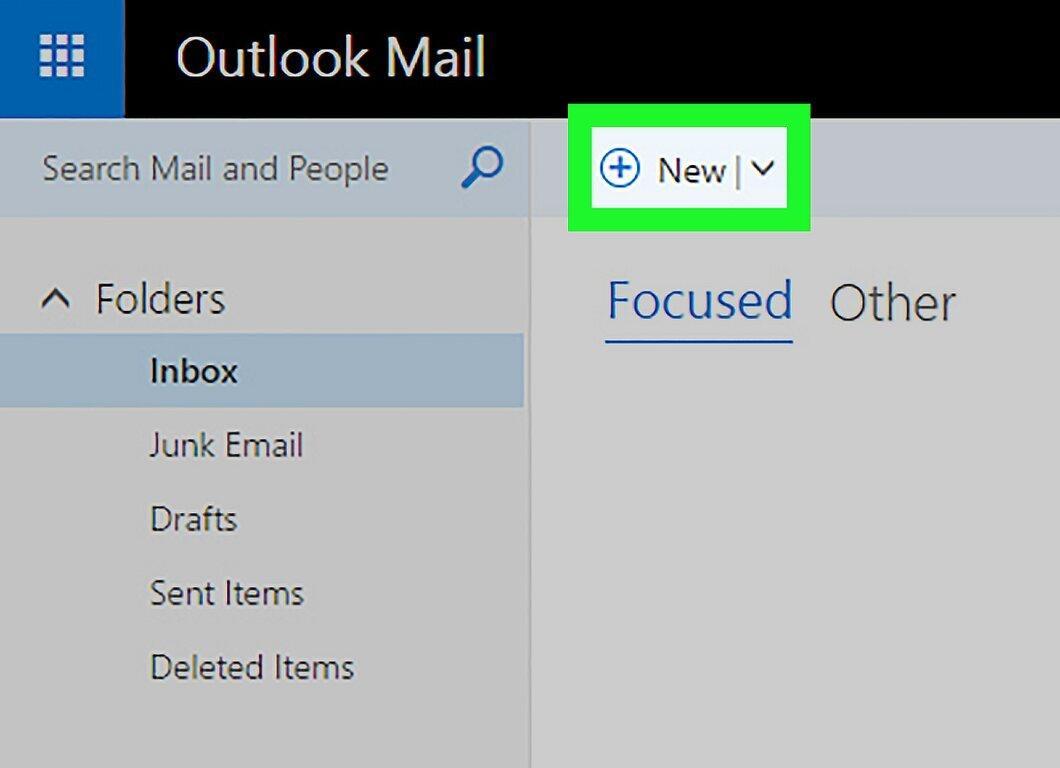
Step 6. Click "New"
Step 7. Select "Attach"
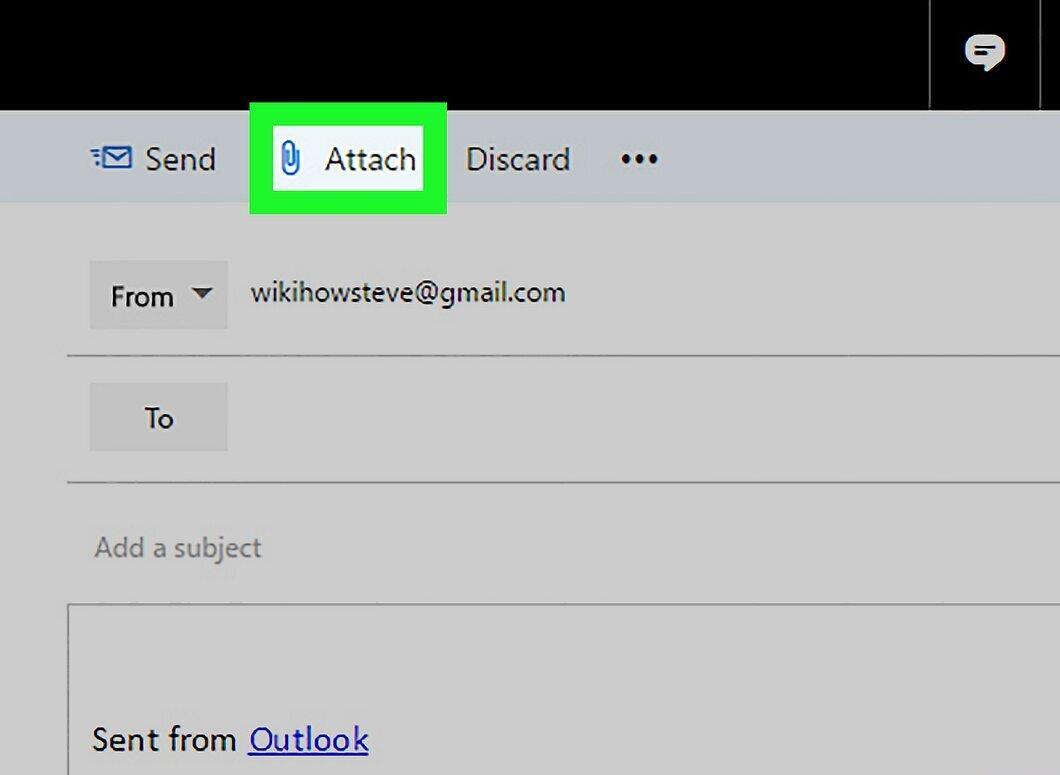
Click the "Attach" button next to the paperclip icon.
Step 8. Choose OneDrive
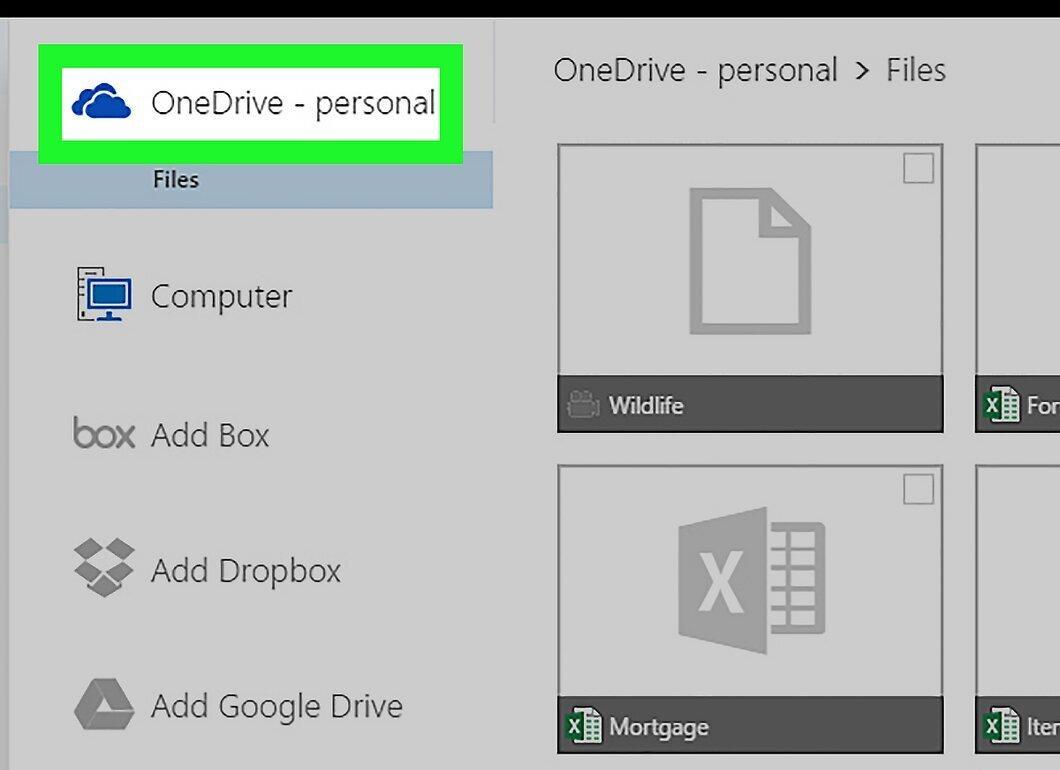
Click the "OneDrive" link.
Step 9. Find and select the video file
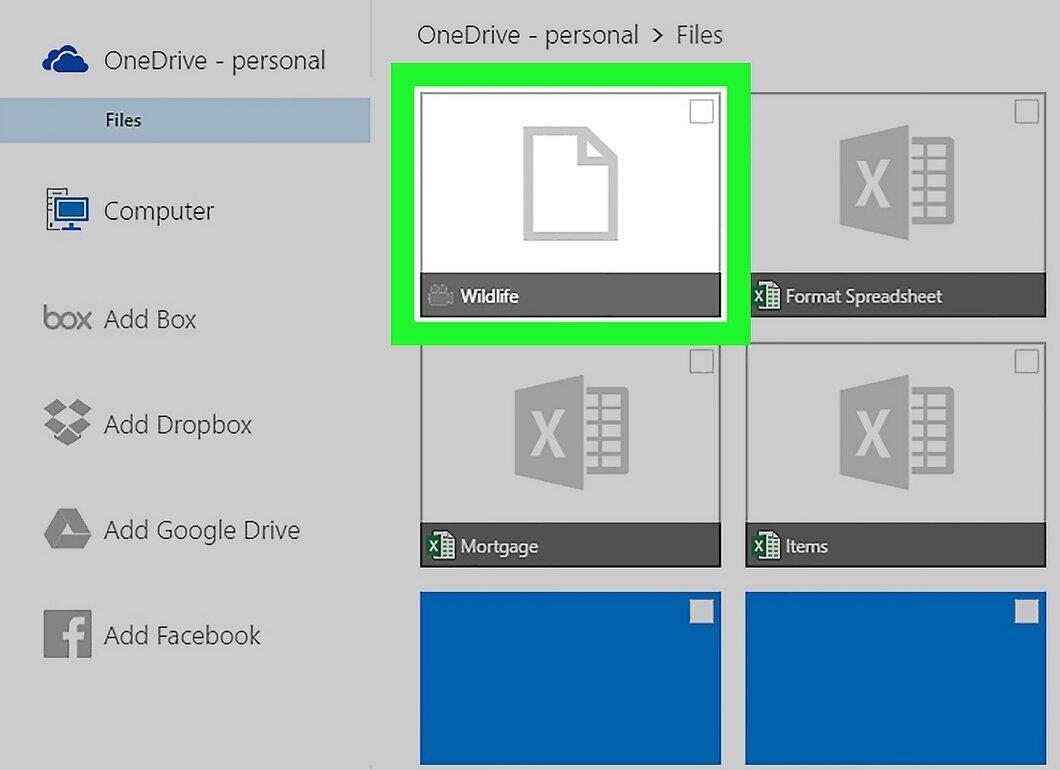
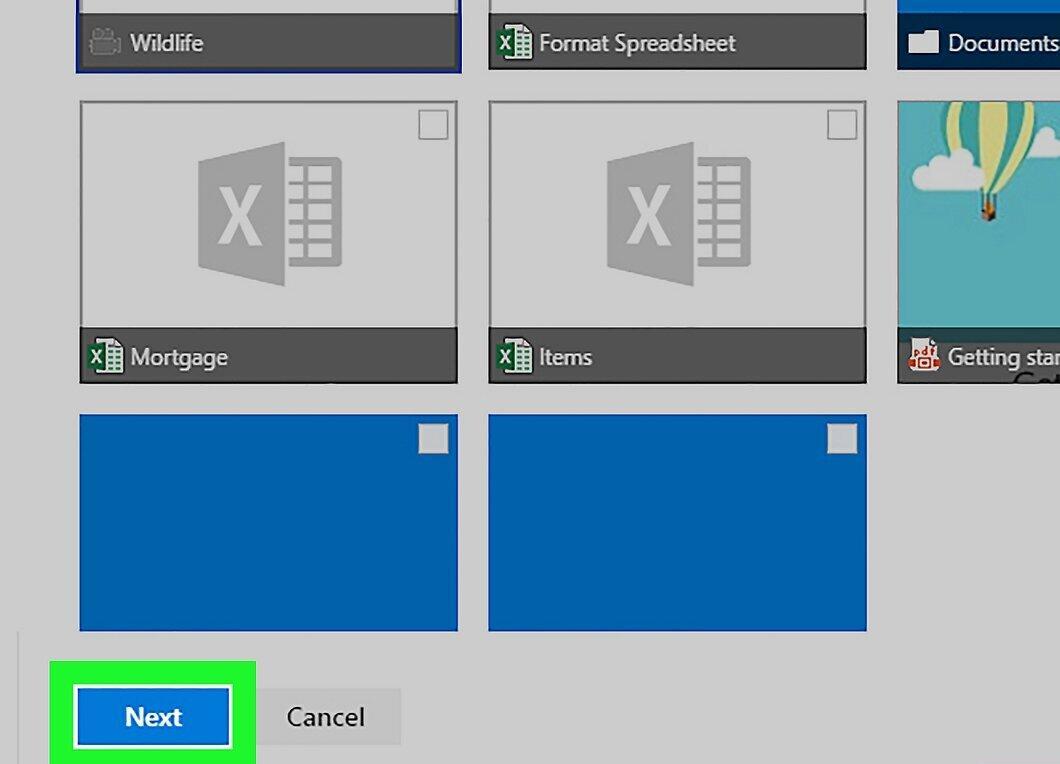
Step 10. Click "Next"
Step 11. Select "Attach as OneDrive file"
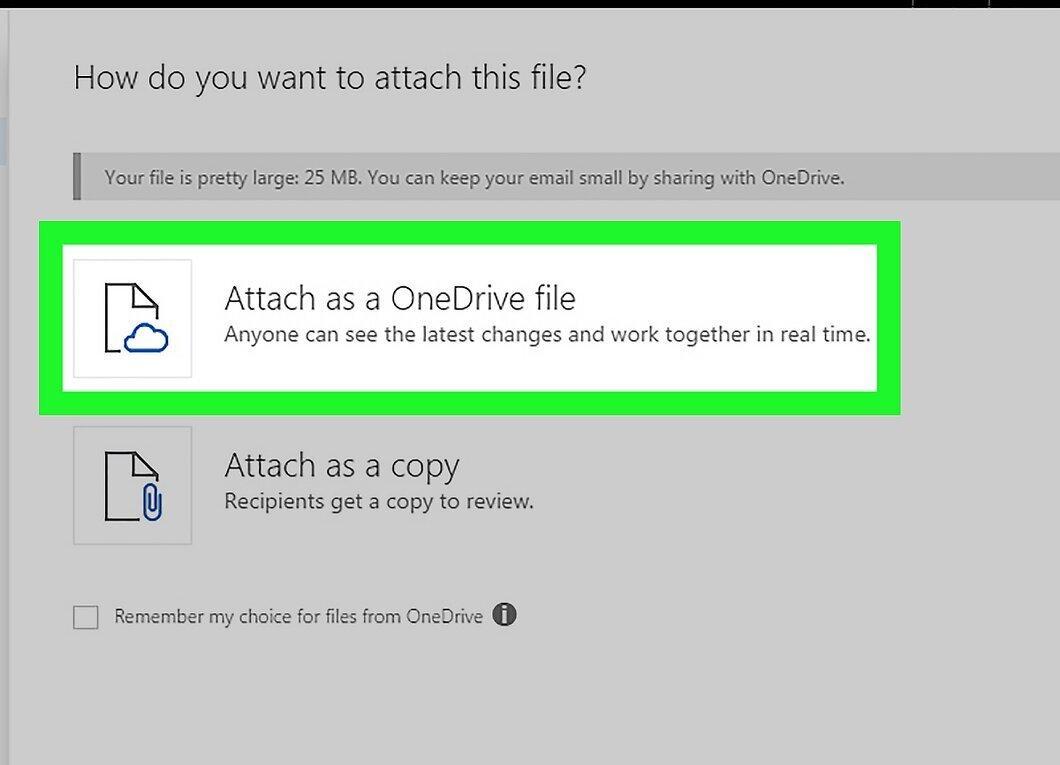
Choose the option "Attach as OneDrive file". If the file size does not exceed 20 GB, this will be the only available option.
Step 12. Fill in the email details
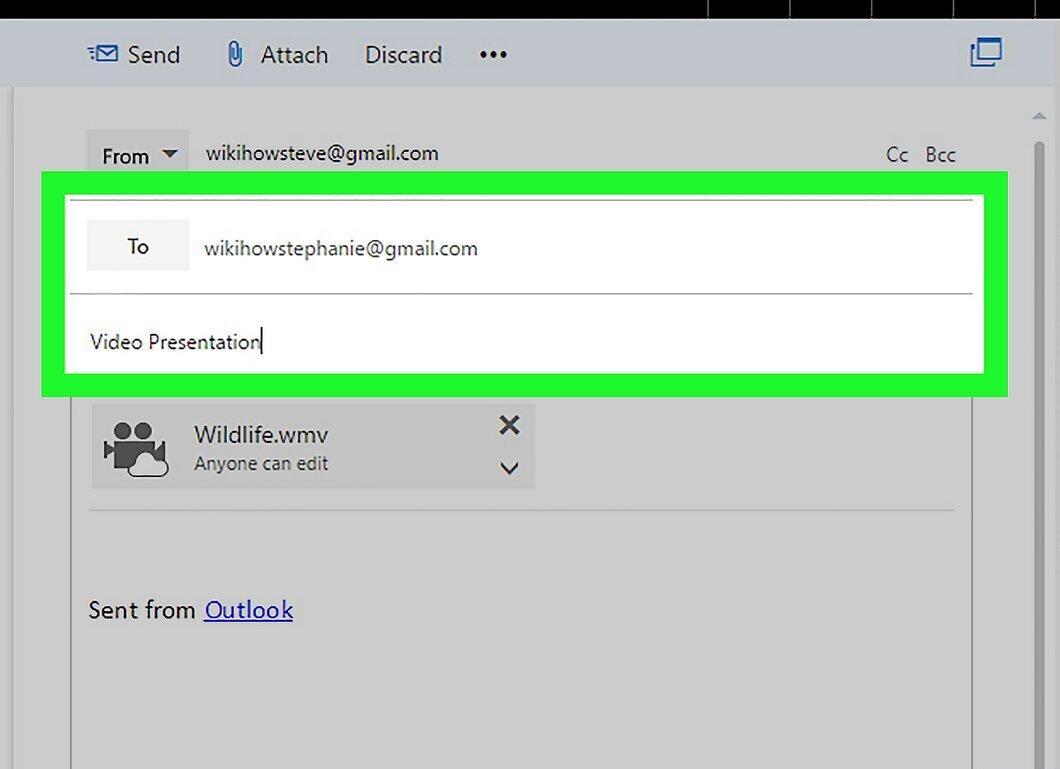
Enter the recipient's email address, subject, and body text.
Step 13. Send the email
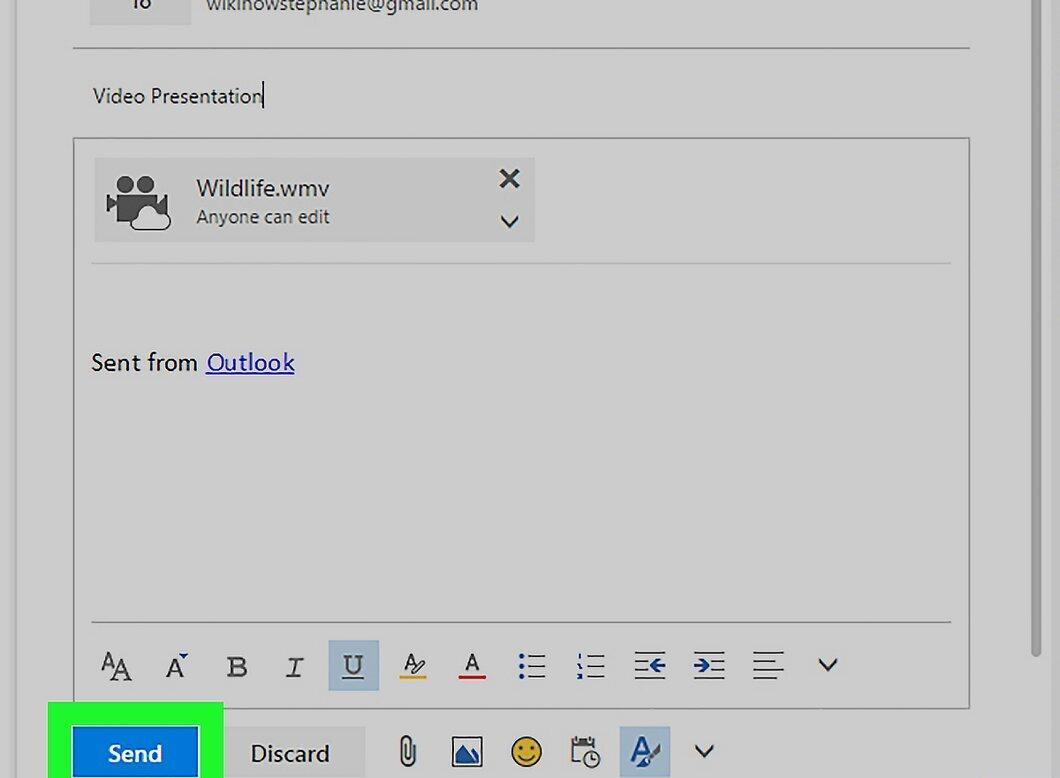
Click the "Send" button. The video file will be sent as a link for the recipient to download.
- Unlike Gmail, files sent via OneDrive can be used collaboratively right away.
iCloud Drive and Mail Drop (iCloud Mail)
Step 1. Go to the iCloud Mail website
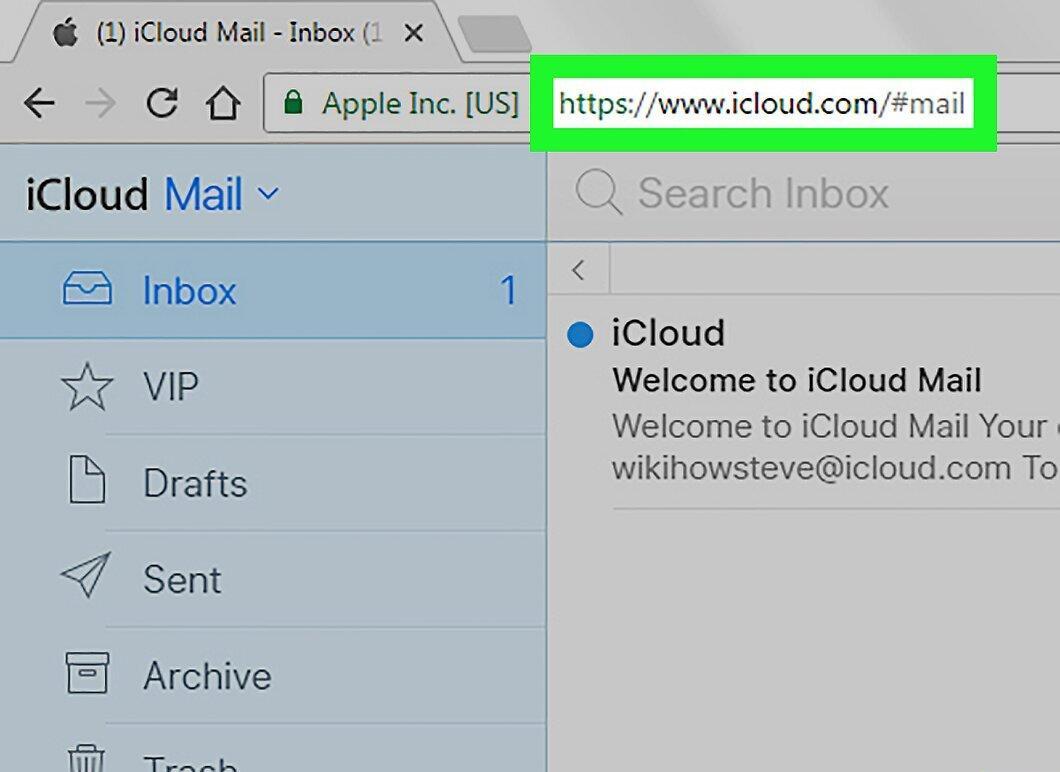
Open the iCloud Mail website and enter your Apple ID and password to log in.
- If the mail doesn’t open, click on "Mail" in the top left corner.
Step 2. Click the gear icon
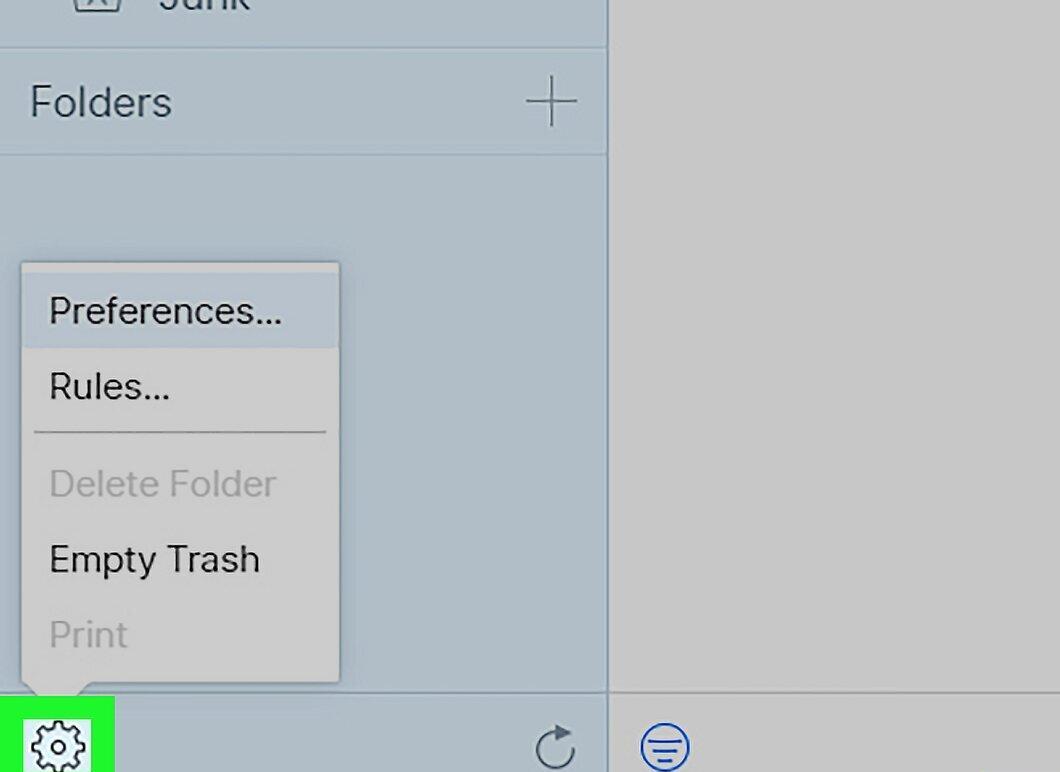
Step 3. Select "Preferences"
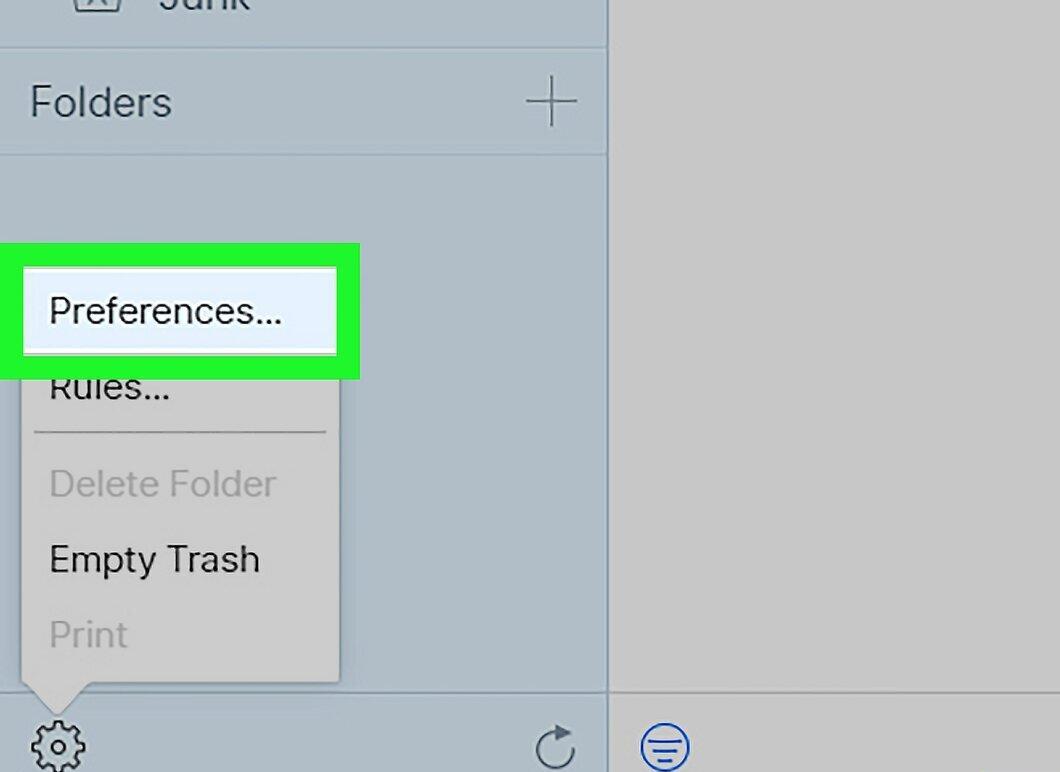
Step 4. Go to the "Composing" tab
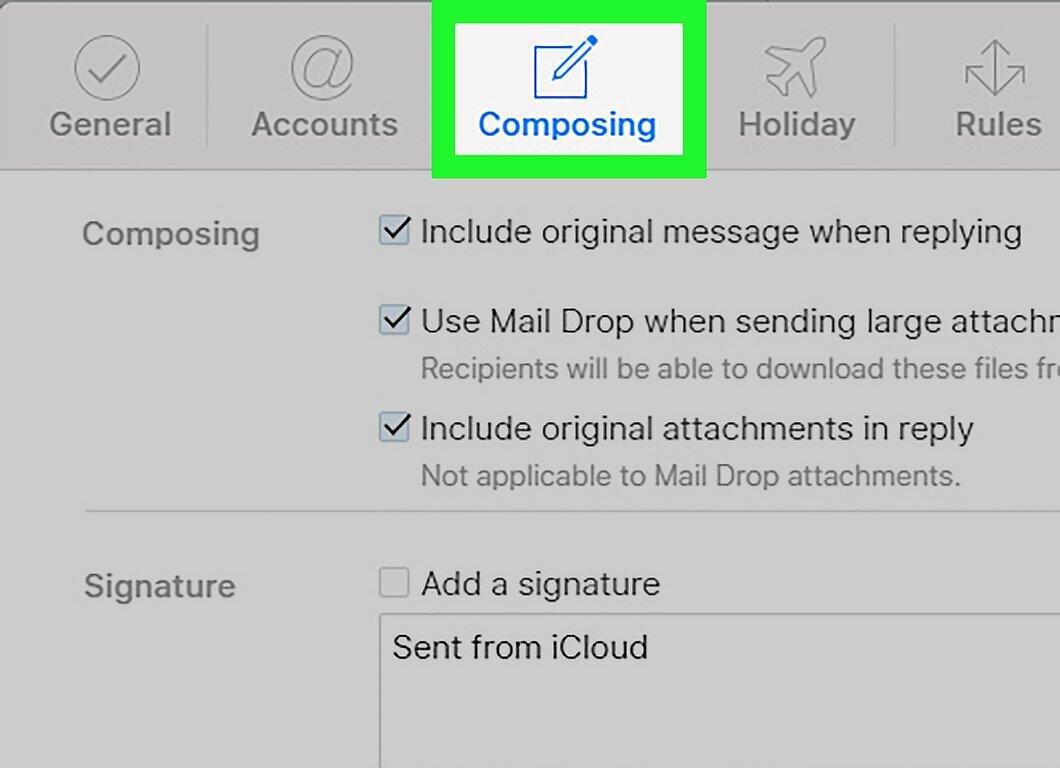
Find the "Composing" tab at the top of the settings window.
Step 5. Enable the "Use Mail Drop" option
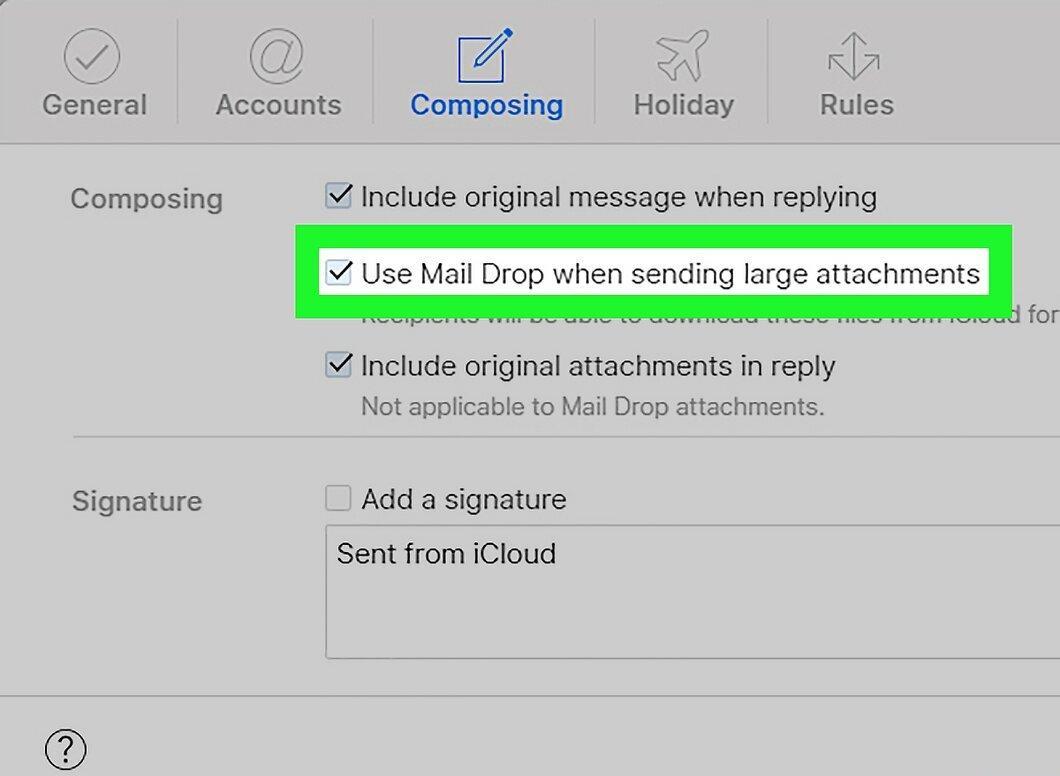
Check the box next to "Use Mail Drop when sending large attachments." Mail Drop allows you to attach files up to 5 GB as a link in the email.
- If this option is already enabled, proceed to the next step.
Step 6. Click "Done"
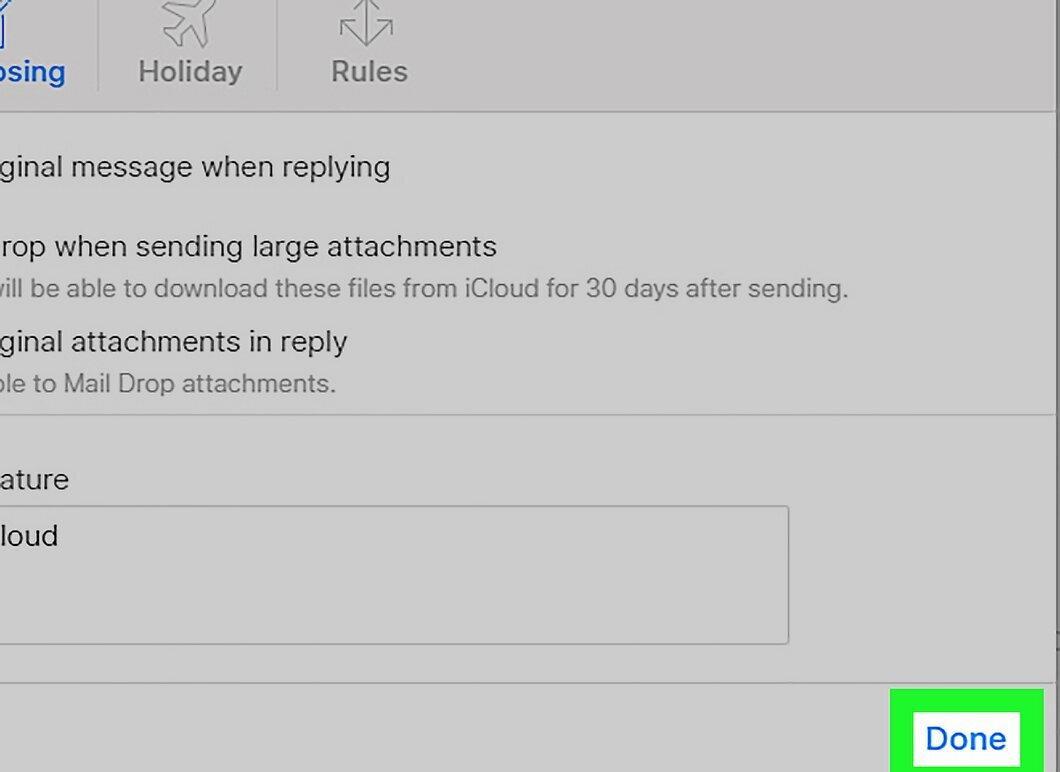
Step 7. Create a new message
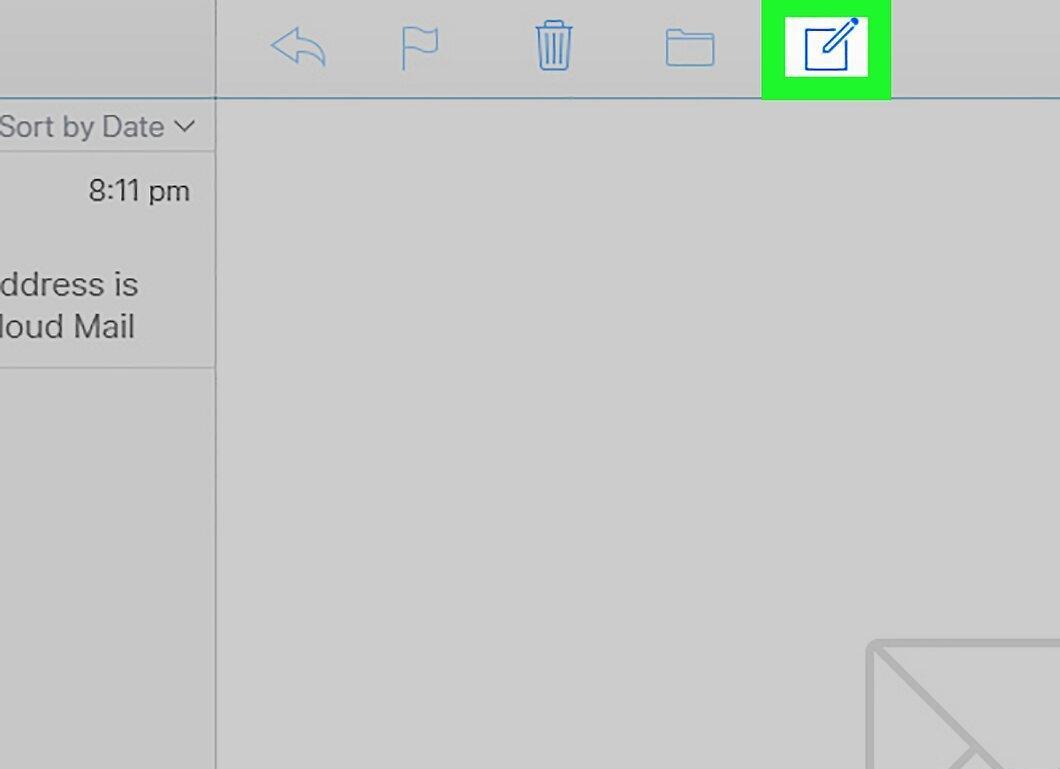
Click the "Compose" button with the pen and notebook icon at the top of the page.
- You can also open a new message by holding Alt + Shift and pressing N; on Mac, use Option instead of Alt.
Step 8. Attach the file
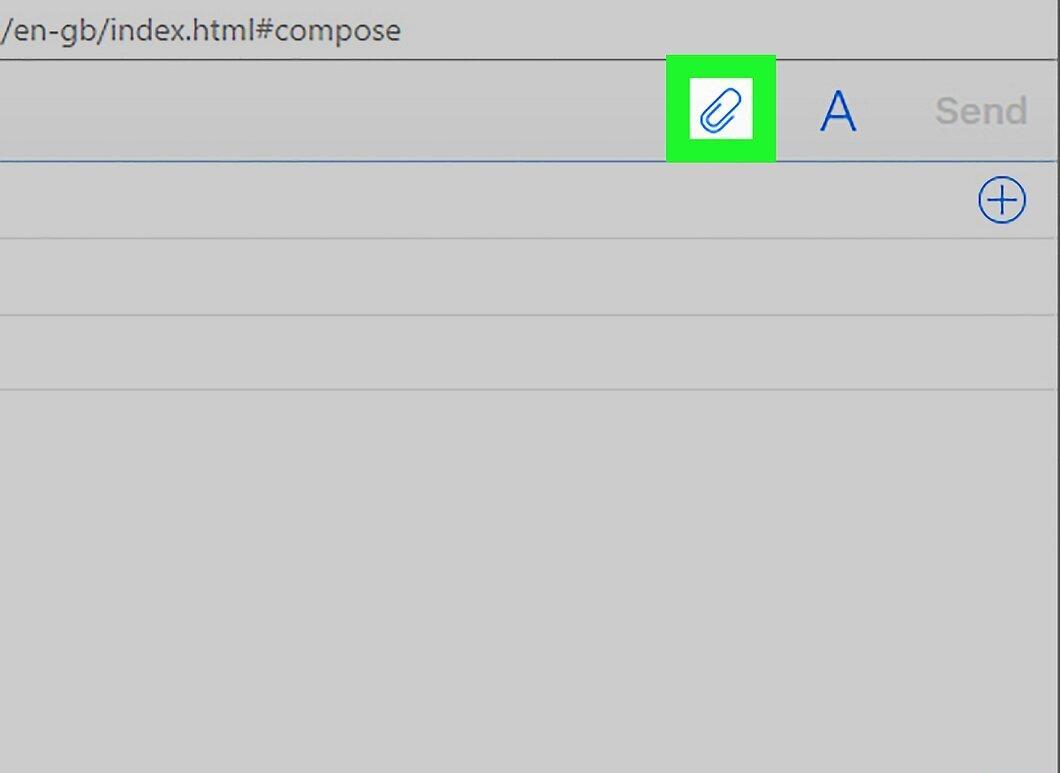
Click the paperclip icon at the top of the new message window.
Step 9. Find and select the video file
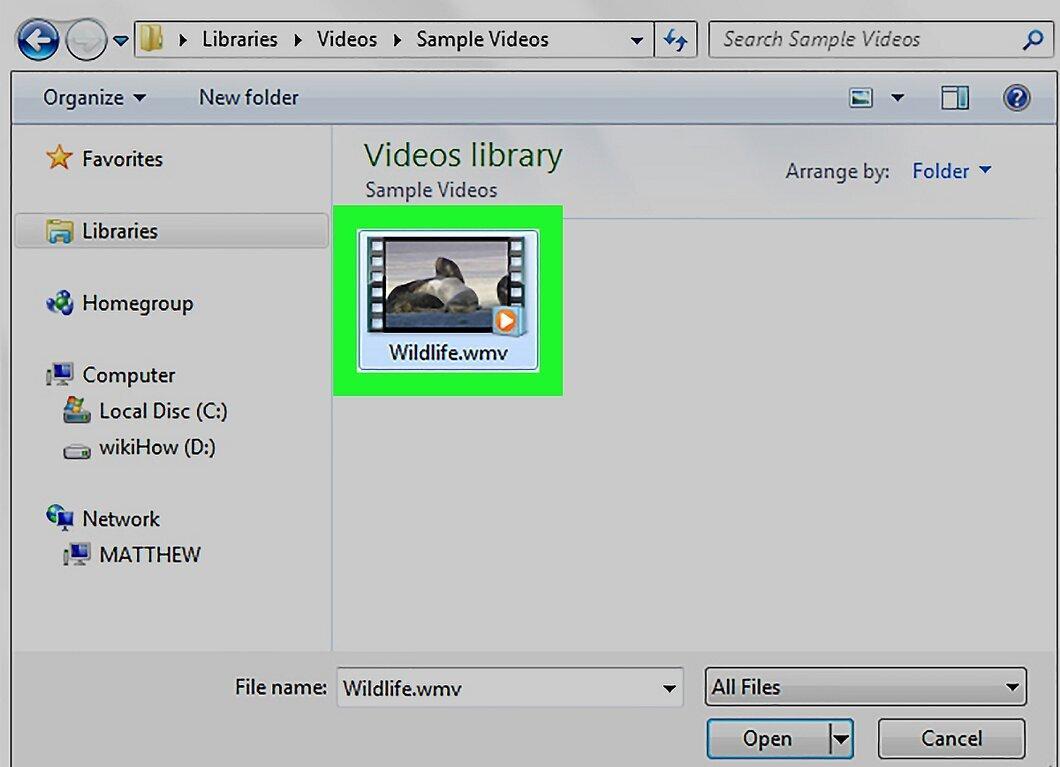
Step 10. Fill in the email details
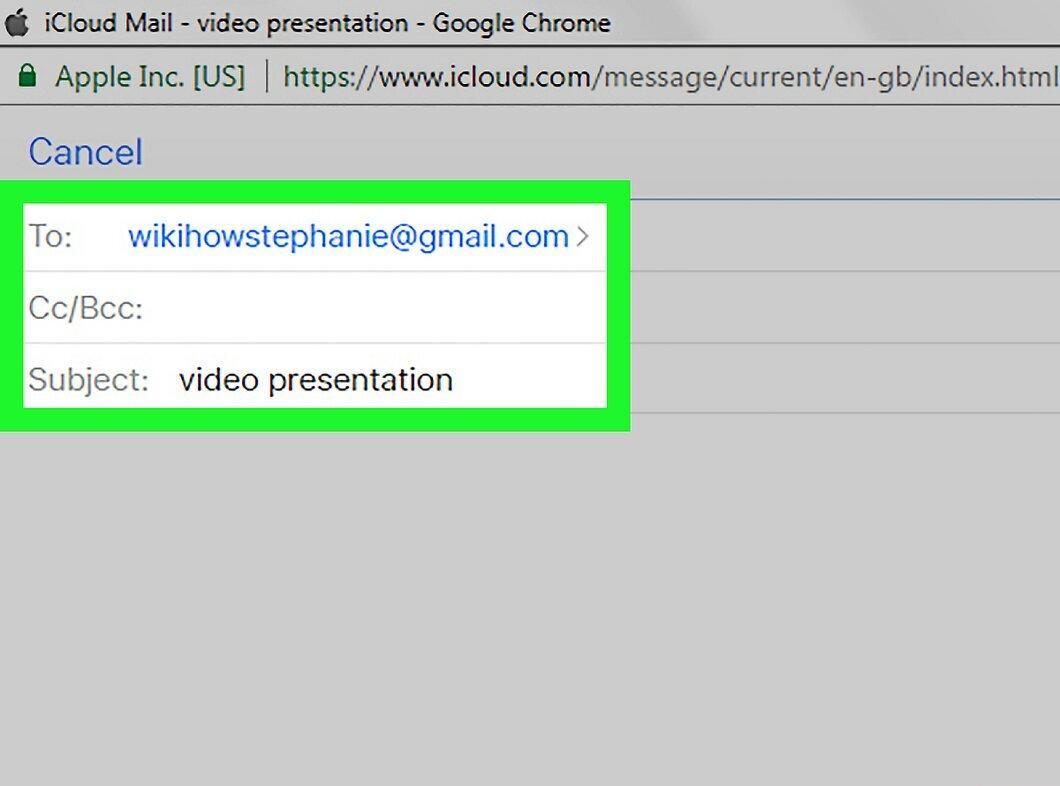
Enter the recipient's address, subject, and body text.
Step 11. Send the email
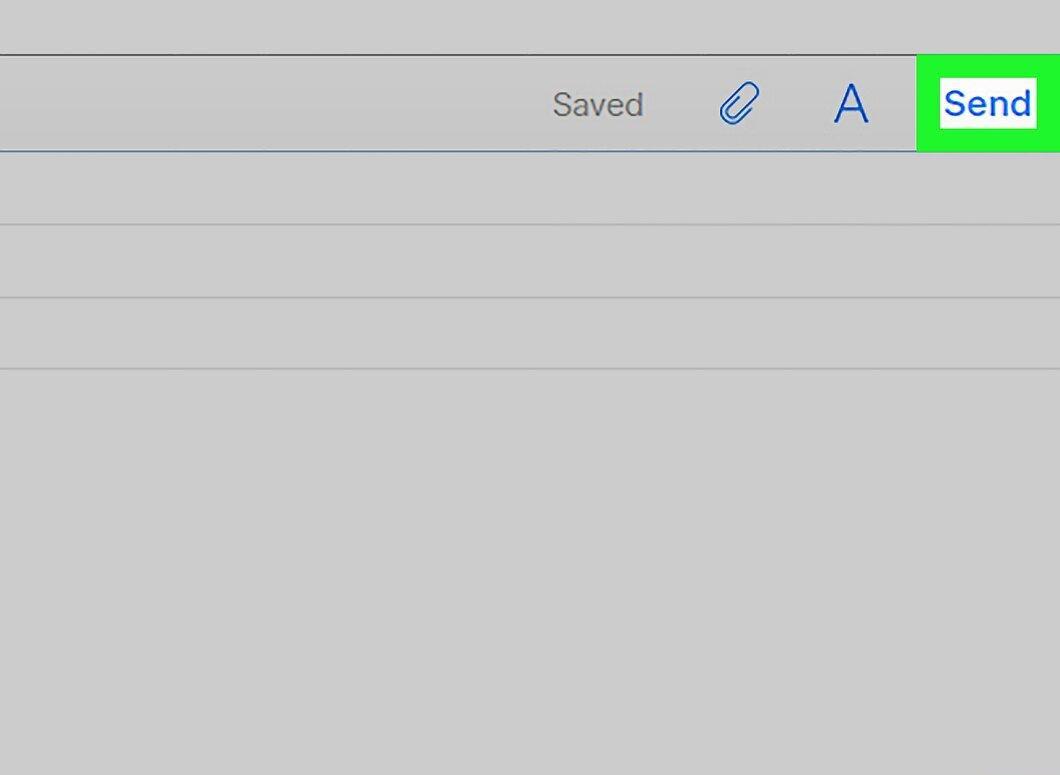
Click "Send". If all conditions are met, your video file will be sent as a link so the recipient can download it.


