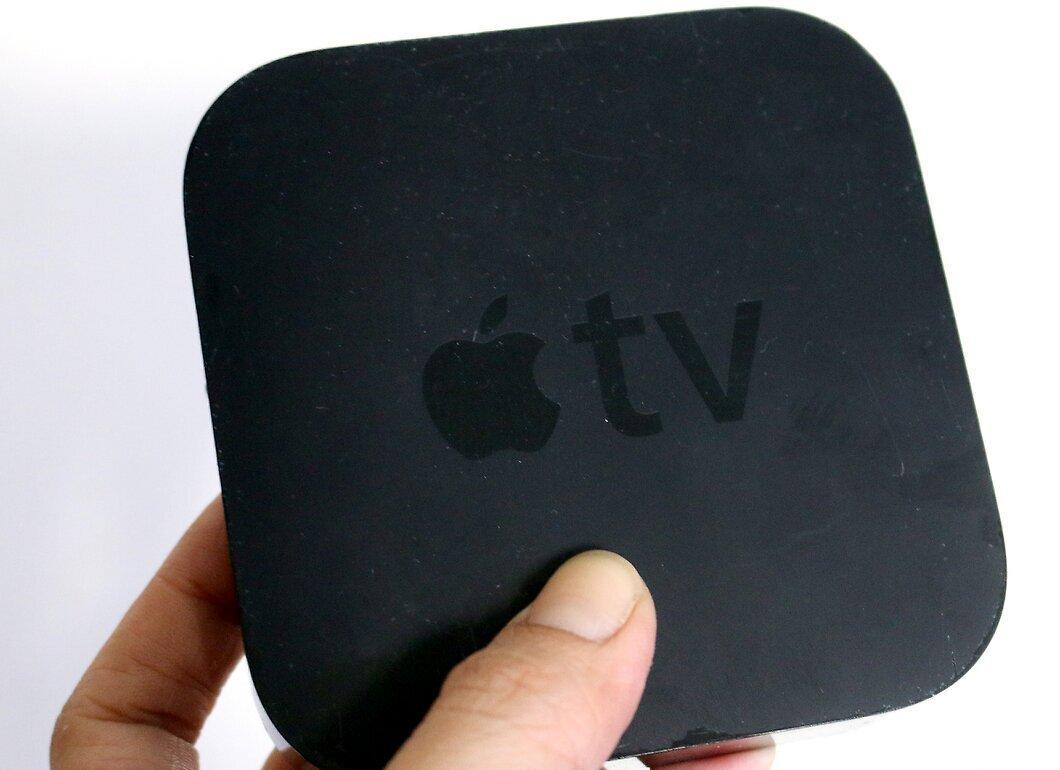
AirPlay is a remarkable technology from Apple that allows you to seamlessly stream content from your iOS mobile device to video devices like Apple TV, AirPort Express, or AirPlay-enabled speakers. To successfully start streaming, you need to ensure that both your mobile device and the AirPlay-compatible device are connected to the same Wi-Fi network.
How to Set Up AirPlay
Step 1. Check the compatibility of your iOS device with AirPlay.
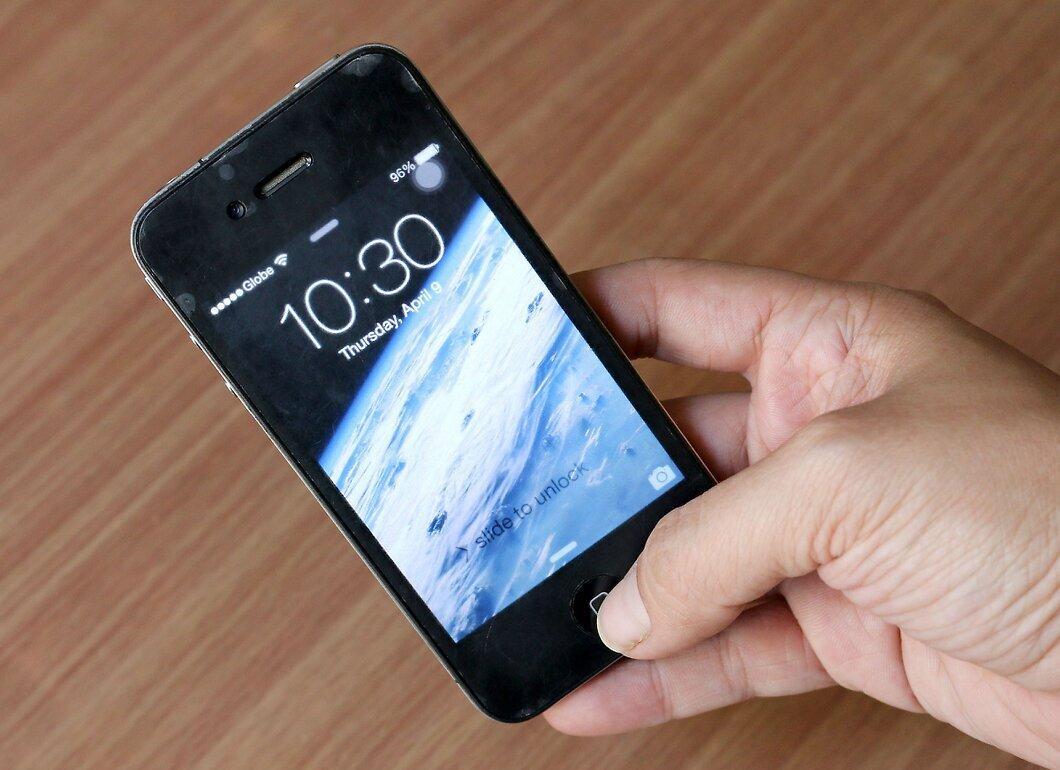
Make sure your iOS mobile device supports AirPlay. Compatible devices include iPad, iPad Mini, iPhone 4 and newer models, as well as iPod Touch 4G and newer. For connecting to Apple TV, you can use iPad 2 and newer, iPhone 4s and newer, and iPod Touch 5G and newer.
Step 2. Ensure the target device supports AirPlay.
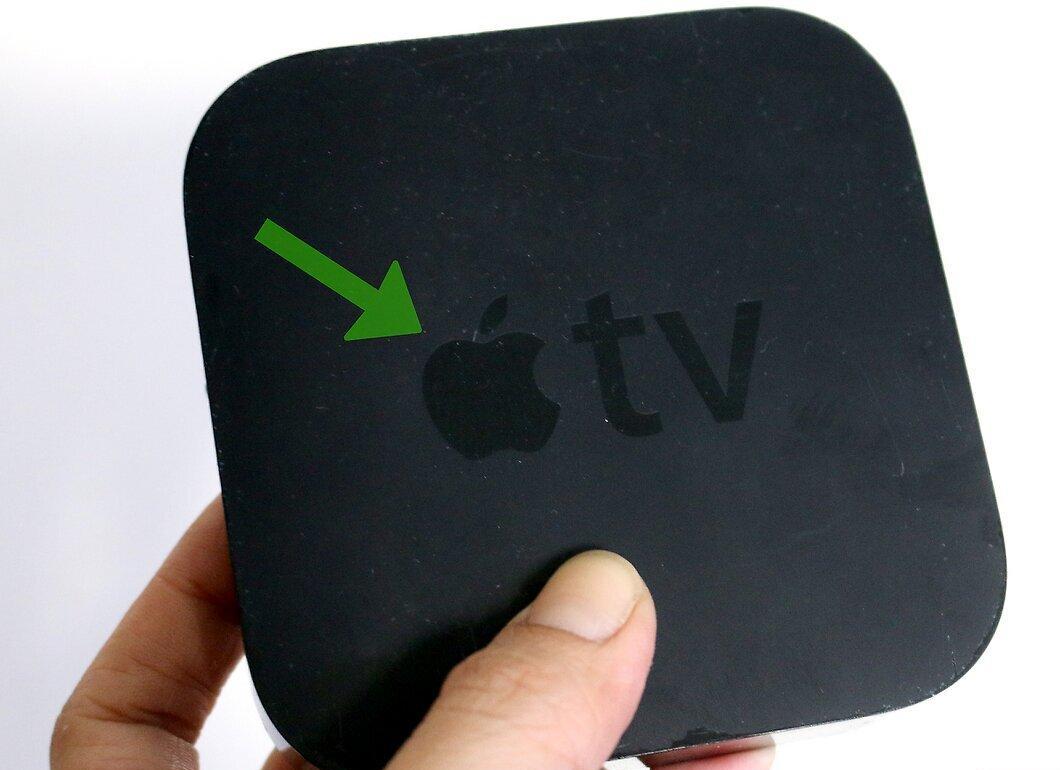
Check that the device you intend to stream content to supports AirPlay. This can be an Apple TV, AirPort Express, or AirPlay-enabled speakers.
Step 3. Connect the devices to the same Wi-Fi network.
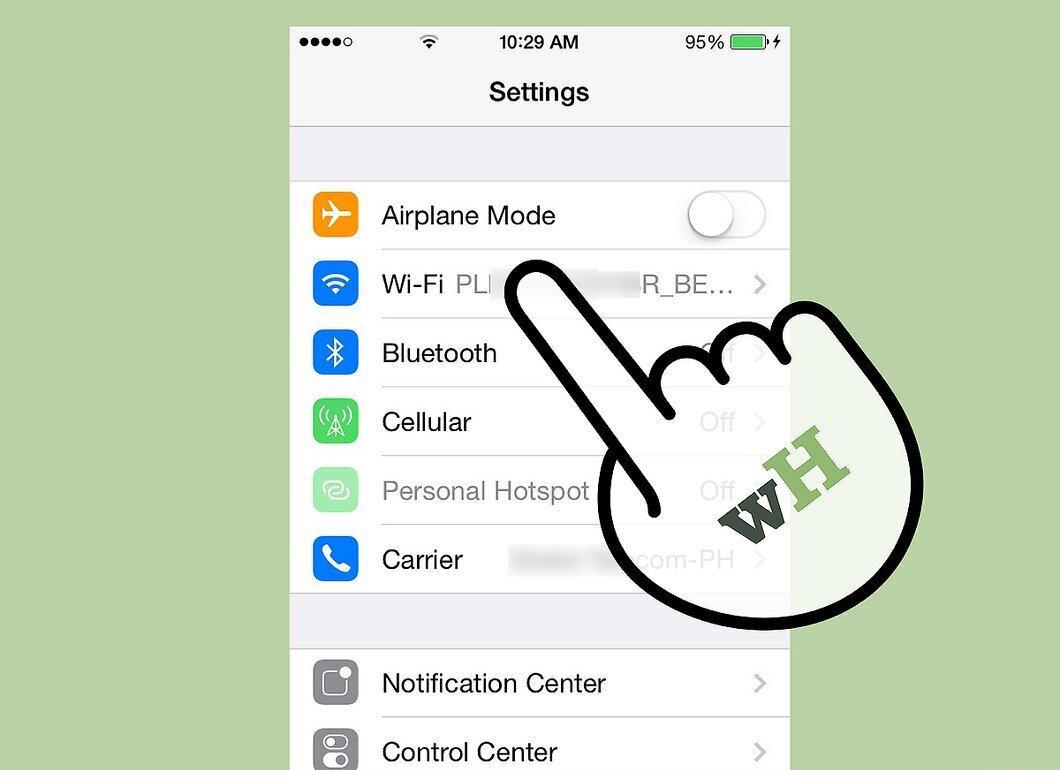
Step 4. Swipe up from the bottom of your mobile device's screen.
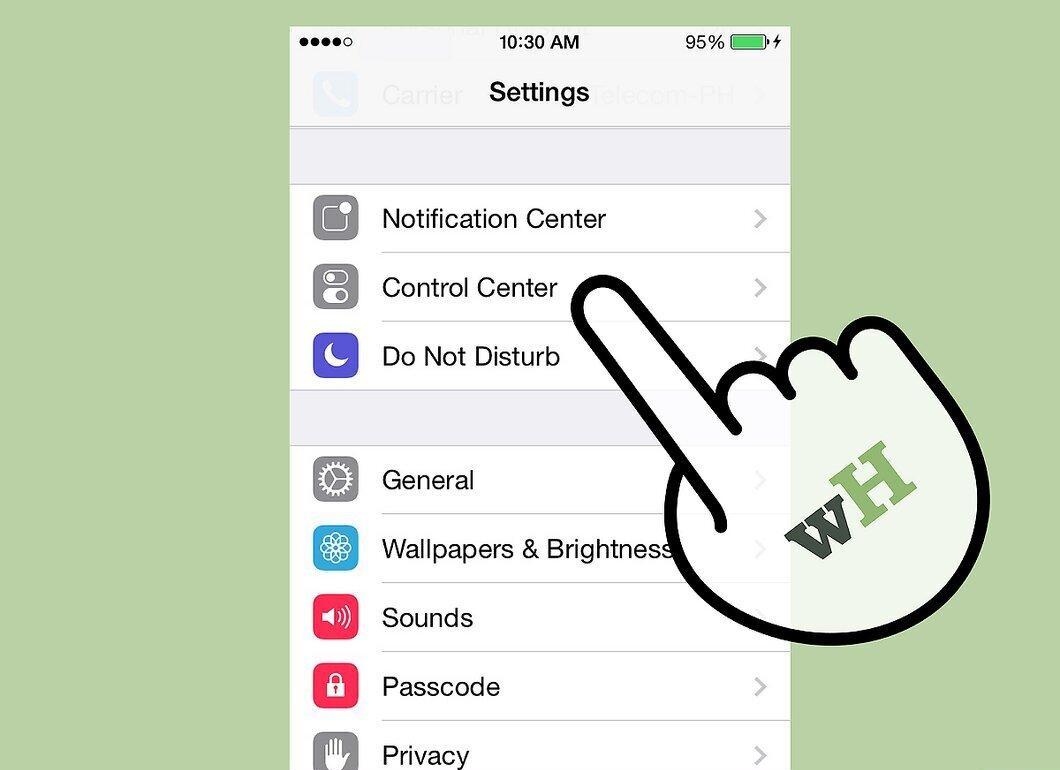
Swipe up from the bottom of your device's screen to open the Control Center.
Step 5. Select “AirPlay.”
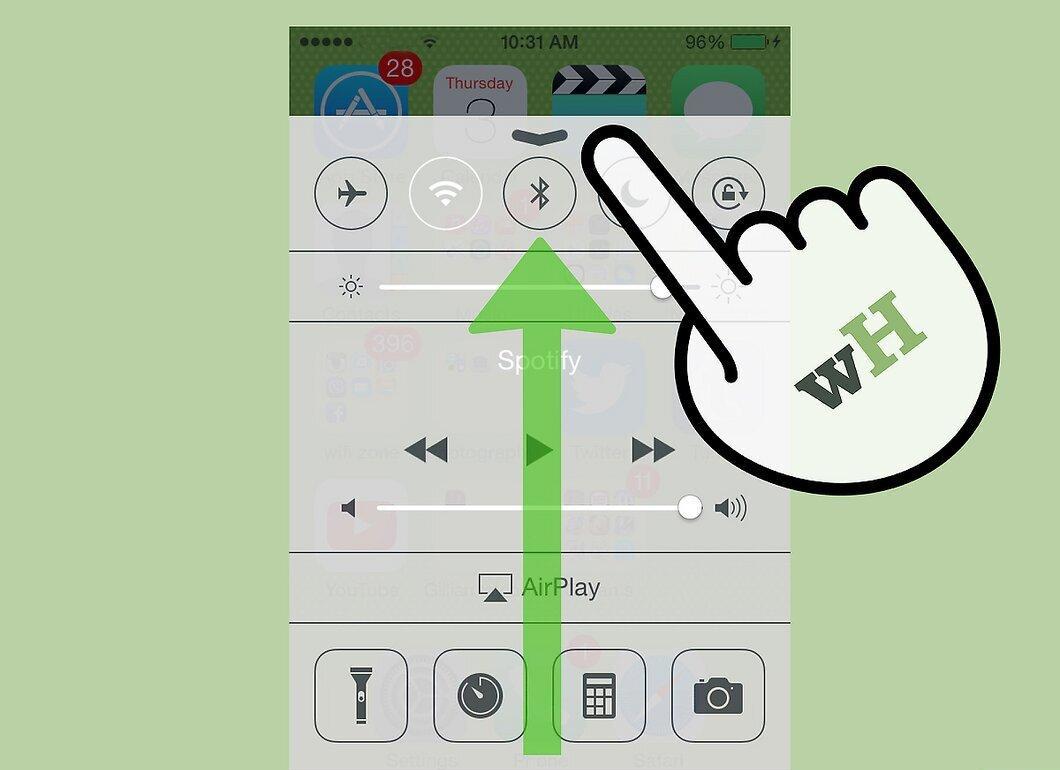
Tap on “AirPlay.” You will be shown a list of available AirPlay-compatible devices connected to your network.
Step 6. Choose the device for streaming content.

Select the device on which you want to play the content. Next to each device, you'll see an icon indicating the type of content it can play. For example, next to Apple TV will be a TV icon, indicating that you can stream video. Once you select a device, AirPlay will be activated.
Step 7. Find the media files to stream via AirPlay.
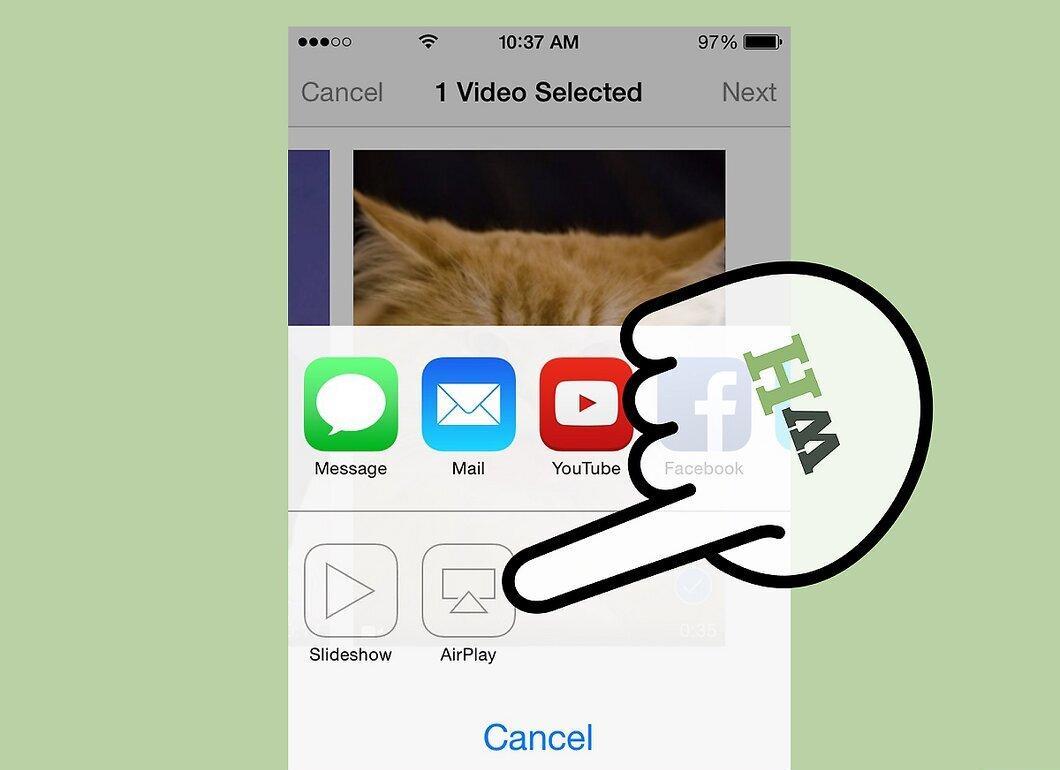
Navigate to the media files you want to stream via AirPlay. Then simply tap “Play” — and your content will start playing on the AirPlay-enabled device.
Troubleshooting AirPlay
Step 1. Update iOS and iTunes on AirPlay devices.
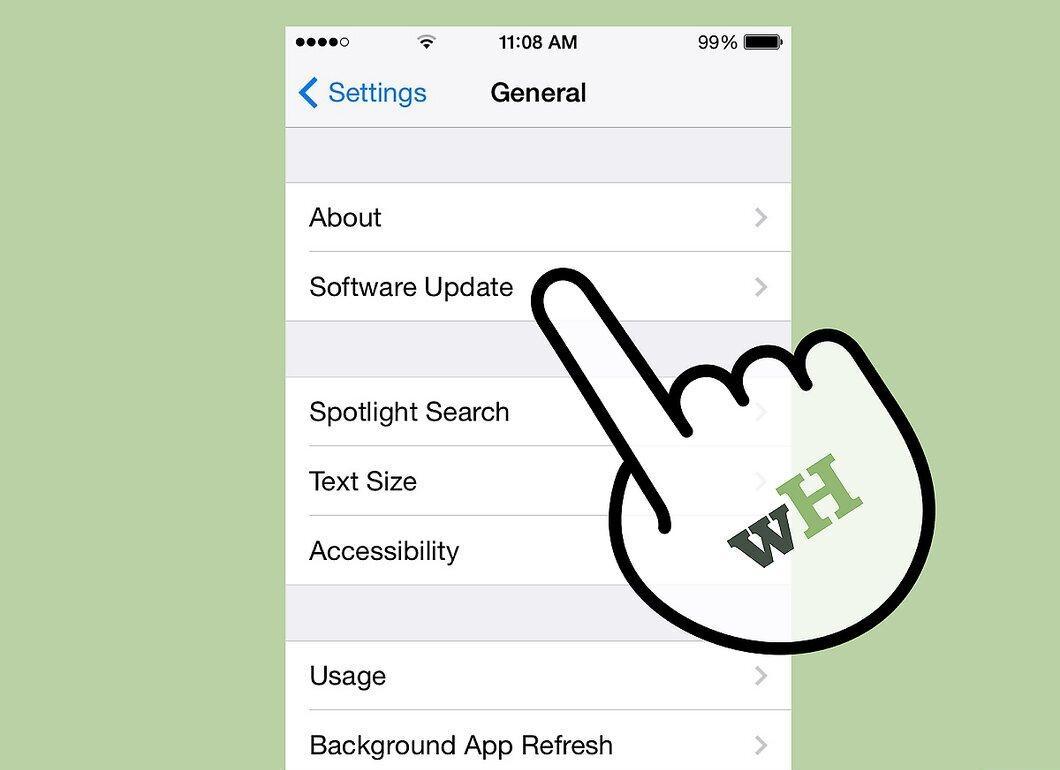
Update the versions of iOS and iTunes on all AirPlay-compatible devices. This will help ensure that AirPlay works optimally.
Step 2. Restart your iOS device and Apple TV if you don’t see the “AirPlay” option in the Control Center.
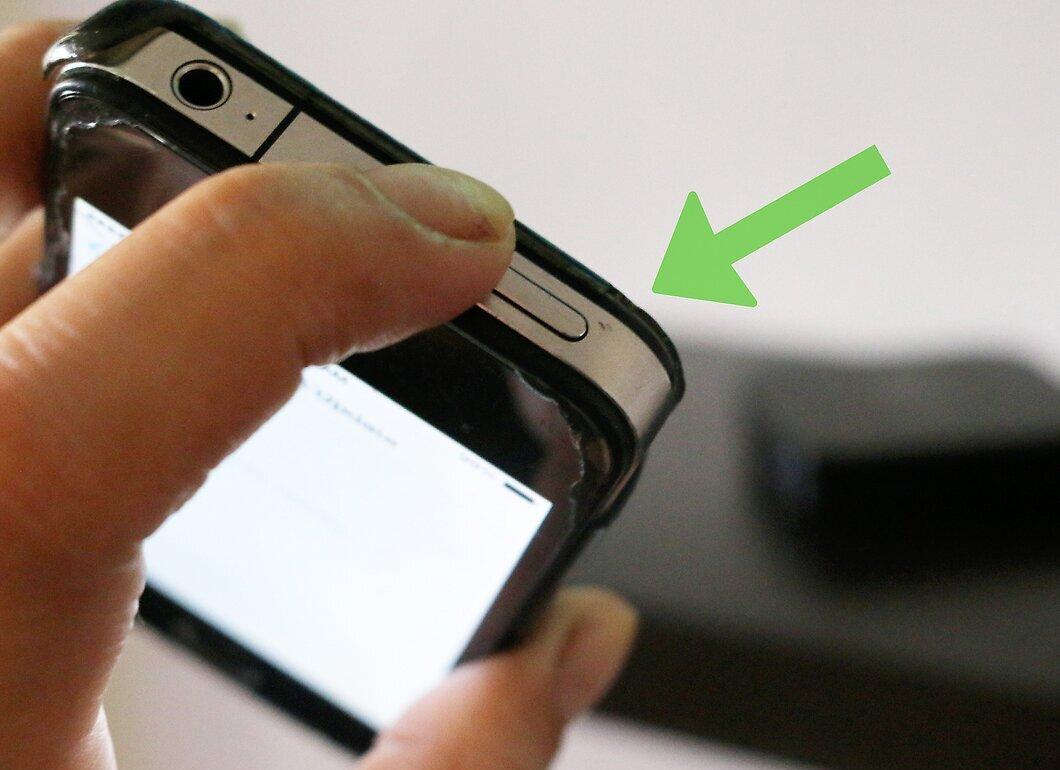
If the “AirPlay” option is missing from the Control Center, try restarting both your iOS device and Apple TV. This will allow both devices to reconnect to the Wi-Fi network and activate AirPlay.
Step 3. Enable AirPlay in Apple TV settings if it’s not visible.
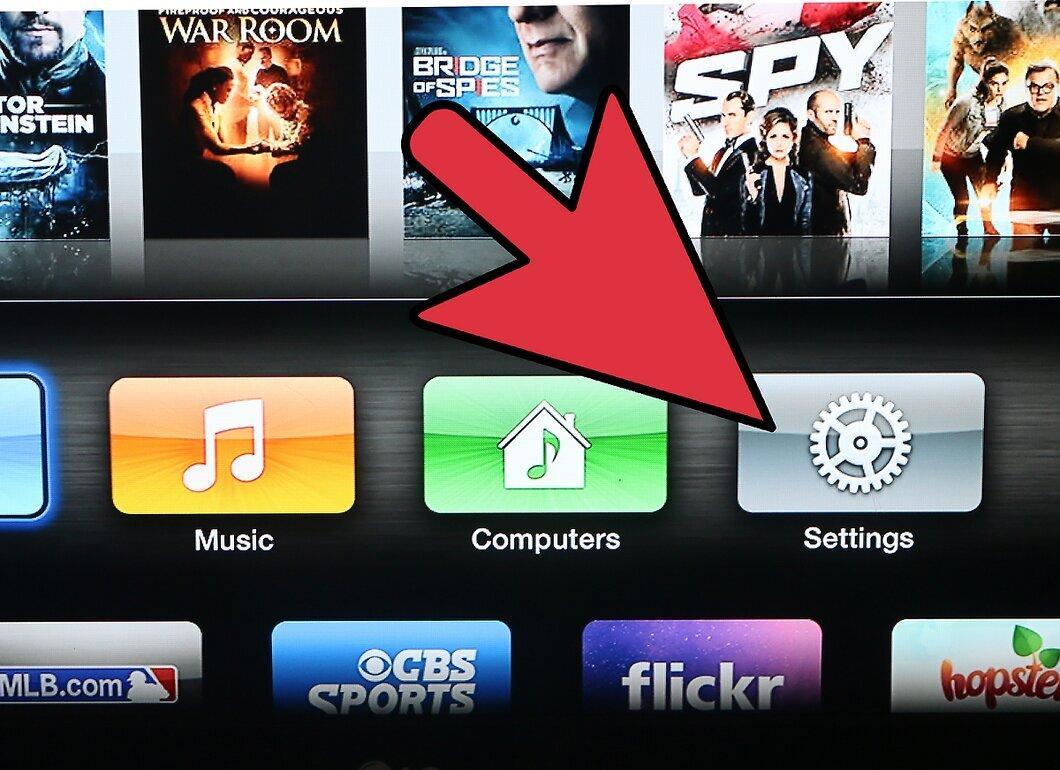
If the “AirPlay” option is not visible in the Control Center, check the settings on your Apple TV and make sure that AirPlay is enabled. It is usually turned on by default, but you may have disabled it.
Step 4. Ensure the content playback device is powered on and connected to the network.
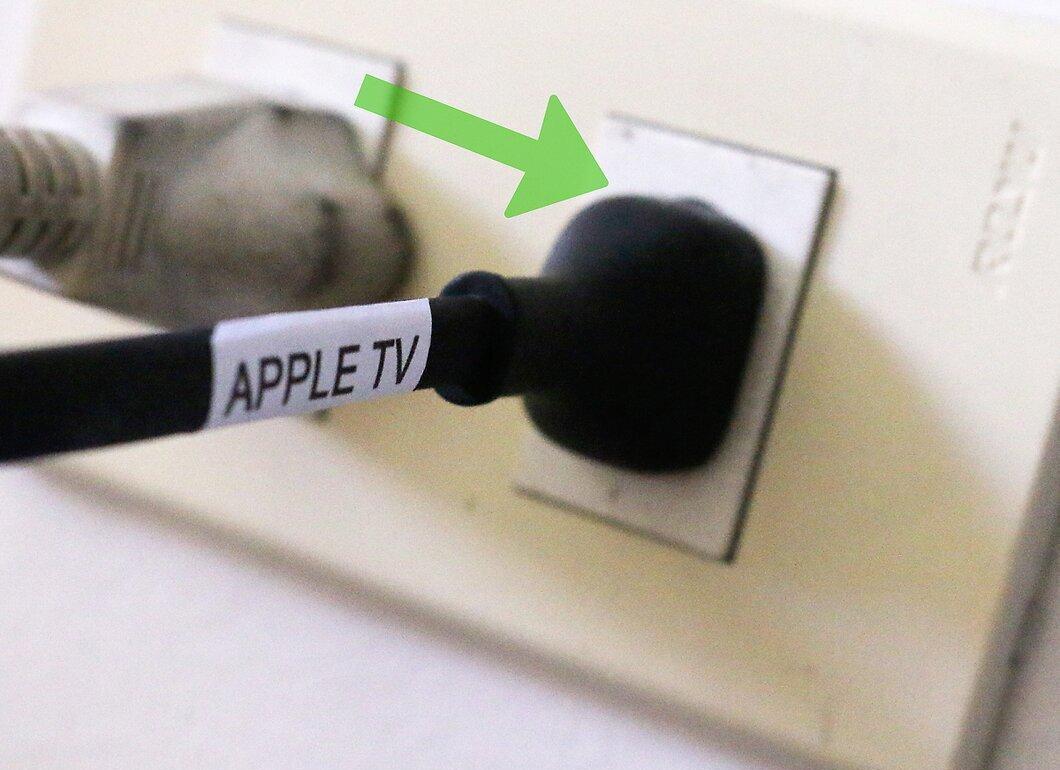
Check that the content playback device is powered on and connected to the power supply. If you don’t see it in the Control Center, it may be off or out of battery.
Step 5. Check the volume levels on both devices if the video is displaying but there is no sound.

If the video is visible but there is no sound, check the volume levels on both devices. If the volume is low or muted, it may hinder the quality of sound transfer via AirPlay.
Step 6. Use an Ethernet cable for connection if there are delays when streaming content.
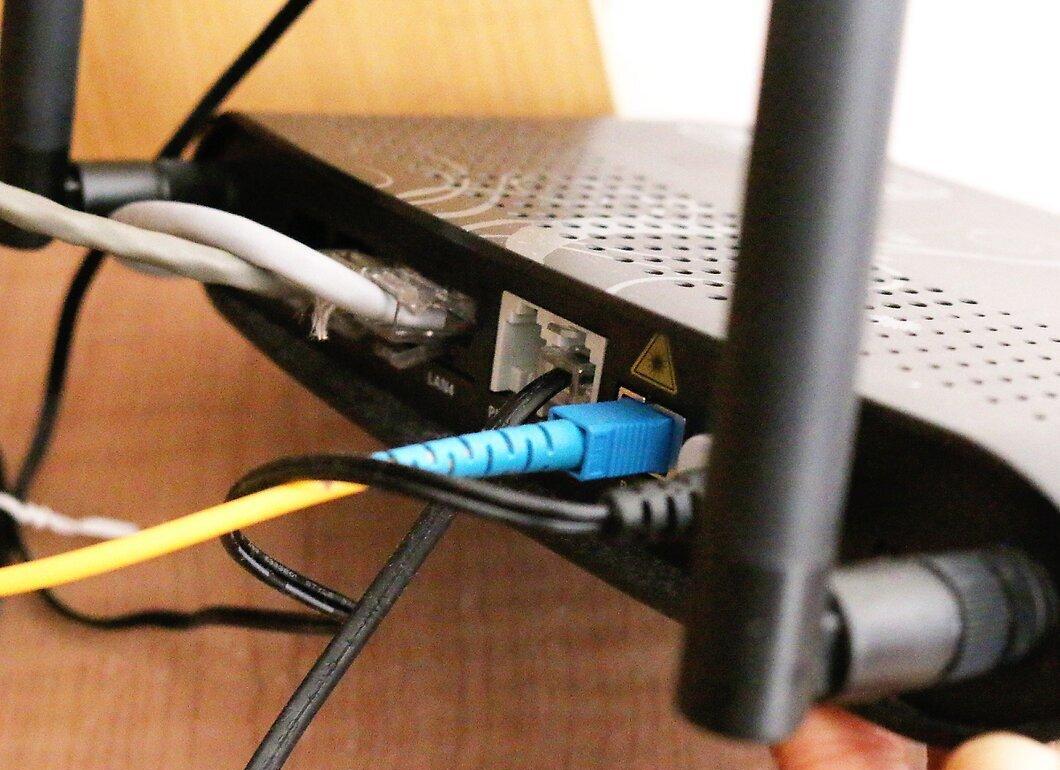
If you are experiencing delays during streaming, try connecting your device to the internet using an Ethernet cable. This will provide a more stable connection and eliminate delays.
Step 7. Remove obstacles that might interfere with AirPlay.

Try removing items or devices that may cause interference with AirPlay. Microwaves, baby monitors, and metal objects can disrupt quality streaming.
Step 8. All set!