
Laptops have become essential tools in the lives of many people. Whether you're a businessperson, student, or engineer, this mobile computer proves useful across various fields. Modern laptops offer performance comparable to desktop PCs while providing the freedom to work from anywhere and stay connected.
Part 1
Step 1. Consider the Pros and Cons.
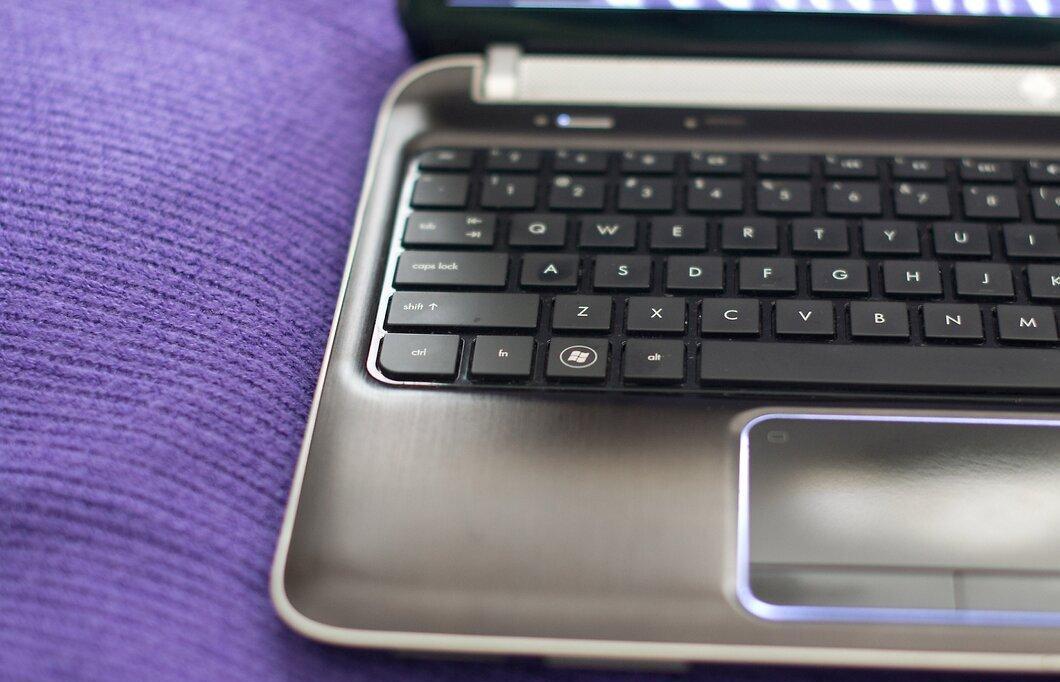
When choosing between a desktop PC and a laptop, it's crucial to weigh their advantages and disadvantages. Here are the key points:
- The primary advantage of a laptop is its portability: you can take it with you on business trips, vacations, or to university. Just don't forget the charger.
- In most cases, laptops are less expensive than desktop computers and are significantly smaller in size.
- Regarding performance and specifications, modern laptops are nearly on par with desktops.
Step 2. But Don't Forget the Drawbacks:
- Laptops are often targets for theft.
- Without the charger, the battery typically lasts only a few hours.
- Upgrading components in a desktop PC is easier than in a laptop.
- Repairing laptops is usually more complex and costly compared to desktops.
Step 3. Set Your Budget.

First, determine your financial limit. Many stores today offer financing options for purchasing technology, even for the most powerful laptops. But consider what you need the new computer for:
- If you need it for everyday tasks like web browsing, document work, and watching movies, choose a model with basic specifications: limited memory, a simple graphics card, and a low-power processor. This will be affordable and sufficient for your needs.
- If you plan to use the laptop for demanding applications or gaming, opt for a powerful model with high performance, which will certainly reflect in the price.
Step 4. Choose Your Operating System.
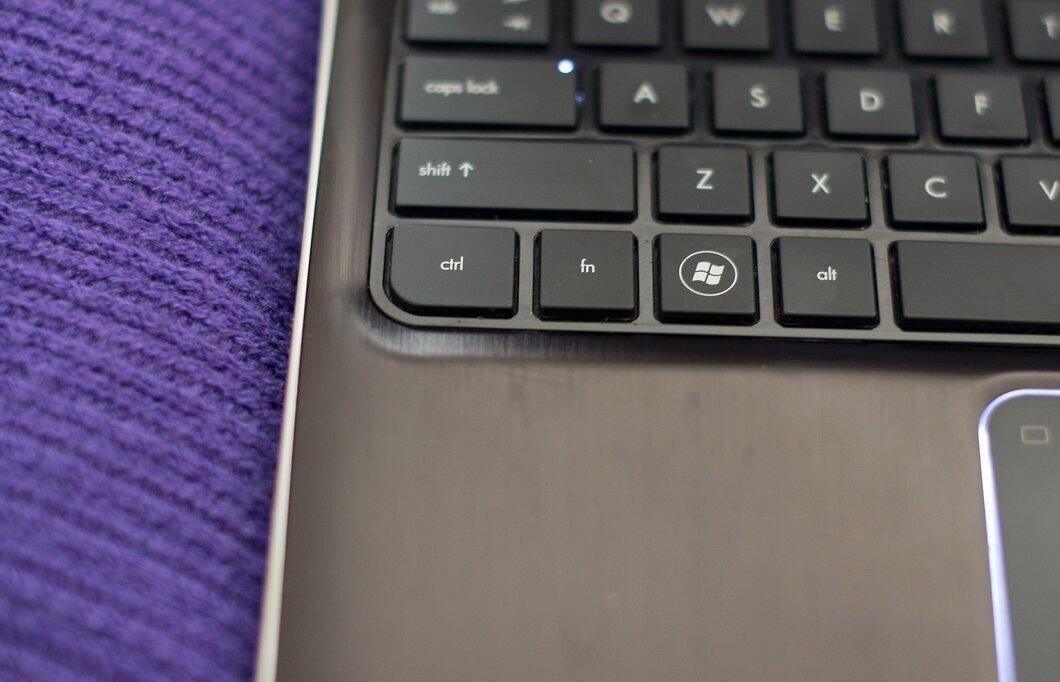
Currently, three operating systems are popular: Windows, Linux, and Mac OS.
- If you have experience with one of them, it makes sense to stick with it. If you want to try something new, choose a different OS.
- If you're not experienced with computers, go for a system that your friends or family are familiar with, so they can assist you.
- If you're unsure what to choose, try all three options to find the one that feels most comfortable for you.
- Linux is a free and open-source OS, but it may seem complex for newcomers.
- Mac OS integrates well with Apple products but may deter users with its high software prices.
- Windows offers a user-friendly interface and a wide range of programs, both free and paid, making it a popular choice.
Step 5. Size Matters.
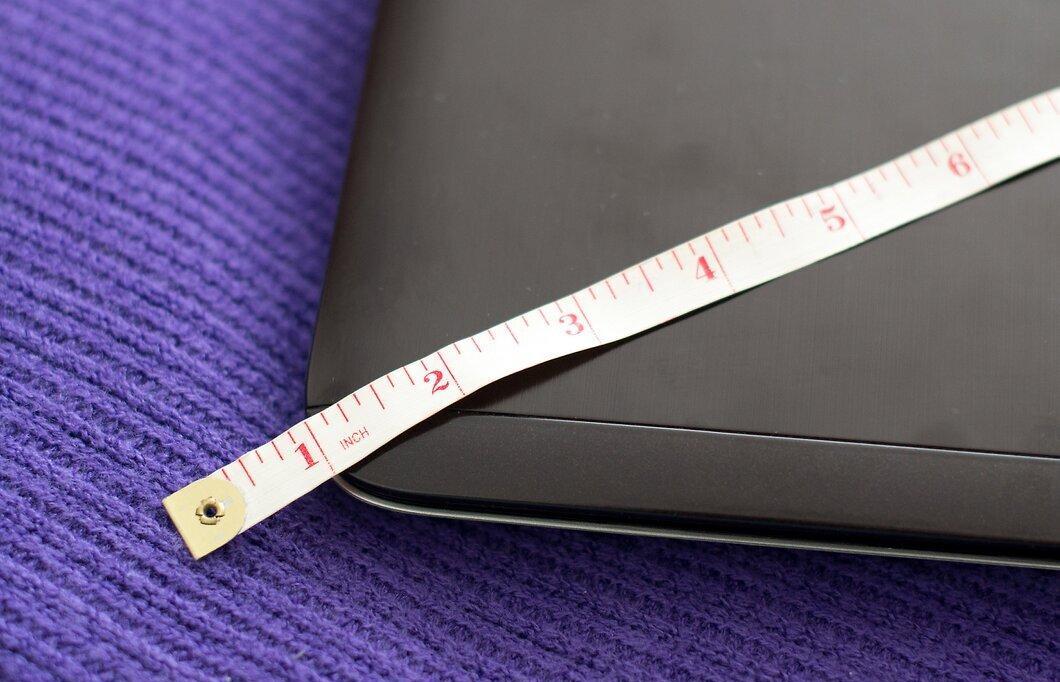
Laptop size is determined by the screen diagonal. The market is divided into three main categories:
- Diagonals from 7 to 13 inches: these are lightweight netbooks primarily designed for web browsing. They have the lowest specifications and are therefore the most affordable.
- Diagonals from 14 to 16 inches: this is the most common option, popular among users. Their specifications and prices can vary significantly.
- Diagonals from 17 to 18 inches: models with Full HD screens, ideal for movies and gaming. These are usually the most expensive and powerful devices on the market.
Step 6. Durability of the Device.
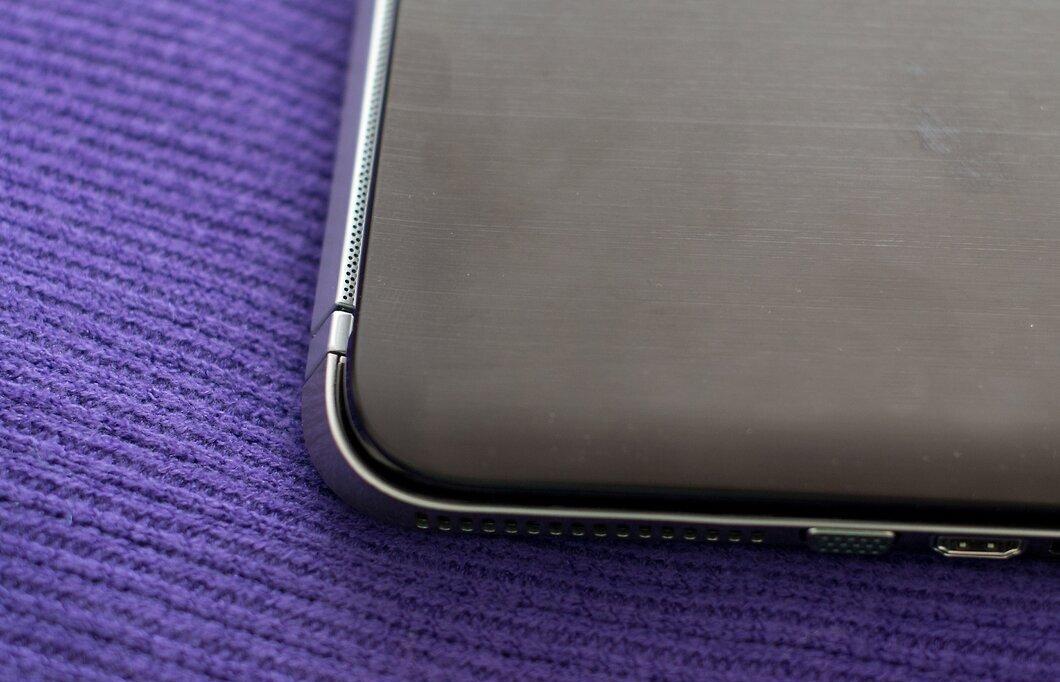
Laptops typically have plastic or metal casings. Metal models are generally lighter than their plastic counterparts.
- If you lead an active lifestyle, consider additional protection for your device: a durable screen, shock-resistant casing, and moisture protection will help keep it functioning longer.
- For extreme conditions, there are special models that can withstand drops and even moisture. However, these devices tend to be significantly more expensive.
- The most common laptops are made of plastic and may not always resist damage well.
Step 7. Technical Specifications.
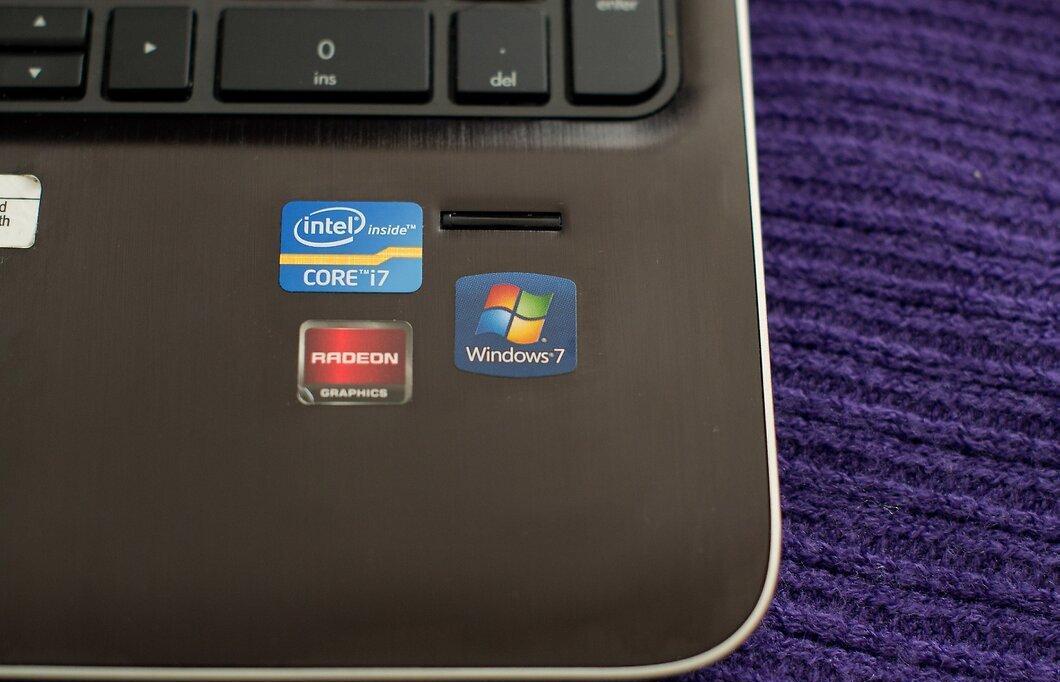
Important laptop specifications include:
- The Central Processing Unit (CPU) — the "heart" of the computer, affecting its performance. The higher the clock speed and number of cores, the better.
- The hard drive capacity determines how much data can be stored. Choose at least 500 GB to avoid storage issues.
- There are two types of hard drives: HDD and SSD. HDDs are traditional magnetic drives, while SSDs are solid-state drives with higher performance but also higher costs.
- Random Access Memory (RAM) is also crucial for speed. It is recommended to choose models with at least 3 GB of RAM, especially if you have a 64-bit OS.
- For gamers, the graphics card is essential: opt for powerful models with sufficient memory.
- Having USB ports, HDMI, and SD card slots is necessary for connecting various devices.
- CD/DVD-ROM and Blu-Ray drives can also be useful for reading and writing discs.
- Wi-Fi and Bluetooth are essential technologies for internet connectivity and data transfer.
Step 8. How to Find a Seller.
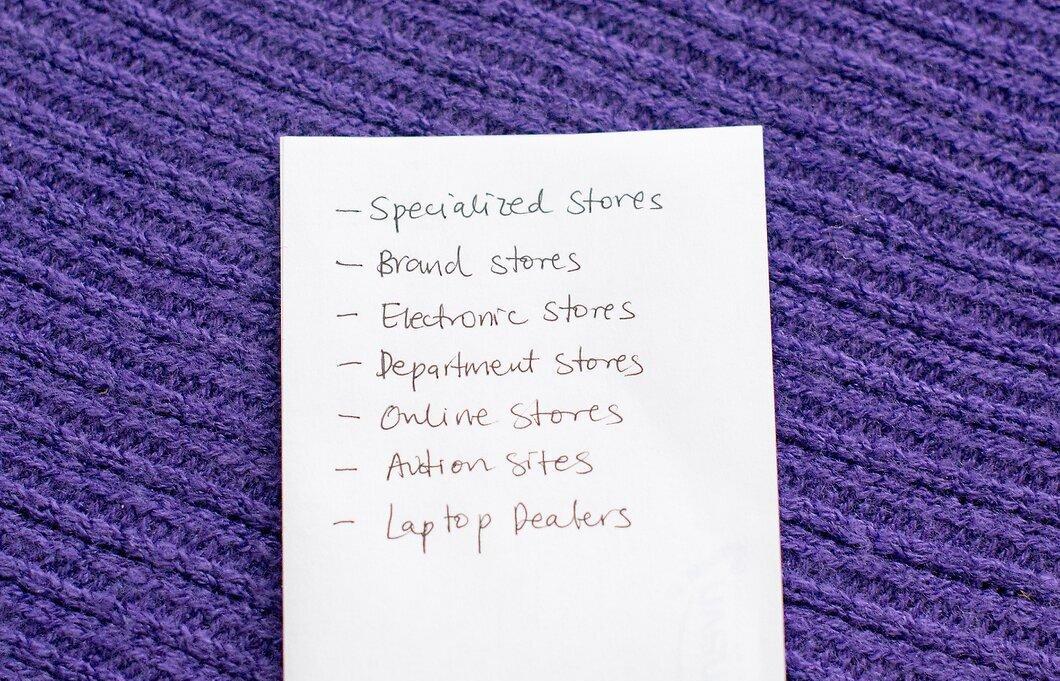
There are several ways to purchase a laptop:
- Specialized computer stores, where consultants can help you make a choice.
- Brand-specific stores, usually with high prices and good service.
- Appliance stores, where the selection can be impressive.
- Online stores, convenient but require caution.
- Online auctions, where you can find great deals, but the quality of the product depends on the seller.
Step 9. What to Avoid?
- Avoid buying used laptops. You cannot be sure of their condition, and there is no warranty for them.
Step 10. How to Care for Your New Laptop?
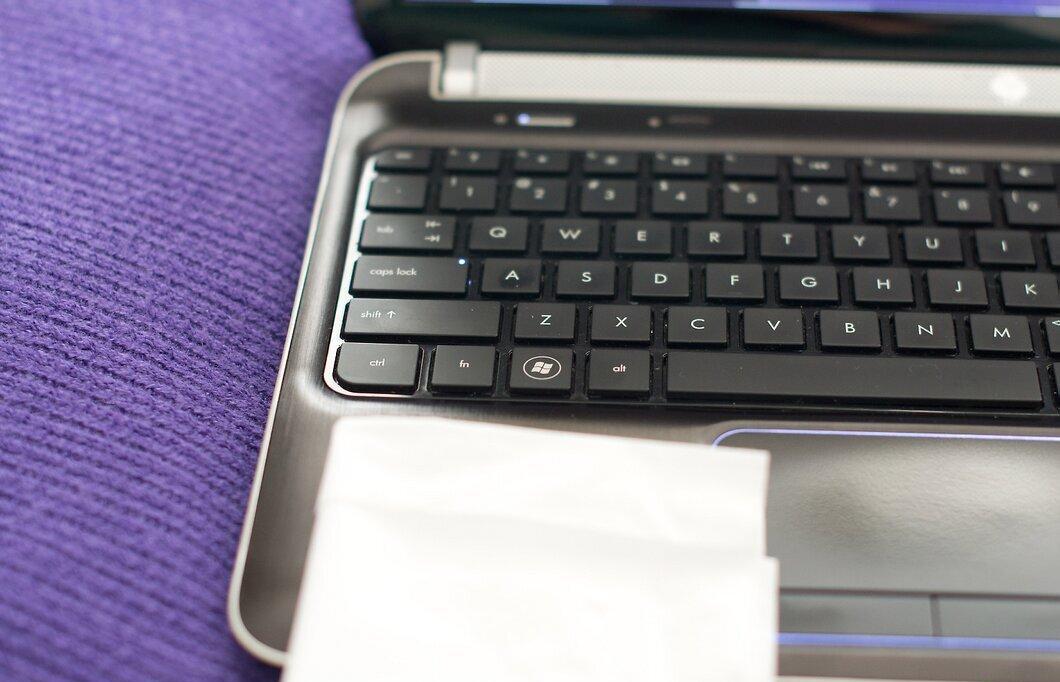
If you've already purchased a laptop, follow these simple care tips to extend its lifespan:
- Keep food and drinks away from it.
- Avoid touching the screen with your hands.
- Disconnect the charger carefully.
- Use the ports and drives gently.
- Prevent the device from overheating.
- Regularly clean it from dust.


