
Unlock Hidden Menus on LG TVs: Simple Steps
In this article, we’ll guide you through the simple steps to open the hidden service and installation menus on LG TVs.
Accessing the Service Menu
Step 1. Ensure You Have the Original Remote
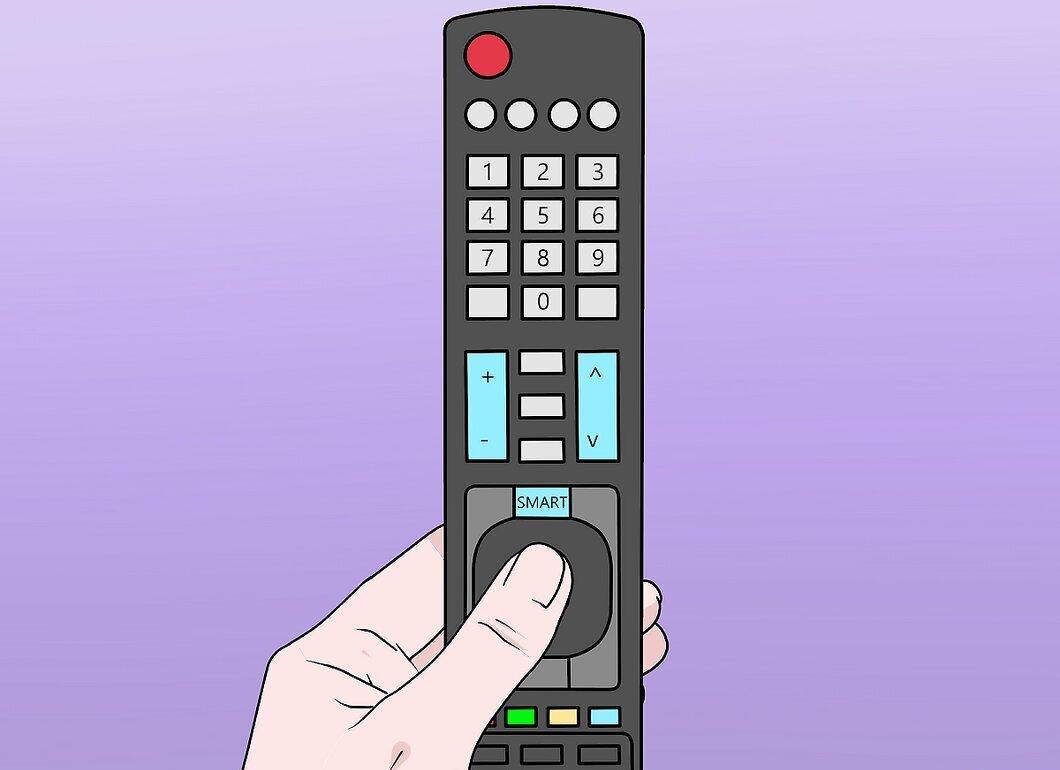
Check that your remote control is original. While some third-party remotes may work, using the original significantly increases your chances of success.
Step 2. Select a TV Channel
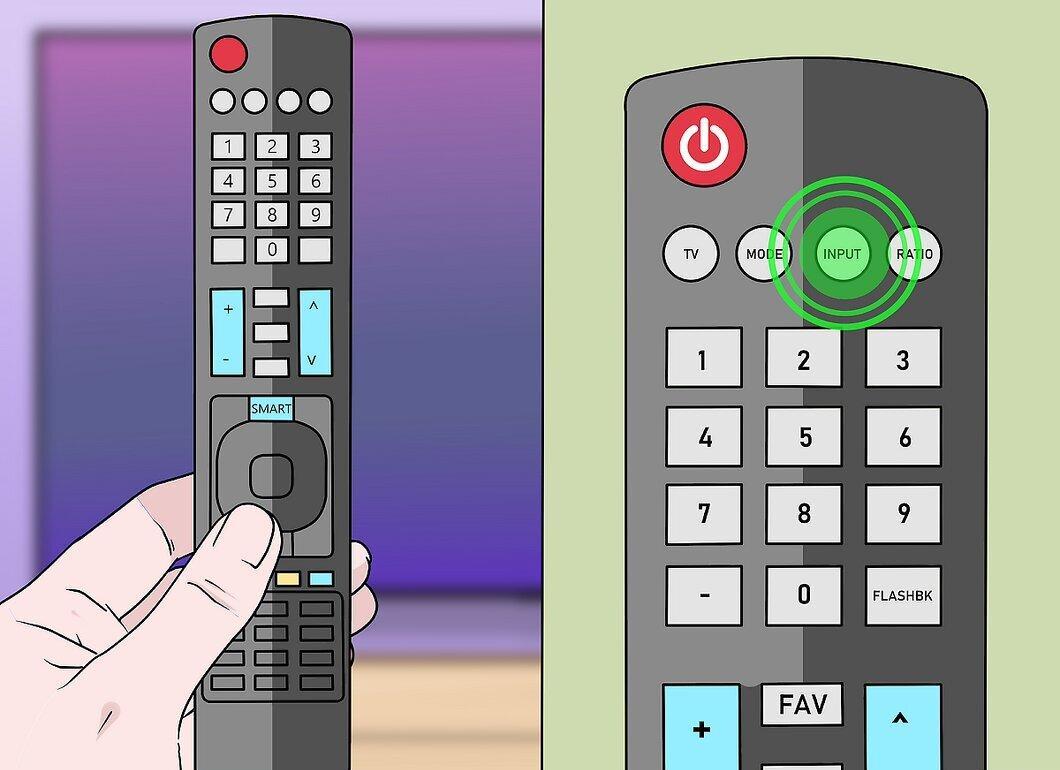
Choose one of the TV channels. To do this, press the “INPUT” button on the remote and set the signal source to “TV”, then switch to any channel.
- If this step is not completed, access to the service menu will be impossible.
Step 3. Press the MENU Button
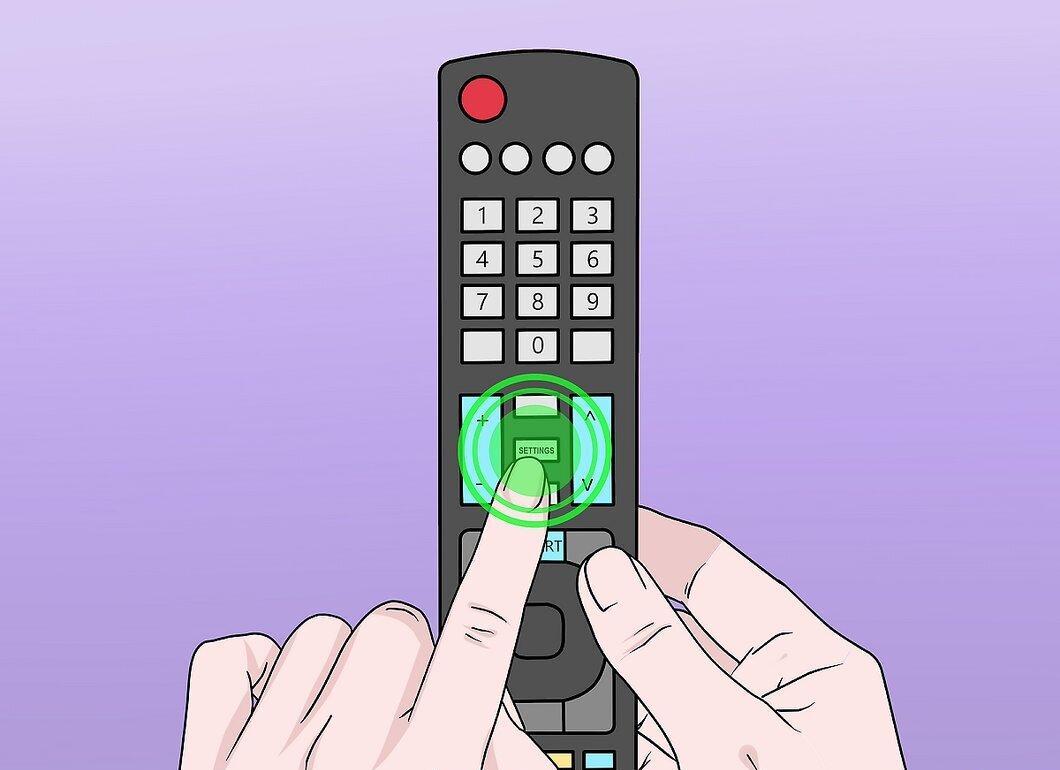
Press the MENU button on the remote and the TV at the same time.
- Depending on the model, you may need to press “SETTINGS” or “HOME” instead of “MENU”. Some remotes may also require you to hold the “OK” button.
Step 4. Release the Buttons When the Password Input Field Appears
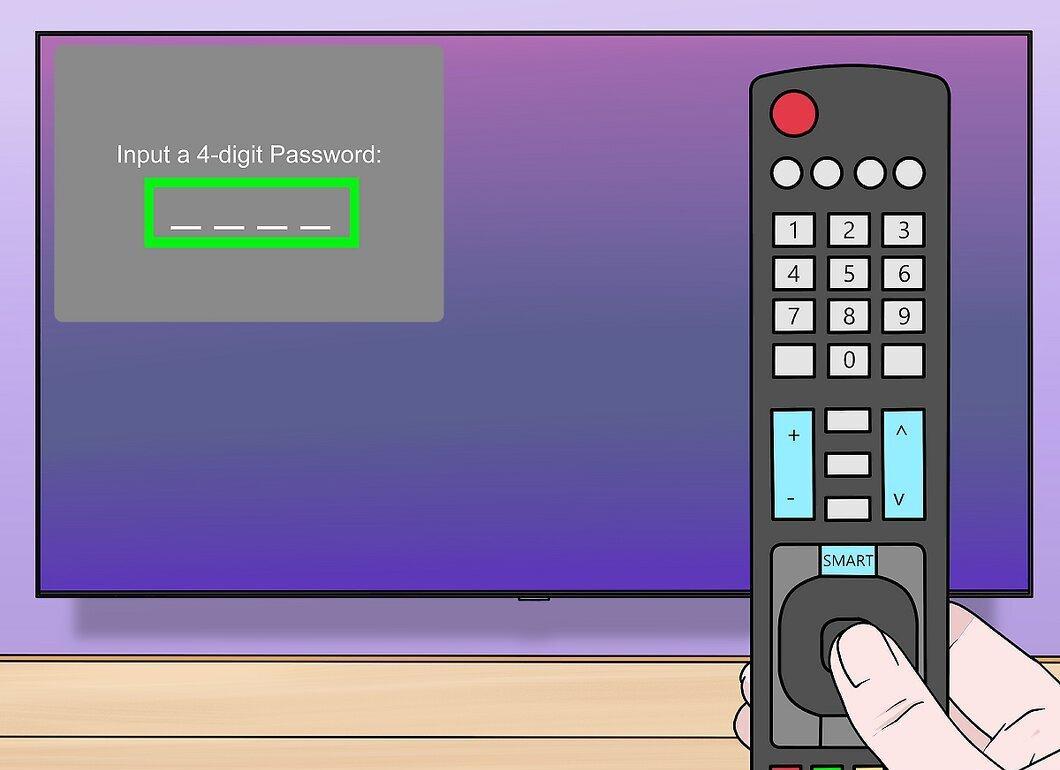
Step 5. Enter the TV Password
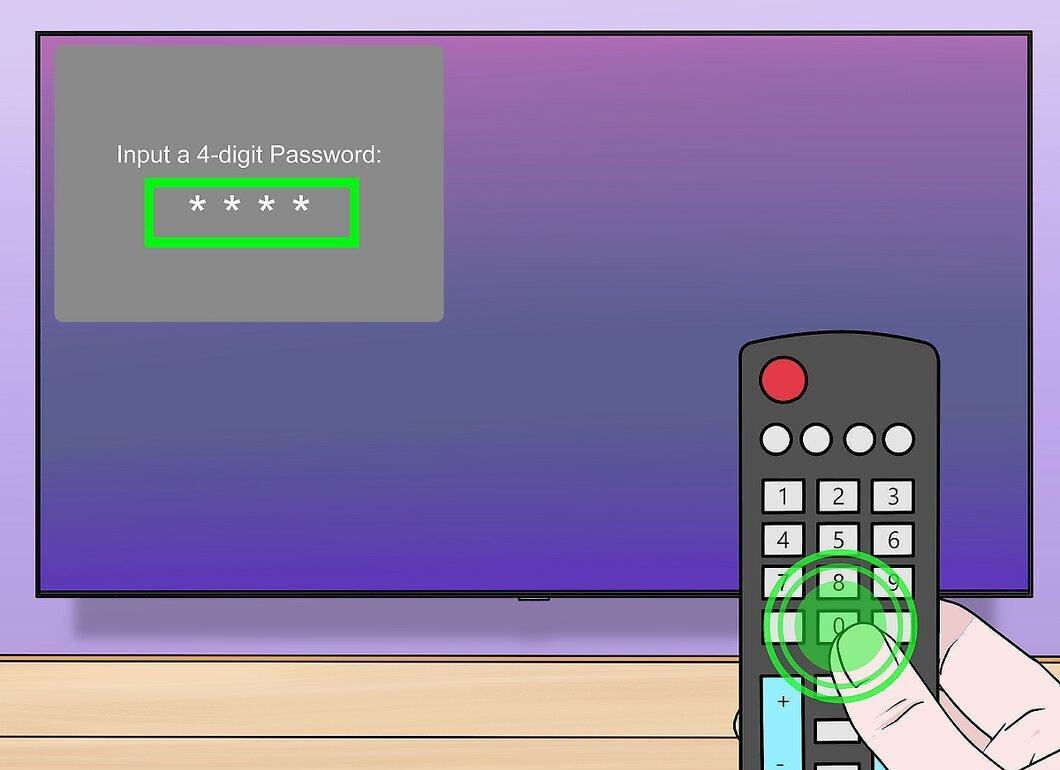
Try entering the password 0000.
Step 6. Press ENTER
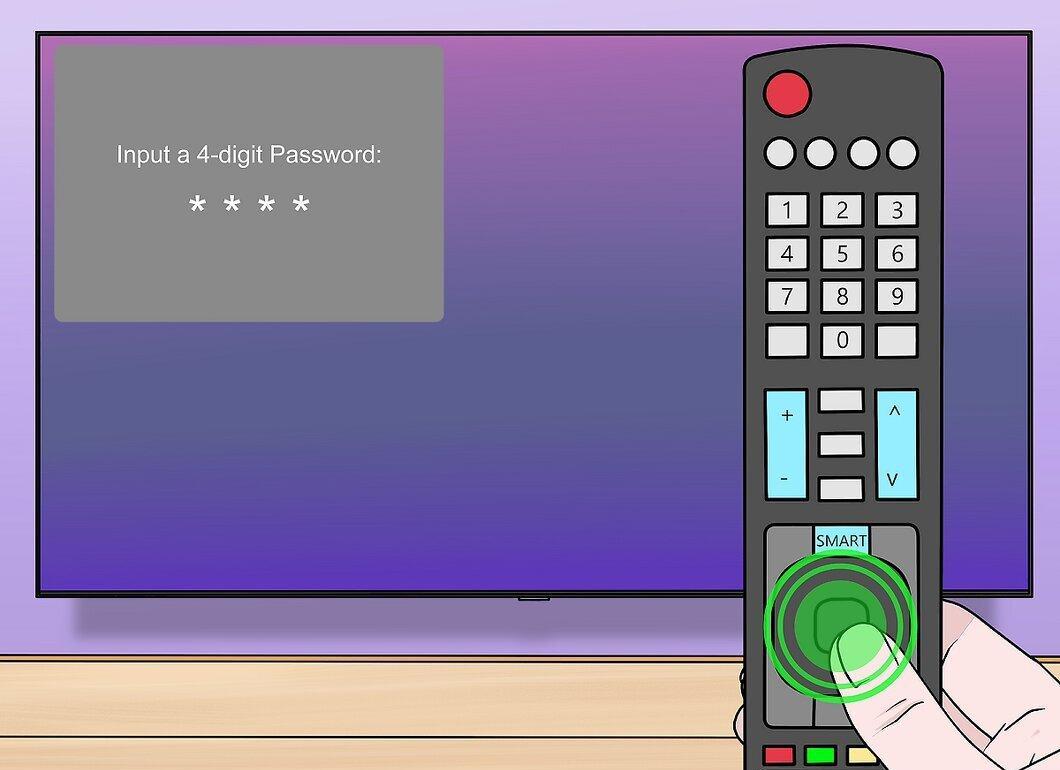
Press the ENTER button located in the center of the remote.
- In some cases, you may need to press “OK” instead.
Step 7. If Necessary, Try Another Password
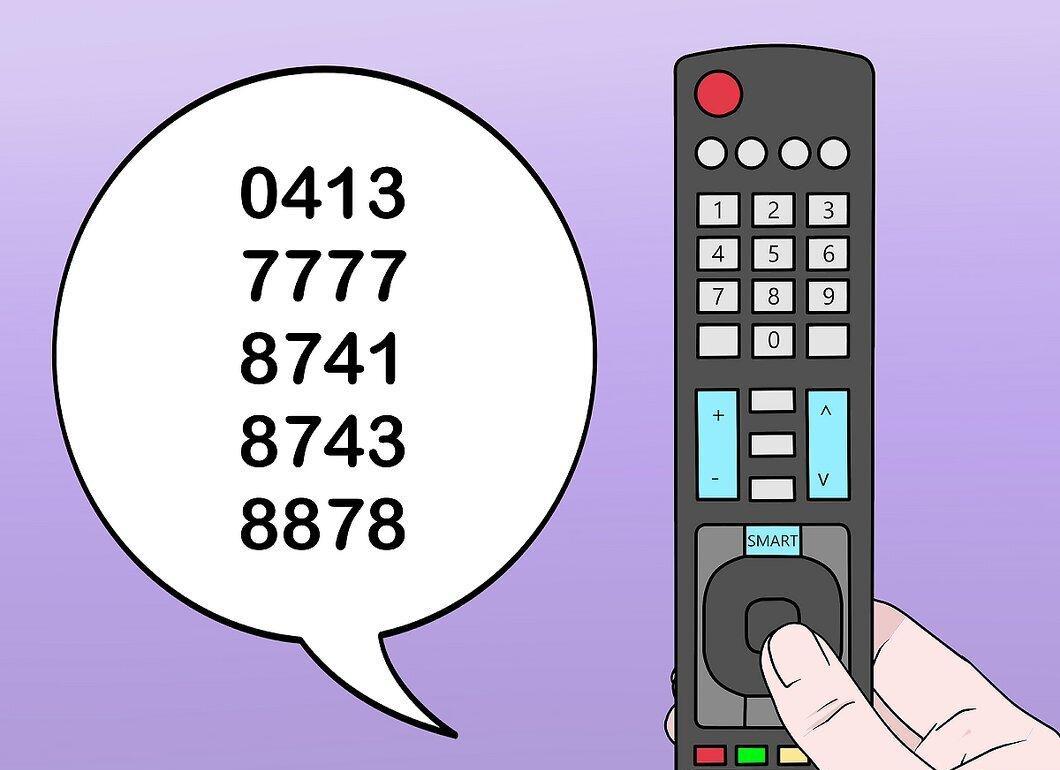
If the password “0000” does not work, try other options.
Step 8. Use the Service Menu
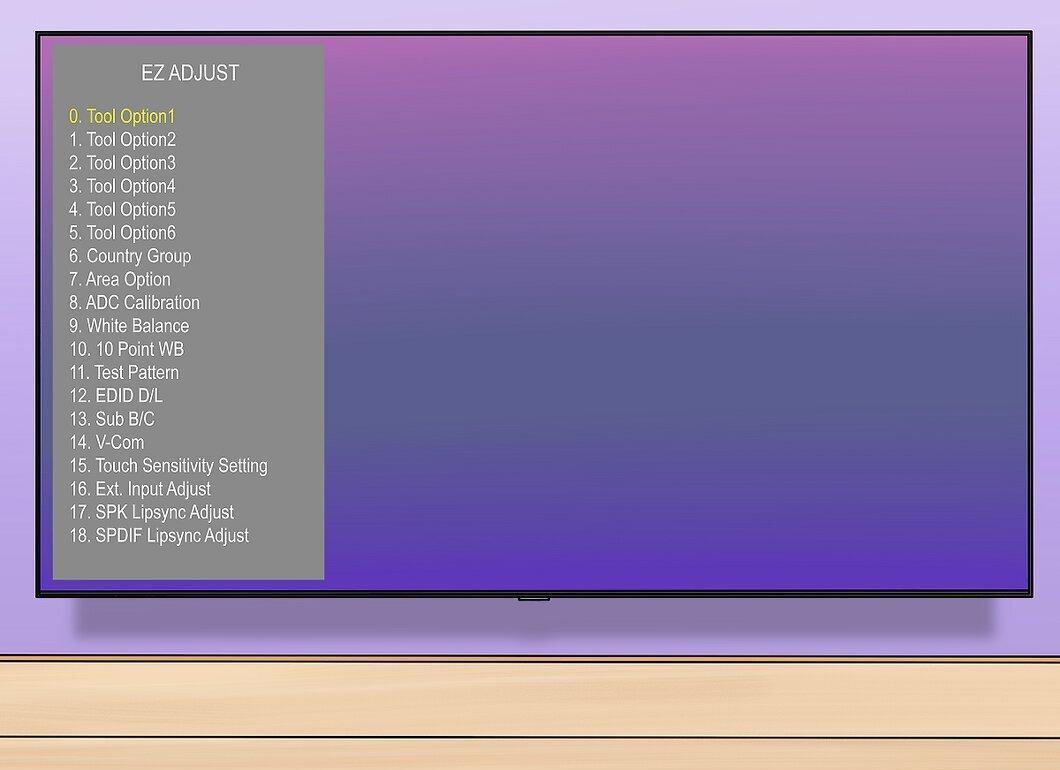
Now that the service menu is open, you can adjust various settings such as USB options, volume level, and firmware.
- It is recommended to take a screenshot or note the current settings in case you need to restore them later.
Accessing the Installation Menu
Step 1. Ensure You Have the Original Remote
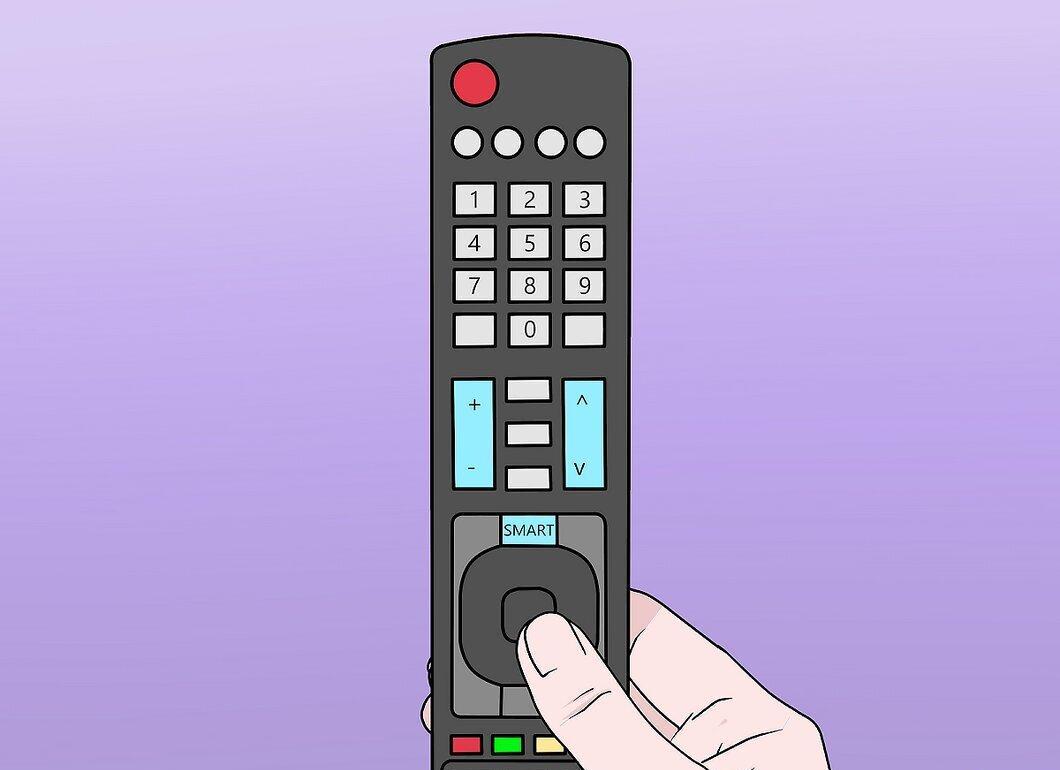
Check that you have the original remote. While third-party remotes may work, the original significantly increases the likelihood of successful access.
Step 2. Select a TV Channel
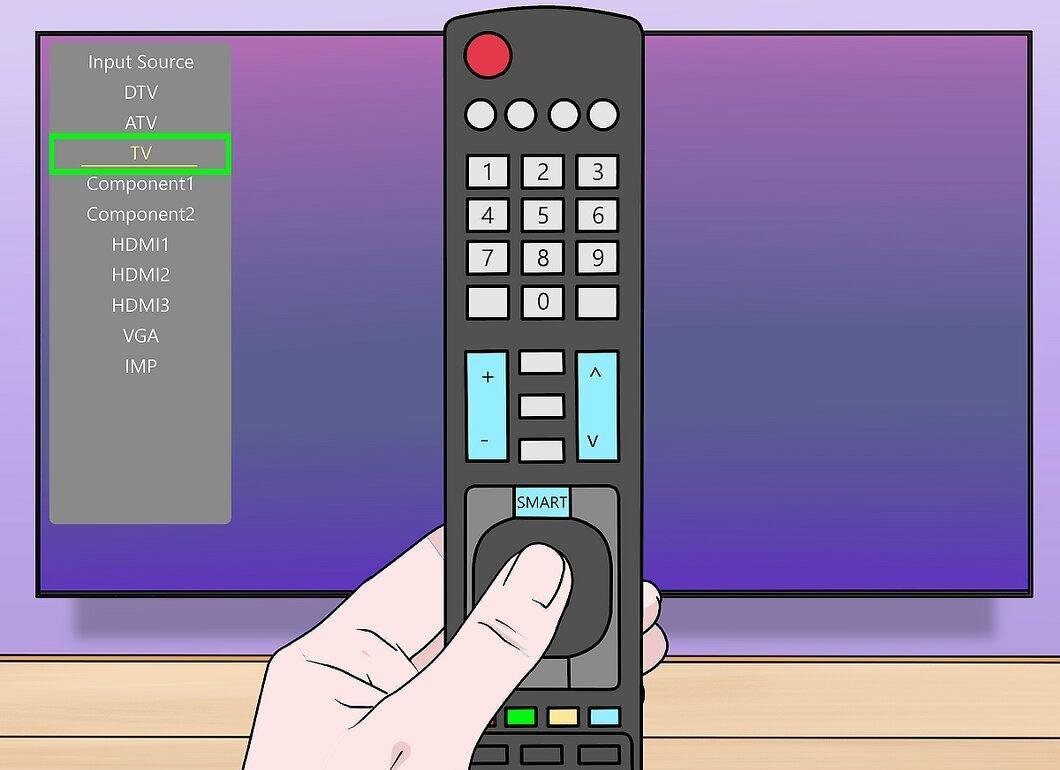
Select a TV channel by pressing the “INPUT” button and setting the source to “TV”. Switch to any channel.
- Without this step, access to the installation menu will be impossible.
Step 3. Hold the MENU Button
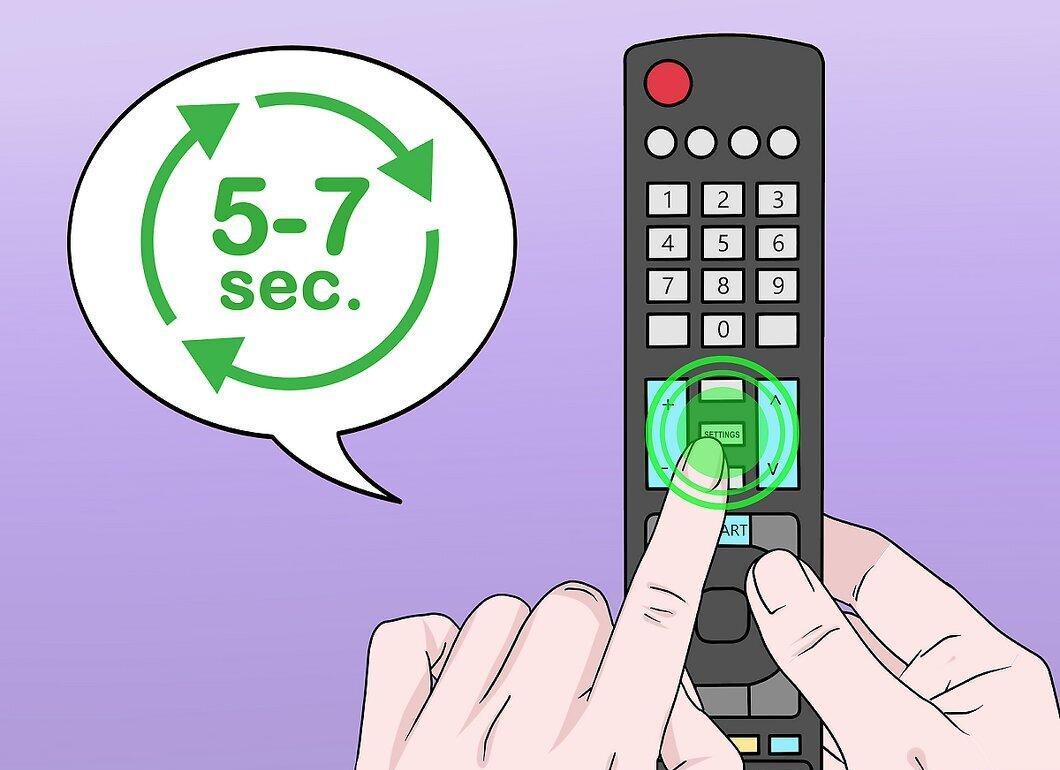
Hold the MENU button on the remote for 5-7 seconds.
- For some remotes, you may need to hold “SETTINGS” or “HOME”.
Step 4. Release the Button When the Password Input Field Appears
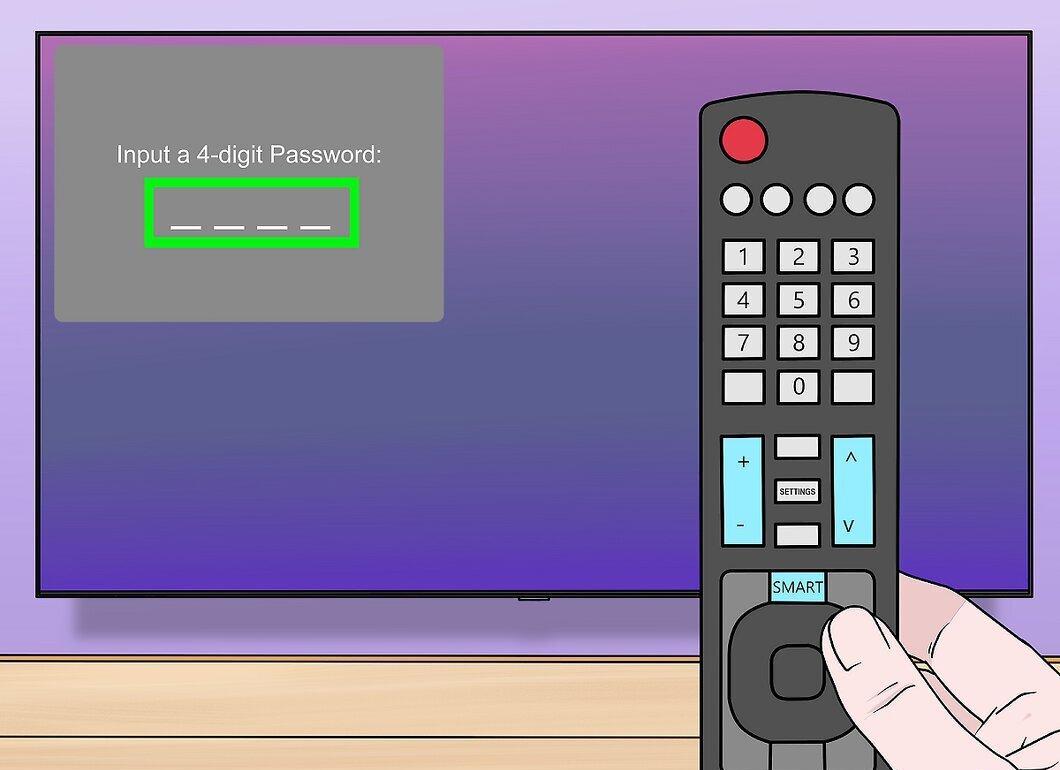
Release the button when you see the code input field. Do this quickly to avoid opening another menu.
Step 5. Enter the Code 1105
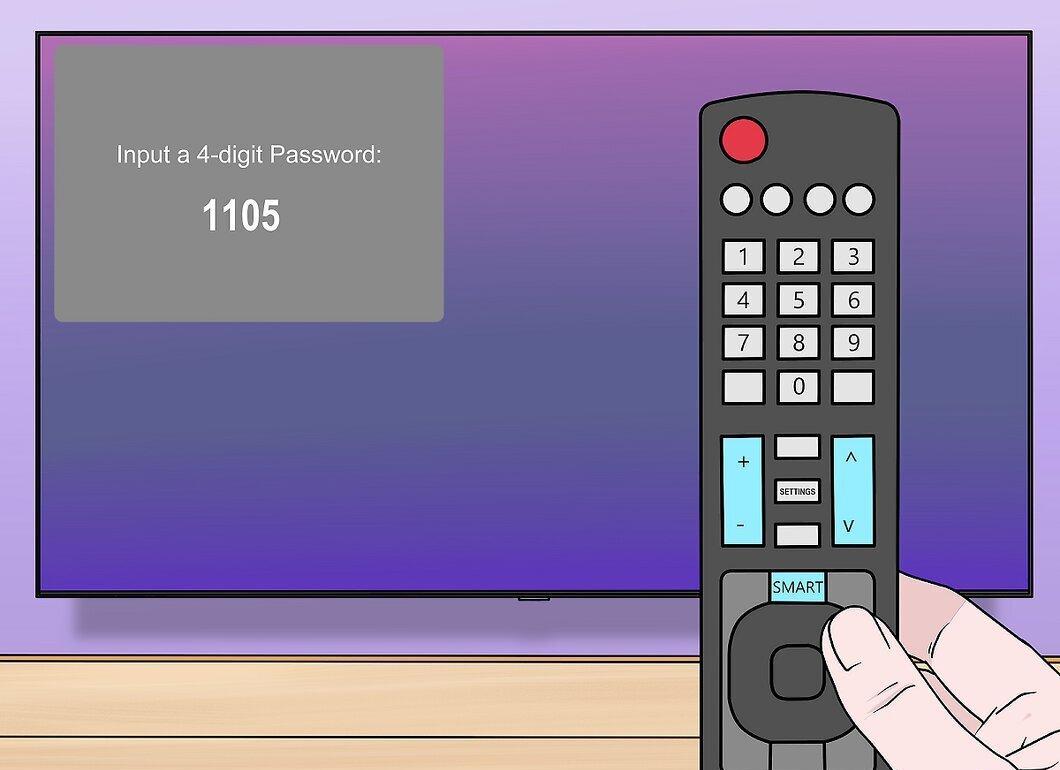
Enter the code 1105, which grants access to the installation menu of all LG TVs.
Step 6. Press ENTER
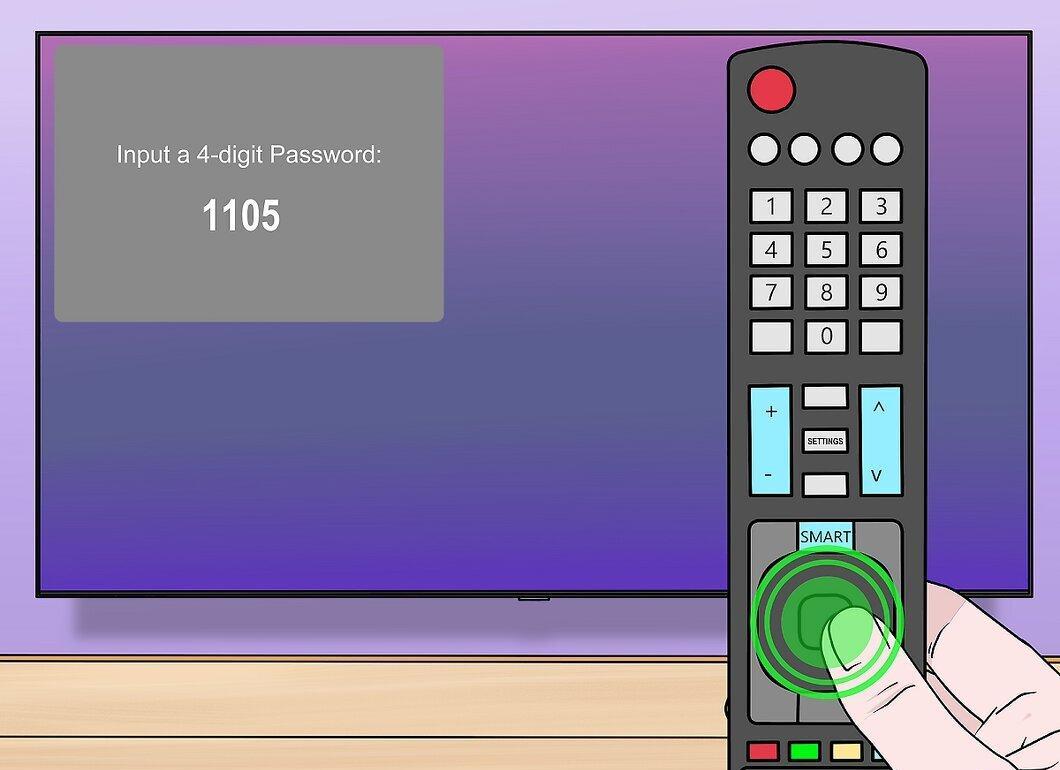
Press ENTER, located in the center of the remote.
- You may also need to press “OK”.
Step 7. Use the Installation Menu
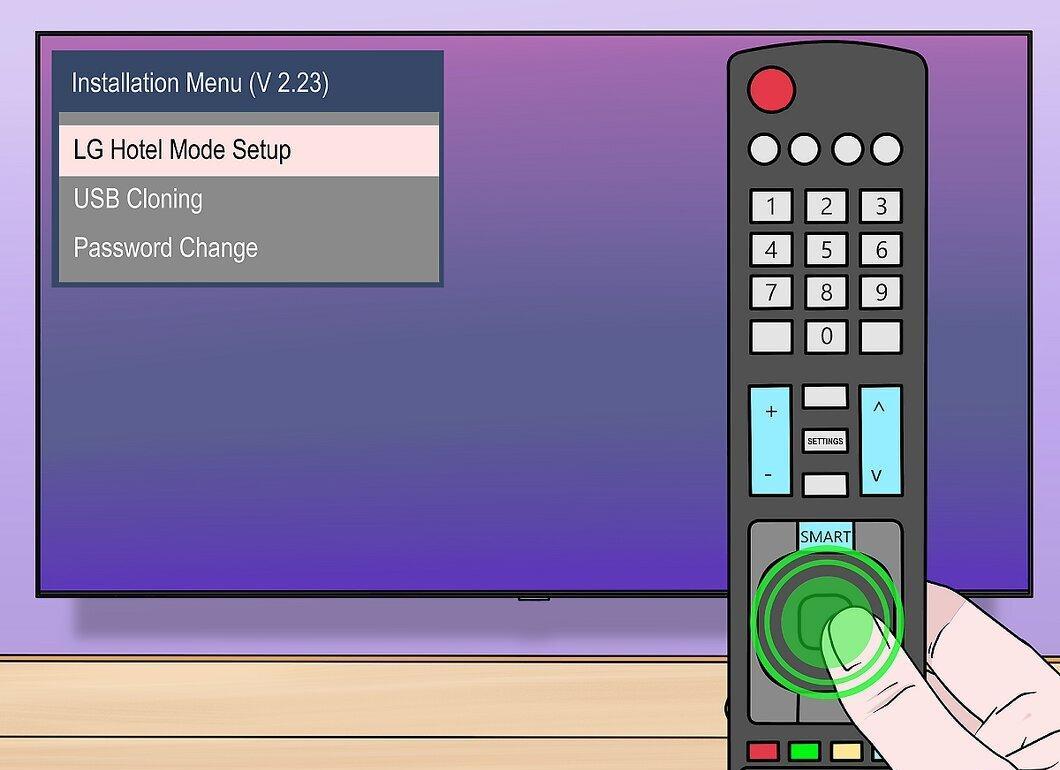
You can now use the installation menu to enable USB mode or hotel mode, which affects how the TV operates.
- Take a screenshot or note the current settings in case you need to restore them later.


